
Getting started as a coach or therapist
What Specthrive does for a professional today, including your Clients page, inviting someone, what you can see, and how to share a task.
Specthrive gives you one place for the people you support: who you are working with, what they are working on, and a quiet way to put a single next step in front of someone. The families on the other side of it are often tired and doing a lot alone, so the professional side is built to stay light and stay out of the way.
This guide covers your account, your Clients page and its groups, inviting someone, what you can see once they join, and how to send a task. The same relationship seen from the family's side is in Working with a coach or therapist.
Your account
You sign up as yourself. It is an ordinary Specthrive account, in your own name, with your own login. The professional side is not a second account to keep track of.
Specthrive verifies professionals by hand. A person reviews your account before the professional tools open up. Once that is done, a Clients item appears in your navigation, and the rest of this guide starts there.
Your Clients page
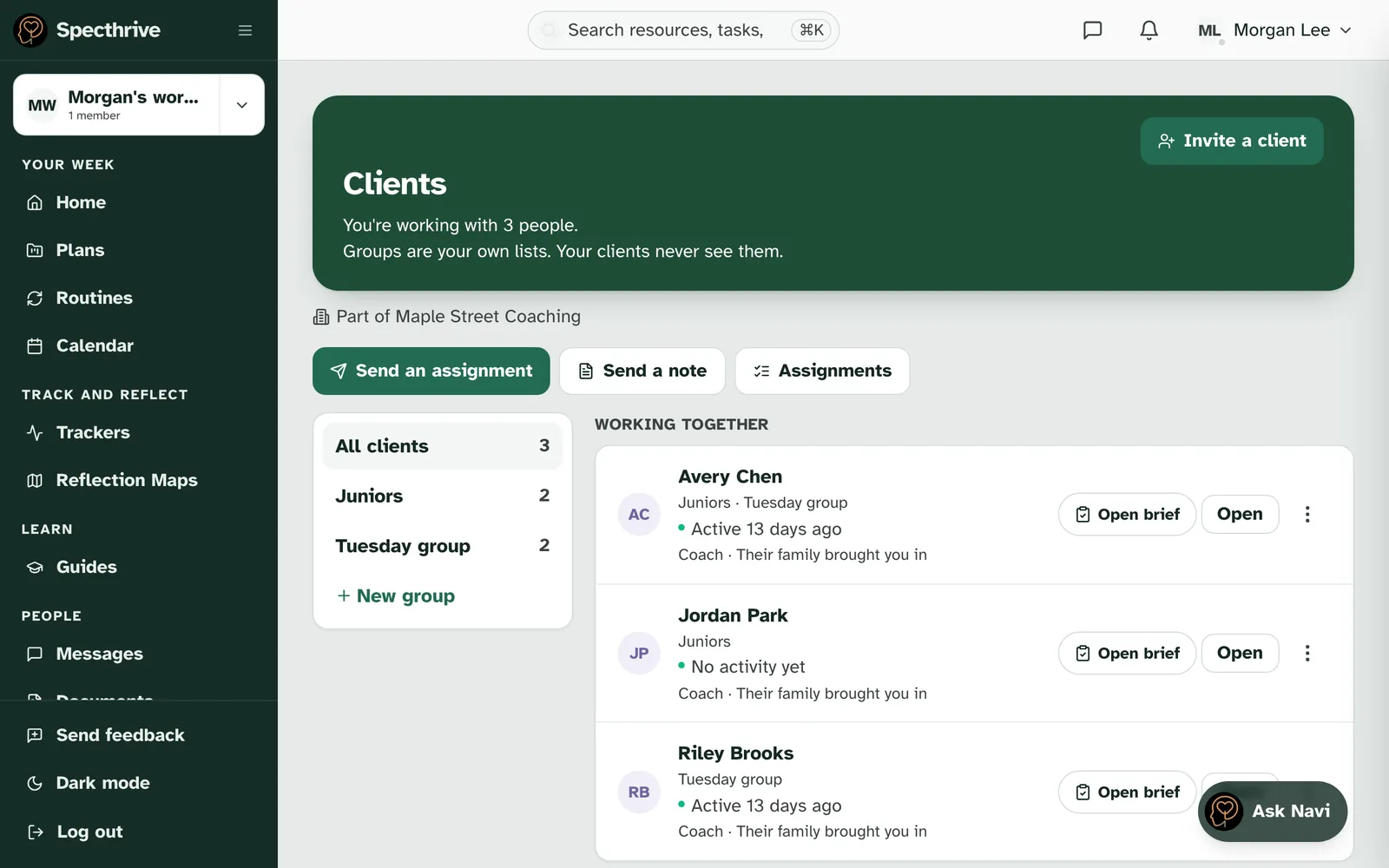
One list, whichever way the engagement began. /clients holds the people you invited and the people whose family added you from their side. The same people also show up on /people, under "People you work with", but /clients is the page built for this work.
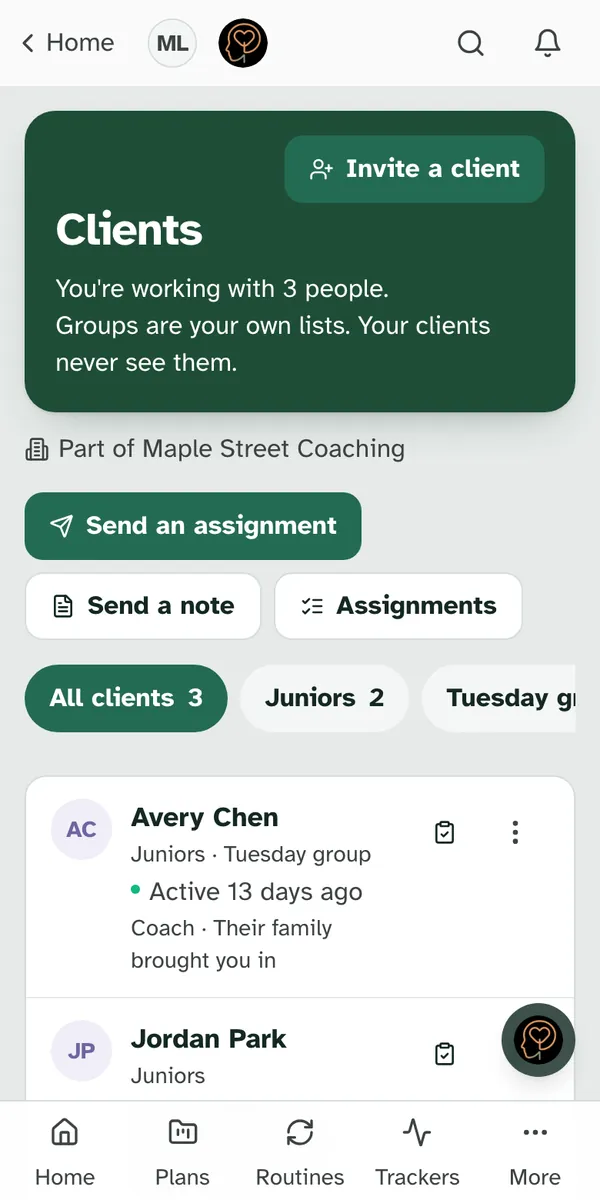
Each row is a name, a coloured dot, a short line about where things stand, and a third line naming your role and how the engagement began, for example "Coach · You set this up". The status line is a sentence rather than a score, on purpose: "Active 2 days ago", "Invite sent 3 days ago, not accepted yet", "Not invited yet" or "Invite didn't reach them". Saying when an invite last went out helps you tell a fresh one from one that may be sitting in spam. The page tells you where someone is; it does not rank them.
Three sections, shown when they have someone in them. Working together holds the people you work with now, Waiting on them holds invites that haven't been accepted yet, and Past clients holds the people you've stopped working with. On a computer the sections sit one under the next, and the row of tabs at the top jumps to each one. On a phone a tab picks the one section you see, so the list stays short. A section with nobody in it stays out of the way, and with only one section there are no tabs at all.
Notes for each meeting. On a computer, a client's row has Take notes when you're meeting them today, and Notes otherwise. See Take meeting notes and send a summary.
Groups
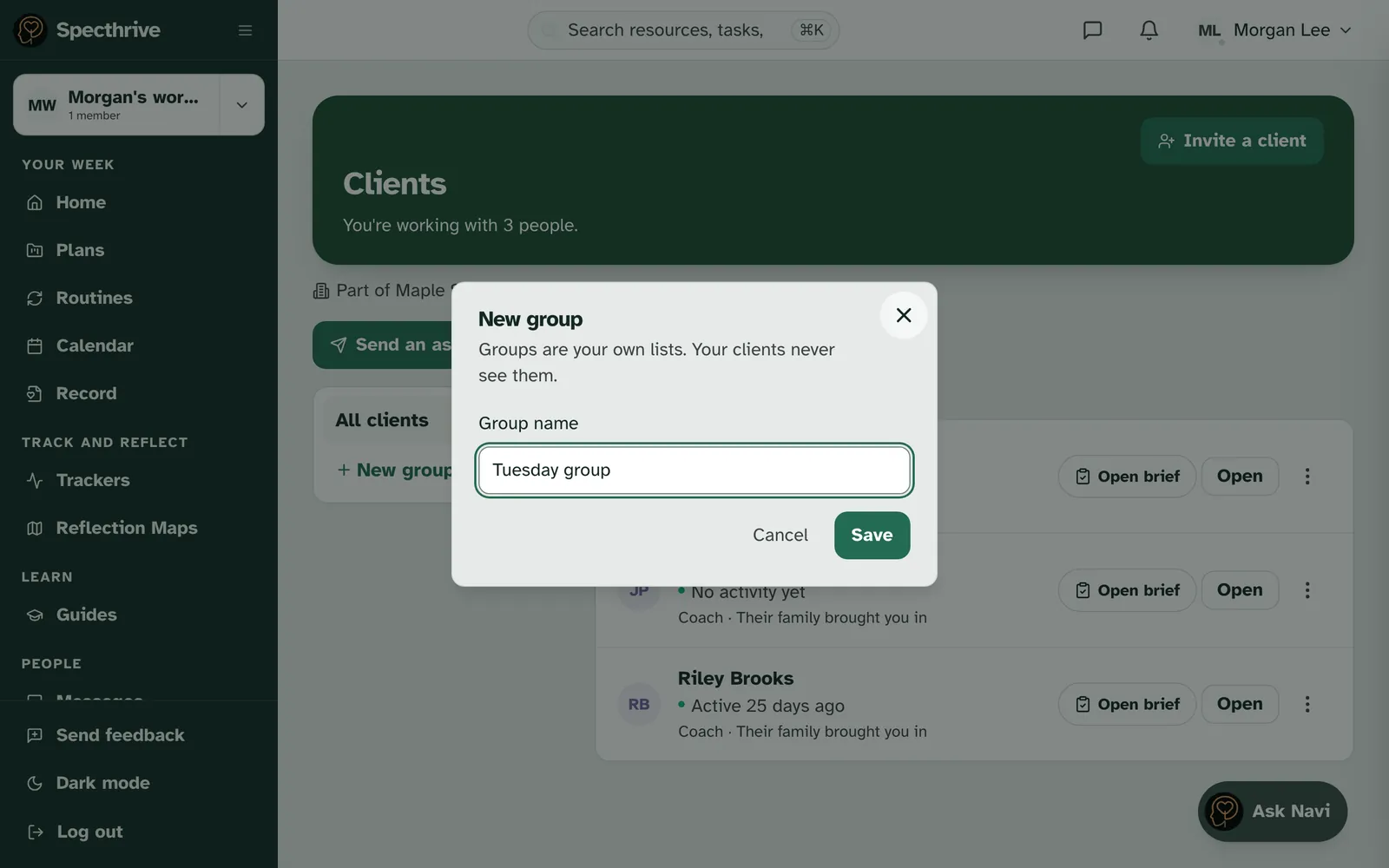
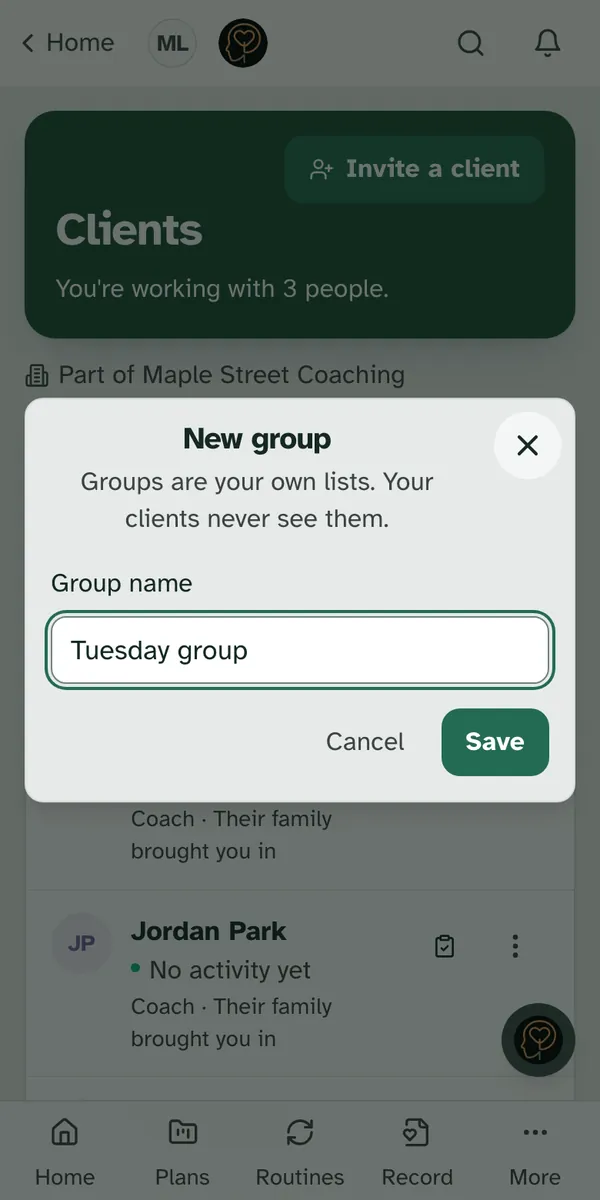
Groups are your own lists of clients. Keep one for a class period, a cohort or the day you meet, whatever helps you find people quickly. Your clients never see them. The New group window says so, and once you have a group, so does the top of the Clients page: "Groups are your own lists. Your clients never see them." A group changes nothing about what you can see or what anyone shares with you.
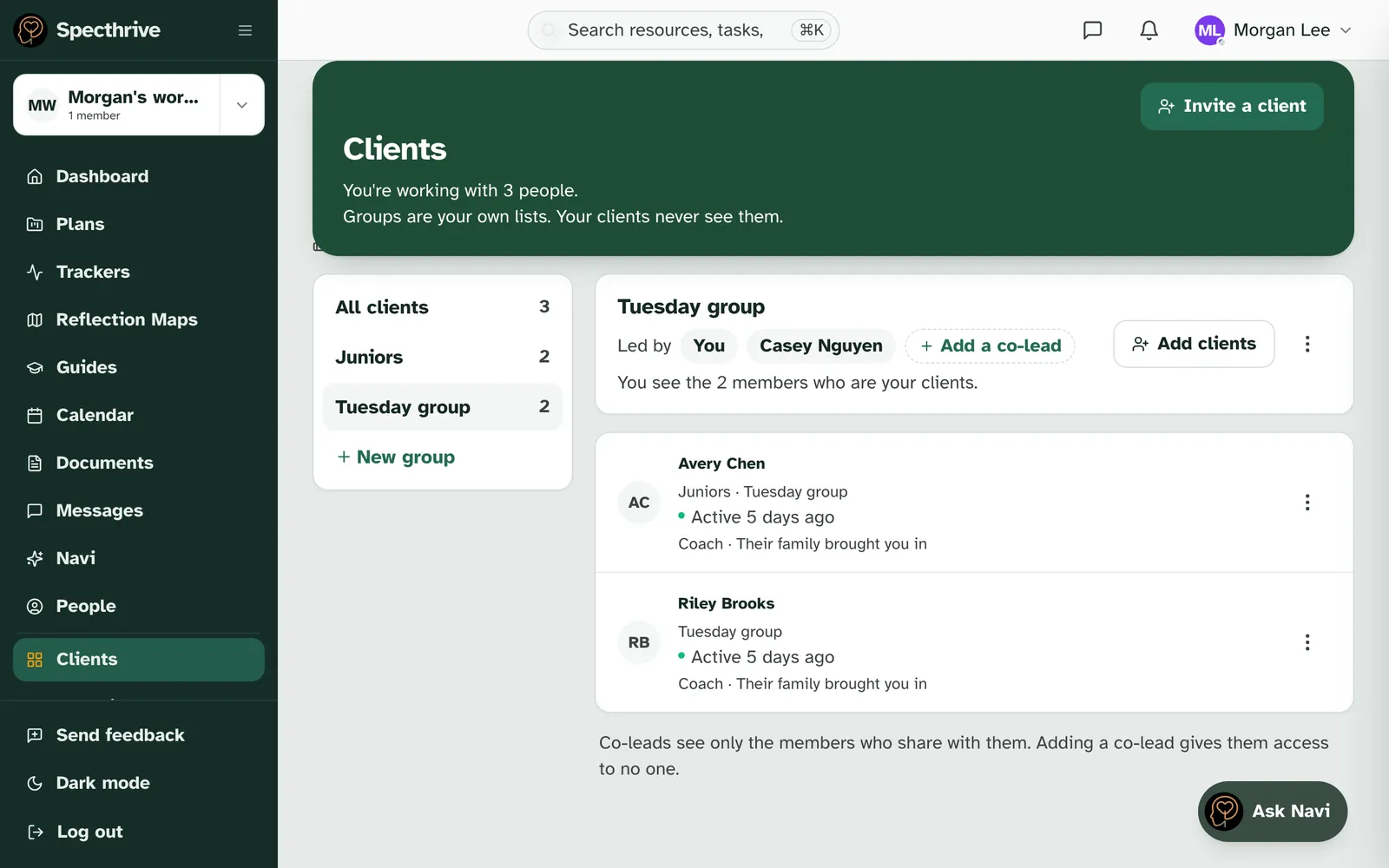
They sit beside your list. On a computer your groups are a column next to your clients, starting with All clients. On a phone they are a row above the list that you can swipe. Each one shows how many of your own clients are in it, and choosing one shows only those. If you share a group with a co-lead, each of you sees only your own clients in it, so the number is never the group's total. Each person's row names their groups just under their name.
Start one with New group. Choose New group, type a Group name, and choose Save.
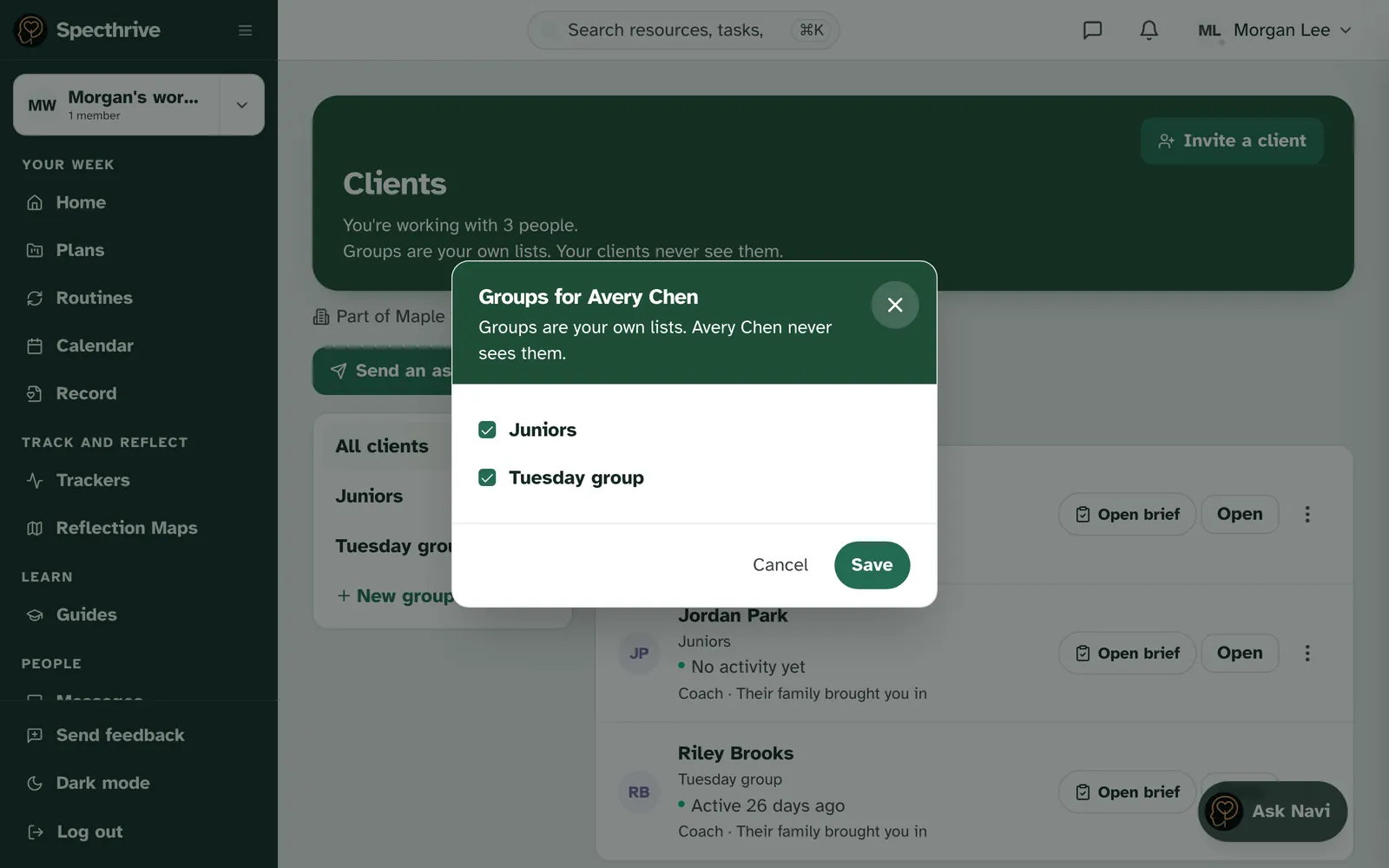
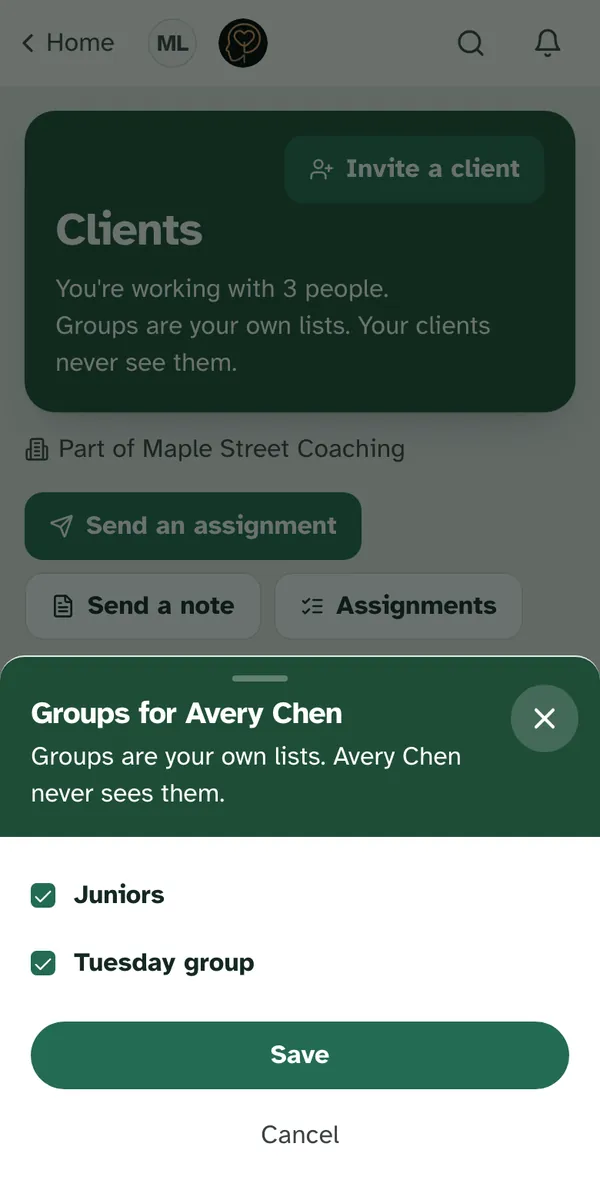
Then choose who is in it. Choose the group, then Add clients, and pick people from the list. You can add anyone you are working with now whose sharing includes their plans; nobody else is offered. To change one person's groups instead, open the … menu on their row and choose Groups…. Tick the groups they belong in and choose Save. Taking someone out of a group takes back nothing you have already sent.
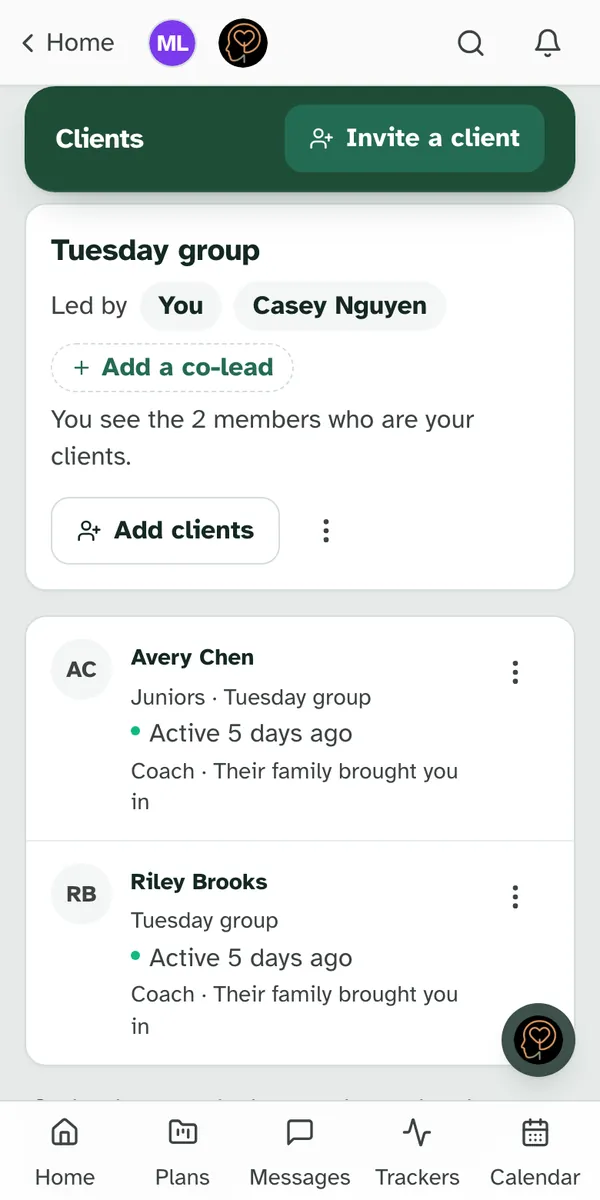
Run a group with a colleague. If you made the group, choose Add a co-lead in its header and enter their email. Only the person who made a group can add co-leads. They need a verified professional account of their own. A co-lead sees only the members who are their own clients, so adding one shares no one with them. The header lists everyone who leads the group under Led by, and its count is only yours, for example "You see the 2 members who are your clients." Each lead adds and removes their own clients.
Send to a whole group. Send an assignment in a group's header starts an assignment with the group already in its To list, and Send a note does the same for a short note. See Send assignments to your clients.
Renaming, deleting and leaving. The … menu in the group's header has Rename… and Delete group… for the person who made the group, and a way to remove each co-lead. A co-lead sees Leave group there instead. Whether you delete a group or leave one, the window tells you: "Nothing you've sent is taken back, and your clients never saw it."
Notes for a group meeting. A group you lead has Group meeting notes: mark who came and send everyone there one summary. See Take notes for a group meeting and send the group a summary.
Inviting a client
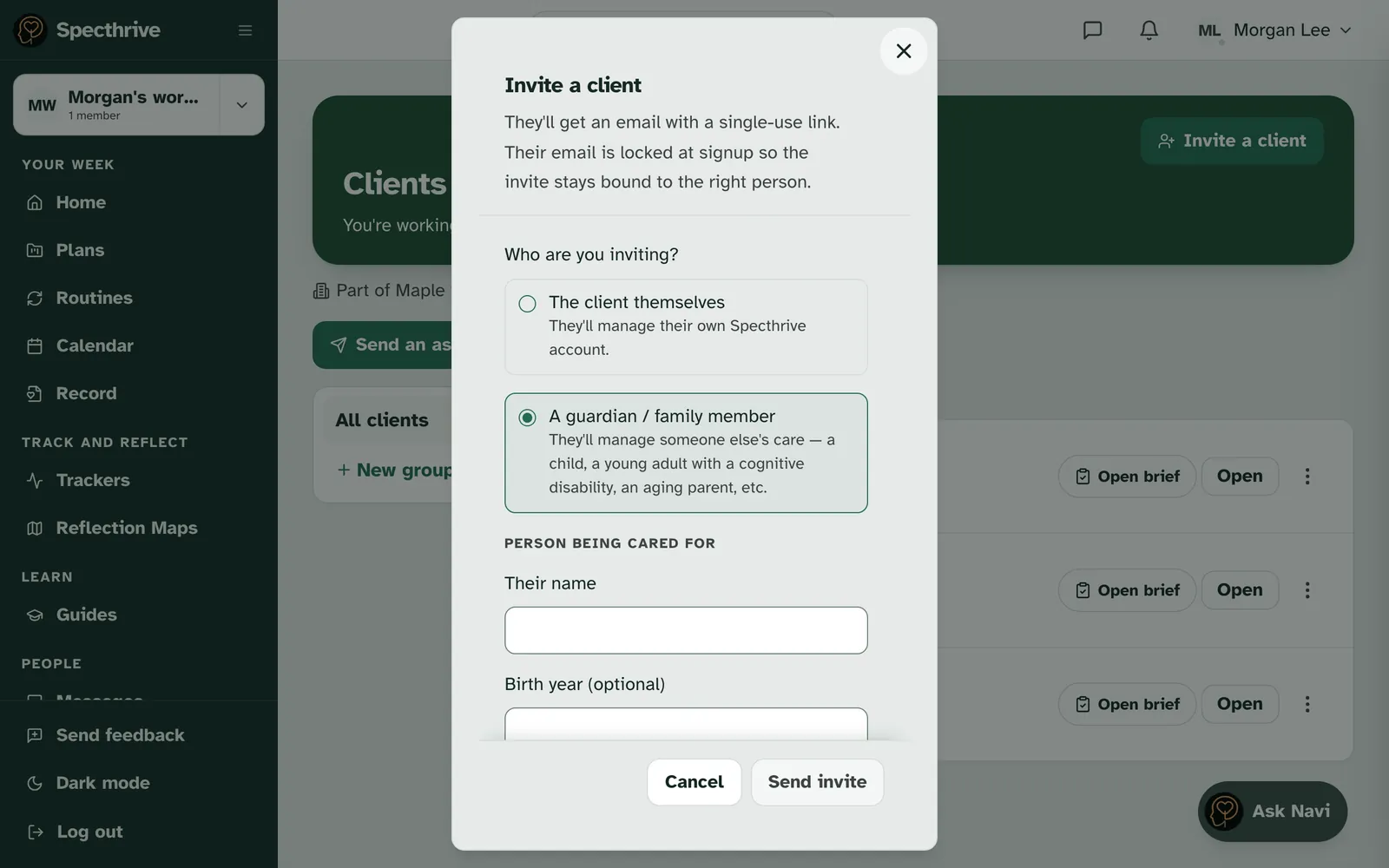
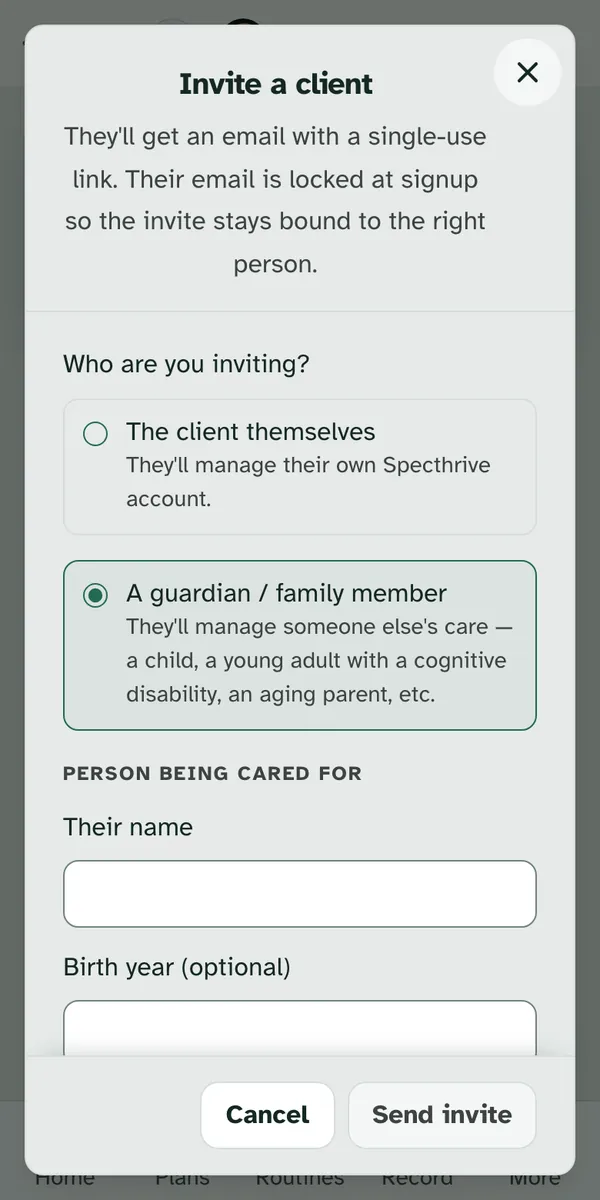
Invite a client starts with one question: "Who are you inviting?" The two answers are The client themselves, who will manage their own Specthrive account, and A guardian / family member, who manages someone else's care. The answer shapes everything that follows, so it is worth a moment before you type an email address.
The invitation you send from here works once and is good for 14 days. If it goes stale or ends up in spam, Resend sends it again and gives it 14 more days from that day. The earlier emails keep working too, so whichever one they open takes them to the same invite. Once they accept, or you choose Revoke this invite in their row menu, every link to it stops working.
An old link can't move their account. If your client opens an earlier email after accepting, the page says "This invite has already been used" and "Nothing has changed on your account.", with Back to your account. And if you choose Resend for someone who already has their account, nothing is sent: "This person already has their account, so there's nothing to resend."
Who will manage the account matters more than anything else on this screen. If the person you support is going to run their own account, choose The client themselves. If a parent or guardian will run it for them, choose A guardian / family member. That is the right answer whenever someone else is responsible for their care decisions. The two paths are not interchangeable, and changing your mind later means starting the invitation again. If you are not sure which one fits, talk to us before you send it.
What your client sees
There are two different invitations, and they open different screens.
The invitation you send from Invite a client opens a welcome page with your name on it: that you invited them, your role underneath, and a line saying you have set up a private space for them. The button reads Create my account. If they will run their own account, it first asks When were you born?, the month and the year. Then it leads to the signup form, where their email address is already filled in and can't be edited. There is nothing to accept or decline on the welcome page, and no list of areas to approve. It already knows who sent them.
The invite joins the account at the address you sent it to. If your client opens the link while signed in with a different email, the page says "This invite was sent to a different email." and "Sign in with that one, or ask your coach to send it to this address." Sign in with that email signs them out so they can use the invited address, and Back to your account leaves things as they were. If their account has the right address but they haven't confirmed it yet, the page asks them to "Confirm your email to accept this invite." Send the link emails them, and opening it brings them straight back to your invite. The email's subject is Confirm your email, and its link works for 24 hours. If they open one that has run out while signed in, the page says "That link has expired. Send a new one and it will work." Either way the invite is still waiting for them, and nothing is used up.
Handing over a profile you prepared is the other one. If you set a profile up and then invite that person to take it over, their link opens a screen headed "{your name} set this up for you", with a card further down labeled "What {your name} can see and update", listing each area switched on, with a note that they can turn off anything they would rather keep private, and change it later. Under the list it says "{your name} can add to and update these too. You can change this anytime." Once they approve, you can add to and update the areas they kept on, not only see them. They can narrow what you see; they cannot widen it. Signed in, the button reads Approve and continue; signed out, it reads Sign in to continue first. If their account's email isn't confirmed yet, Approve and continue brings up "Confirm your email to accept this invite." in its place. Send the link sends the same Confirm your email email, and opening it brings them straight back to the card. Nothing is lost, and the link is still theirs. That is a different link from the one above, and it runs for 7 days rather than 14.
Inviting a student under 18
A student aged 13 to 17 can run their own account once a parent or guardian agrees. Invite them as The client themselves. After they give their birth month and year, anyone 13 to 17 needs a parent or guardian's consent before their account opens. Specthrive is for people 13 and older, so a younger student sees "Specthrive is for people 13 and older", and the invite ends there. If they made their account just now and it holds nothing else, it's deleted, and the page says "We haven't kept anything you entered." Otherwise they're asked to let you know.
Confirming their email keeps them connected to your invite. The link in that email takes the student back to your invite, even on another phone or computer. If they haven't given their birth month and year yet, they're asked there. If they're signed out, the page reads "Sign in to finish your invite" and brings them back once they do. If the invite is withdrawn or expires while they're on that step, they see "This link was replaced or has ended" and "You can keep setting up your account in the meantime.", with Continue.
Usually, Specthrive asks the guardian. The student is asked "Who's your parent or guardian?" and gives their name and email. Then they read a short page about their account and tick that they want to use Specthrive with you. We email the guardian to ask. Until the guardian says yes, the student sees "We've asked your guardian to say yes", with a way to send the email again.
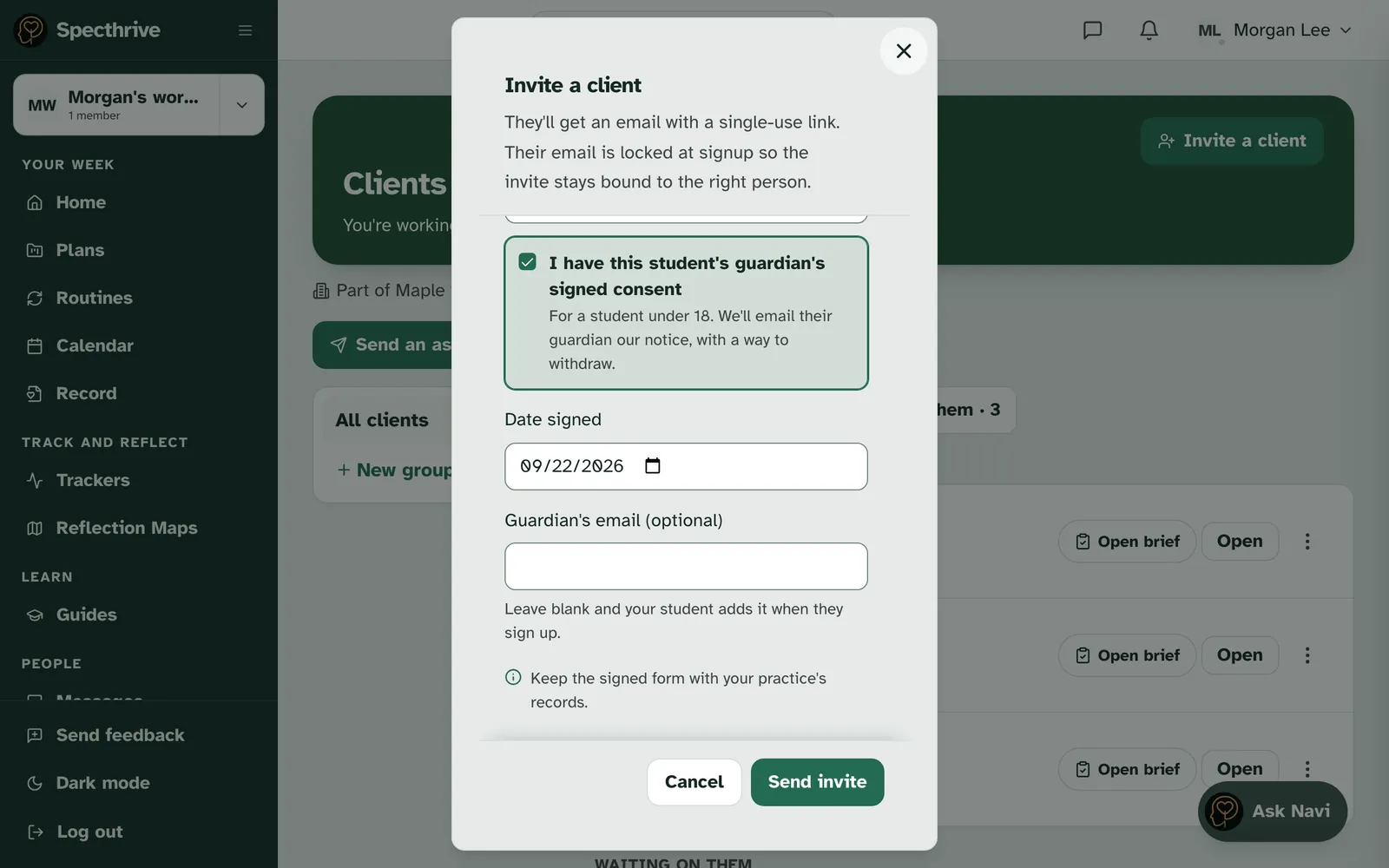
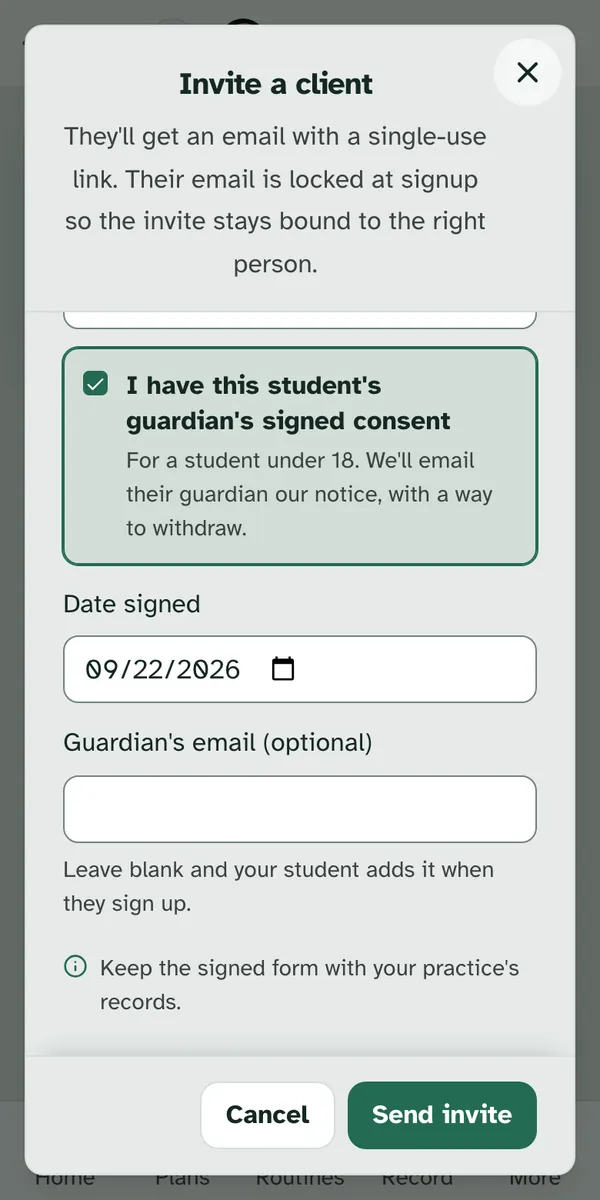
If your practice collects consent that covers Specthrive, you can confirm it yourself. Once a practice owner or admin turns on Guardian consent (see Join and run a practice), choosing The client themselves shows one more option: "I have this student's guardian's signed consent", with "For a student under 18. We'll email their guardian our notice, with a way to withdraw." Tick it only when you hold the signed form. Then add the Date signed. Guardian's email (optional) can stay blank: "Leave blank and your student adds it when they sign up." If you belong to more than one practice with this turned on, choose the one that collected it. Keep the signed form with your practice's records.
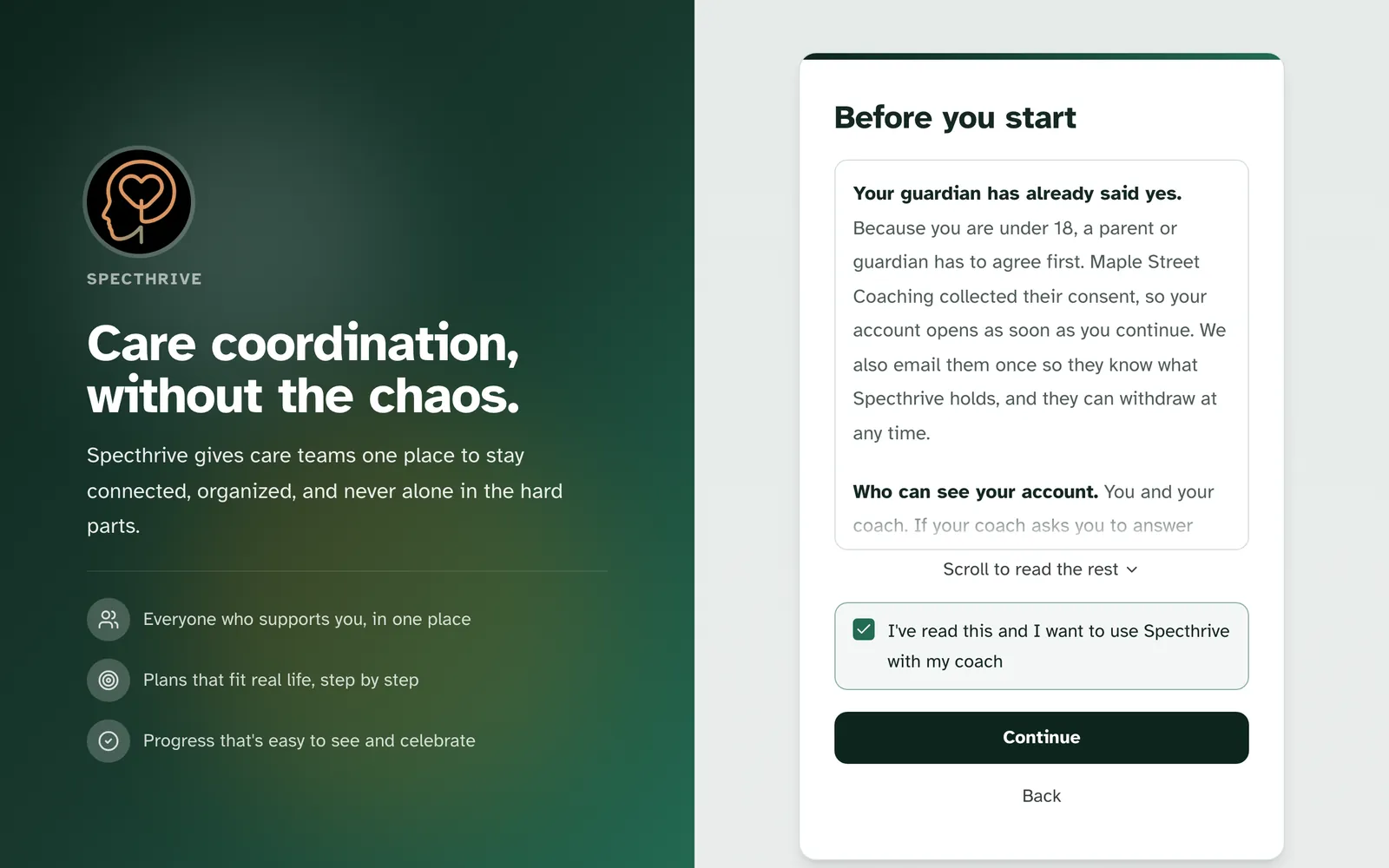
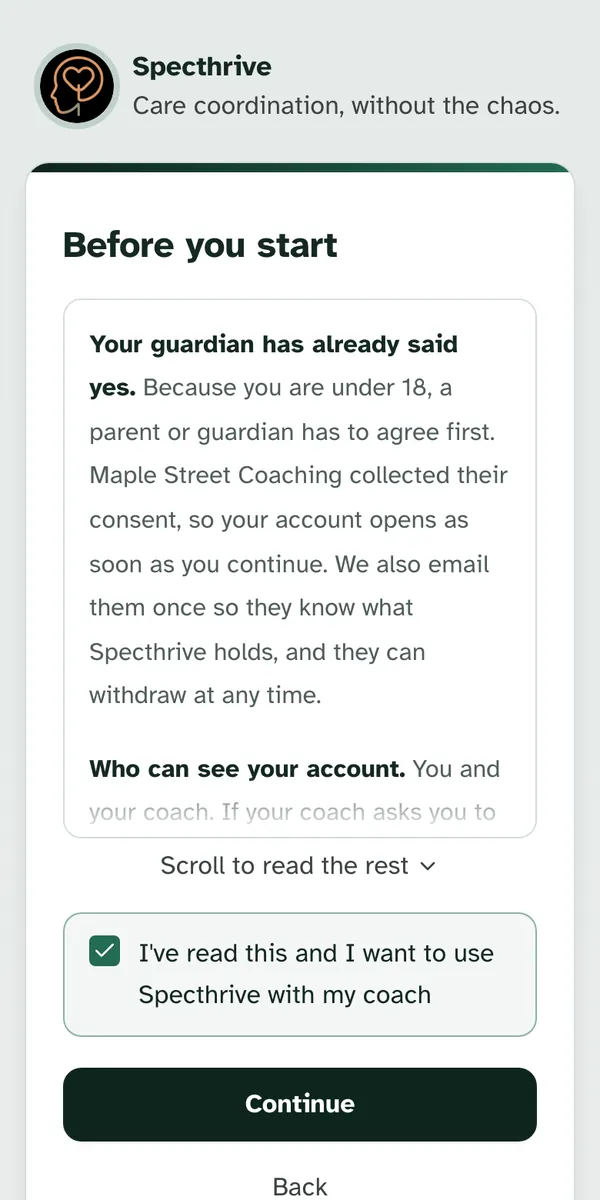
Then the student starts right away. After their birth month and year, they don't name a guardian or wait for one. Before you start tells them: "Your guardian has already said yes." It names your practice as the one that collected the consent, says their account opens as soon as they continue, and says we email their guardian once. They tick "I've read this and I want to use Specthrive with my coach" and choose Continue.
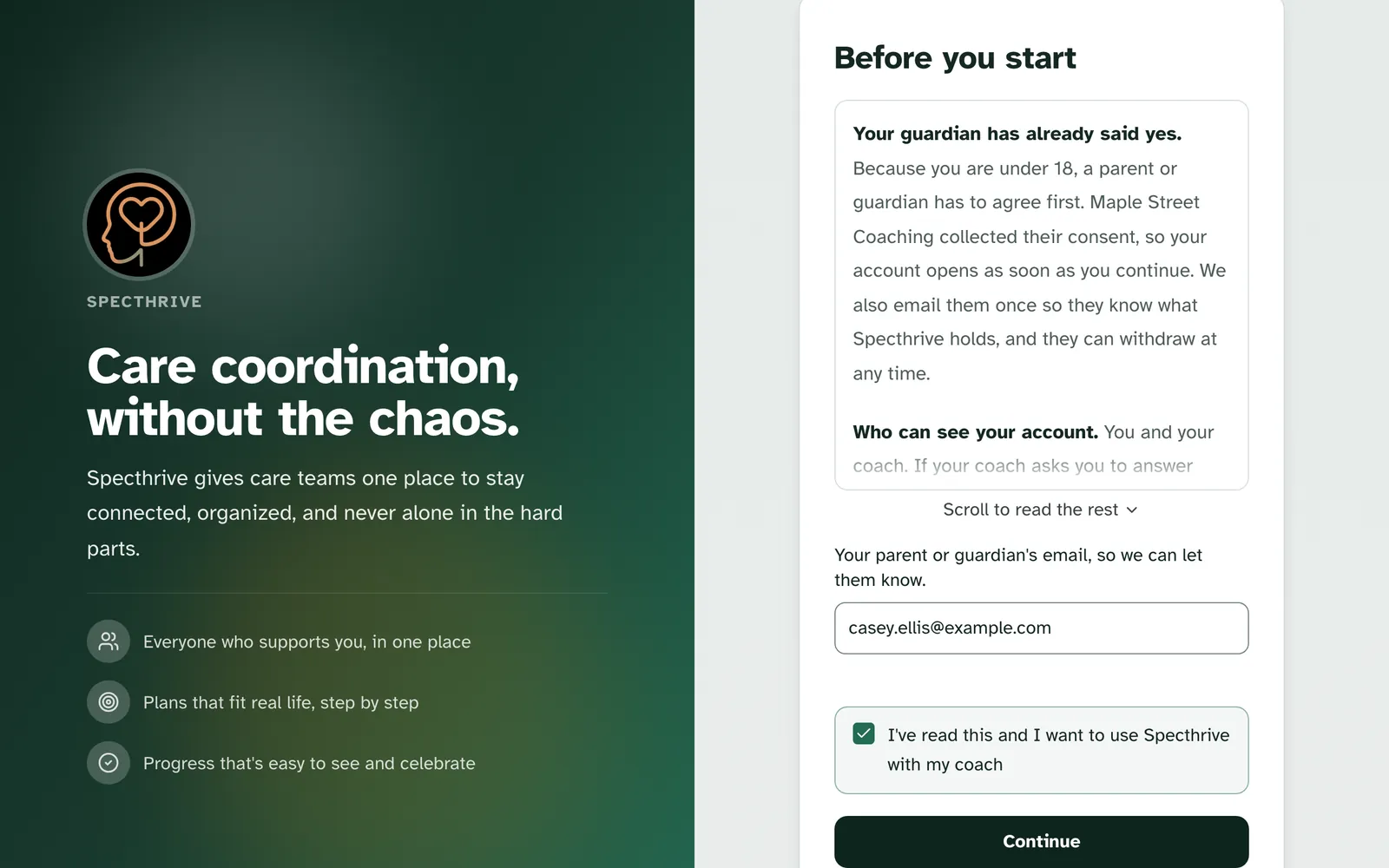
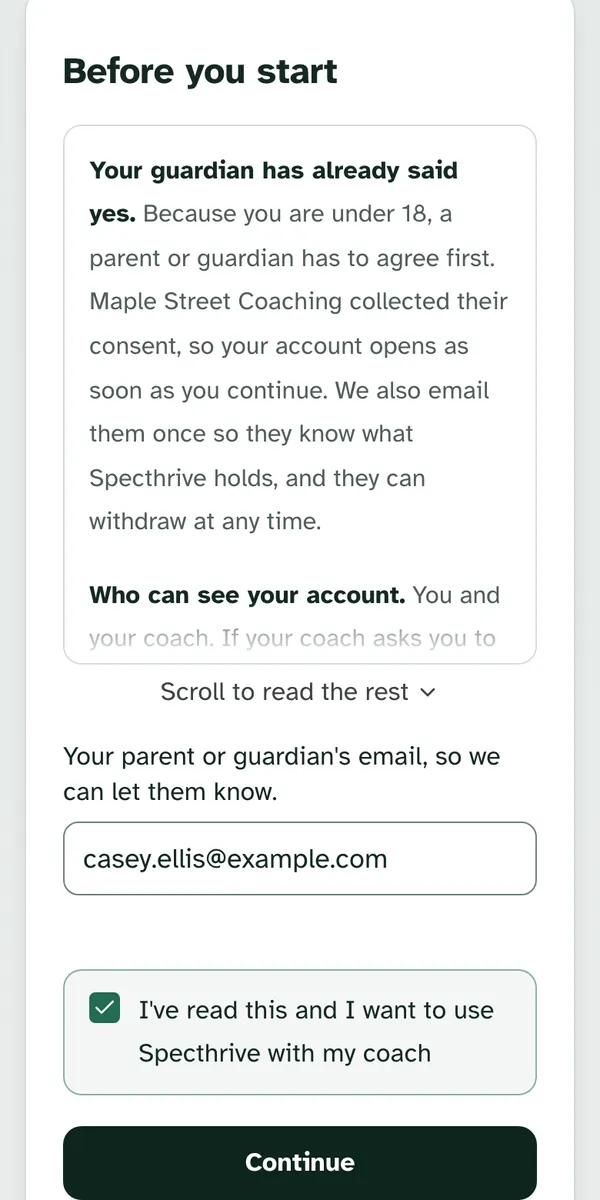
If you left the guardian's email blank, the student gives it here, once. Under the text, Before you start asks for "Your parent or guardian's email, so we can let them know." Continue works once it's filled in. If they type their own address, they see "Use your parent or guardian's email, not yours."
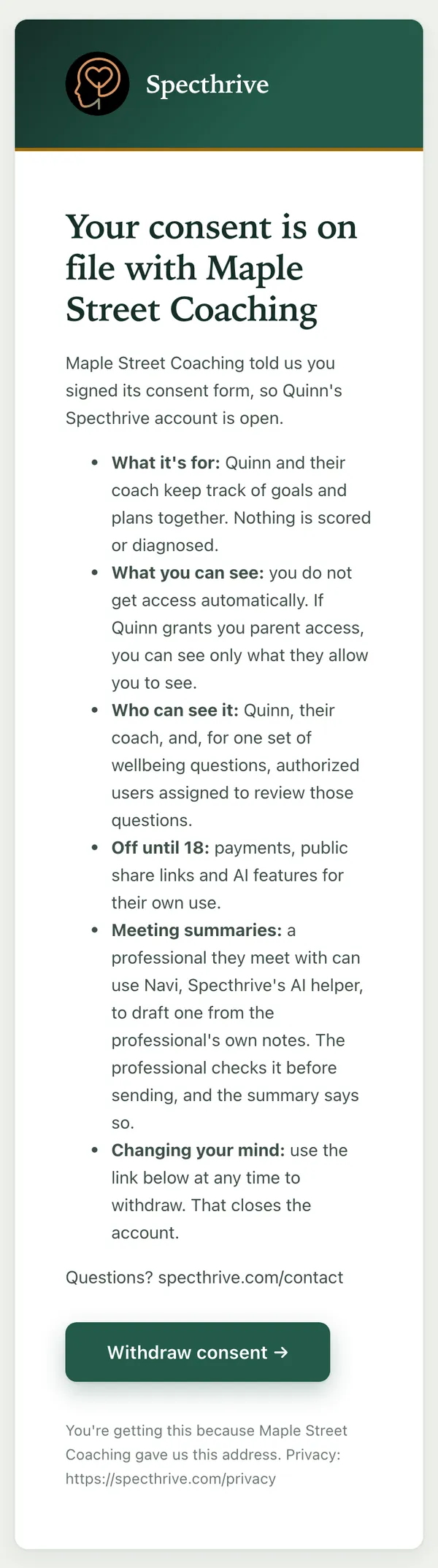
The guardian gets one email from us when the account opens. It goes to the address you gave, or the one the student gave on Before you start. Its subject is "About your student's Specthrive account", and its heading is "Your consent is on file with" and your practice's name. It says your practice told us they signed its consent form, so the student's account is open. Then six short lines say what the account is for, that the guardian gets no access unless the student grants them parent access, who can see it, and what stays off until 18. One says a professional they meet with can use Navi, Specthrive's AI helper, to draft a meeting summary from the professional's own notes, and checks it before sending. The last says how to change their mind. It names the student by first name only, and your practice. Withdraw consent opens a page where they can withdraw. Withdrawing closes the student's account, and you lose access to it.
A student who signs up without your invite waits for one. If someone gives their own age as 13 to 17 while setting up an account on their own, the account stays closed, with "Ask your coach for an invite". Send them an invite as The client themselves, to the email address they signed up with. When they open its link, or next sign in, Specthrive takes them to your invite, and the steps above take it from there. Only an invite as The client themselves opens their account. Any other invite tells them "This invite can't open your account", and isn't used up. Send it within 30 days of when they signed up. After that, an account still waiting is deleted, unless it opens on its own by then, on the first day of the month after they turn 18. An invite you've sent that hasn't expired keeps the account, even before they open it. If a student tells you the age on their account is wrong, get in touch.
If something changes before the student accepts, the invite goes the usual way. If your practice turns Guardian consent off, or you leave the practice, the student names a guardian and waits for their yes, as described above.
Before they finish setting up
You can put a little in place first, for someone who is claiming their own profile. Plans and trackers can be added before they finish setting up, so the first thing they see is not an empty page.
Only plans and trackers work this way, and the window closes the moment they complete their own setup. From then on the profile is theirs, and the ordinary sharing rules take over.
What you can see afterwards
Access is granted per area, and it starts from your role. A coach starts with plans, trackers, calendar, and activity feed. A therapist starts with those plus timeline and reflections.
Documents, Medical, School and messages are in no preset. Those are shared deliberately or not at all, by the person whose profile it is. For a coach, the family is asked before Medical is shared, because coaches aren't healthcare providers.
They stay in charge of all of it. Whoever owns the profile can change any area at any time, without telling you. An area that closes is not a verdict on your work.
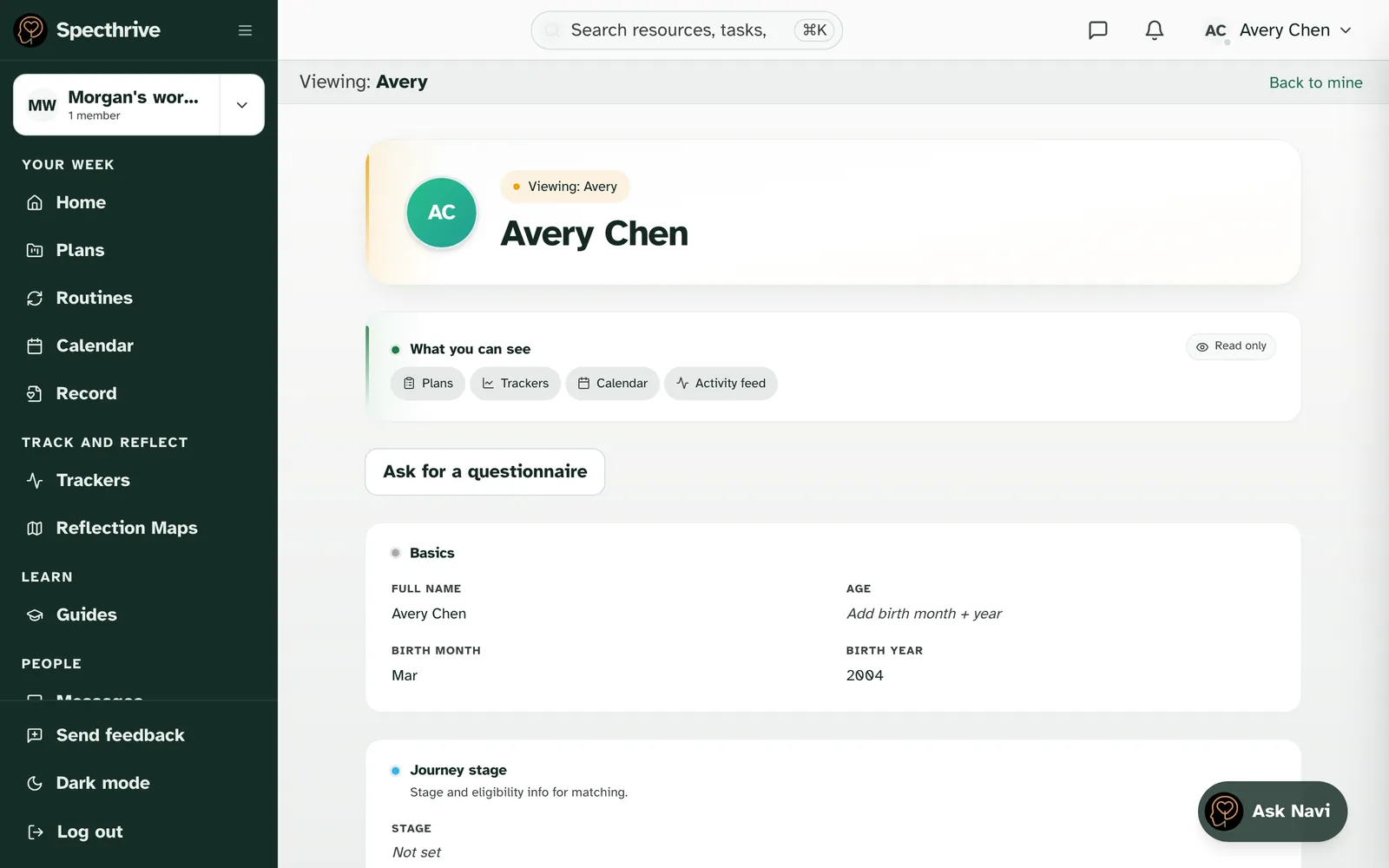
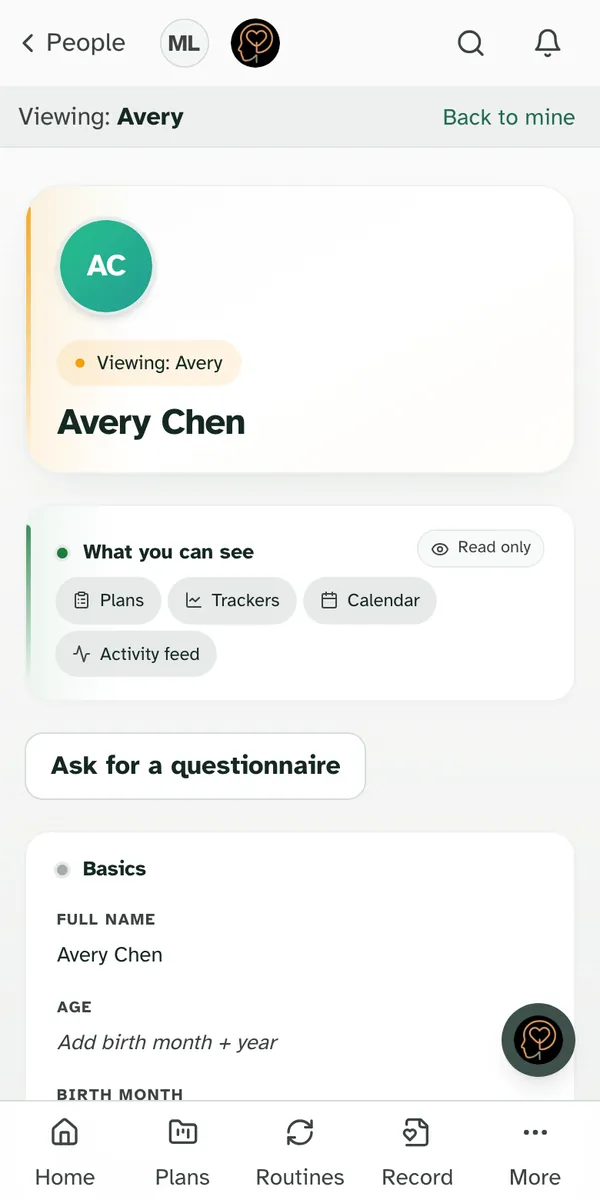
Opening a client's profile brings their pages with you. A bar under the top of the page reads Viewing: and their first name, with Back to mine at the other end. It stays as you move around. The areas they share with you, such as Trackers and Plans, now show that client, and Trackers and Plans name them at the top. Back to mine takes you to your own dashboard, and the bar goes away. You can also pick someone else from the profile switcher.
Their profile shows only what they share with you. You see their name and age. The diagnosis needs Medical, the school plan needs School, and plan progress needs Plans. Location, income, insurance, interests and skills stay with the client and the people who manage their profile, and never show to you.
You can change only what your areas cover. With Can edit, you can change the diagnosis when they share Medical with you, and the school plan when they share School. The rest of their details, their name and age included, are theirs to change, so those parts of the profile show you no pencil. If you try to change one of those parts anyway, the page says "Nothing was saved" and "This part of the profile is kept by the people who manage it."
You are always signed in as yourself. On a computer, the name in the top corner changes to your client's while you look, because that corner shows whose pages are open. On a phone, your own avatar stays in the top corner. Looking at a client's pages never signs you in as them.
Sharing a task
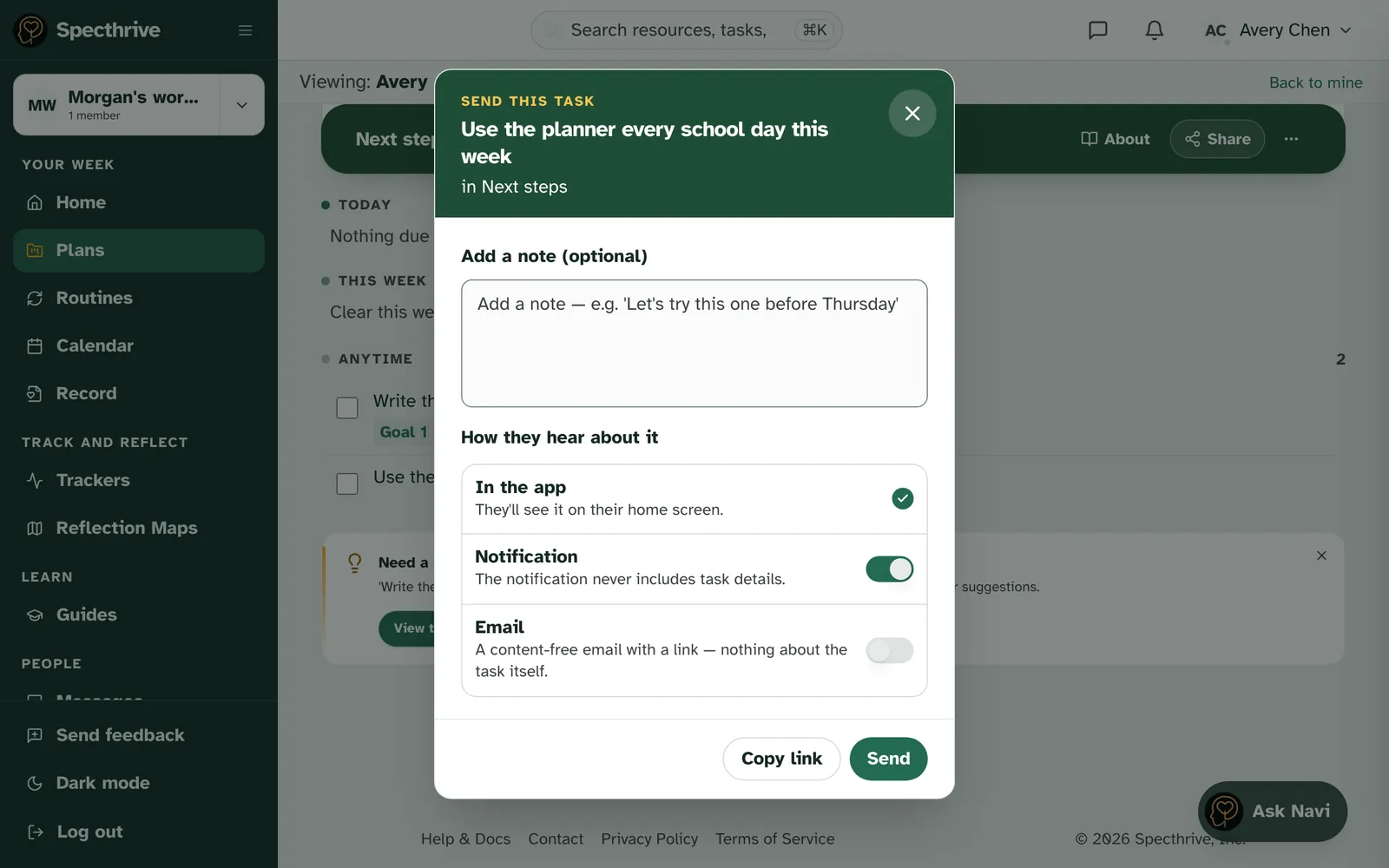
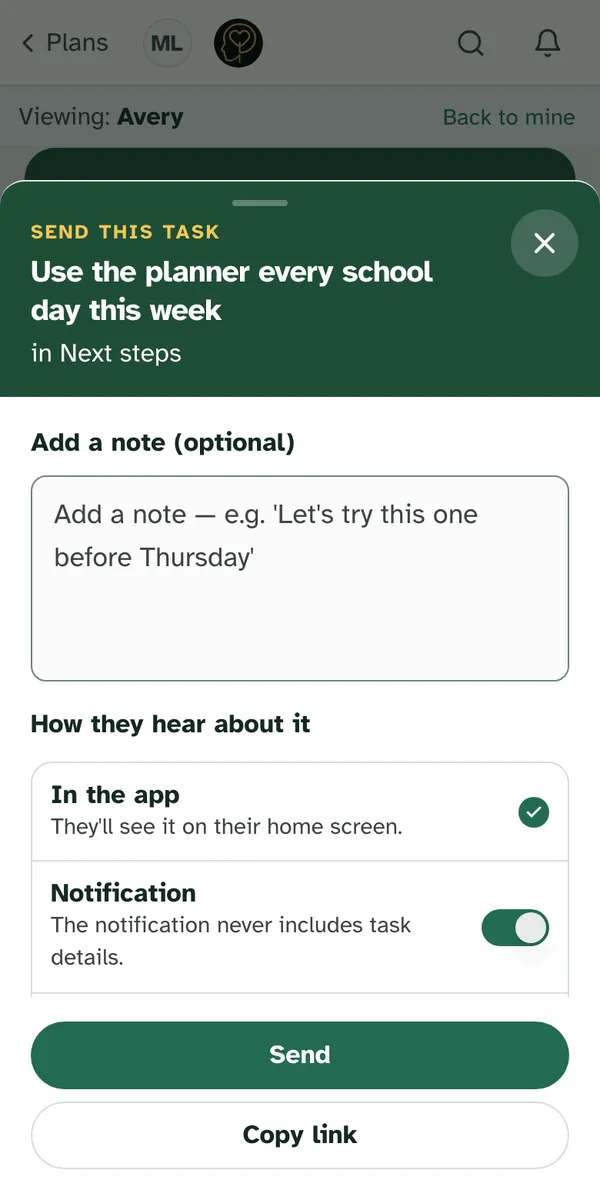
Open a task on one of their plans and the action reads Send to their first name. A sheet titled "Send this task" opens, with room for a short note of up to 280 characters if you want to add one.
What reaches them carries nothing about the task. Not the title, not your note. They learn that you sent something and get a link to it; the task and the note are waiting when they open it.
You will not see whether they read it. That is deliberate. A nudge you can check up on stops being a nudge.
Assignments
To send a few days of work to one client or many, such as a to do, something to read, a routine or a tracker to log, use Send an assignment. Each client gets their own copy, and you can see how it is going without any percentages or ranking. Everything is in Send assignments to your clients.
Coaching brief
To get ready for a meeting, choose Open brief on a student's row on Clients. It gathers what they share with you on one private page: their strengths, what they're working on, your next steps together, their learning profile and what has happened since you last met. See Get ready for a meeting with a coaching brief.
Guides
Guides are structured plans developed with clinicians: a domain, a stage, and a set of goals already laid out. You can read through one the same way a family does.
A client who opens a guide can use Add to My Plans to take a copy onto their own profile, where it becomes theirs to edit. Pointing someone at a guide is often gentler than handing them a blank plan.
Once you're verified, you can write your own. My guides turns what you already give clients into a guide you share with the clients you choose. See Write a guide for your clients. You can also share a published guide with other professionals, and give guides they share with you to your own clients: see Share a guide with other professionals.
Questionnaires for students
A student who runs their own account can answer a questionnaire for you, a quiet way to tell you how school goes before you next talk. Asking for one, reading it strengths first, and keeping a coaching record are all in Ask a student for a questionnaire and read it together.
Booking
Your clients can book time with you from your own hours. Pick a session and your usual hours, look at what clients see, and turn booking on when you're ready. See Set up booking so your clients can book time with you.
Your sessions show on your calendar. On the Calendar page, choose You to see every session you host, across all your clients, each in its client's colour. See Use the family calendar.
Practices
If you work as part of a coaching or clinic practice, the practice can invite you to join it on Specthrive. A practice gives its members shared tools, and can choose who reads the answers to its members' questionnaires. The practice itself never sees your clients. Joining, running one and what it can and can't do are in Join and run a practice. Schools and other organizations can ask about this too.
Ending an engagement
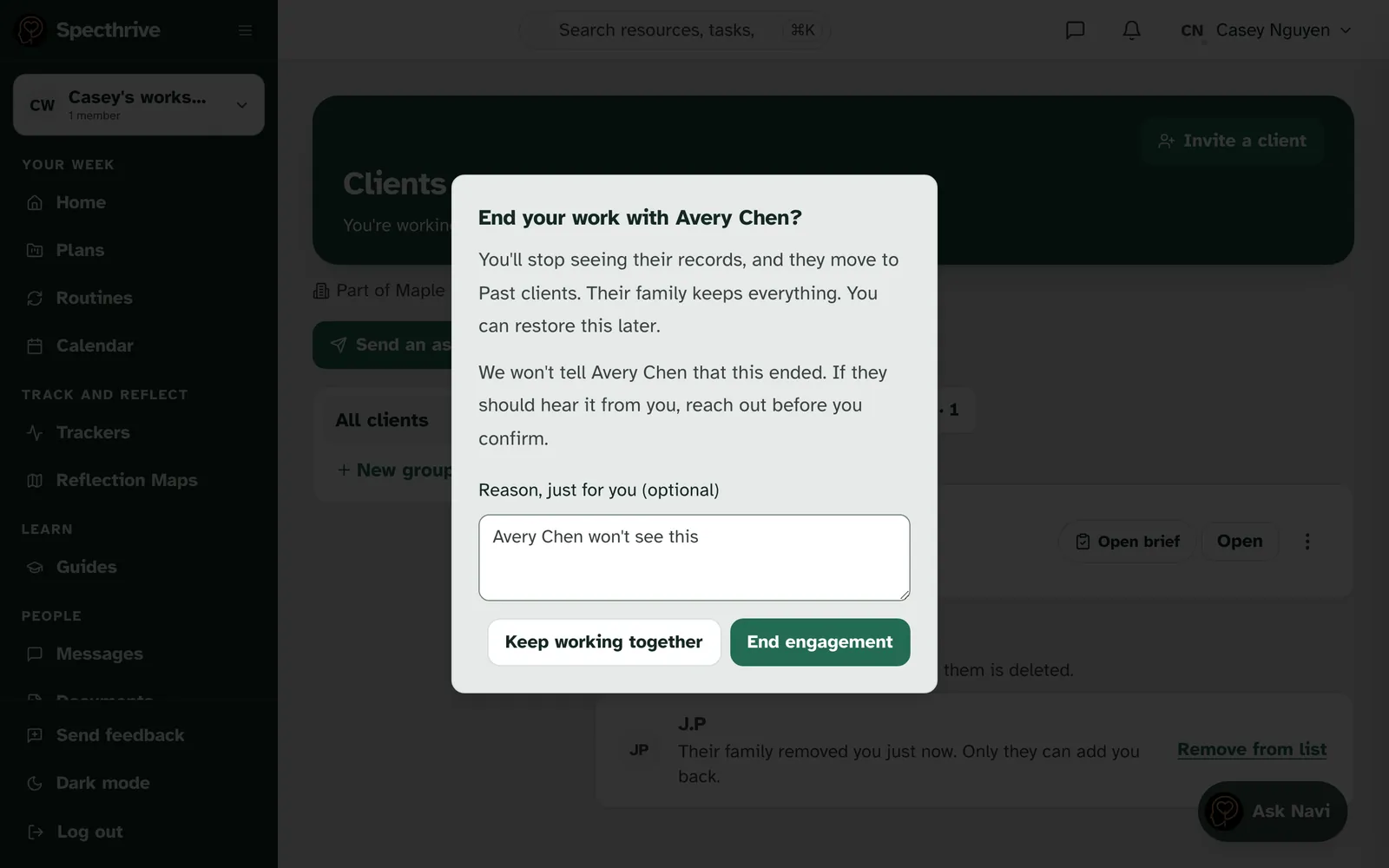
Which exit sits on the row depends on who started the engagement. One you began ends with End engagement… in the client's row menu, which says "Moves them to Past clients. You can restore it." One a family began, by adding you from their side, ends with Leave this client's team instead. That access was theirs to give, so the move is to hand it back.
Ending one you started asks first: "End your work with" the client. You stop seeing their records, and they move to Past clients. Their family keeps everything. We don't tell them it ended, so if it is something they should hear from you, reach out before you confirm. The Reason, just for you (optional) box is only for you, and they won't see it. Keep working together leaves it all as it was.
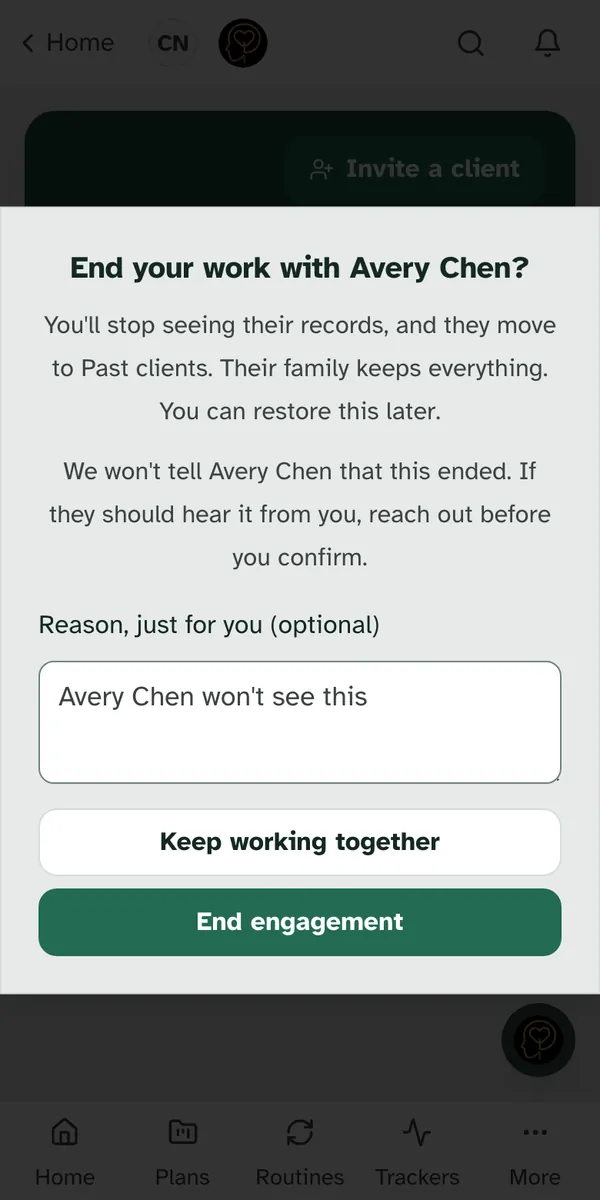
If you change your mind straight away, the note that says "Ended." and that they are in Past clients has an Undo. Undo puts back exactly what ending took away, and they return to Working together. If the ending didn't go through, the window stays open, says "That didn't go through, so nothing changed.", and offers Try again.
A student can work with more than one coach. If you and another coach both work with the same student, each of you has your own engagement, and each of you ends only your own. Ending yours leaves the other coach's work with the student exactly as it was, and theirs never ends yours. The student can't end either engagement by mistake from their own sharing page, because it never offers them a Leave button on a coach's engagement.
Leaving a team you were added to closes your access to their plans, trackers, and your messages with their team. Their family is told that you left, and only they can invite you back.
Past clients
People you've stopped working with stay in Past clients, so you can find them again. "You can't see their records. Nothing about them is deleted." Each row shows their initials and says what happened and when, for example "You ended this on Oct 6".
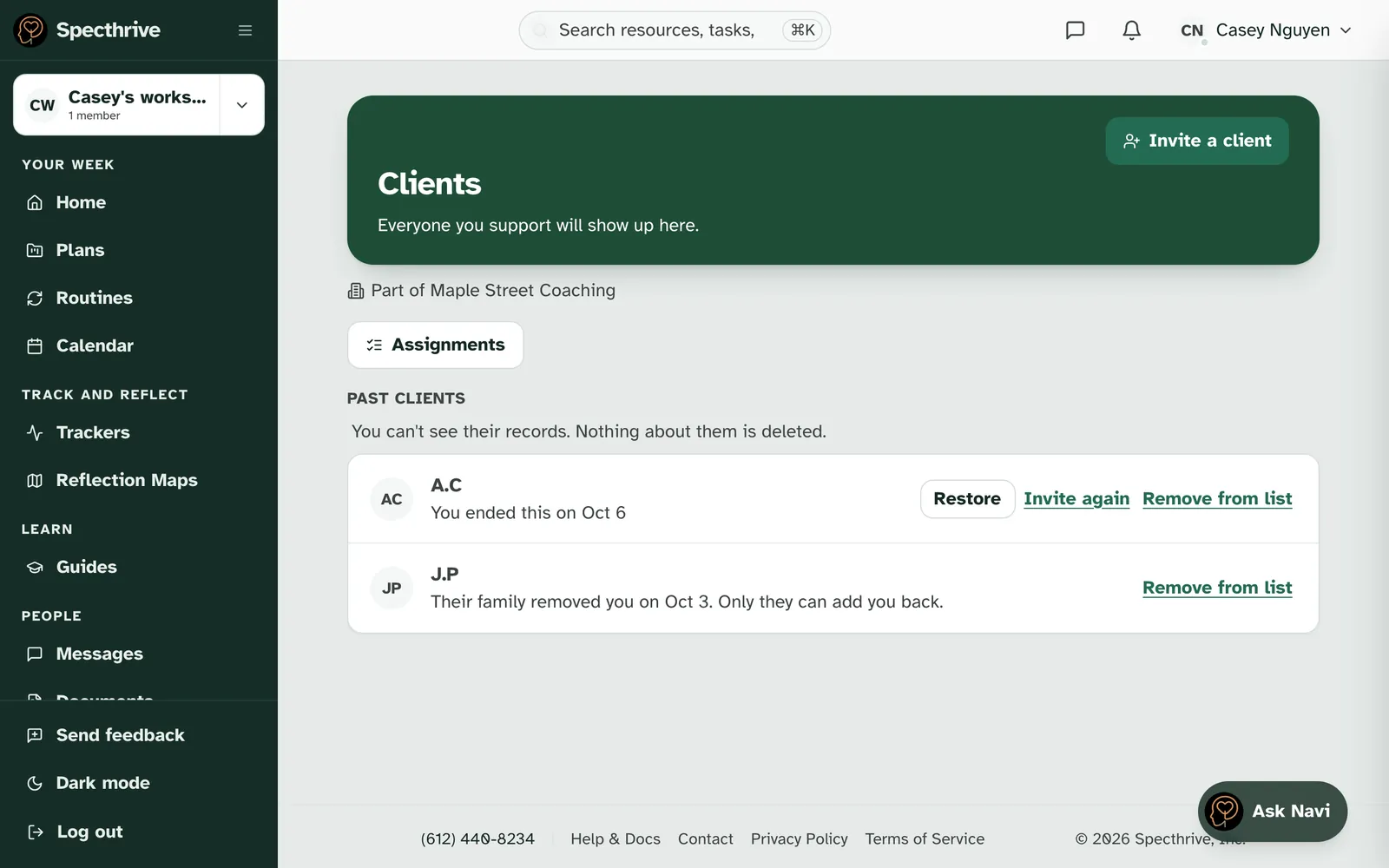
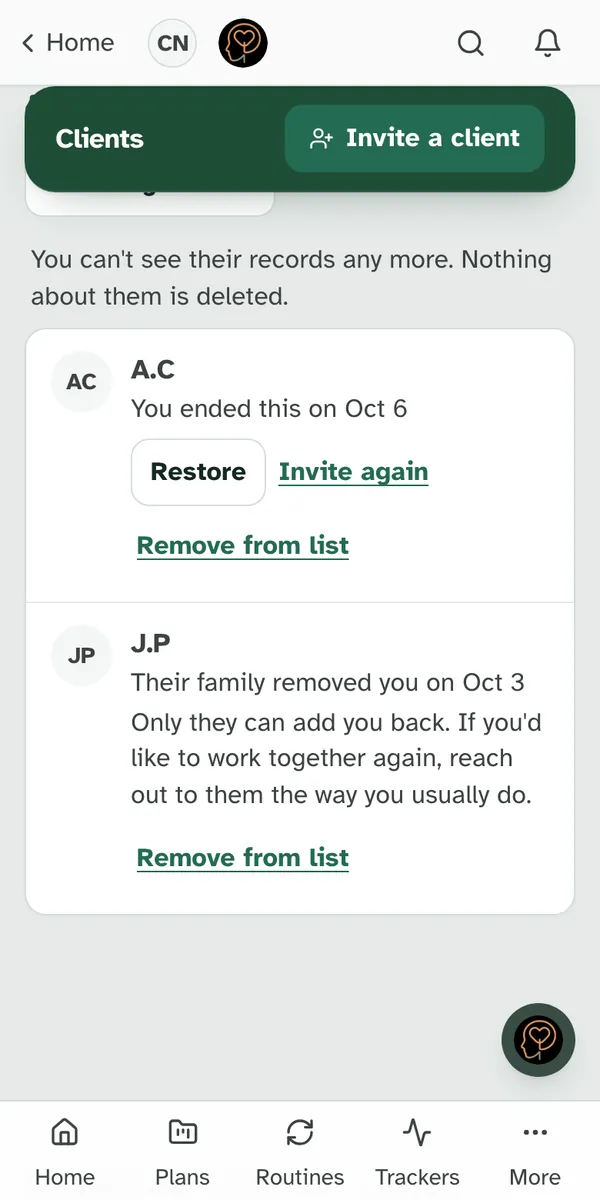
What you can do depends on how it ended:
| The row says | What you can do |
|---|---|
| You ended this | Restore puts it back the way it was, and they return to Working together. Invite again opens Invite a client with their address already filled in. Remove from list. |
| You ended this, for a client under 18 | "They're under 18, so a guardian takes part again. Invite again to start that." Invite again and Remove from list. |
| Their family removed you | "Only they can add you back." Remove from list. |
| You left their team | "Only they can add you back." Remove from list. |
Remove from list tidies only your own list. It asks first. Nothing about them is deleted, and their family keeps everything, but you won't be able to restore it from there afterwards. If you work together again later, through a new invite or their family adding you back, they come back to your list as usual.
Getting help
If something here does not match what you see on your screen, or you have a question about an account, get in touch.
Still have a question?
If this guide did not cover your situation, reach out. We read every message.