Share a guide with other professionals, and give one to your clients
For verified coaches and therapists. Share a published guide with another professional or a practice, find guides shared with you, give them to your own clients or adapt your own copy, and take one back.
A guide you've written can reach further than your own clients. You can share it with another professional, or with a practice, and they can give it to the people they work with. Your name stays on it, and they can't pass it on to anyone else.
This page covers both sides: sharing a guide you wrote, and using a guide someone shared with you. Writing the guide itself is in Write a guide for your clients.
1. Share a guide you wrote
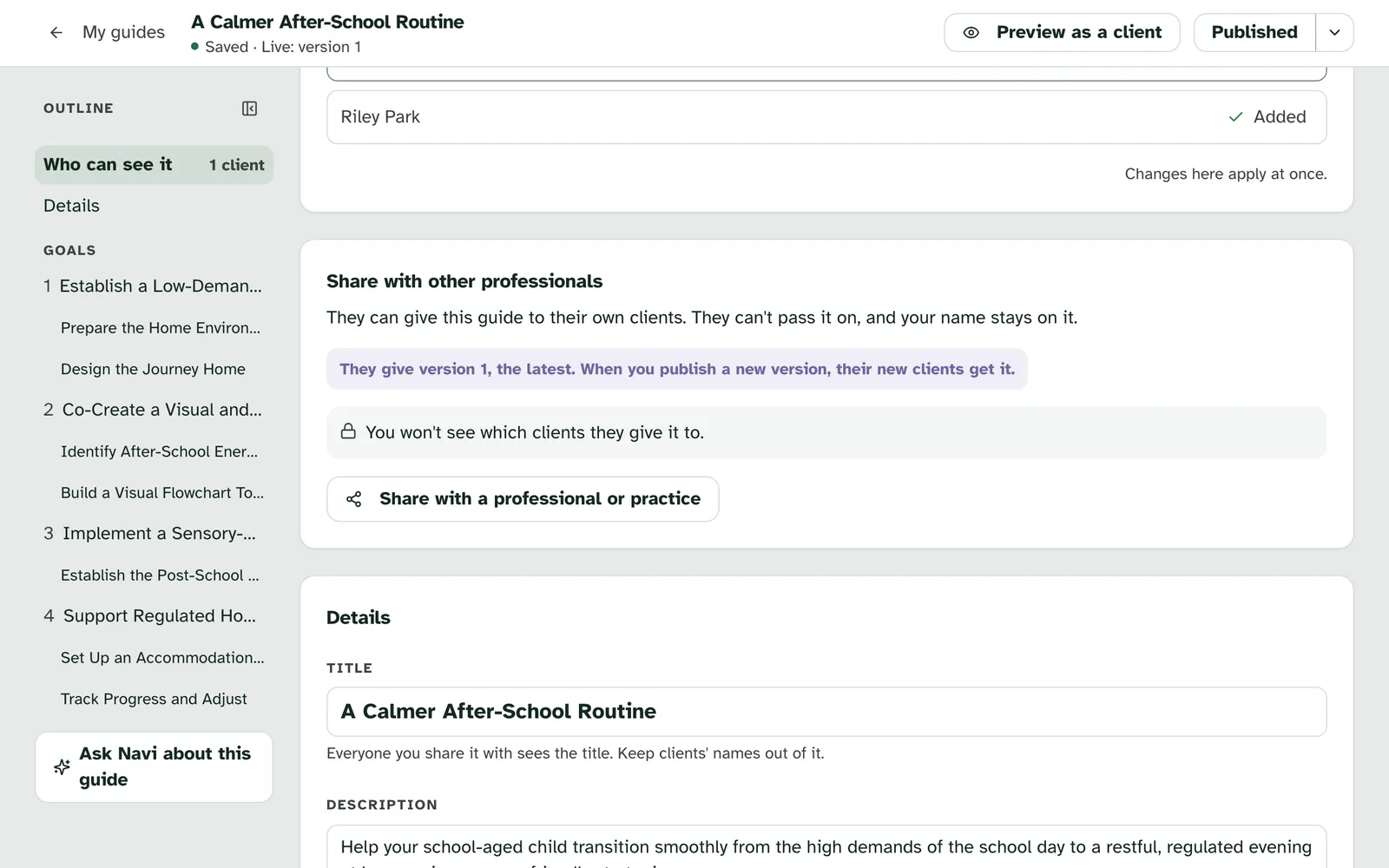
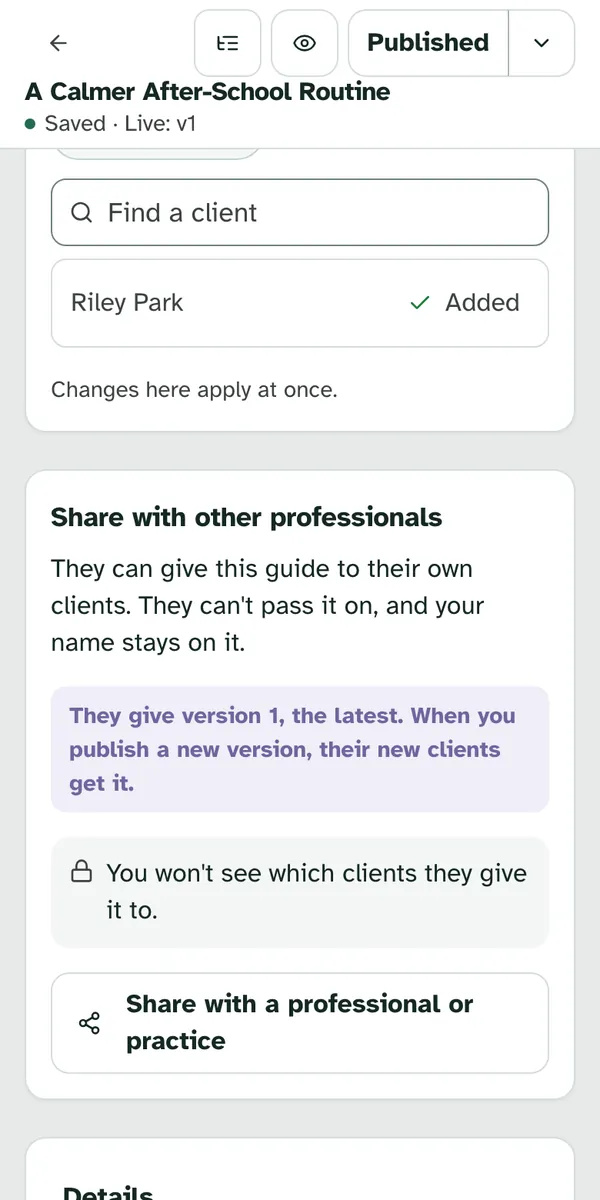
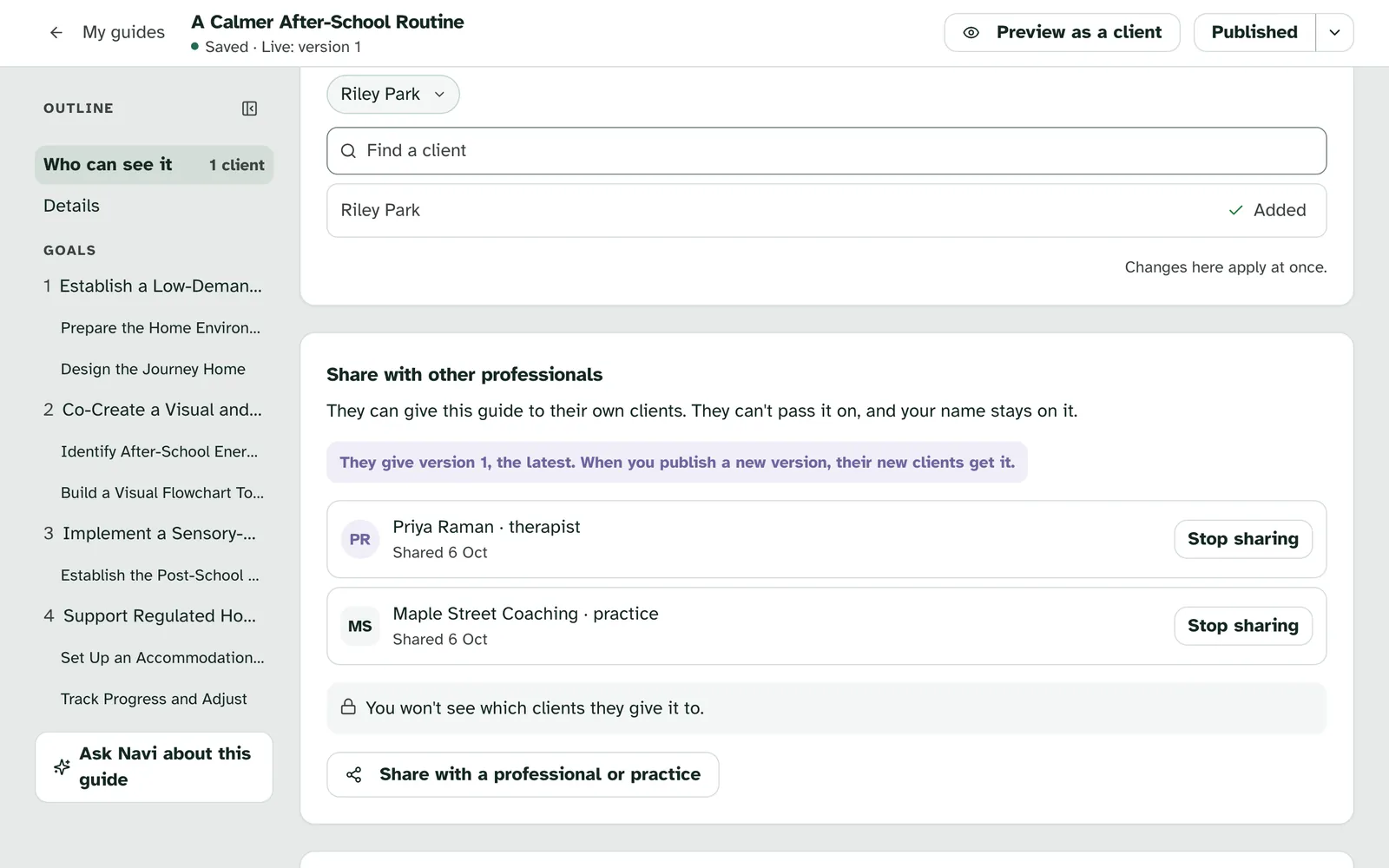
Sharing starts in the editor, once the guide is published. Open the guide from My guides and scroll to the card headed Share with other professionals, below Who can see this guide. Until the guide is published, the card says "Publish first to share with other professionals."
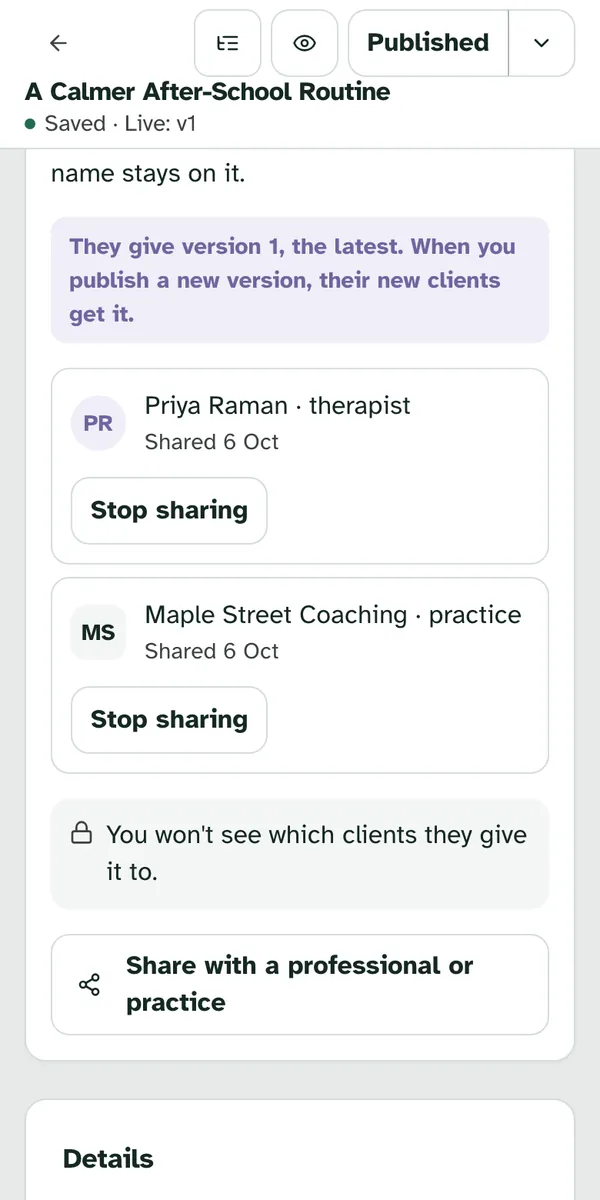
The card says what sharing means before you do it. "They can give this guide to their own clients. They can't pass it on, and your name stays on it." It also names the version they'll give, such as "They give version 1, the latest. When you publish a new version, their new clients get it." And it says plainly: "You won't see which clients they give it to."
2. Choose a professional or a practice
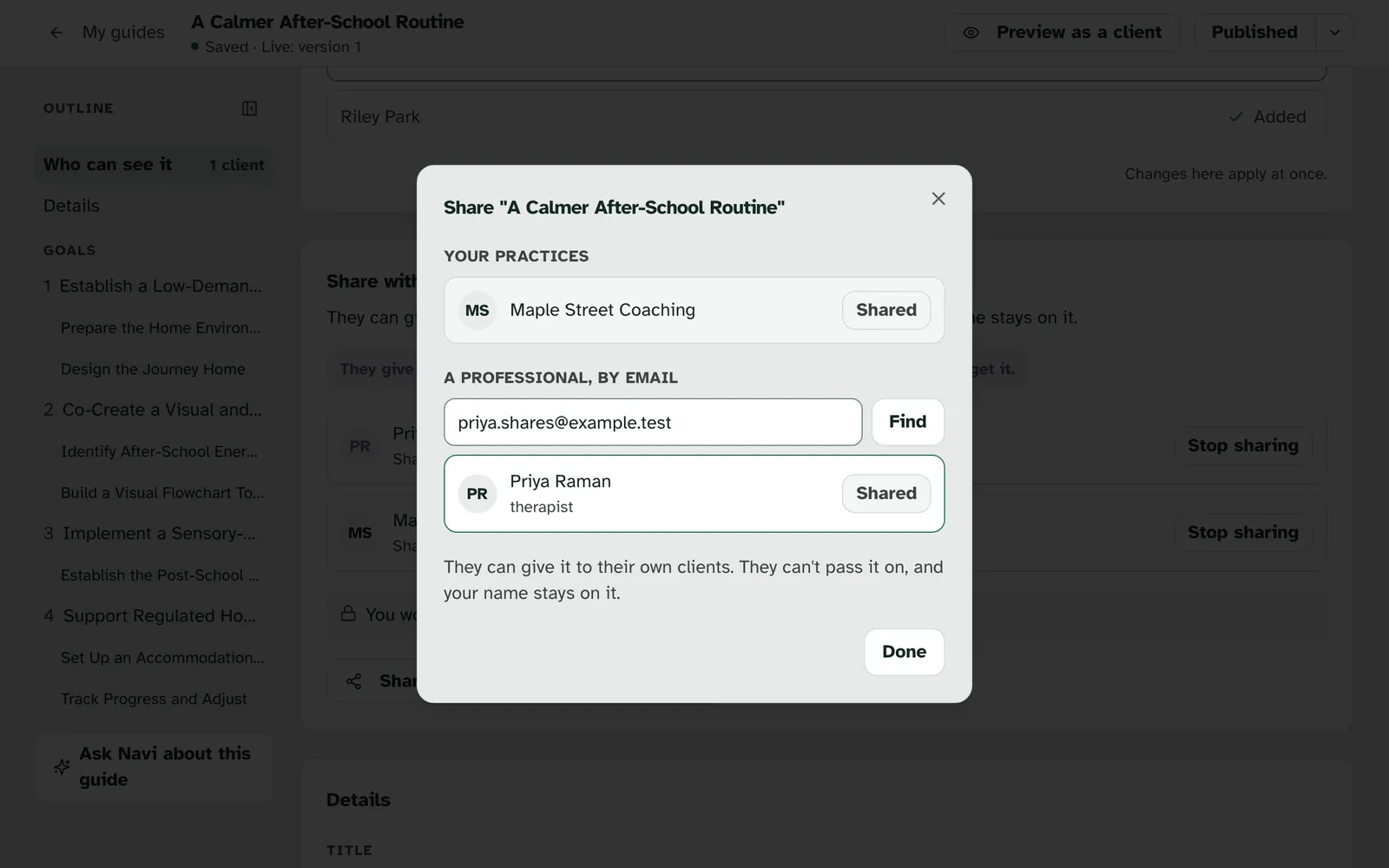
Choose Share with a professional or practice. The window that opens has two ways to choose:
- Your practices lists the practices you belong to. Choose Share next to one, and everyone in that practice can give the guide to their clients.
- A professional, by email finds one person. Type their email and choose Find. Only verified professionals can be found. If nobody verified uses that email, it says "No verified professional uses that email."
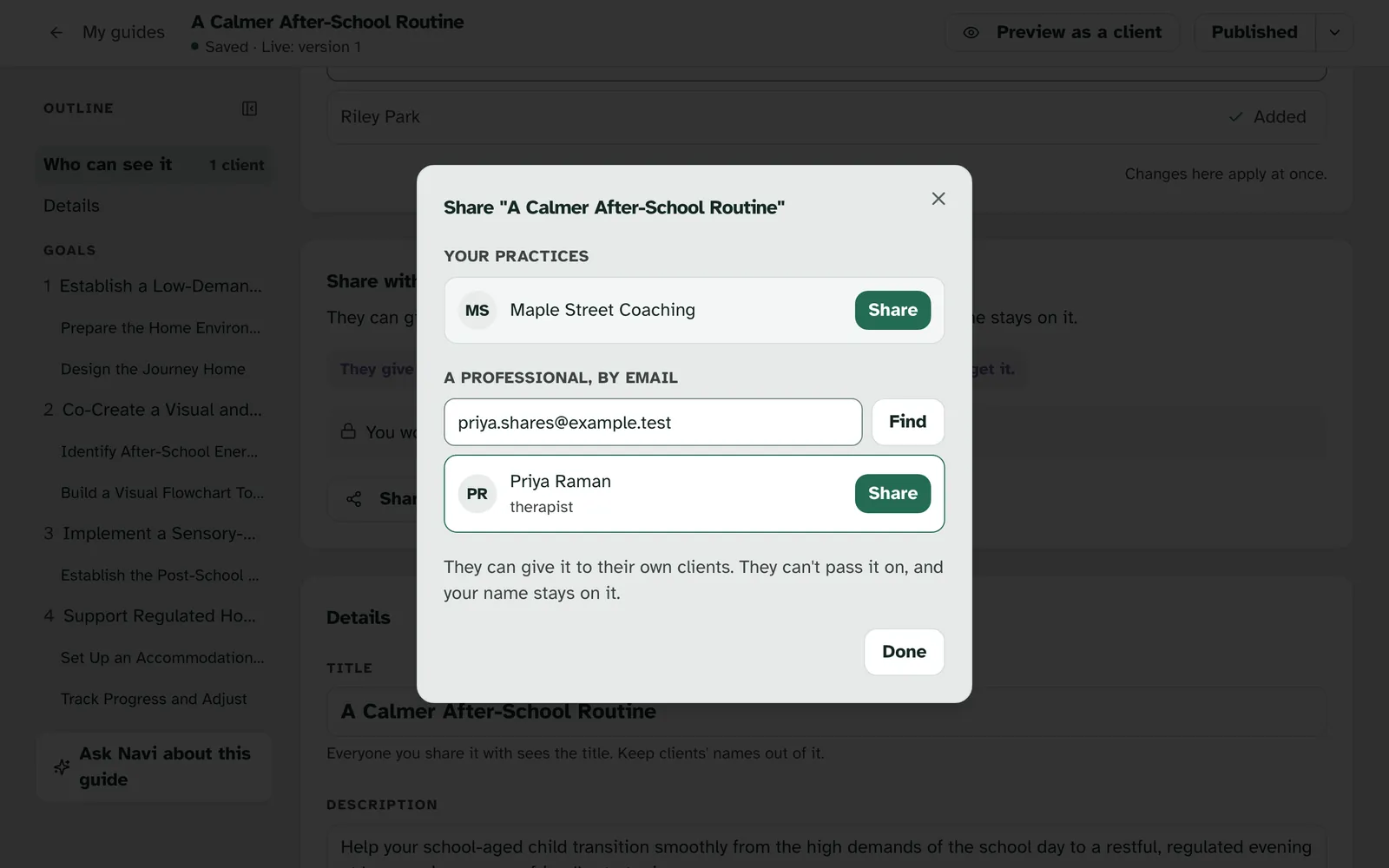
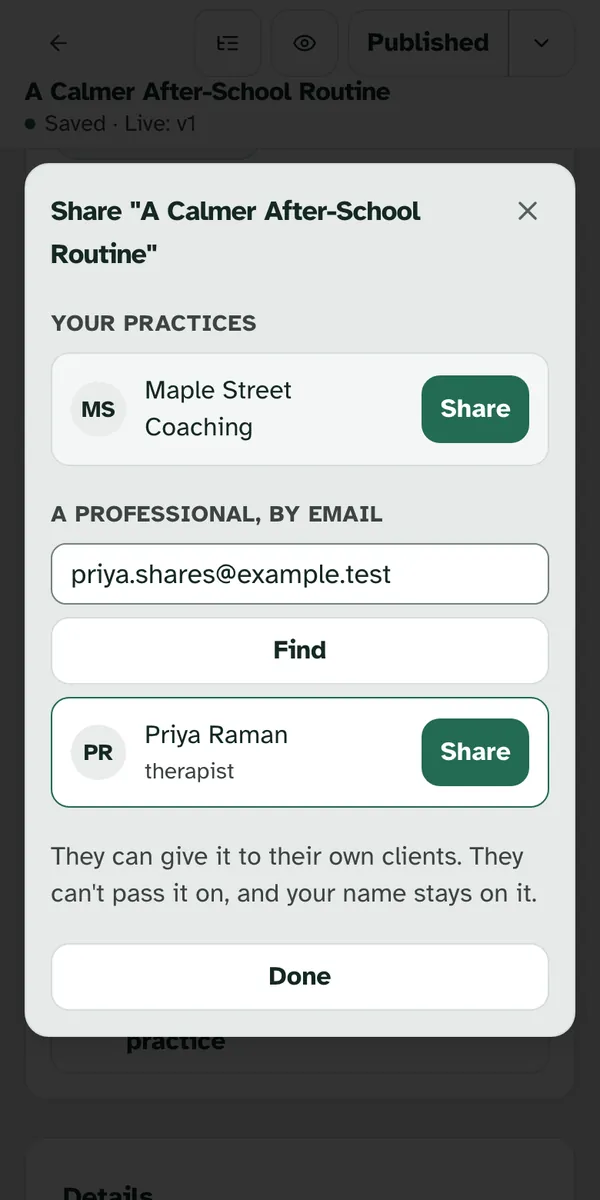
Sharing happens when you choose Share. The button turns to Shared, and choosing someone the guide already reaches says Already shared. Choose Done when you've finished.
They hear about it without the guide's name. A professional you share with gets an email headed "A guide was shared with you on Specthrive", and a phone notice if they use the app. Neither names the guide. They can turn these off with Guides shared with you in their notification settings.
3. See who you've shared with, and stop
The card lists everyone the guide reaches. Each row shows the person or practice, their role, such as "Priya Raman · therapist" or "Maple Street Coaching · practice", and when you shared it.
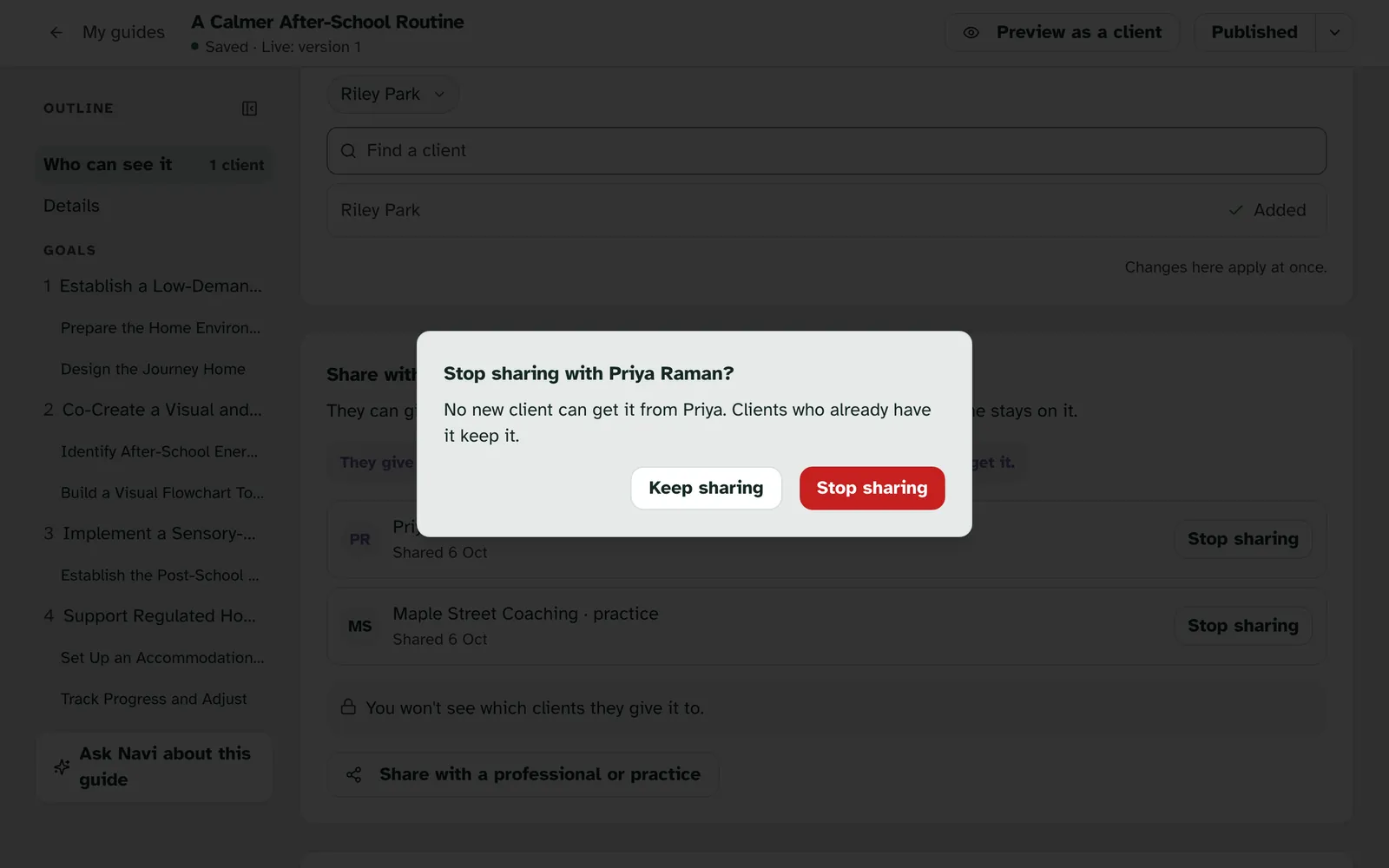
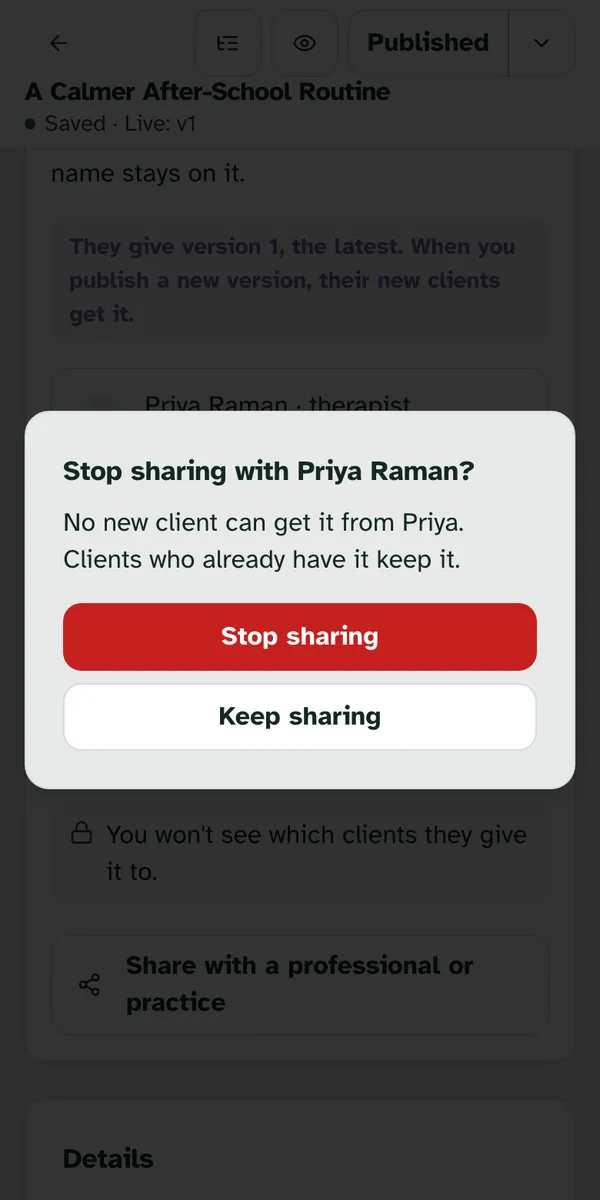
Stopping a share is gentle on clients. Choose Stop sharing on a row. It asks first, such as "Stop sharing with Priya Raman?", and explains: "No new client can get it from Priya. Clients who already have it keep it." Choose Stop sharing to go ahead, or Keep sharing to leave it as it is.
4. Find guides shared with you
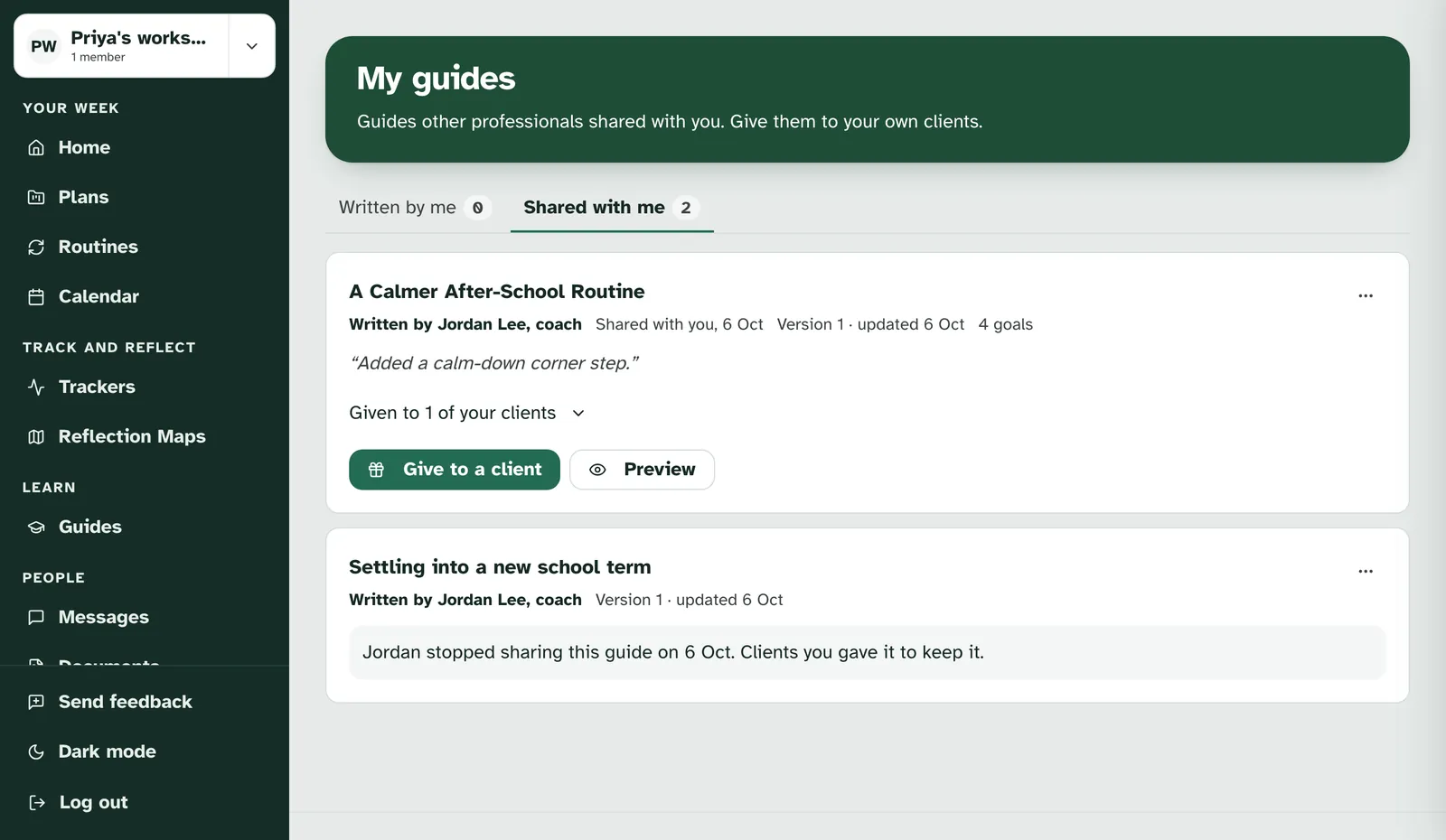
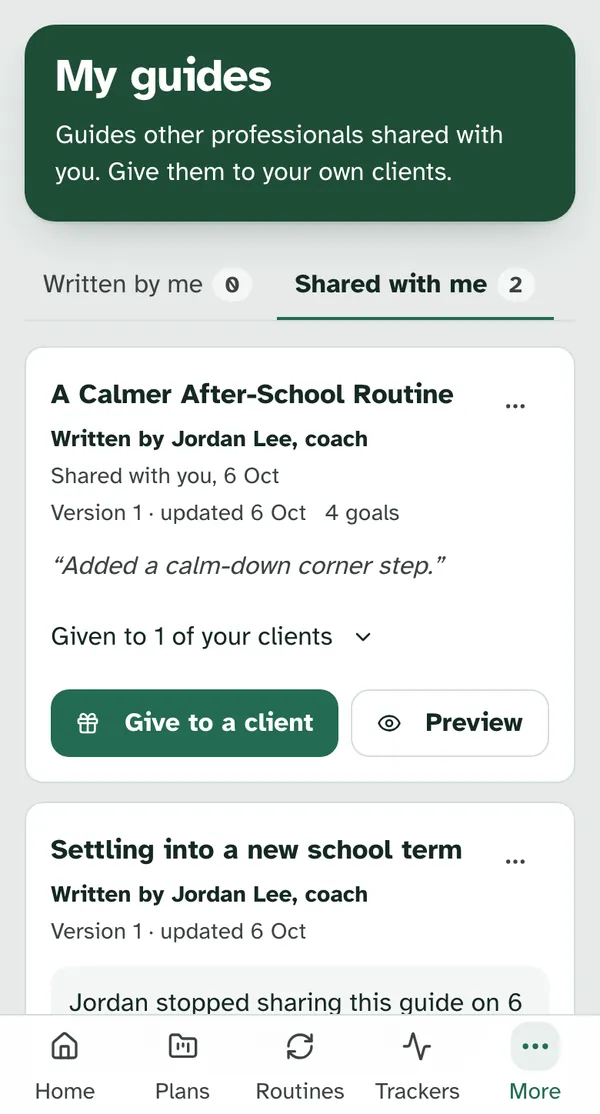
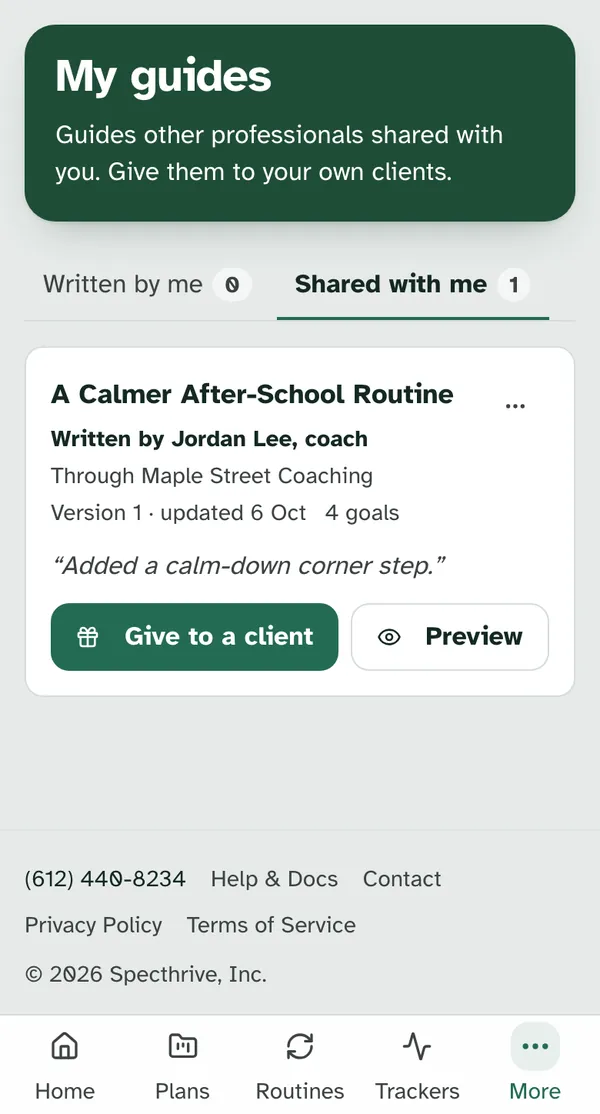
Guides shared with you are on My guides, under Shared with me. Once someone shares a guide with you, My guides has two tabs: Written by me and Shared with me, each with a count. "Guides other professionals shared with you. Give them to your own clients." A guide that has just arrived is marked New.
Each guide says who wrote it and how it reached you. A row shows "Written by" with the author's name and role, when it was shared, such as "Shared with you, 6 Oct", and the version your clients get, such as "Version 1 · updated 6 Oct". If the author left a note when they published, it shows in quotes, such as "Added a calm-down corner step." Below that are Give to a client and Preview.
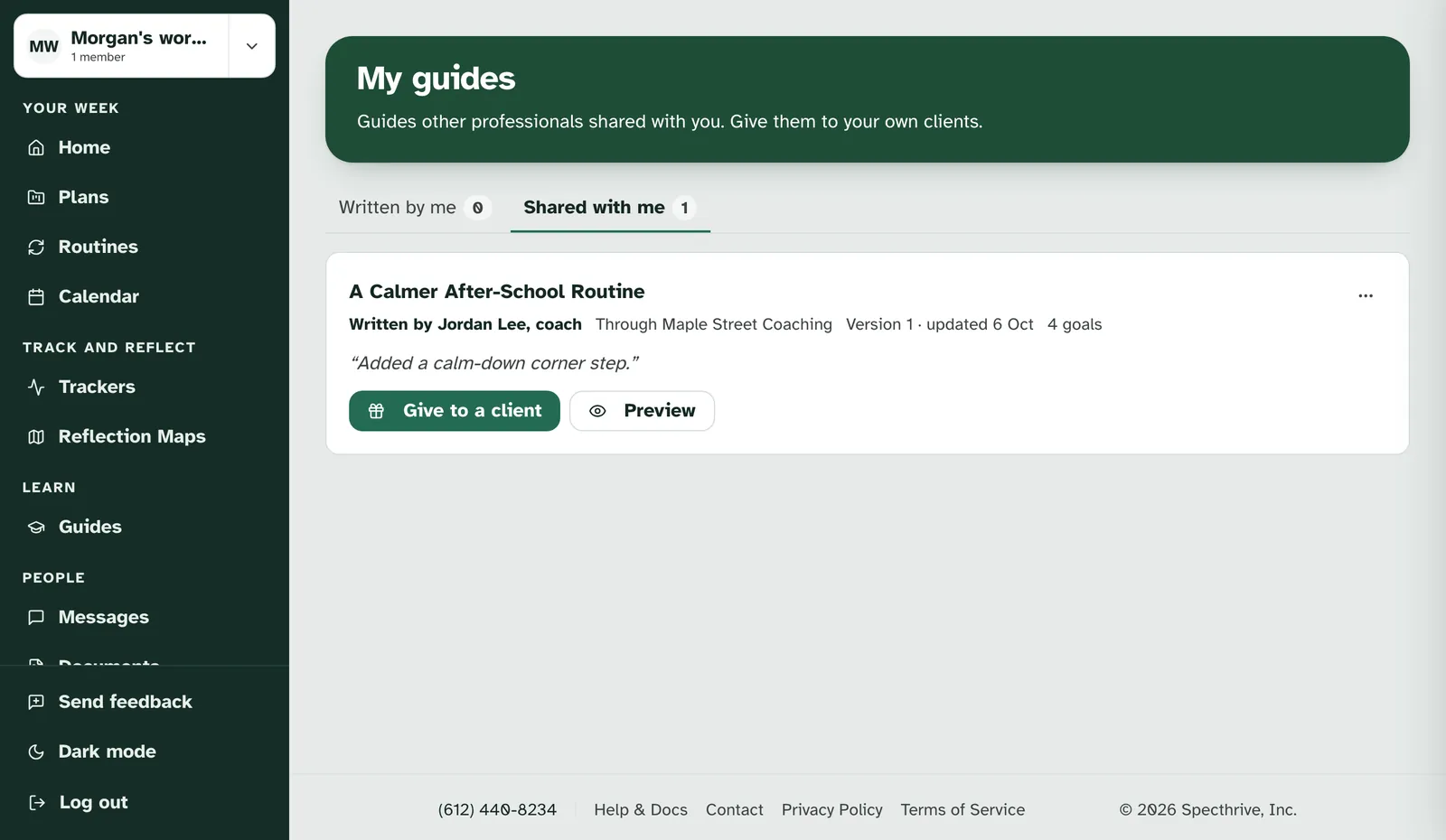
A guide shared with your practice says so. Instead of a date, the row reads "Through" and the practice's name, such as "Through Maple Street Coaching". Everyone in the practice sees it.
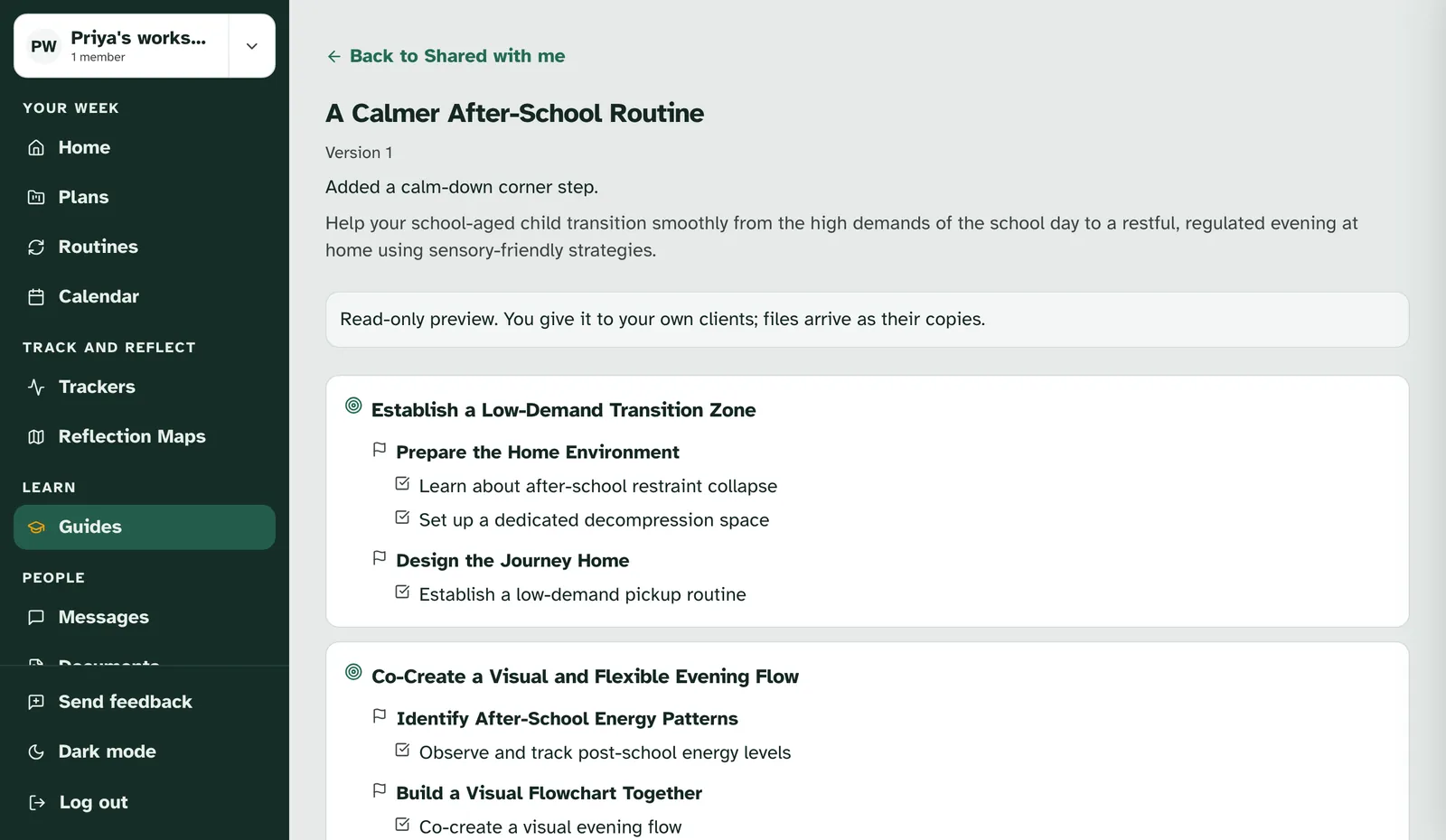
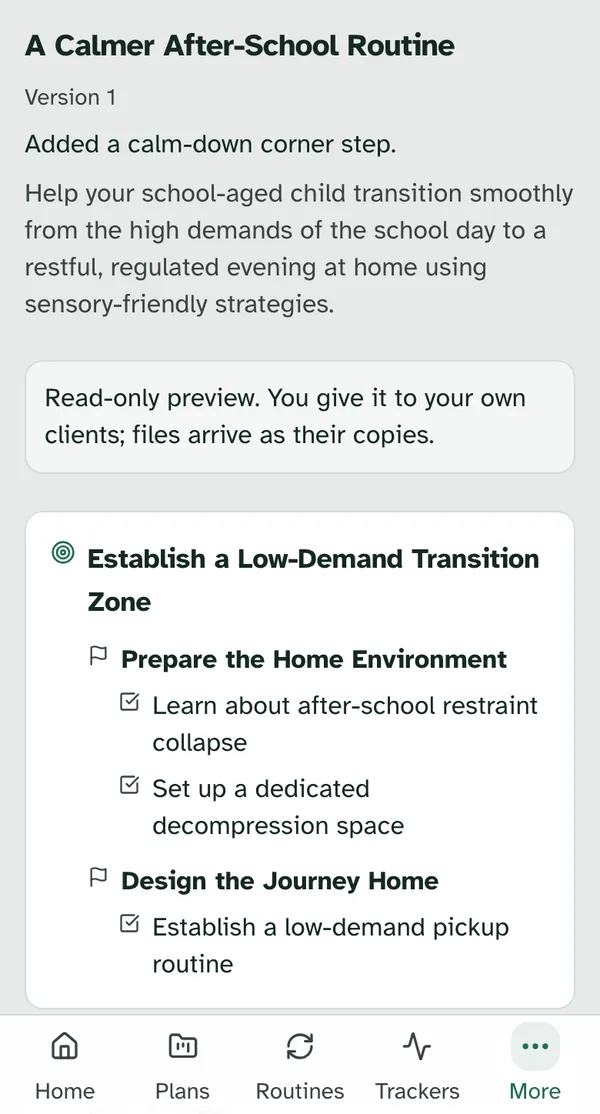
Preview shows the whole guide before you give it. It opens the guide's goals and steps with "Read-only preview. You give it to your own clients; files arrive as their copies." Choose Back to Shared with me to return.
The ... menu holds the rest. Adapt a copy makes your own copy you can change, as in Adapt your own copy below. Once you have one, the item reads Open your copy. Send steps as an assignment starts a new assignment from this guide, as in Send assignments to clients. Remove from my list takes a guide off your tab. For a guide shared with a practice, the item reads "Remove from" and the practice's name, and only the practice's owners and admins see it.
5. Give a guide to a client
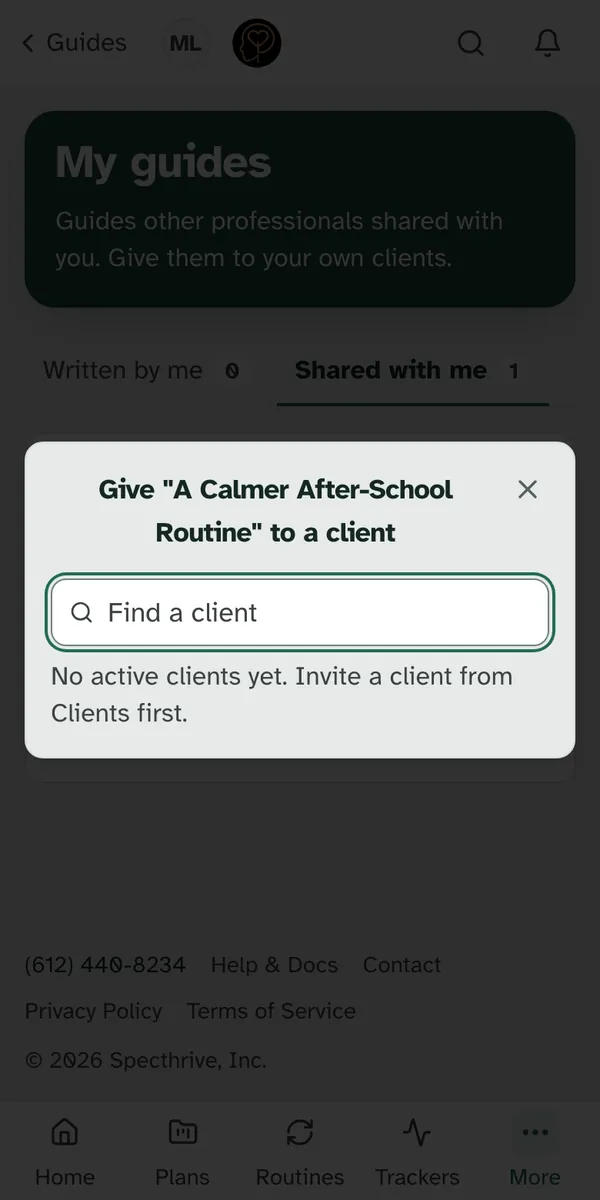
Choose Give to a client. The window lists your own active clients, the people you work with on Clients. Type in Find a client to narrow it, then choose Give next to a name.
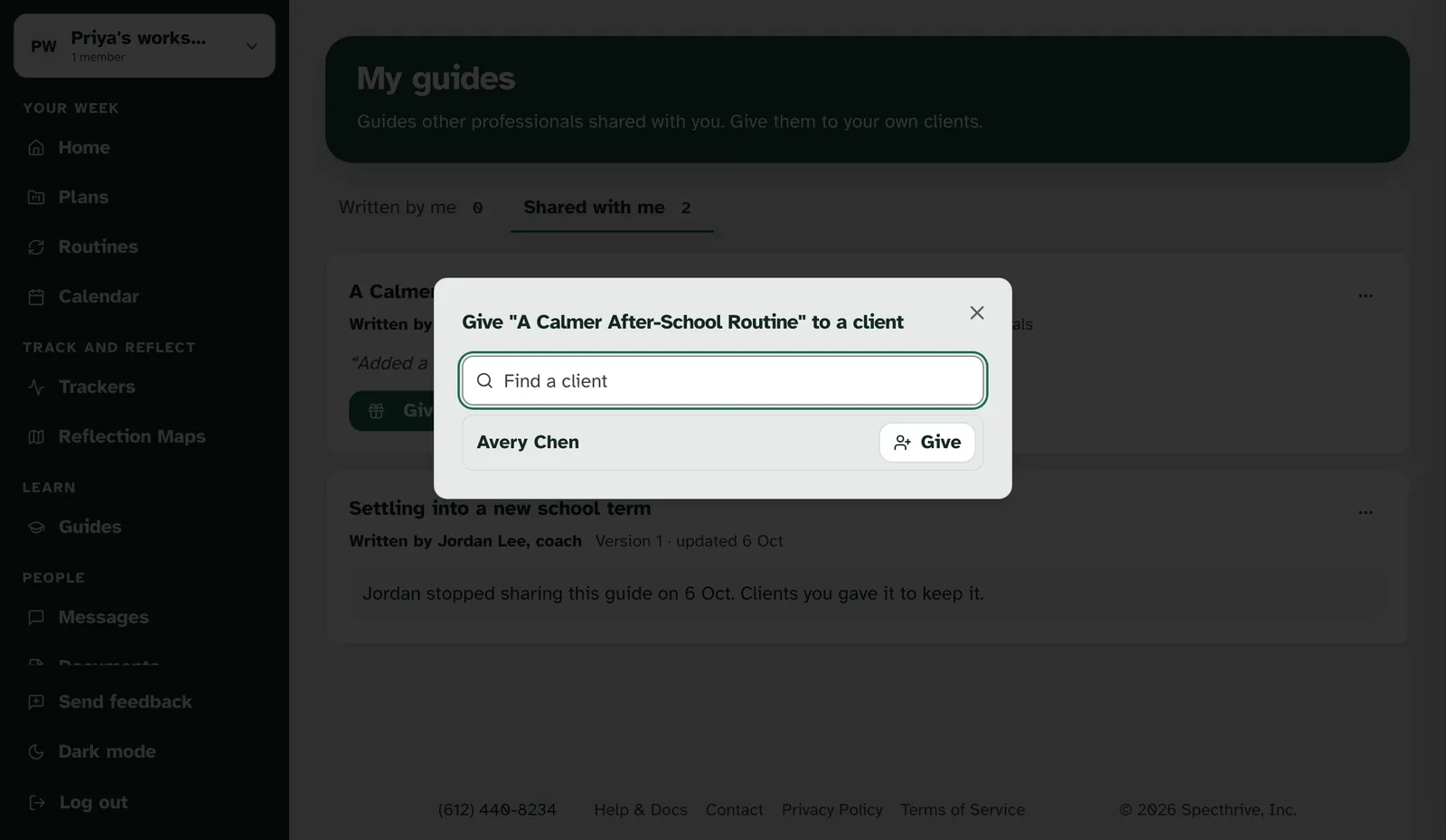
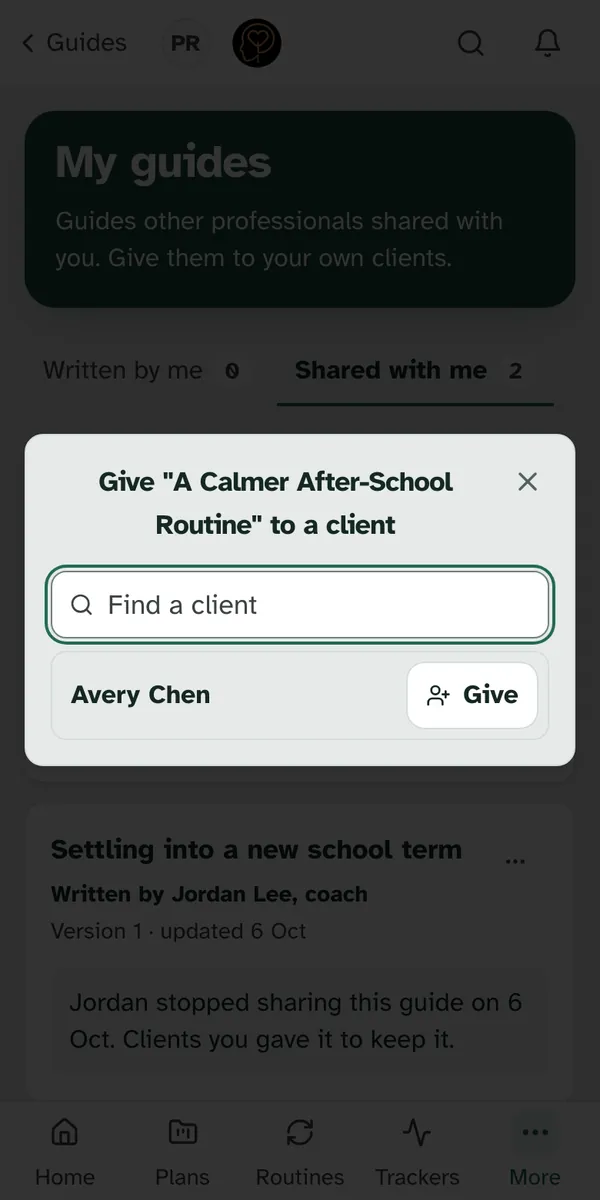
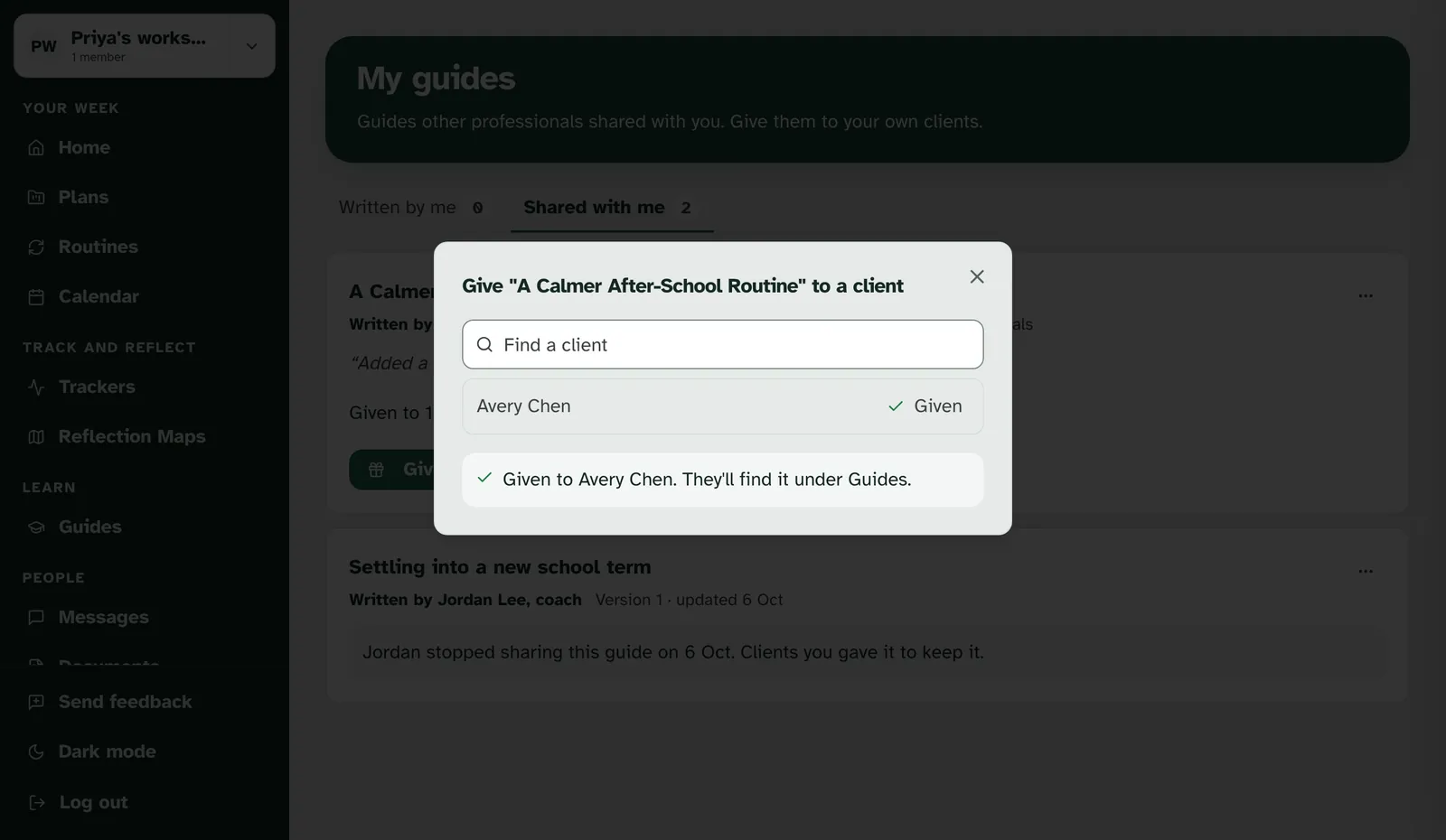
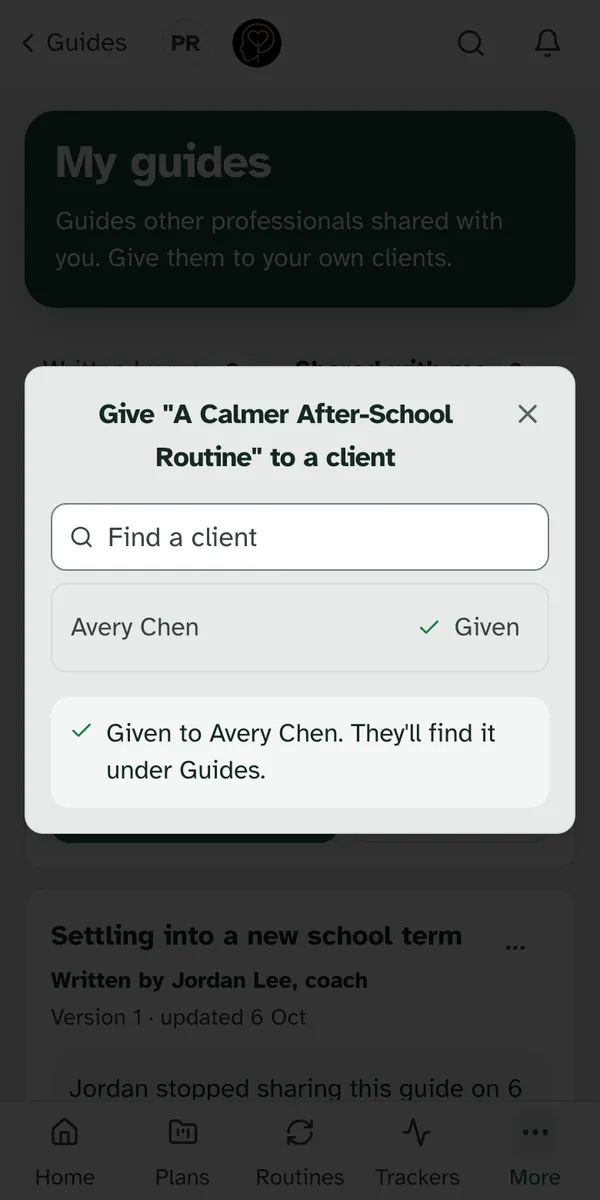
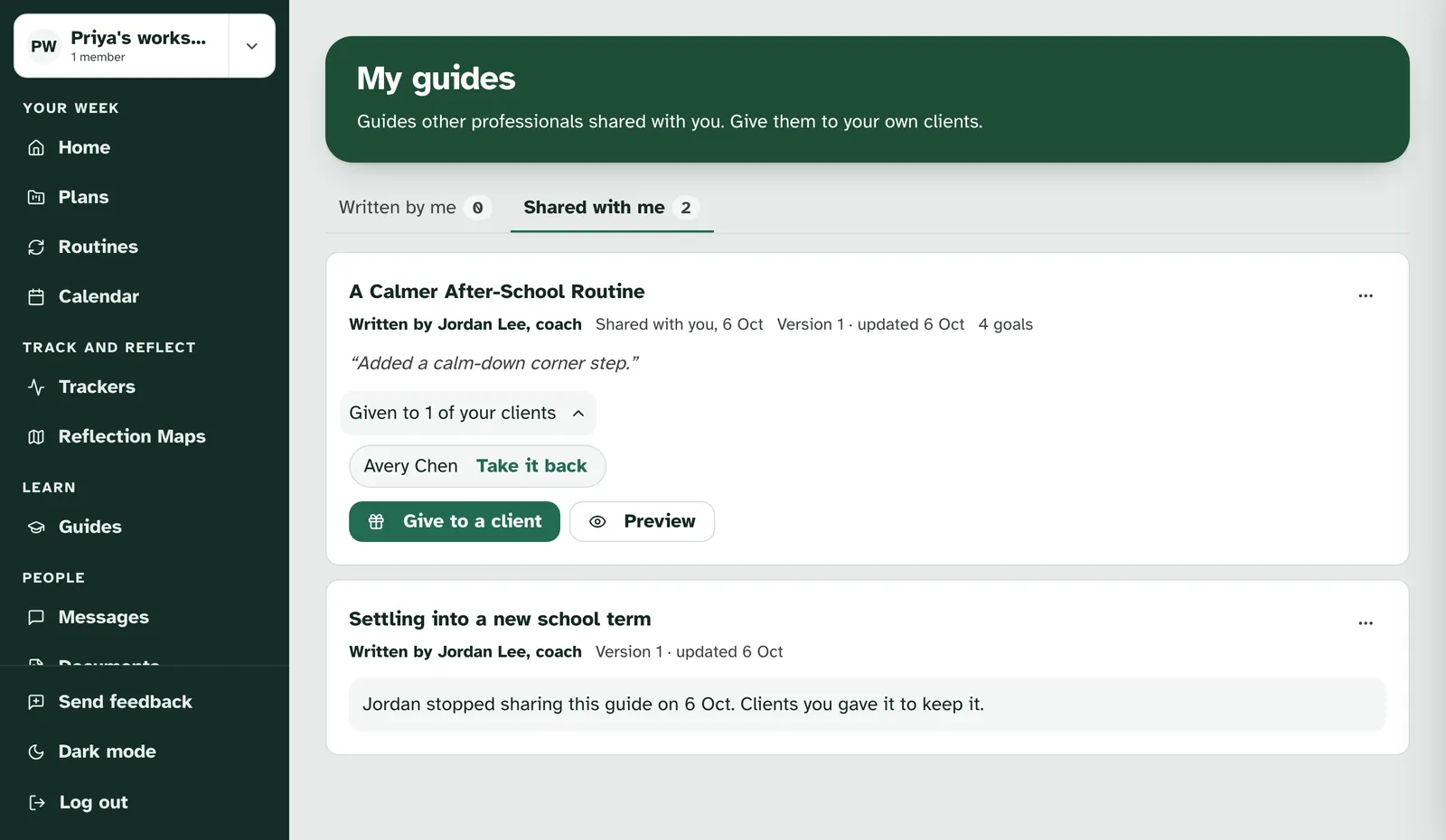
It's in their Guides straight away. The row turns to Given, and a line confirms it, such as "Given to Avery Chen. They'll find it under Guides." Your row on Shared with me then counts them, such as "Given to 1 of your clients".
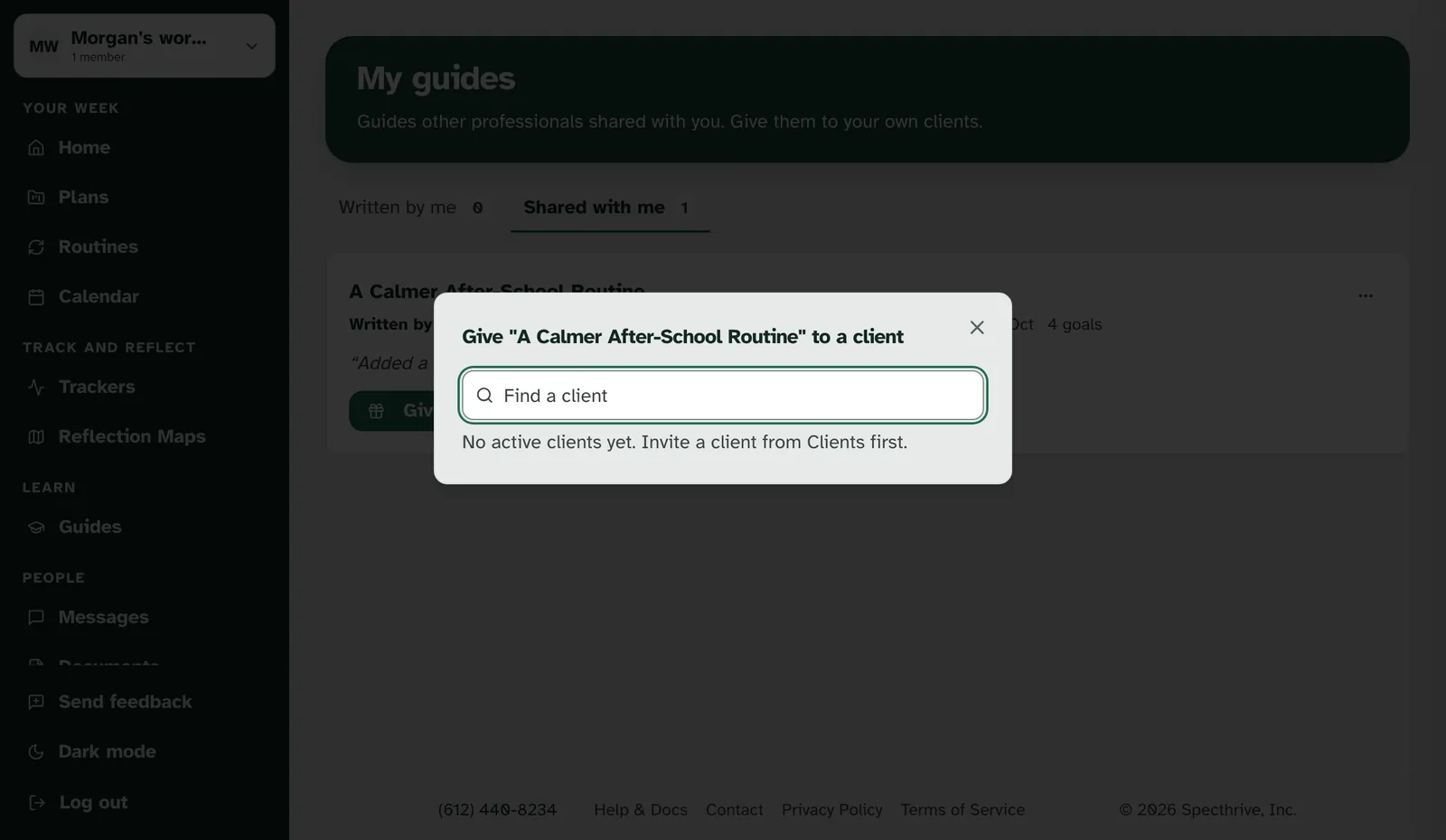
With no clients yet, the window says where to start. "No active clients yet. Invite a client from Clients first." Inviting someone is in Getting started as a coach or therapist.
6. Take a guide back from a client
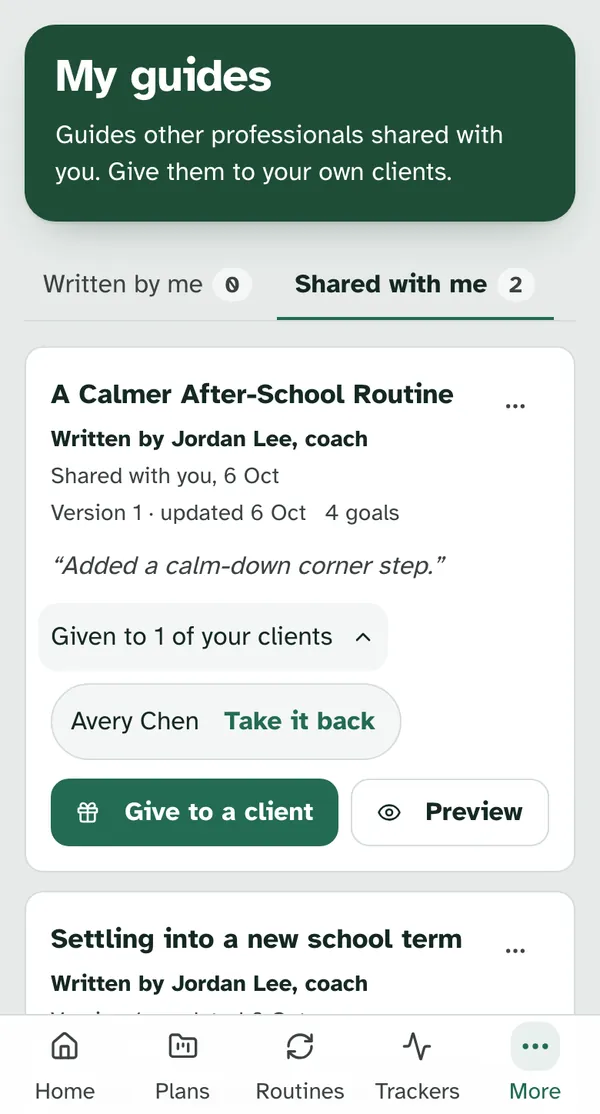
Open the count to see who you gave it to. Choose "Given to 1 of your clients" on the row. Each client is listed by name with Take it back next to it.
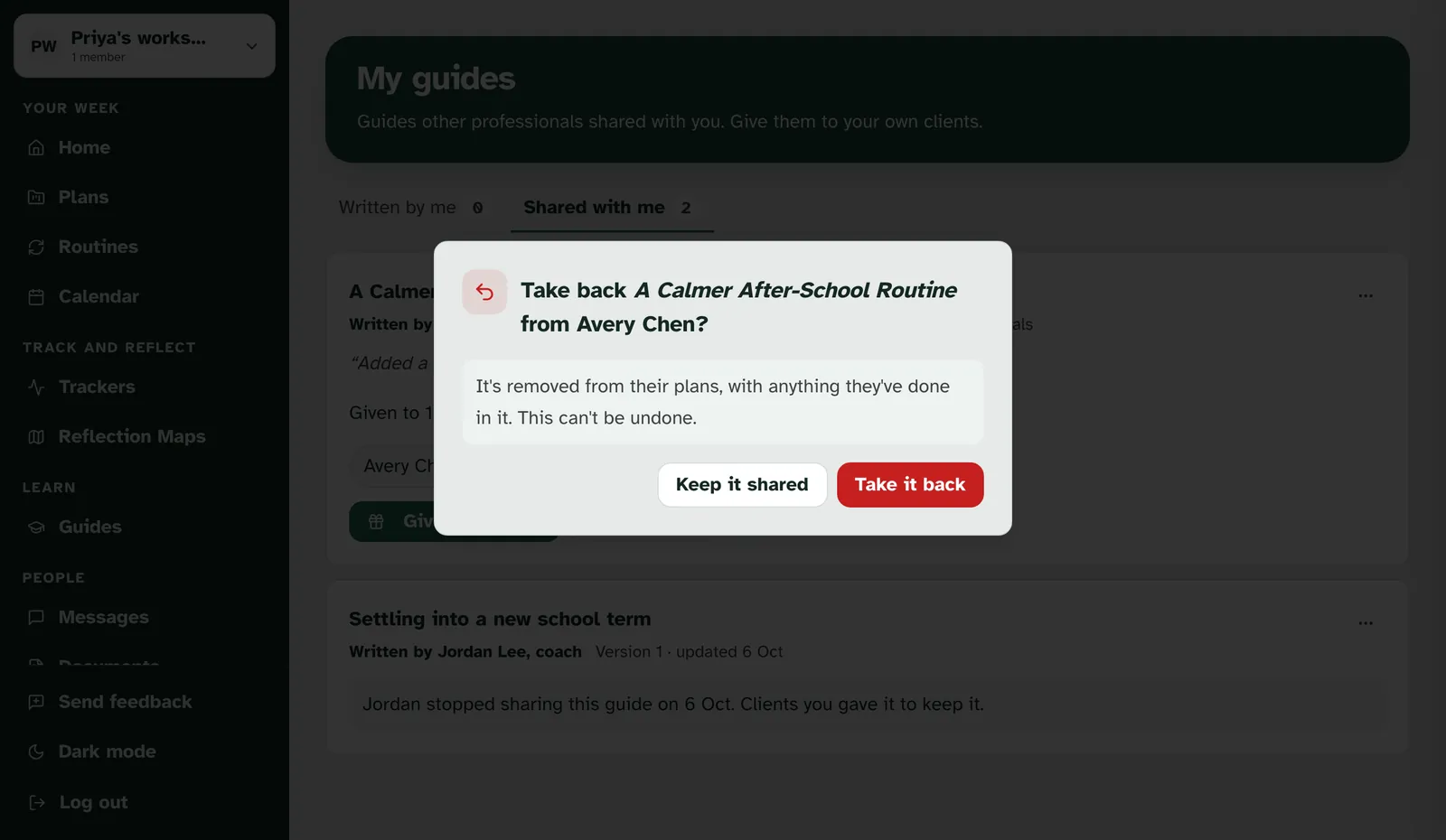
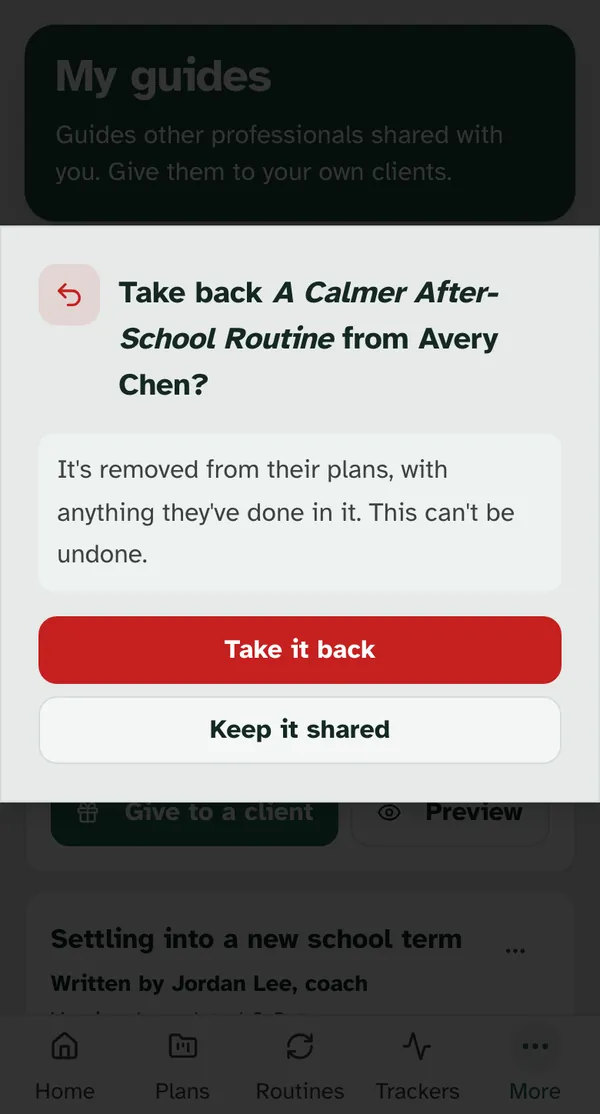
Taking it back asks first, because it can't be undone. The question names the guide and the client, such as "Take back A Calmer After-School Routine from Avery Chen?", and says "It's removed from their plans, with anything they've done in it. This can't be undone." Choose Take it back, or Keep it shared to leave it with them.
Your client is told gently. Their timeline shows a short "Just so you know" note that doesn't name the guide. What they see is in Adopt a guide.
7. When a guide stops being shared with you
Clients you gave it to always keep it. If the author stops sharing, unpublishes it, or you leave the practice it came through, the row stays on Shared with me with a short note, such as "Jordan stopped sharing this guide on 6 Oct. Clients you gave it to keep it." Give to a client and Preview go away, but the list of clients you gave it to, and Take it back, stay.
Your own copy stays yours. If you adapted a copy, it doesn't depend on the share. It stays on Written by me, and you can keep changing it and giving it to your clients.
8. Adapt your own copy
Sometimes a guide is close, but not quite right for your clients. You can make your own copy and change it. The copy always keeps the original author's name, and it stays between you and your clients.
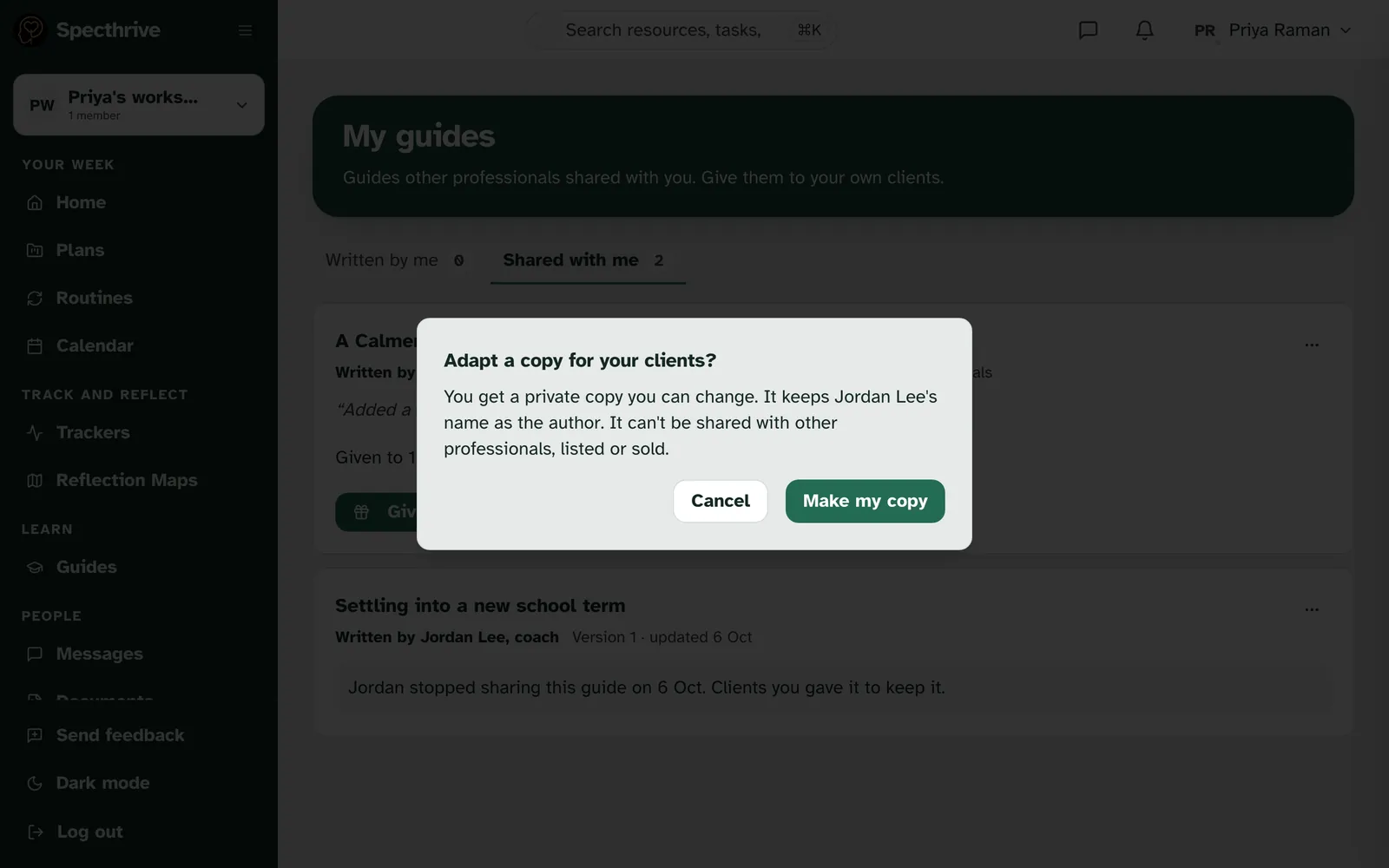
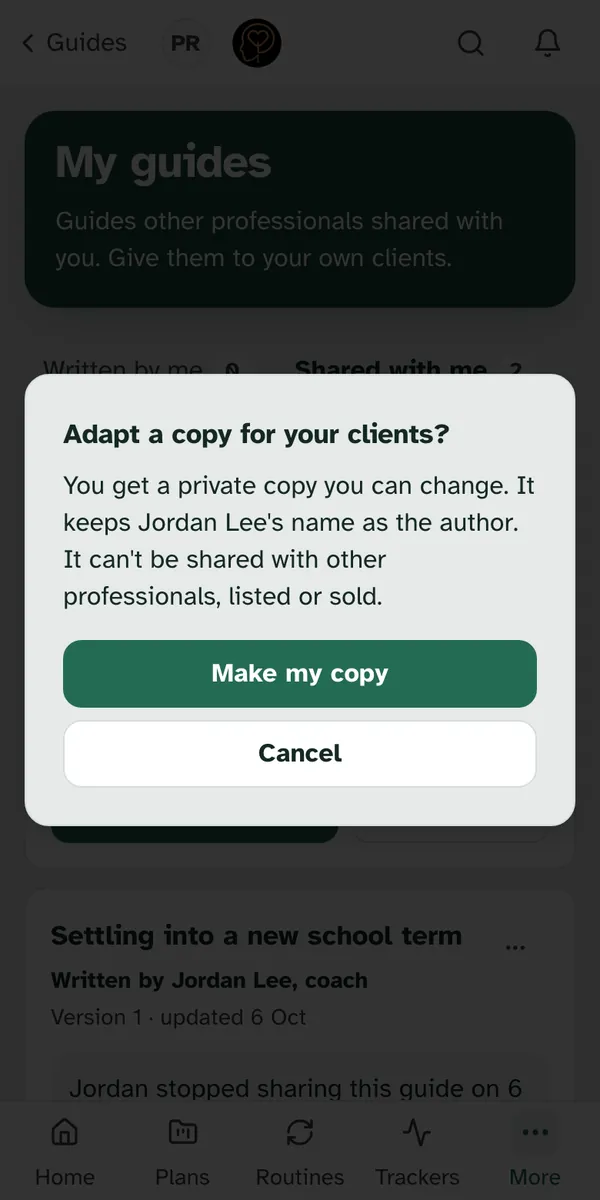
Choose Adapt a copy from the guide's ... menu. It's there while the guide is shared with you. A short question comes first: "Adapt a copy for your clients?" It says what you get: "You get a private copy you can change. It keeps Jordan Lee's name as the author. It can't be shared with other professionals, listed or sold." Choose Make my copy to go ahead, or Cancel.
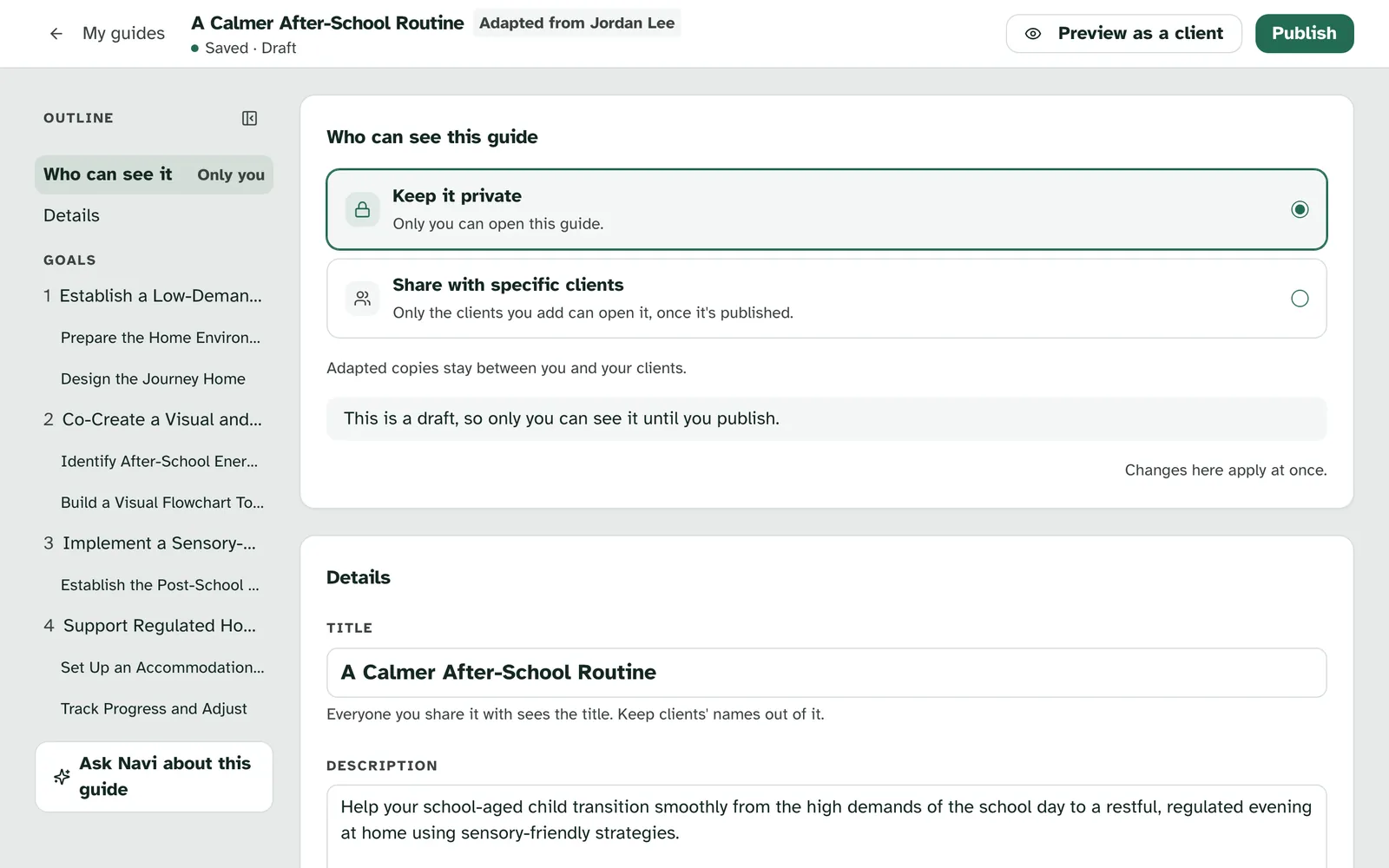
Your copy opens in the editor. It starts from the version the author last published, with the files Specthrive has approved. It starts as a draft that only you can open. Beside the title, a small label says where it came from, such as "Adapted from Jordan Lee". Change whatever you like, then publish it as you would your own guide. Writing and publishing are in Write a guide for your clients.
Your copy doesn't change when the original does. When the author publishes a new version, your copy stays as you left it.
You have one copy of each guide. Once you've made it, the ... menu on Shared with me reads Open your copy instead, and takes you back to it. Your copy is also on Written by me, marked Adapted copy.
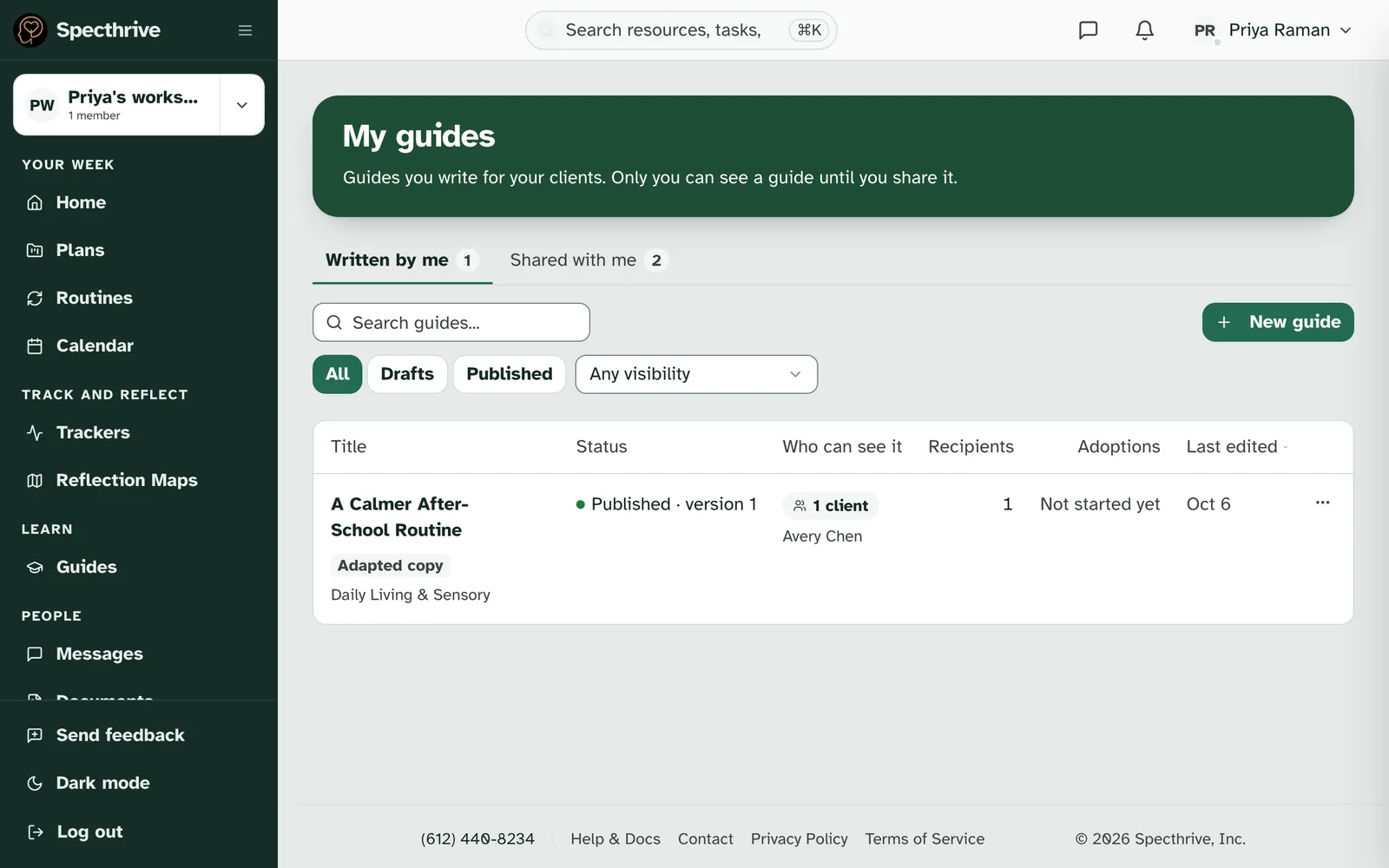
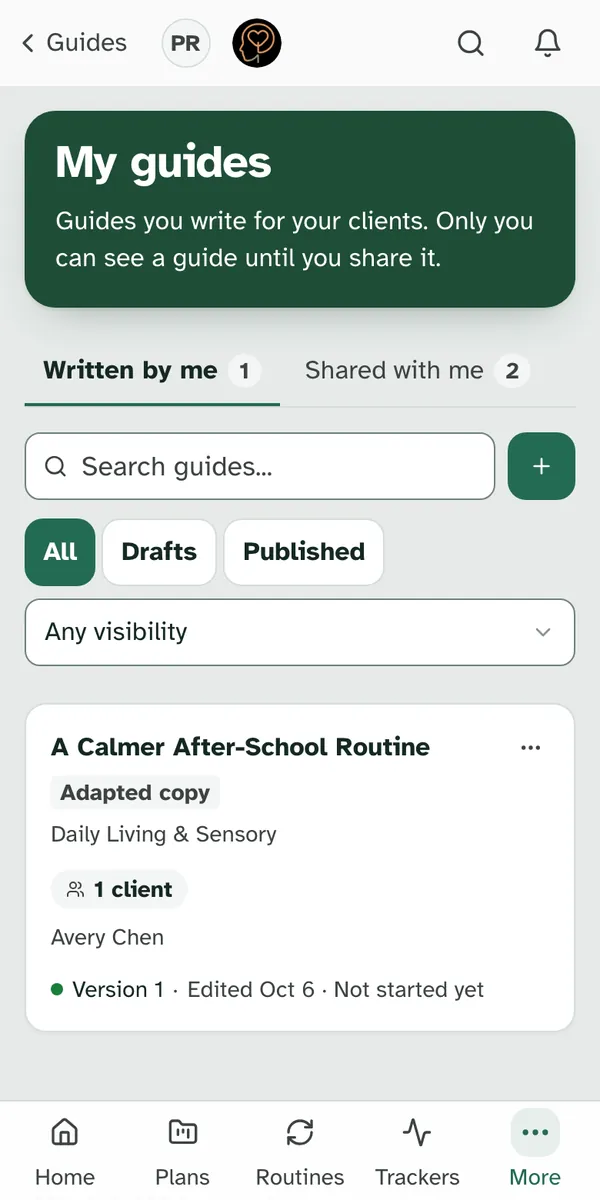
A copy is only for your own clients. In Who can see this guide, a copy has two choices, Keep it private and Share with specific clients, with the line "Adapted copies stay between you and your clients." There's no listing on the Guides page and no sharing with other professionals. It can't leave Specthrive as a link or a PDF either. Send steps as an assignment still works, for your own clients.
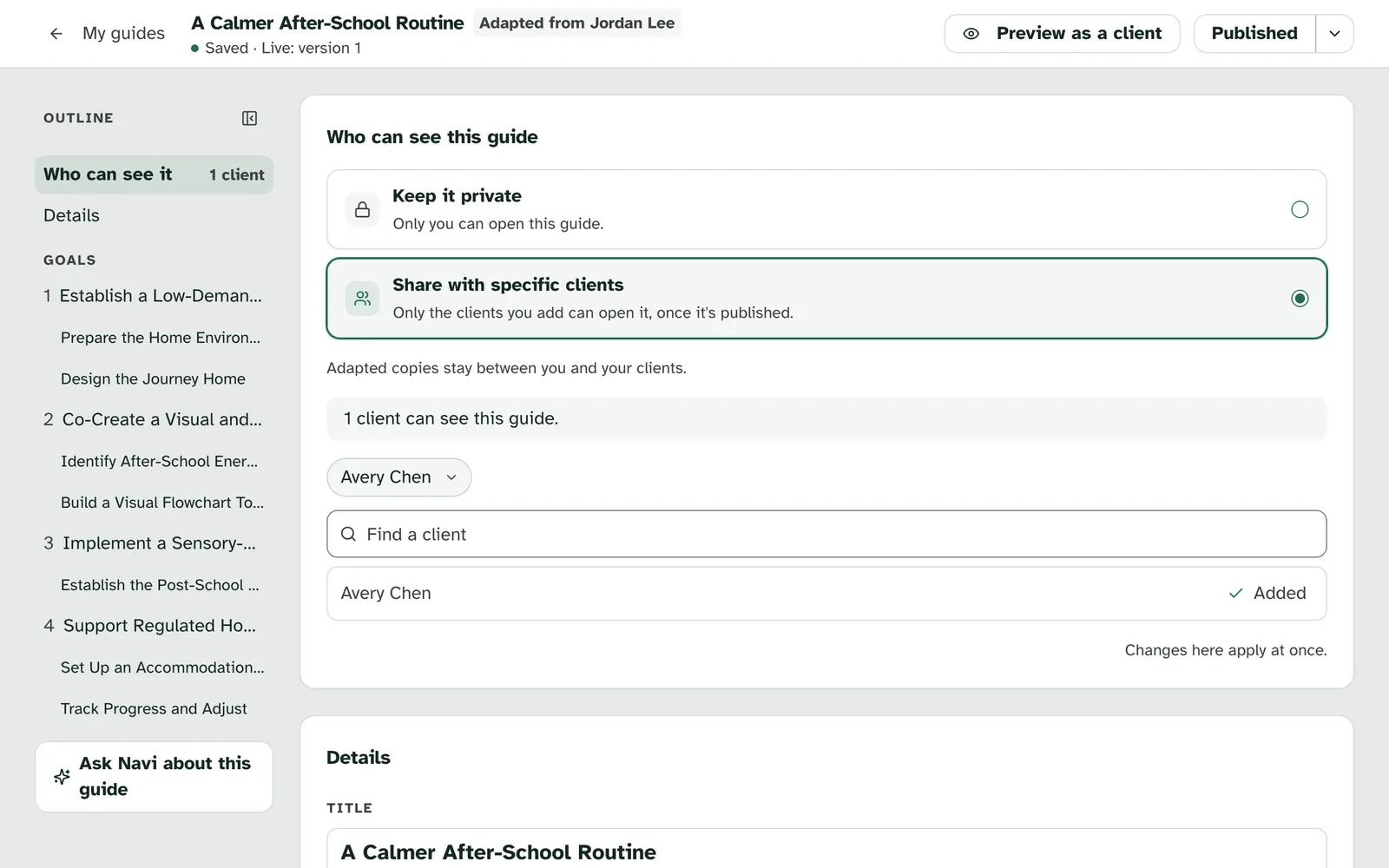
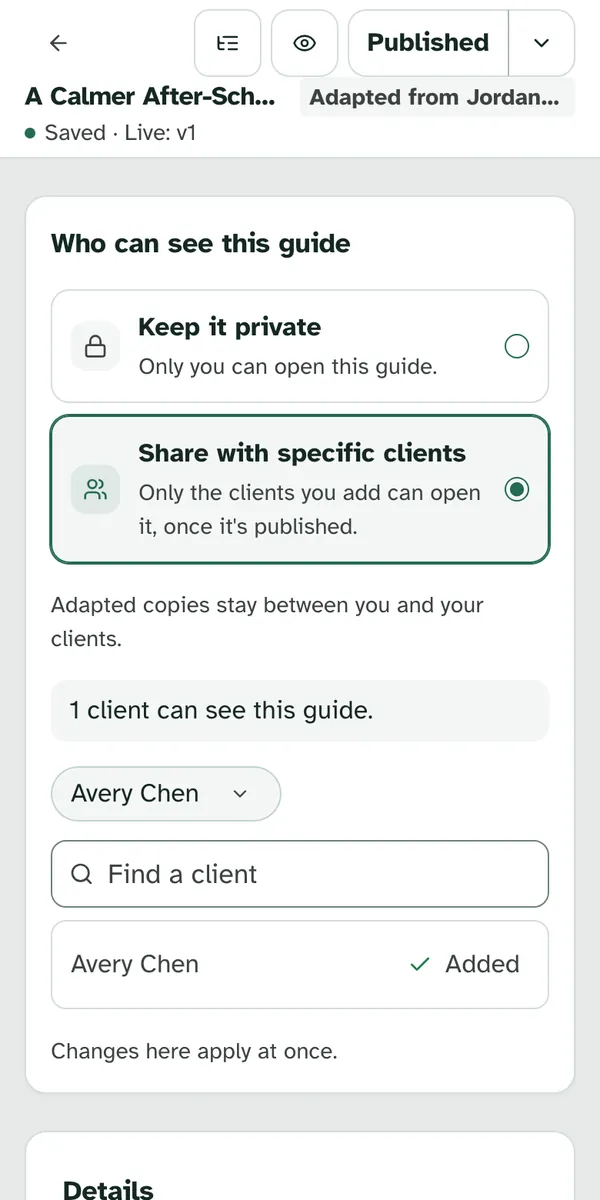
Your name and the author's both show. Under Details, How your name appears shows both, such as "Your clients see your first name, like “Adapted by Priya, your therapist, from Jordan Lee's guide”." Your role shows only once Specthrive has confirmed it.
If Specthrive removes one of the original guide's files, it goes from your copy too. It's also removed from your clients' plans, and their timeline says so gently. What they see is in Adopt a guide.
9. What your client sees
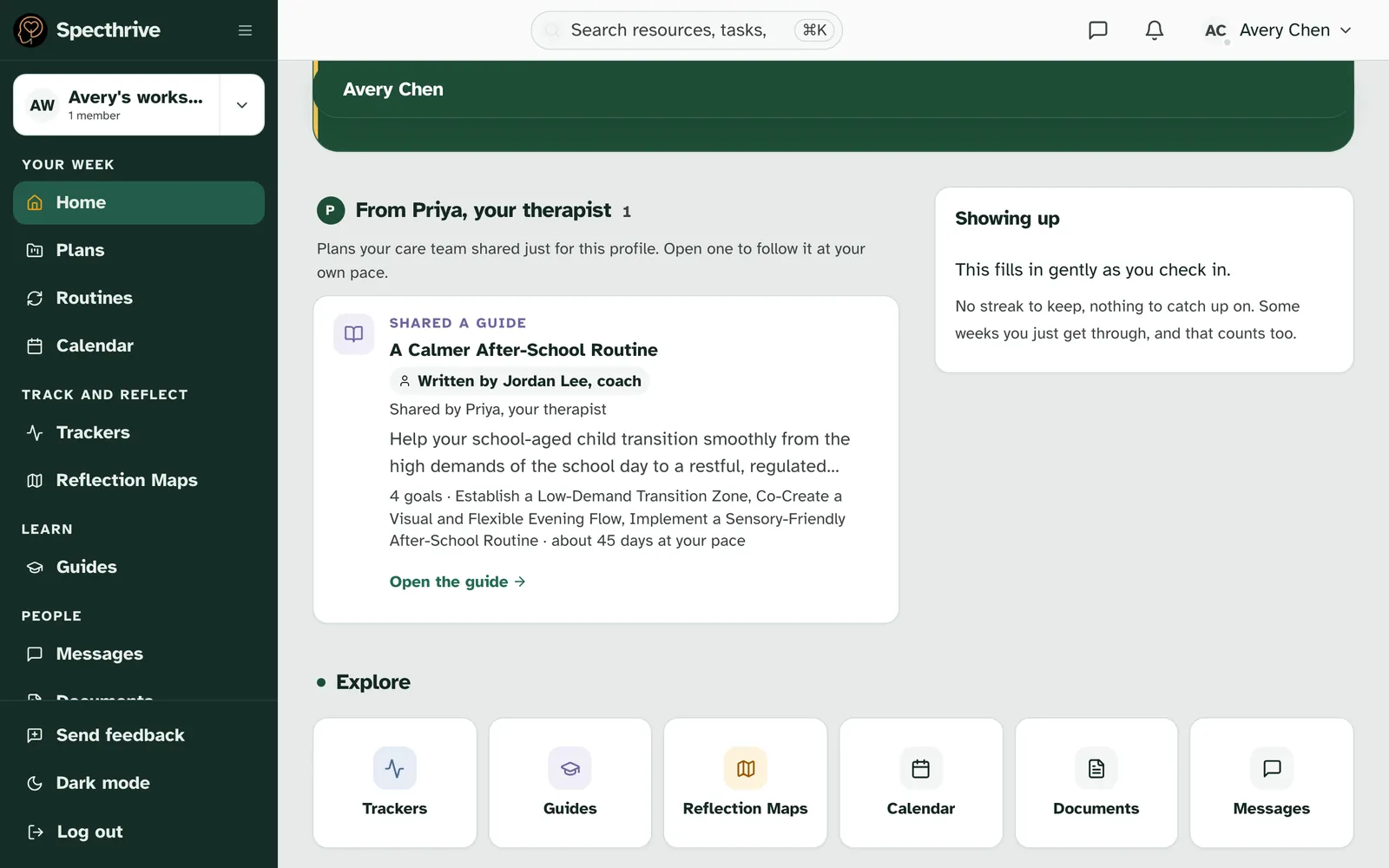
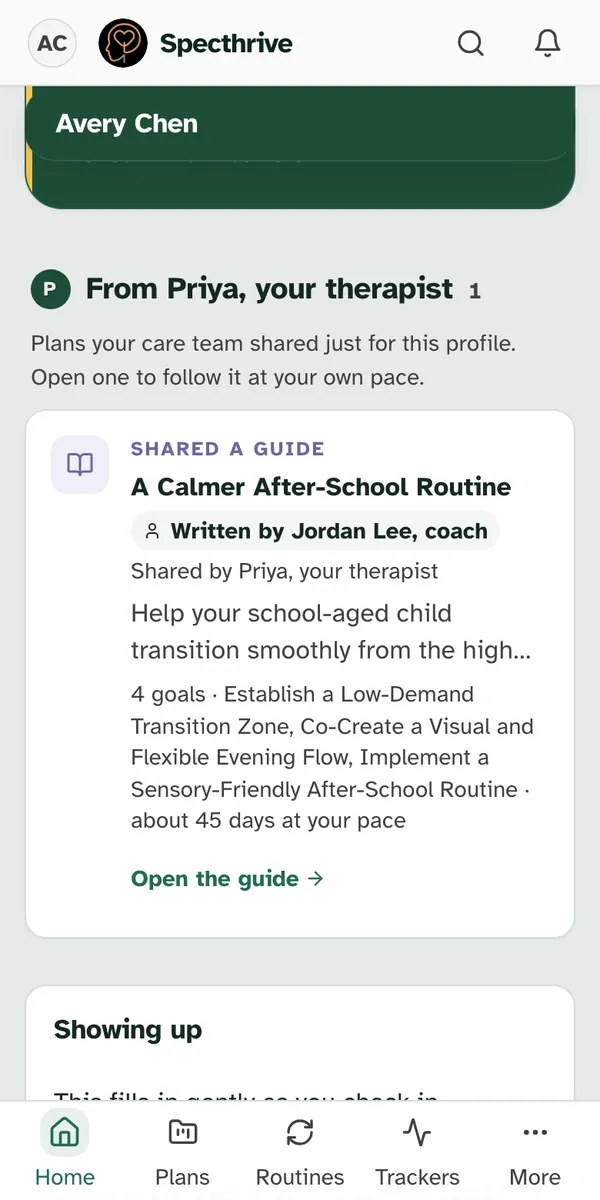
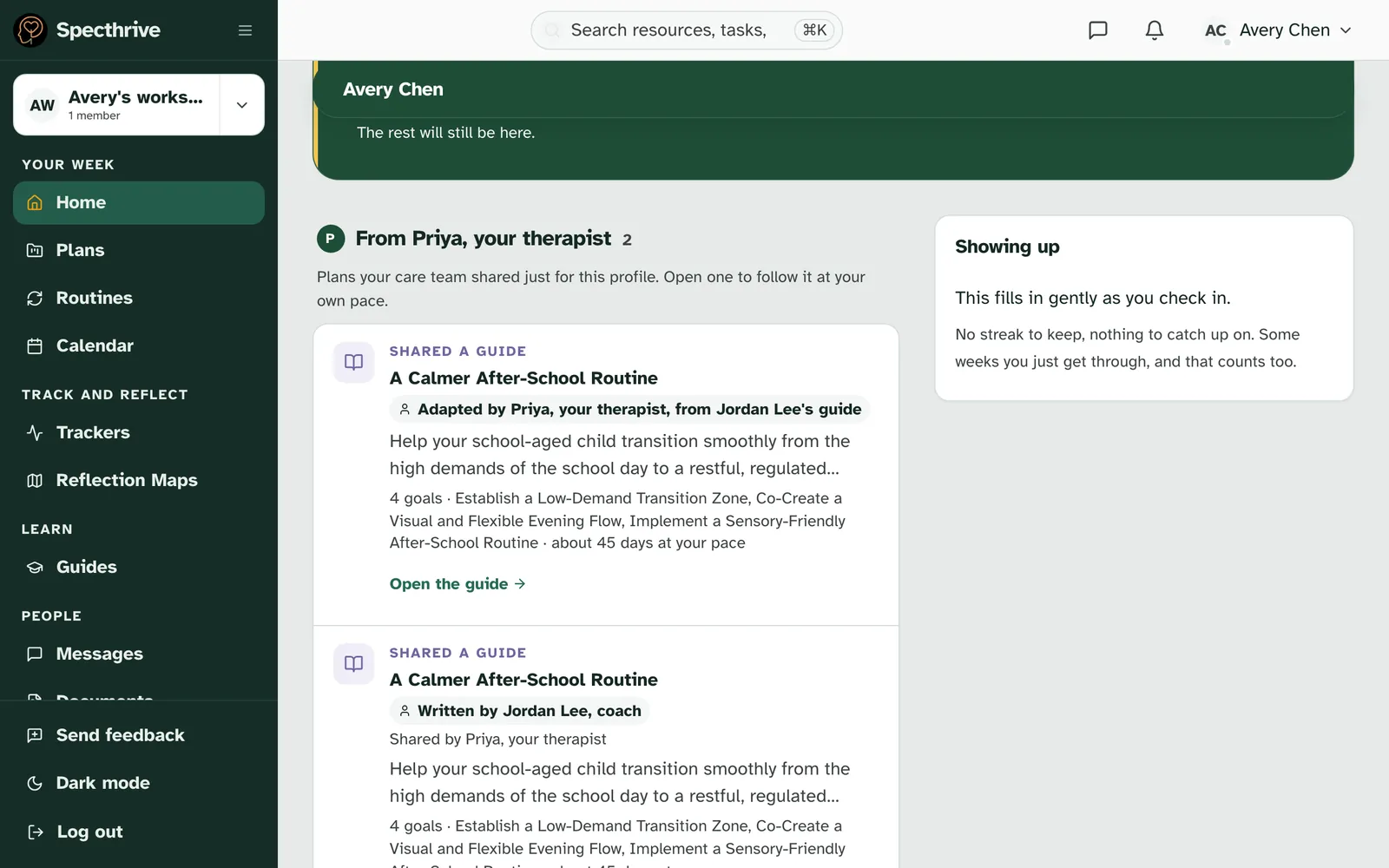
Your client sees who wrote it and who gave it to them. On their Home, the guide appears under your name, such as "From Priya, your therapist", marked Shared a guide. The guide carries two lines: the author, such as "Written by Jordan Lee, coach", and you, such as "Shared by Priya, your therapist". Your role shows only once Specthrive has confirmed it; until then it reads just "Shared by Priya". The same guide is under Shared with you on their Guides page.
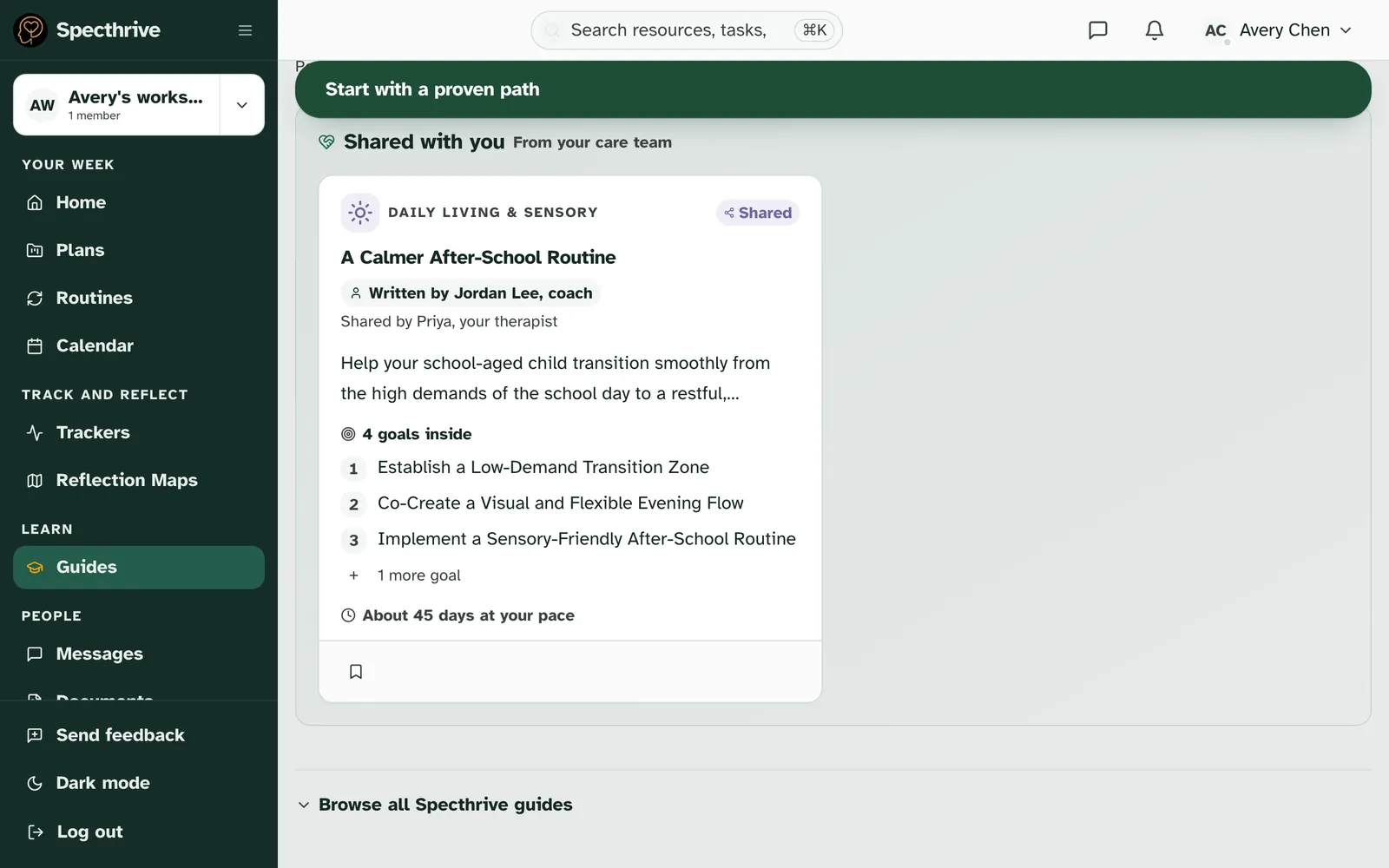
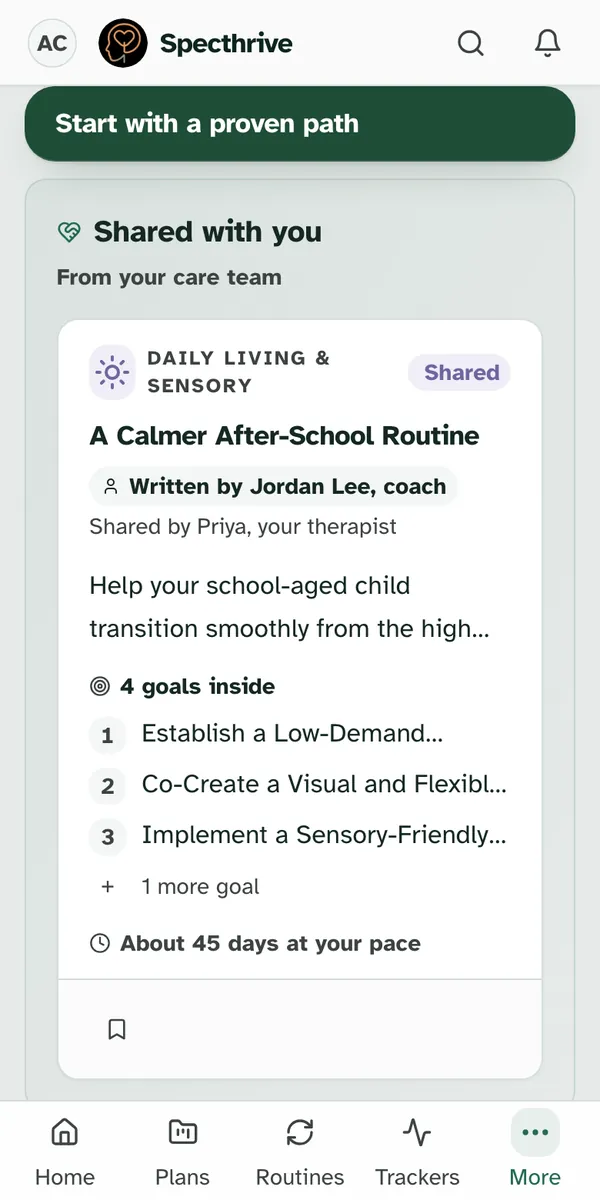
On their Guides page, the card says the same. Under Shared with you, it shows the author, such as "Written by Jordan Lee, coach", and below it "Shared by Priya, your therapist".
A guide you adapted names you both. Your client sees one line, such as "Adapted by Priya, your therapist, from Jordan Lee's guide". If you adapted a Specthrive guide, it reads "from a Specthrive guide".
The author never sees your clients. They know you have the guide, but not who you give it to, and the guide's copy on your client's plans is theirs to work through at their own pace.
Getting help
If something looks wrong, tell us. If you can't find a professional you expect, a guide doesn't reach your Shared with me tab, or a client can't find a guide you gave them, get in touch. Tell us which screen you were on, what you chose and roughly when. There's no need to share a client's name or anything about their health.
Still have a question?
If this guide did not cover your situation, reach out. We read every message.