Send assignments to your clients
For verified professionals. Send a few days of work to one client or many, see how it is going, and change or take back what you sent.
An assignment is a short stretch of work you send to your clients: something to do, something to read, a routine for the school days, or a tracker to log. Each client gets their own copy, in a section of their Home that comes from you, and it doesn't count toward their own plans.
1. Start an assignment
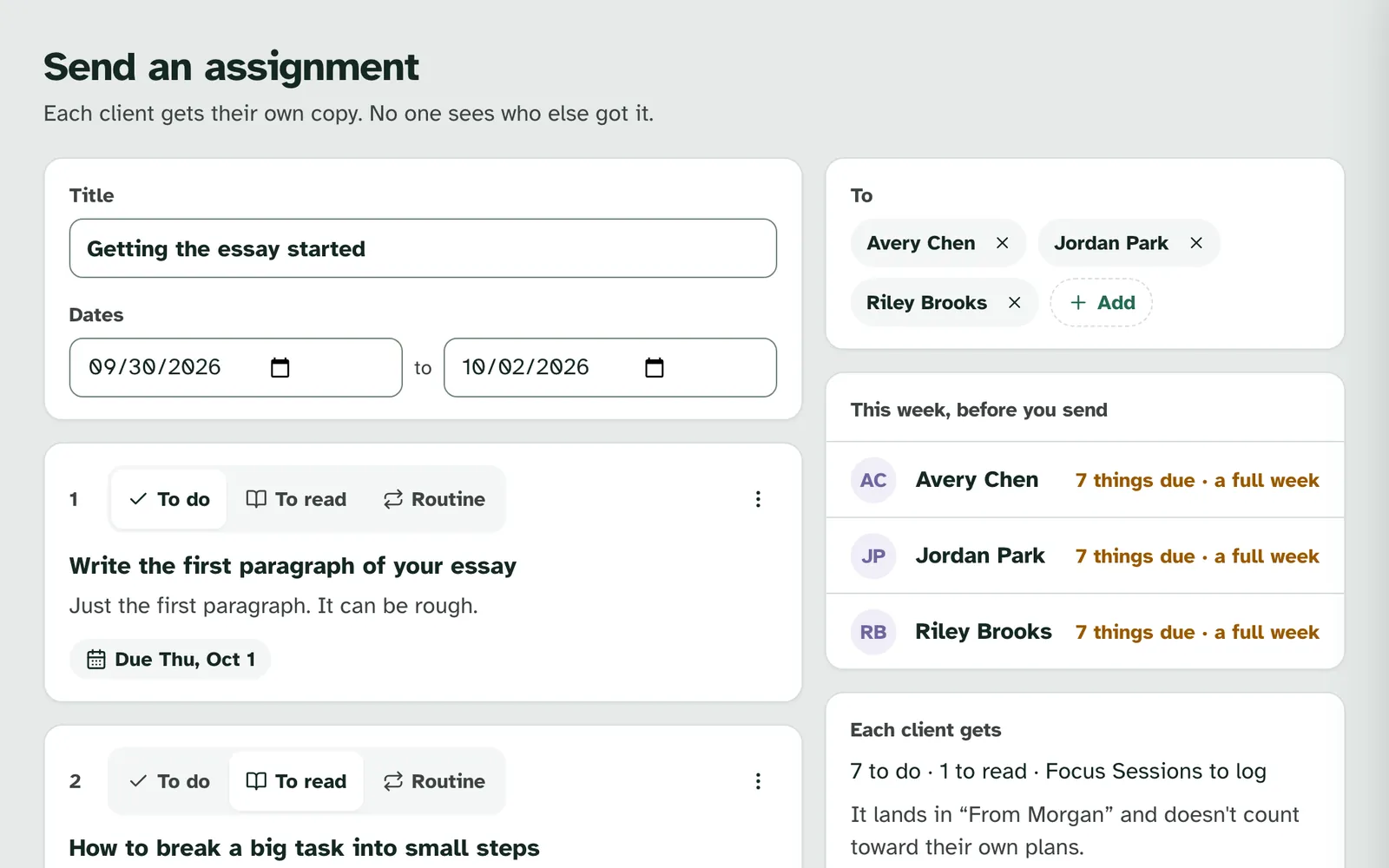
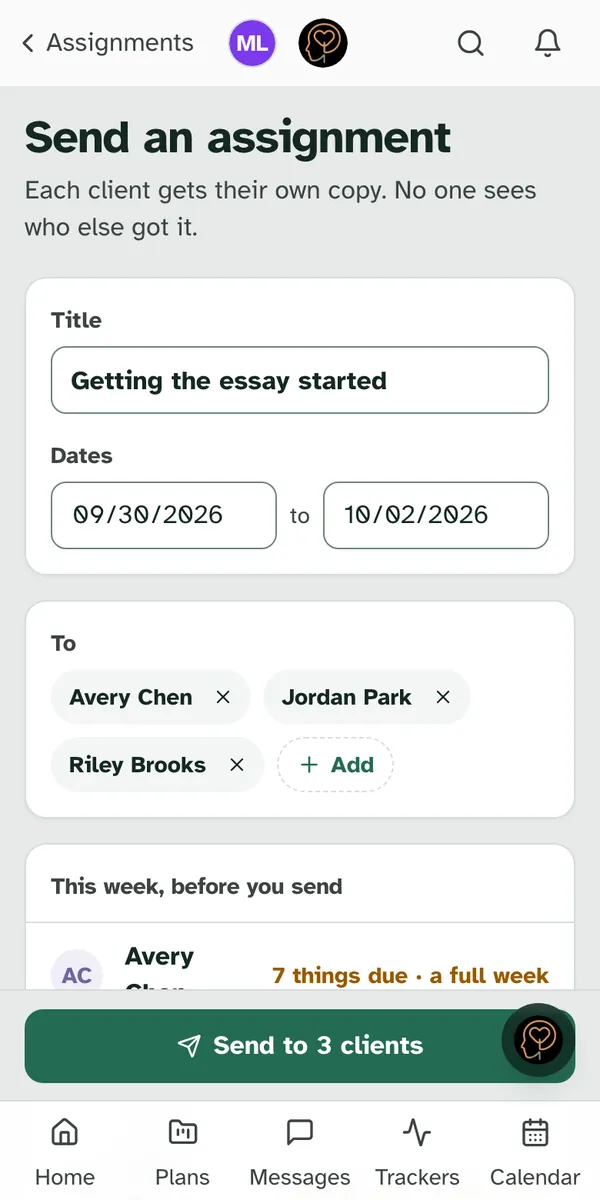
Choose Send an assignment. It is on your Clients page, on the Assignments page, and in a group's header. From a group, the group is already in the To list. "Sending assignments is for verified professionals." An account that belongs to someone under 18 can't send them, even a verified one. The screen opens with the promise your clients will care about: "Each client gets their own copy. No one sees who else got it."
Give it a title and dates. The title is what your clients see at the top of their week. The dates are the days it covers. Everything you add has to fall inside them.
Finish it in one sitting. Nothing is saved until you send, so an assignment you leave half written is gone when you come back.
2. Add what they'll do
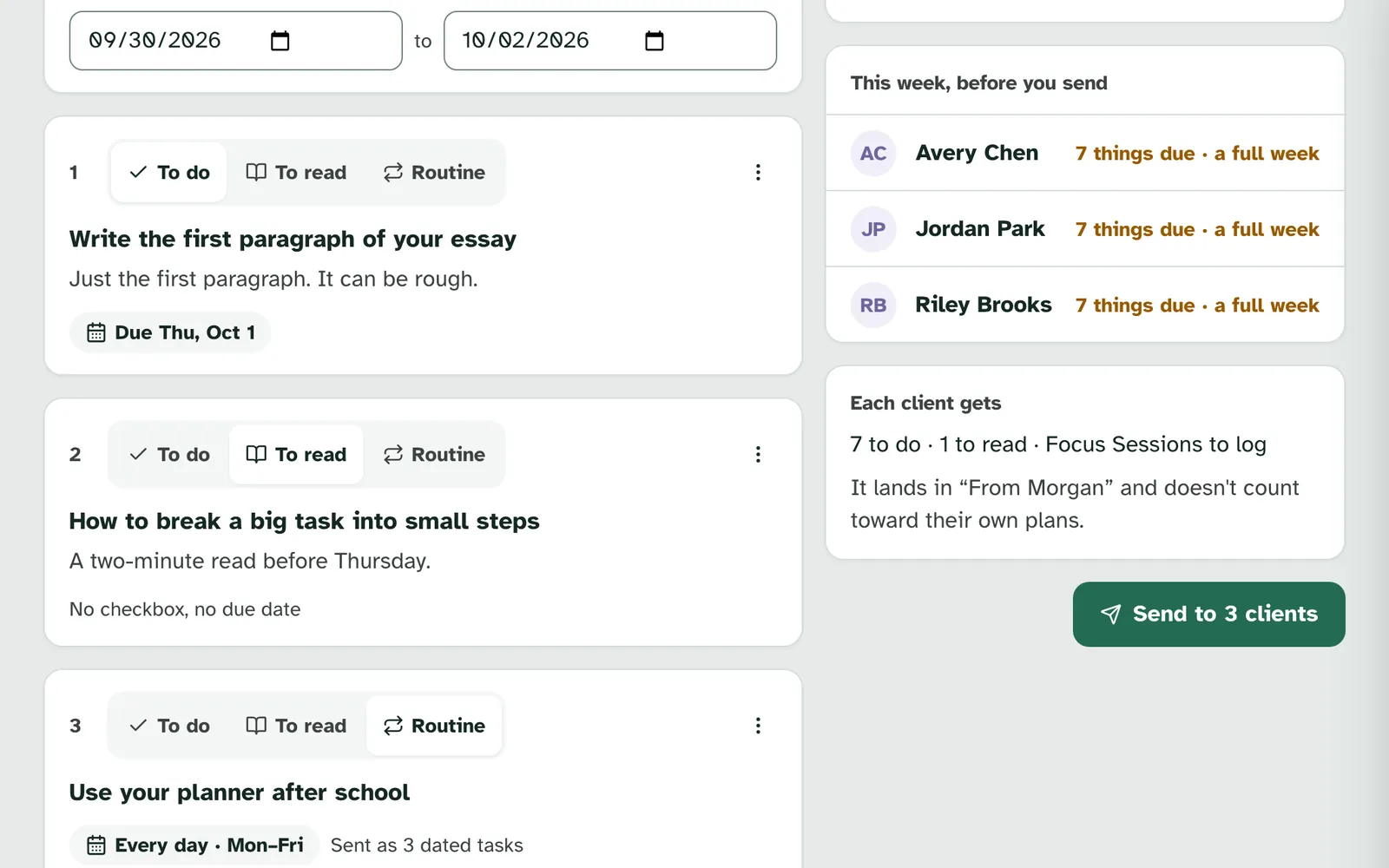
Pick a type for each item. Each item starts as one of three:
| Type | What your client gets |
|---|---|
| To do | "A to do has a checkbox and one due date." |
| To read | "Something to read or watch. It has no checkbox and no due date." |
| Routine | "A routine is sent as one dated task a day. After the dates, the client can keep it going as their own." |
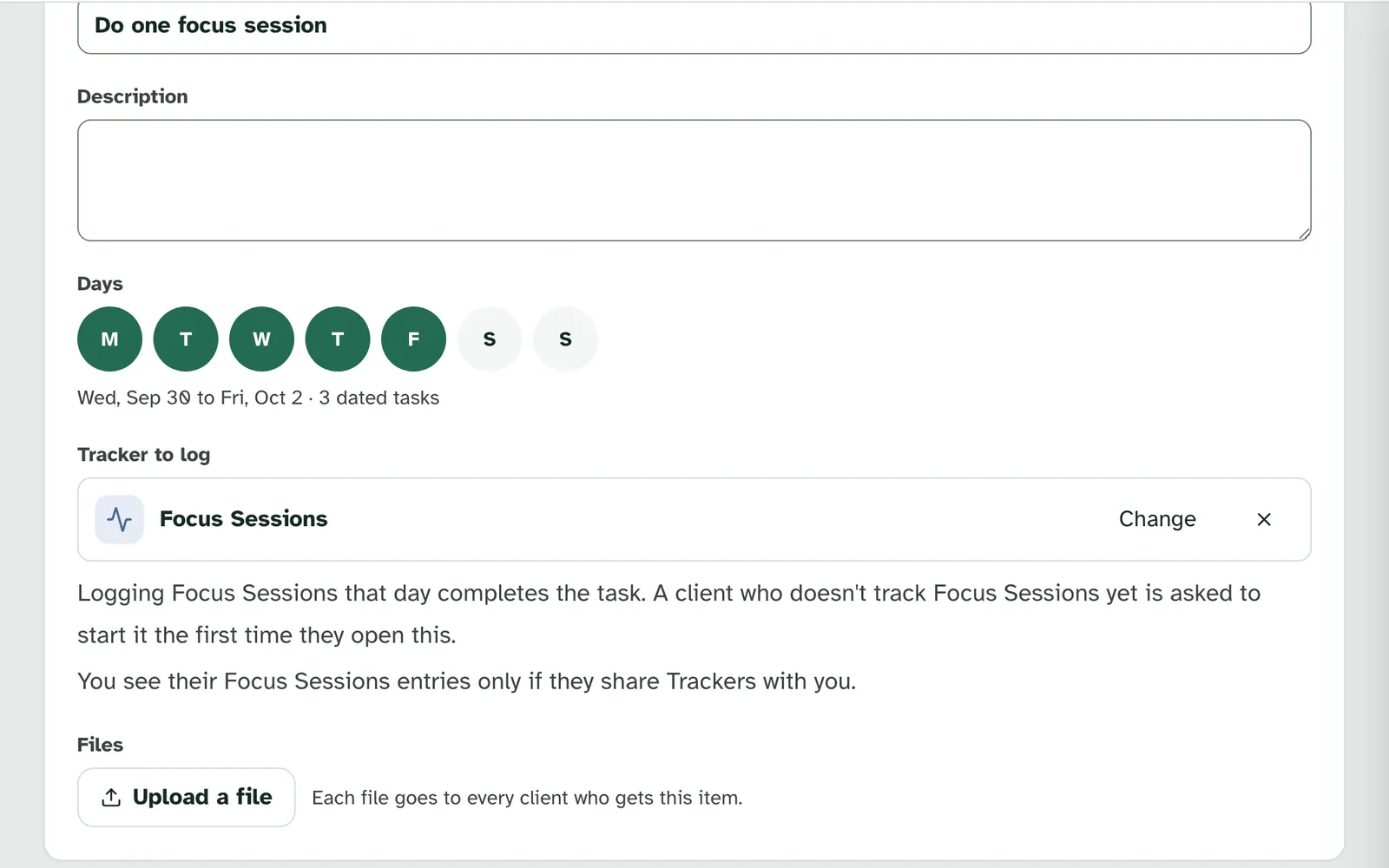
Open an item to fill it in. Item details has the Title, a Description, and the Due date for a to do or the Days for a routine. Choose Done to go back. An assignment holds up to 50 items, and a routine can run for up to 62 days.
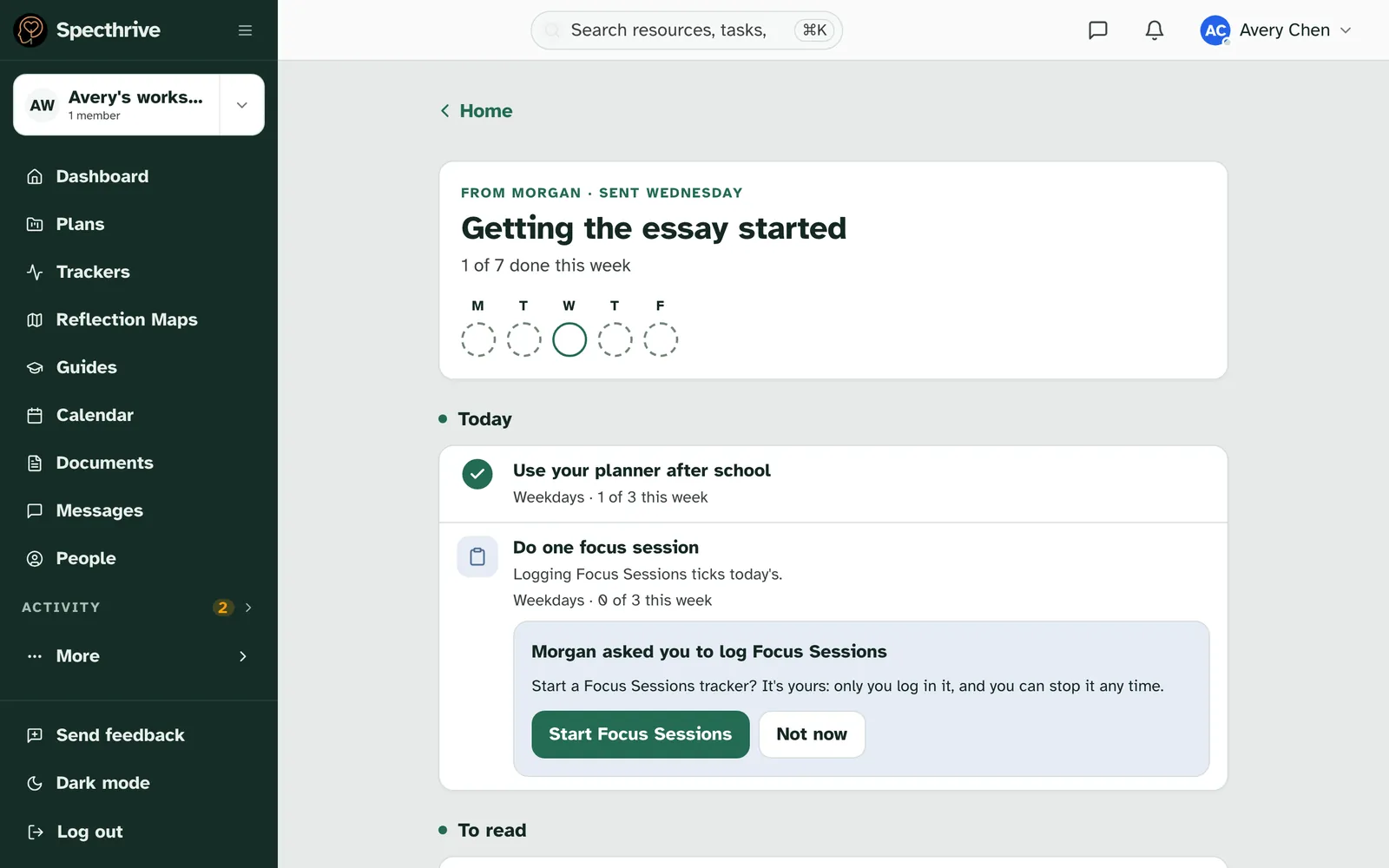
Ask for a tracker log. Log a tracker adds a routine tied to a tracker, such as Focus Sessions. Logging it that day ticks off that day's task. If a client doesn't track it yet, they're asked to start it the first time they open the item. You see how often they logged it only if they share Trackers with you.
Or start from a guide. Pick steps from a guide lists your guides and their steps. "Each step keeps its type. You can change anything after you add it."
Attach a file if it helps. Under Files, Upload a file takes a PDF, an image or a Word (.docx) file of up to 25 MB. "Each file goes to every client who gets this item," so it has to suit all of them, and each client gets their own copy. With a file attached, you tick "These files have nothing about a specific person." before you can send. Files aren't checked for viruses yet.
3. Choose who gets it
Add people under To. Add lists your groups and your clients. You can pick anyone who shares their plans with you, one at a time or a whole group at once, up to 200 clients in one send. A group adds only your own clients in it, and says how many, for example "Tuesday group · 2 of your clients".
4. Check their week, then send
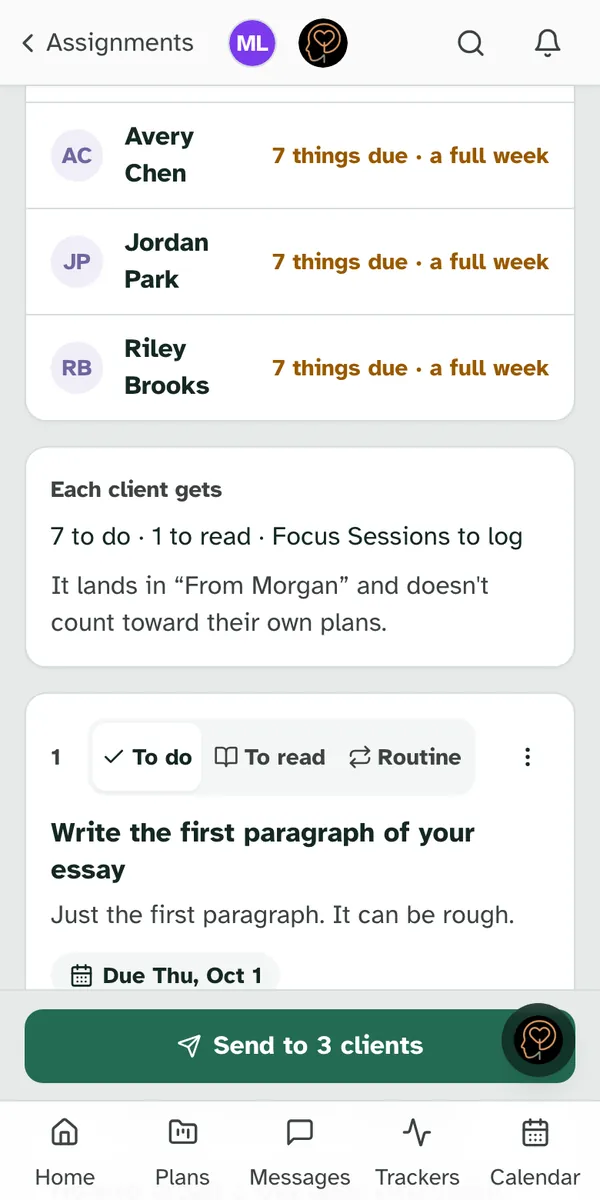
See what they already have. This week, before you send lists each person with how much is already due for them this week: "Nothing due yet", "1 thing due" or a number, such as "3 things due". At 7 or more it adds "· a full week". It's there to help you choose, and you can always send.
See what each client gets. Each client gets counts it up, for example "7 to do · 1 to read · Focus Sessions to log", and reminds you: "It lands in “From Morgan” and doesn't count toward their own plans."
Choose Send. The button says how many people it goes to, for example Send to 3 clients.
5. What your client sees
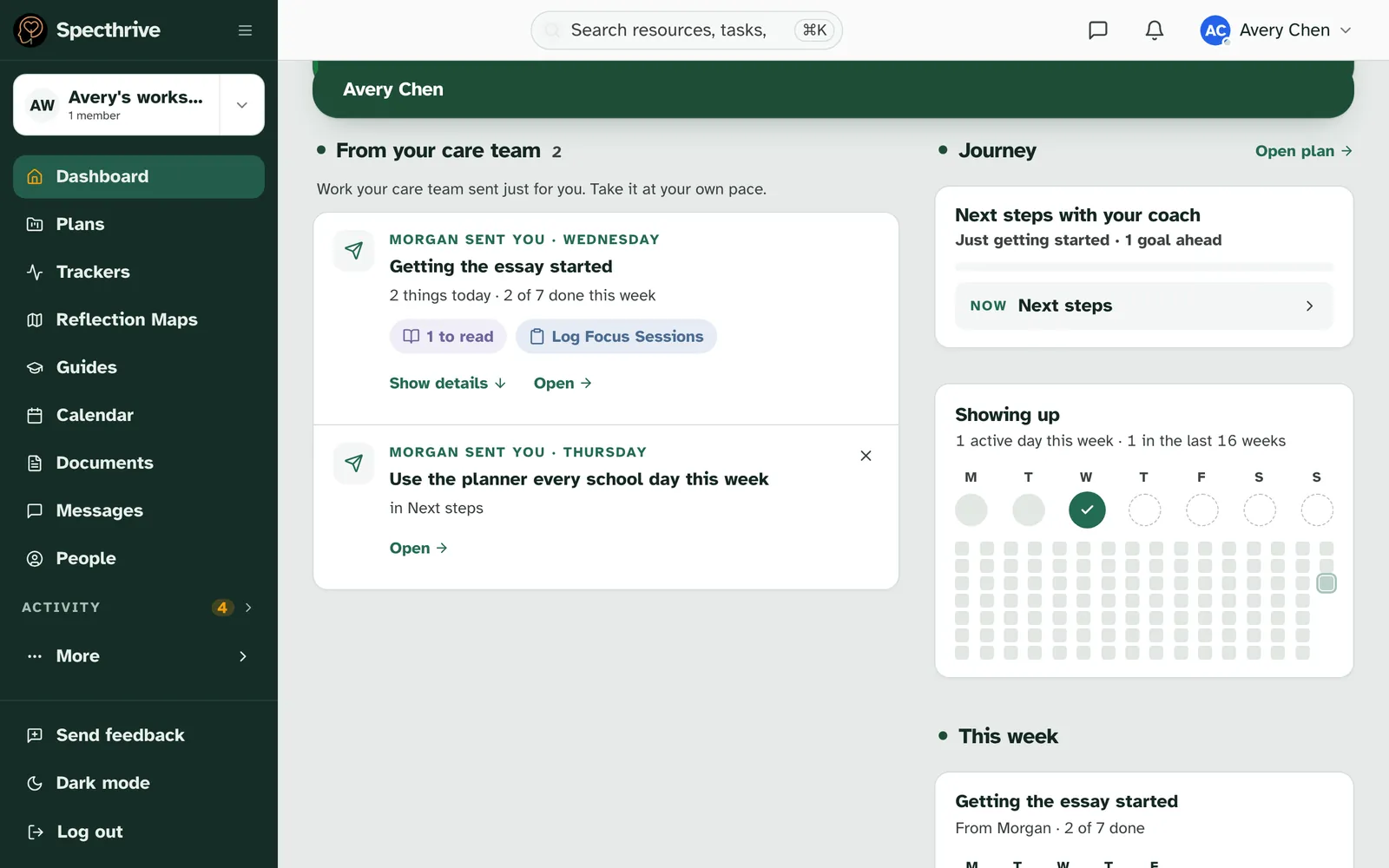
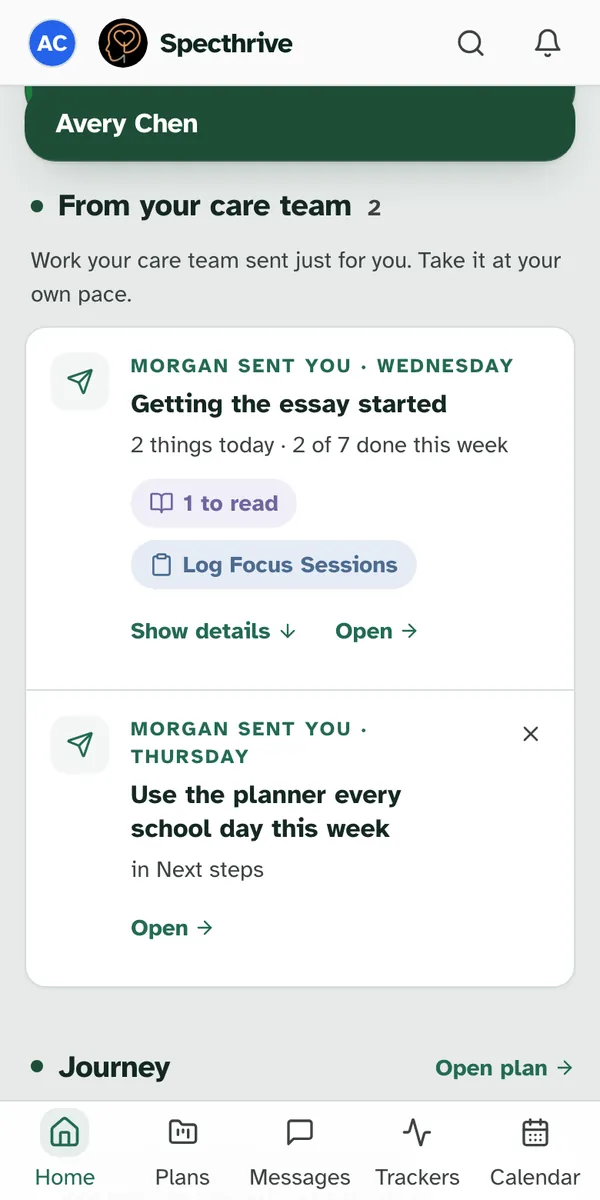
It is waiting on their Home. Nothing is emailed or sent to their phone when it arrives. The next time they open Specthrive, a section headed From your care team says "Work your care team sent just for you. Take it at your own pace." Your assignment is a row in it, labelled with who sent it and the day, such as "Morgan sent you · Wednesday", then its title and what is on for today and this week, such as "2 things today · 2 of 7 done this week". Show details opens its items in place, and Open shows the whole week.
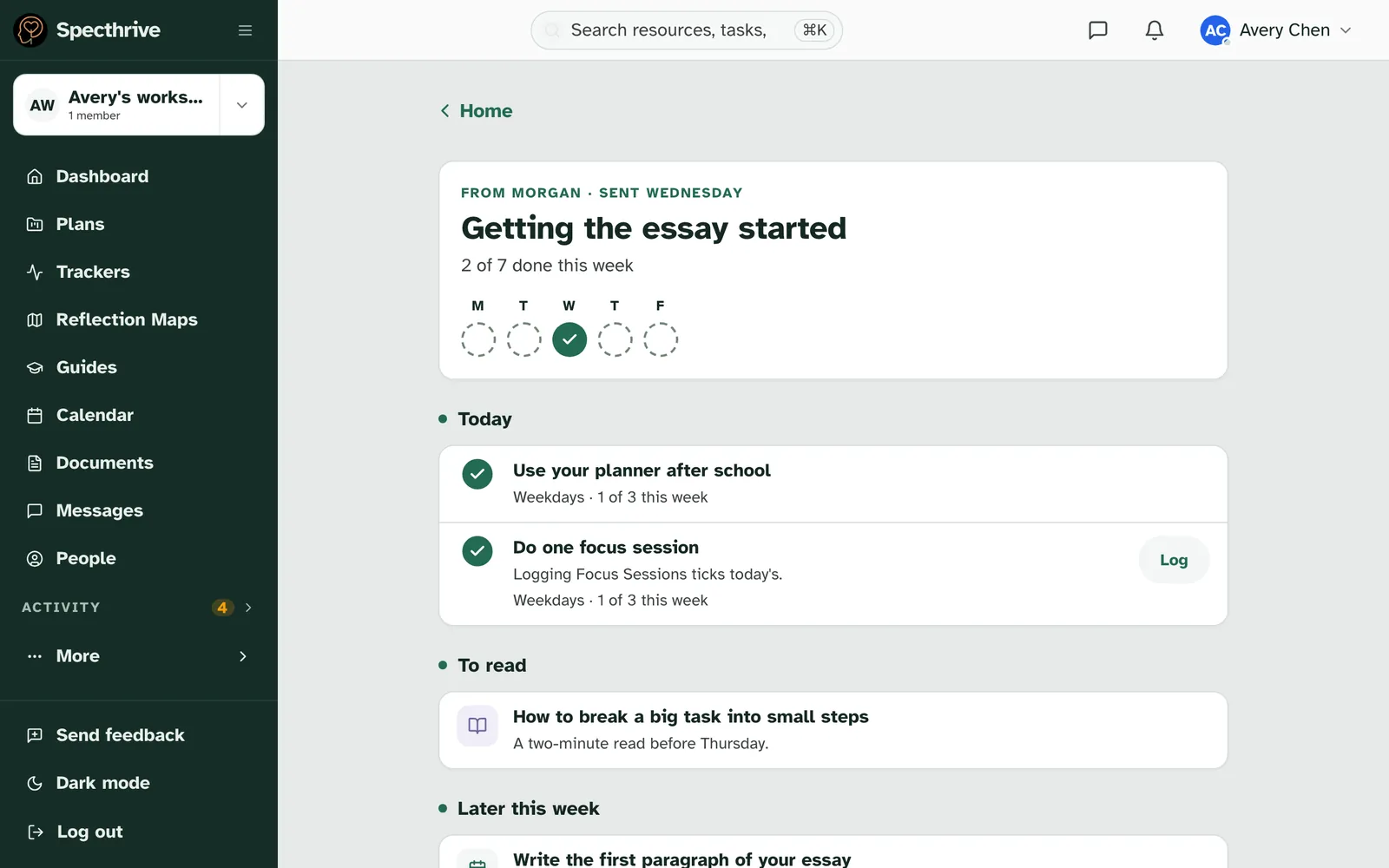
The week has a strip for Monday to Friday. A day fills in once everything due that day is done. A day that isn't filled in is simply open. Below the strip are Today, To read and Later this week.
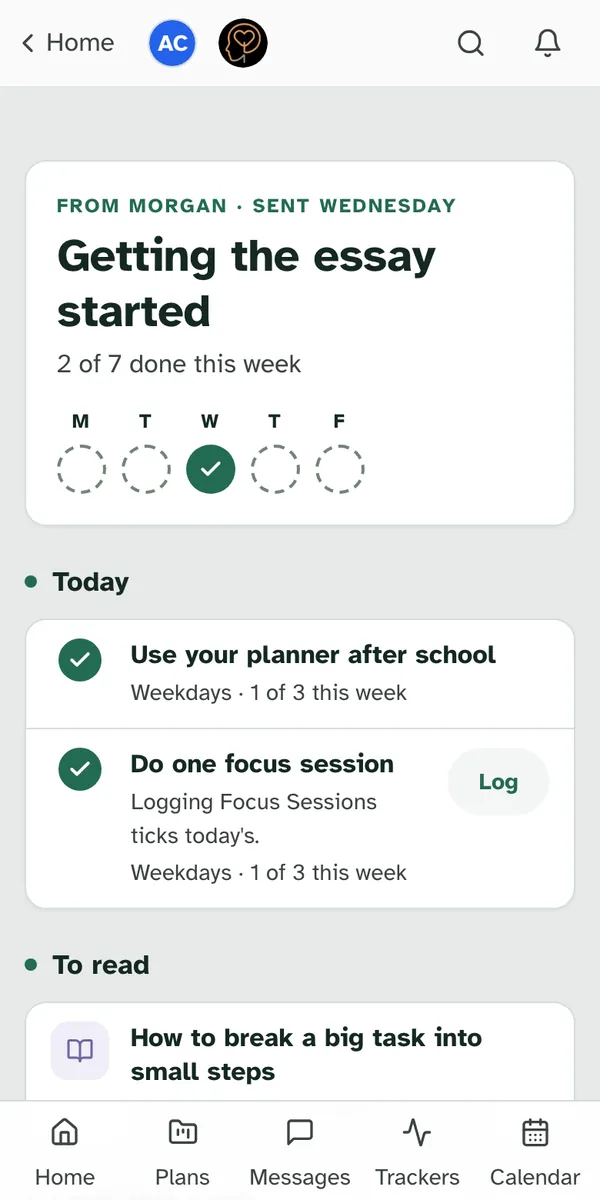
They tick things off with I did this. Opening an item shows "A note for Morgan (optional)", with room to say how it went, and I did this. A routine also offers Keep this going after its last day: "It becomes your own routine. You can end it any time."
A tracker item asks first. If they don't track it yet, Log asks, for example, "Morgan asked you to log Focus Sessions" and "Start a Focus Sessions tracker? It's yours: only you log in it, and you can stop it any time." They choose Start Focus Sessions or Not now.
6. See how it's going
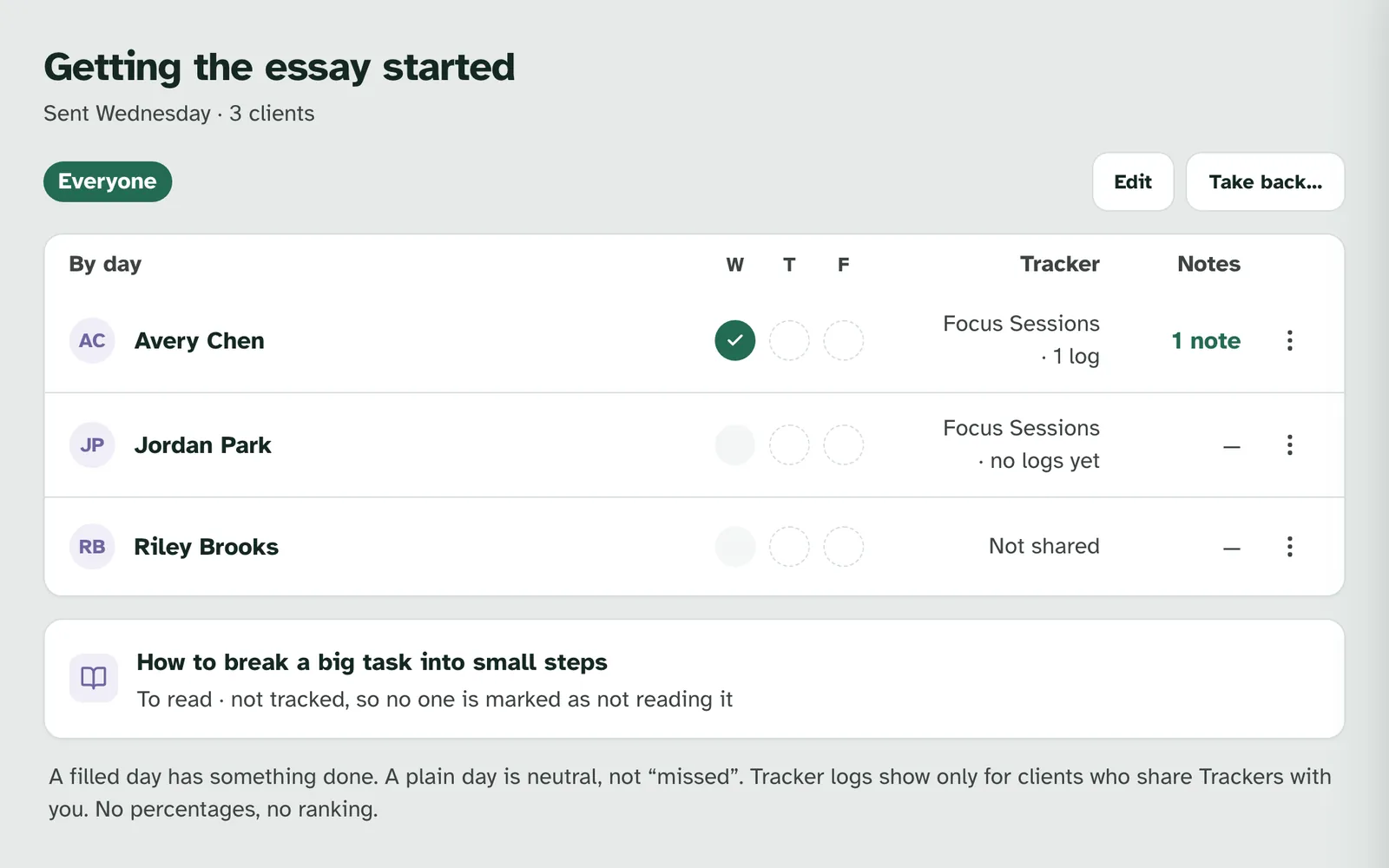
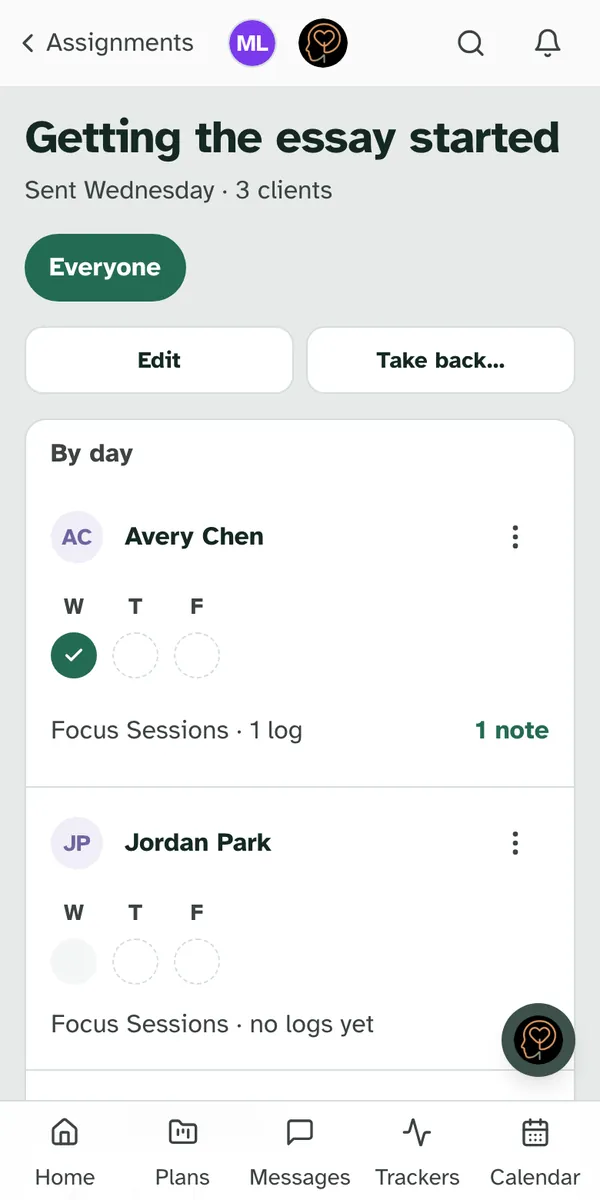
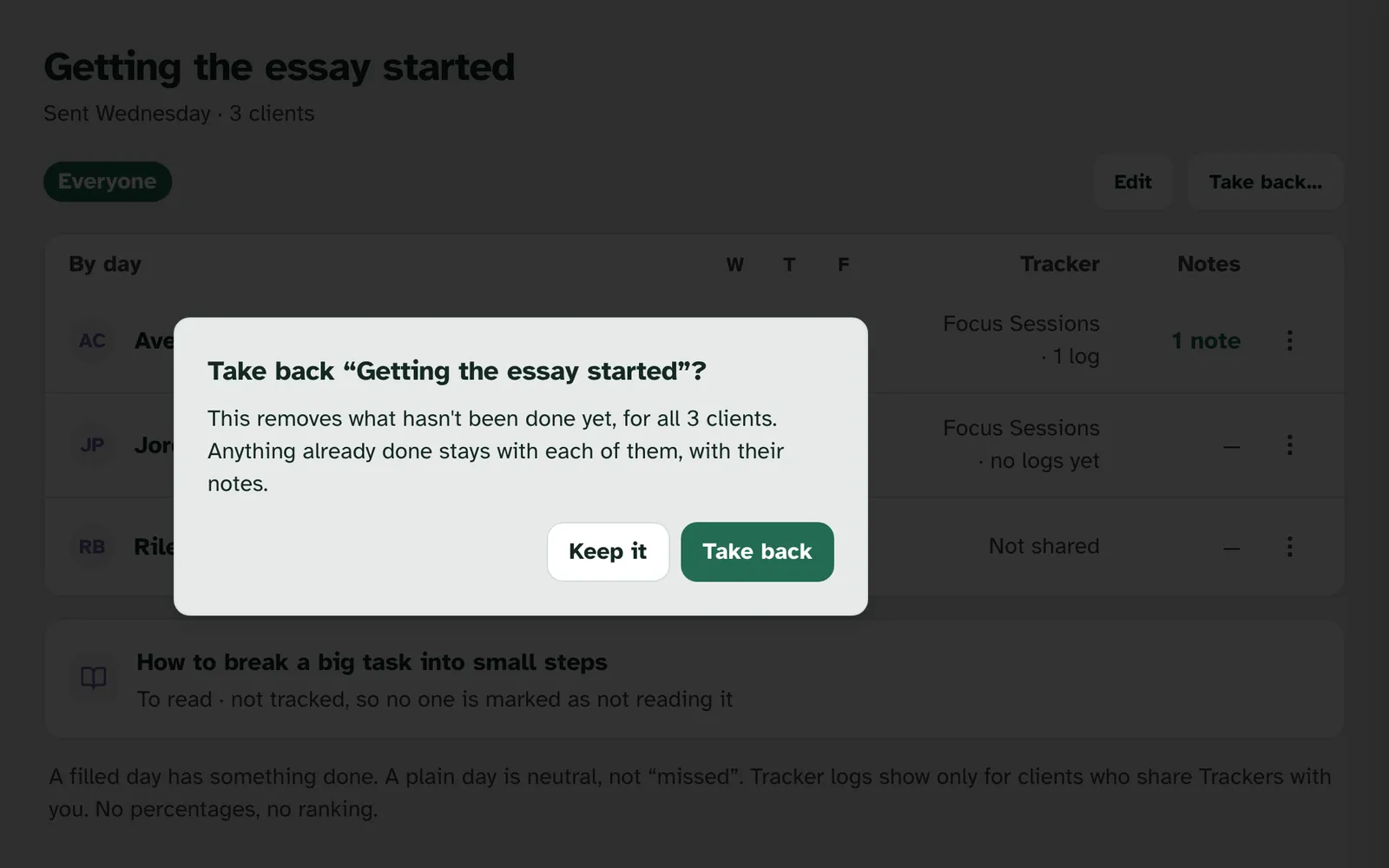
Open it from Assignments. Assignments lists "What you sent, newest first." Open one to see its progress. Each client has a row with a circle for each day. The page says how to read it: "A filled day has something done. A plain day is neutral, not “missed”. Tracker logs show only for clients who share Trackers with you. No percentages, no ranking."
Trackers and notes. The Tracker column counts each person's logs, for example "Focus Sessions · 1 log". For someone who doesn't share Trackers with you, it says "Not shared". Under Notes, "1 note" opens what they wrote when they ticked something off. Something to read is never tracked: "To read · not tracked, so no one is marked as not reading it."
7. Change it or take it back
Edit. "Change the words or a date. Anything already done stays as it is." You can change titles, details and due dates, for everyone or for one person. "Routine days can't change after sending." To change it for one person, use the … menu on their row.
Take back. Take back… removes what hasn't been done yet, for everyone. The … menu on a row takes it back from one person. "Anything already done stays with them, with their notes." Choose Keep it to leave everything as it is.
8. Find what you sent
Assignments shows your own sends. Each one shows its dates and how many clients got it. If you lead a group with a colleague, their sends aren't in your list. For one person, open the … menu on their row on the Clients page and choose Assignments sent. "Sent to" and their name lists "Everything you sent them, newest first."
Getting help
If something here doesn't match what you see, or an assignment didn't reach someone, get in touch.
Still have a question?
If this guide did not cover your situation, reach out. We read every message.