Use the family calendar
For anyone who keeps a calendar for themselves or their family. See everyone's week in one place, add appointments, move things, and share a view-only link.
The calendar puts everyone you look after in one place: appointments, school dates, plan to-dos, routines and deadlines. Each person has their own colour, so you can tell at a glance whose day is whose. Open it from Calendar in the menu.
1. See the week
The week opens on today. On a computer you see the whole week, Monday to Sunday. Things with no set time sit in the ANYTIME row at the top, and timed things sit below in the hours they happen. The dots under each date show how much that day holds.
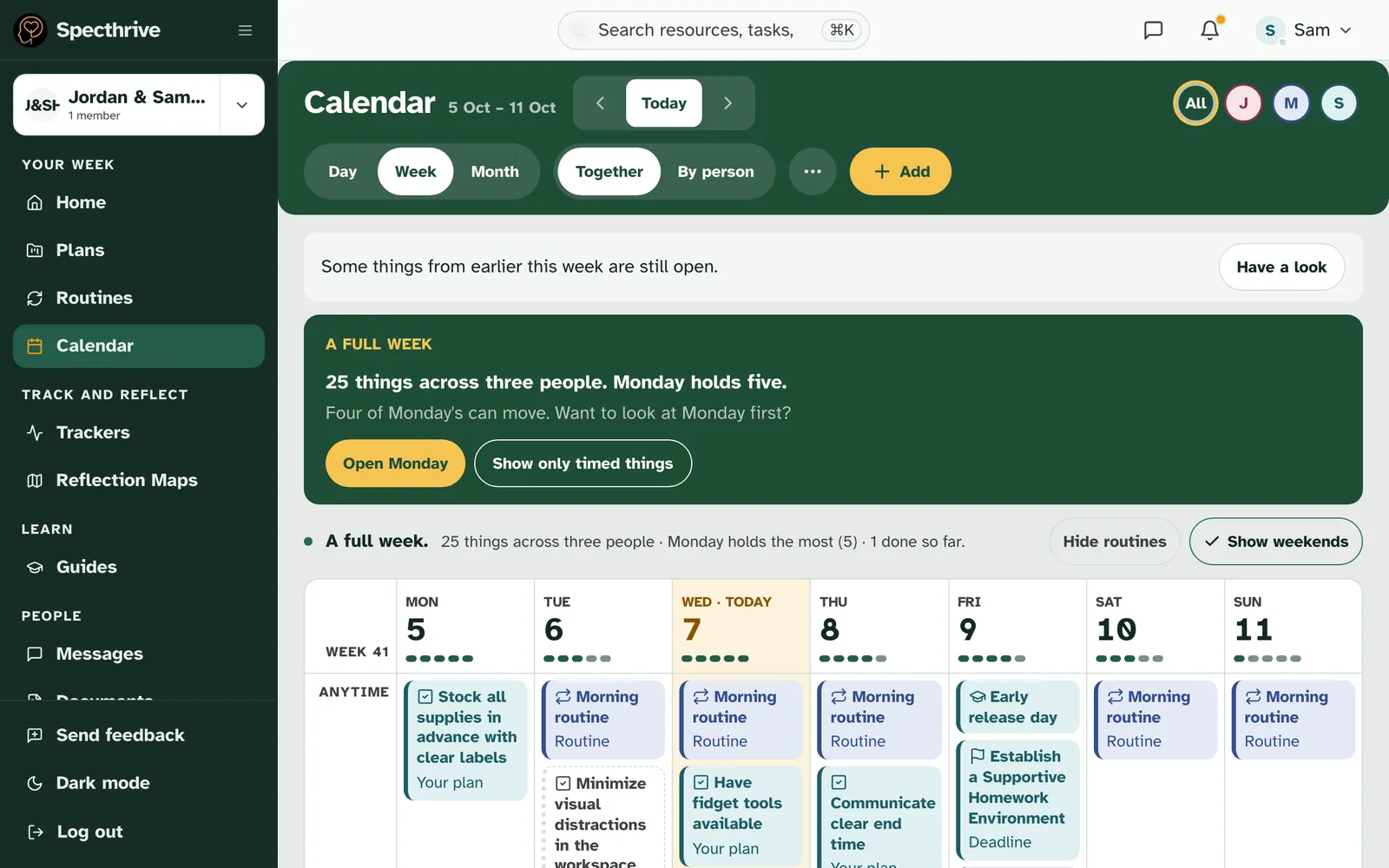
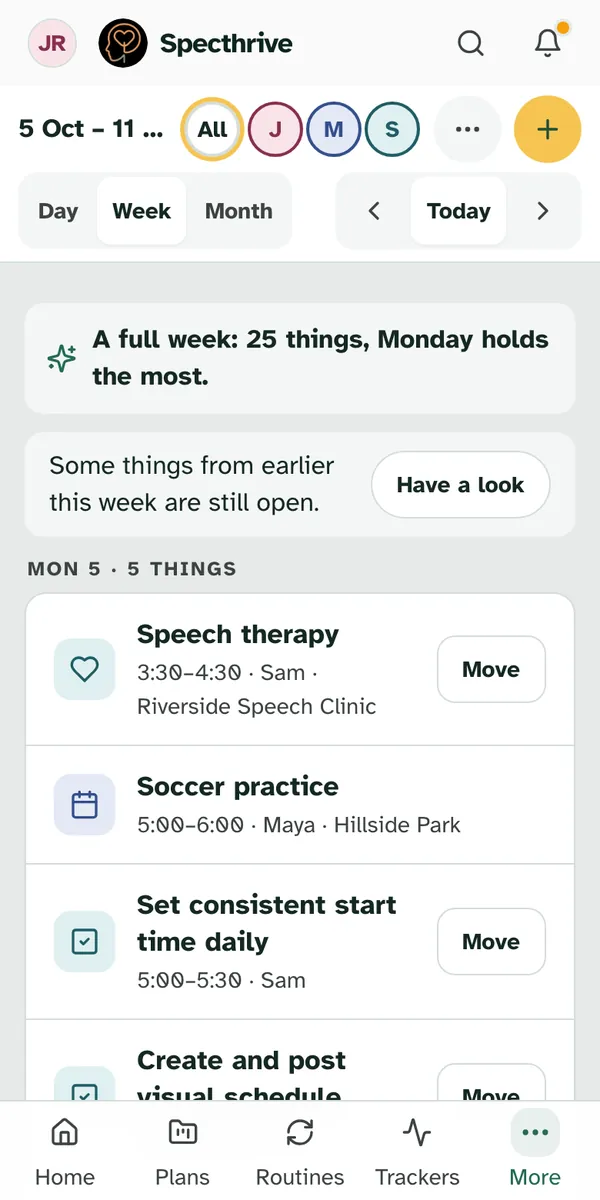
Choose whose calendar you see. The circles at the top are the people you look after, with All first. Tap someone's circle to see only them. All shows everyone again.
A full week says so, calmly. When a day holds five things or more, or the week holds 16 or more, a note at the top says A full week, how many things there are and which day holds the most. A button opens that day to look at it first, like Open Monday, or choose Show only timed things to quiet the rest for a while. Hide routines and Show weekends above the days change what the week shows, too.
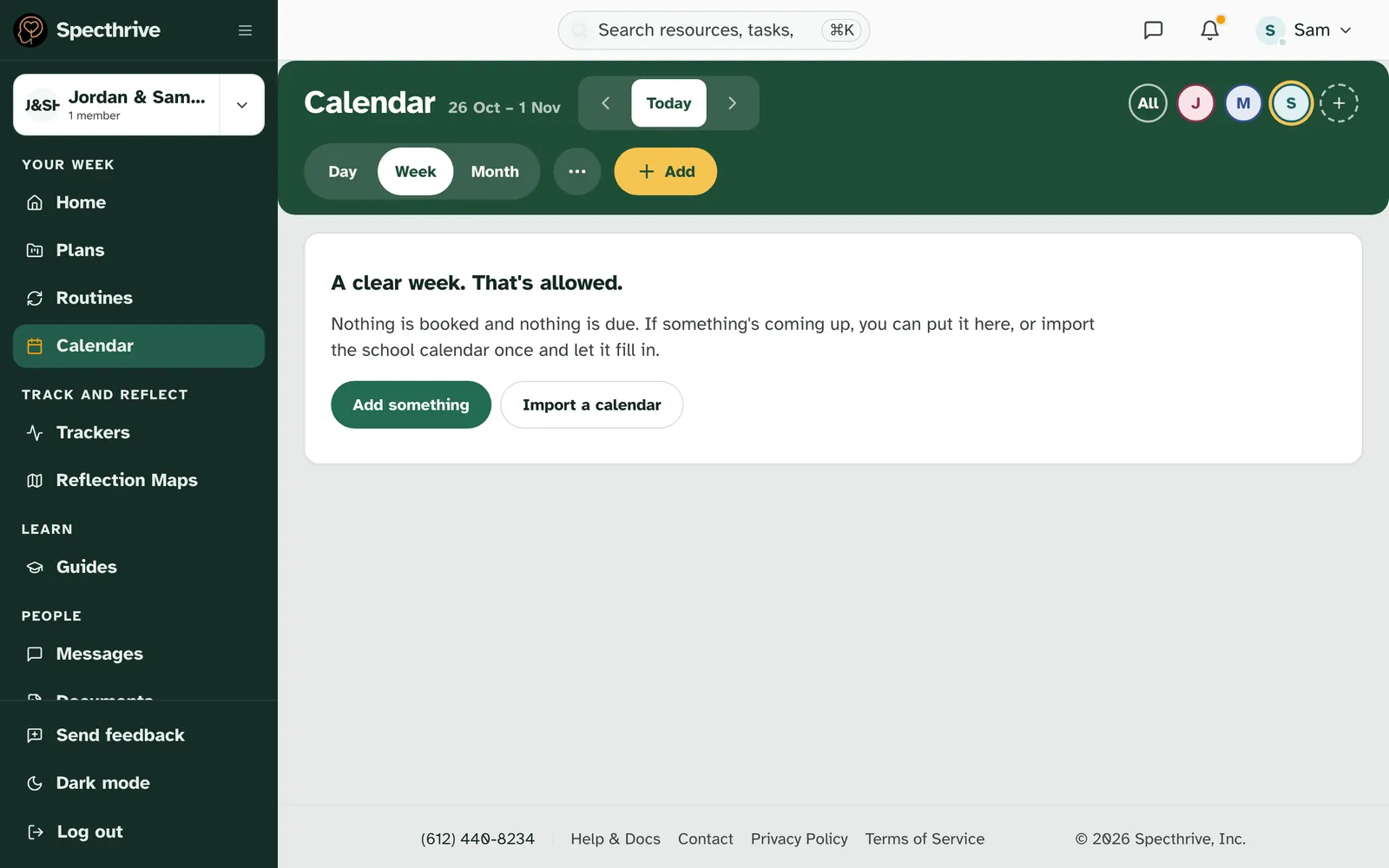
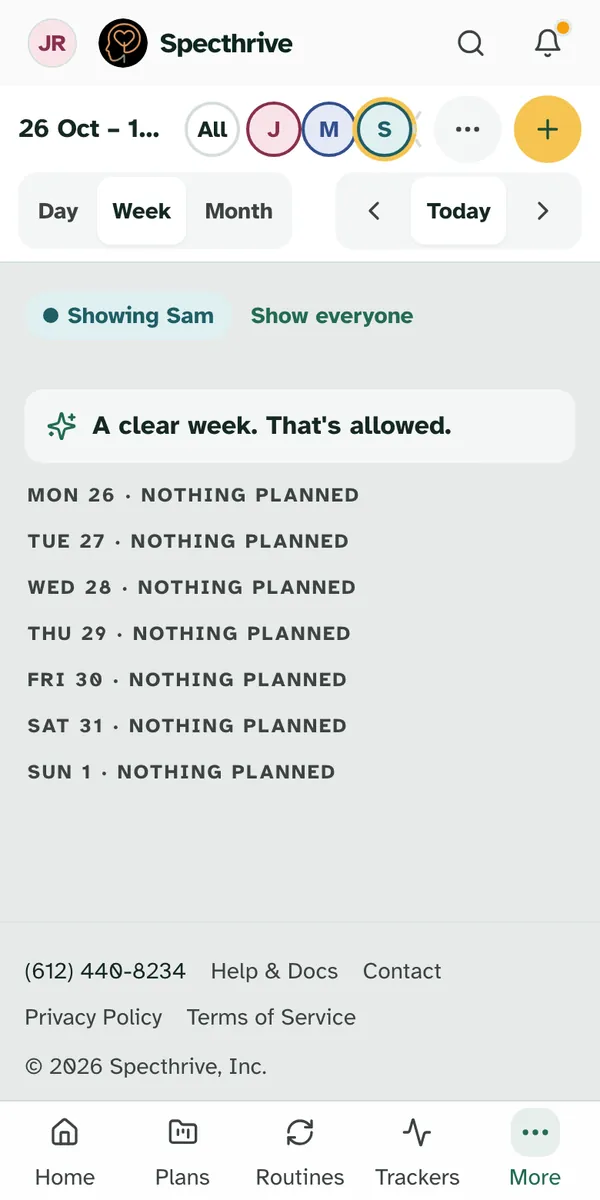
An empty week is fine. When nothing is booked and nothing is due, the week says "A clear week. That's allowed." On a computer it also offers Add something and Import a calendar, to bring in a school calendar once and let it fill in.
2. Look at one day, or the month
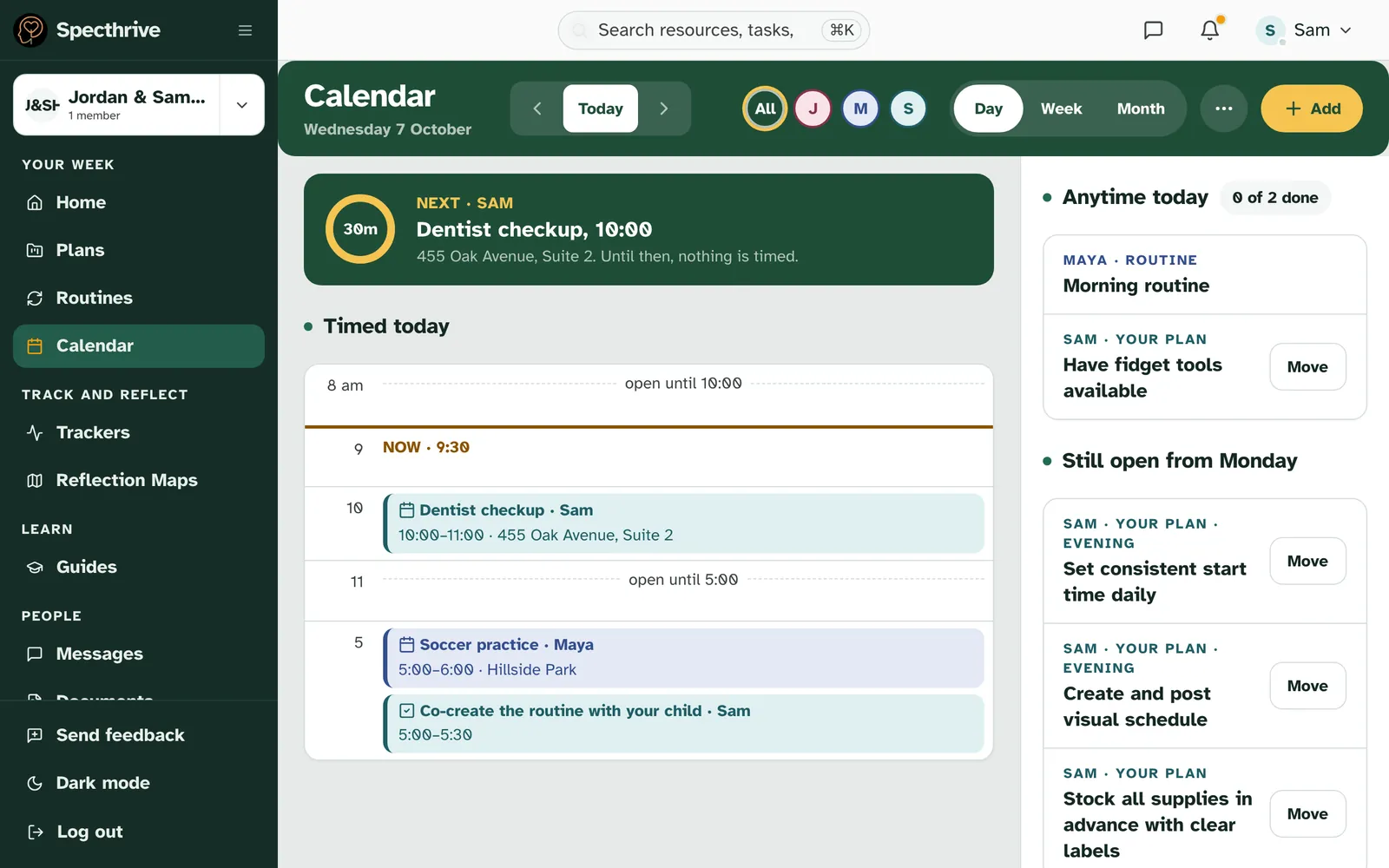
Day shows what's next. Choose Day to see one day. A card at the top shows the next timed thing, whose it is and how long until it starts. Below it, Timed today lists the day by the hour, and the gaps say how long you have, like "open until 10:00". Anytime today lists the things with no set time, with how many are done.
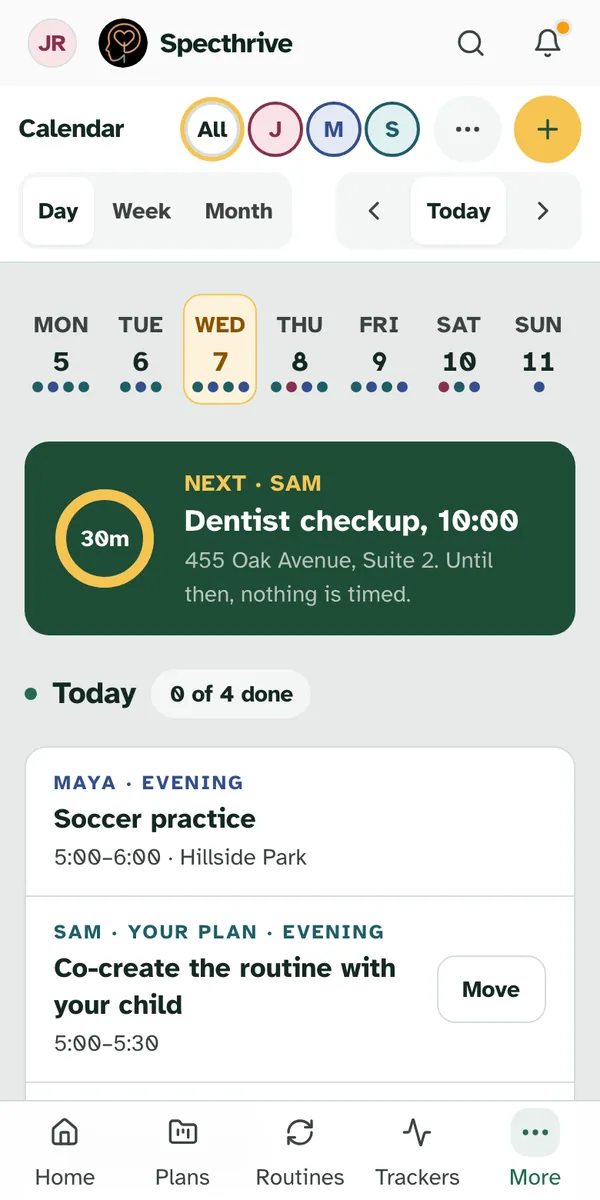
On a phone, the calendar opens on Today. A strip of the week's days sits at the top, with dots for how full each day is. Tap a day to see it. Below today's list, Later this week shows what's coming. Choose Week for the whole week, one day under the next, or Month for the month.
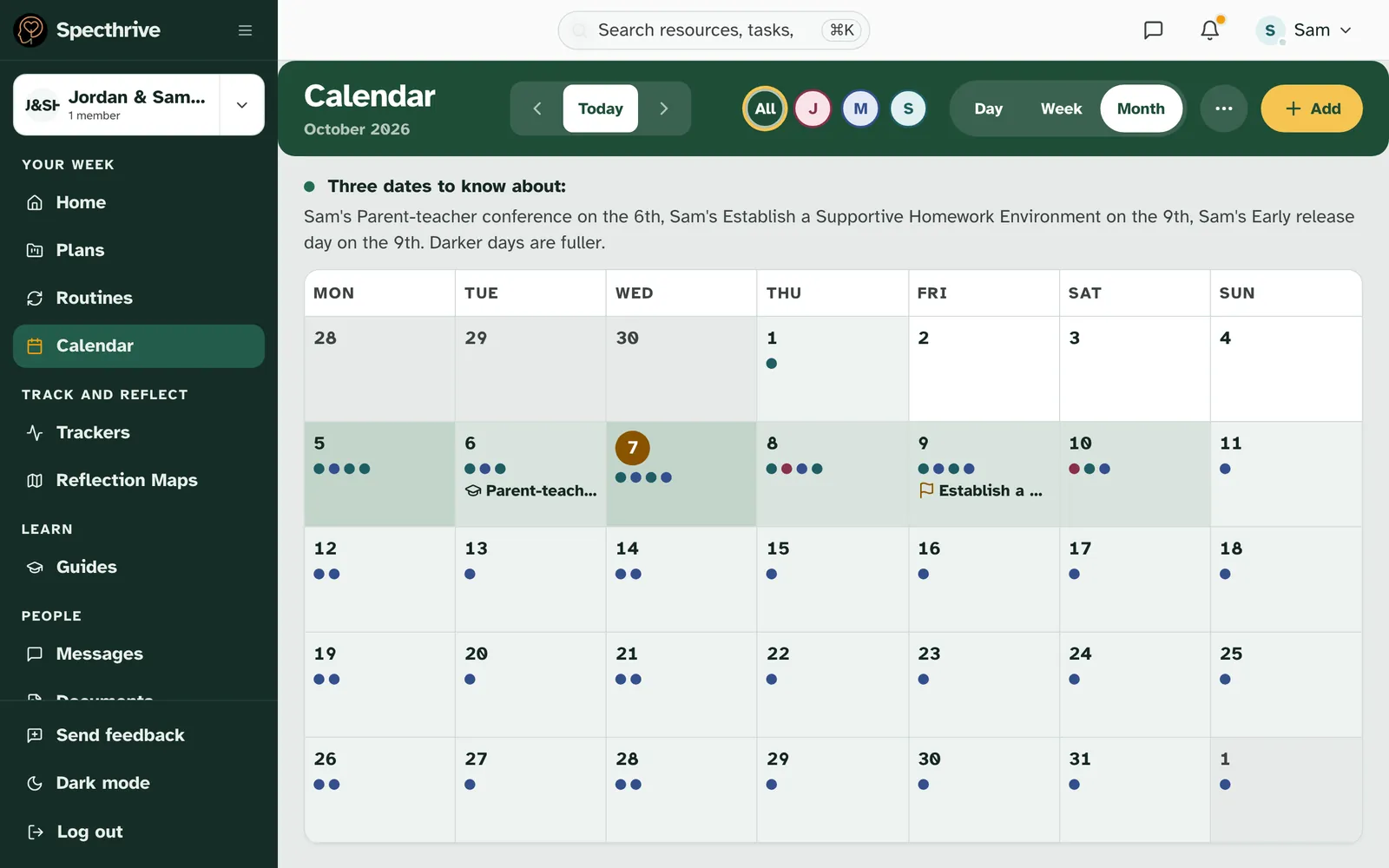
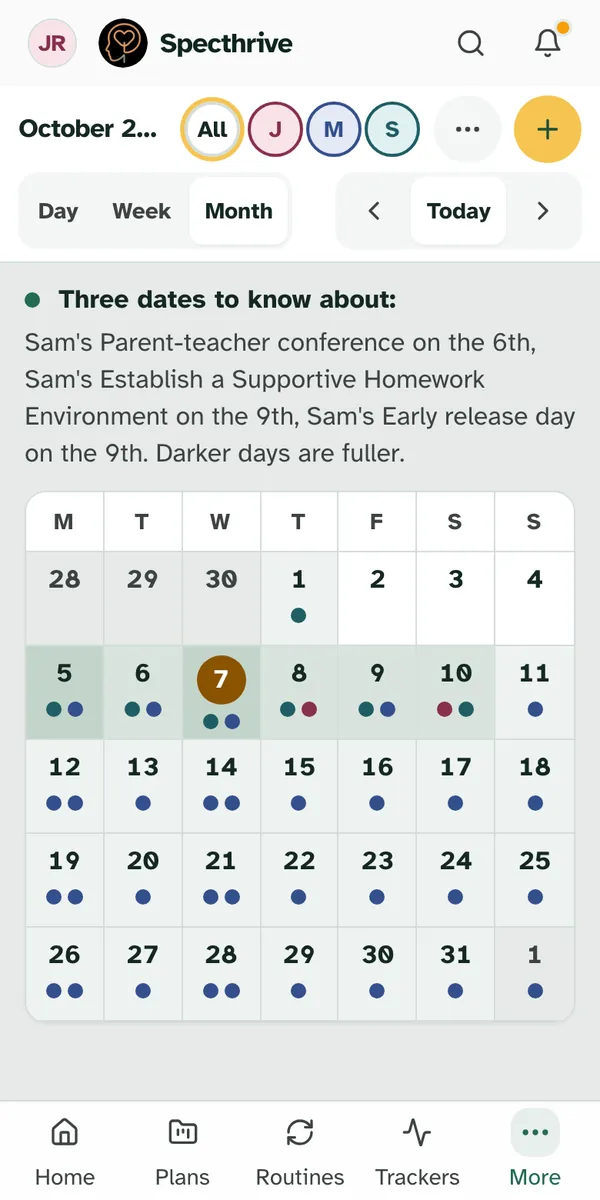
Month shows the shape of the month. Choose Month. A line at the top names the dates to know about, like school events and deadlines. Darker days are fuller. Choose a day to see what's on it, then Open this day to go to that day.
3. See everyone side by side
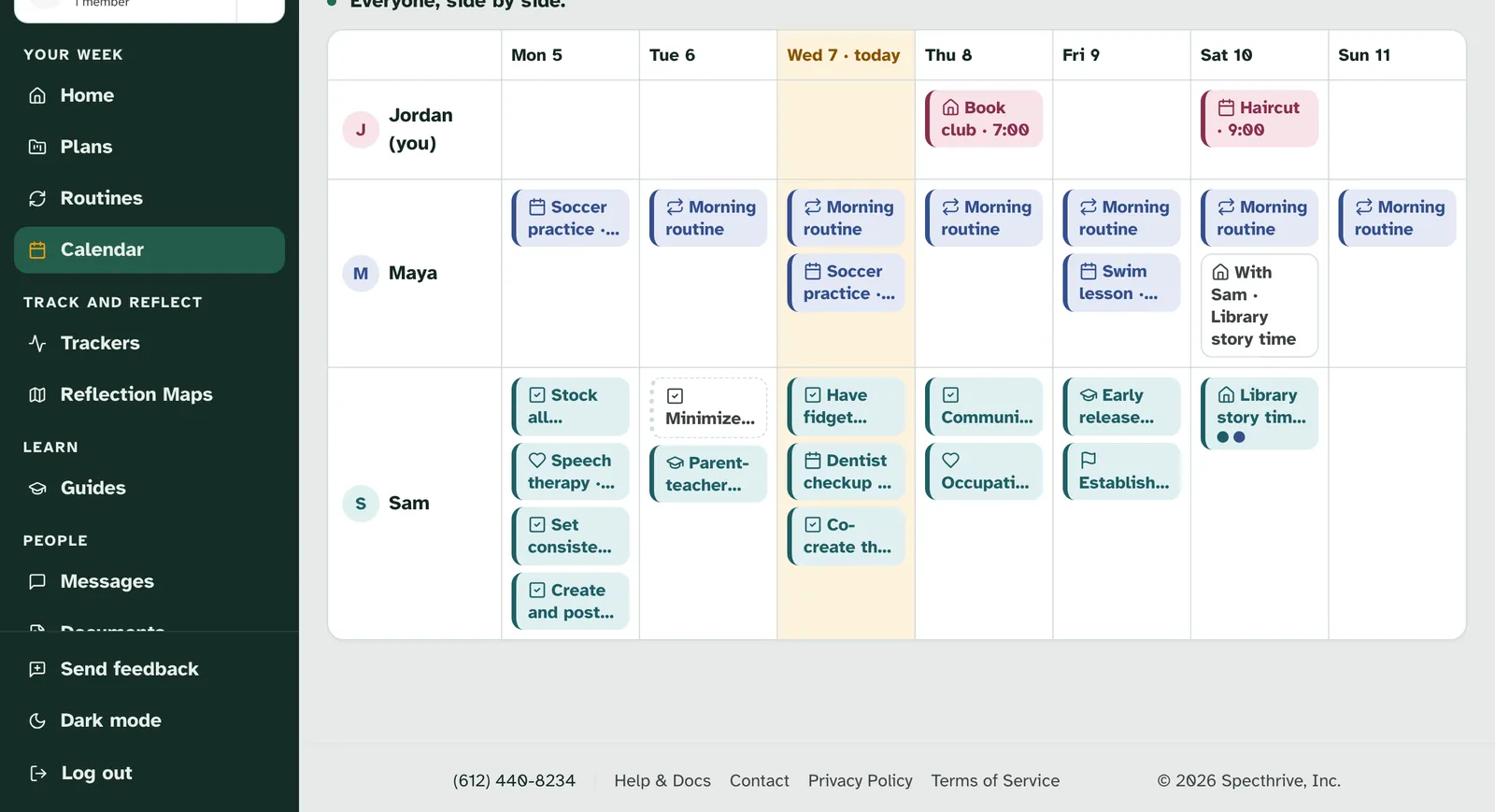
By person gives each person their own row. On a computer, when the week shows two people or more, choose By person next to Together. Each person gets a row across the week, so you can see who is busy when. Something two people do together shows once, on its owner's row, and as "With Sam" on the other person's. Together puts everyone back in one week.
4. Add an appointment
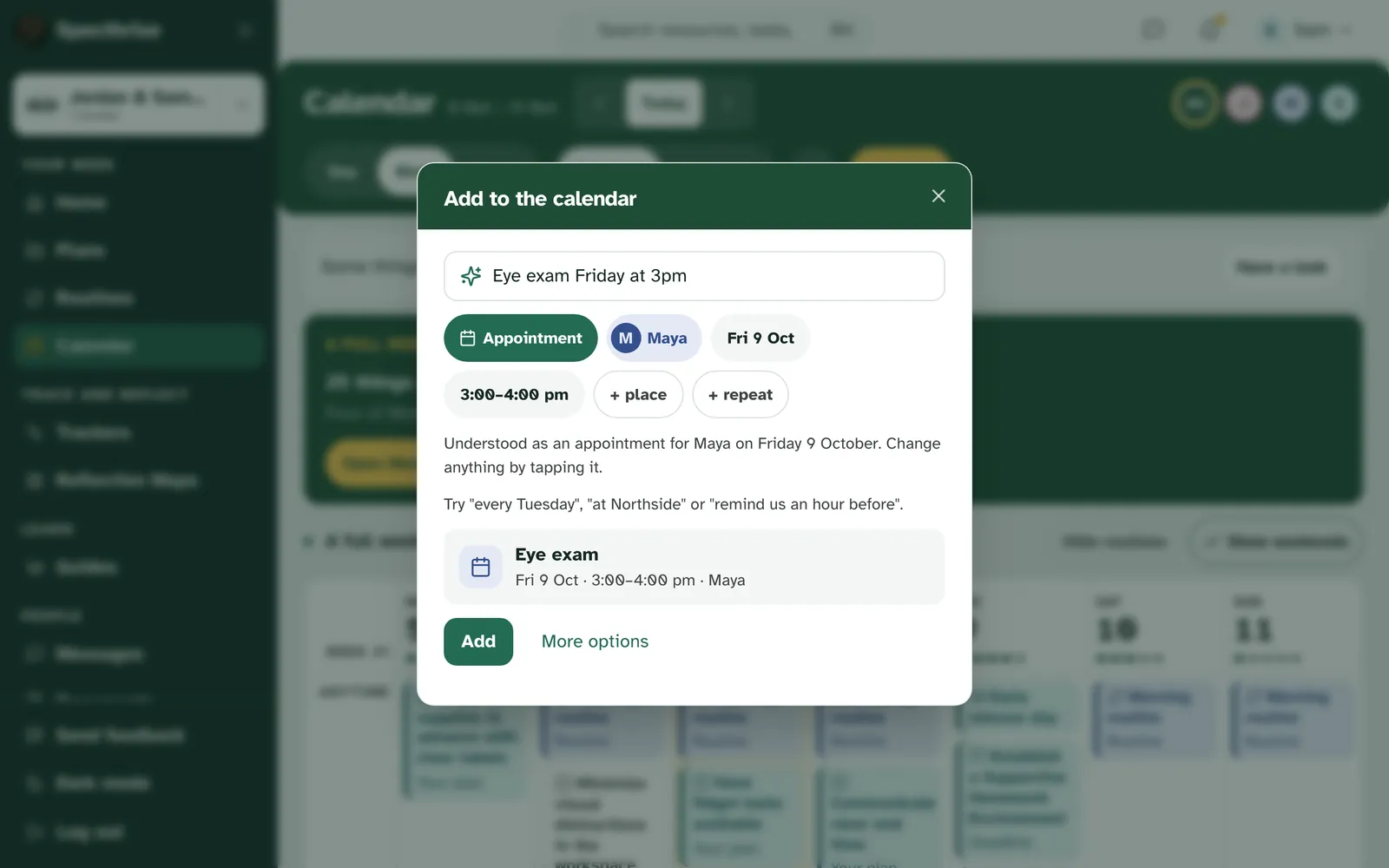
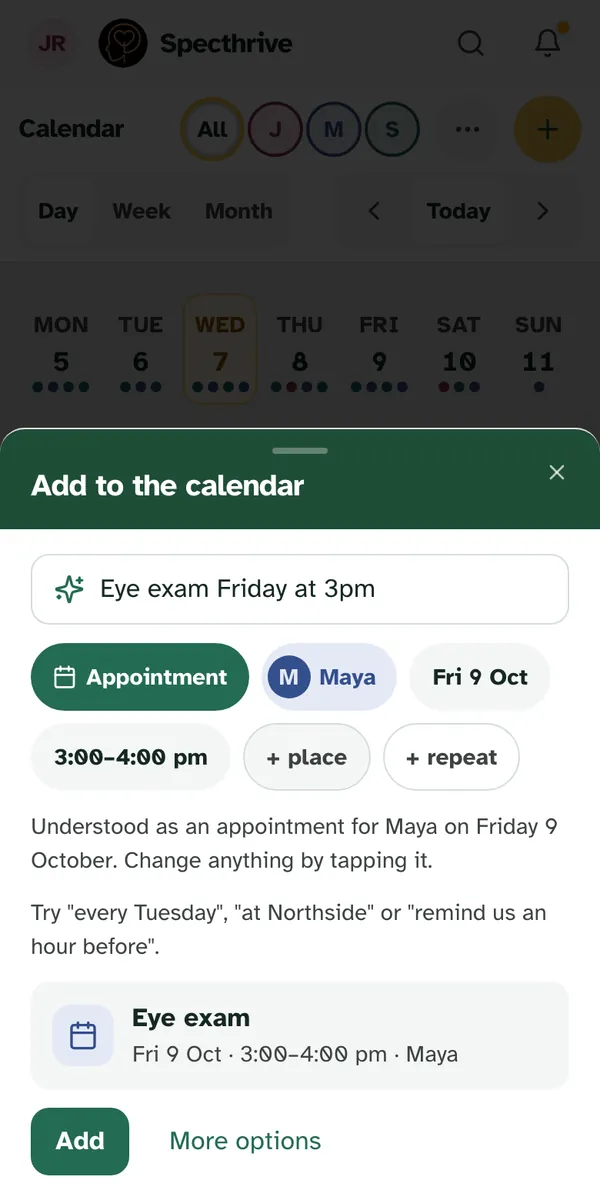
Type it the way you'd say it. Choose Add. Under Add to the calendar, type what it is and when, like "Eye exam Friday at 3pm". You can add things like "every Tuesday", "at Northside" or "remind us an hour before". The calendar shows what it understood. Change anything by tapping it, choose who it's for, then choose Add.
More options opens the full form. Choose More options for New appointment. Fill in What, then Who is it for (one person, several, or Everyone), the Kind (Therapy, Appointment or School), the Day and Time or All day. Under them, Repeats, Place, Travel time and Remind are there when you need them. Then choose Add.
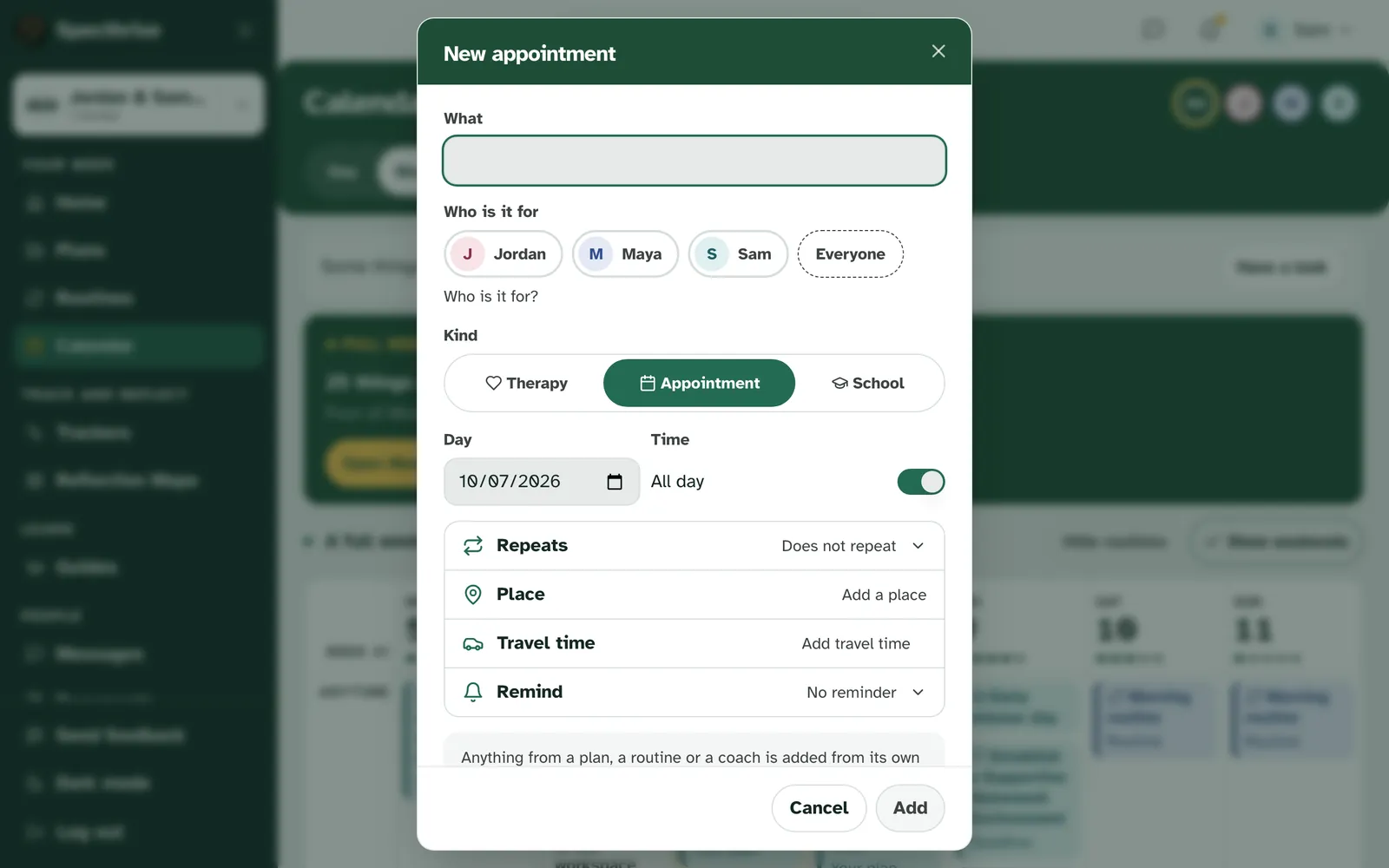
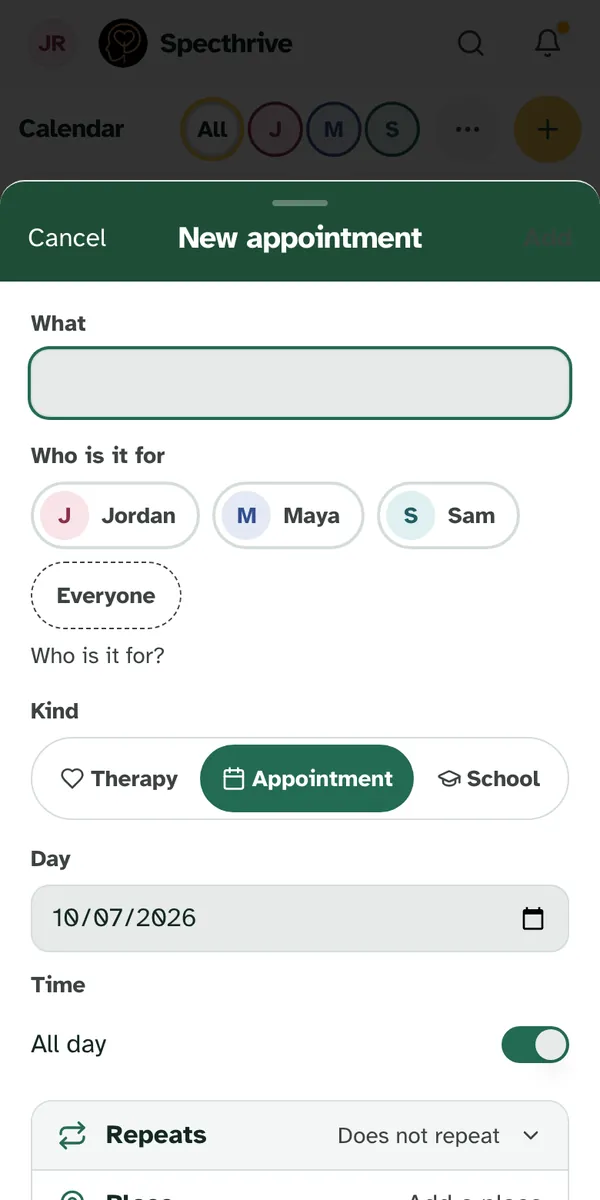
Plans, routines and coaches add their own. The form says it: "Anything from a plan, a routine or a coach is added from its own place, not here." Give a plan's to-do a date in the plan, and it shows up on the calendar.
To get a nudge before an appointment, see Get reminders for things on your calendar.
5. Open, change and move things
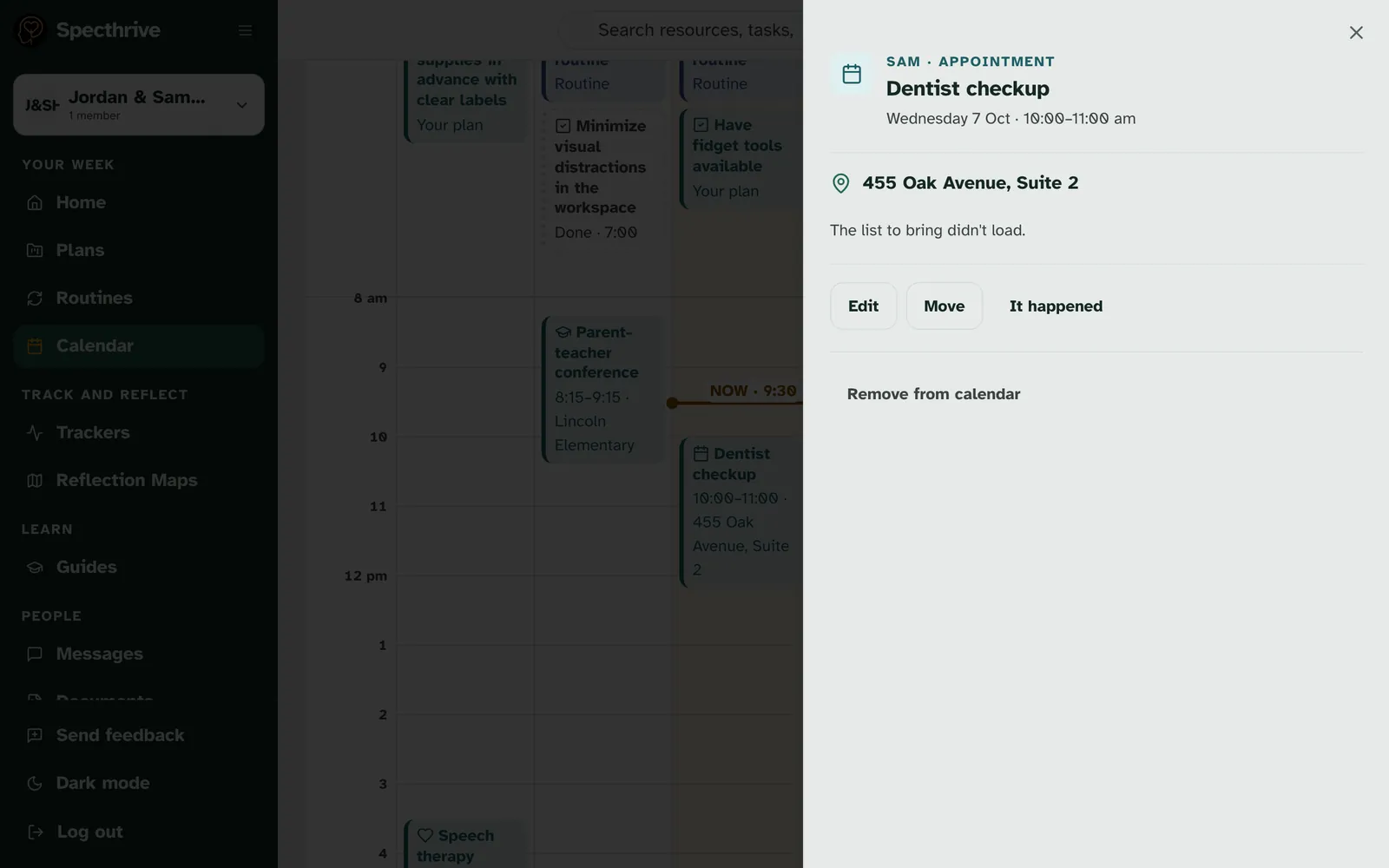
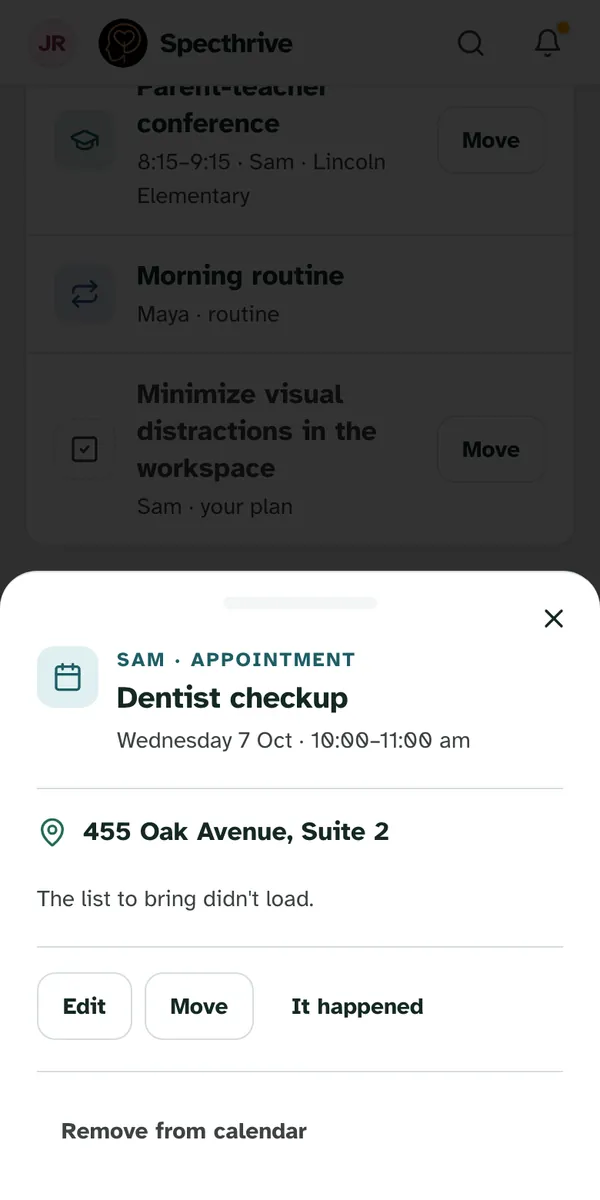
Tap anything to open it. An appointment opens with whose it is, when, and where. From there:
- Edit opens the same form, to change any of it.
- Move picks a new day.
- It happened marks it as done once its day has come.
- Remove from calendar takes it off. It asks first, "It comes off everyone's calendar.", with Remove and Keep it.
A plan's to-do opens in its task panel, where you can tick it off or change its date. See Work your plan.
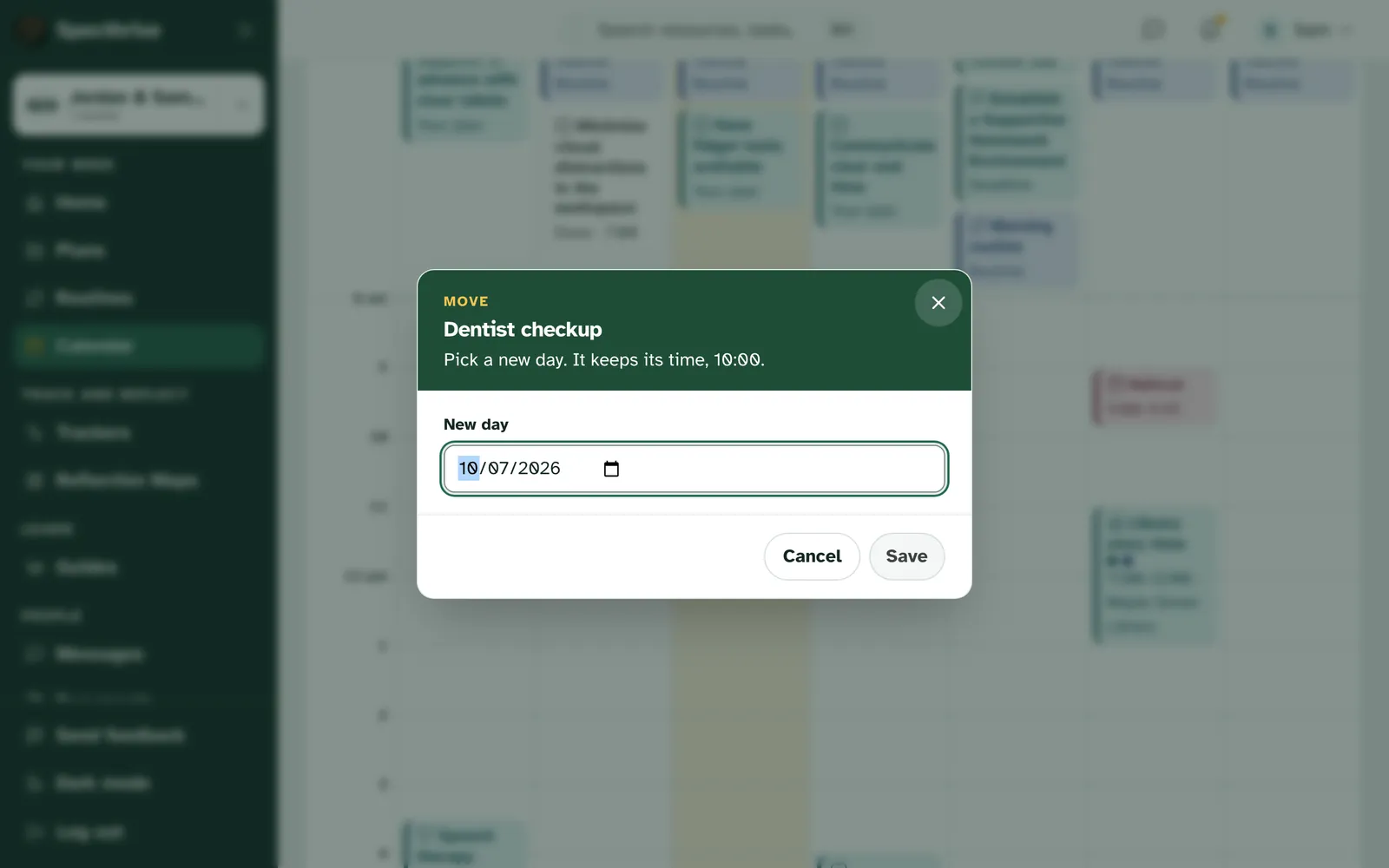
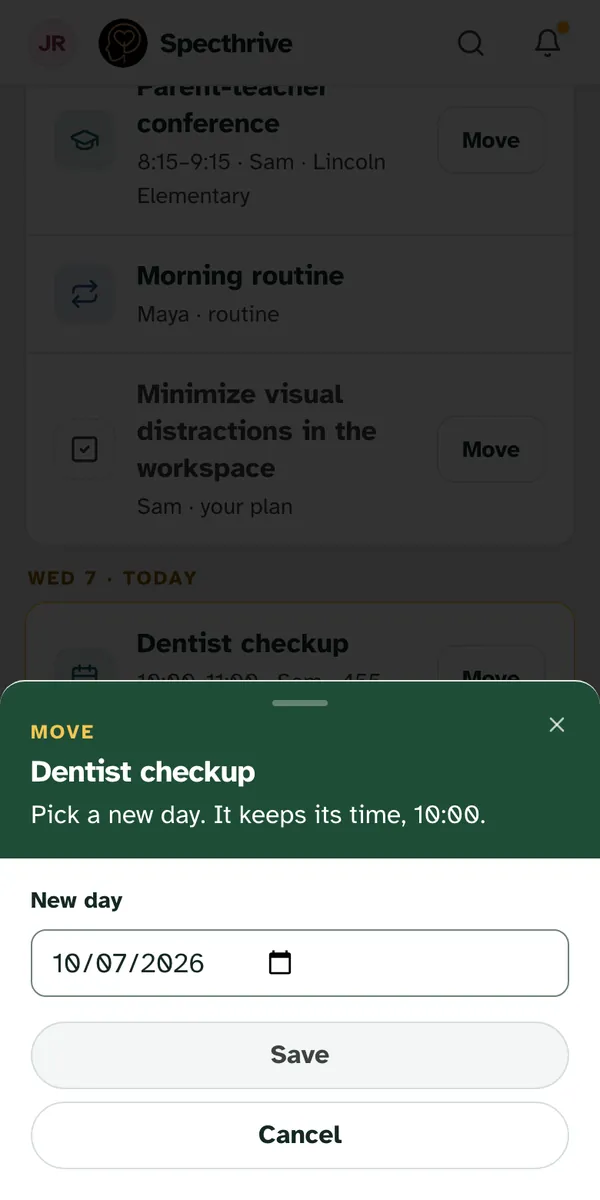
Move keeps the time. Choose Move, pick the New day and choose Save. An appointment keeps its time: "Pick a new day. It keeps its time, 10:00." Plan to-dos also have a Move button right on the Day and Today lists.
Some things keep their own day. When something can't move here, the window says why and where to change it instead. For example:
- A repeating appointment: "This one repeats, so its days follow the repeat. Change the repeat to move it."
- A day set by its plan: "This day comes from its plan. Change it in the plan and the calendar follows."
- Something someone else sent: "This was sent by someone else, so its day stays as they set it. You can still do it whenever suits you."
6. Things still open from earlier
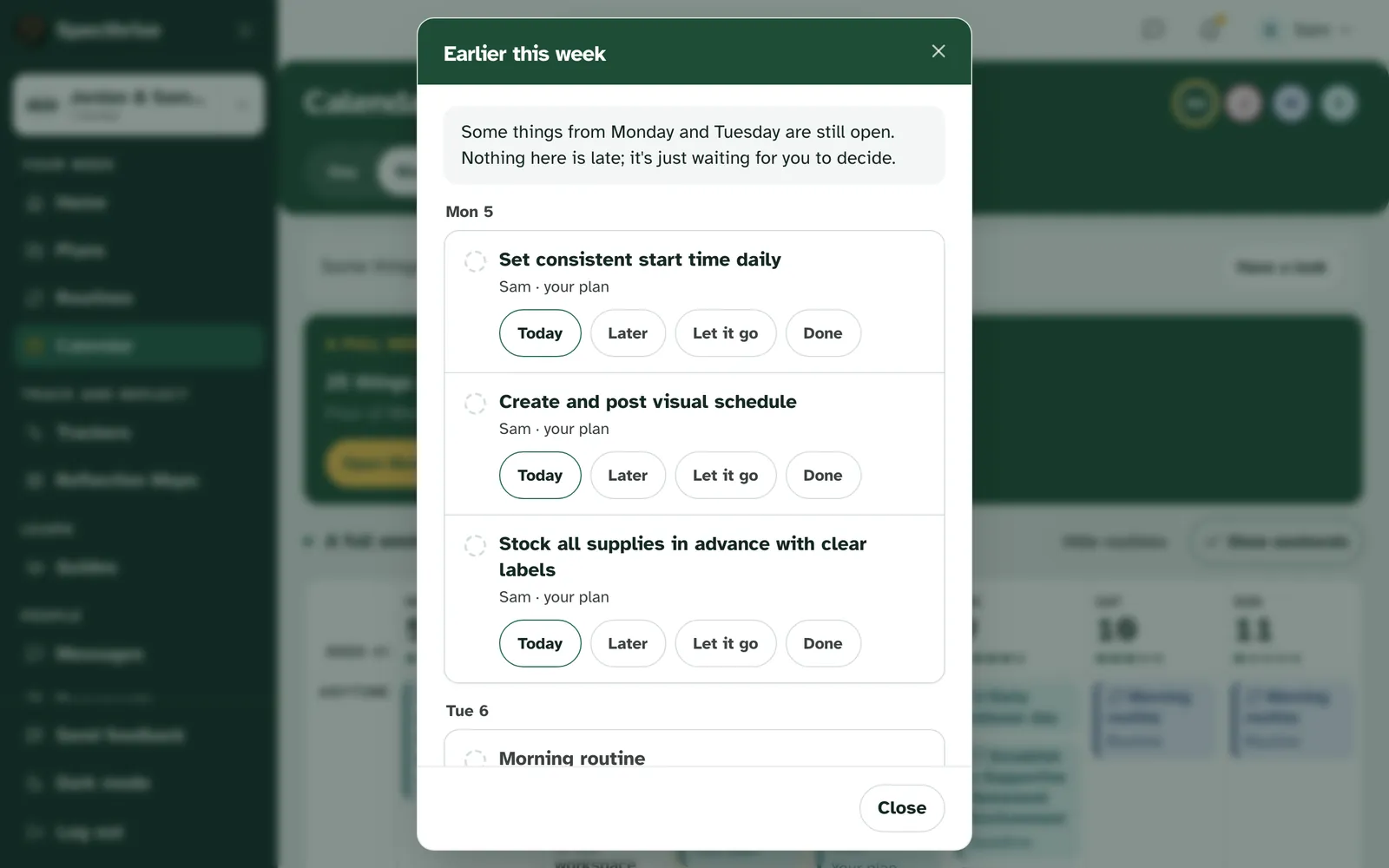
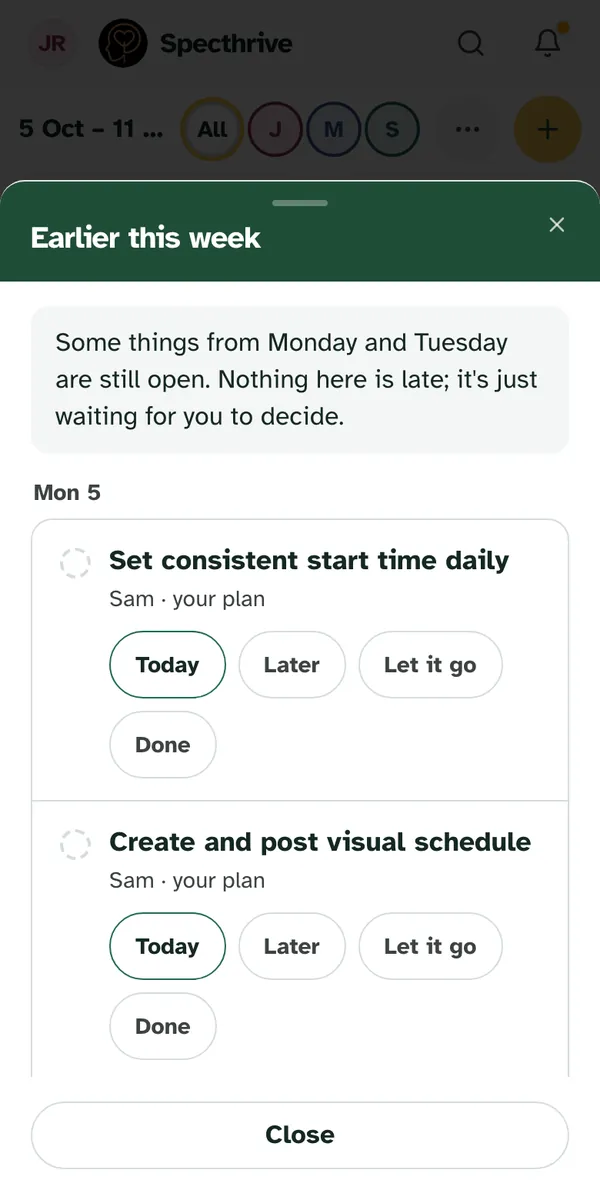
Nothing here is late. When to-dos from earlier days are still open, a note at the top of the week says "Some things from earlier this week are still open." Choose Have a look when you're ready. Each one offers four choices:
- Today puts it on today.
- Later opens Move to pick a day.
- Let it go takes it off the calendar. It stays in its plan.
- Done ticks it off.
A routine day that didn't happen just says so, like "a quiet evening, that's fine", with nothing to do.
7. Share a view-only link
The calendar options are under the "…" button. First pick a person under Whose calendar. The options then name them: Share Sam's calendar, Import into Sam's calendar and Download Sam's calendar (.ics).
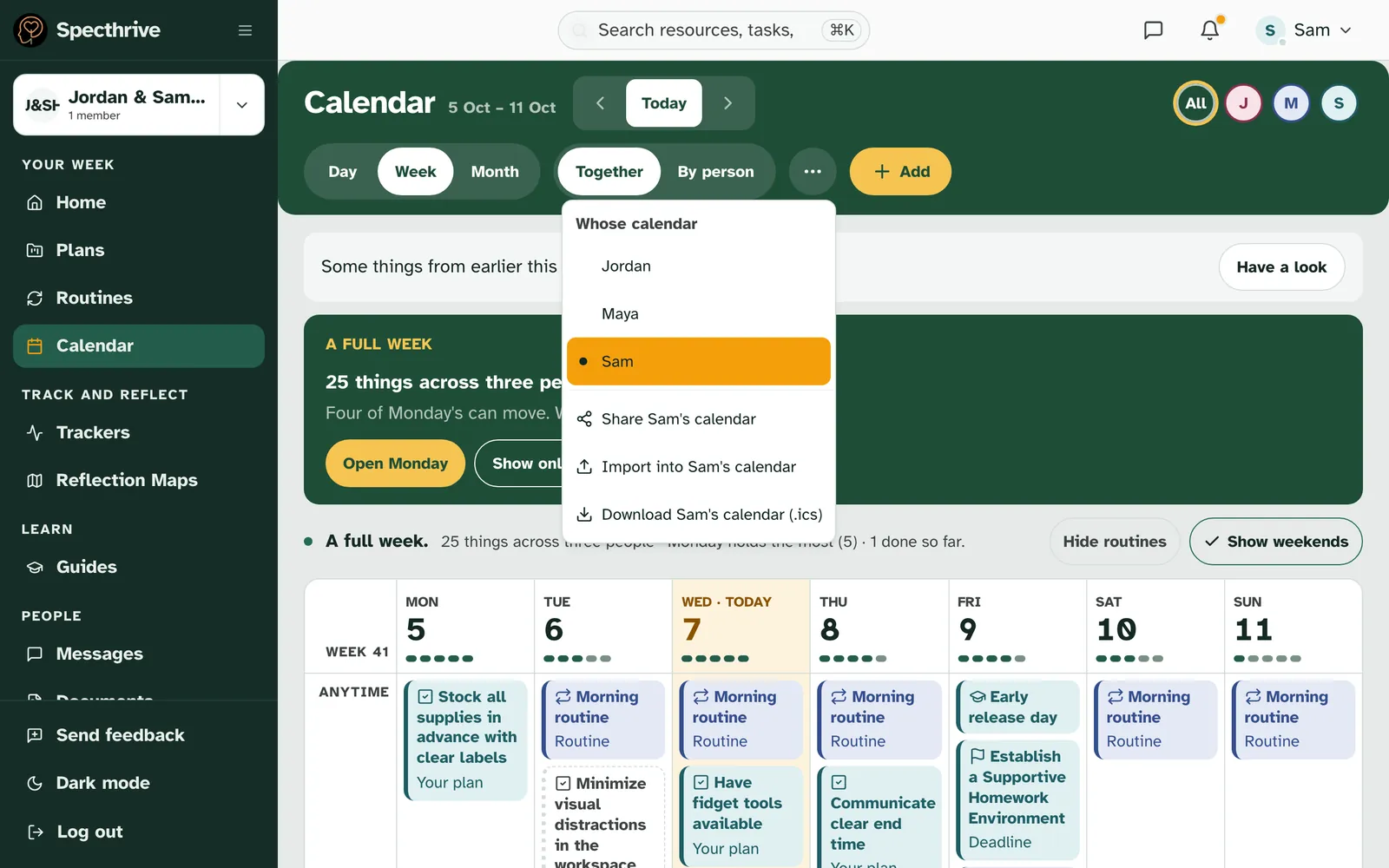
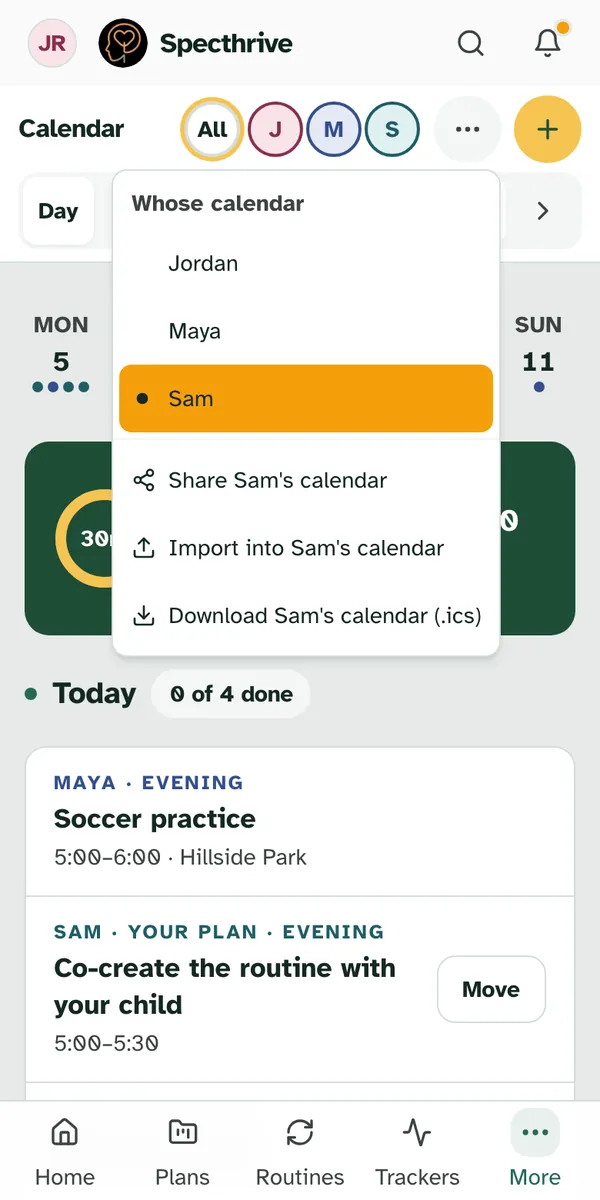
A share link is view only. Choose Share Sam's calendar (with that person's name), then Create Share Link (or Create new link if one exists). Pick how long it lasts under Link Expires In. Copy the link straight away: "Copy this now. For your family's privacy, we can't show it again." Choose Revoke to turn a link off.
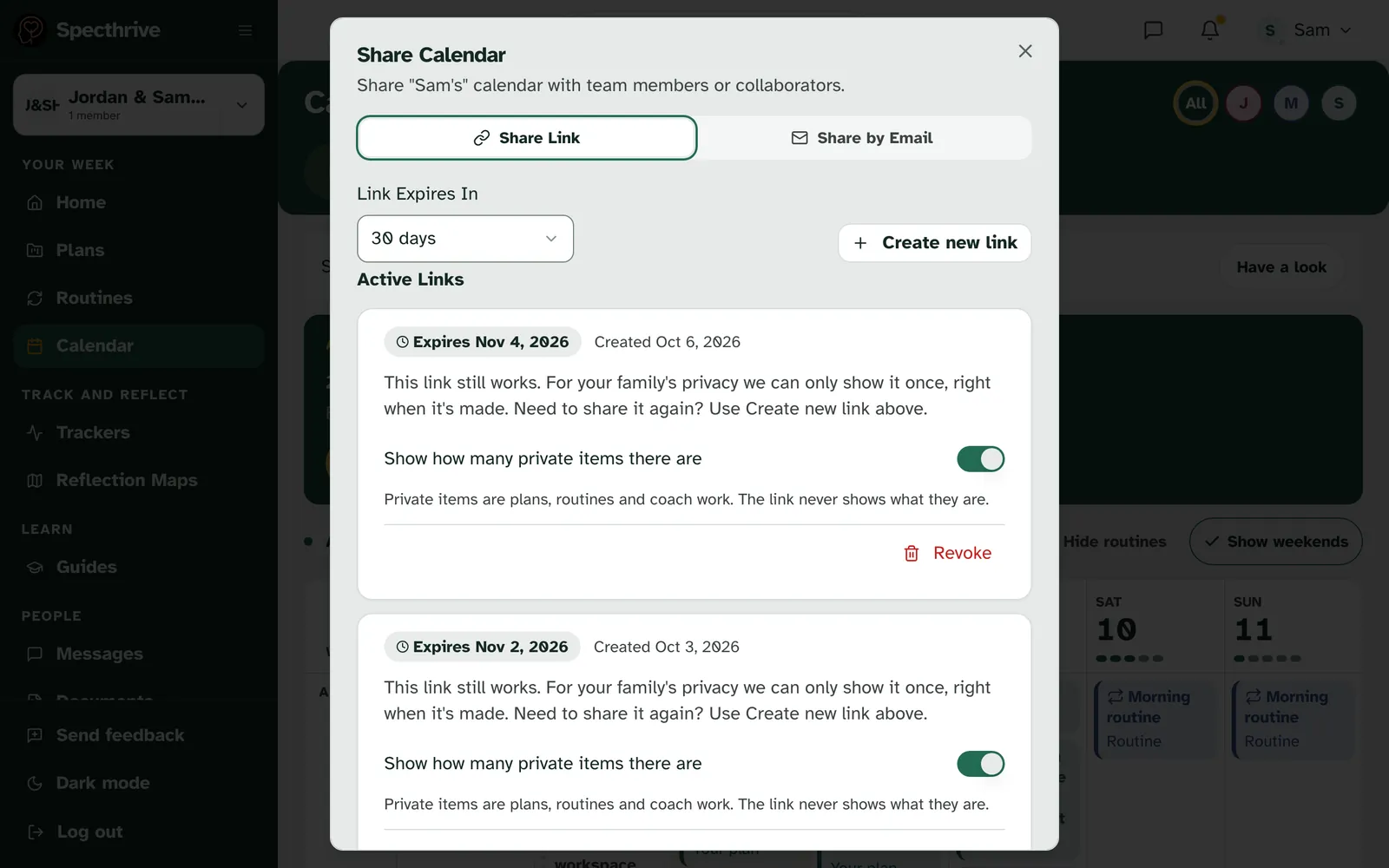
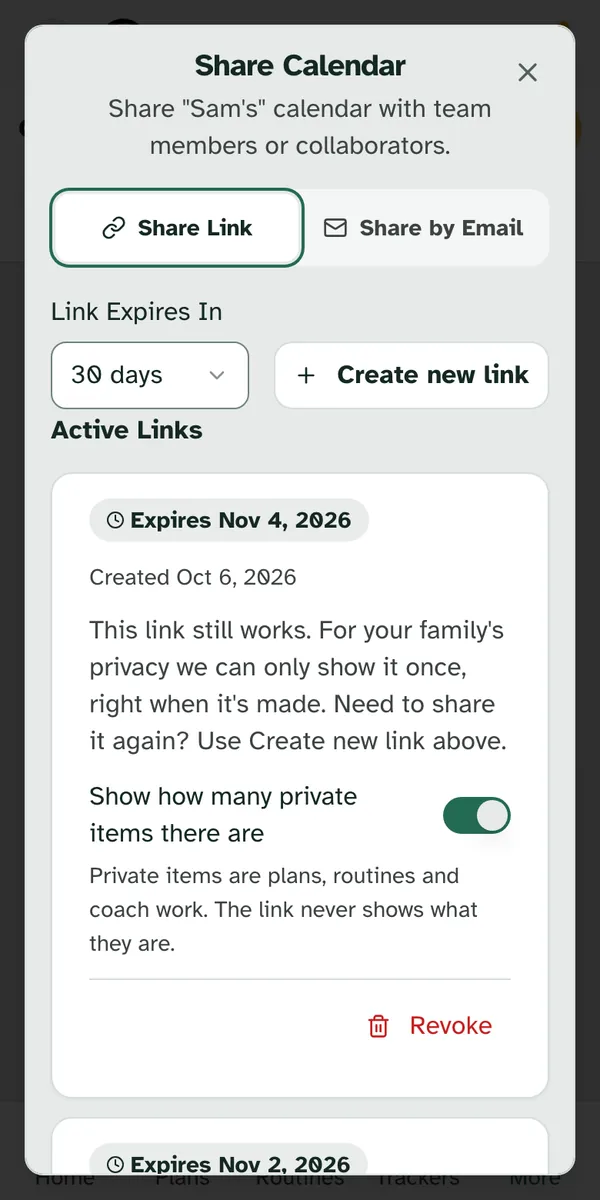
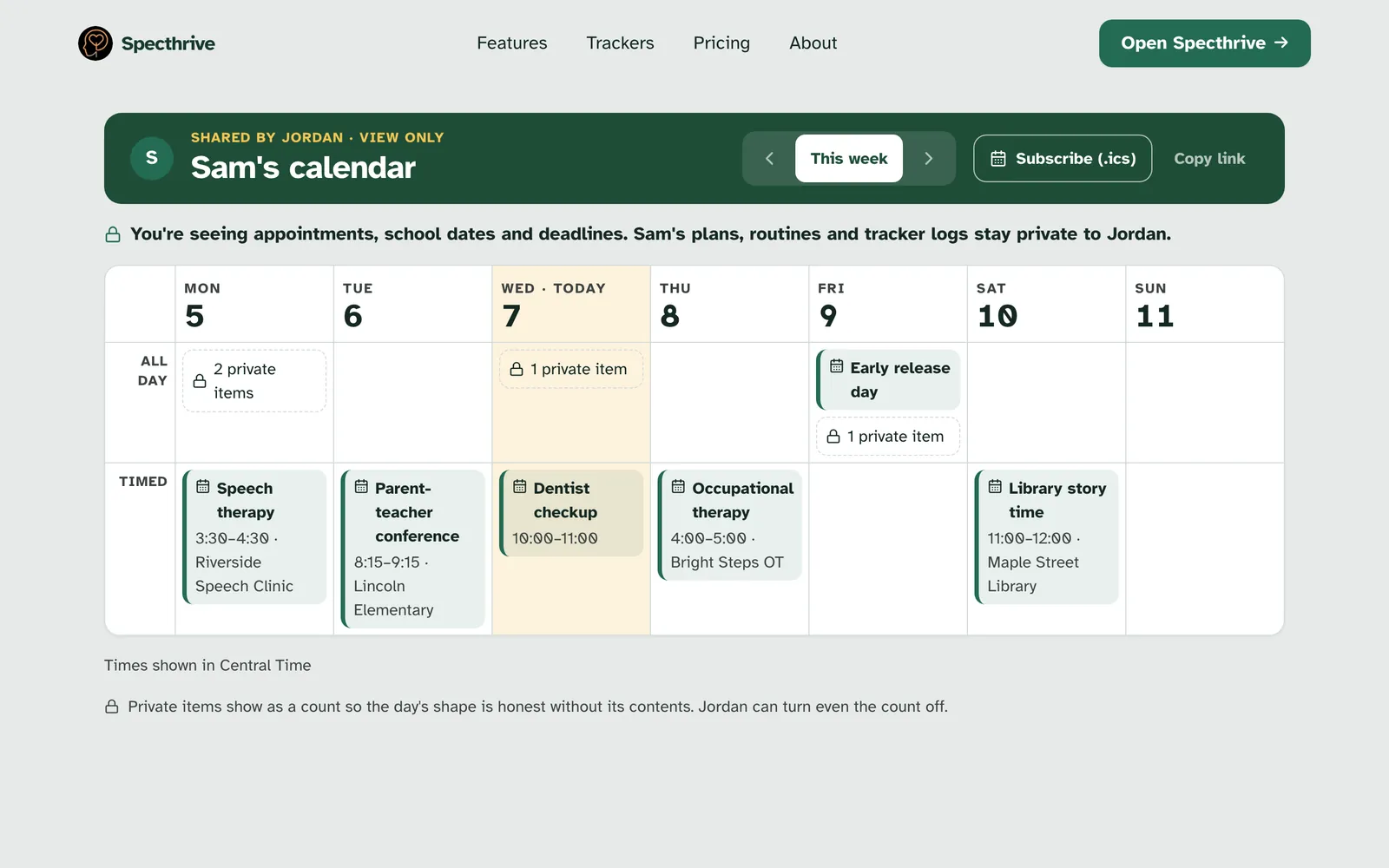
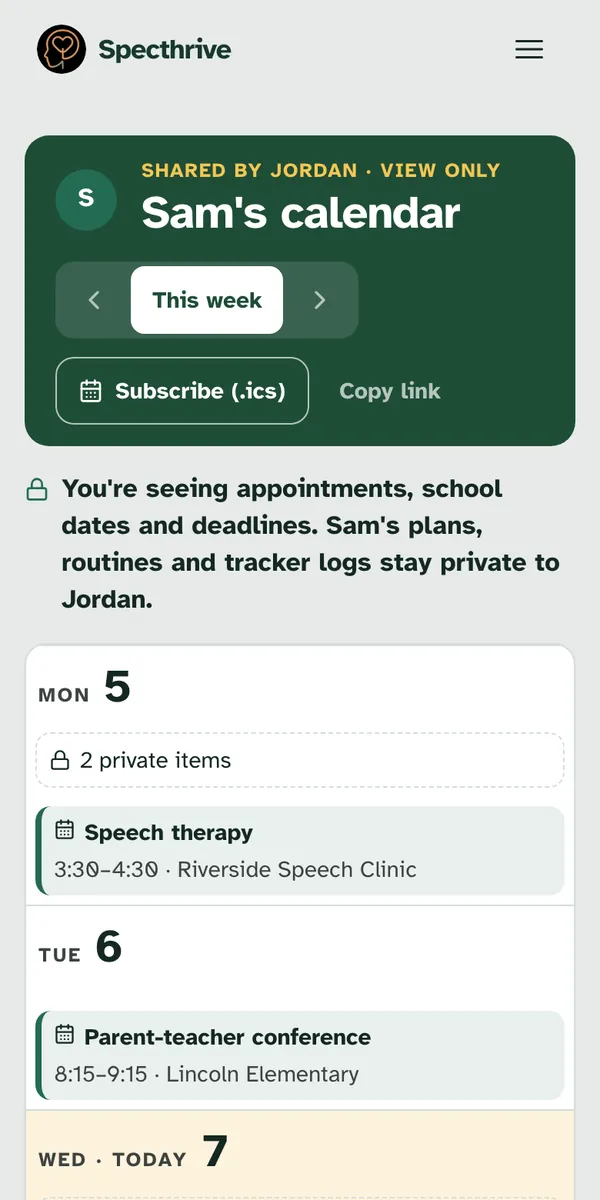
What the link shows. The person you send it to sees appointments, school dates and deadlines, without signing in. Plans, routines and tracker logs stay private. A day with private things shows only a count, like "2 private items", never what they are. Turn off Show how many private items there are to hide even the count.
They can keep it in their own calendar. On the shared page, Subscribe (.ics) adds it to the calendar app they already use, such as a co-parent's phone, and it stays up to date. Copy link copies the page's address.
Import and download. Import into brings in events from a calendar file (.ics), such as a school calendar. Download saves a copy of that person's calendar as a .ics file.
Getting help
If something here does not match what you see on your screen, get in touch.
Still have a question?
If this guide did not cover your situation, reach out. We read every message.