Start your plan and check things off
Bring a plan into focus, choose one goal to work on, and tick off its checklist one small step at a time.
A plan does not ask anything of you until you start it. Starting takes two small moves: bring the plan into focus, then choose one goal inside it. From then on, Specthrive shows you one next step at a time, and each tick counts.
This guide continues from Find a guide and make it yours, using the plan from that guide as the example. It works the same way for a plan you build yourself.
How plans and goals are organized
A plan holds a few goals. A goal holds milestones, and each milestone holds a short checklist of tasks. Progress moves up on its own: tick a task and its milestone, goal and plan all move forward.
Plans and goals rest until you choose them. A plan is either in focus or Paused. A goal is Planned, Active, or Done. You can have up to three plans in focus and three goals active at once. That limit is deliberate: a full plate is the thing Specthrive is trying to protect you from.
1. Bring the plan into focus
Open Plans and choose your plan, or go straight to it from the guide. A paused plan shows Bring it back into focus. Choose it, and a moment later you'll see "… is back in focus".
If you already have three plans in focus, Specthrive asks which one to rest first. Resting a plan loses nothing: every goal and tick is still there when you bring it back.
2. Choose one goal
Once the plan is in focus, a card appears headed Ready when you are: "Activate a goal to start checking them off, one small step at a time." Its button names the first goal, for example Activate: Household Management.
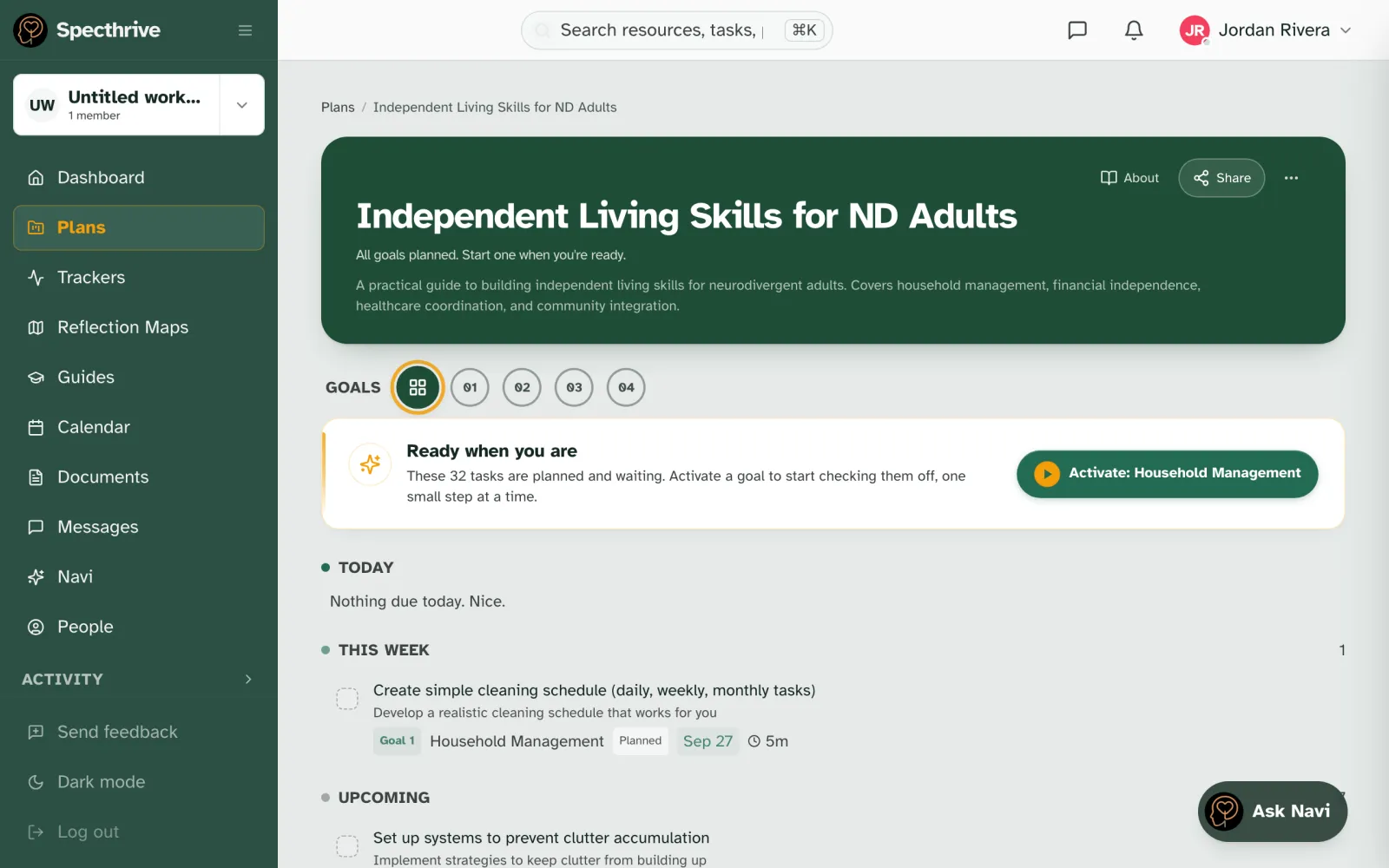
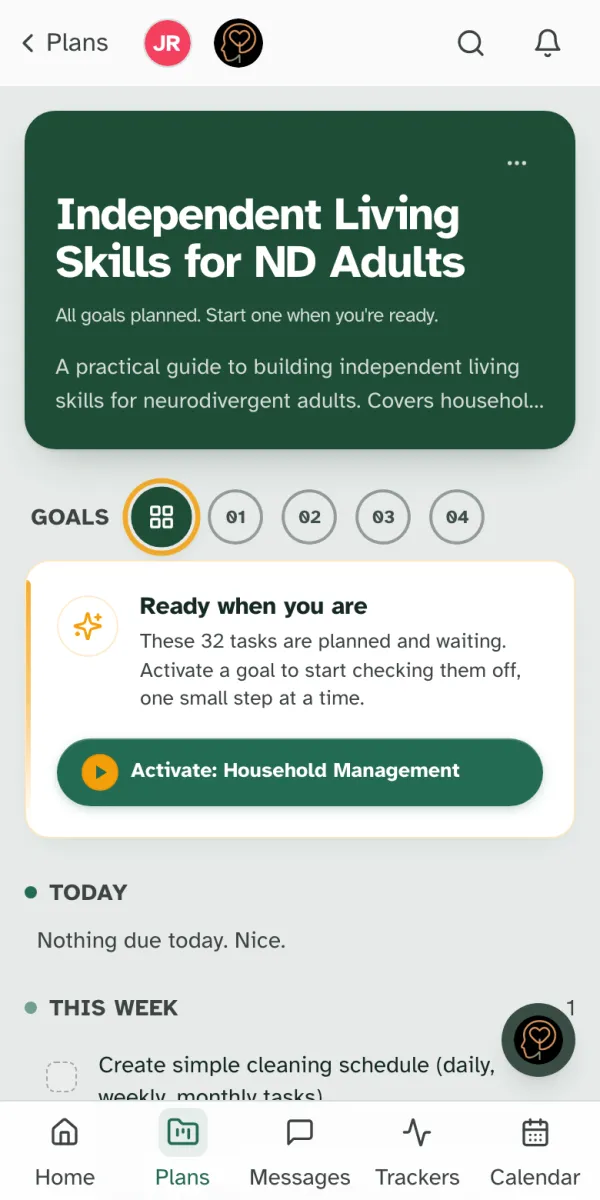
Want to start somewhere else? Open any goal (see step 5) and choose Start at the top of it. There is no wrong order.
3. Give it a gentle timeline, or don't
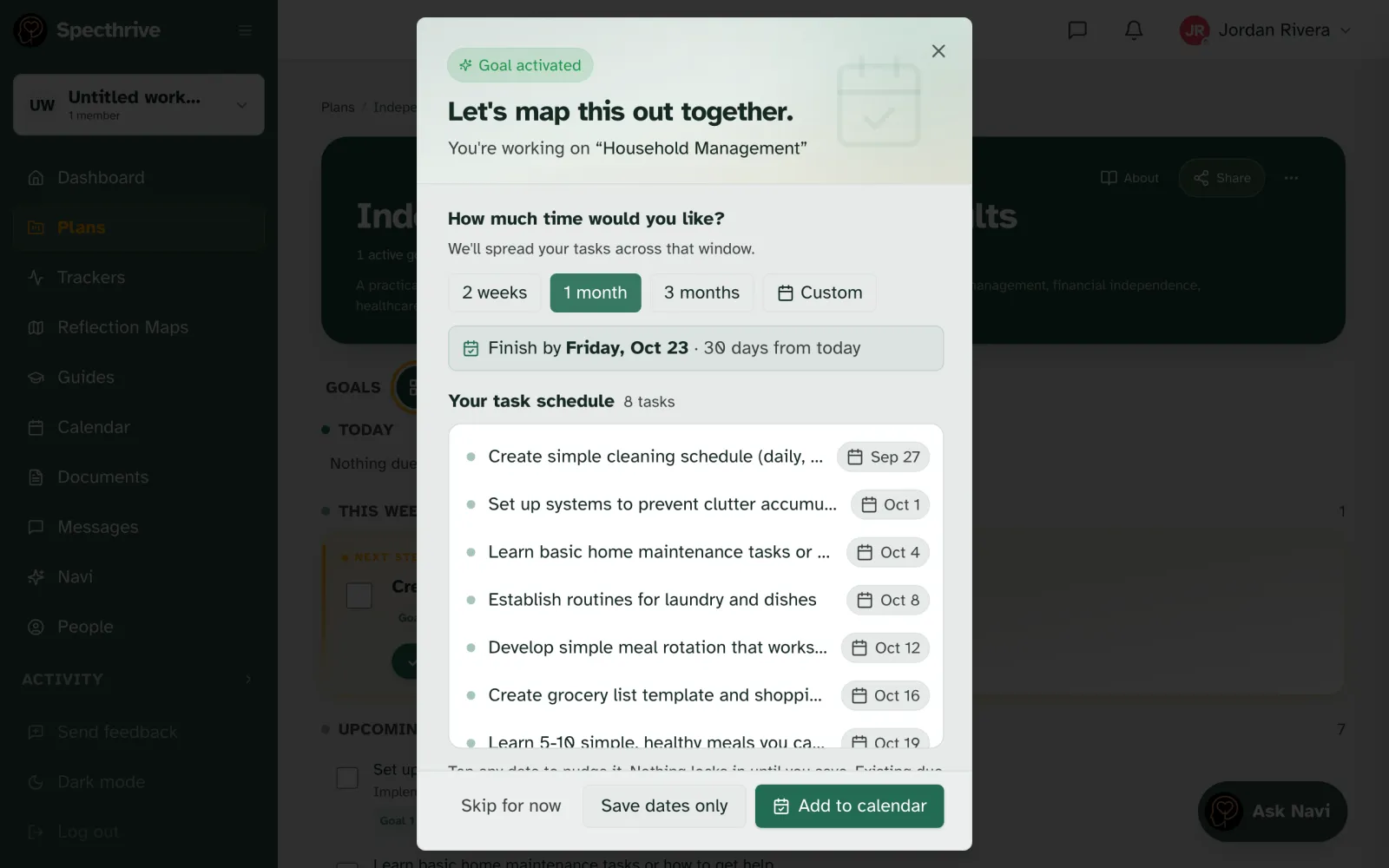
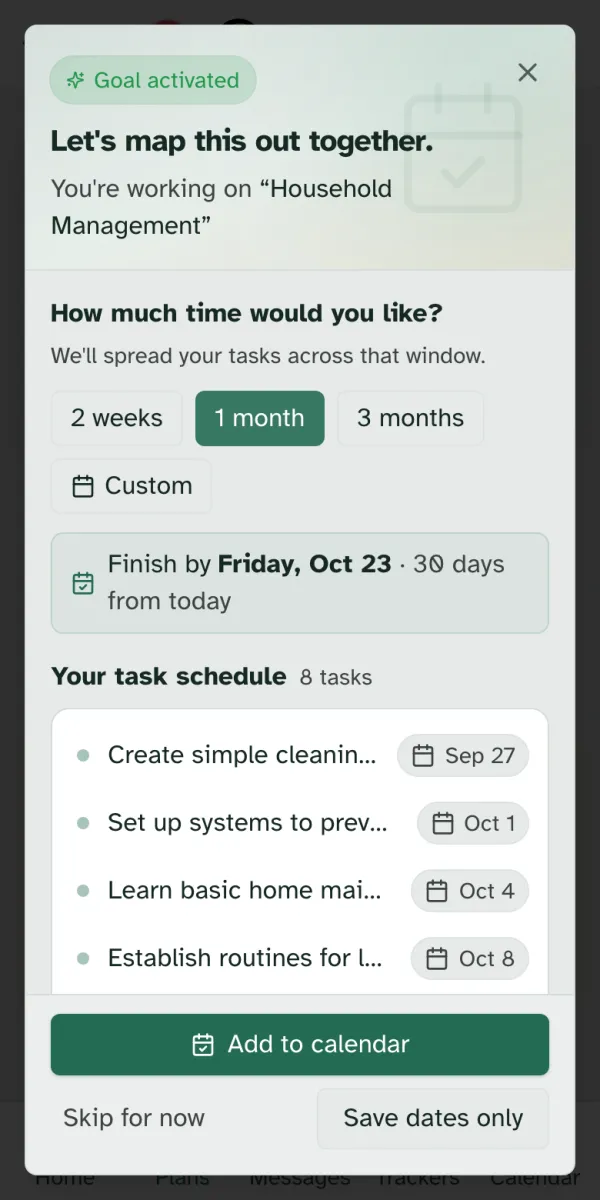
Activating a goal opens Goal activated: Let's map this out together. It asks How much time would you like?, with 2 weeks, 1 month, 3 months or Custom. Specthrive then spreads the goal's tasks evenly across that window and shows you the schedule, date by date. Tap any date to move it.
Then choose one:
- Add to calendar puts the dates on your Specthrive calendar.
- Save dates only keeps the dates on the tasks without adding calendar events.
- Skip for now leaves the tasks undated. They sit under Anytime, which is a perfectly good way to work too.
4. Work from your next step
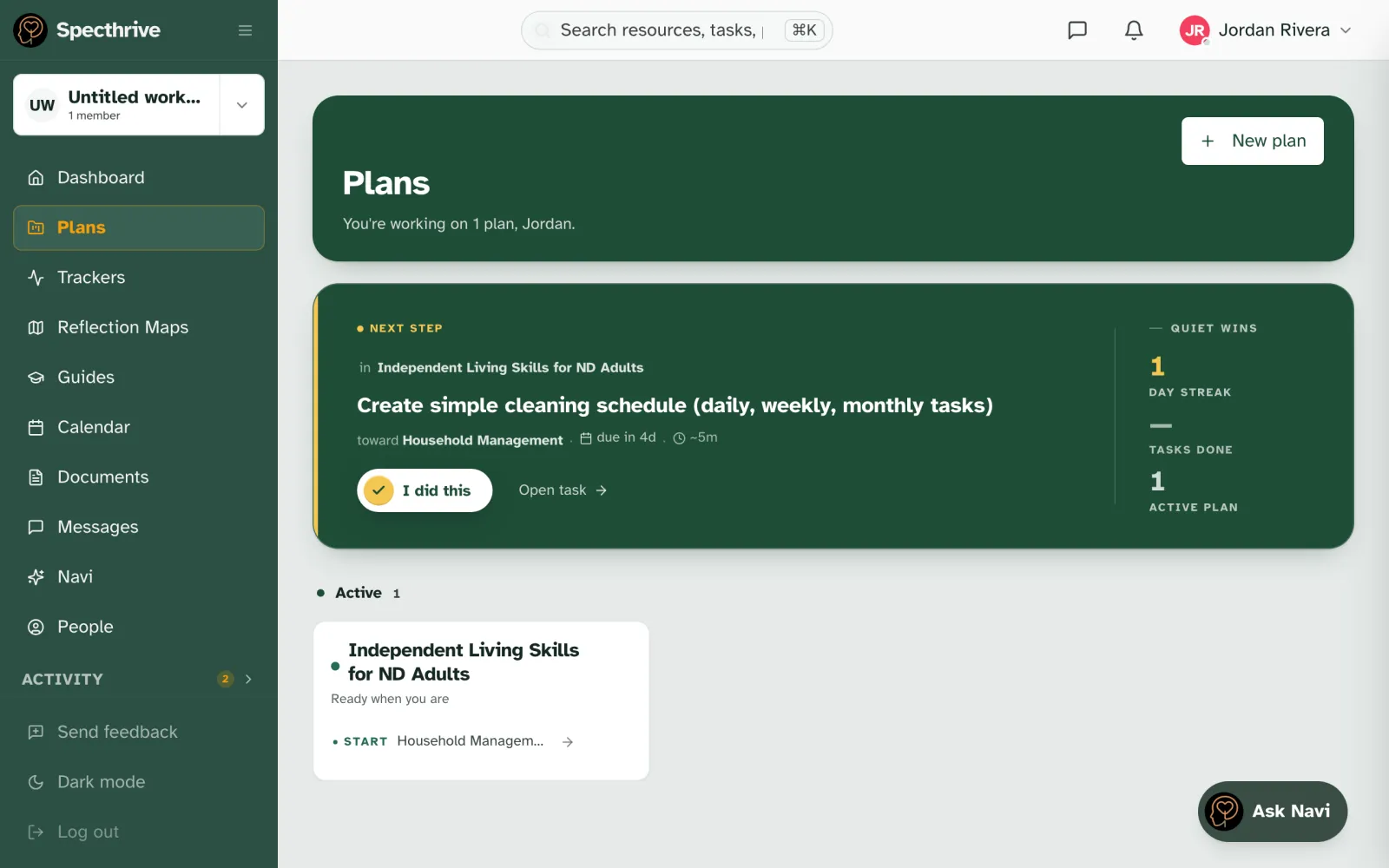
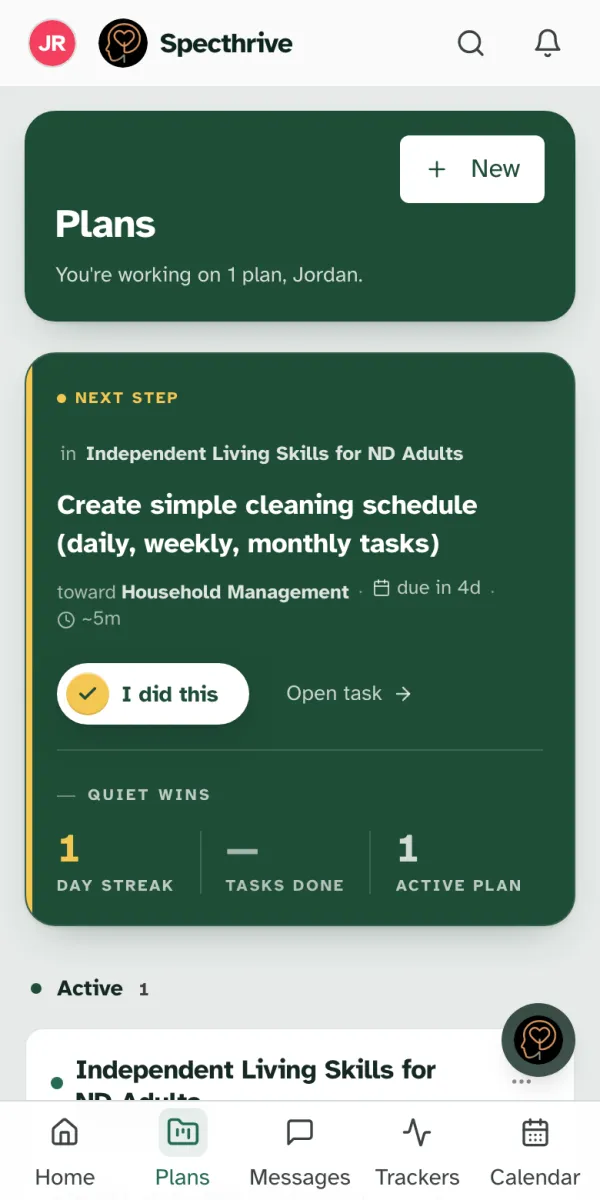
Back on the plan, one task is highlighted as your Next Step. Below it, tasks sit in Today, This week, Upcoming and Anytime, so you can see what is coming without it all landing at once.
Done it? Choose I did this. That is all it takes. Open goal shows the rest of that goal's checklist.
The same next step also appears at the top of the Plans page, with your Quiet wins beside it: your day streak, tasks done, and plans in focus. They count what you have done, never what you missed. A slow week still counts.
5. Open a goal and work the checklist
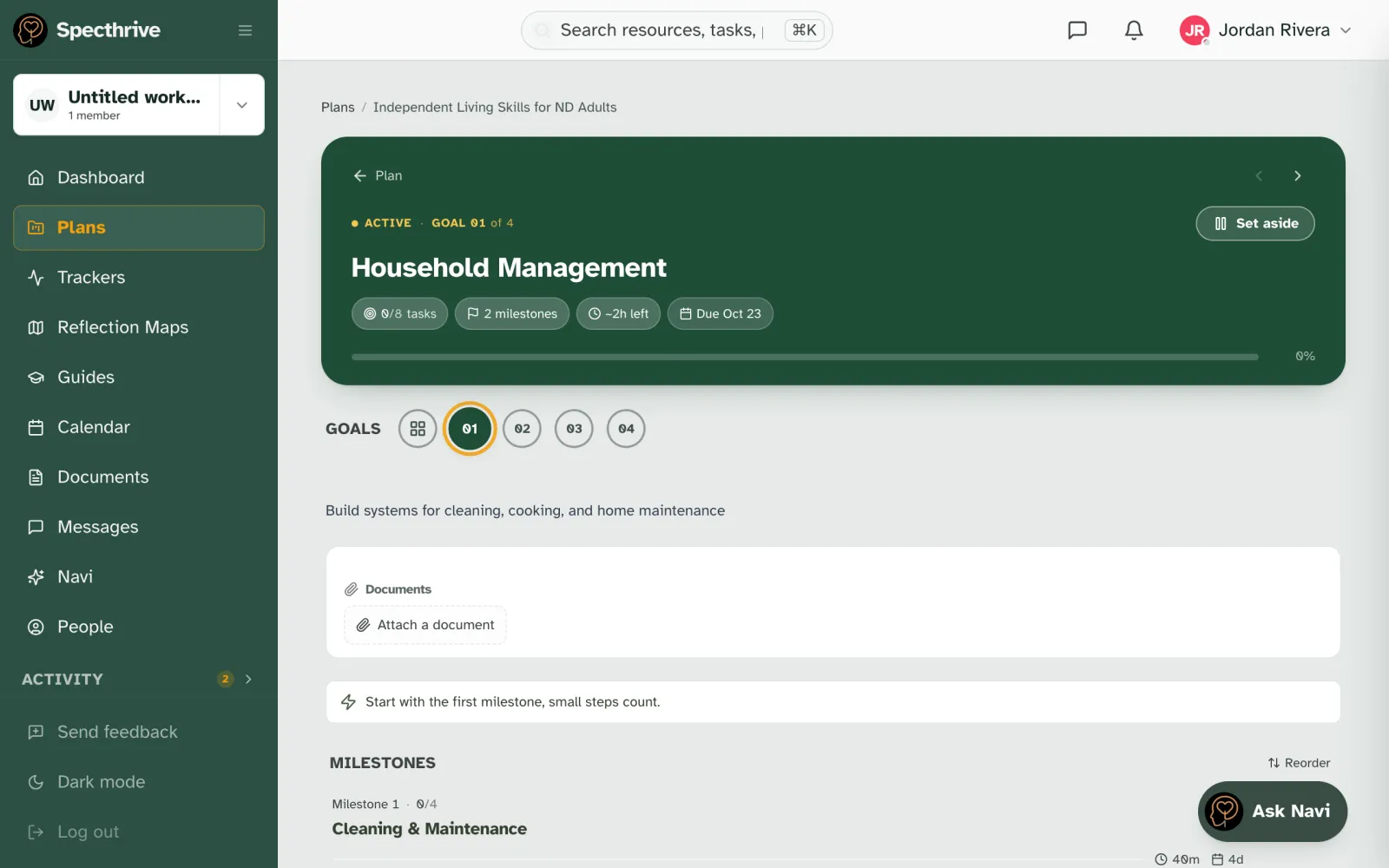
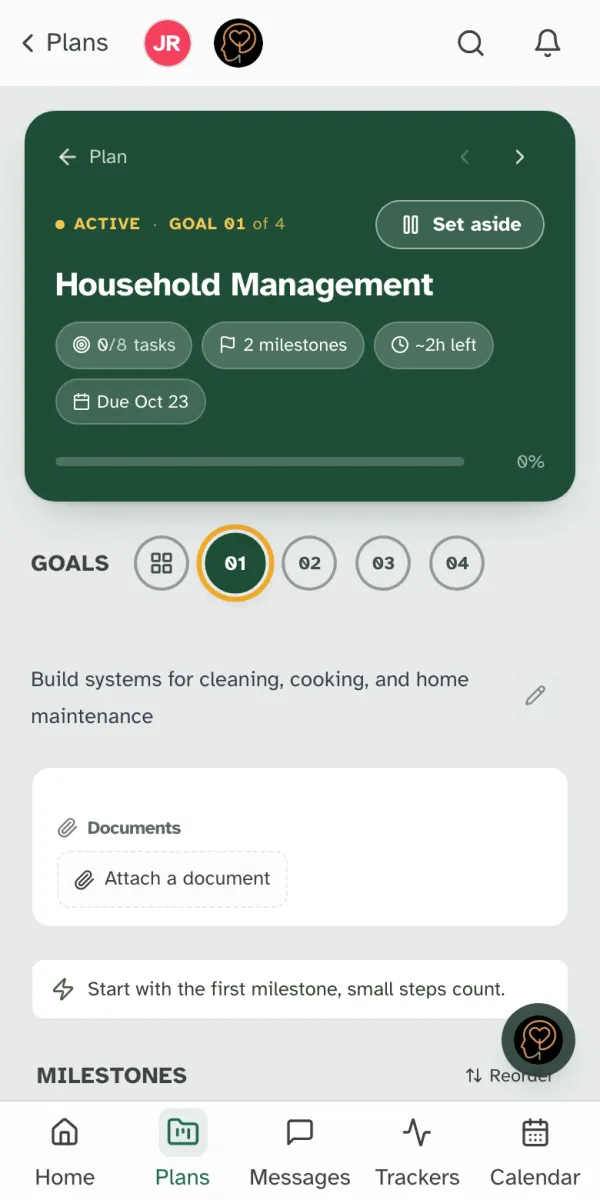
Choose a goal's number under Goals (01, 02 and so on) to open it. The header shows where it stands: Active, how many tasks are done, how many milestones, roughly how much time is left, the due date, and a progress bar.
Scroll to Milestones. Each milestone opens into its checklist.
Tick the box next to a task when it is done. A small burst of confetti marks it (unless your device is set to reduce motion), and the numbers update straight away: the milestone reads 1/4, and the goal and plan move forward.
Ticked one by mistake? Tick it again to undo it.
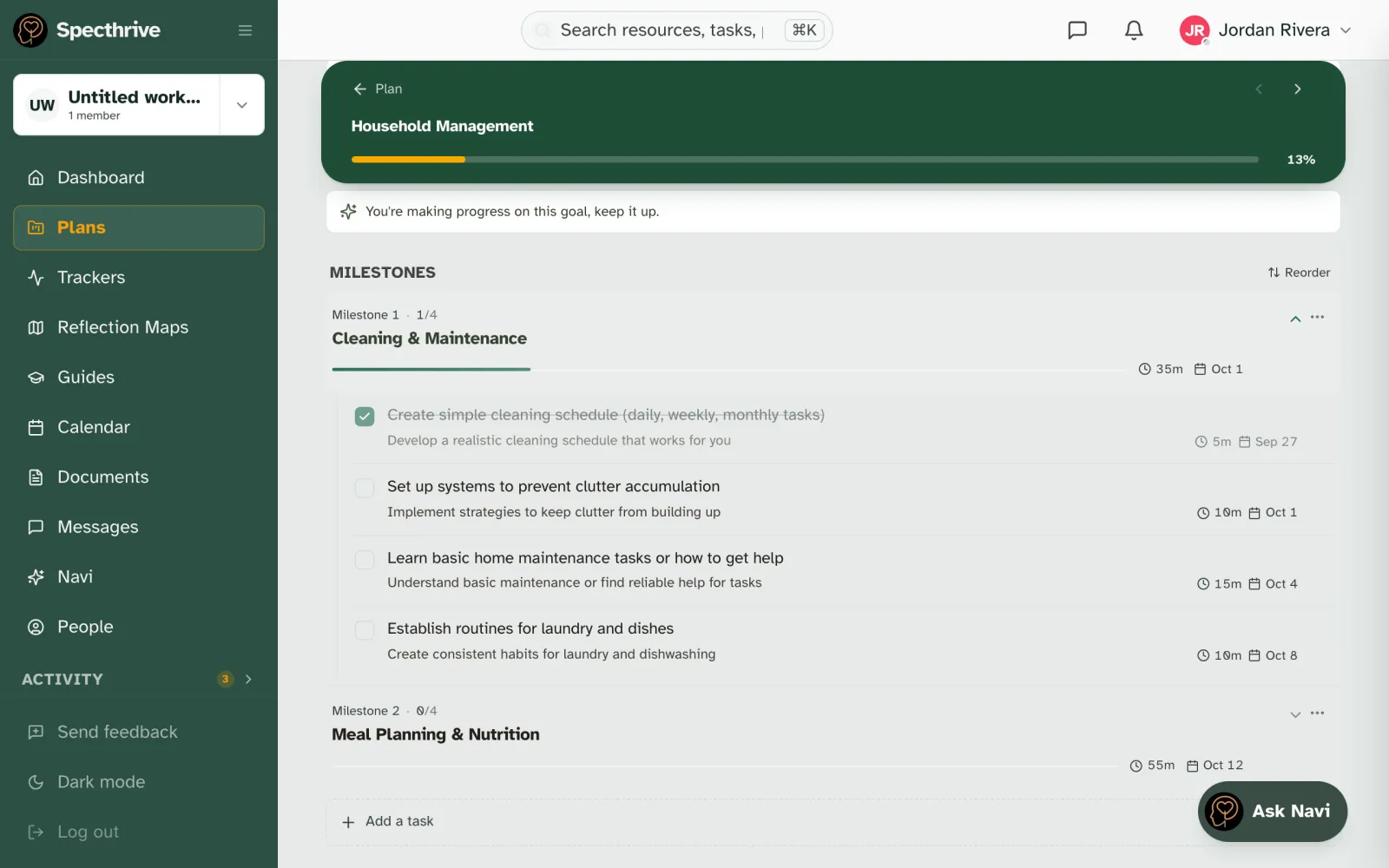
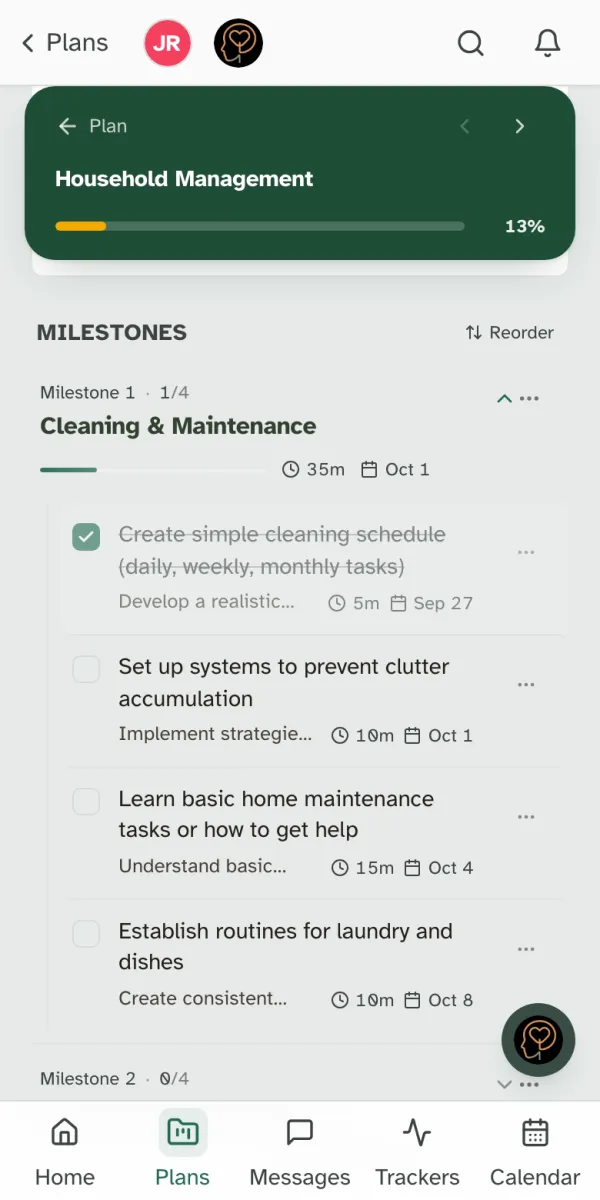
Make it fit your life. Choose Add a task at the bottom of a goal to add your own steps. Use the … menu on any task to change or remove it.
Can't tick a box? Tasks can only be ticked in an Active goal. A planned goal shows "Start this goal to check off tasks". Choose Start at the top of the goal first, or pick a goal that is already active.
When you need a break
Life gets loud sometimes. Set aside at the top of a goal moves it back to Planned, and Rest this plan in a plan's … menu pauses the whole plan. Everything you have done stays exactly where it is, ready for when you come back.
Still have a question?
If this guide did not cover your situation, reach out. We read every message.