Ask a student for a questionnaire and read it together
For coaches. Ask a student for a learning profile, read their answers strengths first, keep a coaching record, agree a next action, and close the case.
A questionnaire gives a student a quiet way to tell you how school goes for them, in their own words, before you next talk. It is not a test. Nothing in it is scored, ranked, or turned into a number, on their side or yours.
This guide follows one questionnaire from start to finish: asking for it, what your student sees, reading their answers, keeping a coaching record, agreeing a next action, and closing the case. It is written for coaches who are verified on Specthrive. If you are new to the professional side, start with Getting started as a coach or therapist.
Ask for a questionnaire
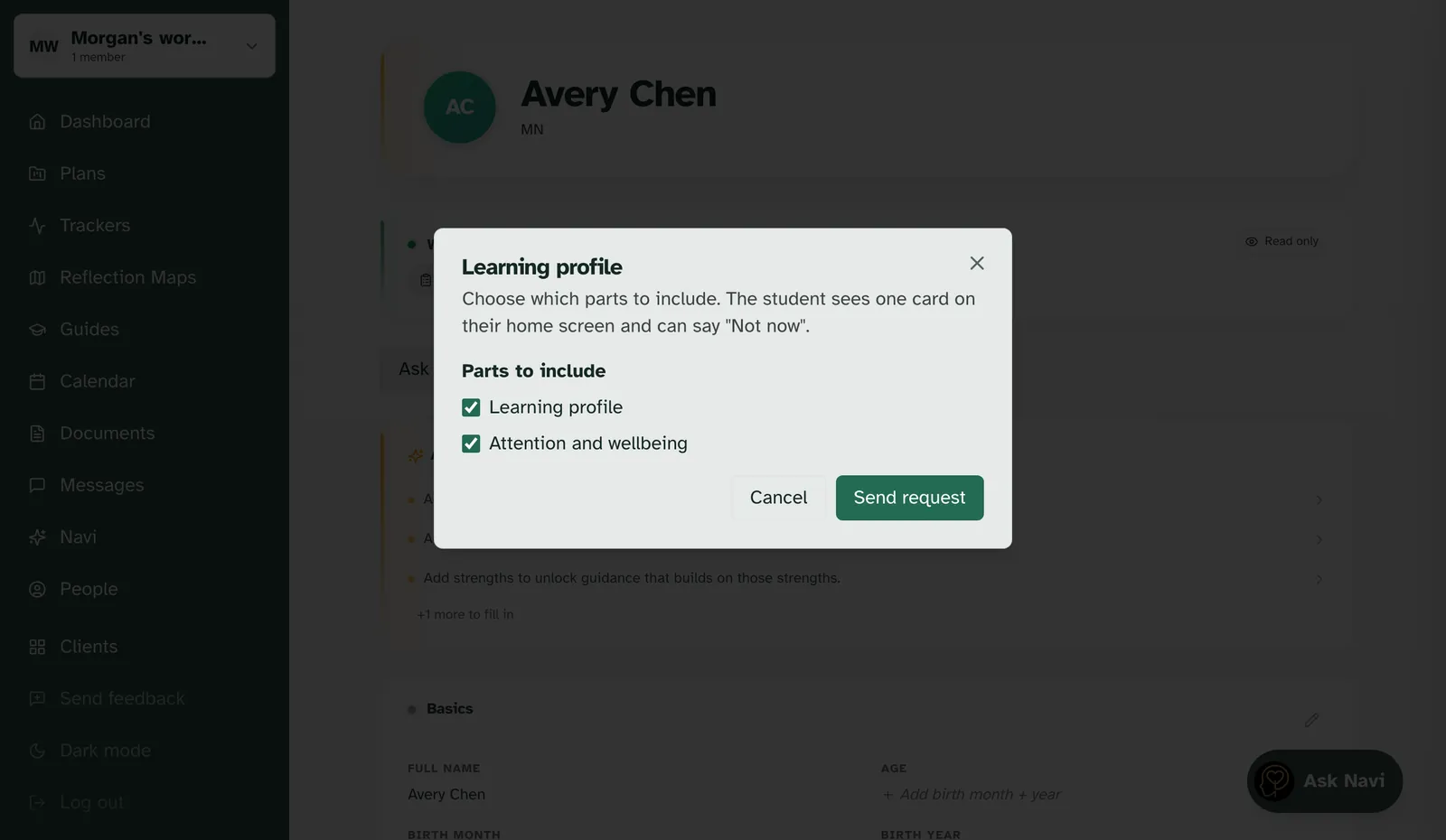
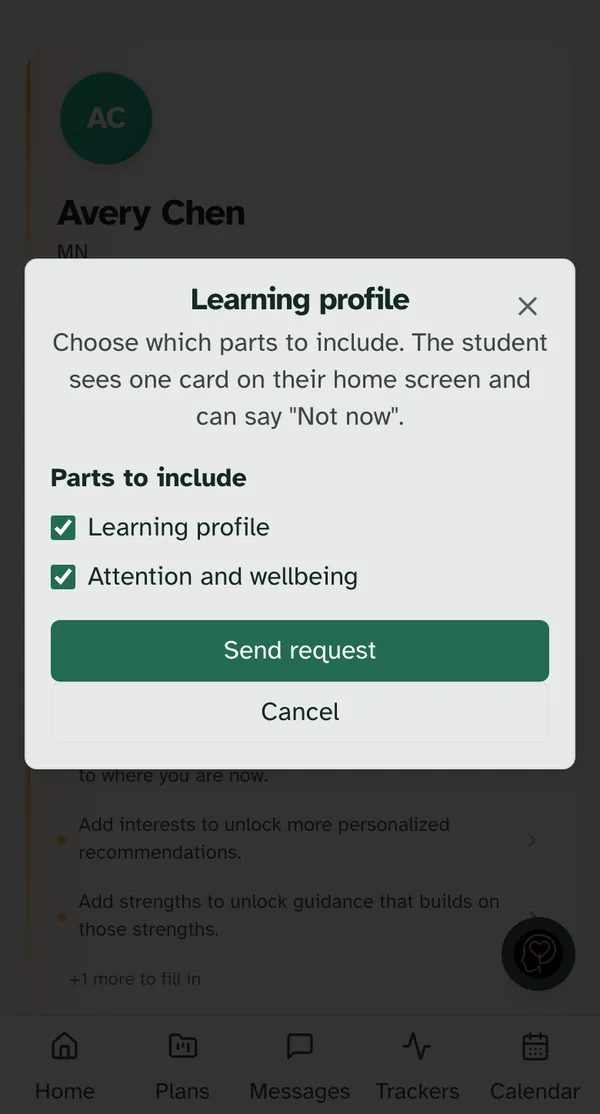
Start from your student's profile. Open them from your Clients page and choose Ask for a questionnaire. If more than one questionnaire is open to you, pick one first. Each one carries a line saying where it comes from, such as "Available to every verified professional".
Then choose which parts to include. The window says it plainly: "Choose which parts to include. The student sees one card on their home screen and can say "Not now"." Tick the parts that fit this student, then choose Send request.
You will see "Asked. They'll see it on their home screen." The profile then shows the questionnaire as Waiting to start. If you try to ask for the same one again while it is still open, you will see "This one is already open for this student." instead of a second copy.
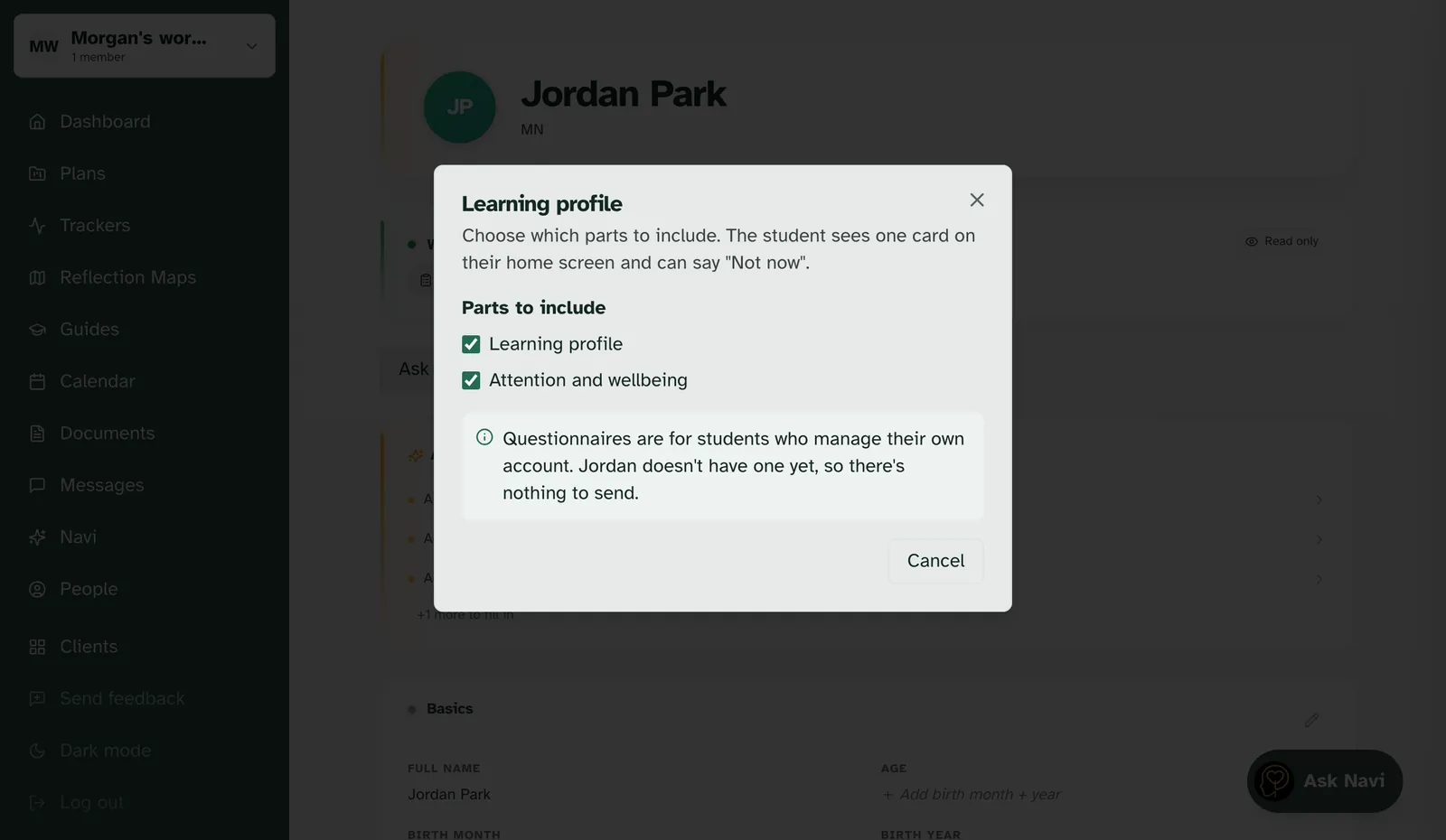
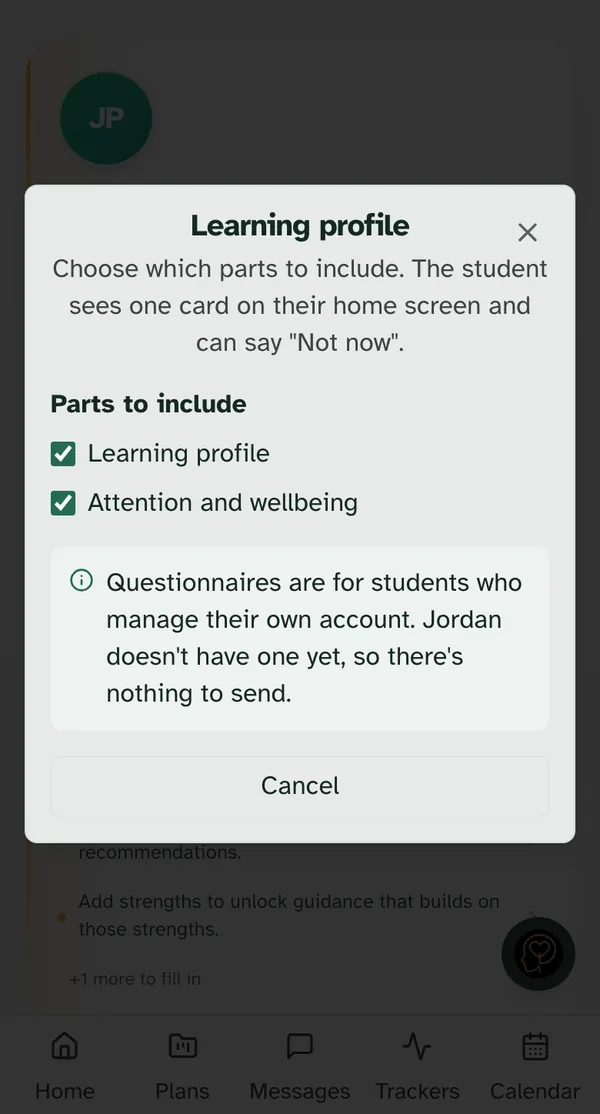
Questionnaires are for students who run their own account. On a profile a parent or guardian manages, there is no request to send, and the page says so rather than showing an error.
If you don't see Ask for a questionnaire at all, the list of questionnaires could not load for that profile. Try again a little later, and get in touch if it stays away.
What your student sees
An email, then one card. Your student gets a short email, "A few questions are waiting for you on Specthrive", that says the questions are from you, that it isn't a test, that nothing gets scored, and that they can skip anything. It carries no names and no questions.
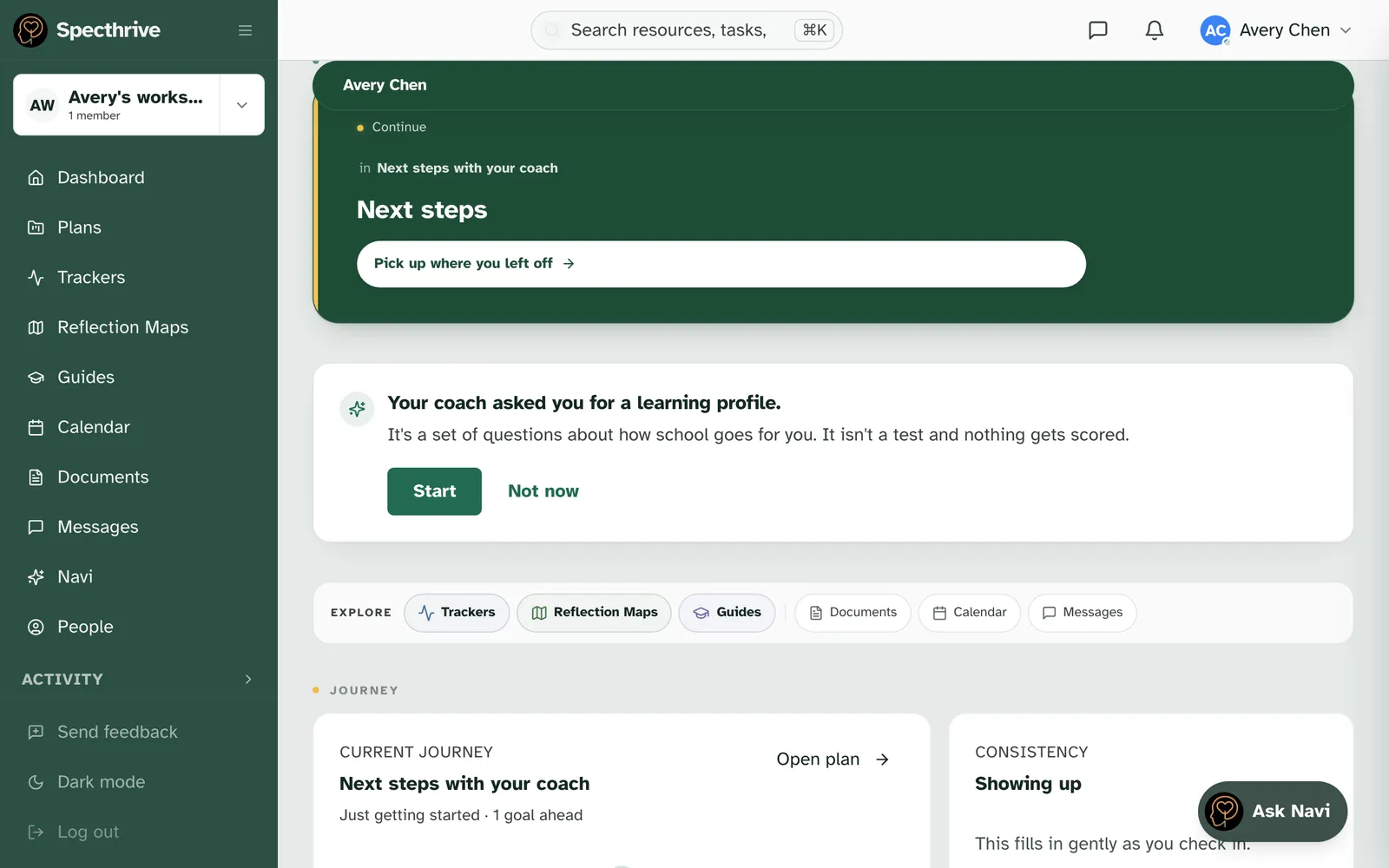
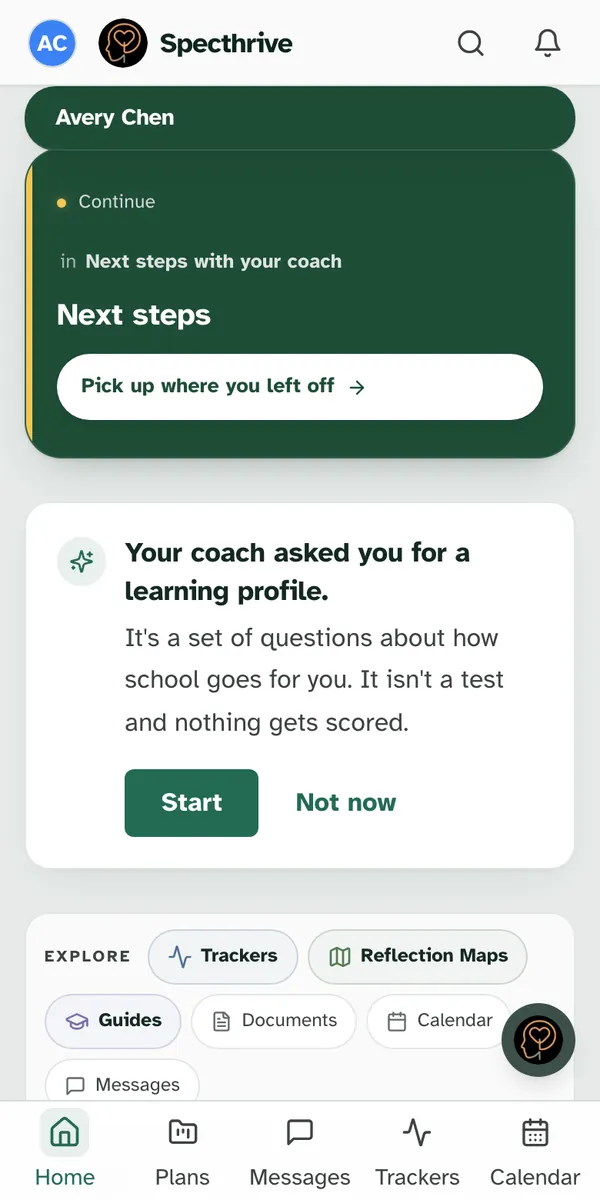
On their home screen there is a single card: "Your coach asked you for a learning profile." Underneath it reads "It's a set of questions about how school goes for you. It isn't a test and nothing gets scored." There are two buttons, Start and Not now. There is no deadline on it, no count, and nothing that tells them they are behind. Not now tucks the card away for the moment, and it comes back on a later visit.
Before the first question, your student reads a short page about what the questions are for and who sees their answers, and confirms they want to go ahead.
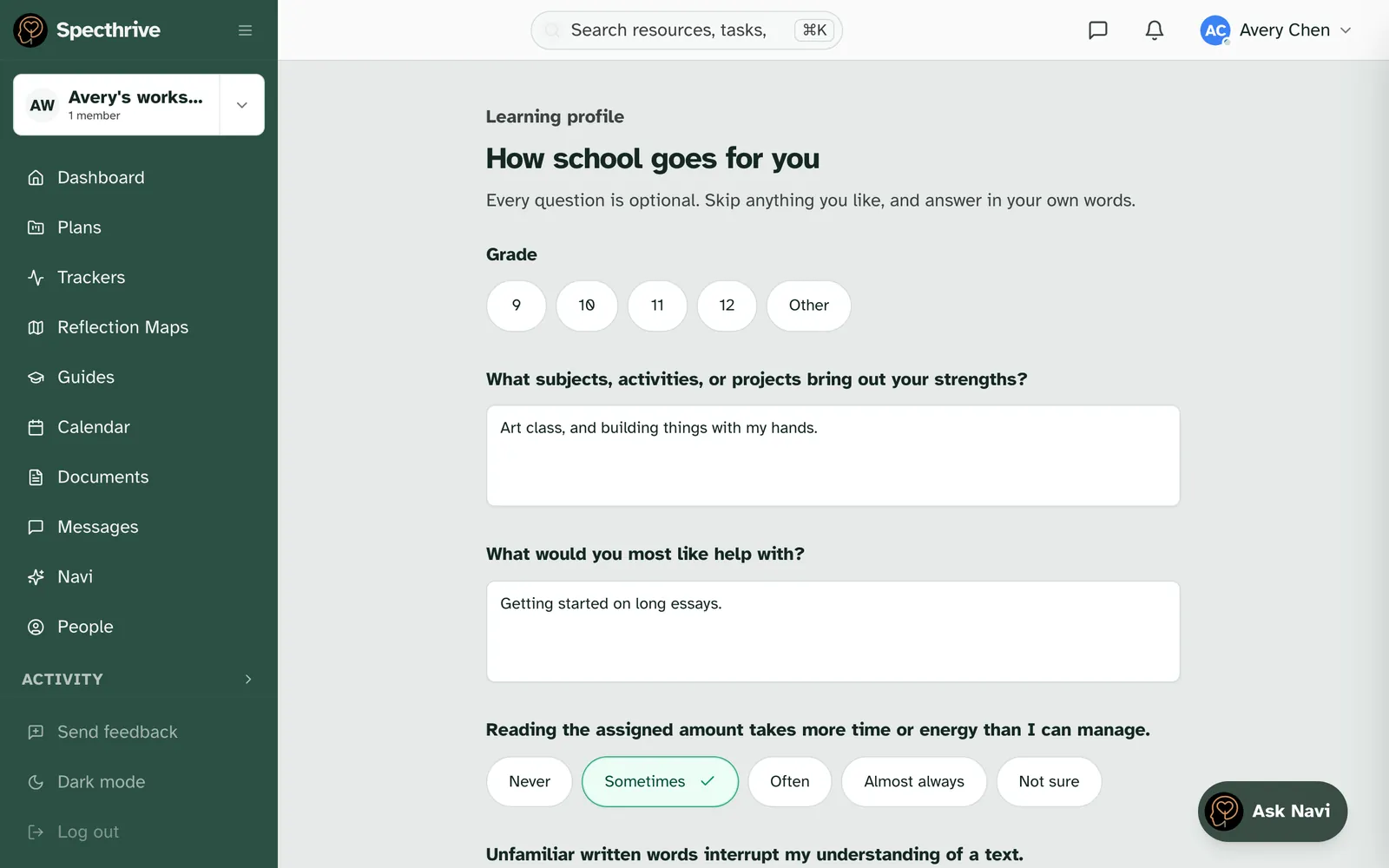
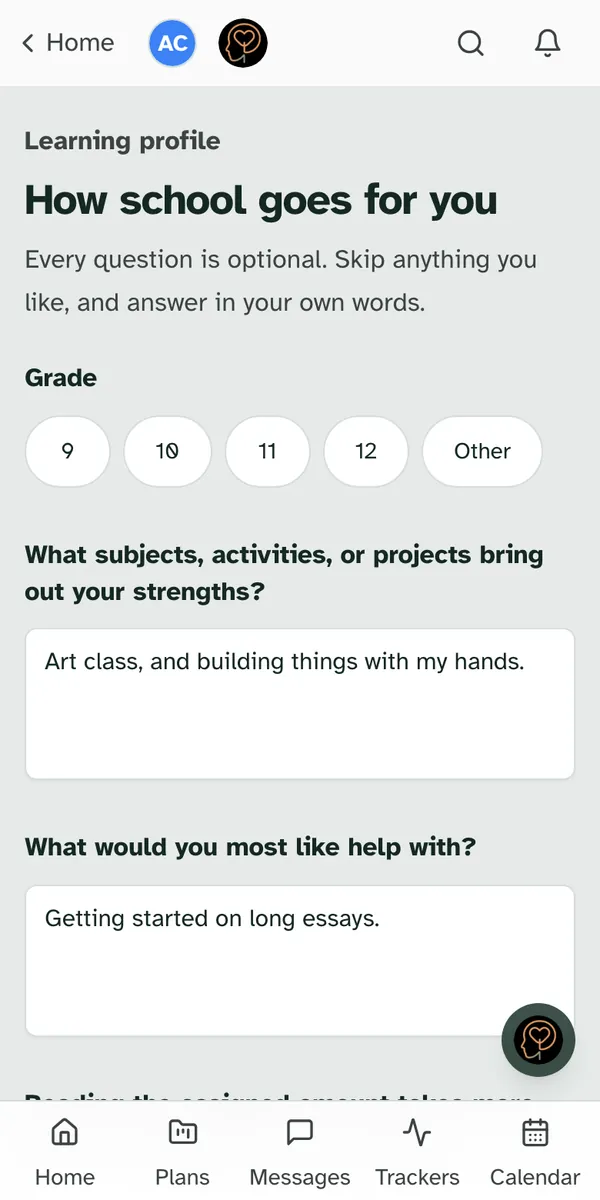
Then one page per part. Each page opens with "Every question is optional. Skip anything you like, and answer in your own words." Statements can be answered Never, Sometimes, Often, Almost always, or Not sure, and "Not sure" is a full answer, not a gap. Their answers are saved each time they tap Next, so they can stop and come back.
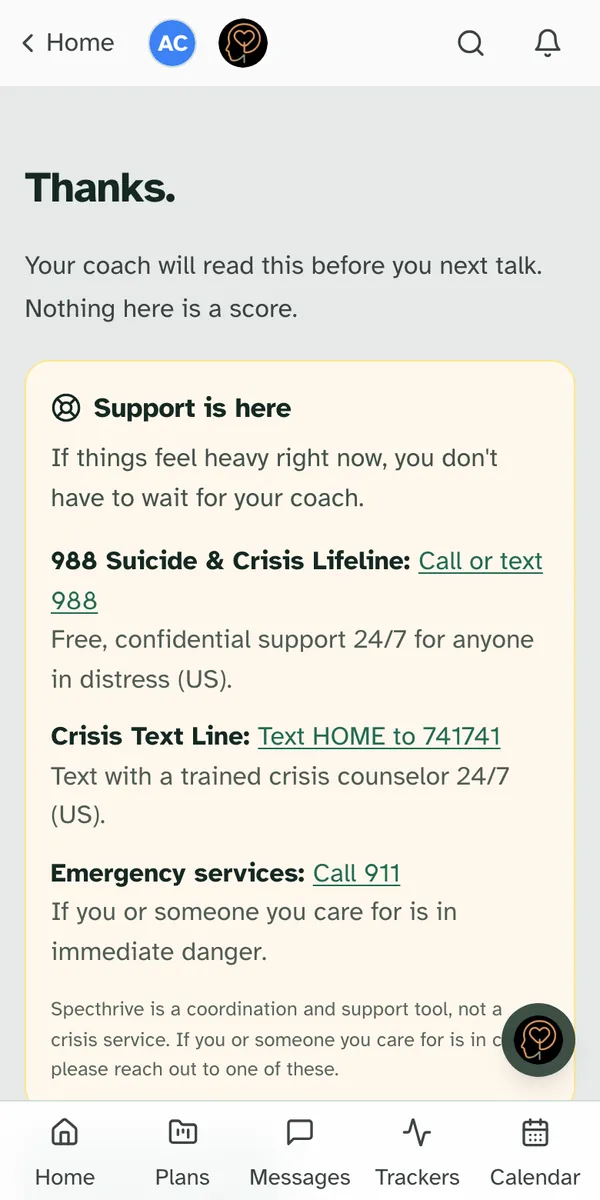
Support is on the page, not held back for you. Where the questions touch on how they are feeling, a Support is here box sits alongside them: "If things feel heavy right now, you don't have to wait for your coach." These pages are not watched in real time, and they say so, so a student who needs help now is pointed straight to it.
When they are ready, they choose Send to my coach. They see "Thanks." and "Your coach will read this before you next talk. Nothing here is a score." That line is a promise you keep in the next section.
They can also stop. "I'd rather not do this" is on every page. If they choose it, nothing they wrote is sent to you, the questionnaire closes, and they see that it has stopped. Any other questionnaire open for them closes too. You will see it as Closed. It is theirs to decide, and it is worth a conversation, not a follow-up.
Read it, strengths first
You get an email when it is ready, "Something is ready for you to review in Specthrive", with no names or answers in it. On the student's profile the questionnaire now shows Ready to read, with Open review beside it.
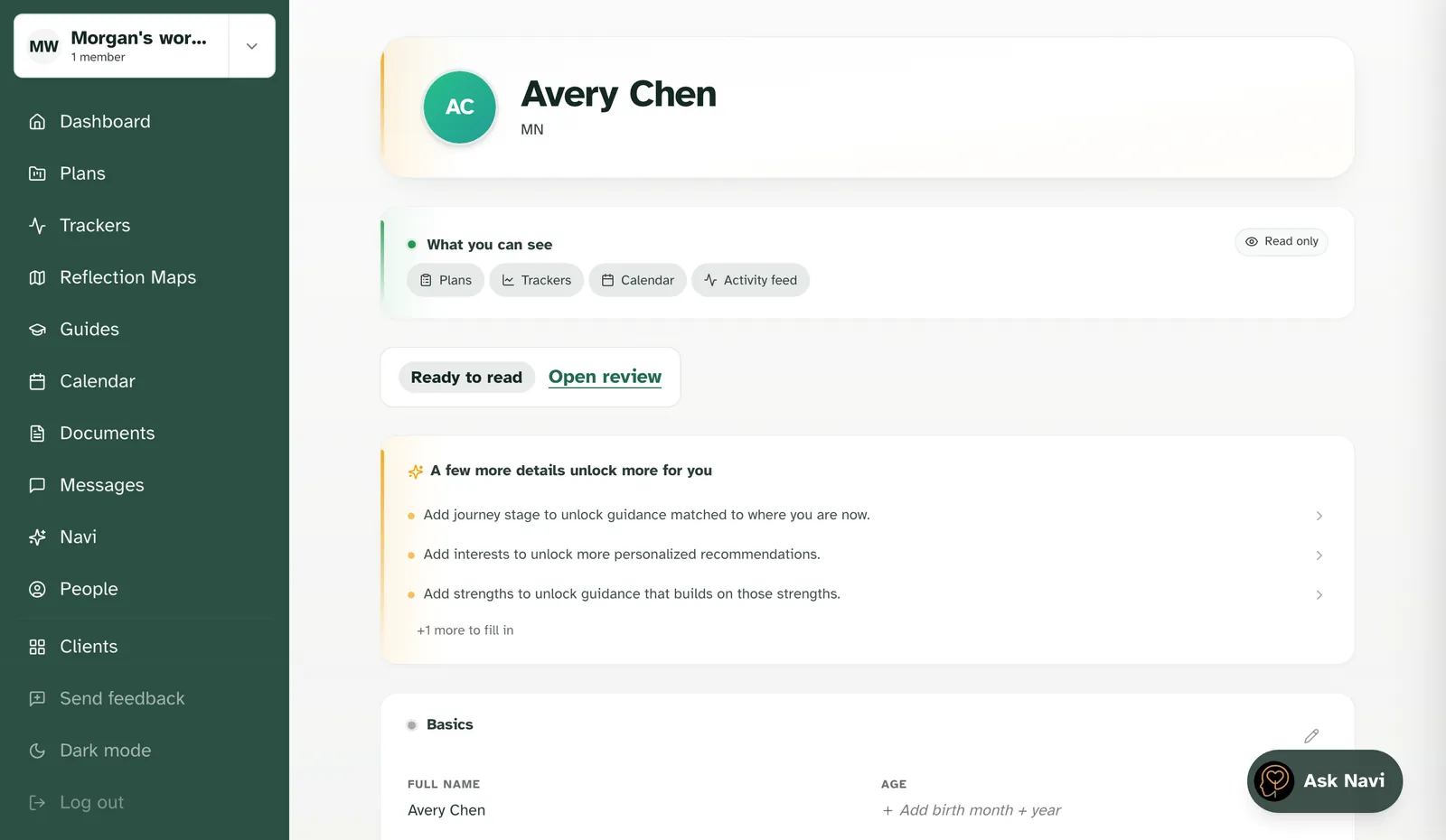
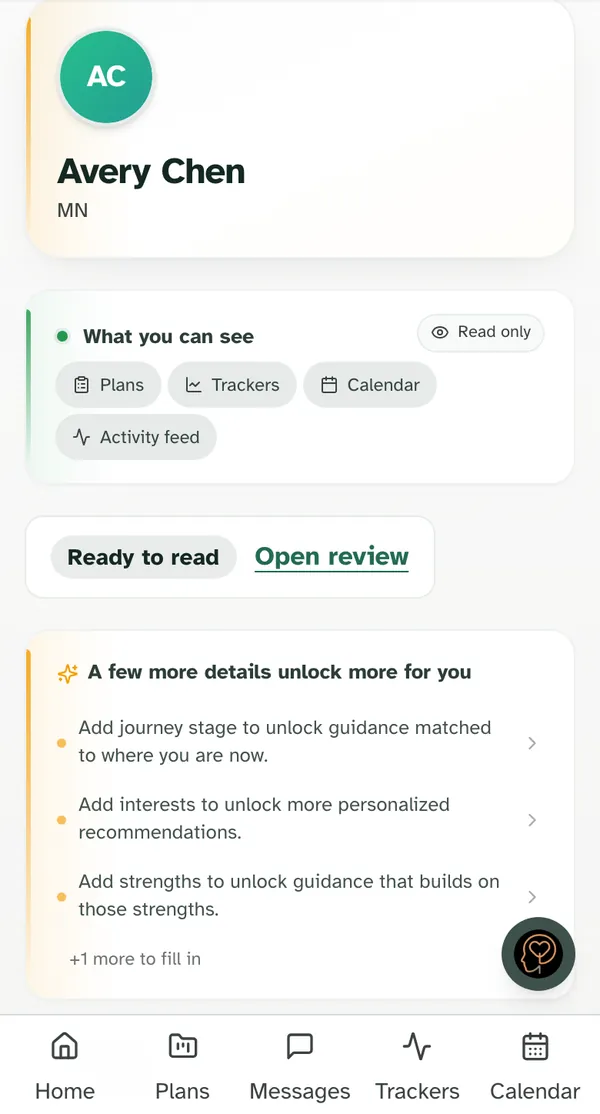
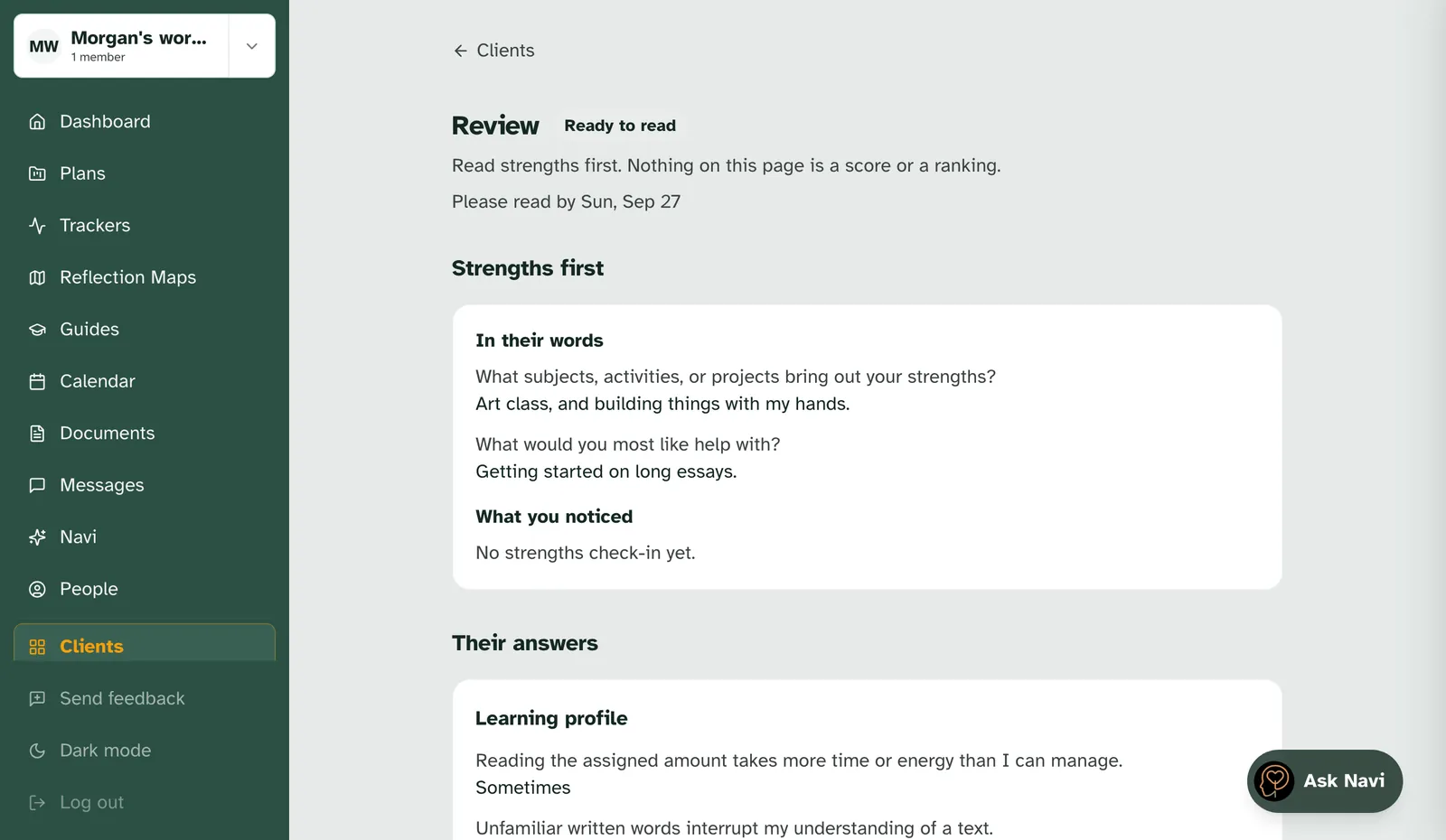
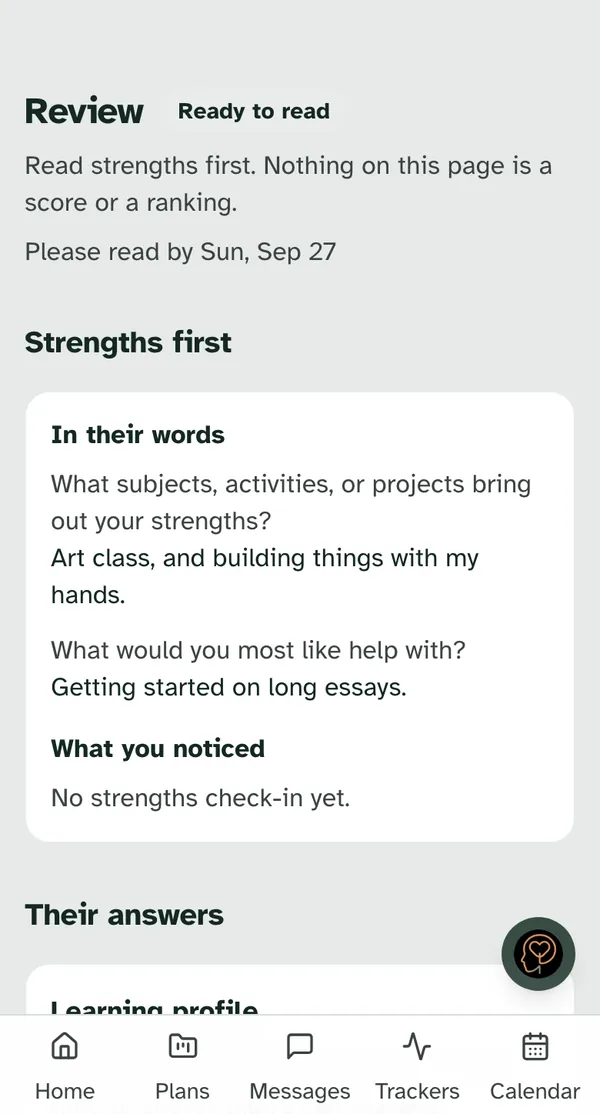
The review page begins with a reminder: "Read strengths first. Nothing on this page is a score or a ranking." While it is waiting for you, a line under it reads Please read by and a day, so your student hears from you before your next conversation.
Strengths come first, in their words. The first section, Strengths first, shows what the student said they are good at and what they would like help with, before anything else on the page. Then comes How they completed this, and then Their answers, page by page. A question they skipped shows as skipped, and that is fine: every question was optional.
Sometimes a section comes before the strengths. Two things can sit at the very top, and each is a request to read with care, not an alarm:
- Would rather talk privately. The student asked to talk about something privately. Read that before anything else, and make room for it when you meet.
- Read this one closely. Something in the answers asked for a closer read. The section lists the support resources your student was already shown on the page, so you know what they have in hand. When this happens, your email reads "Something needs your prompt review in Specthrive" instead, so you can make time for it sooner.
Then the domains. Below the answers, Domains groups what the student shared into areas. In the Learning profile they are Reading, writing and math; Attention and organization; Wellbeing; Advanced challenge; Advanced abilities with barriers; and Access and communication. Other questionnaires have their own set. For each domain you record Your read, one of:
- Nothing to add
- Worth talking about
- Consider a route
You can also note a Possible route, tick Supports the student can ask for, and add a Note (optional). None of these is a grade. They are your notes for the conversation you are about to have.
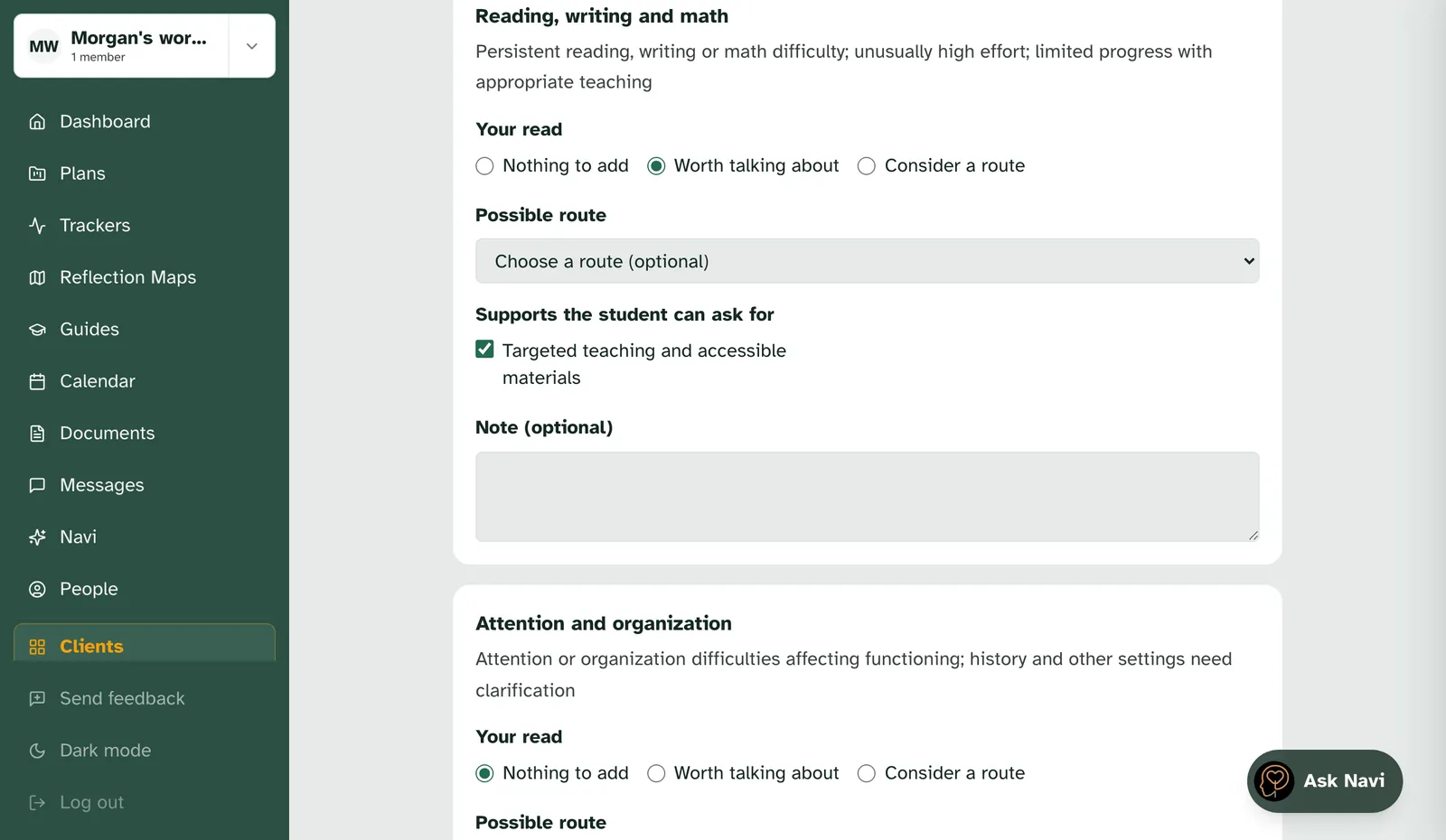
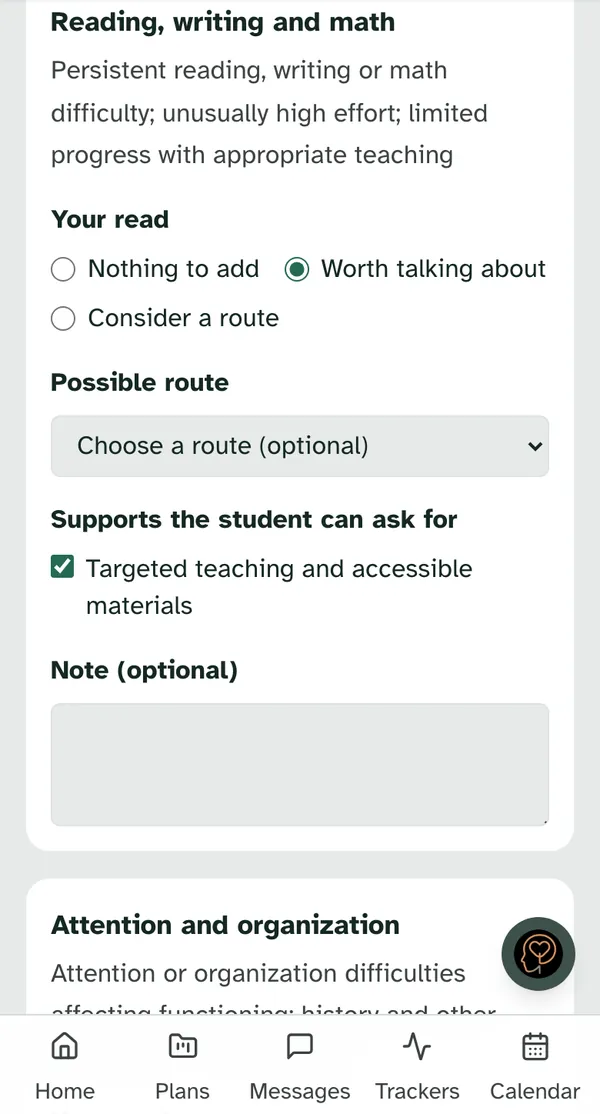
Choose Save reads when you are done. The questionnaire moves to Read, and your student's card changes to "Your coach has read this." You can come back and change your reads until you record a next action.
If the day passes before you get to it, you get one email, "A review is past its due time". It is sent once, not every day.
Keep a coaching record
Under Coaching record, below the review, you keep a light record of your meetings. There are two kinds of entry:
- Add meeting check-in for any meeting: when you met, what went well, what felt difficult, one example (and whether the student said it or you noticed it), and One small next step. You can add a day to aim for, the next meeting, how the last step went, and whether any follow-up is needed now.
- Add strengths check-in for a strength you noticed together: what you noticed, anything in the way, a next step for that strength, and what the student chose. As the page puts it, "A strengths check-in fits an early meeting, the midpoint and the end."
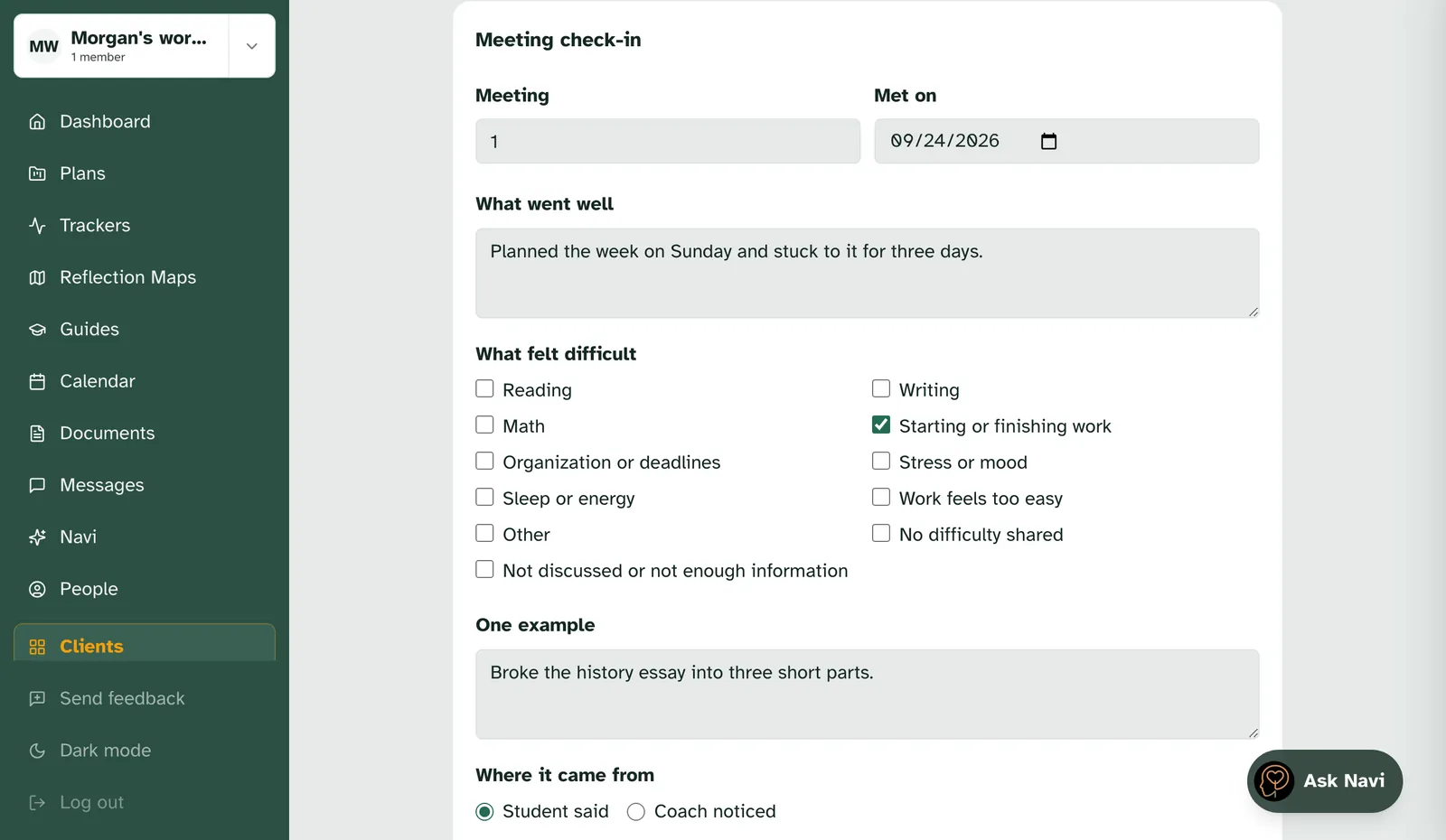
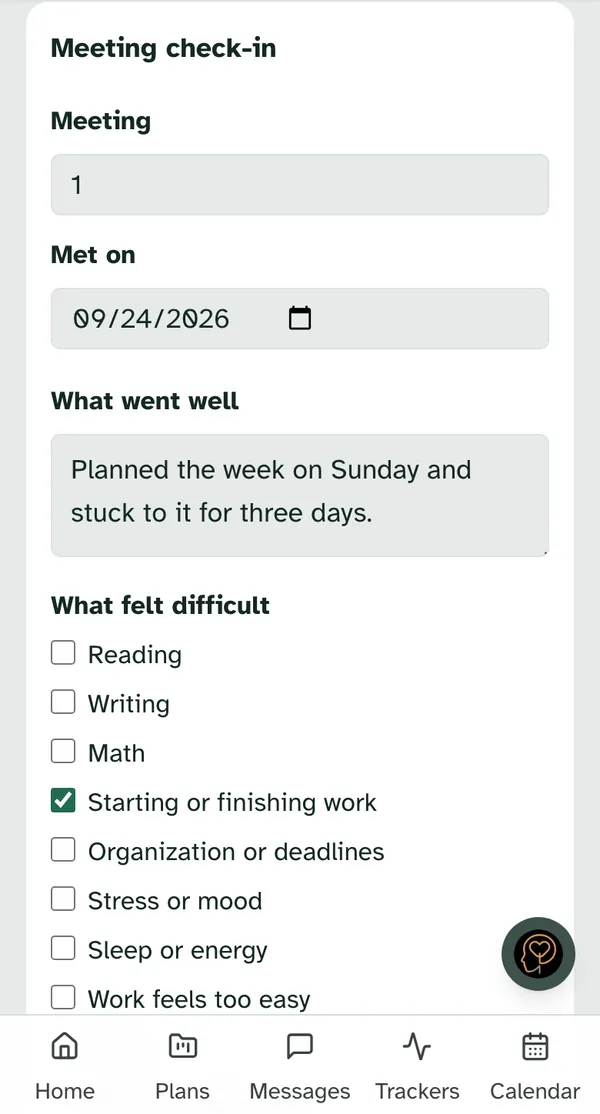
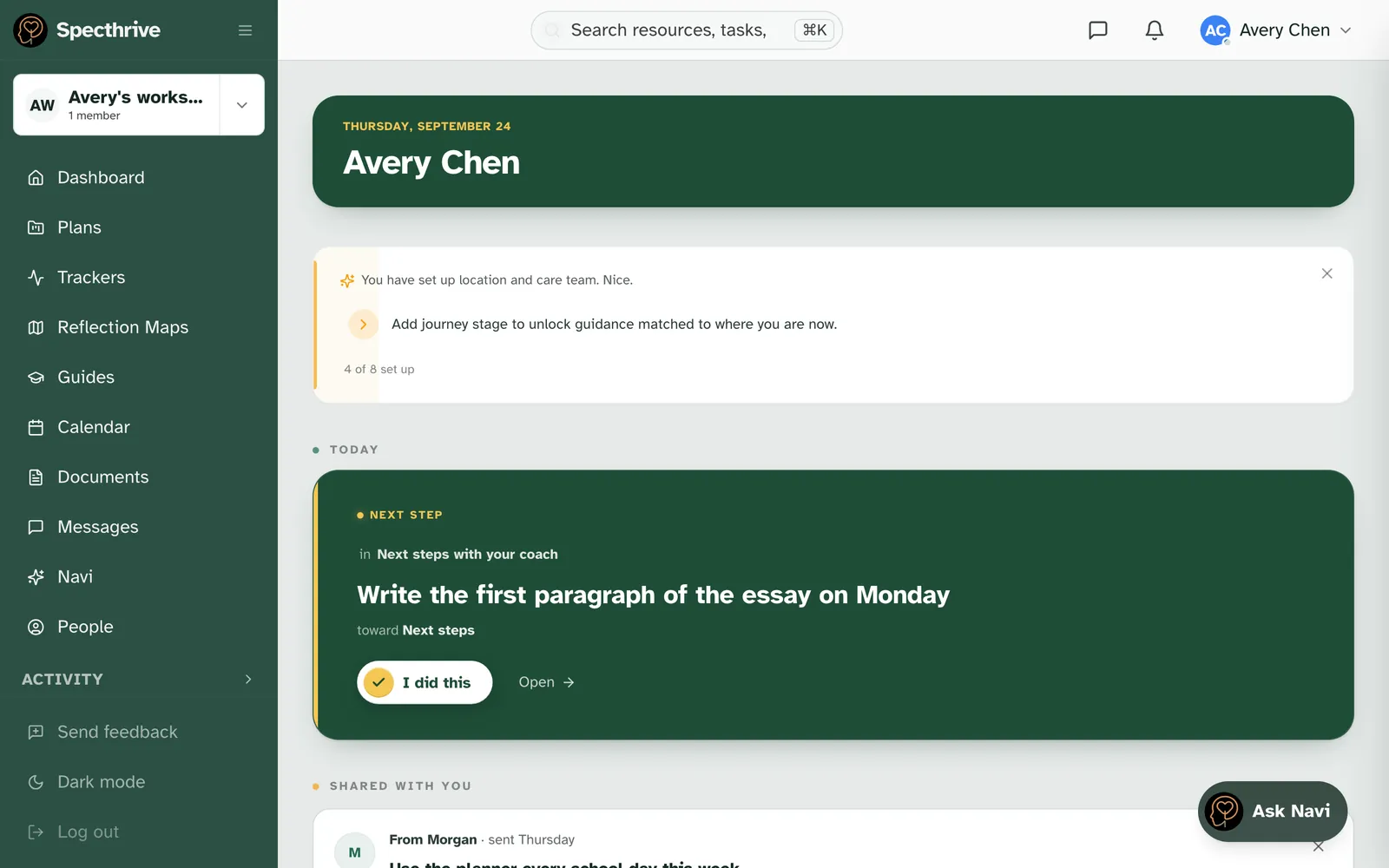
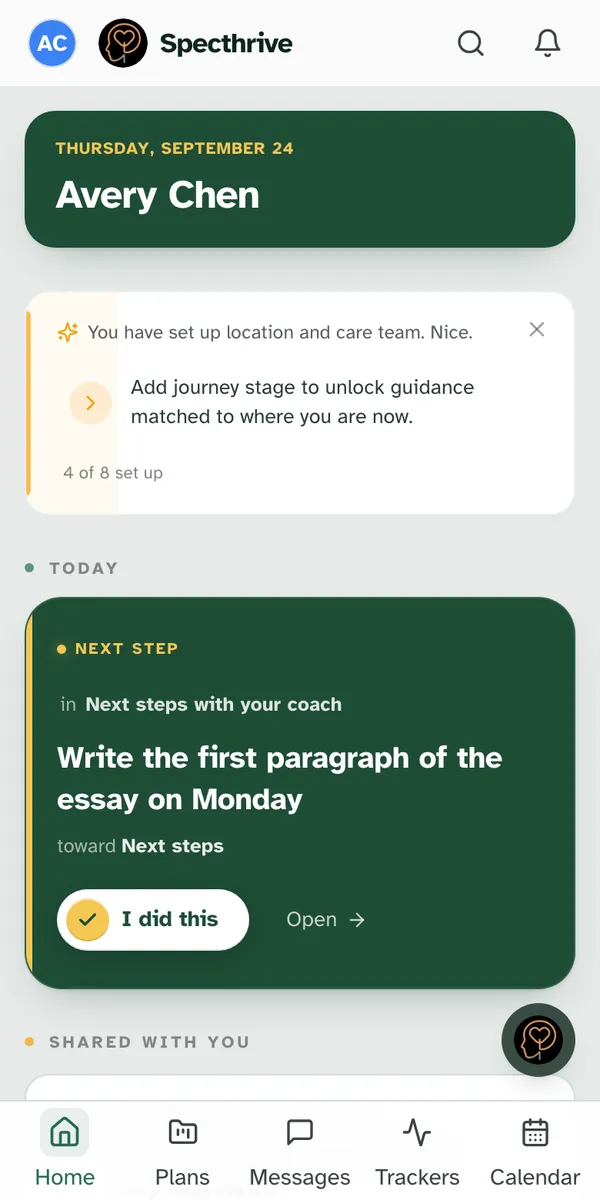
Whose step is it decides where it goes. If the step is the Student's or Both, it goes onto your student's plan and appears on their home screen as their next step, and you see "Next step sent to their home screen." If it is yours alone, it stays on the record. You never have to build the task yourself.
Agree a next action
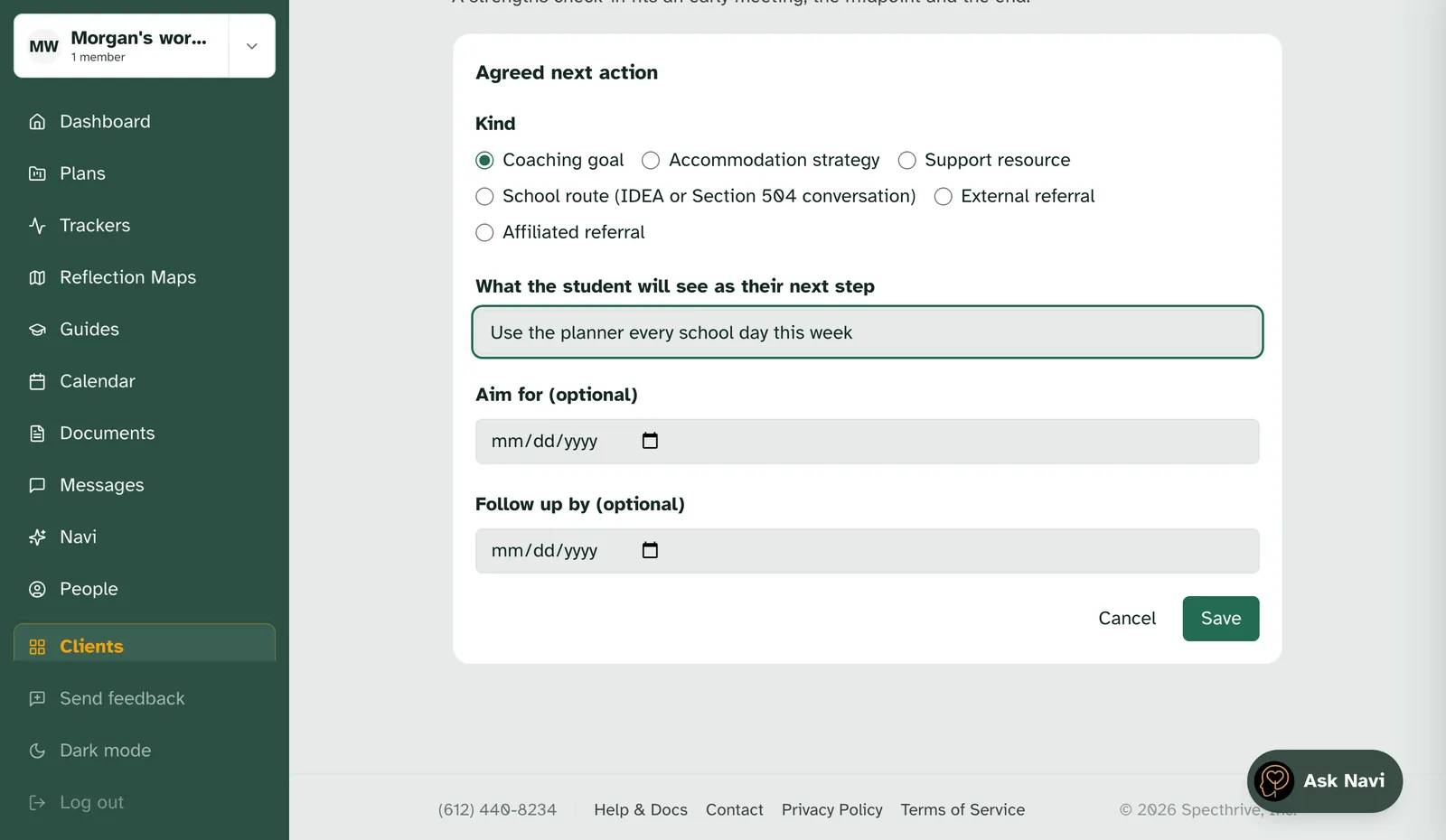
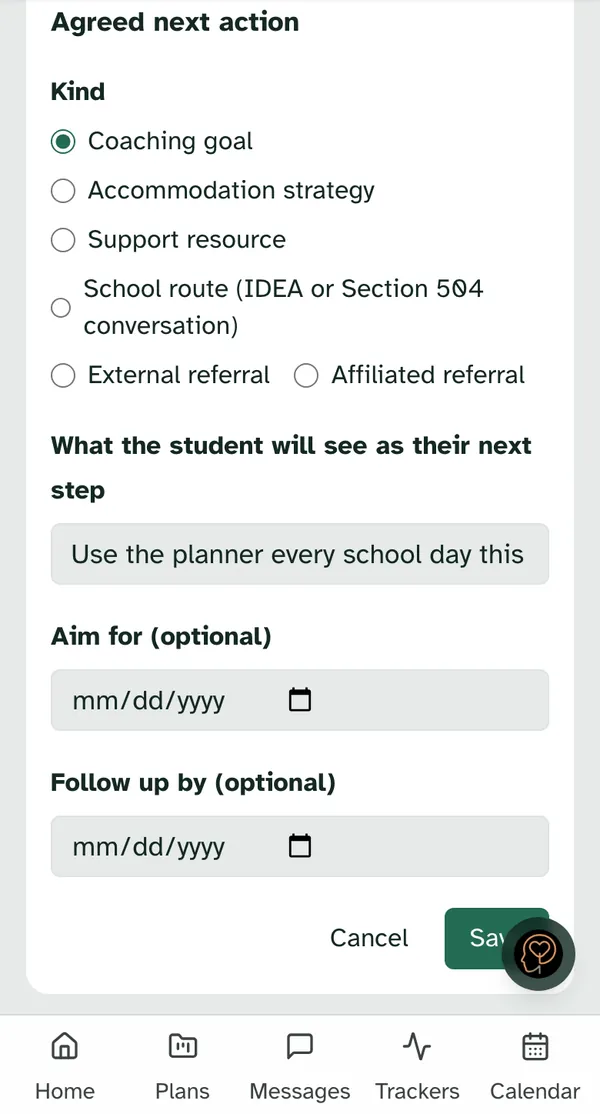
Record next action captures what you and your student agreed to do next. Choose the kind of action. The kinds come from the questionnaire. In the Learning profile they are:
- Coaching goal
- Accommodation strategy
- Support resource
- School route (IDEA or Section 504 conversation)
- External referral
- Affiliated referral
Then write it the way your student will read it. The field is labeled "What the student will see as their next step", because it lands on their home screen just as a check-in step does. A Follow up by day is optional. A referral also asks for the domain it relates to and a reason.
An affiliated referral asks one more thing of you. The form reads "This route is affiliated with Specthrive. Tell the student that, list at least one outside option first, and confirm below." You then tick "I told the student about the affiliation and named an outside option." before you can save.
If your student says no to an option, tick The student declined this option. It is recorded on the case, and the case stays open. Saying no is part of the conversation, not the end of it.
Once a next action is saved, the questionnaire shows Follow-up planned.
Close the case
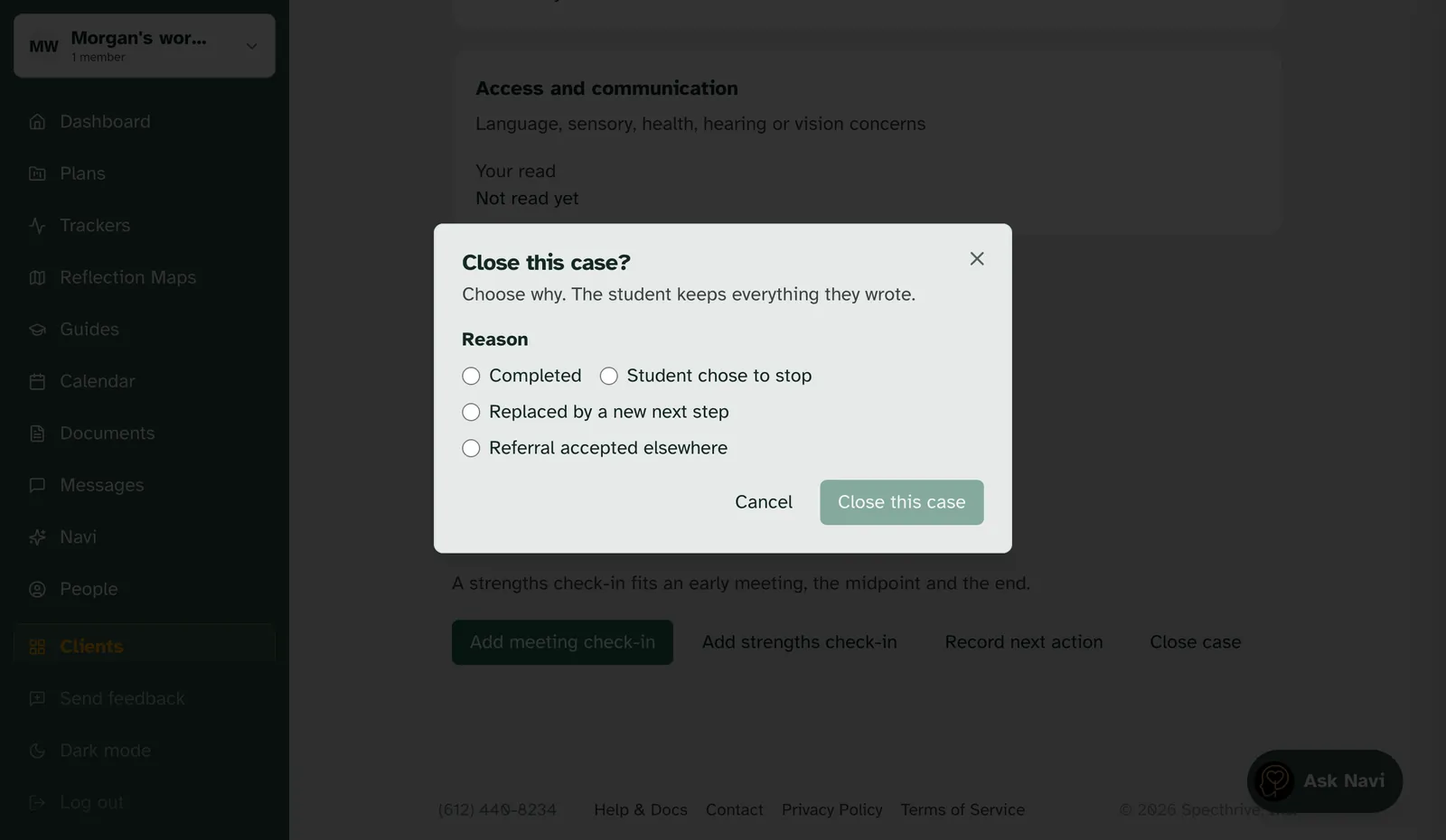
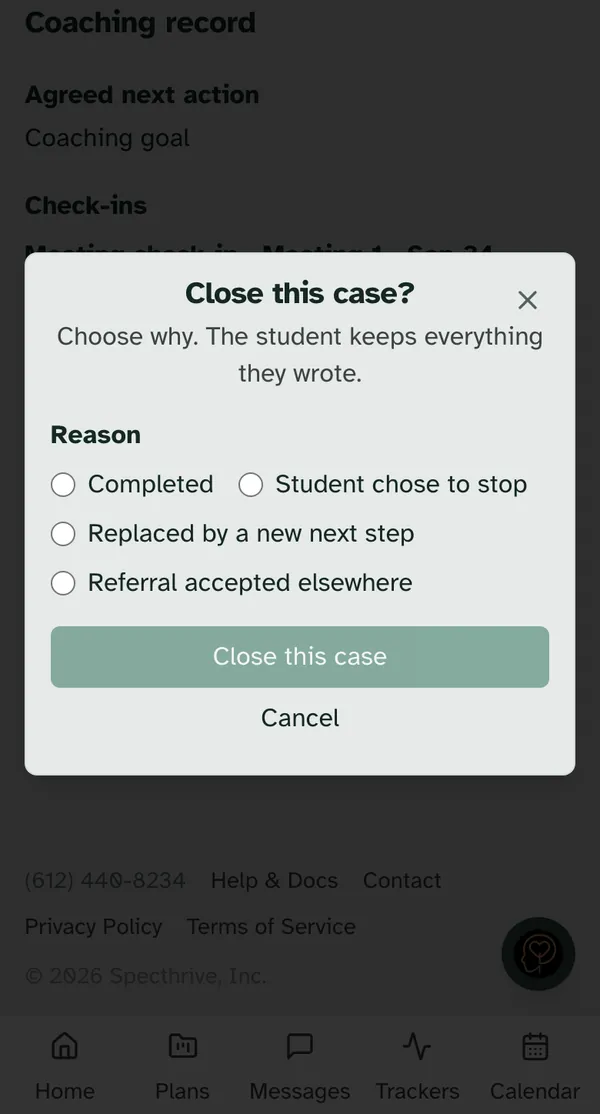
When the work is done, choose Close case. The window asks "Close this case?" and says "Choose why. The student keeps everything they wrote." The reasons you can pick are Completed, Student chose to stop, Replaced by a new next step, and Referral accepted elsewhere. Pick one, then Close this case.
Closed is final for that case. If you and your student want to go again later, ask for a new questionnaire. A case also closes by itself if your student chooses to stop, or if your access to their profile ends.
The emails
Every email is fixed wording. None of them carries a name, a question, or an answer, only a link back into Specthrive.
| Who gets it | When | |
|---|---|---|
| A few questions are waiting for you on Specthrive | Your student | You ask for a questionnaire |
| Something is ready for you to review in Specthrive | You | Your student sends their answers |
| Something needs your prompt review in Specthrive | You | Their answers asked for a closer read |
| A review is past its due time | You | The read-by day passes, sent once |
Where a questionnaire can be
The label on your student's profile tells you where things stand.
| Label | What it means |
|---|---|
| Waiting to start | You asked, and your student has not started yet |
| In progress | Your student has started answering |
| Ready to read | Your student sent it, and it is waiting for you |
| Read | You saved your reads |
| Follow-up planned | You recorded a next action |
| Closed | The case is finished |
Getting help
If something here does not match what you see on your screen, get in touch.
Still have a question?
If this guide did not cover your situation, reach out. We read every message.