
Take meeting notes and send a summary
For coaches and other professionals. Keep private notes during a meeting, go over what you agreed last time, and send your client a short summary that turns what you agreed into their work. Then see their answer, and change or take back what you sent.
Meeting notes give each meeting with a client one page. On one side are your own notes, which only you see. On the other is a short summary for your client: what you agreed, how last time's work went and what you talked about. When you send it, what you agreed becomes your client's work in the app. In this guide the coach is Imani and her client is Arlo.
1. Start notes
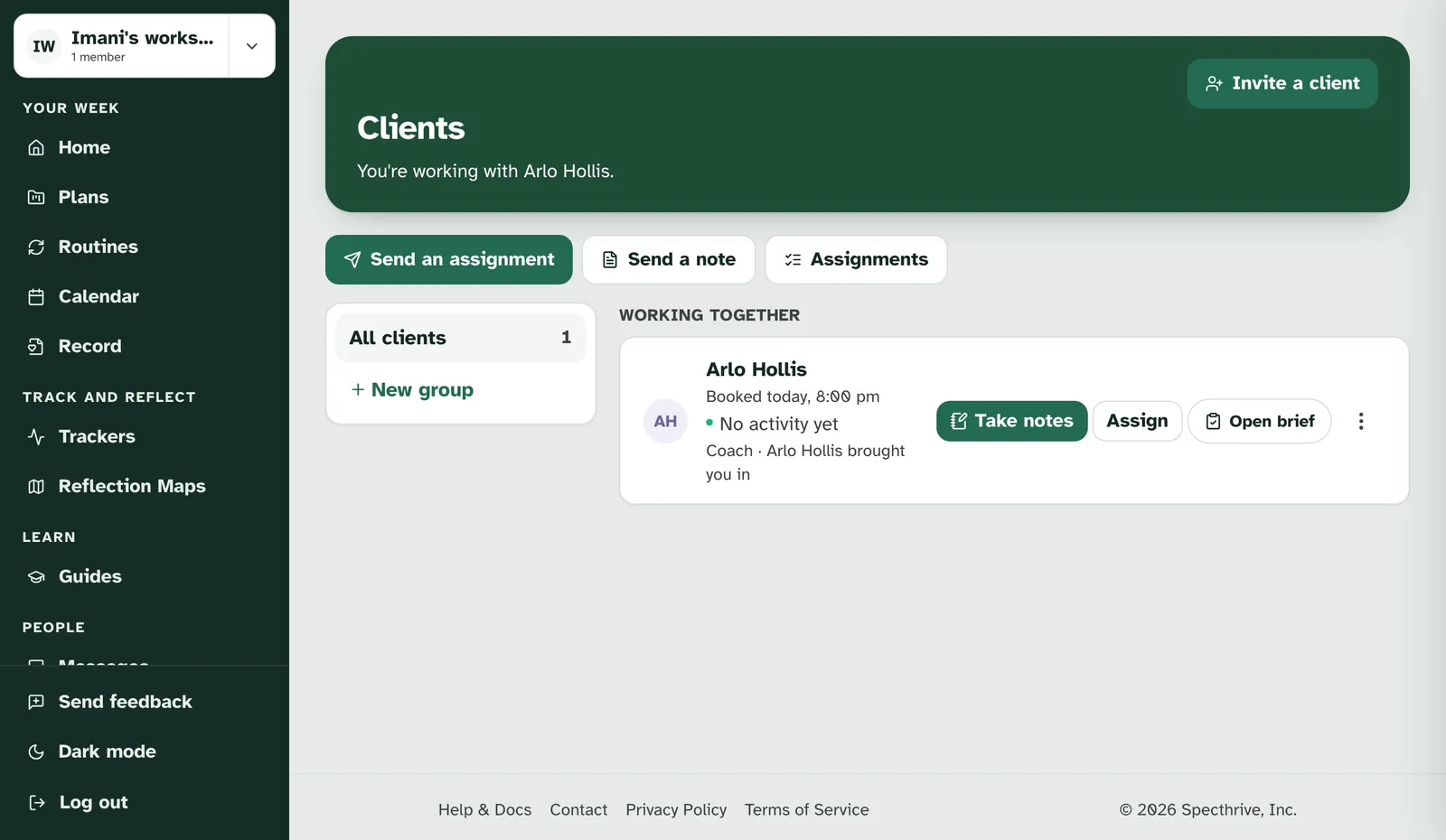
Take notes is on the client's row when you have a booking today. On Clients, a client with a session booked with you today shows "Booked today" and the time, with Take notes first on the row. With no booking today, the row has Notes instead. Both open the same page.
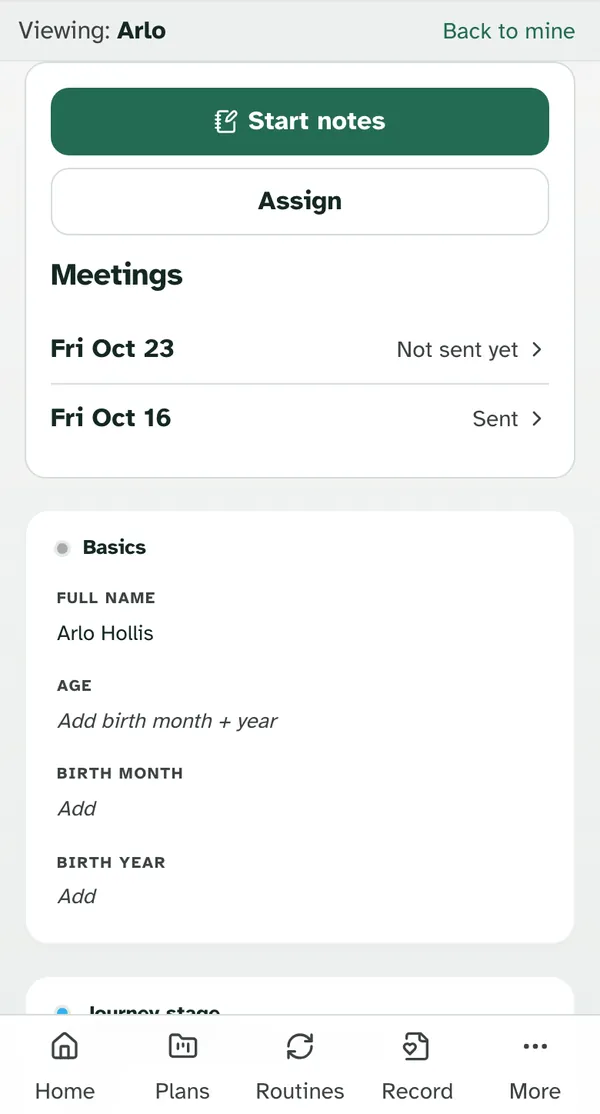
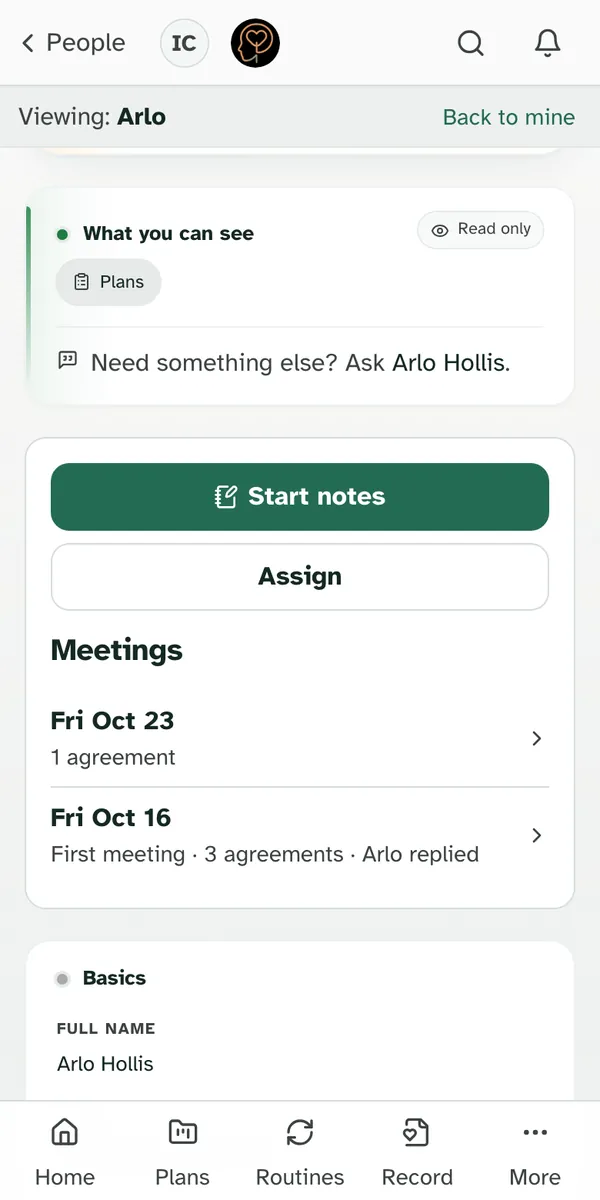
On a phone, start from the client's page. Open the client from Clients. Their page has Start notes, Assign and Meetings, a list of your meetings with them. Each meeting reads "Not sent yet" or "Sent", and you can open any of them again.
You have one set of notes open per client at a time. If you started notes and haven't sent them yet, Start notes takes you back to them, on any device and on any day. Notes need your client to share their plans with you, the same as assignments do.
If your client shares plans with you as view only, the summary goes without work. You can still take notes, go over Last time and send the summary. The summary can't add work, though, and nothing can get a new date. Where Add work would be, a line says so. If the draft already has work in it, for example from before they changed their share, nothing is taken out for you: a note asks you to take the work out, then send. Under Last time, New date is off: "Someone getting this shares plans with you as view only, so it can't get a new date. Change and Drop still work."
You can also start from a screening case. On a client's screening review, the Coaching record card has Start notes. The meeting opens linked to that case, and everything else on this page works the same way. When you send, the summary asks one more question for the case (see section 6). Check-ins you wrote on a case are copied into Meetings: see Find your check-ins in Meetings.
Notes, started right from the case.
For a group you lead, start from the group instead. See Take notes for a group meeting.
2. Your notes
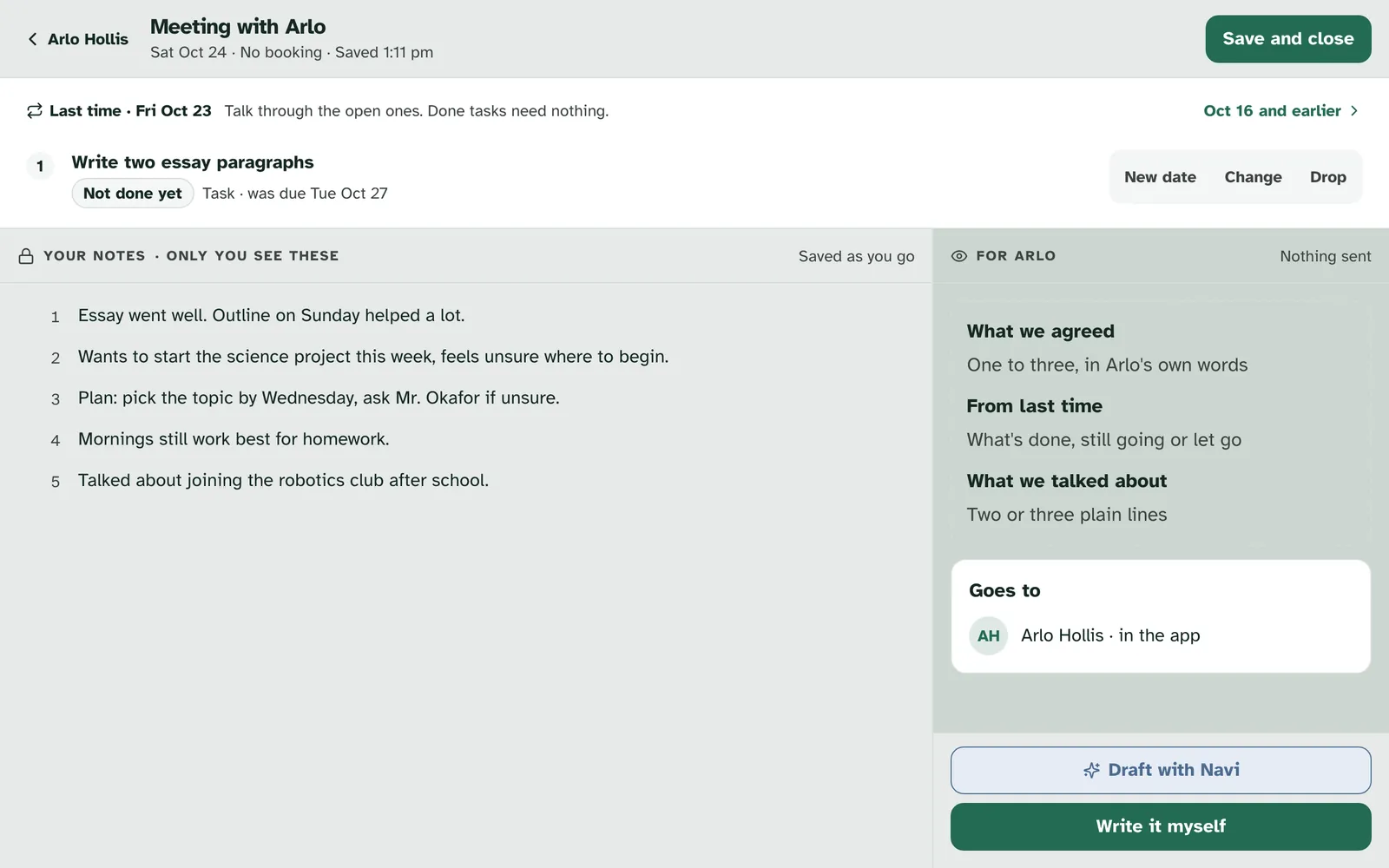
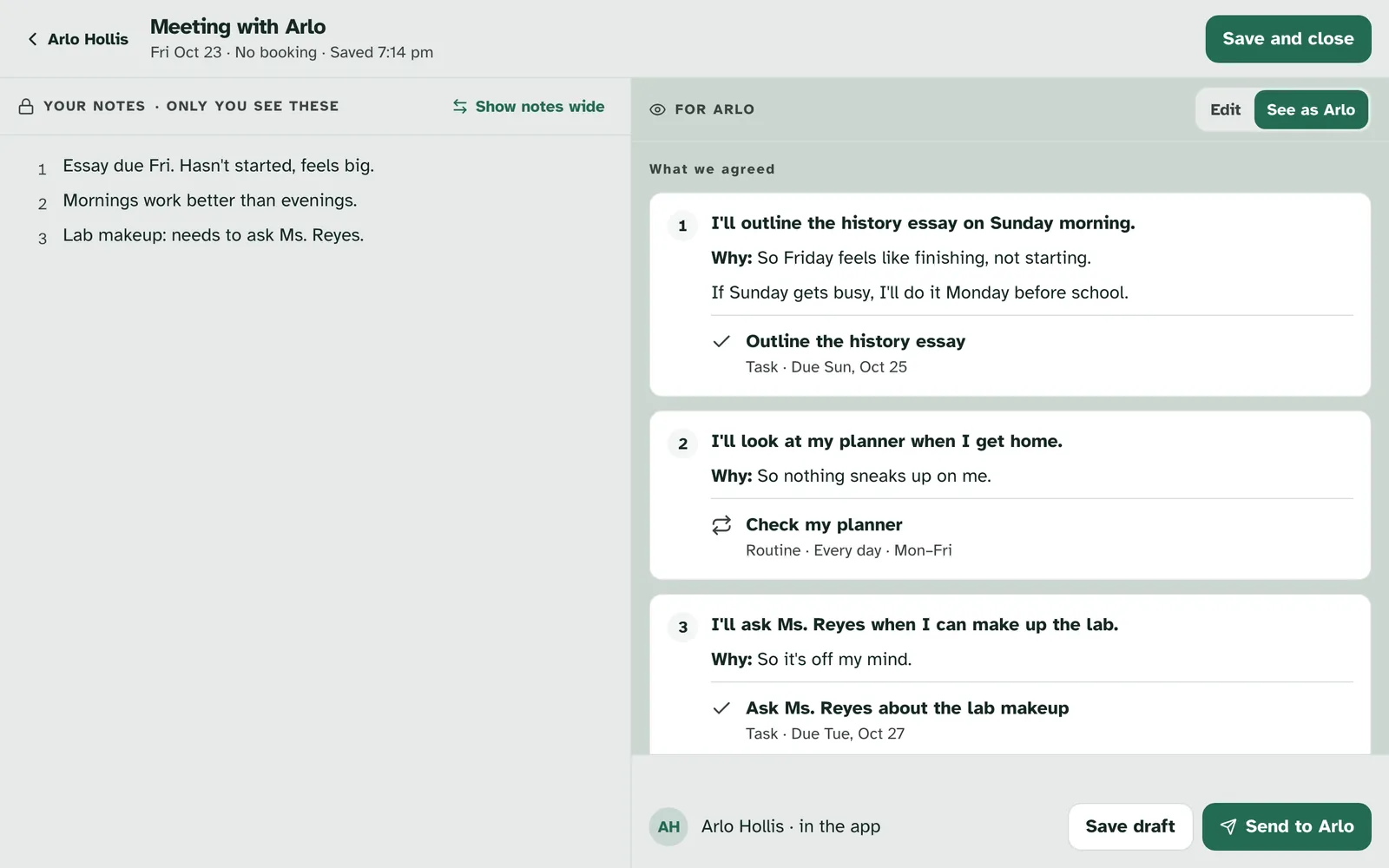
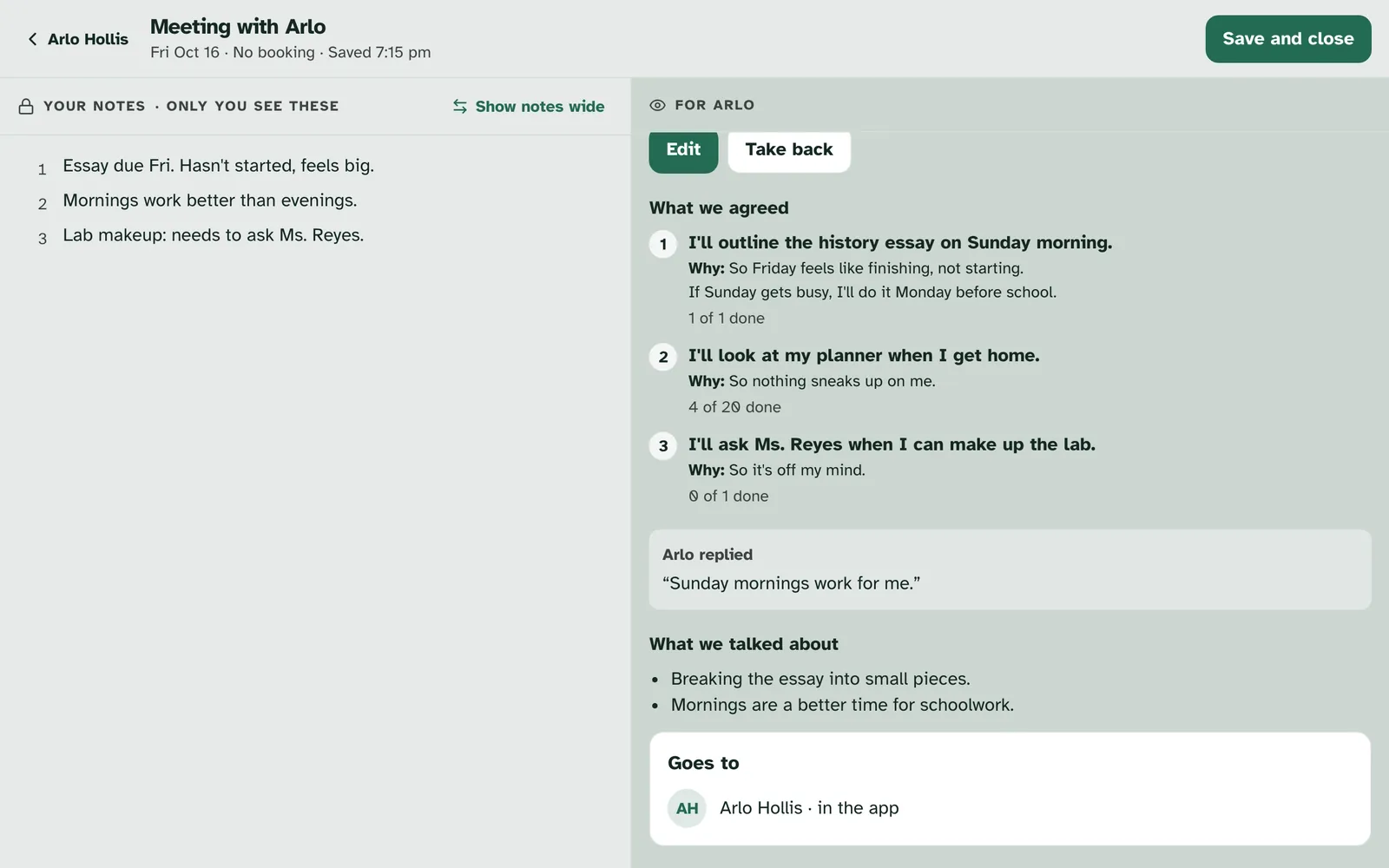
Write as you talk; only you see these. The left side, "Your notes · only you see these", is a numbered list of short lines. Press Enter for a new line. Your notes are saved as you go, and the top of the page shows the time of the last save. Save and close takes you back when you're done. Your client never sees your notes, not even after you send the summary.
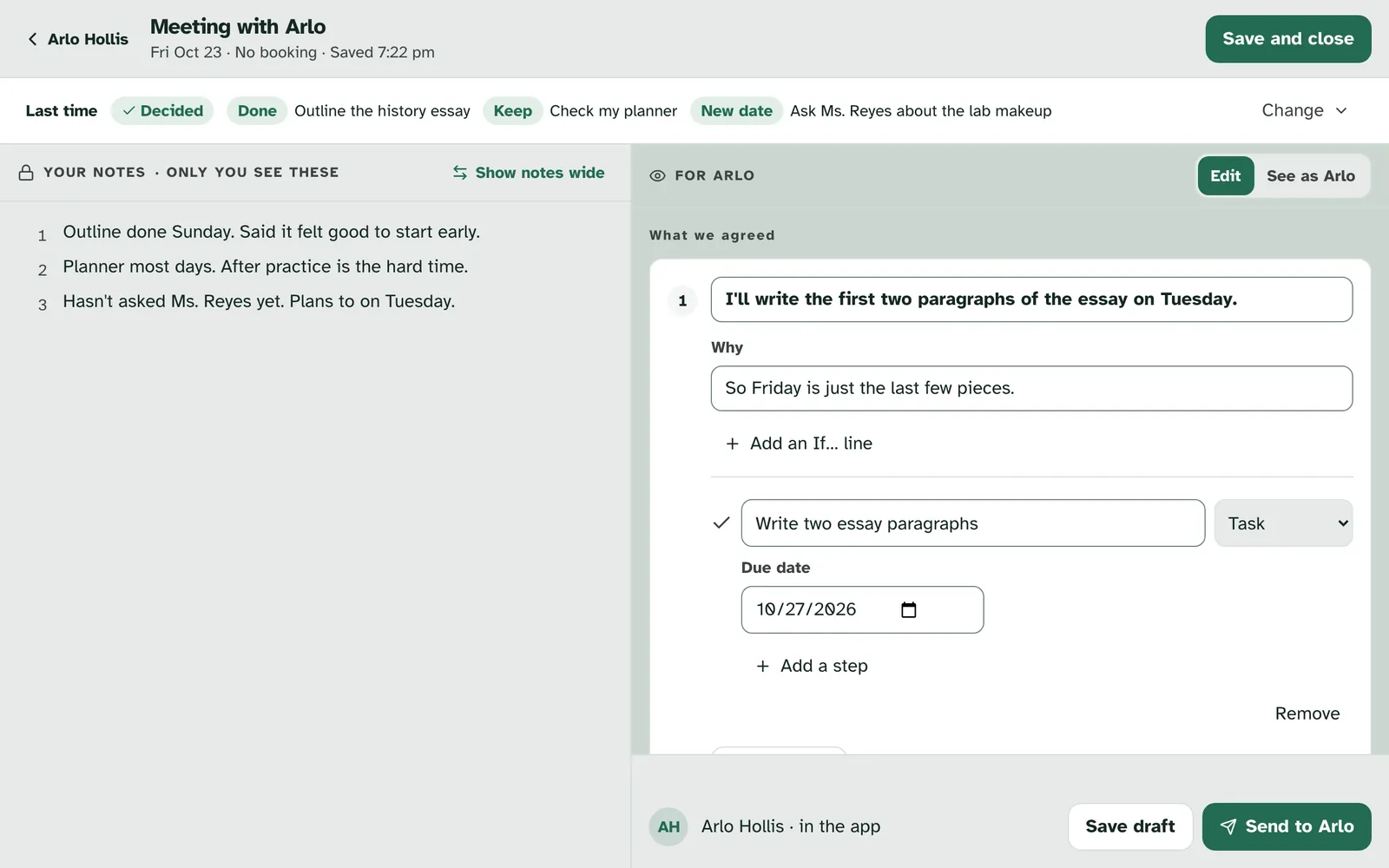
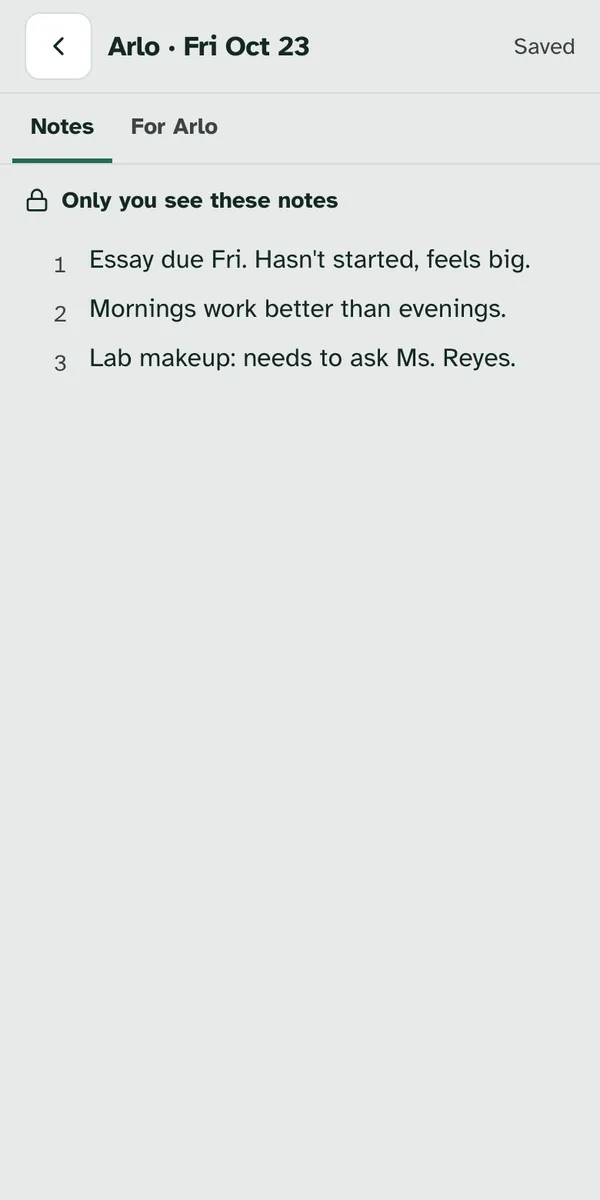
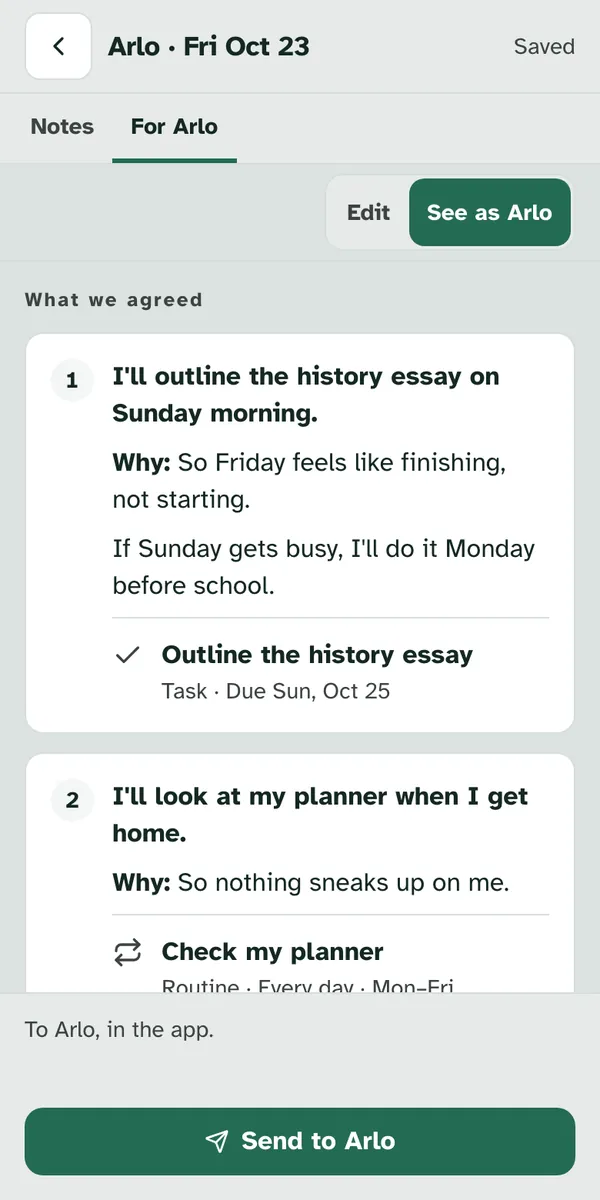
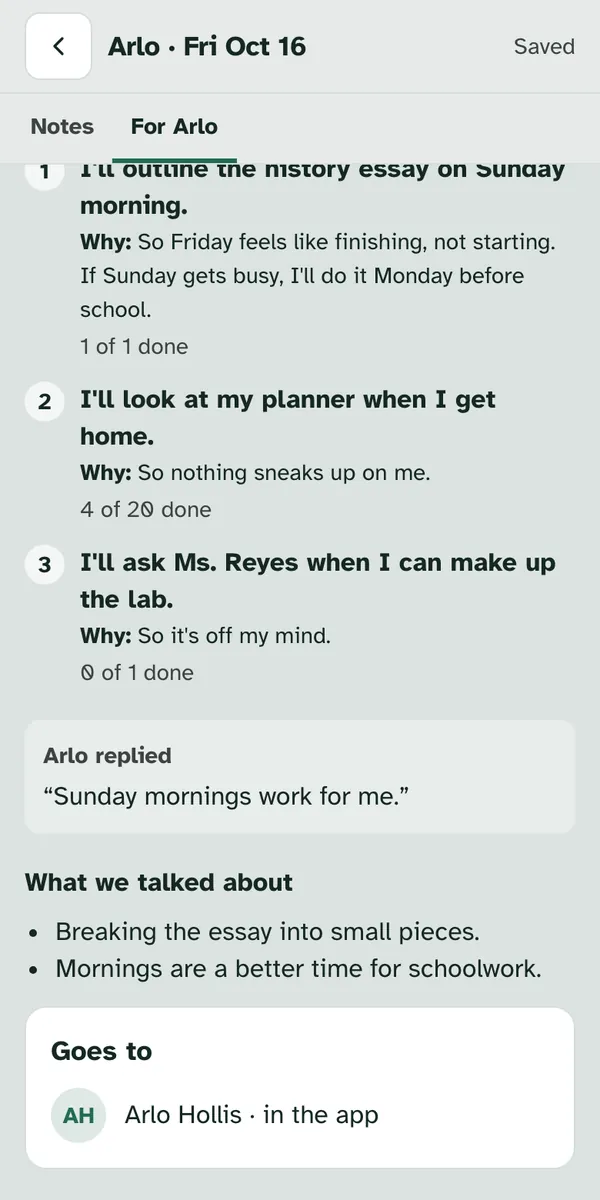
On a computer you see both sides at once. Show notes wide gives your notes more room. On a phone, Notes and For Arlo are two tabs at the top.
3. Last time
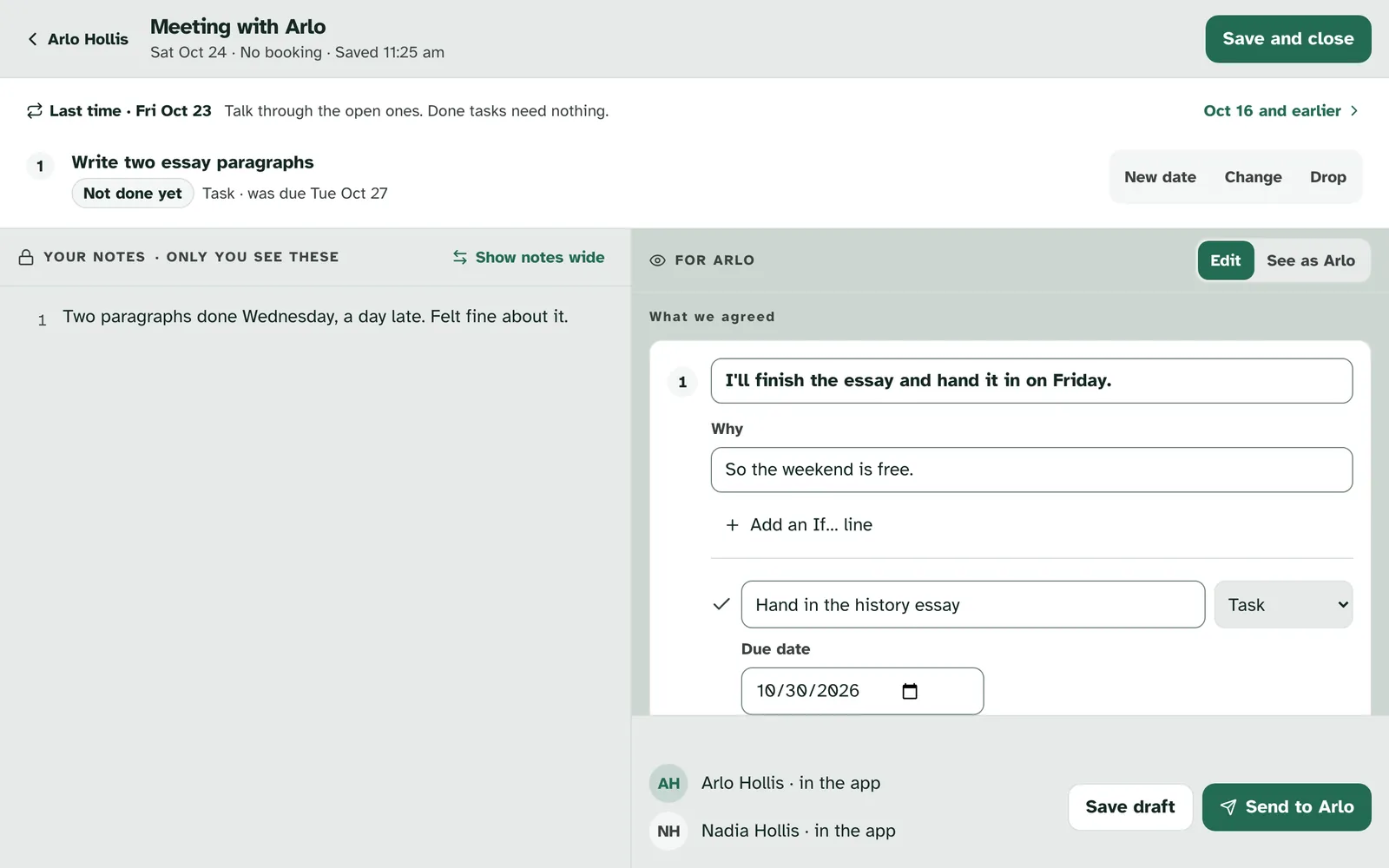
Last time lists the work from your last summary. From your second meeting on, a Last time band at the top shows each piece of work from the summary you sent last time, and how it went: "Done" with the day your client ticked it off, "Not done yet" with the day it was due, or how many days of a routine they ticked off, such as "4 of 6 days". On a computer it reads "Talk through the open ones. Done tasks need nothing."
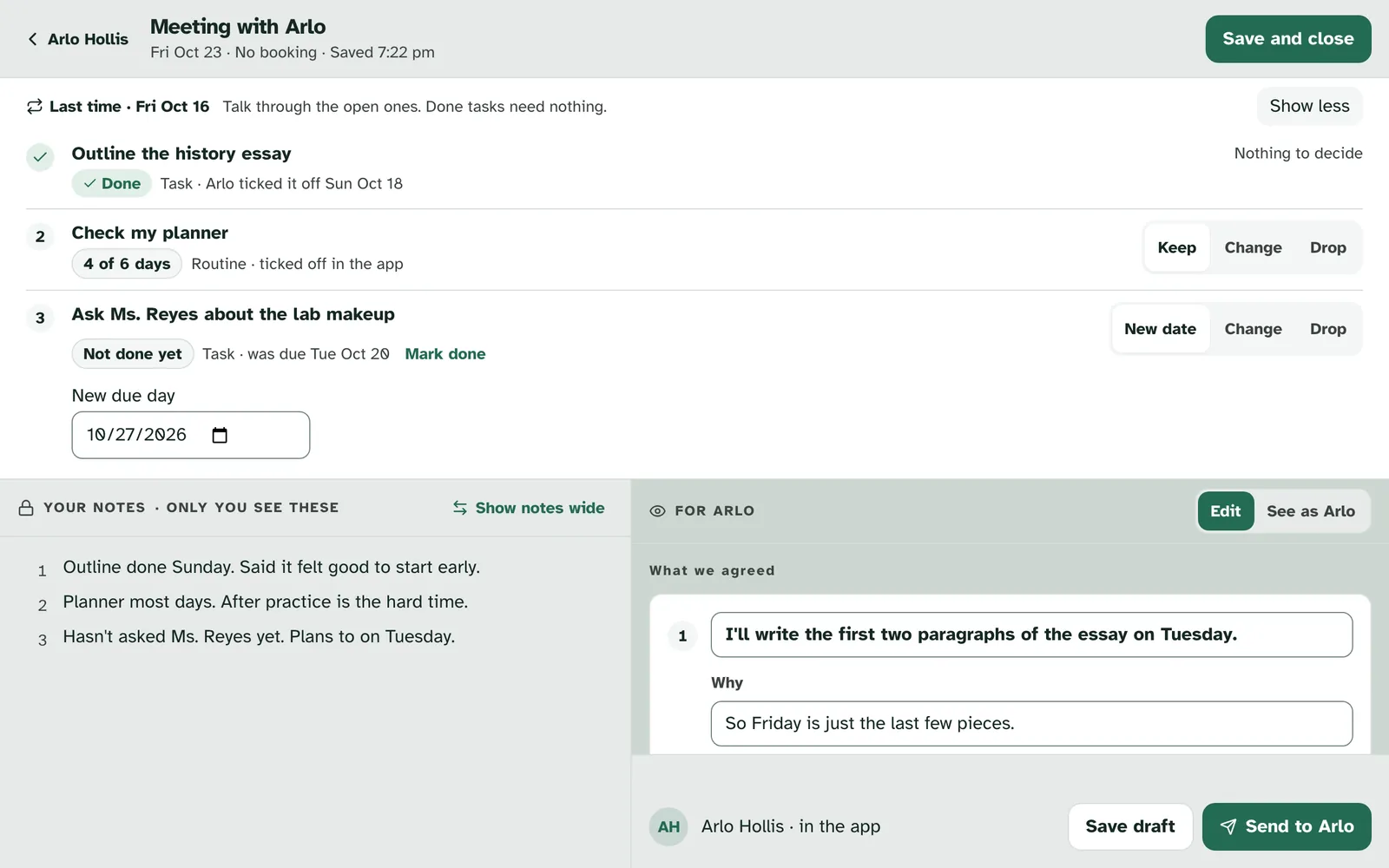
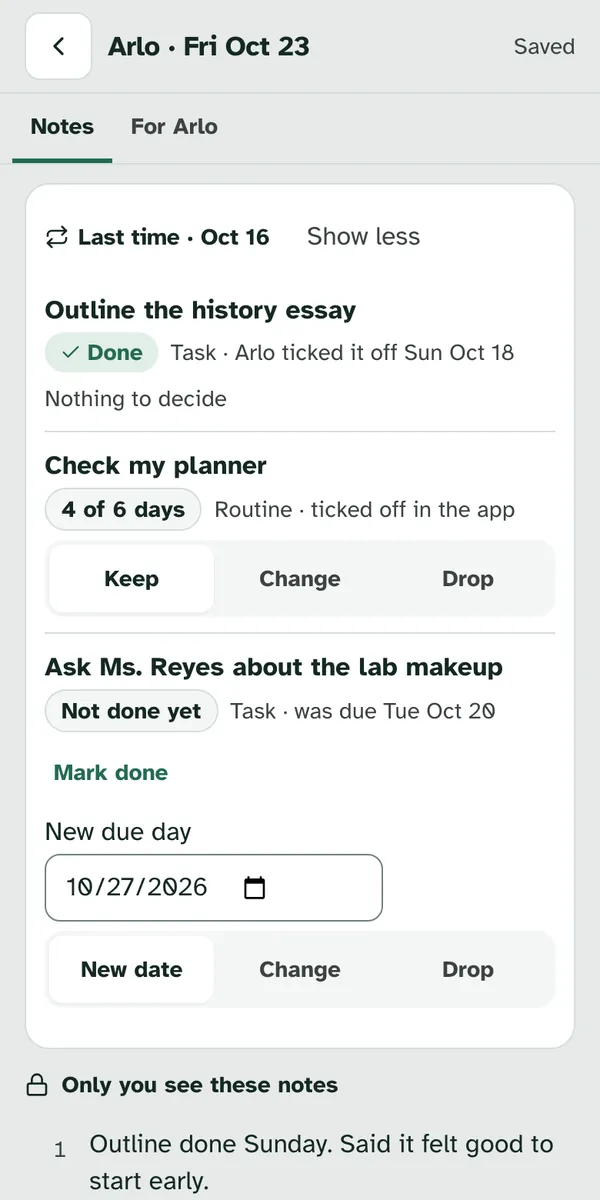
A long list starts short. With more than three items, Last time shows about three, and Show all 8 (with the number of items) opens the rest. Show less puts them away again. On a phone, the Notes tab scrolls as one page, Last time and all.
Pick what happens to each open item. Done work reads "Nothing to decide". For the rest, you choose together. Nothing changes until you send.
| Choice | What happens when you send |
|---|---|
| Keep | The work carries on as it is. If its dates have ended, pick a day under "Keep it going until" and it carries on to that day. |
| New date | Pick a "New due day" and the task moves to it. |
| Mark done | The task is marked done, for something your client finished but didn't tick off. |
| Change | The work is taken back from your client, and a new agreement is added to the summary for you to fill in with what changes. |
| Drop | The work is taken back from your client, and the summary says it was let go. |
Last time also shows what your client said back. If they replied to your last summary, the band shows "Arlo replied:" and their words. If they only said Got it, it reads: Arlo replied "Got it."
Once everything is decided, the band folds. It folds to one line, such as "Last time · 8 decided · 1 done". Change opens it again. An item you leave undecided reads "Still going" in the summary.
4. Write the summary
Write it yourself on the right. The right side, "For Arlo", starts with "Nothing sent" and three headings: "What we agreed", "From last time" and "What we talked about". Choose Write it myself to start writing.
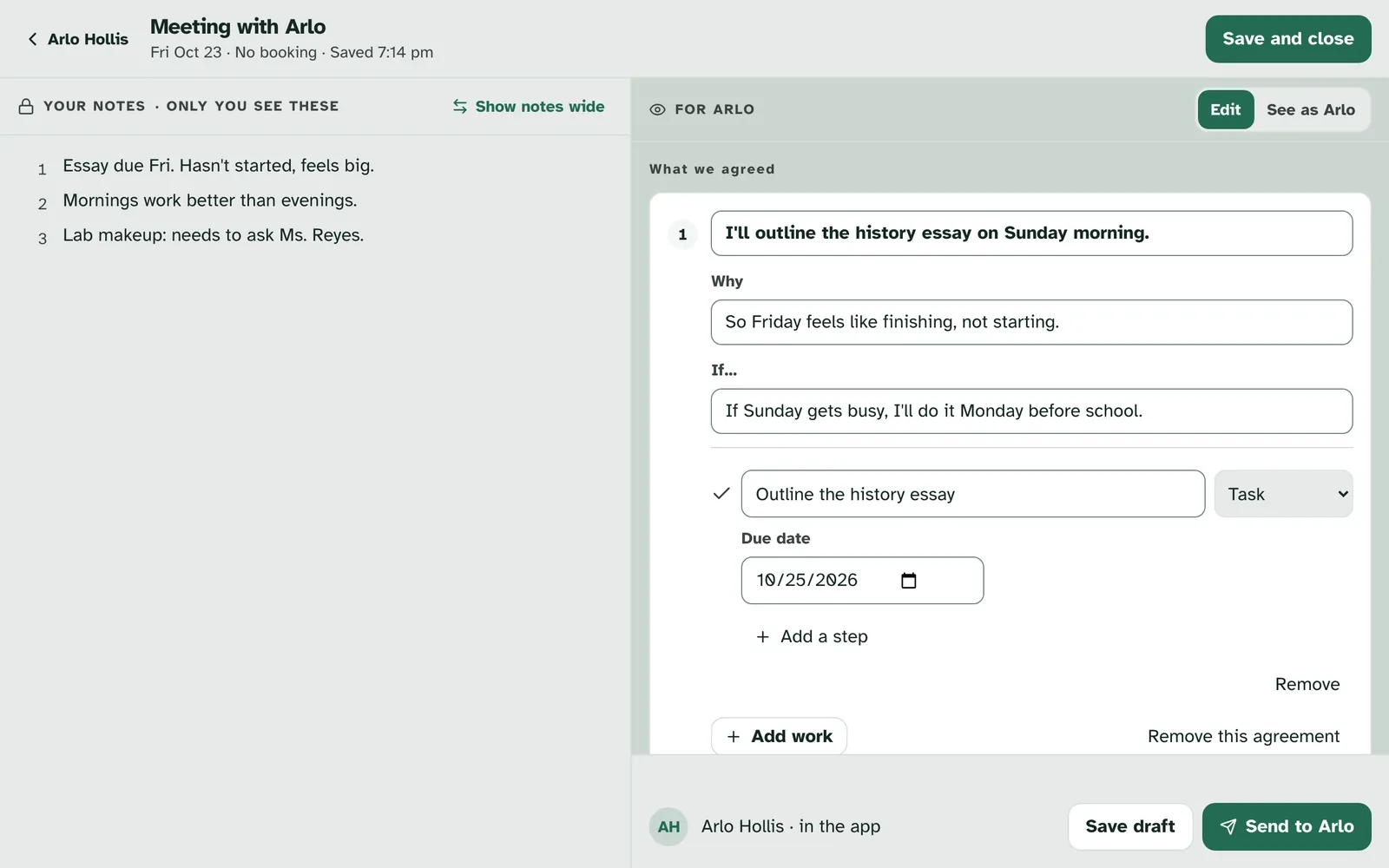
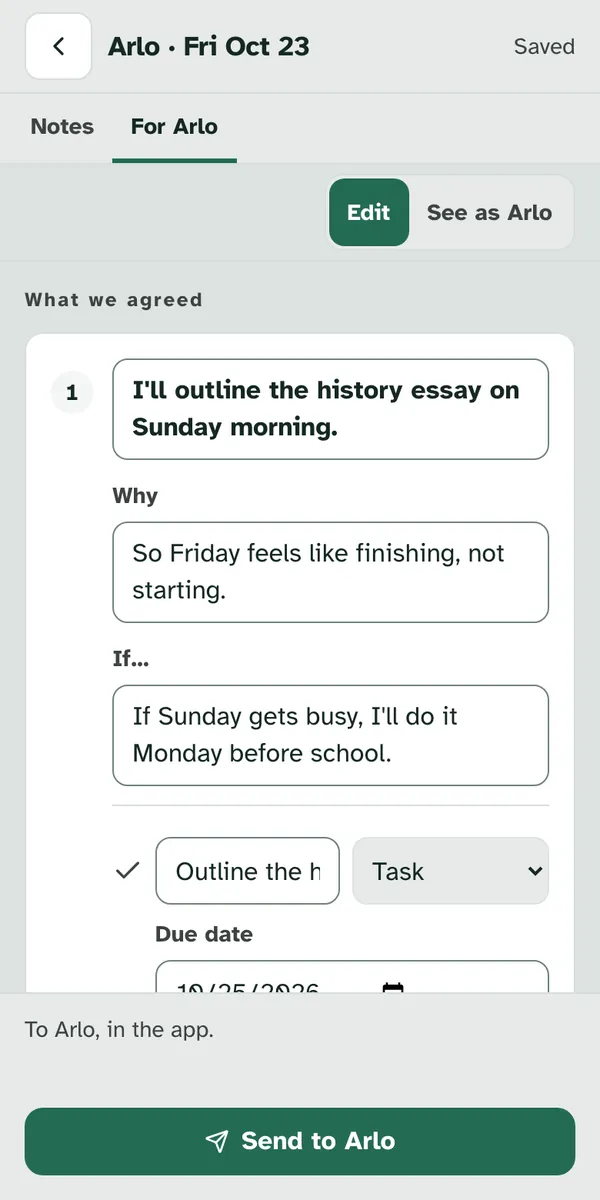
What we agreed: one to three, in your client's own words. Each agreement has a line in their words, such as "I'll outline the history essay on Sunday morning", and a Why for why it matters to them. Add an If… line adds a plan for when things get in the way, such as "If Sunday gets busy, I'll do it Monday before school." Add an agreement adds another, up to three.
Add work to an agreement. Add work gives the agreement something to do in the app. Give it a title and pick its type:
| Type | What your client gets |
|---|---|
| Task | Something to do by a due date. Add a step breaks it into smaller steps. |
| Routine | Something to do on the days you pick, such as Monday to Friday. |
| Tracker | Something to log. Your client picks what to log and can change the words. Logging is optional, and a missed day is just a missed day. |
| To read | Something to read. |
From last time follows your choices. This part of the summary fills itself in from Last time, as "Done", "Still going", "Changed" or "Let go".
What we talked about: two or three plain lines. Add a line adds another.
Draft it with Navi
Navi can write the first draft from your notes. If your account can use Navi, Draft with Navi sits above Write it myself until you start the summary. Navi reads only this meeting's notes, your client's first name and what you decided under Last time. It drafts What we agreed and What we talked about. From last time still follows your choices. You check every line before anything is sent. What your client is told about this is in About Navi in your meetings.
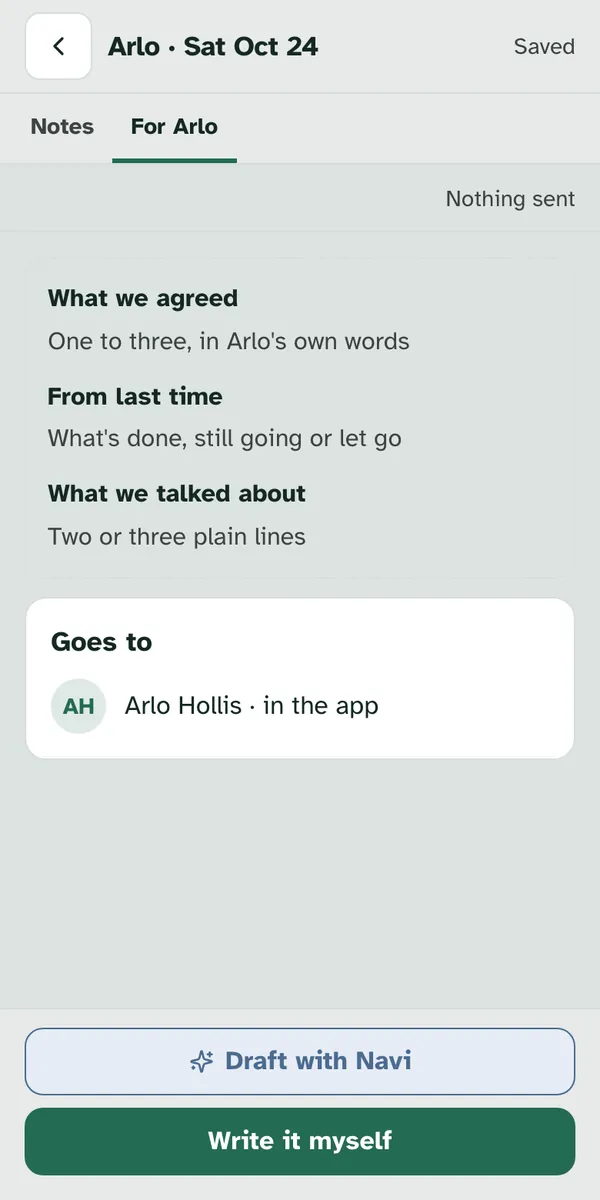
Once you've written something, Draft with Navi moves to the top. It sits in the header of For Arlo, beside Edit and See as Arlo. Navi asks before it replaces anything: "Draft with Navi?" and "Navi will replace what's written here. Your notes stay as they are." Keep what's written leaves the summary as it is, and Replace has Navi draft over it. On a computer the question opens beside the button. On a phone it opens from the bottom of the screen. If all you've done is choose Change under Last time and leave its new agreement empty, that still counts as nothing written, so Draft with Navi stays at the foot.
The foot says what Navi is doing, or why it can't draft. While Navi is drafting, Write it myself waits until the draft is in. In the next four cases below, Write it myself is ready to use.
| You see | What it means |
|---|---|
| "Drafting…" | Navi is writing. The page waits until the draft is in. |
| "Write a few notes first, then Navi can draft from them." | There are no notes yet to draft from. |
| "These notes are longer than Navi can draft from. Write it myself." | Write this summary yourself. |
| "Your latest notes haven't saved yet, so Navi didn't draft. Try again." | Navi waits for your notes to save. Press it again. |
| "Navi can't draft right now. Write it myself." | Navi isn't available at the moment. |
| "These notes were changed somewhere else." | Someone saved these notes in another window. Press Load the latest, then choose again. |
| "Arlo's account isn't set up yet, so notes can't be saved." | Nothing can be written here until your client's account is set up. |
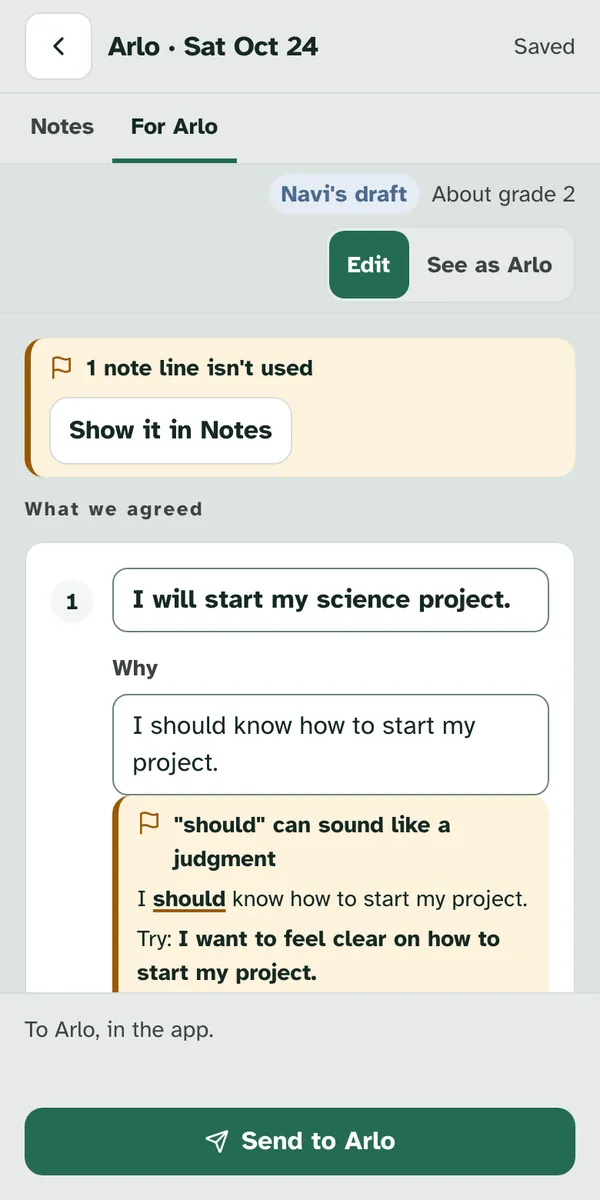
The draft is marked as Navi's. Above the summary you'll see "Navi's draft". Once the summary has 20 words or more, it also shows how easy it is to read, such as "About grade 2". It's yours to change like any summary: edit the lines, add or remove an agreement, or add work.
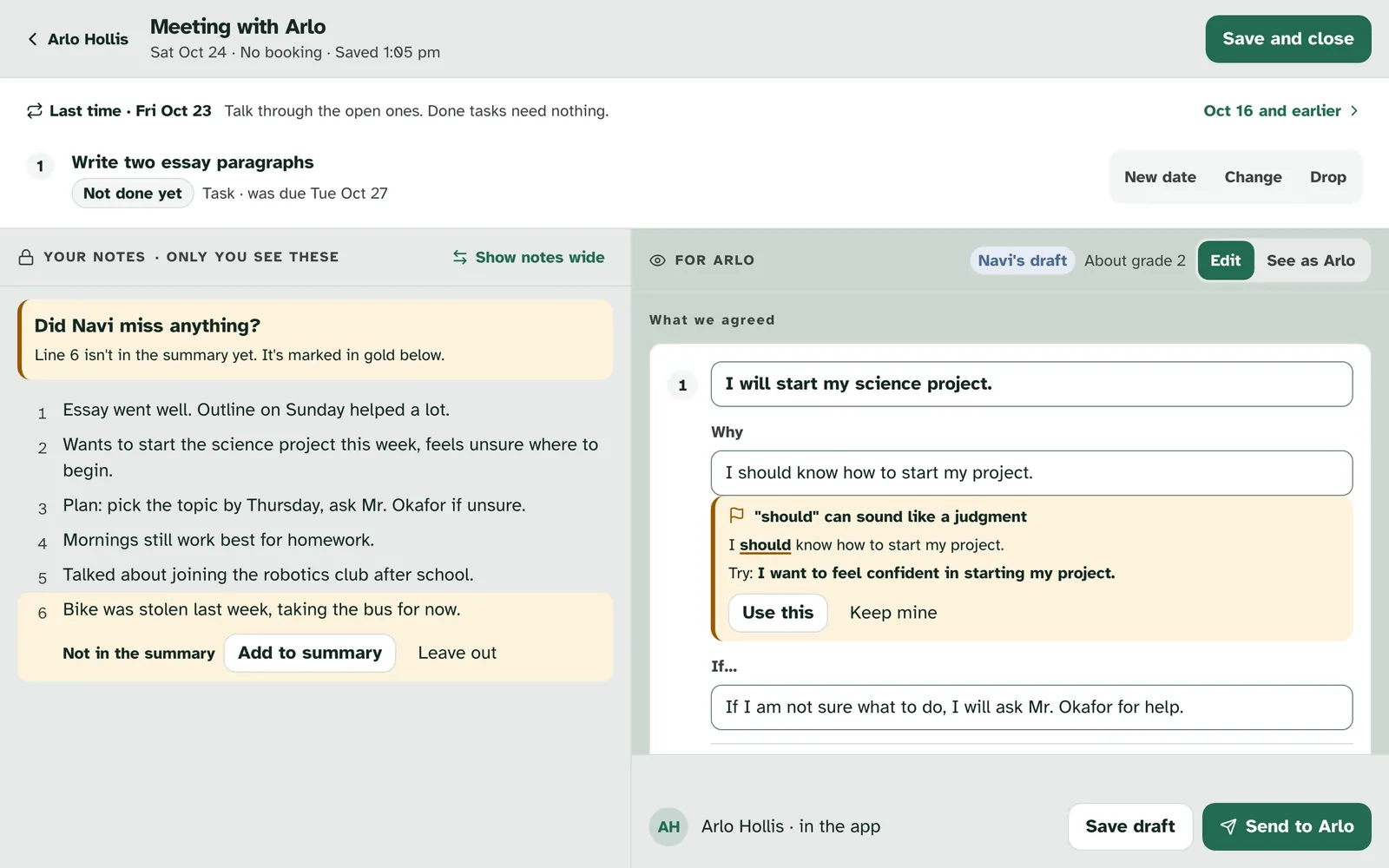
Each part shows where it came from. Under each agreement and line, a chip such as "Lines 2, 3" names the note lines it was drafted from. Press it and those lines light up in your notes. On a phone, it takes you to the Notes tab.
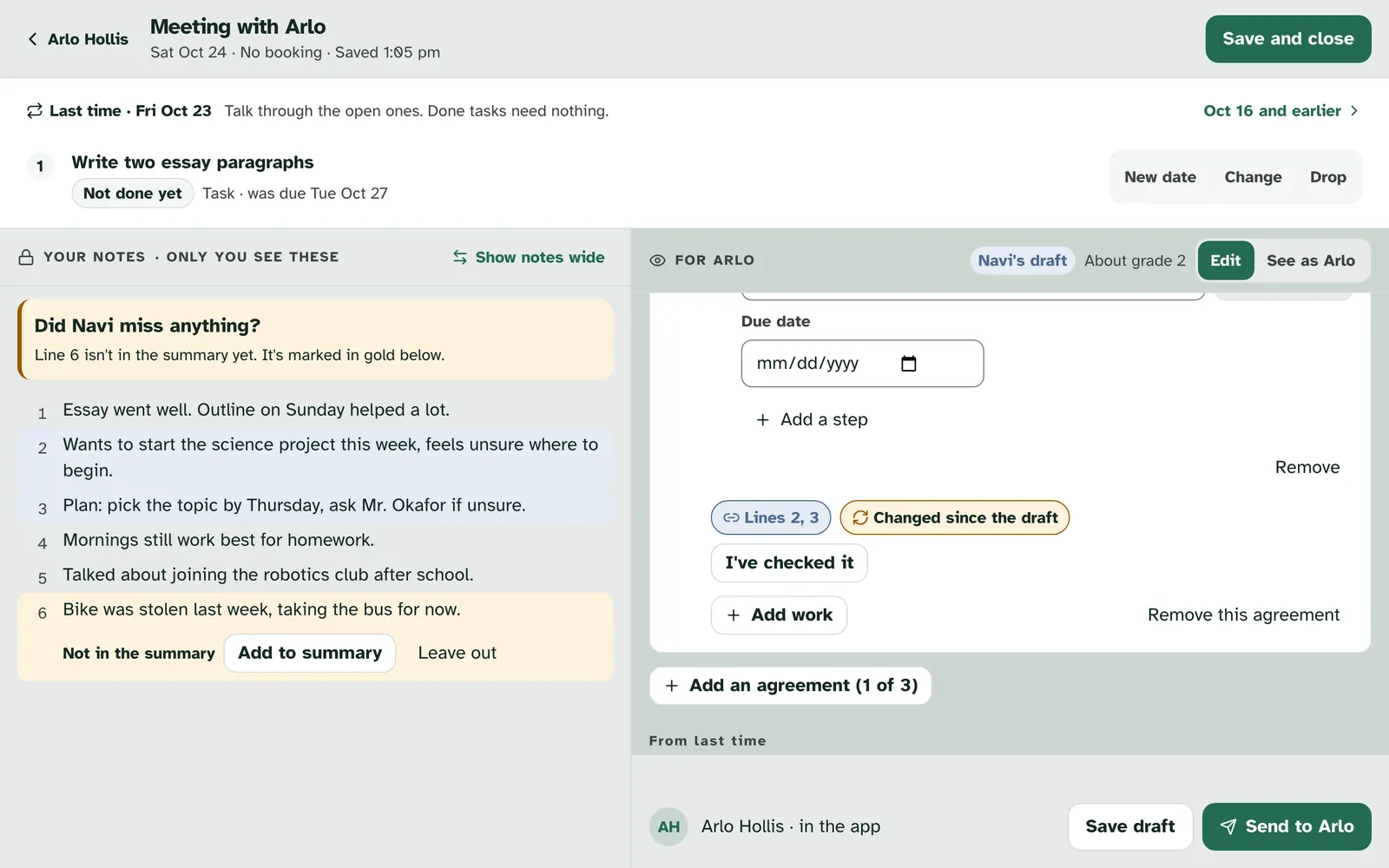
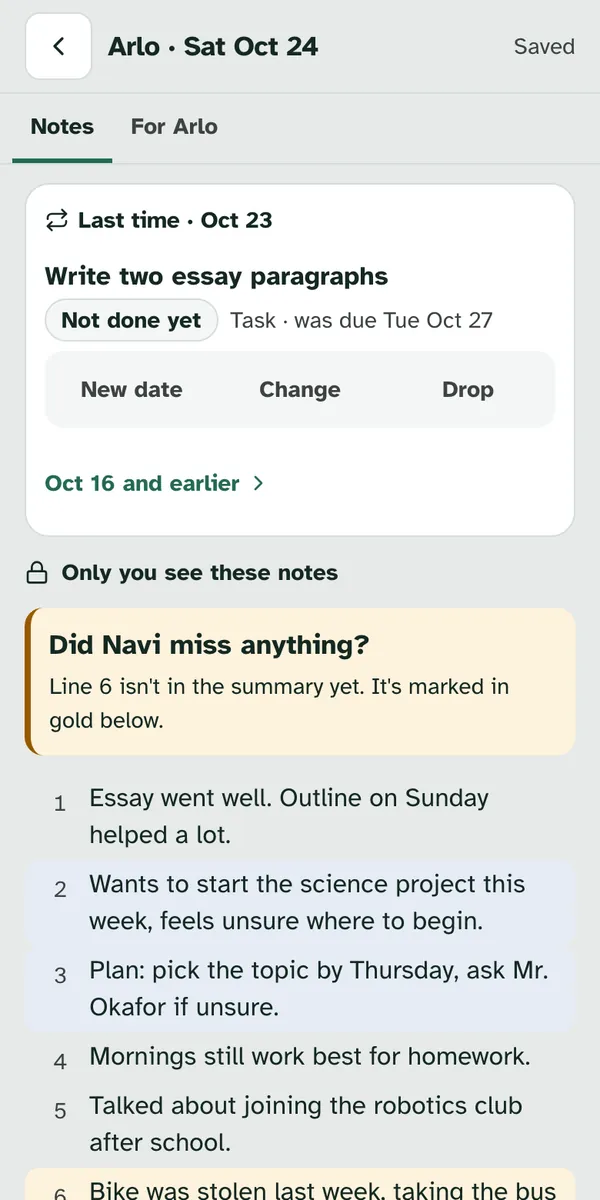
If you change a note line, the draft tells you. When a line Navi drafted from is edited or deleted, its chip shows "Changed since the draft". Read that part again, fix it if it needs it, and press I've checked it. Moving a line doesn't count as a change. If Navi wrote something without a note line behind it, you'll see "Navi wrote this without a note line. Check it before you send."
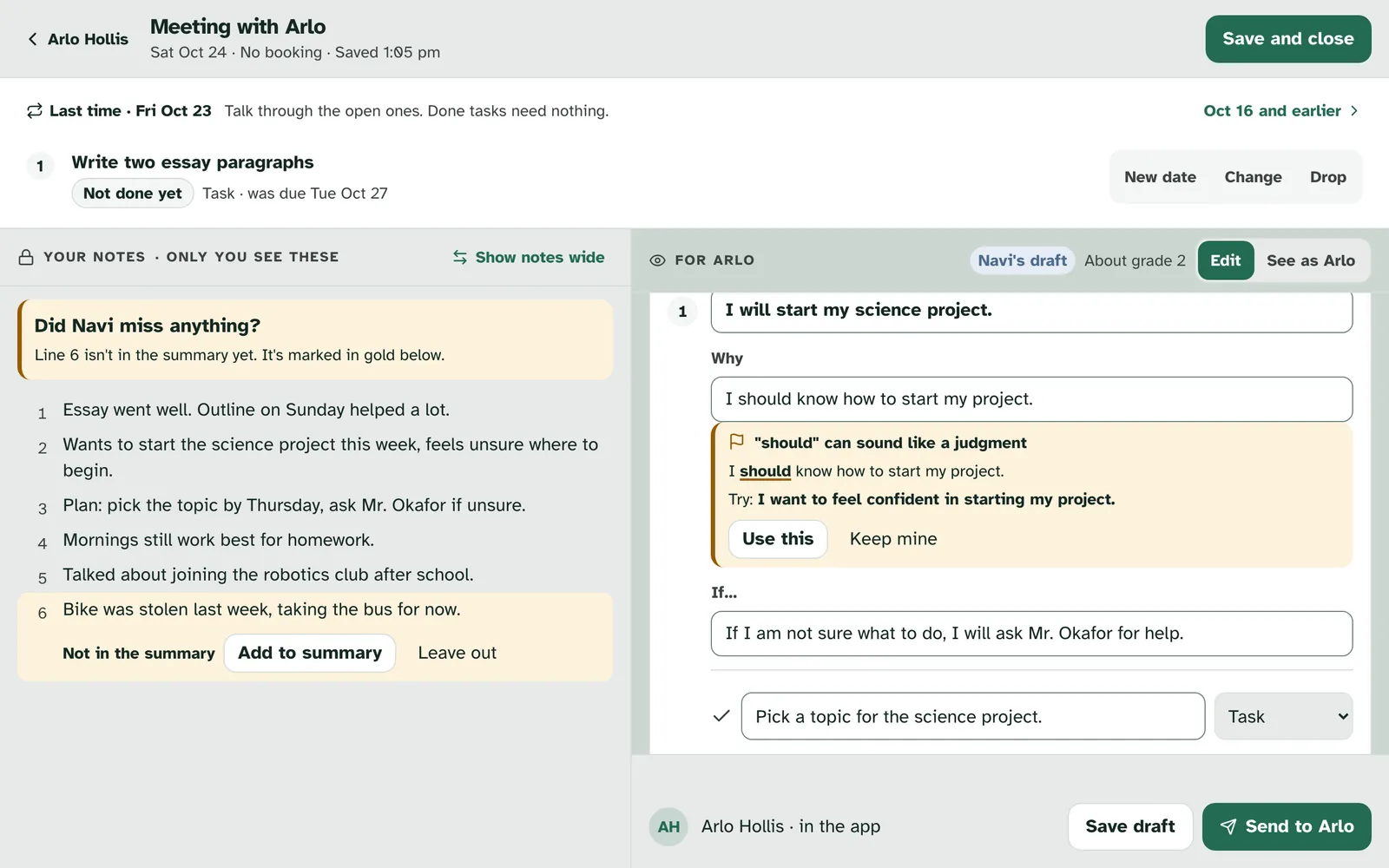
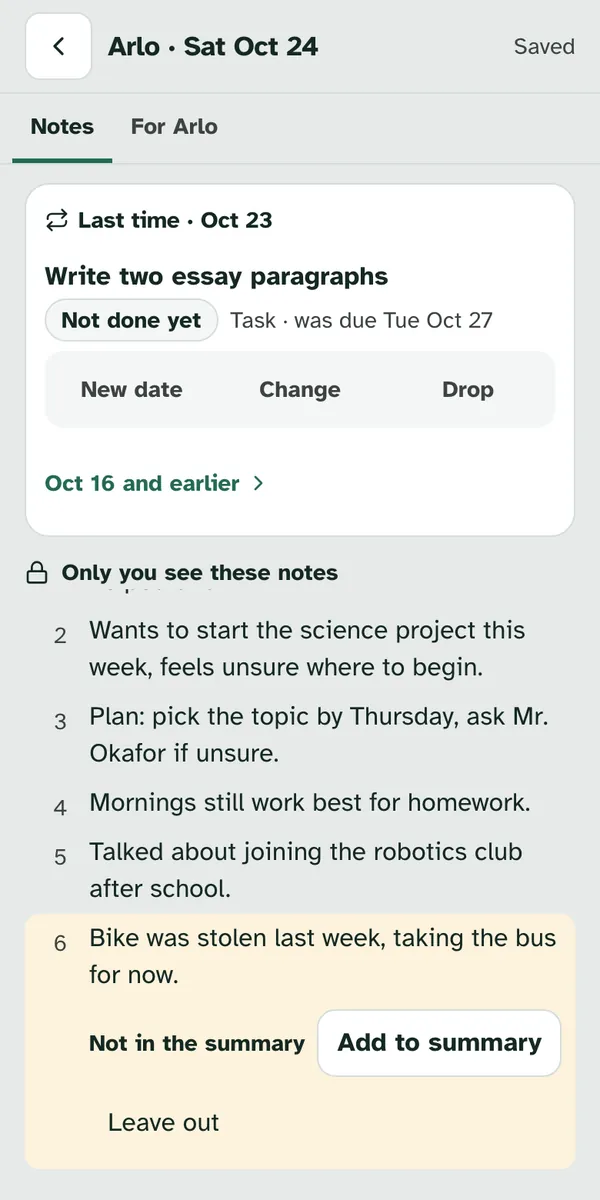
Did Navi miss anything? If a note line isn't used anywhere in the summary, your notes say "Did Navi miss anything?" and the line is marked in gold with "Not in the summary". On a phone, For Arlo shows "1 note line isn't used" and Show it in Notes takes you to it.
| Choice | What happens |
|---|---|
| Add to summary | The line goes into What we talked about. If that's full, you'll see "Line 6 doesn't fit in What we talked about. Shorten a line, or leave it out." |
| Leave out | The line stays in your notes only and reads "Left out". Undo brings the question back. |
Words that can sound like a judgment are flagged. If a line in the summary uses a word such as "should", a gold box says, for example, ""should" can sound like a judgment", and shows the word in its sentence. Keep mine leaves your words as they are. On a draft Navi helped with, it can also offer a gentler line after "Try:", and Use this swaps it in. The check itself runs on every summary, whoever wrote the words.
The summary doesn't say Navi helped. "Navi's draft" is only for you, while you write. Your client, and anyone they share summaries with, reads what you send, with no line about Navi. If they want to know how Navi works in meetings, About Navi in your meetings explains it.
5. See as Arlo
Check it the way your client will read it. See as Arlo shows the summary as Arlo will see it: each agreement with its why, its If line and its work, such as "Task · Due Sun, Oct 25" or "Routine · Every day · Mon–Fri". Edit takes you back to writing.
6. Send
Send it, or save it for later. At the bottom, "Goes to" shows who gets the summary and that it arrives in the app. Save draft keeps it to finish later. Send to Arlo sends it, and "Sent to Arlo." appears.
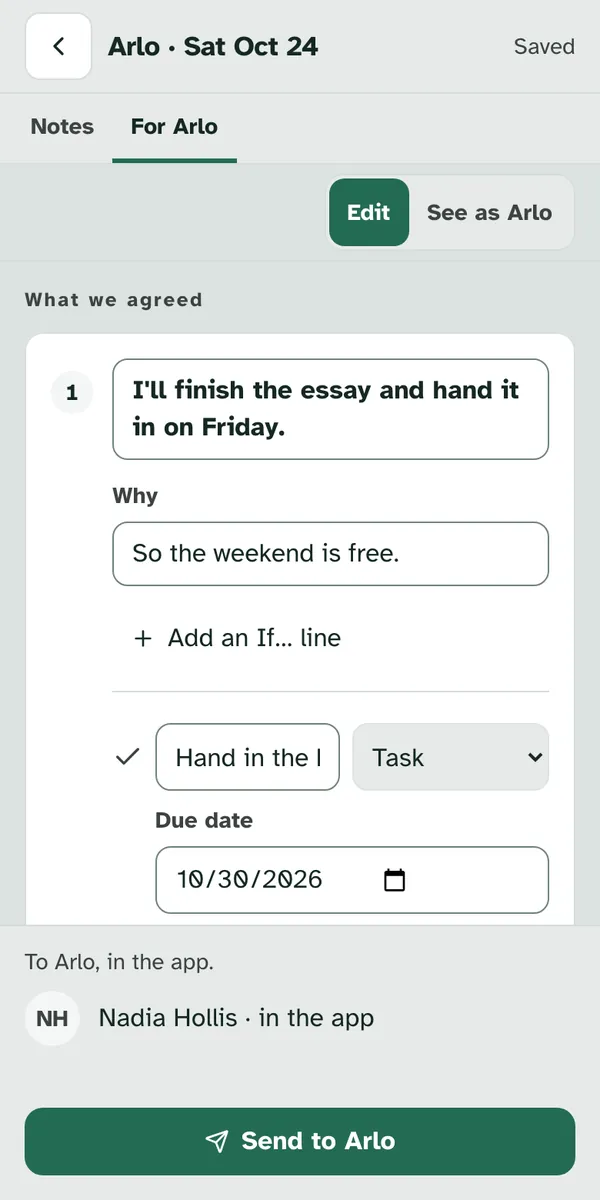
For a teen with a parent or guardian on file, Goes to has a second row. It tells you before you send whether the teen has chosen to share their summaries. The teen decides, not you, and the guardian never sees your private notes or the teen's replies.
| The guardian row says | What it means |
|---|---|
| "Nadia Hollis · in the app" | Arlo shares summaries with Nadia, so Nadia can read this one in the app. |
| "Nadia Hollis · Arlo hasn't shared" | Arlo hasn't chosen to share. Only Arlo gets this summary. |
| "Guardian on file · …" | A guardian is on file without a name, so the row uses these words in place of one. The rest of the row says whether Arlo shares. |
How sharing works for the family is in Read the meeting summaries a teen shares with you.
A meeting started from a screening case asks one more thing. Last on the summary side, just above Send, "Follow-up needed now" asks the case's own question, with "For the screening case. Avery doesn't see this." The first answer, "None identified", is picked to start. "Share concern through the review process" asks the case's reviewer to look at it with care, and lets them know. Your answer goes with Send. It isn't saved with a draft, and it never reaches your client.
The case's question, answered as you send.
The sent summary shows what you chose. Under the summary it reads "Screening follow-up: None identified", or the answer you picked.
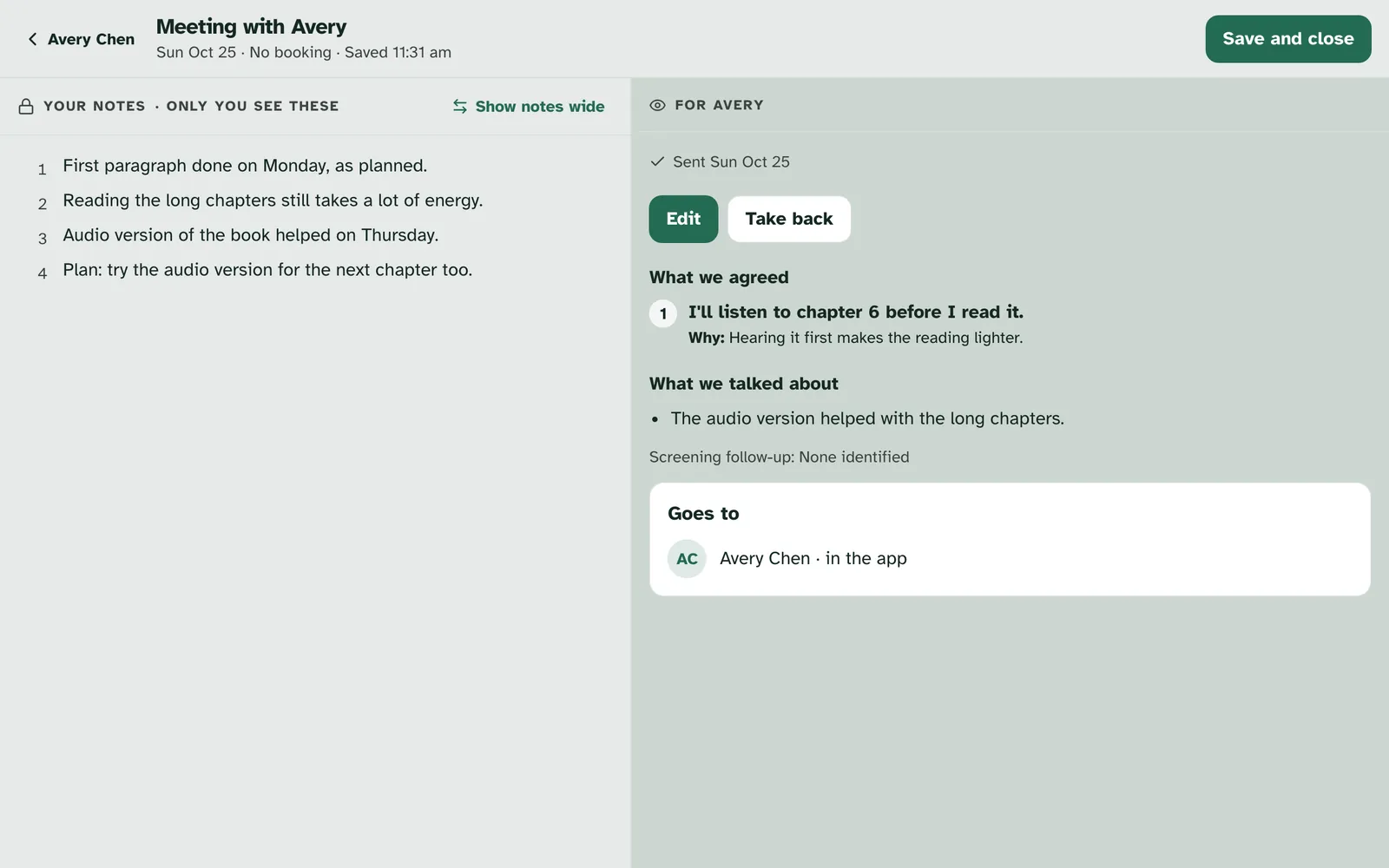
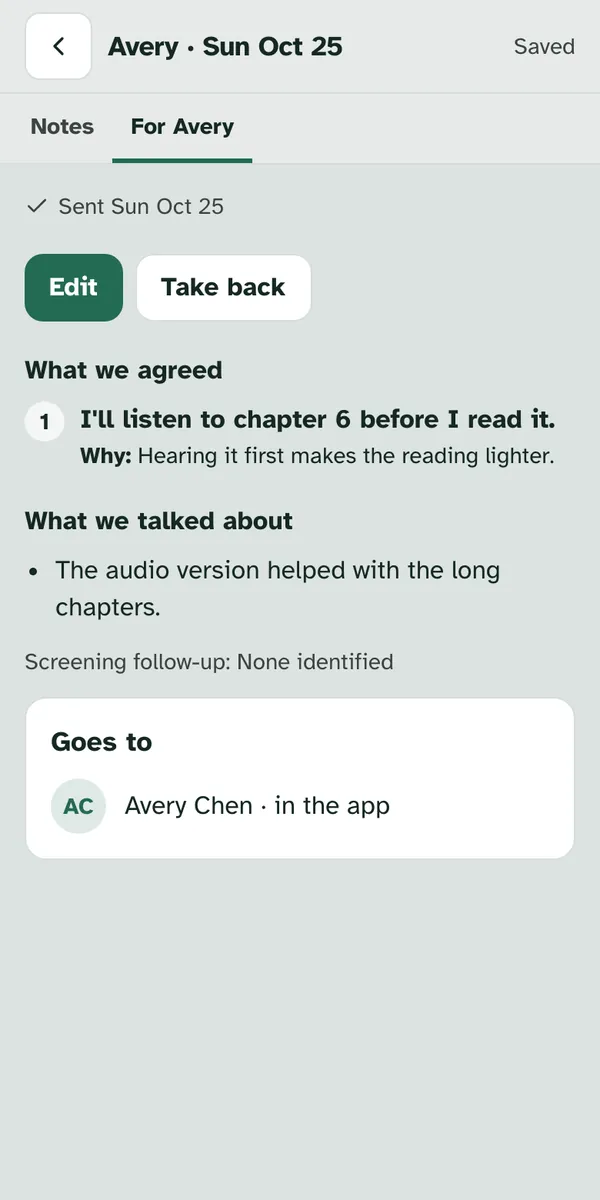
Sending does everything at once. Arlo gets the summary, each agreement with work becomes an assignment for Arlo, your Last time choices take effect, and the meeting closes. If something needs fixing first, such as an agreement with no why or a task with no due day, the page says what and where, and nothing is sent.
What Arlo gets. Arlo gets a notification and an email. Neither one includes anything from the summary. Both send Arlo to the app to read it. To see what Arlo reads, and how Got it and a reply work on Arlo's side, see Read your meeting summaries.
| Sent | Says |
|---|---|
| Subject: "Imani sent you a meeting summary". It reads "Imani sent you a meeting summary. Open Specthrive to read it." | |
| Notification | "Imani sent you a meeting summary. Open Specthrive to read it." |
7. After sending
The summary stays with the meeting. The right side now shows "Sent" and the day, and each agreement shows how much of its work is done, such as "0 of 1 done". If you have another session booked with this client, the summary ends with "Next meeting" and its day and time. Your notes stay on the left, still only for you.
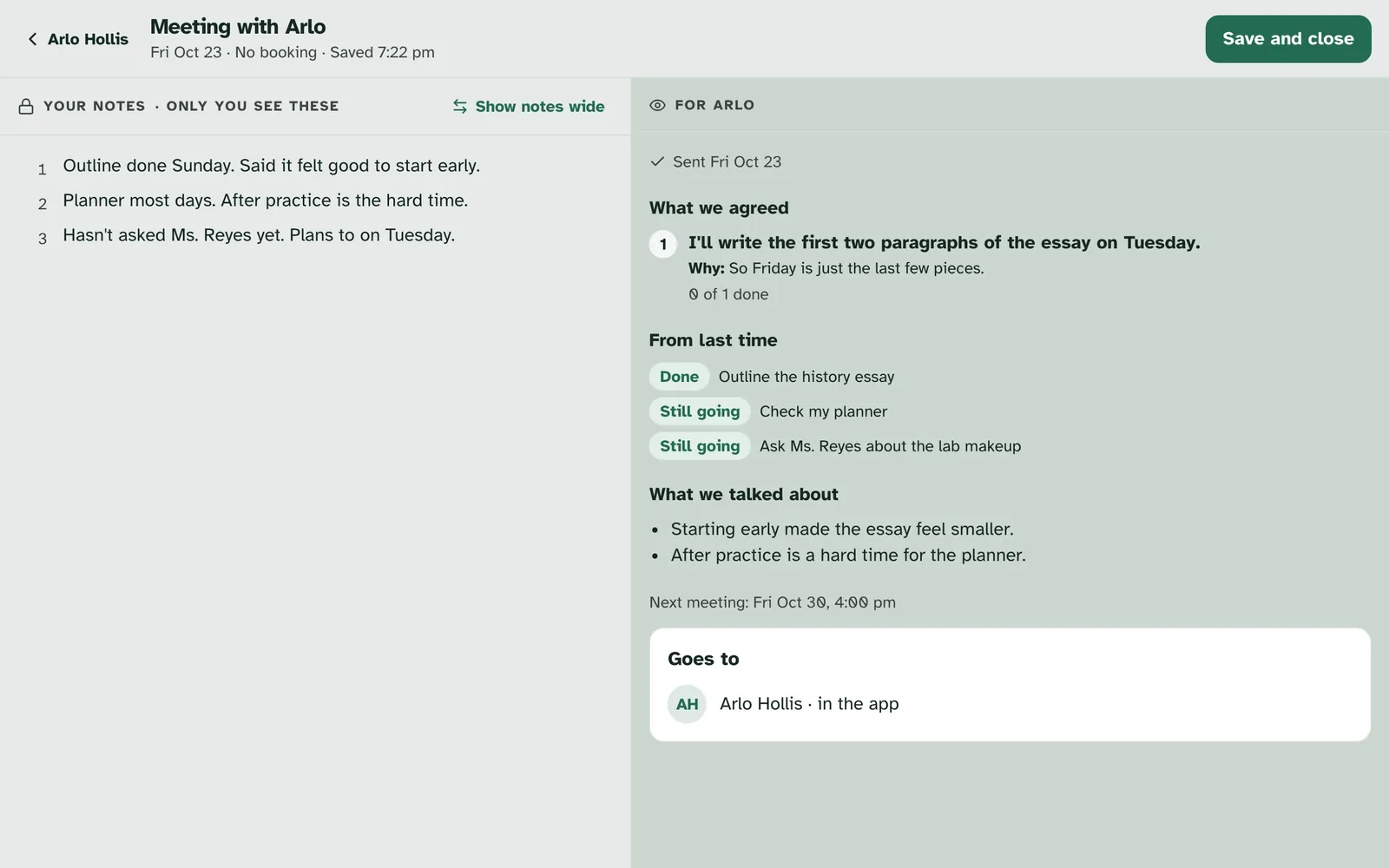
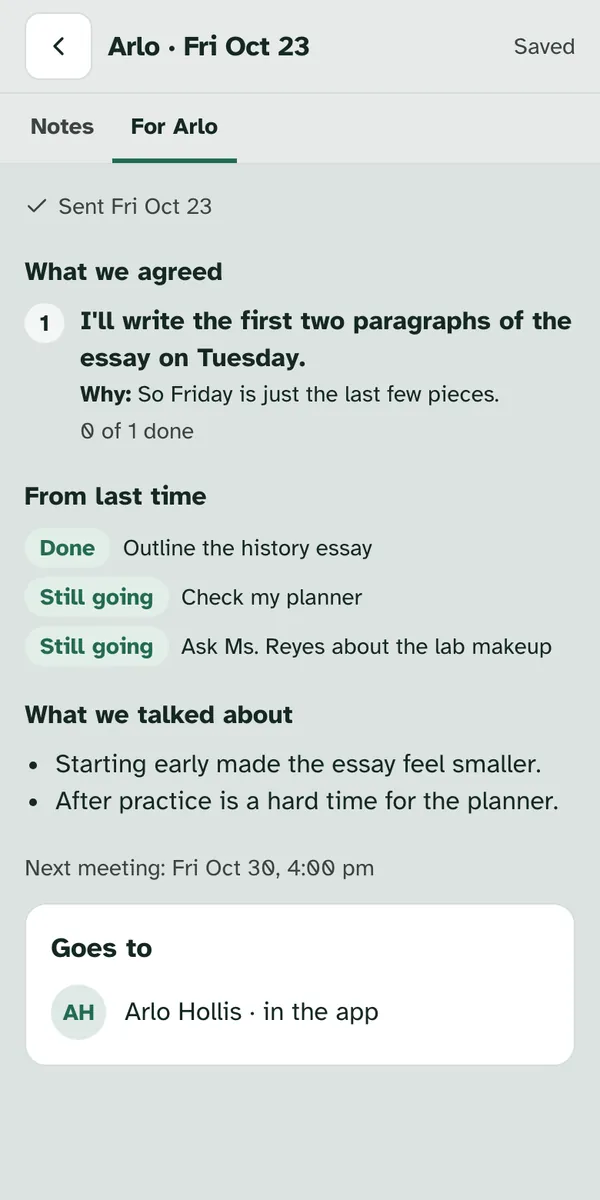
Your client's answer shows under the agreements. When they reply, the summary shows "Arlo replied" and their words. If they only said Got it, it reads: Arlo said "Got it", with the day.
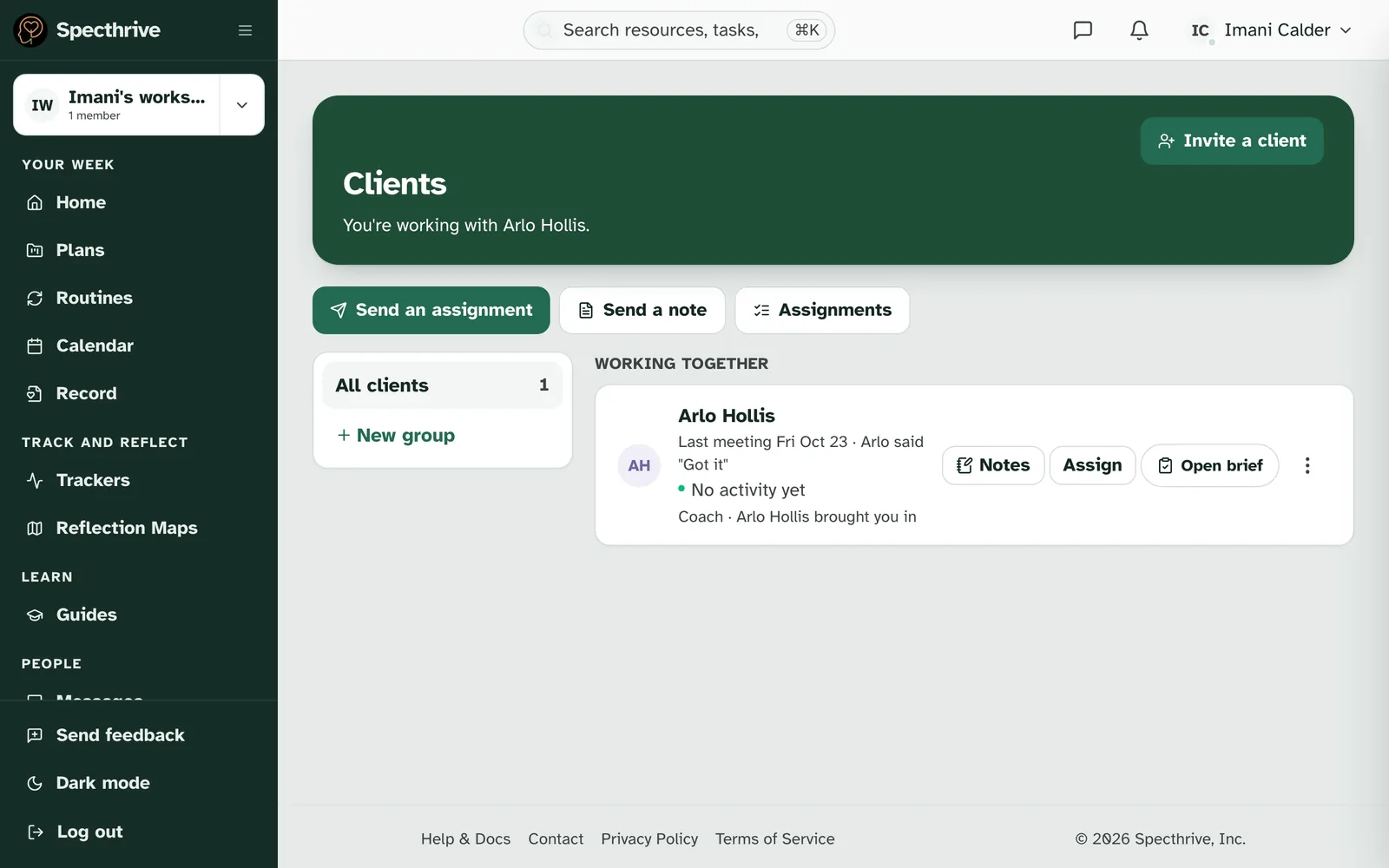
You can see it from your client list too. Each client's row on Clients reads "Last meeting" and the day of the newest summary you sent and haven't taken back, with "Arlo replied", or Arlo said "Got it", when they answered. On your client's page, the Meetings list shows how many agreements each summary has, and whether they replied. Your first meeting together reads "First meeting".
Next time, it's your Last time. At your next meeting with this client, the work from this summary shows in Last time, ready to talk through.
8. Change or take back a summary
Fix the words with Edit. Open the meeting, and under For Arlo, select Edit. You can change what you talked about, each agreement, its Why and its If line. The form says "You can change the words. To add or drop an agreement, send a new summary next time." Select Save, or Cancel to leave it as it was. The work sent with the summary stays as it is.
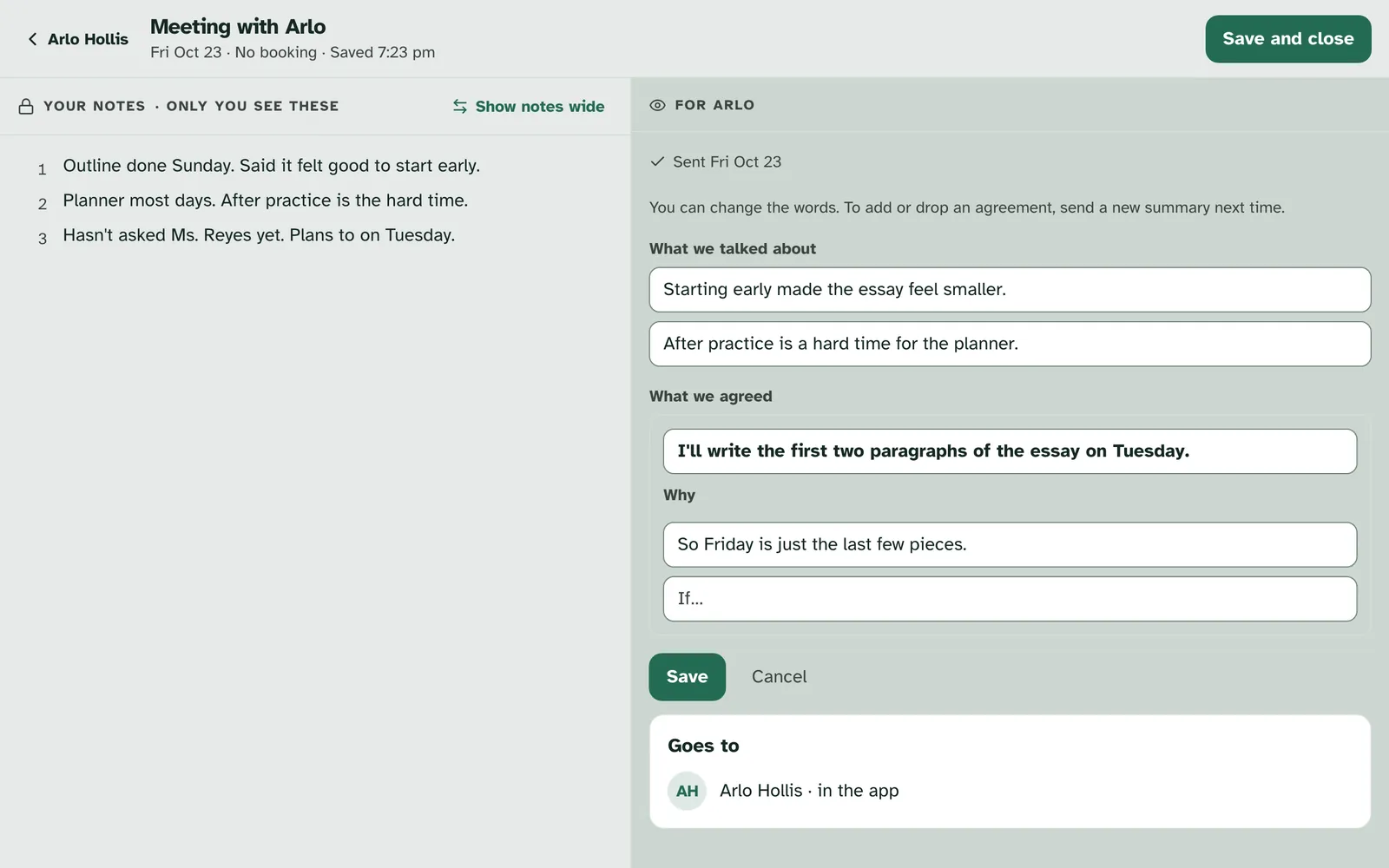
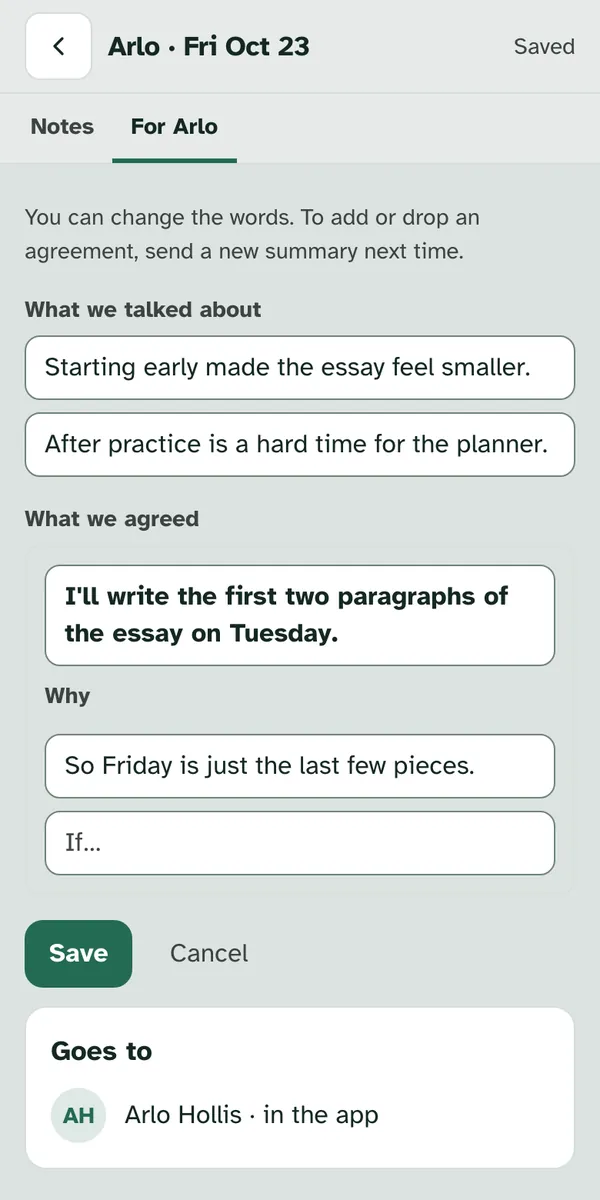
Your client sees that it changed. The summary shows "Updated" and the day, for you and for your client. We don't send them a new message about it. If they already said Got it or replied, that stays.
Take back a summary you shouldn't have sent. Select Take back. The window asks "Take back this summary?" and explains: "Tasks not done yet come off Arlo's list. Done ones stay." Leave "Also take back the work sent with it?" ticked to take the work back too, or untick it to leave the work with your client. Select Take back to go ahead, or Keep it.
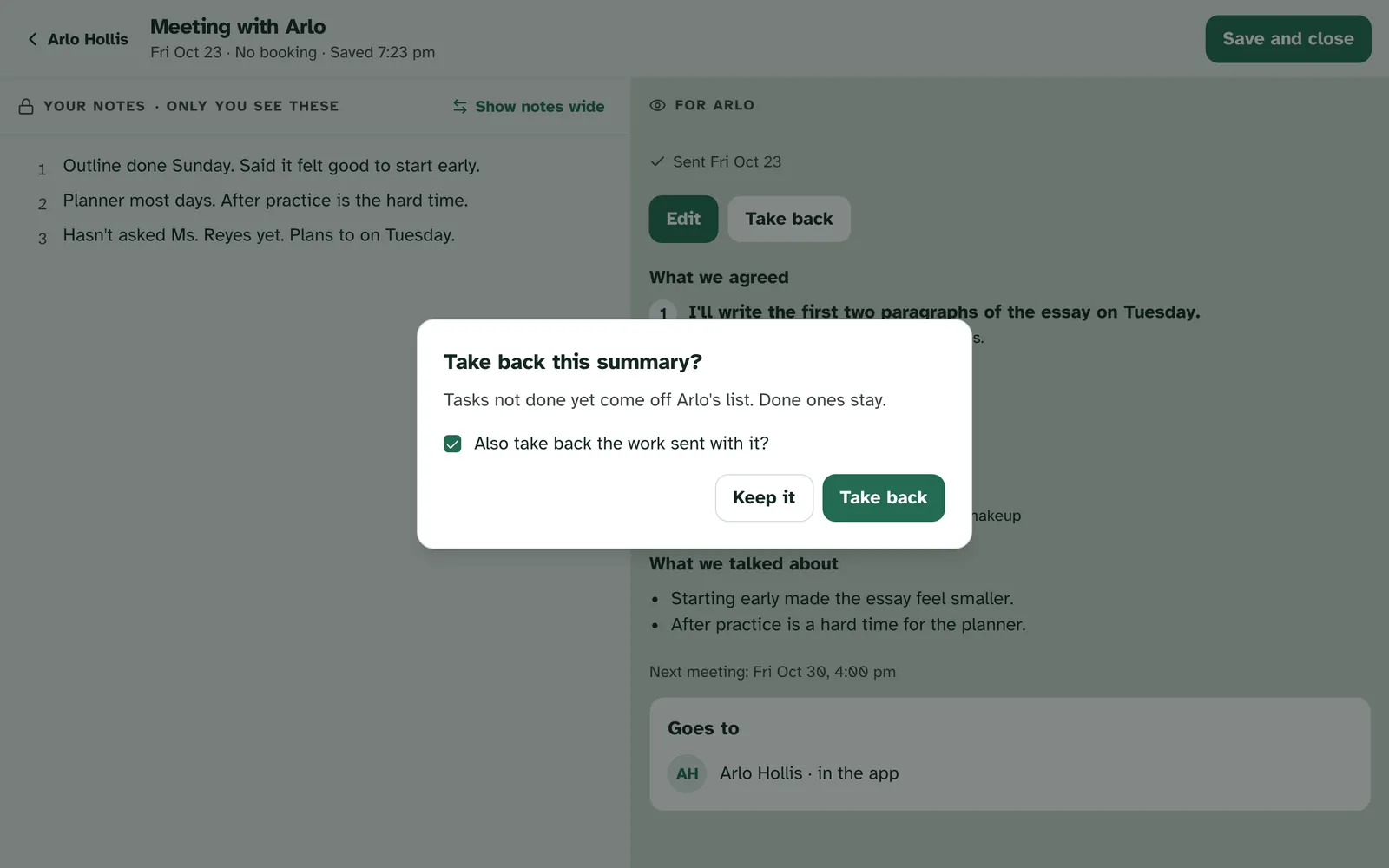
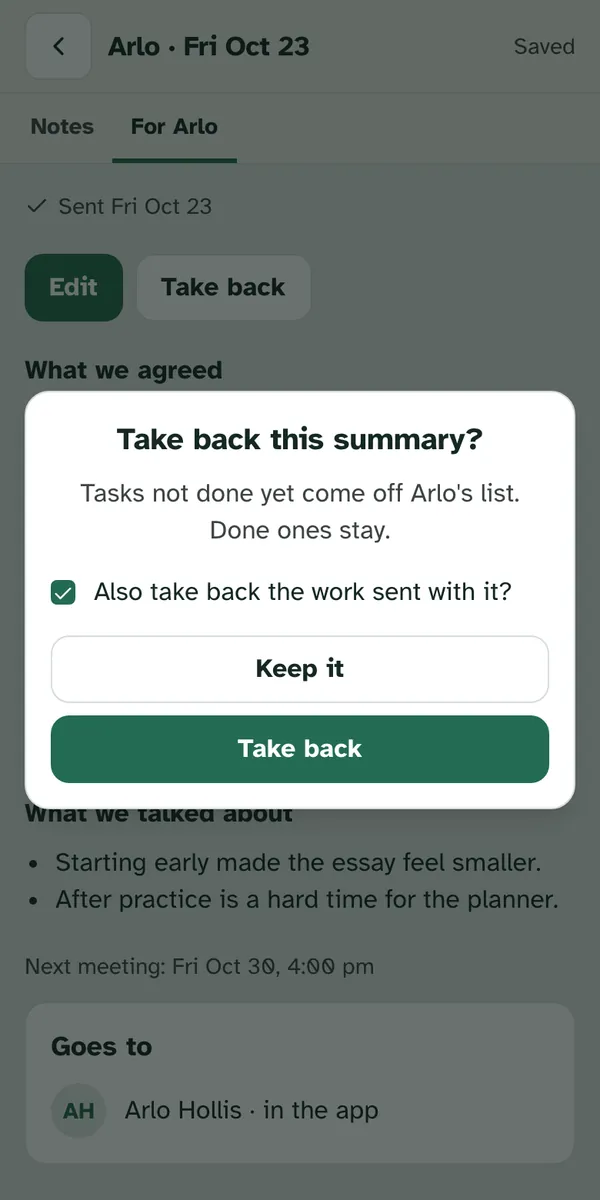
Afterwards, the meeting says so. The summary reads "Taken back" and the day, with no Edit or Take back. Arlo's Meetings page keeps the row and says you took it back on that day. To see what your client sees, read Read your meeting summaries.
Getting help
Tell us if something looks off. If a summary doesn't send, or a client you work with has no Notes on their row, get in touch. Tell us which page you were on and roughly when. There's no need to share your client's name or anything about them.
Still have a question?
If this guide did not cover your situation, reach out. We read every message.