
Read your meeting summaries
For anyone who meets with a coach or another professional in Specthrive. Read the short summary they send after a meeting, say Got it, add a reply if you like, and find every summary on your Meetings page.
After a meeting, your coach or another professional you work with can send you a short summary: what you agreed, how last time's work went and what you talked about. It arrives on Home, and every summary you get stays on your Meetings page. In this guide the coach is Imani and the student is Arlo.
1. On Home
A new summary shows up in "From your care team". The card reads "From your meeting with Imani", then the day and how many things you agreed, such as "Fri Oct 23 · 1 thing we agreed", and the agreements themselves, numbered. If more than one summary is waiting, the newest is first.
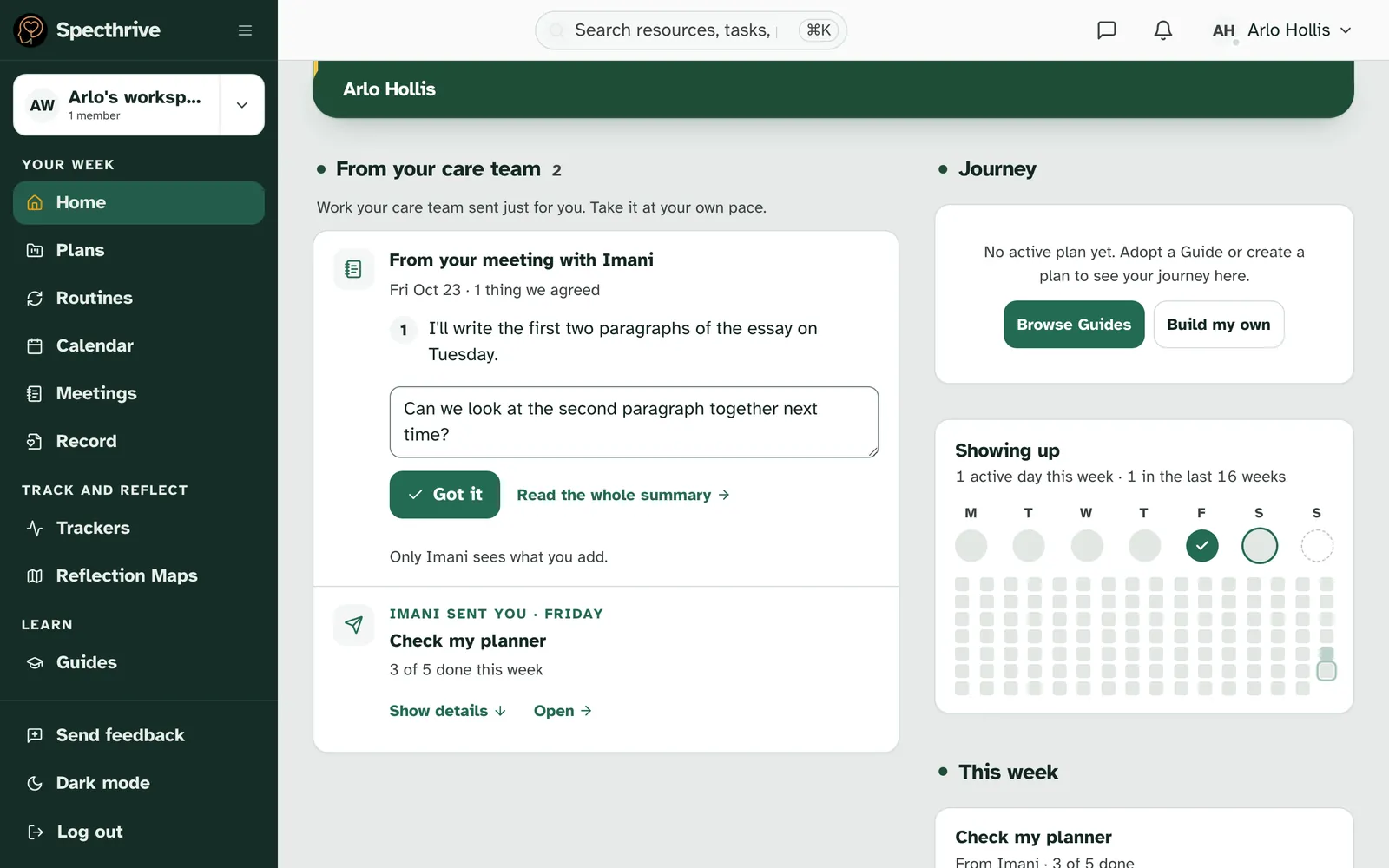
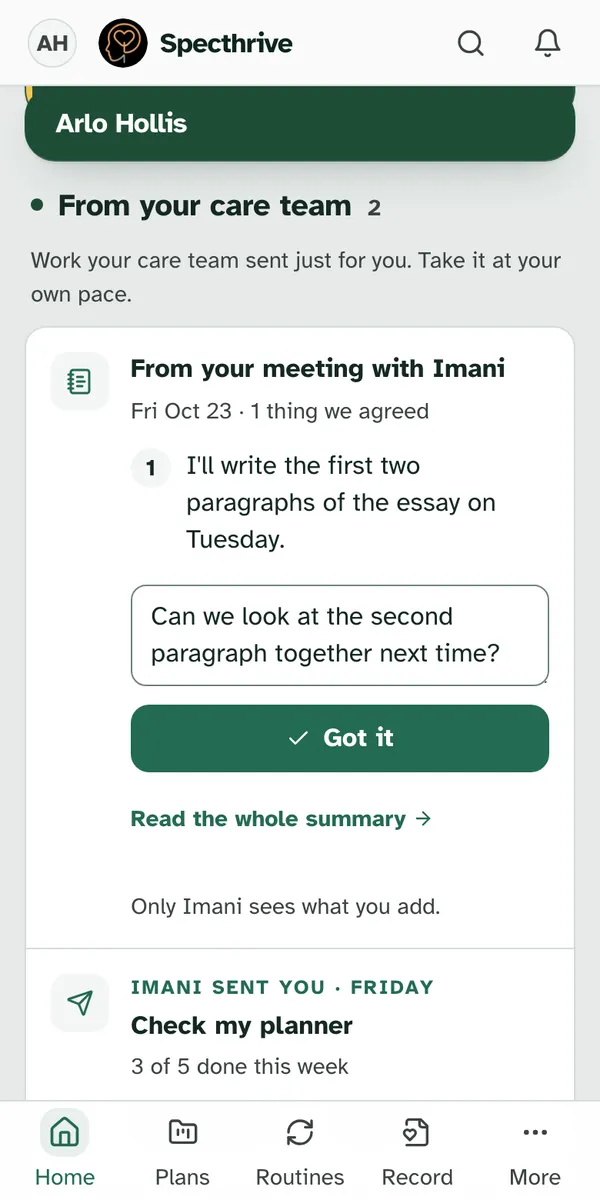
Read the whole summary opens it in full. The card shows only what you agreed. Read the whole summary opens your Meetings page at that summary, with the rest of it.
2. Say Got it, and add something if you like
Got it tells the person who wrote it that you've seen it. Press Got it on the card, or at the end of the summary on your Meetings page. The card leaves Home and "You said "Got it"" appears. You can say Got it once for each summary.
Adding something is optional. Above the button, "Want to add anything? (optional)" is a box for a short reply, up to 280 characters, such as a question for next time. It goes when you press Got it. Leave it empty if there's nothing to add.
Only the person who wrote the summary sees your reply. The card says "Only Imani sees what you add." Imani reads your reply with the summary she sent, and again when she gets ready for your next meeting. Your reply isn't shown back to you afterwards: the summary says "You said "Got it"" and "Only Imani sees your reply."
3. Your Meetings page
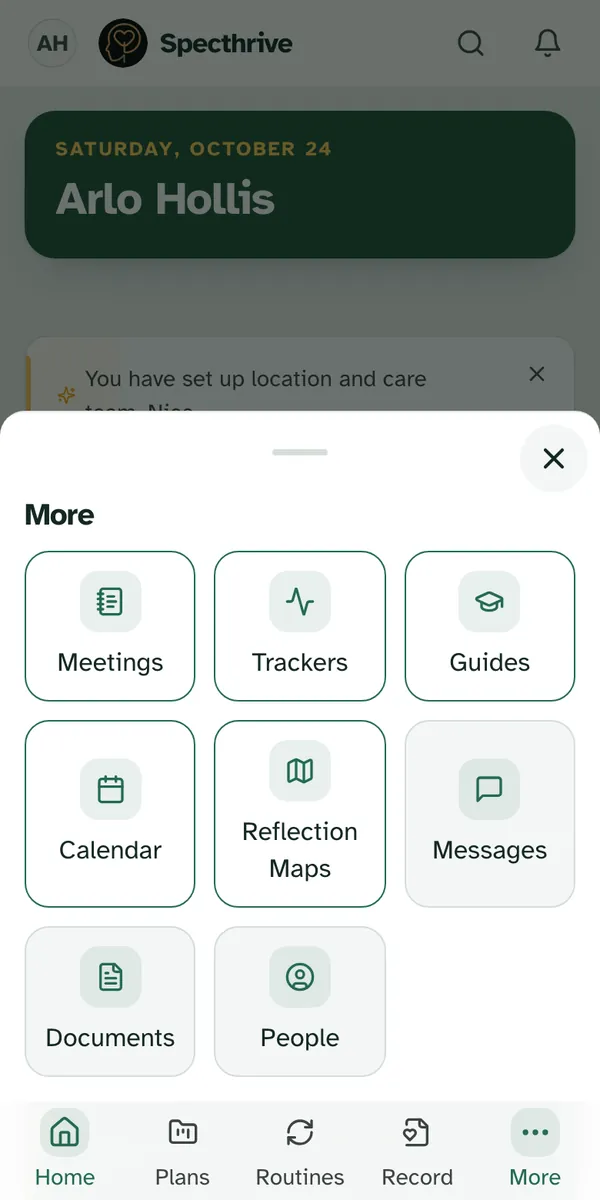
Find it in the sidebar, after Calendar. Meetings appears once you've had your first summary. On a phone, it's first in More.
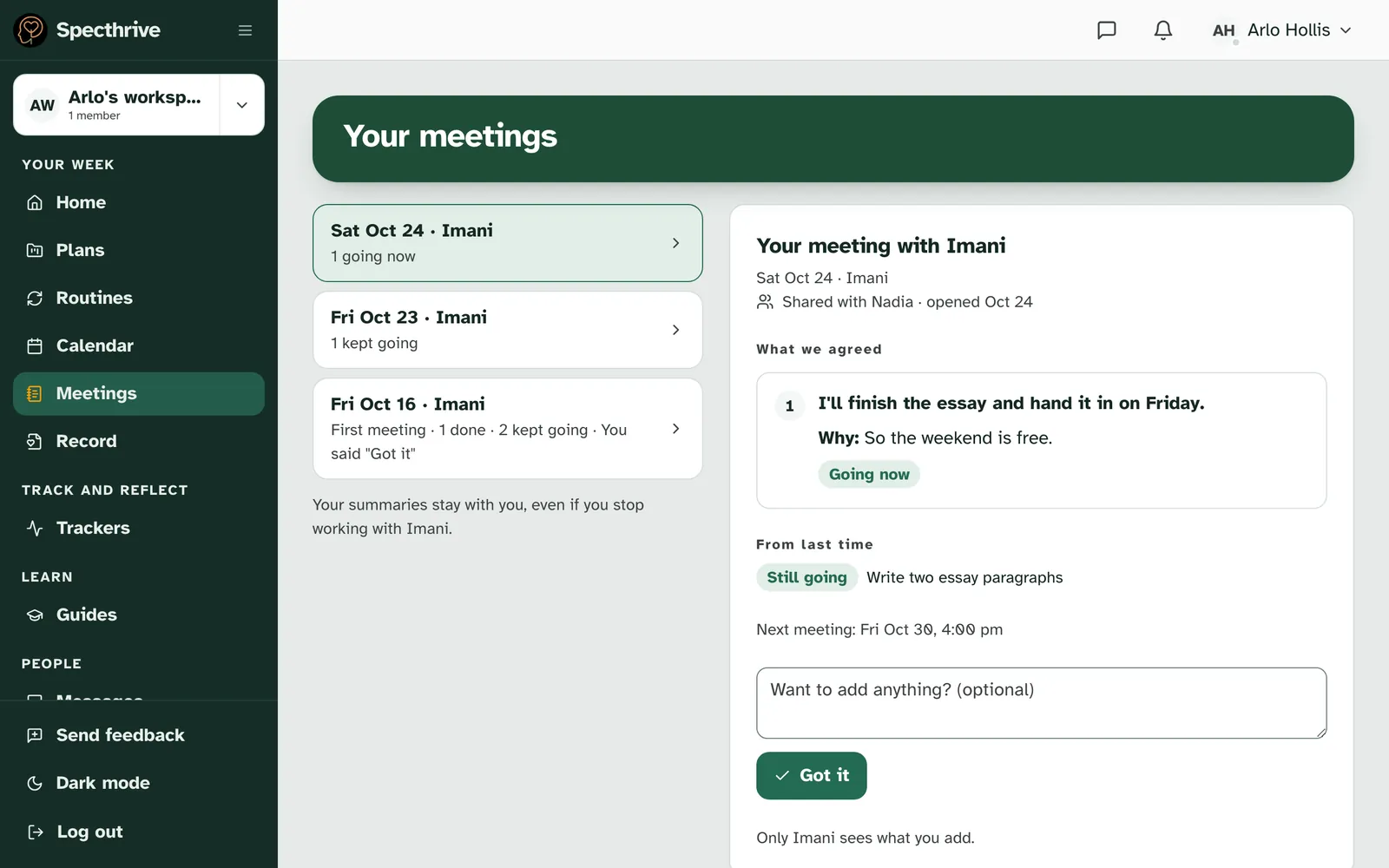
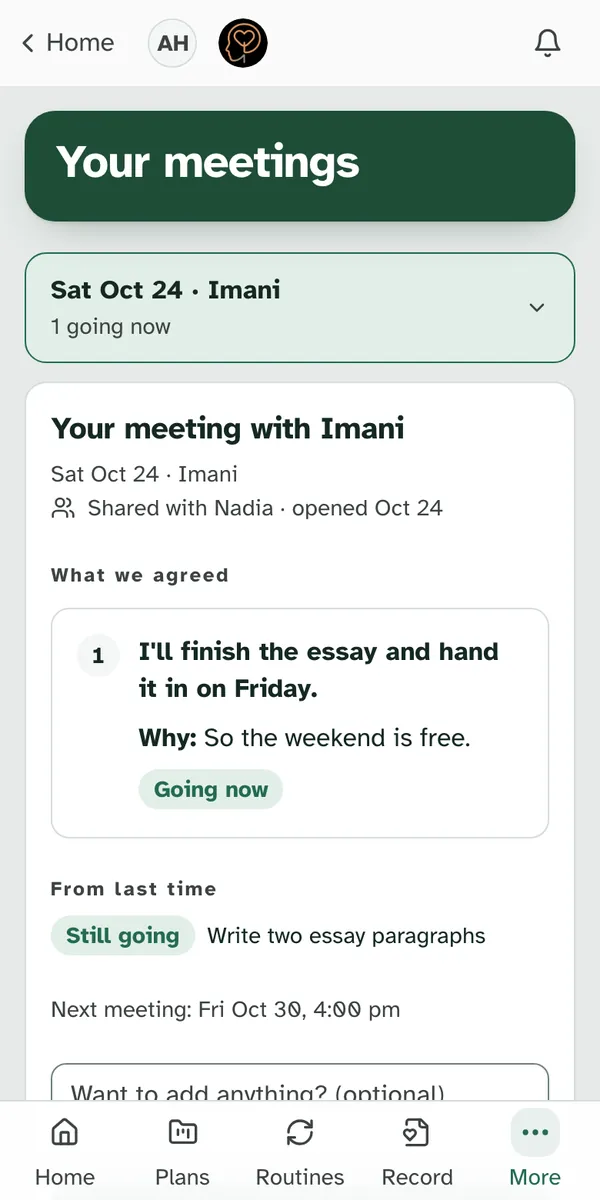
Every summary is here, newest first. "Your meetings" lists each one by its day and who wrote it, such as "Fri Oct 23 · Imani". Under each, a short line says how its work is going, such as "1 going now", and "You said "Got it"" once you have. Your first meeting reads "First meeting". The newest summary is open; choose any other to read it. On a phone it opens right under its row.
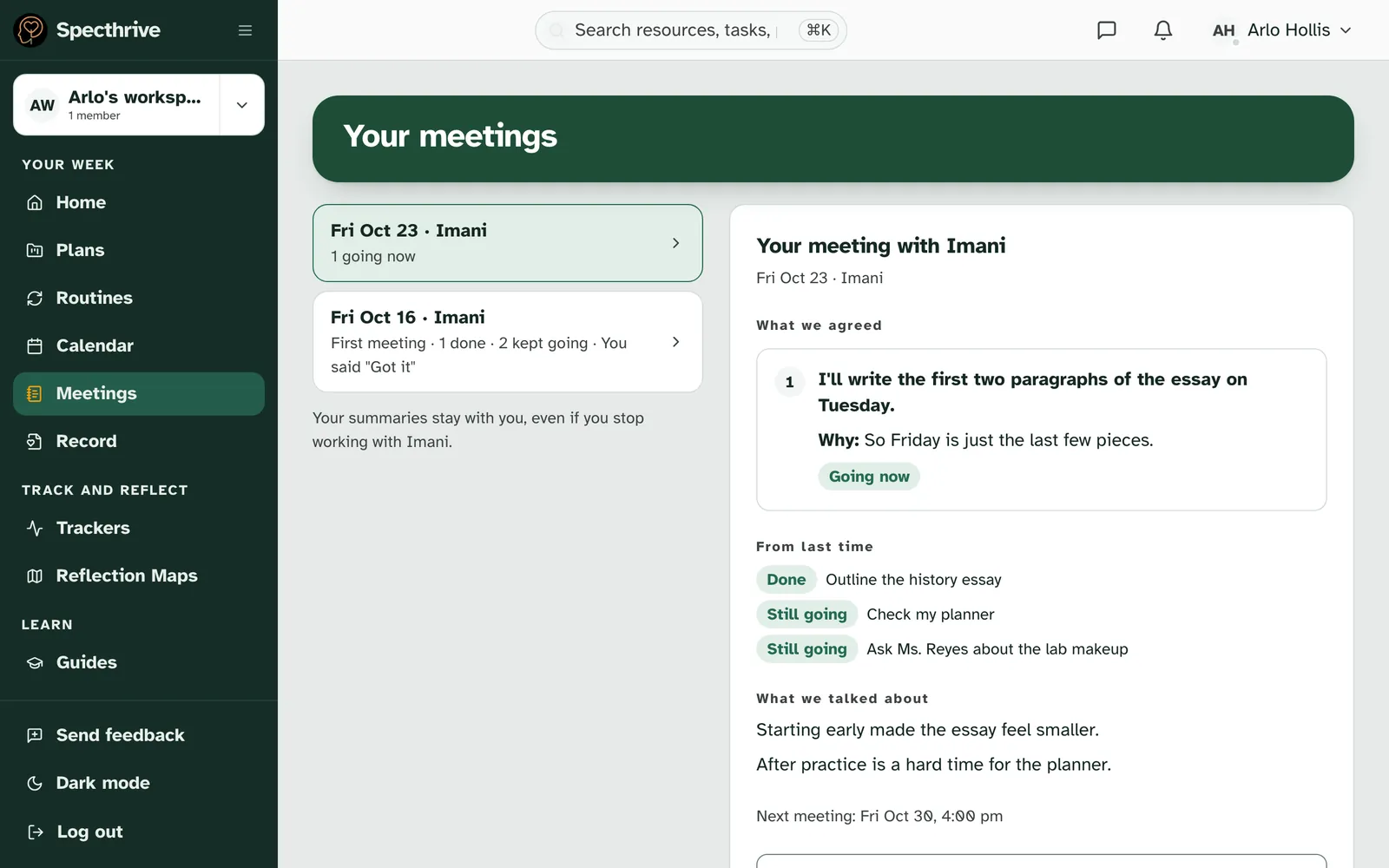
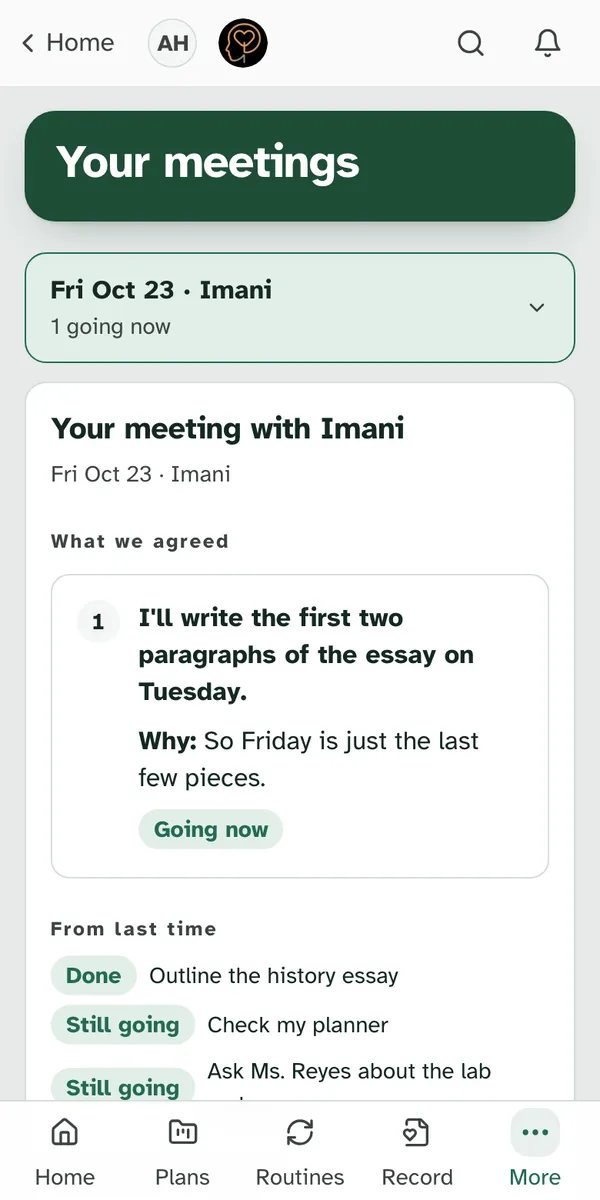
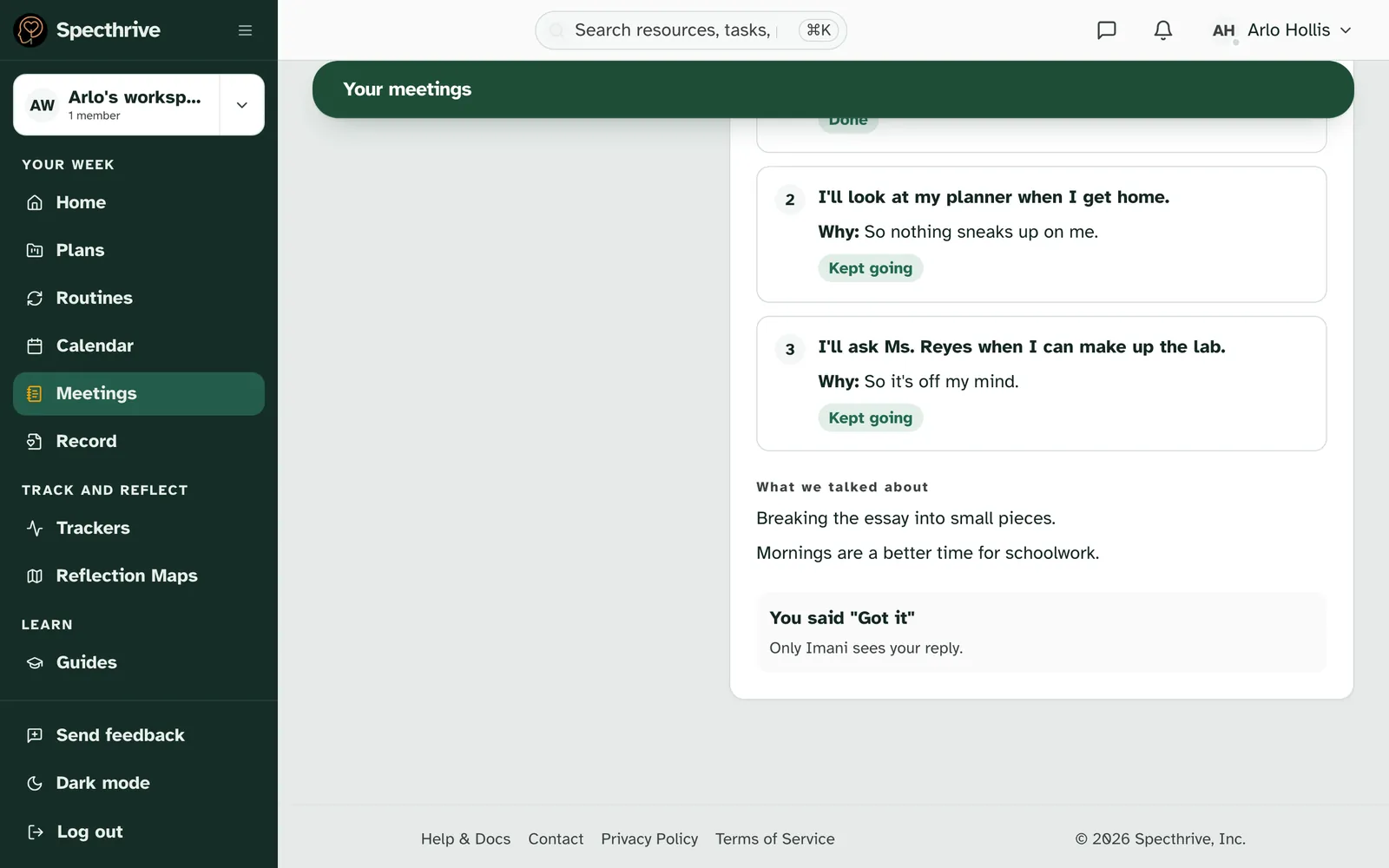
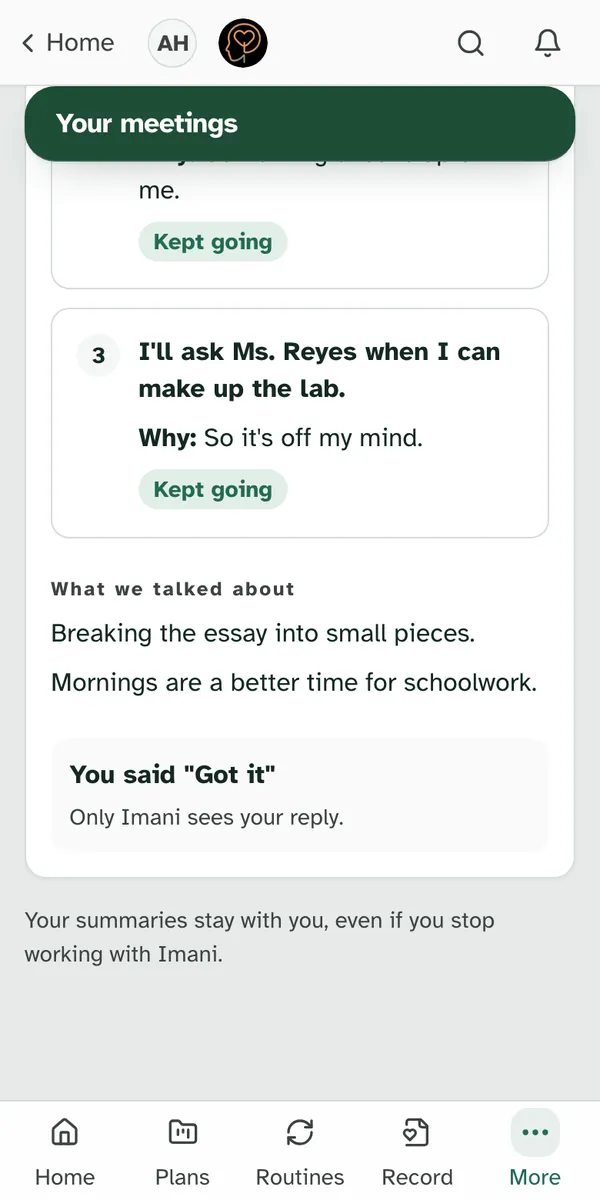
A summary has three parts. "What we agreed" lists each agreement in your words, with its Why and any "If…" line, and how its work is going. "From last time" shows what happened to the work from your last summary. "What we talked about" has a few short lines. If another session is booked, "Next meeting" and its day and time come after "What we talked about".
The person you meet with may draft it with Navi, our AI helper. They check every line before sending. See About Navi in your meetings.
Your summaries stay with you. The page says "Your summaries stay with you, even if you stop working with Imani." If you meet with more than one person, a row of first names at the top lets you show one person's summaries at a time, or All.
4. Summaries from a group
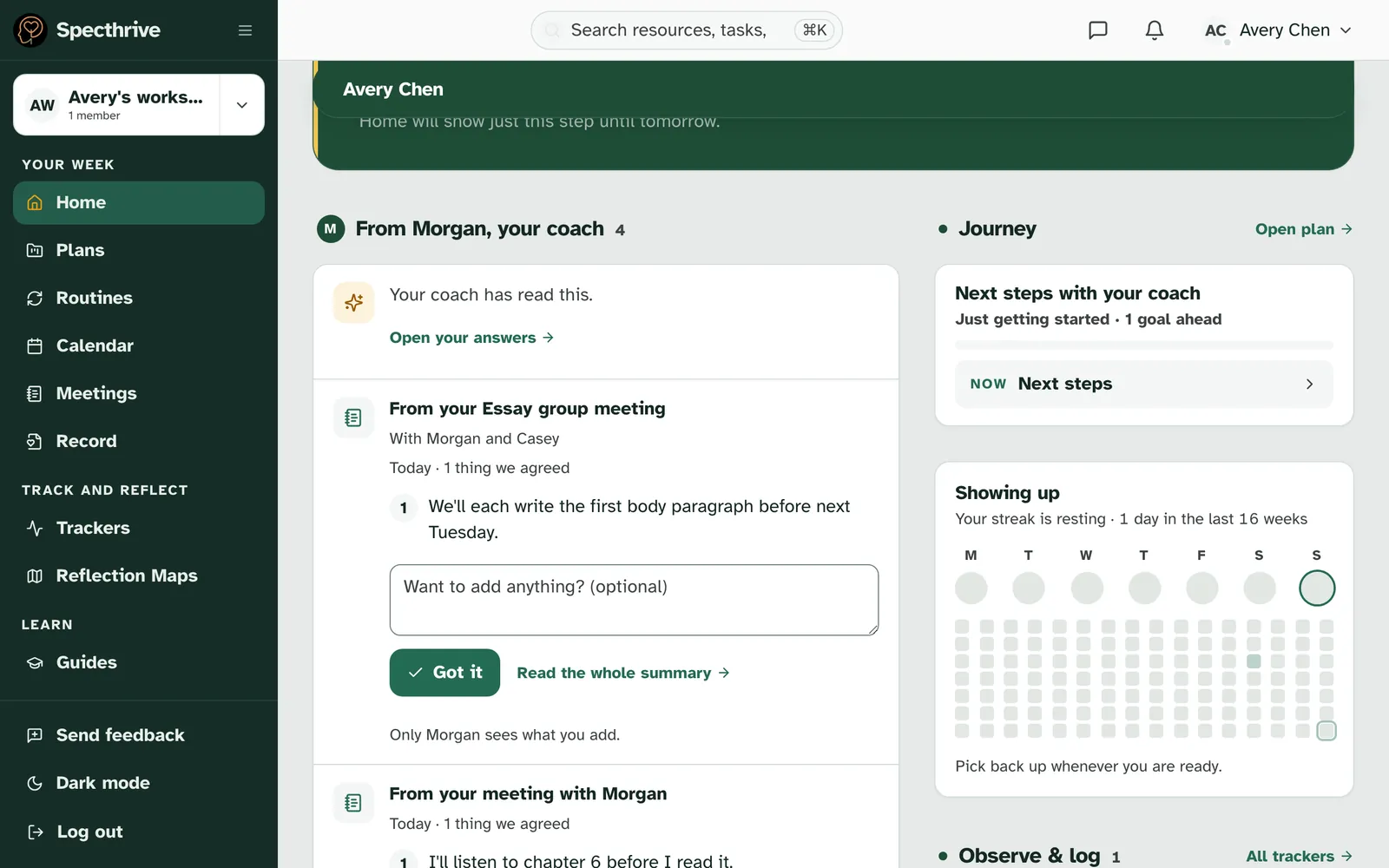
If you meet as a group, the summary comes to you too. It shows on Home as "From your Essay group meeting", with the first names of the people who lead the group, such as "With Morgan and Casey". Read what the group agreed, add something if you like, and press Got it, just as you would for any other summary. Your reply goes only to the person who sent you your copy.
A group summary, read and answered on a phone.
You see your own copy, and nothing about anyone else. The summary shows what the group agreed and what you talked about. If the coach wrote a line just for you, it's under "Just for you". You never see who else was there, who else got it, or anything written just for someone else, and they never see yours.
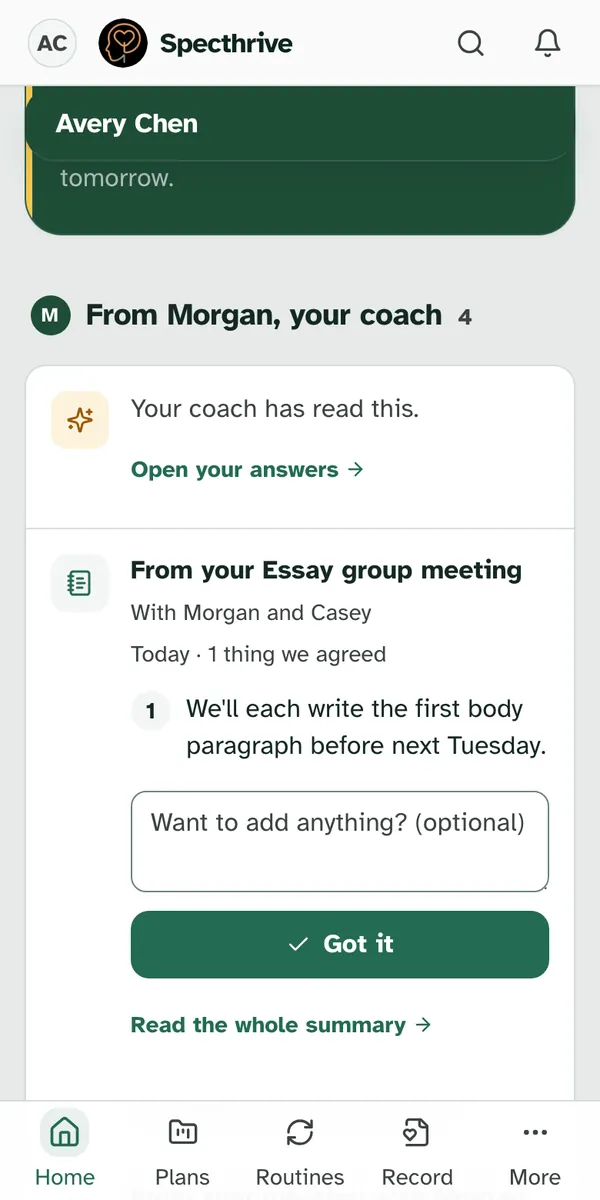
Group summaries stay on your Meetings page too. Each row reads the day and the group's name, such as "Sun Oct 25 · Essay group". A chip with the group's name sits beside the names at the top, so you can show just that group's summaries.
5. Share them with a parent or guardian
Your summaries are yours to share. If you're under 18 and have a parent or guardian on file, you can let them read your summaries. Nothing is shared unless you choose to.
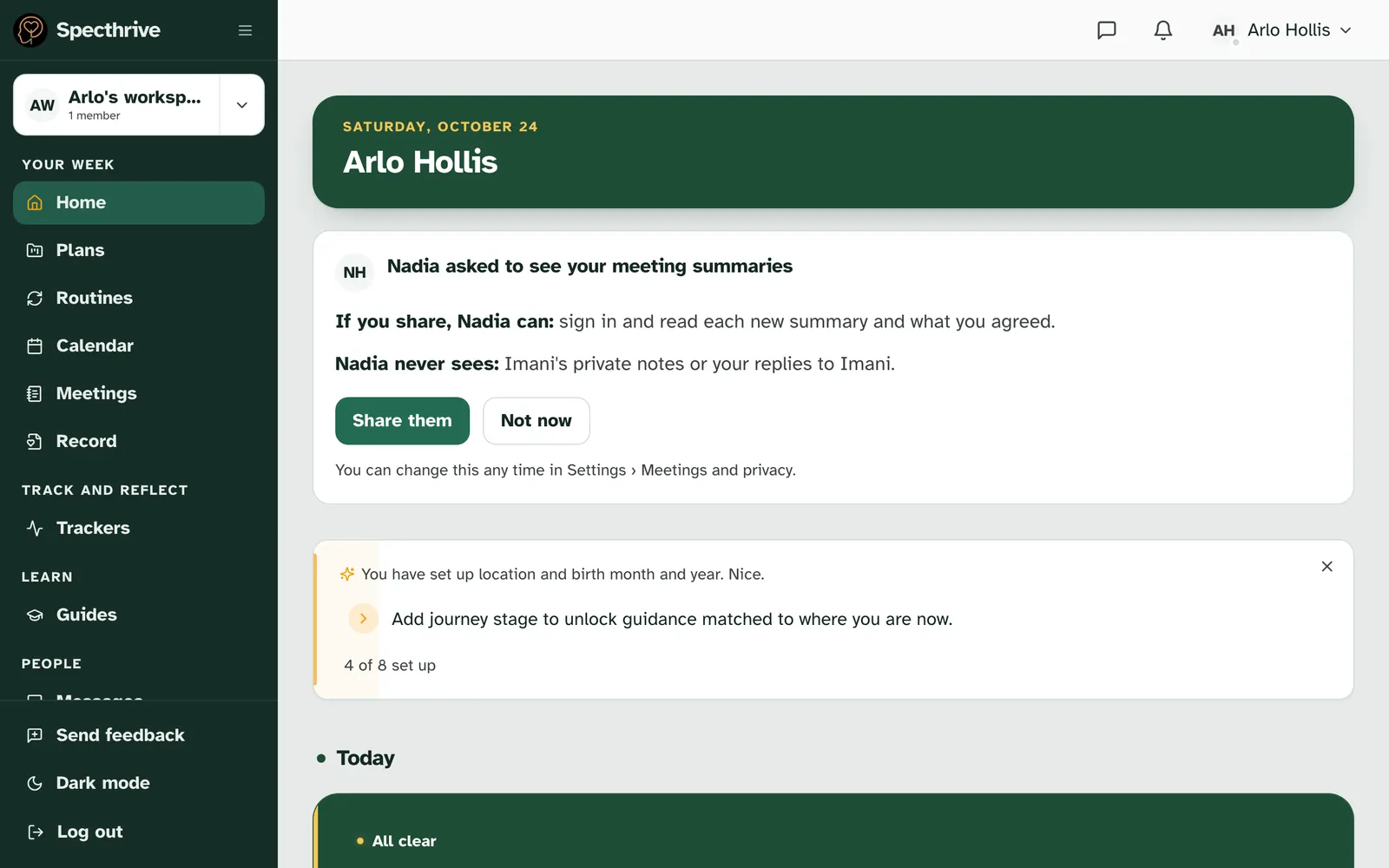
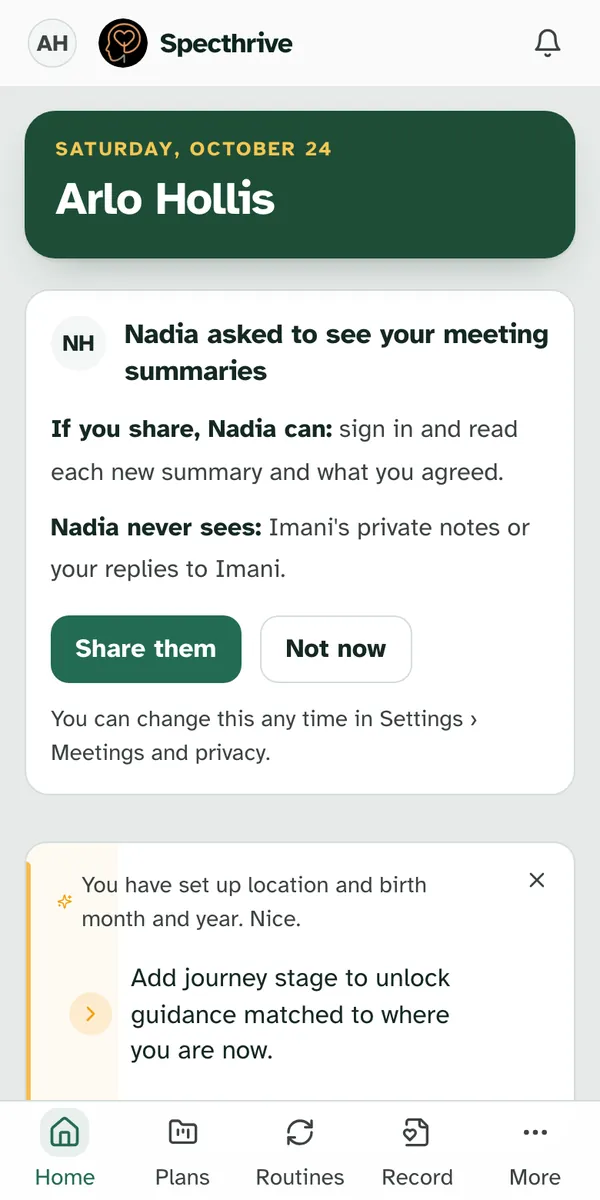
If they ask, a card shows on Home. It reads "Nadia asked to see your meeting summaries", says what Nadia could read and what she never sees, and has Share them and Not now. Nadia isn't told if you pick Not now.
You can also share, or stop, in Settings. Settings › Meetings and privacy has "Share my meeting summaries with" and a switch next to their name. The first time you turn it on, you read what sharing means and press I've read this. Turning it off works straight away: "You can stop any time, and Nadia stops seeing them at once."
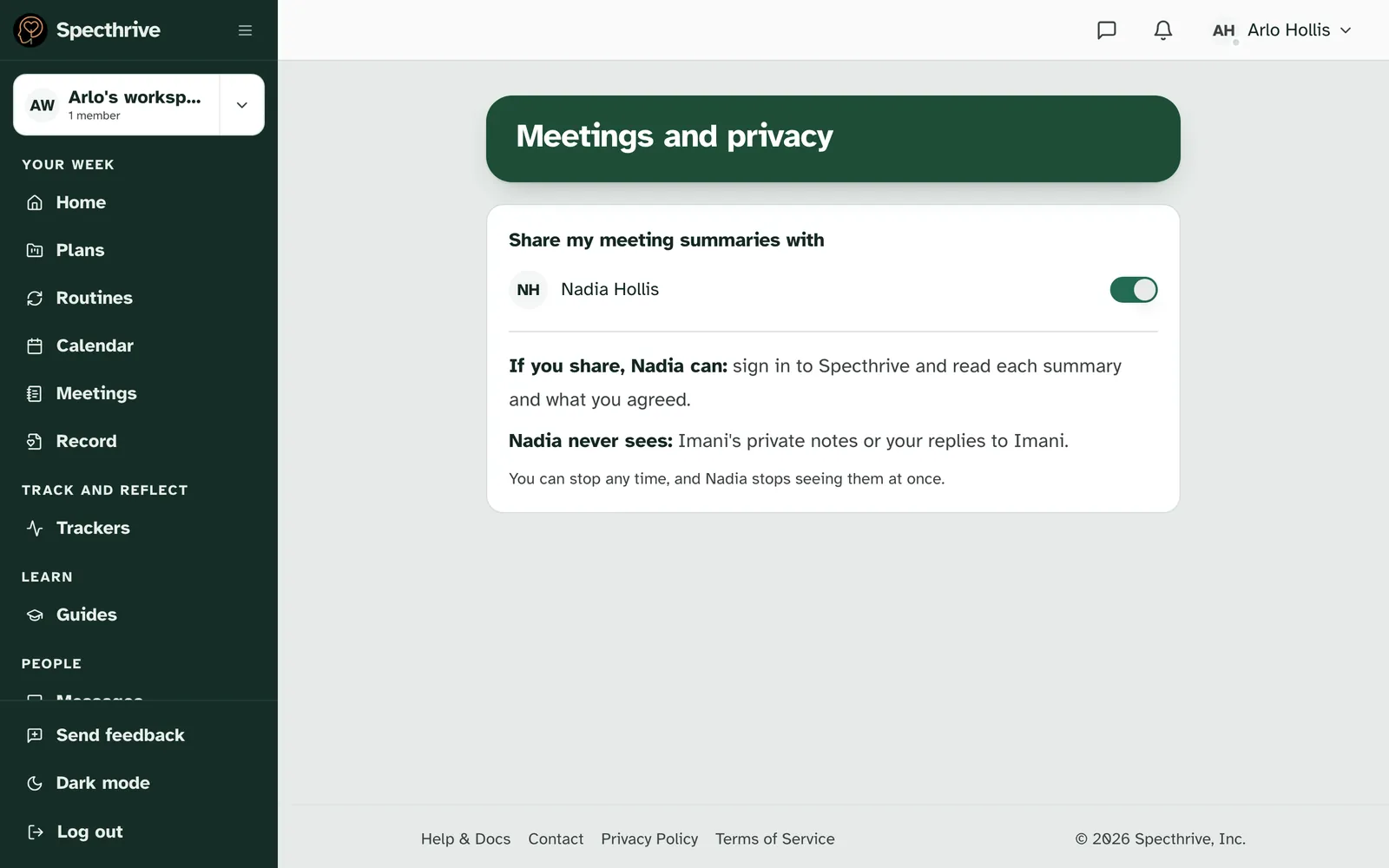
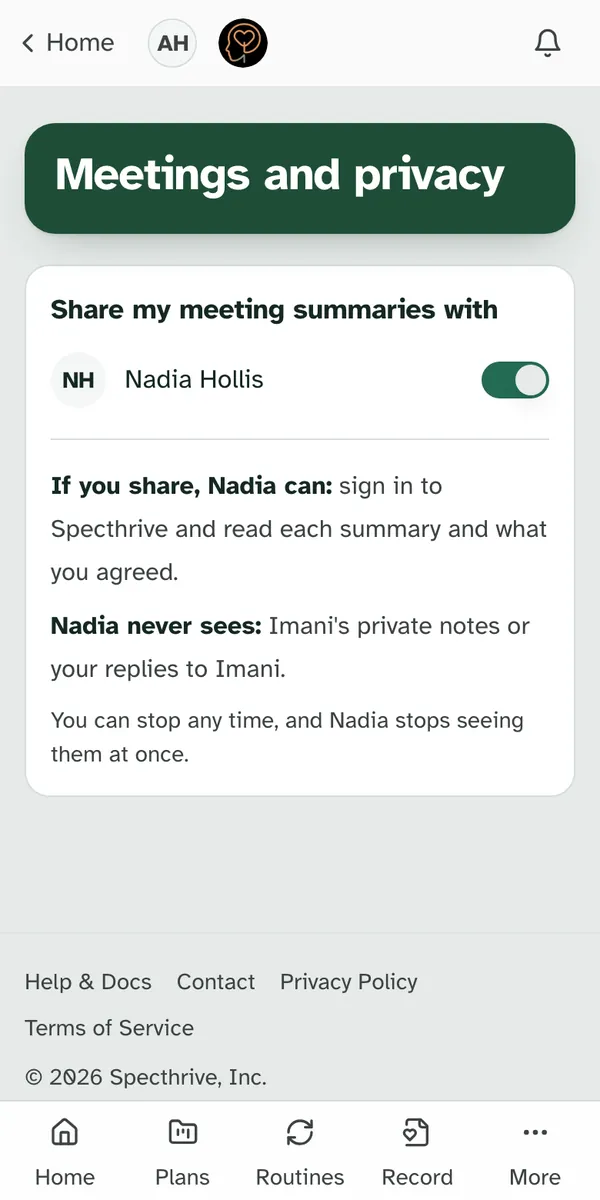
Sharing covers summaries sent from then on. Turning it on doesn't send your earlier summaries. If you stop and later share again, only new summaries go to them.
What they see, and what stays private. They can read each summary and what you agreed. They never see the private notes of the person who wrote it, your replies, or your Got it.
Each shared summary says so. Under who wrote it, a line reads "Shared with Nadia", and "Shared with Nadia · opened" and the day once Nadia has read it.
Parents and guardians can read Read the meeting summaries a teen shares with you.
6. How each agreement is going
Each agreement shows one word for its work.
| Says | What it means |
|---|---|
| Going now | The work is yours to do now. |
| Done | The work is done. |
| Kept going | You and the person who wrote it decided to keep it going. |
| Changed | You decided to change it, and a new agreement says how. |
| Let go | You decided to let it go. |
Letting something go is fine. A summary that lets something go says "Let go is fine. Not every plan fits, and changing one is part of the work."
7. When a summary changes
The person who wrote a summary can update it. An updated summary shows "Updated" and the day, under who wrote it. If you already said Got it, that stays, along with your reply.
They can also take a summary back. Its row stays on your Meetings page, and the summary reads "Imani took this summary back on" and the day. Work that came with it and isn't done yet can be taken back with it. Work you finished stays yours. A summary that's taken back is no longer shared.
If a summary can't be shown, the page says "This summary isn't available anymore." With no summaries yet, it says "Your meeting summaries will show here."
Getting help
Tell us if something looks off. If a summary you expected isn't on Home or your Meetings page, or Got it keeps saying "That didn't send. Try again.", get in touch. Tell us which page you were on and roughly when. There's no need to share what the summary says.
Coaches writing summaries can read Take meeting notes and send a summary.
Still have a question?
If this guide did not cover your situation, reach out. We read every message.