
Set up booking so your clients can book time with you
For coaches and other professionals. Pick a session and your usual hours, look at what clients see, try a test session, then turn booking on.
Booking lets the people you work with pick a time from your own hours, so you don't trade messages to find one. Setting it up takes about 2 minutes, and nothing opens to clients until you say so.
This guide covers the setup, the Booking page, and the test session you can book with yourself first.
Who can use booking
Booking is for verified coaches and other professionals, 18 and over. It sits in the main menu next to Clients and My guides. On a phone, it's in the menu you open from your picture in the top corner. Anyone else who opens it sees "Booking is for coaches and other professionals", with a way back to Home.
Only your connected clients can book you. That's each person you work with now: the client themselves, or the parent who manages their profile. Nobody else can find your times.
Start from the Booking page
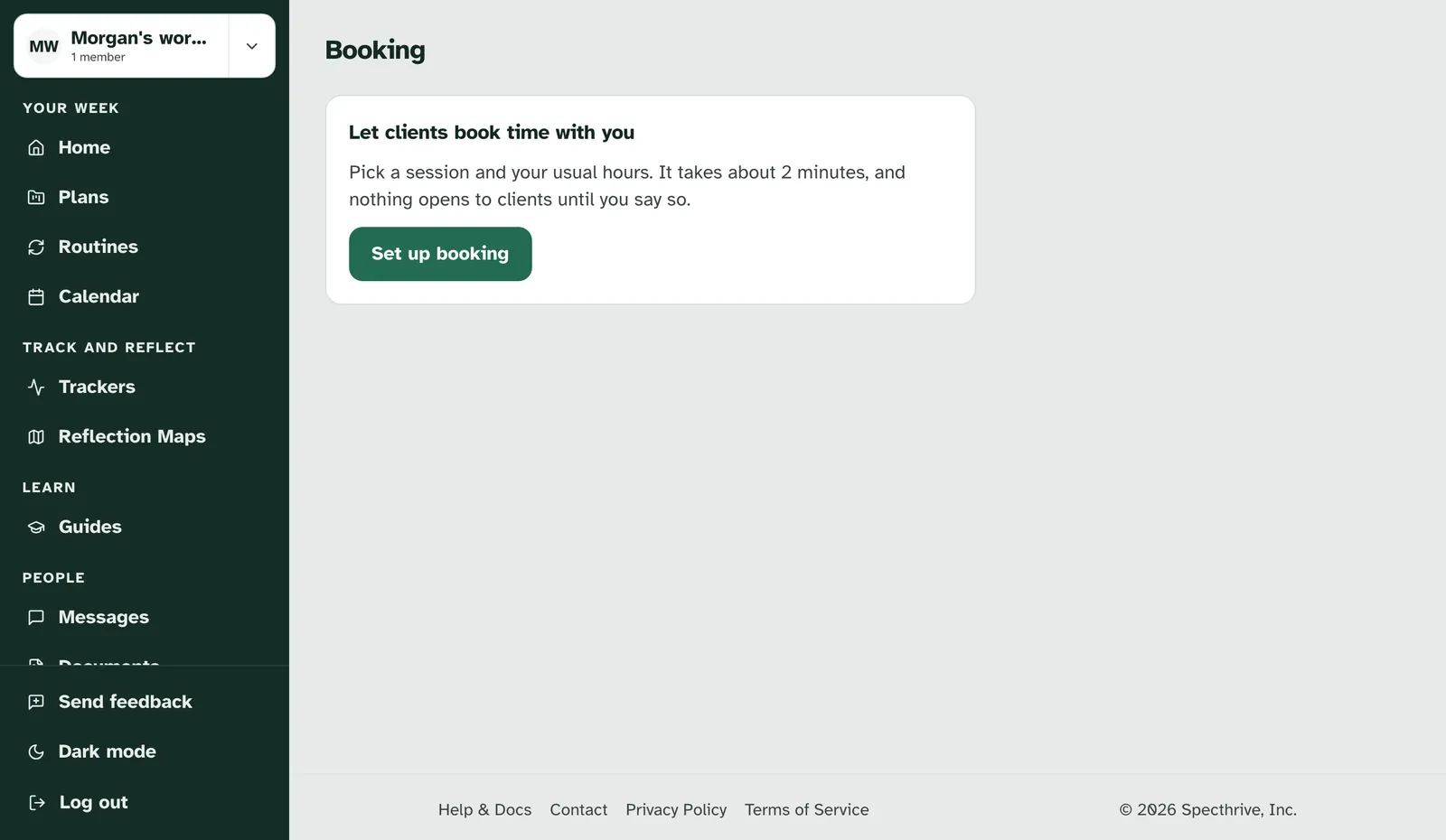
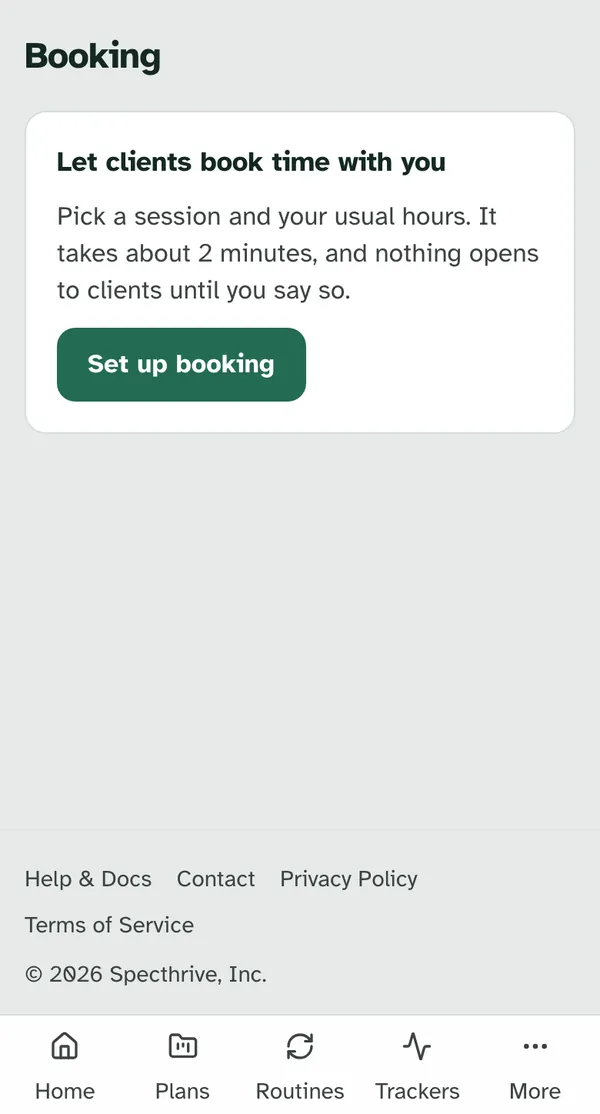
Your first visit has one step to take. The Booking page says "Let clients book time with you" and "Pick a session and your usual hours. It takes about 2 minutes, and nothing opens to clients until you say so." Choose Set up booking.
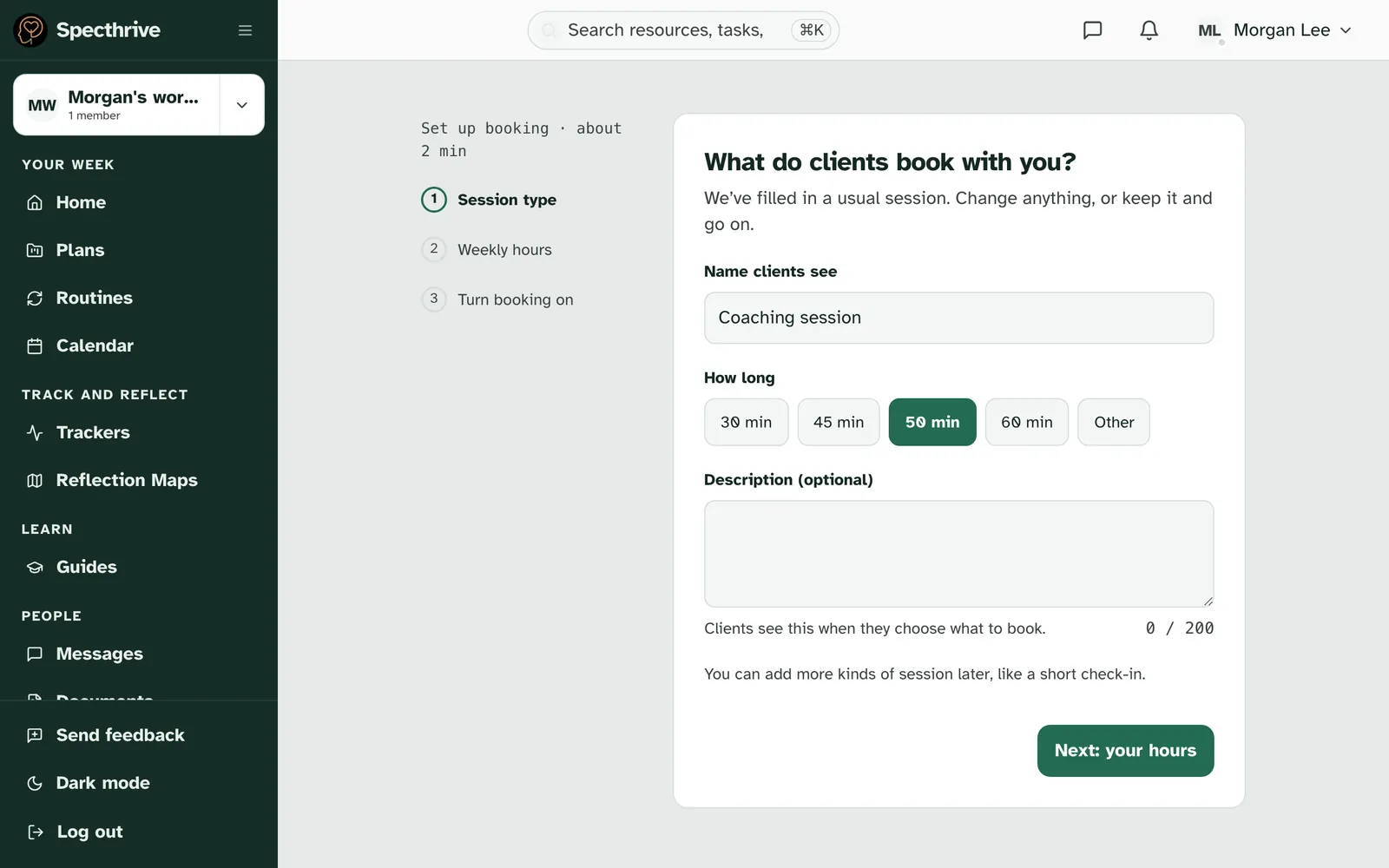
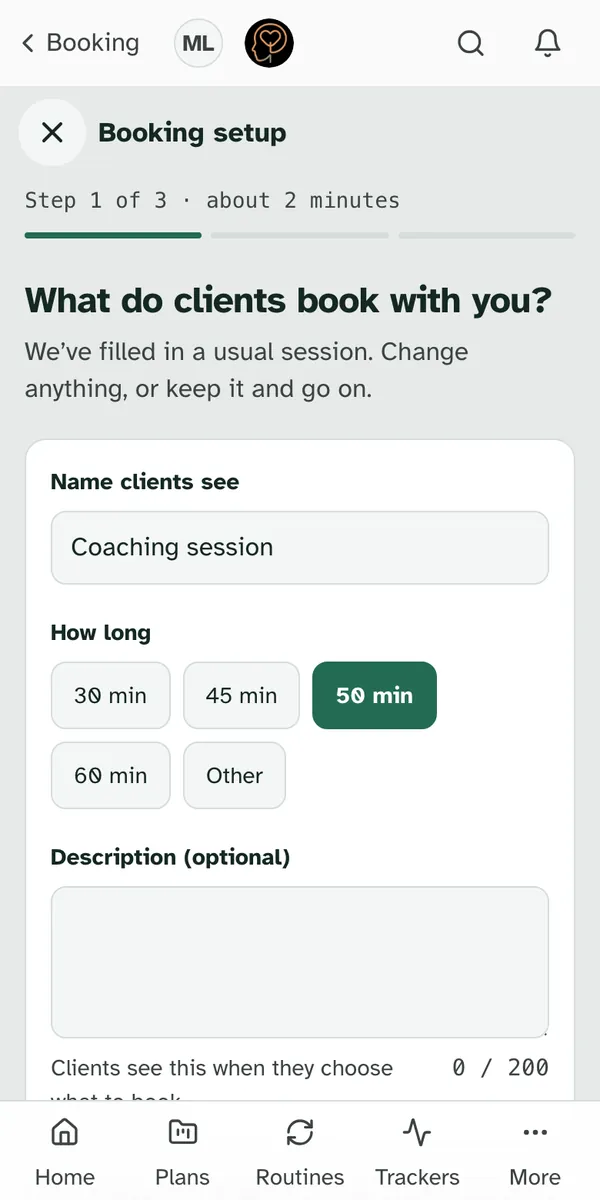
The setup has three steps. On a computer they're listed down the side: Session type, Weekly hours and Turn booking on. On a phone, the top of the screen shows which step you're on, with a bar for each one. Each step comes filled in with a usual choice, so you can keep it and go on.
Step 1: what clients book with you
The step asks "What do clients book with you?" It starts as a Coaching session of 50 min.
- Name clients see is the name on the session, up to 80 characters.
- How long offers 30 min, 45 min, 50 min and 60 min. Other lets you type any length from 5 to 480 minutes.
- Description (optional) is a few words about the session, up to 200 characters. "Clients see this when they choose what to book." It takes plain words only, so leave out web links: if you type one, the step says "Leave out web links here. Clients see plain words only."
Choose Next: your hours.
Step 2: your weekly hours
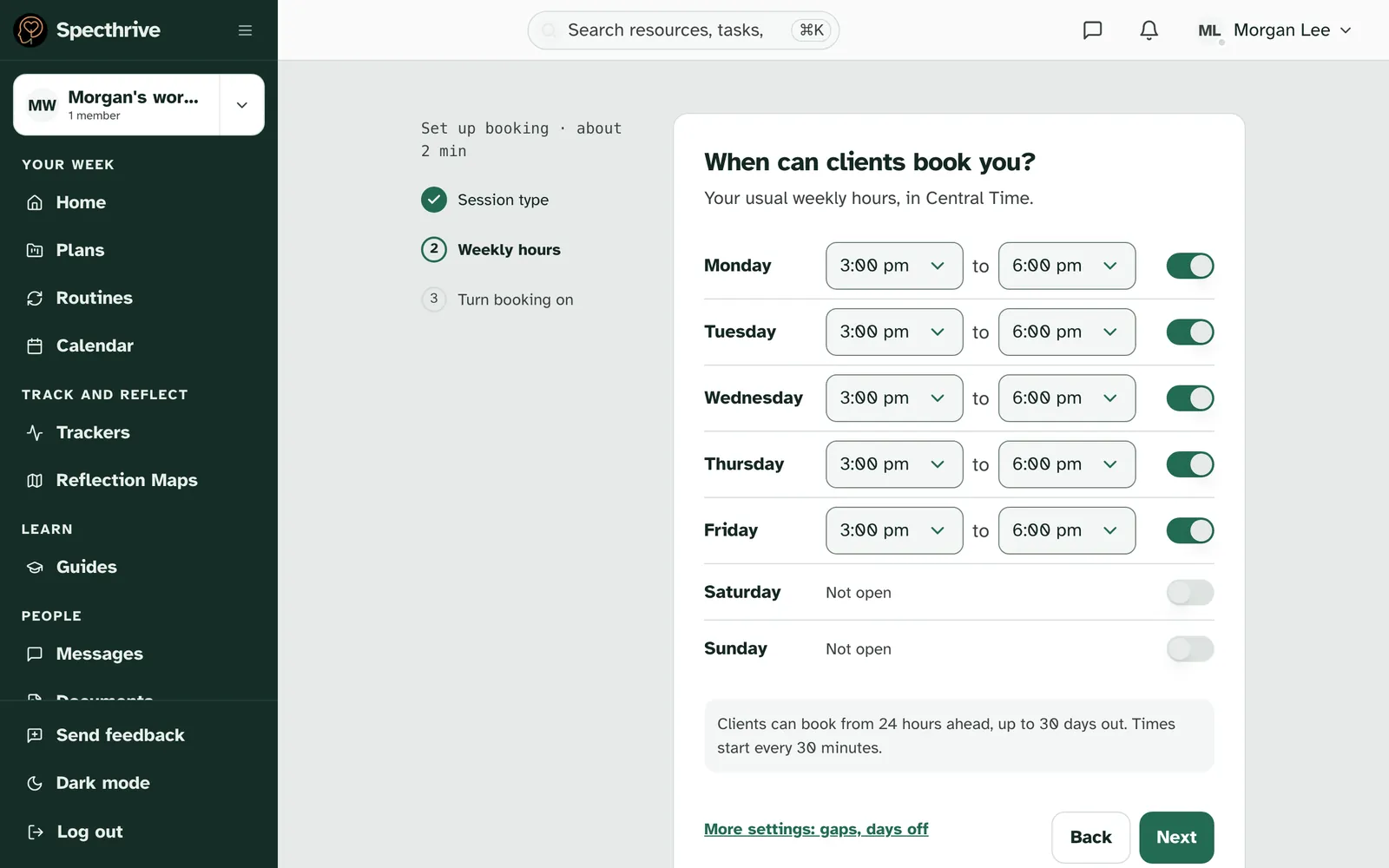
The step asks "When can clients book you?" It shows your usual weekly hours in your own time zone, which it names at the top.
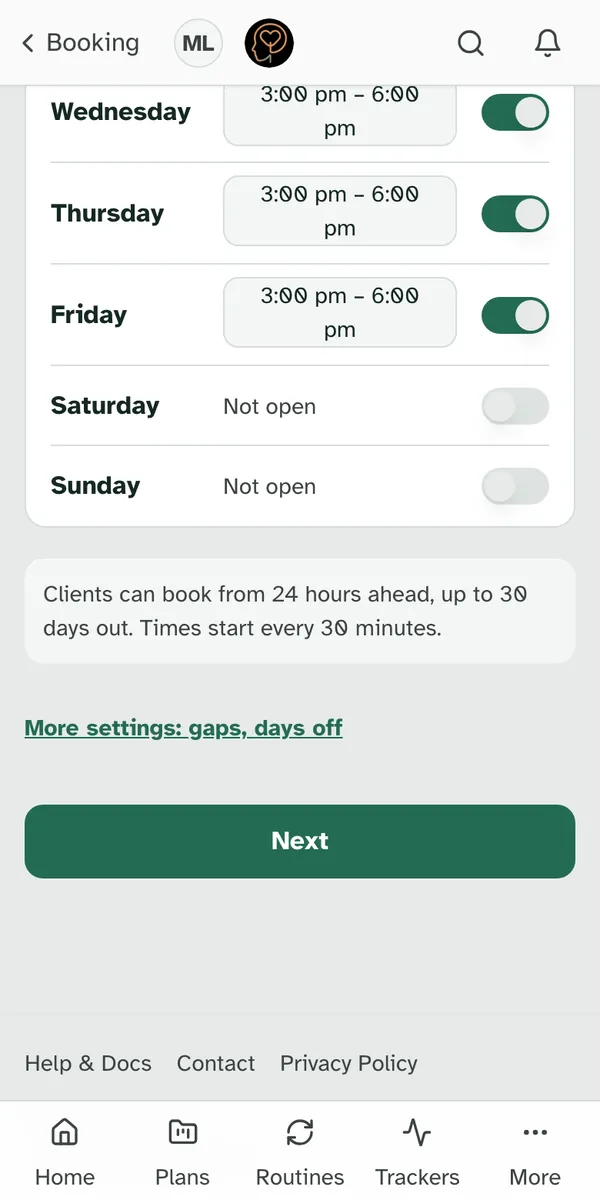
A first setup suggests weekdays, 3:00 pm to 6:00 pm. Each day has a switch to open or close it. A closed day reads Not open.
- On a computer, each open day has two time pickers in its row, from and to.
- On a phone, an open day shows its hours as one button. Tap it to change the two times, then choose Done.
If you saved more than one stretch of hours on a day before, the day says "Plus your other hours that day". The setup changes the first stretch and keeps the others as they were.
A short note under the days says how far ahead clients can book. For example: "Clients can book from 24 hours ahead, up to 30 days out. Times start every 30 minutes." Choose Next.
Want a break between sessions, or a day away? Under the days, choose More settings: gaps, days off. The next section shows what's there. You can skip it and come back any time.
More settings: a gap after sessions and days off
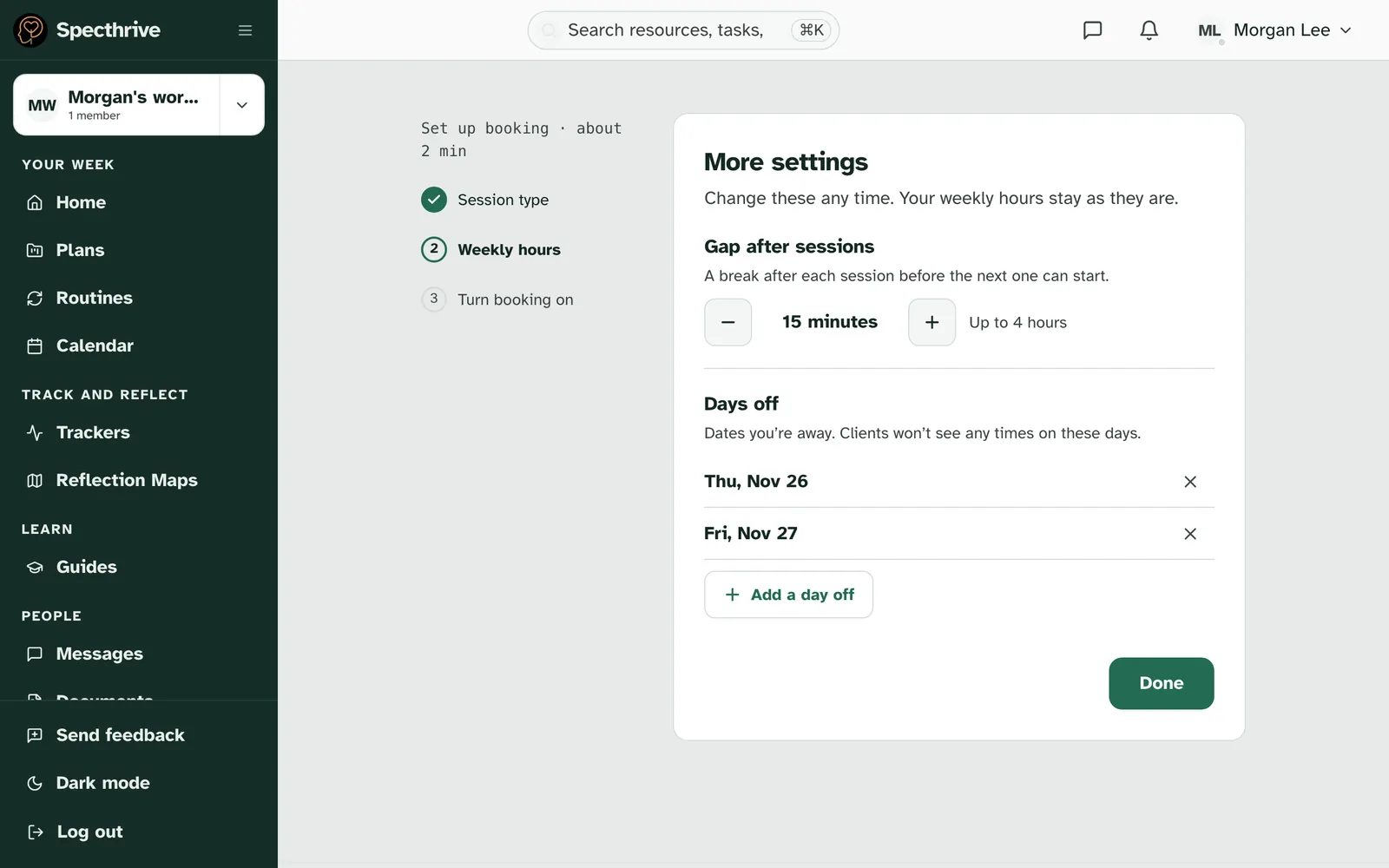
More settings opens over your weekly hours. It says "Change these any time. Your weekly hours stay as they are." Changes here save as you make them, so there's nothing extra to press.
Gap after sessions is "A break after each session before the next one can start." Use − and + to change it. It goes up in 5 minutes, up to 4 hours, and reads None when you don't need a break. With a 15 minute gap, each new booking keeps 15 minutes clear after it. Sessions booked before you changed the gap keep the gap they were booked with.
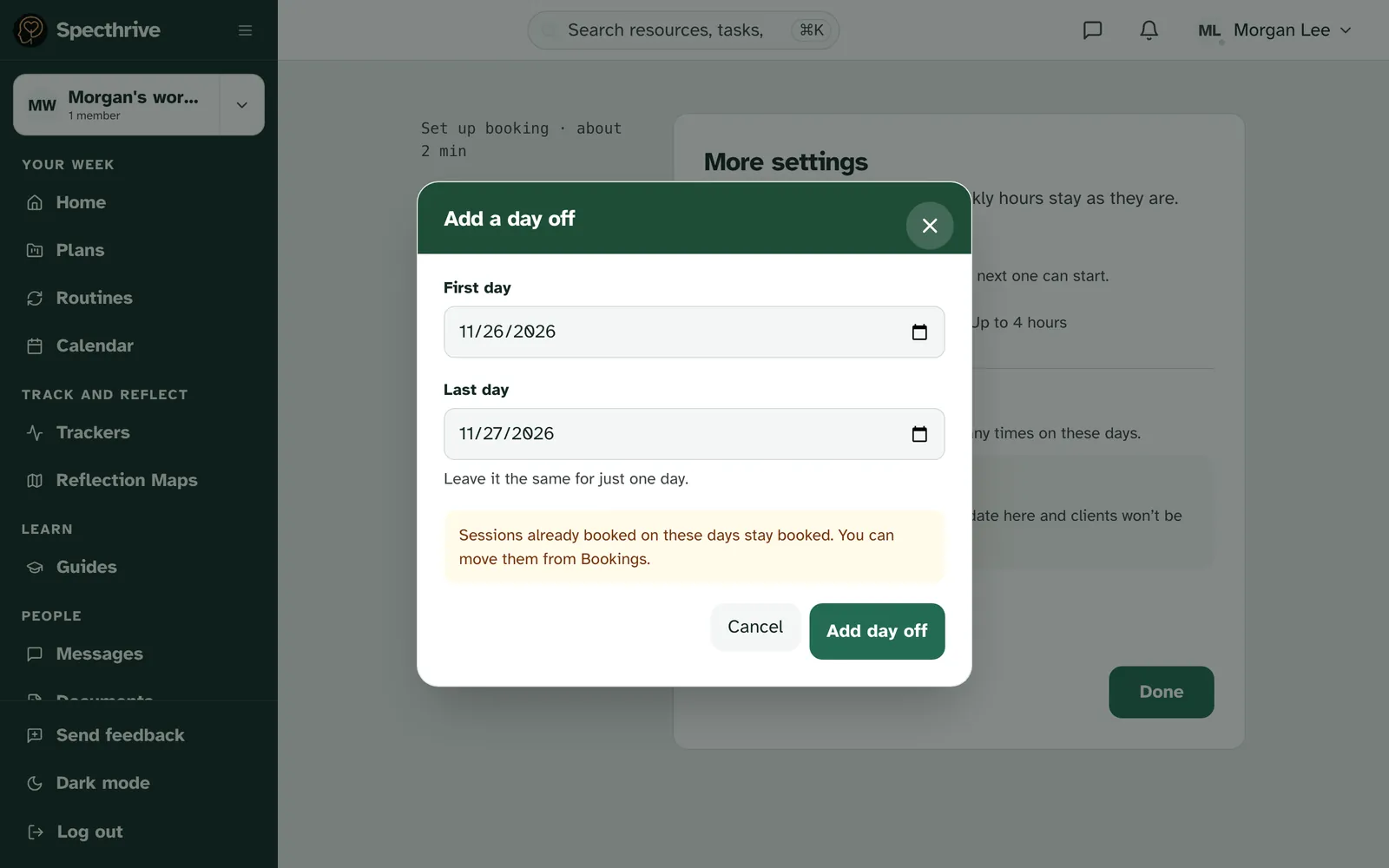
Days off are "Dates you're away. Clients won't see any times on these days." Until you add one, the list says "No days off yet". Each day off shows in the list, such as Thu, Nov 26. To take one off the list, choose the × beside it. That date goes back to your usual weekly hours, so if the day is normally open, clients can book it again.
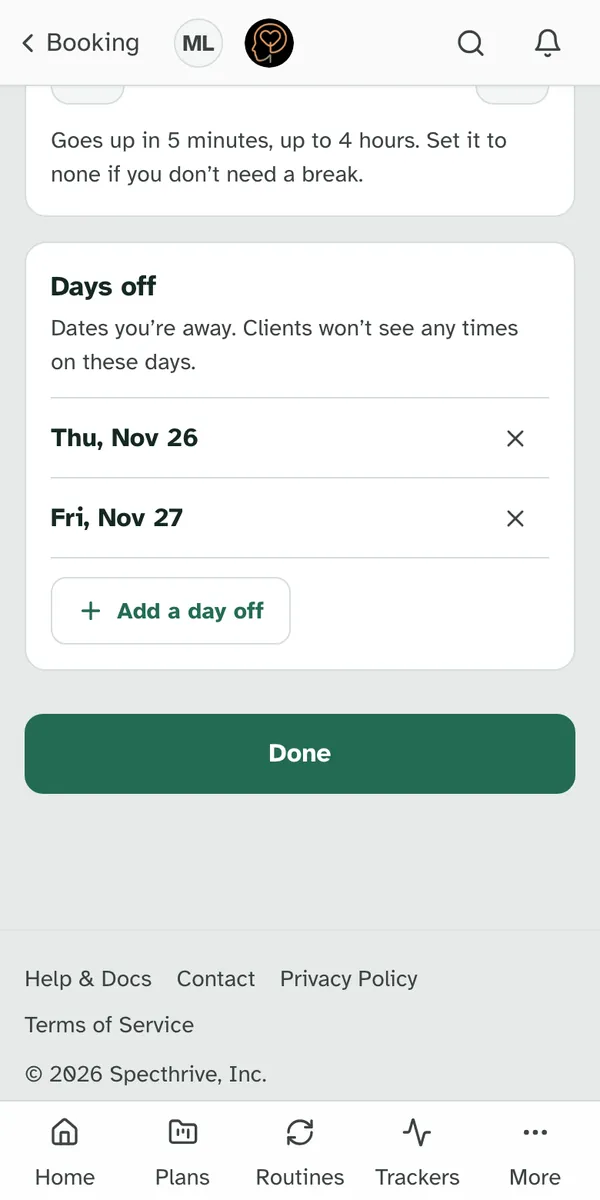
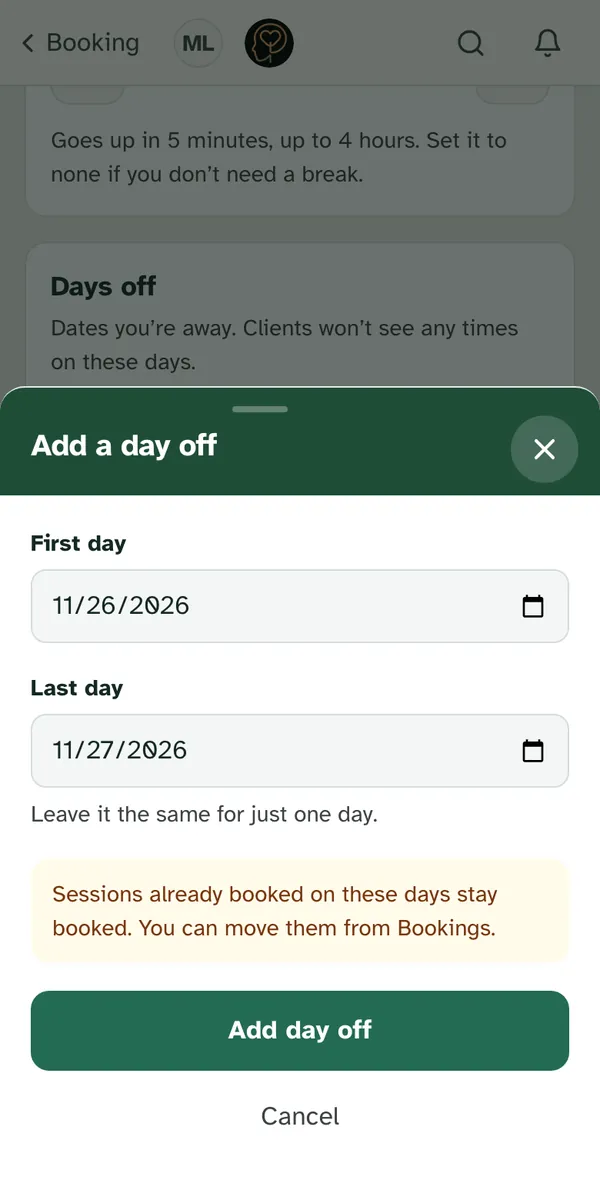
To add a day off, choose Add a day off. Pick the First day. For a single day, leave the Last day the same. For a longer break, pick a later last day, up to 31 days in one go. Then choose Add day off.
When you're done, choose Done. It takes you back to your weekly hours. On a phone, the back arrow at the top does the same. If something doesn't save, a line says so, for example "That gap didn't save. Try again in a moment." Clients still see your last saved setting, so try the change again.
Step 3: turn booking on
The last step is "Ready when you are". Until you turn booking on, it says "Nothing is open yet. Clients can book only after you turn booking on." It lists what you chose:
| Line | What it shows |
|---|---|
| Session | The session's name and length, like "Coaching session · 50 min" |
| Hours | Your week in one line, like "Mon–Fri, 3–6 pm" |
| Who can book | Your connected clients |
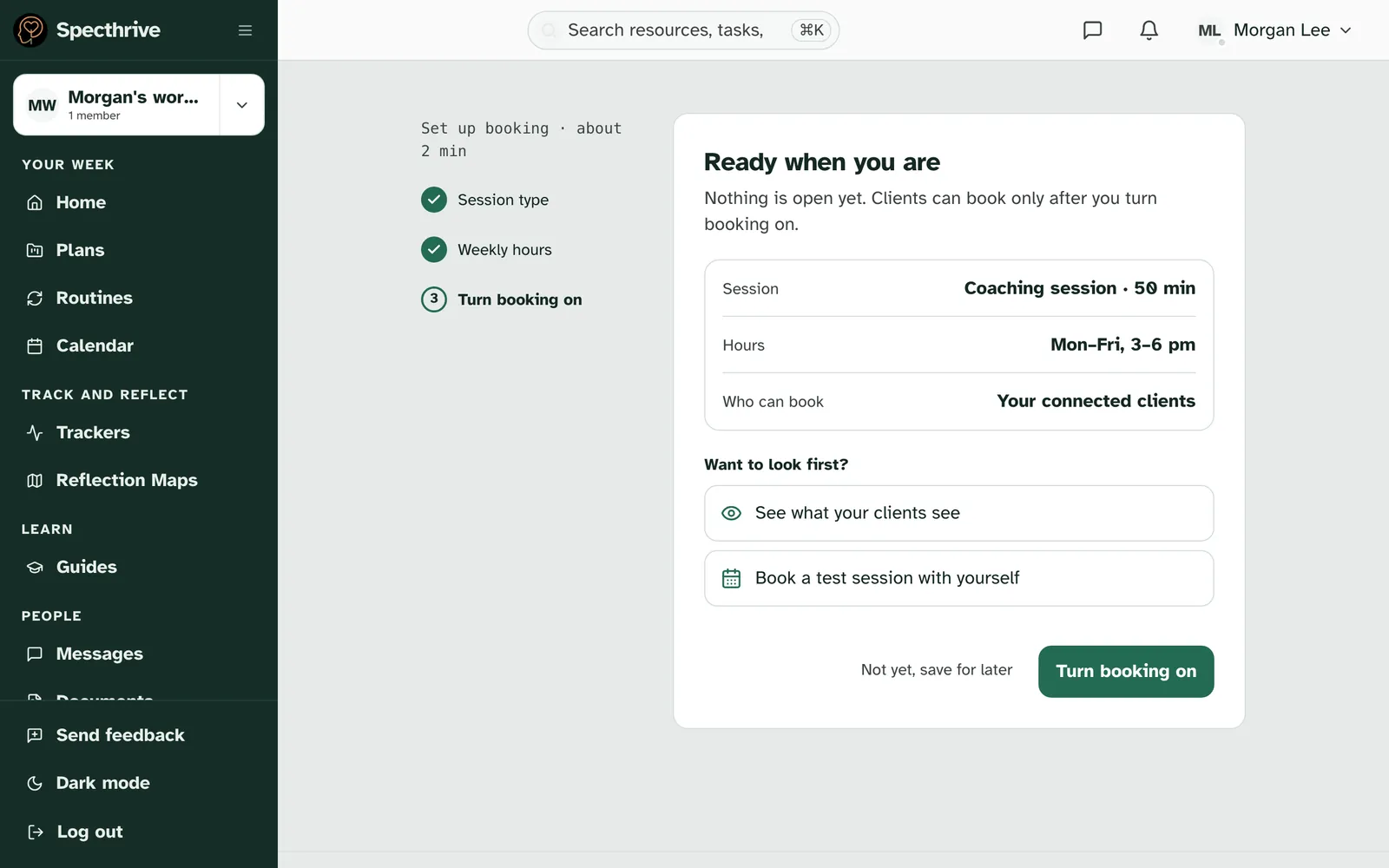
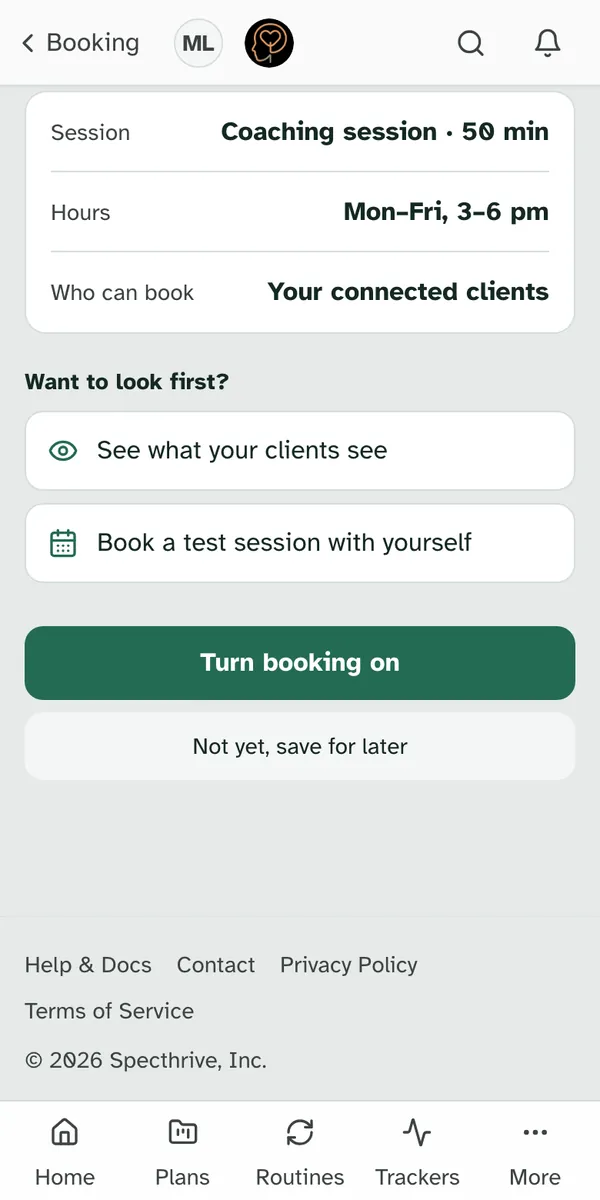
Under "Want to look first?" there are two ways to try it. See what your clients see and Book a test session with yourself both save your setup first, without opening anything. They're covered below.
Then choose one of two buttons.
- Turn booking on opens your times to your connected clients.
- Not yet, save for later keeps everything you chose, with booking still off.
Either one brings you back to your clients. Once booking is on, coming back to the setup says "Booking is on. Saving keeps it on with these changes.", and the button is Save.
If something doesn't save, you'll know. "That didn't save. Nothing has changed for your clients. Try again in a moment." If only part of it saved, the step says "Part of that saved. Check your setup and try again."
See what your clients see
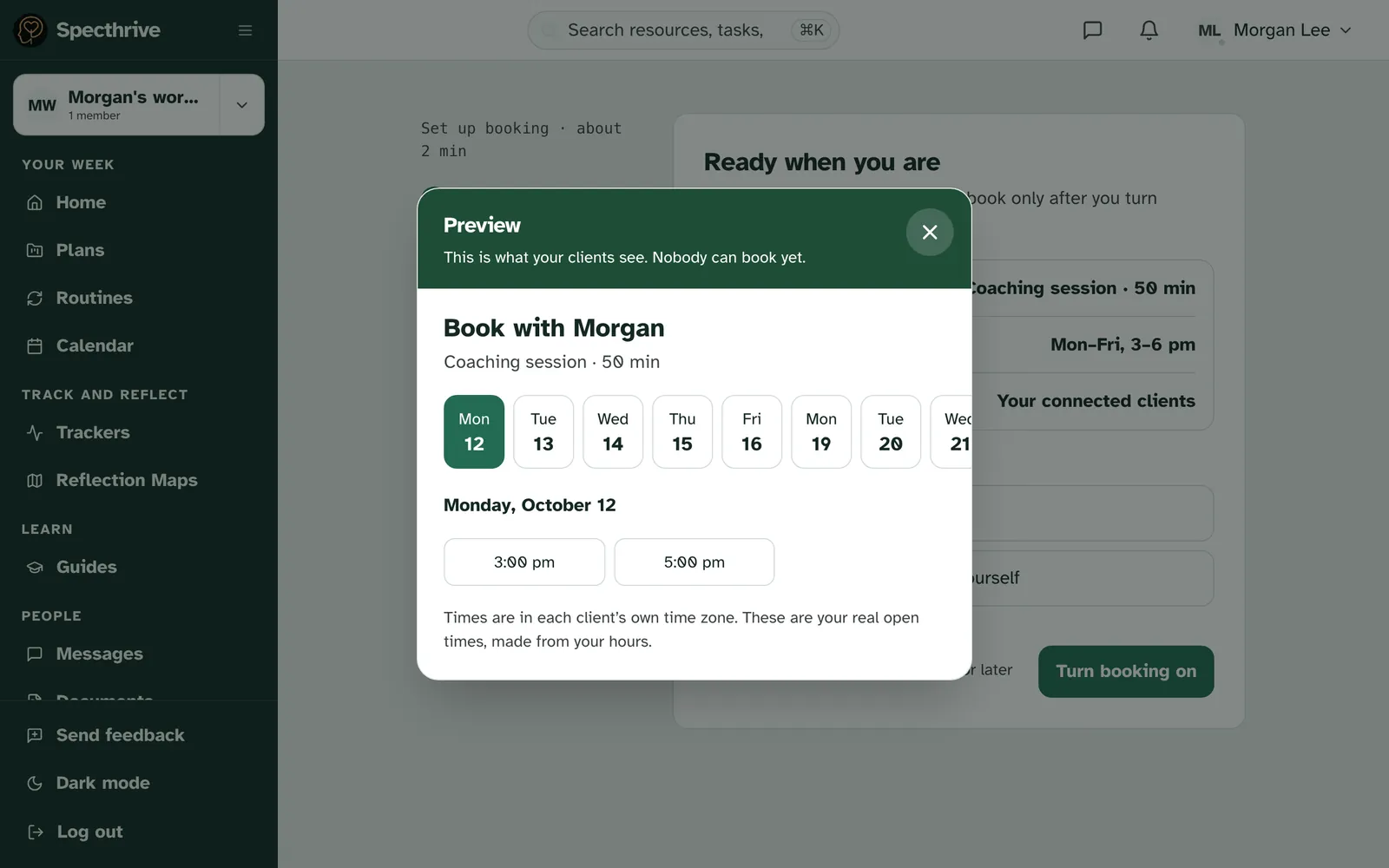
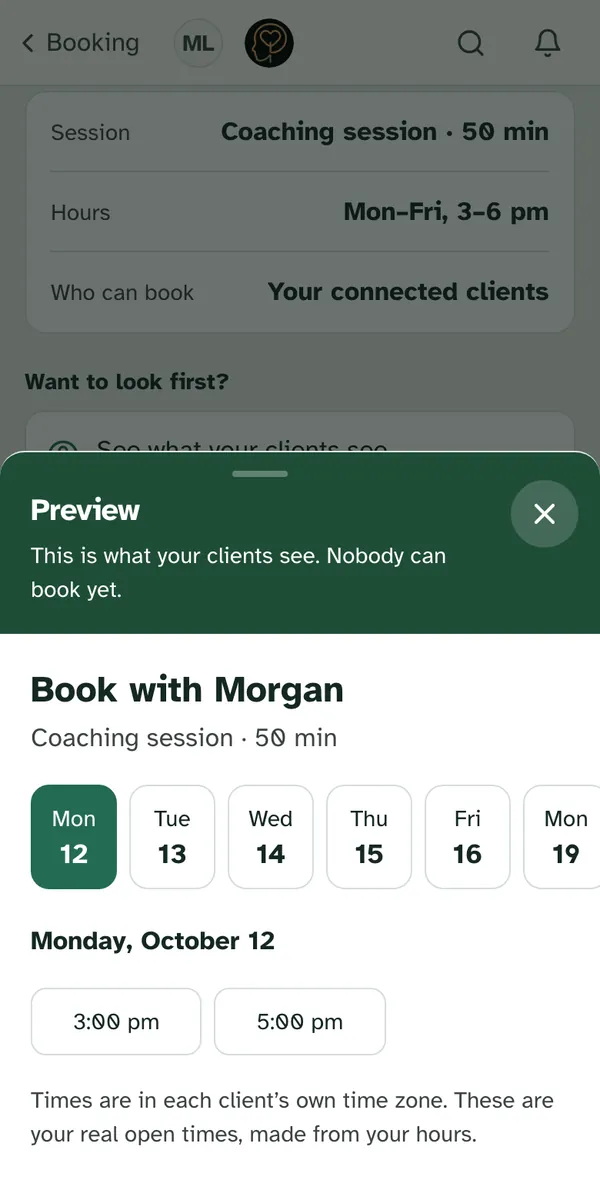
The preview opens over your setup, showing your real open times the way a client picks one. On a computer it opens in the middle of the screen, and on a phone it slides up from the bottom. Its title says Preview and "This is what your clients see. Nobody can book yet." Under it is the page your clients get: "Book with" and your first name, then the session's name and length.
Pick a day to see its times. Days with open times run across the top, and the day you pick lists its times below. Nothing here books. Times are in each client's own time zone, and they're made from your hours.
If no times show yet, the preview says "No open times in the next 30 days yet. When your hours have room for a session, the times show here."
To go back, close it. Choose the X at the top, tap outside it, or on a phone swipe it down. Your setup is still there underneath.
Book a test session with yourself
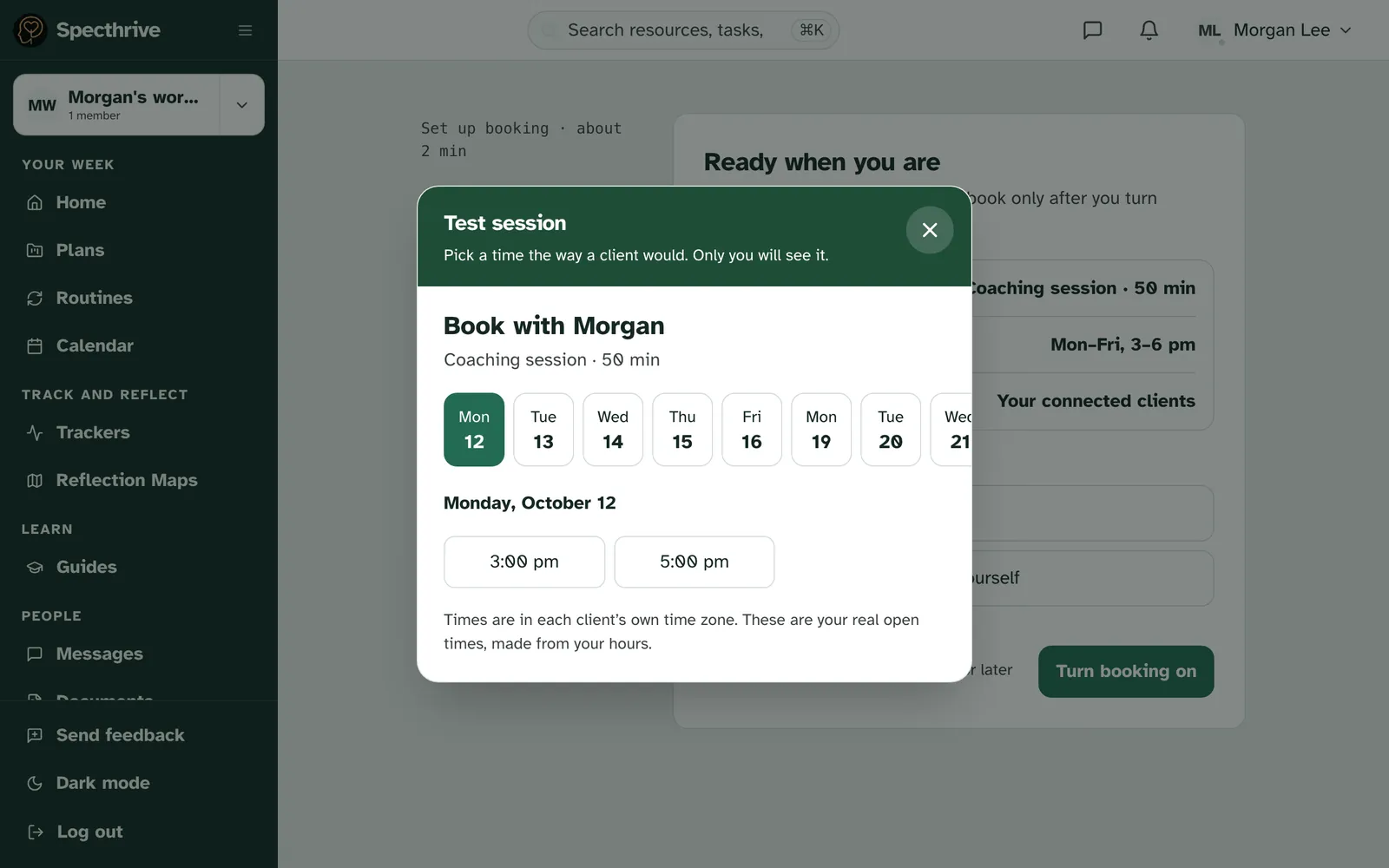
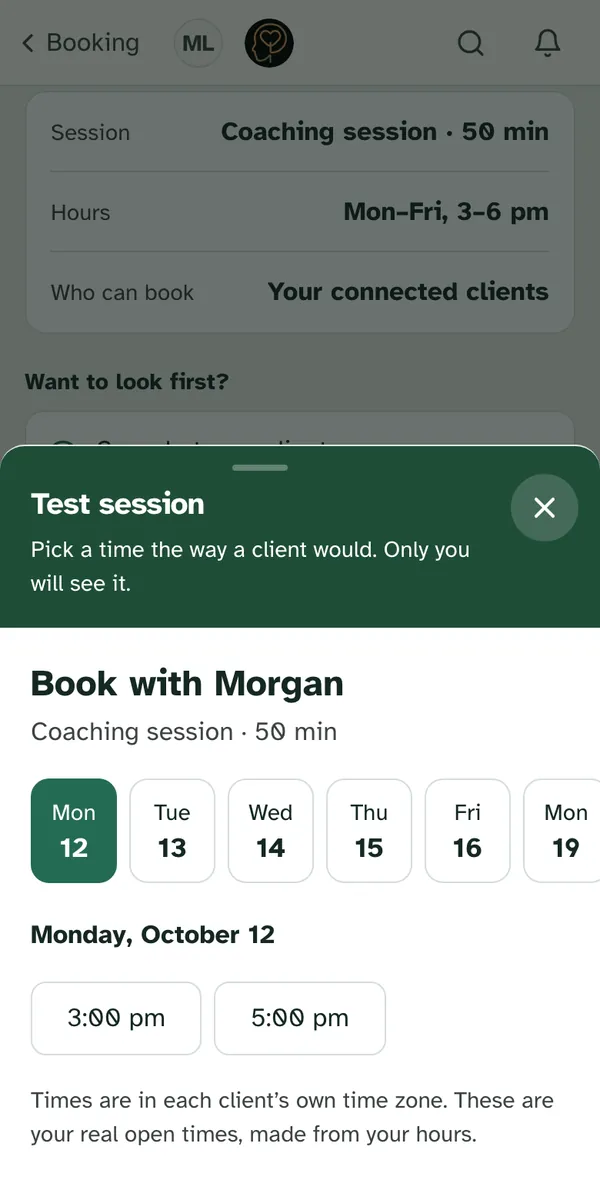
A test session lets you see booking work before anyone else does. You pick one of your own times, the way a client would. It opens the same way the preview does, titled Test session, with "Pick a time the way a client would. Only you will see it." To go back without booking, close it the same way.
Once you pick a time, you see "Test session booked". "You booked it the way a client would. Only you can see it." The card shows the session, its day and time, and a TEST label.
It also shows what a client's calendar invite says. It has only the session's name and time, with "No names, no links. Details stay in Specthrive."
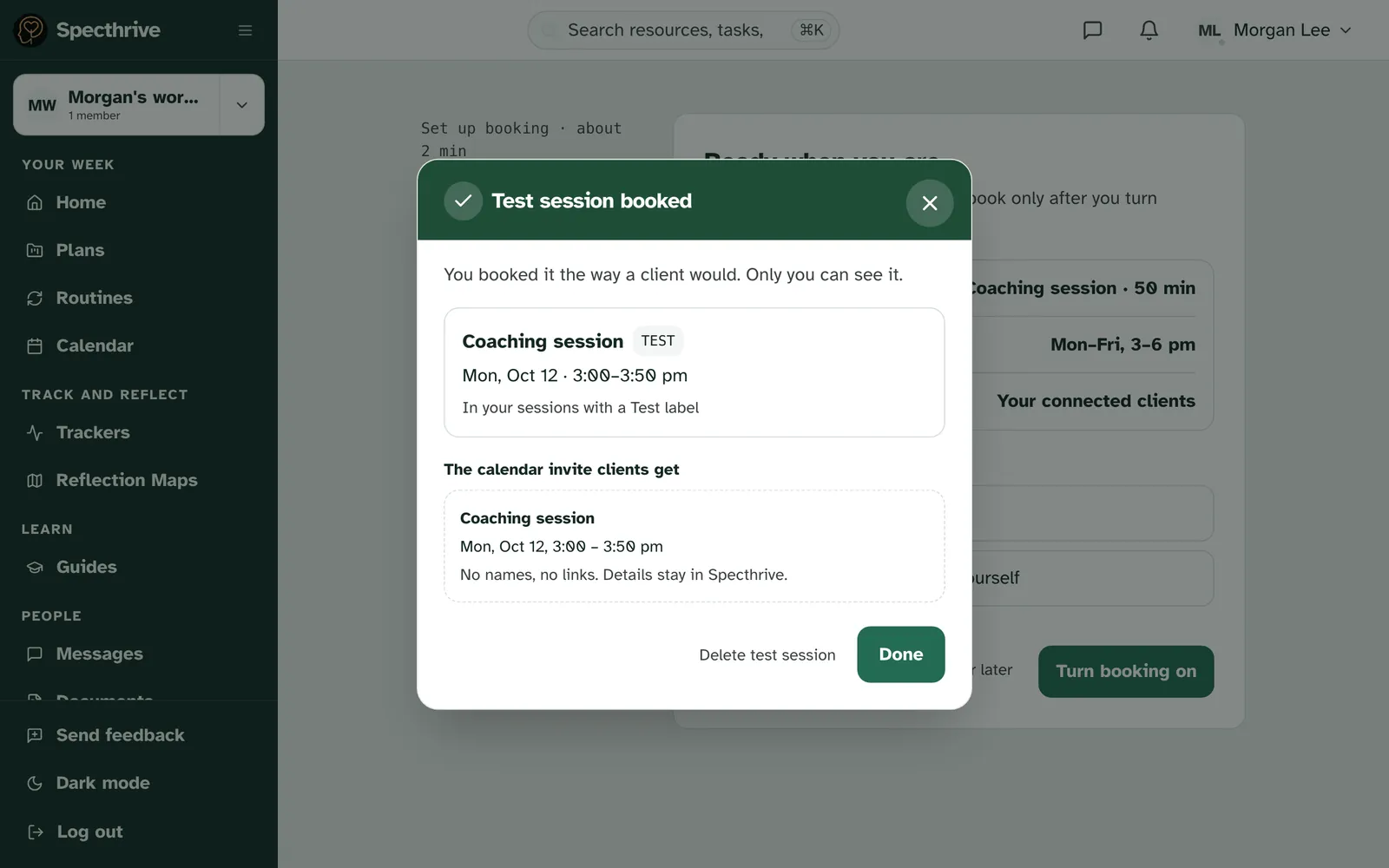
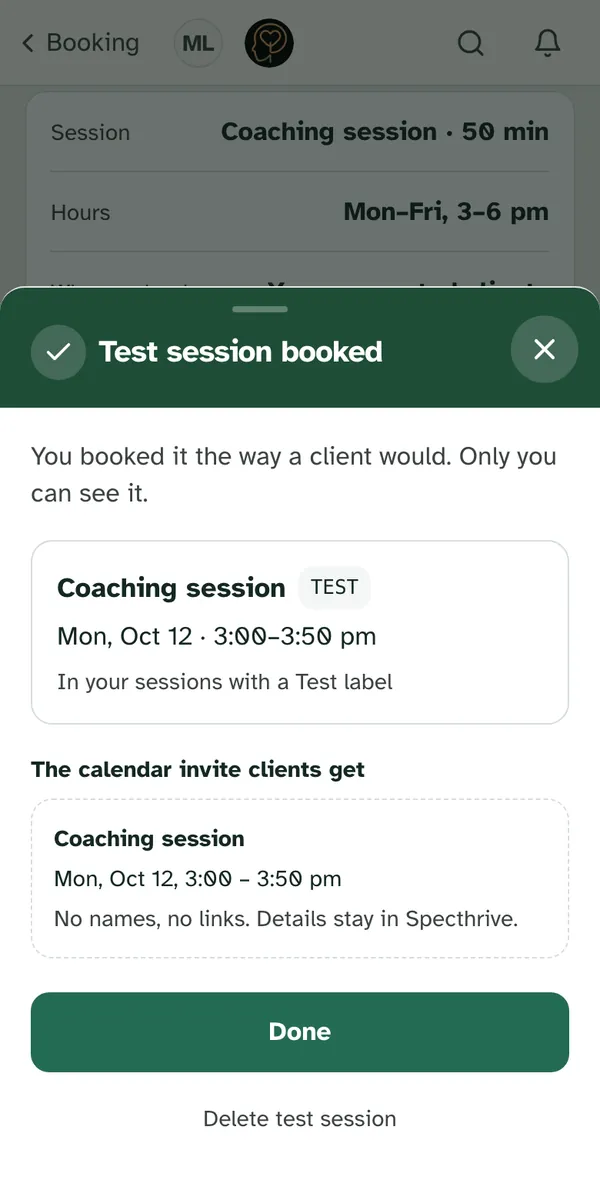
A test session tells nobody. It isn't on any client's calendar or timeline, and no client sees it. If you've added your sessions to your own calendar, it shows there, without initials. It does hold that time, so no client can book it while it's there. You have one test session at a time: while you have one, opening the test again shows it instead of the times.
Delete it when you're done. Choose Delete test session on the booked screen, or on its row on the Booking page.
If someone takes your time first, you see "That time was just taken" and "Someone booked" that time "a moment before you. Here are the times still open." Pick another.
Your Booking page
Once you've set up, the Booking page shows your setup at a glance. Under the heading, a line says whether booking is on: "On · your connected clients can book you" (on a phone, "On · clients can book you"), or "Off · nobody can book you yet".
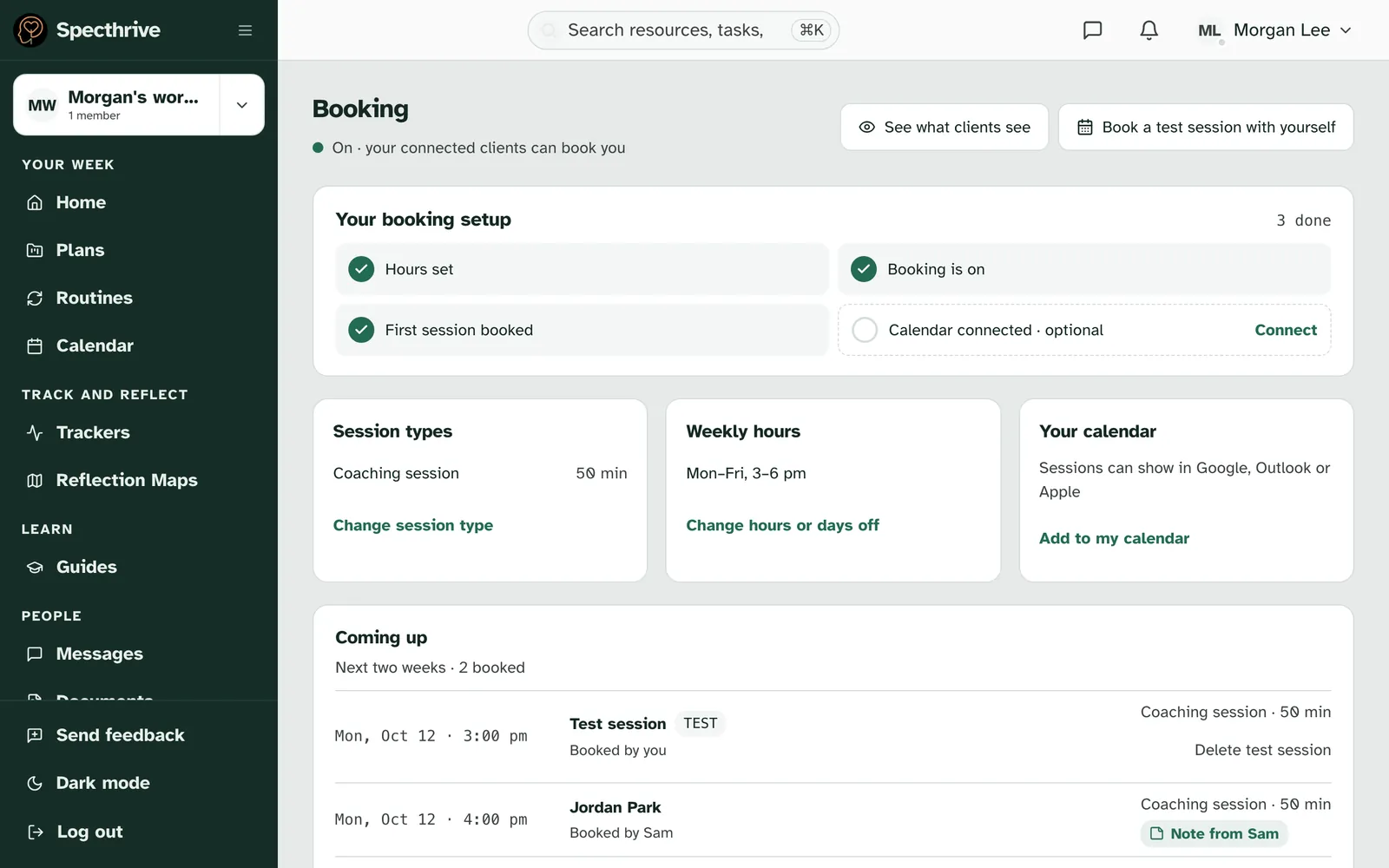
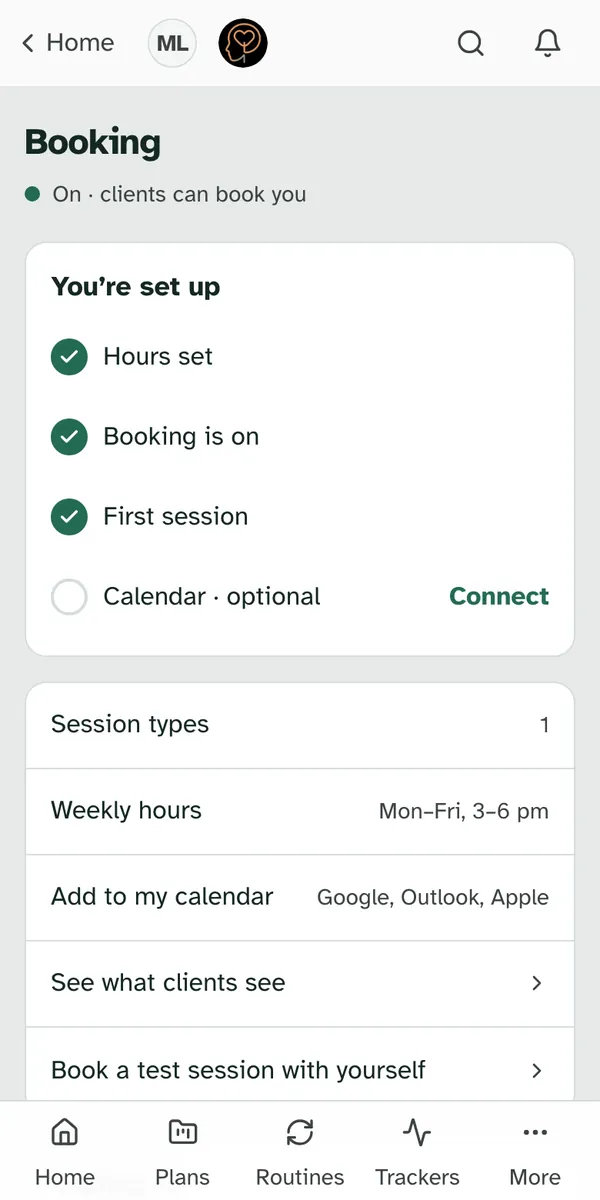
A short checklist keeps track for you.
| Item | Done when |
|---|---|
| Hours set | You've saved at least one open day |
| Booking is on | You've turned booking on |
| First session booked | Someone books you. It ticks itself. |
| Calendar connected · optional | You've linked a calendar you already use. On a phone it reads Calendar · optional. |
An item that isn't done yet has a link to the setup, Set hours or Turn on. The calendar item has Connect, and Change once it's done.
Your session types and weekly hours are on the page too. On a computer, each has its own card, with Change session type and Change hours or days off. On a phone, they're rows that open the setup. See what clients see and Book a test session with yourself are there as well.
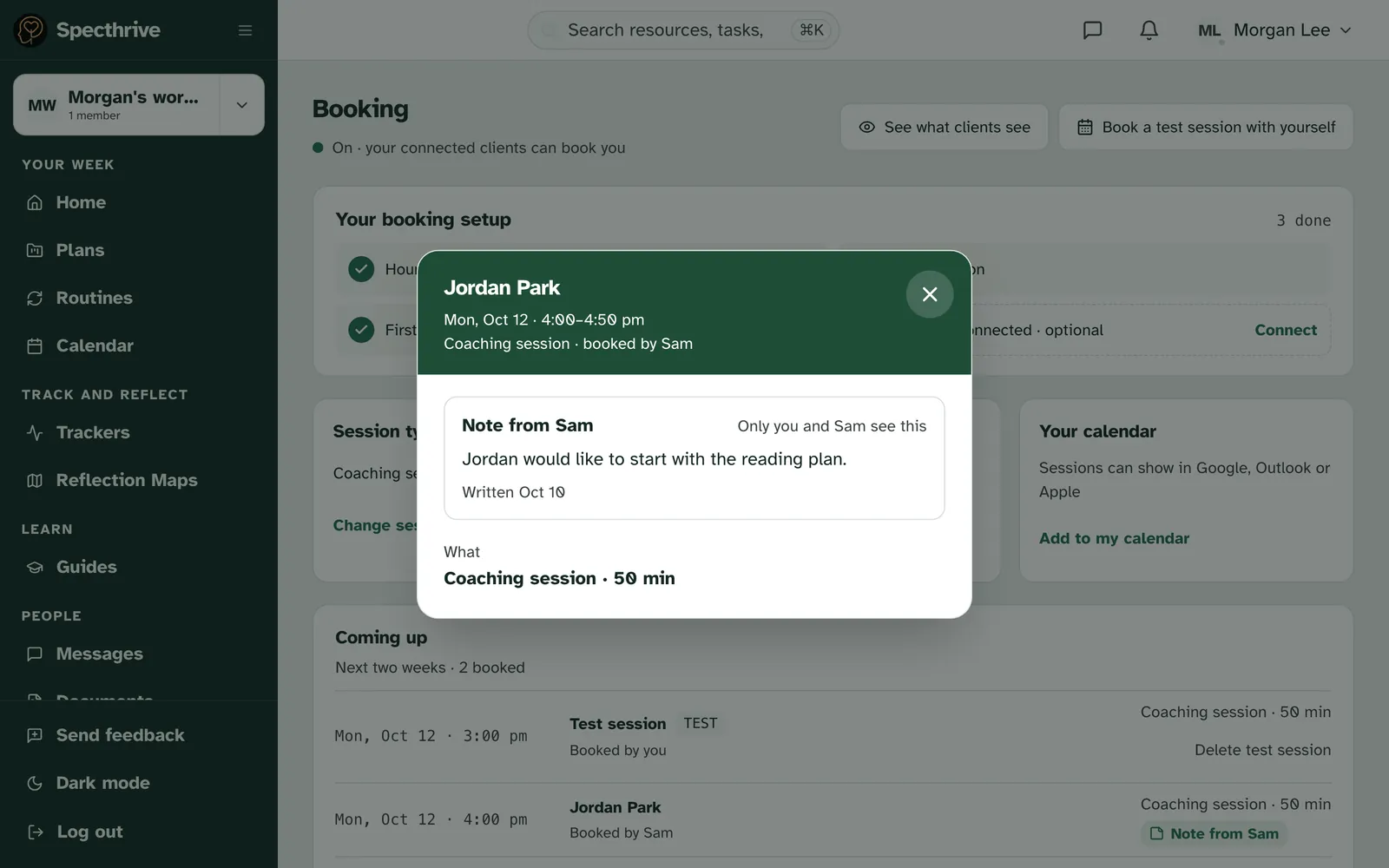
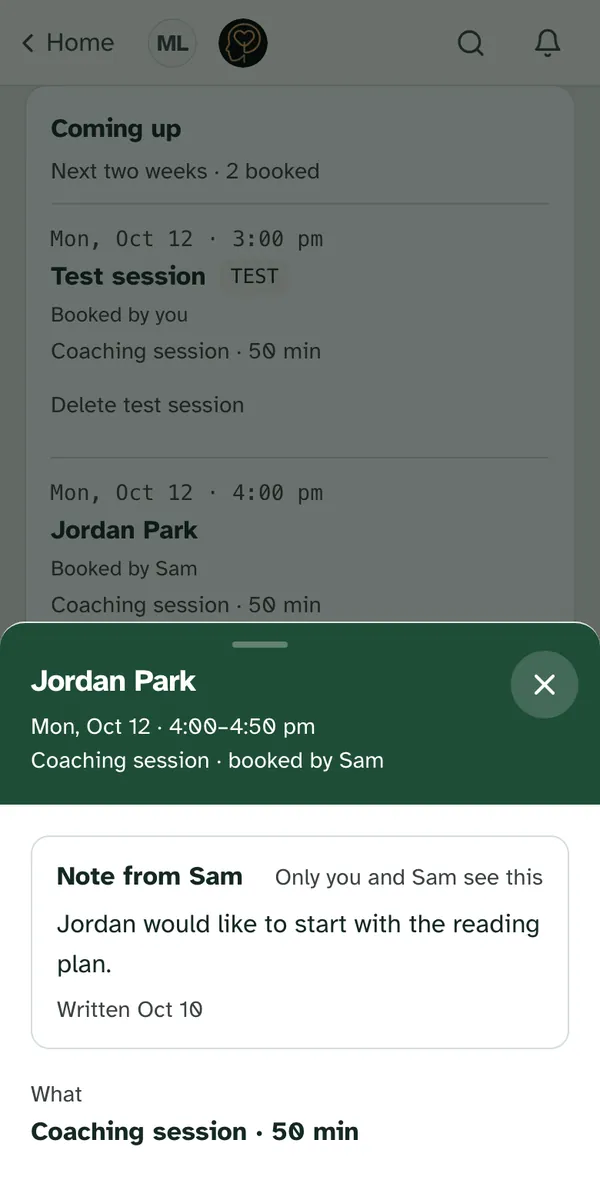
Coming up lists the next two weeks. The line under it counts what's booked, for example "Next two weeks · 2 booked". Each row shows the day and time, who it's with, who booked it, and the session. A test session shows with its TEST label and Delete test session. With nothing booked yet, it says "When a client books a time, it shows up here. There's nothing you need to do."
A note from a client shows as a marker on the row. If your client left you a note, the row says "Note from" and their first name, like Note from Sam. The note itself isn't on the list.
Choose a session to open it. The sheet shows who it's with, when, the session and who booked it. A note sits in its own box, with who wrote it, "Only you and Sam see this", and when it was written. A note is never in emails or calendar invites. With no note, it says "No note for this session." A test session doesn't open; it only has Delete test session.
Stop clients booking when you're busy
This step is optional, and it takes about a minute. Without it, booking still works: clients book inside your weekly hours. With it, clients can't book a time when the calendar you already use says you're busy. On a computer it's the first card on Calendars, Busy times from your calendars. On a phone, choose Connect next to Calendar · optional on the Booking page.
We read busy and free only. We never see the titles, places or who's there. You can link up to 3 calendars.
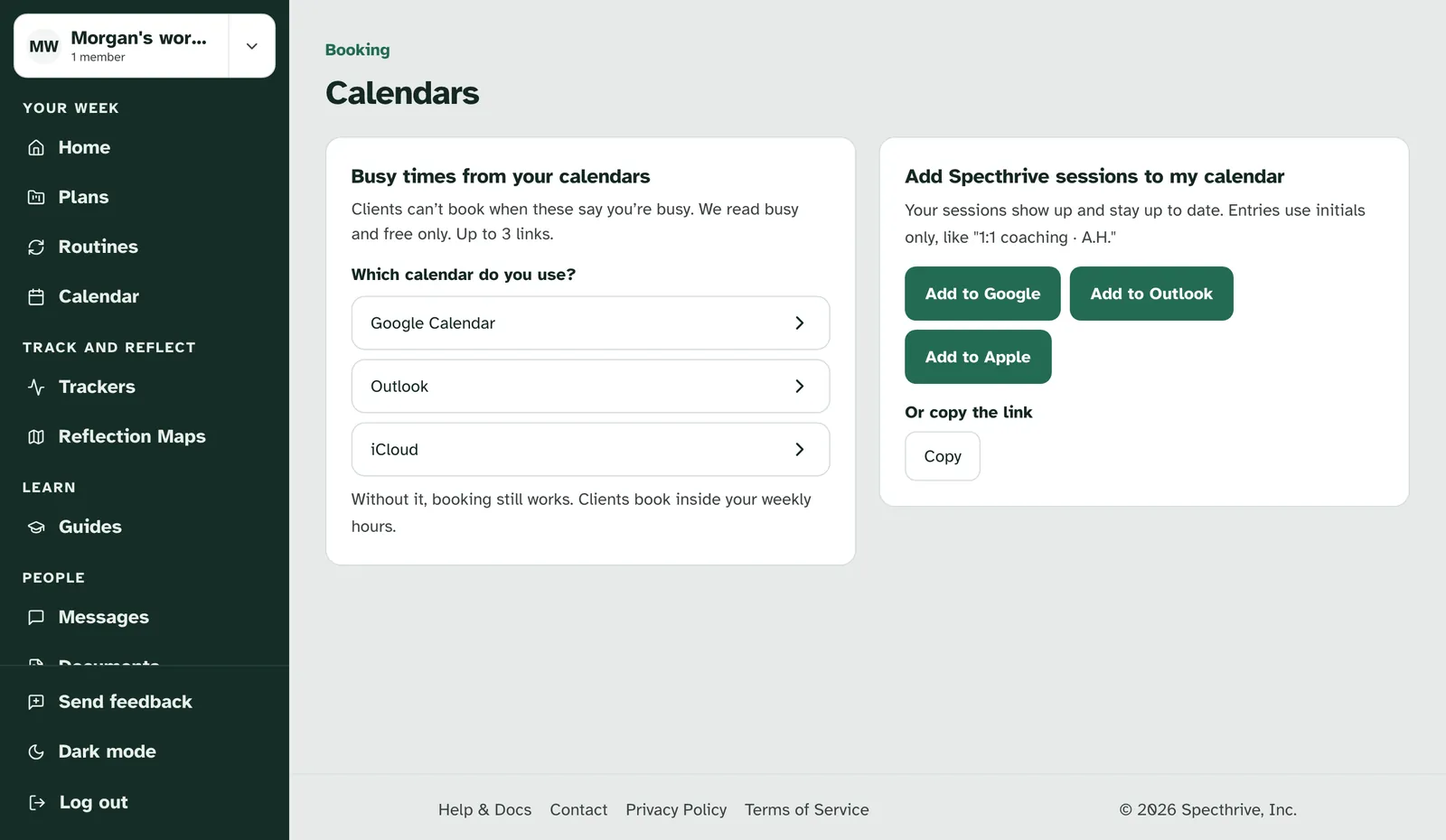
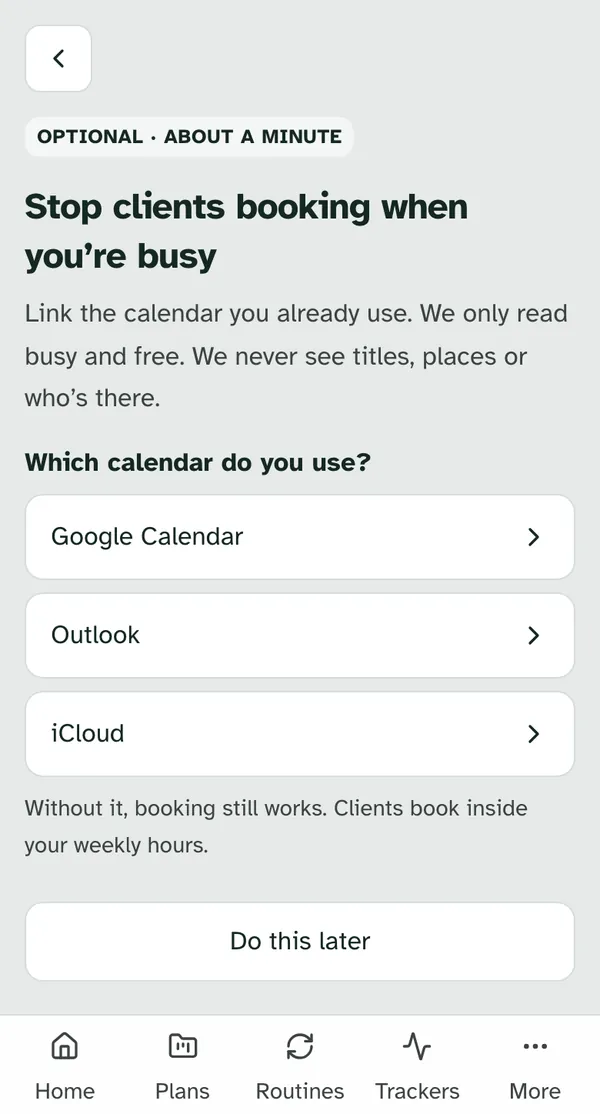
Pick your calendar, then follow its three steps. "Which calendar do you use?" offers Google Calendar, Outlook and iCloud. Each one shows how to copy its private address:
| Calendar | Where the address is |
|---|---|
| Google Calendar | On a computer, open Google Calendar. Choose Settings, then your calendar. Under "Integrate calendar", copy "Secret address in iCal format". |
| Outlook | On a computer, open outlook.com. Choose Settings, then Calendar, then Shared calendars. Under "Publish a calendar", pick your calendar and "Can view when I'm busy", then Publish. Copy the ICS link. |
| iCloud | On an iPhone or iPad, open Calendar and tap Calendars. Tap the info button next to your calendar and turn on Public Calendar. Tap Share Link, then Copy. |
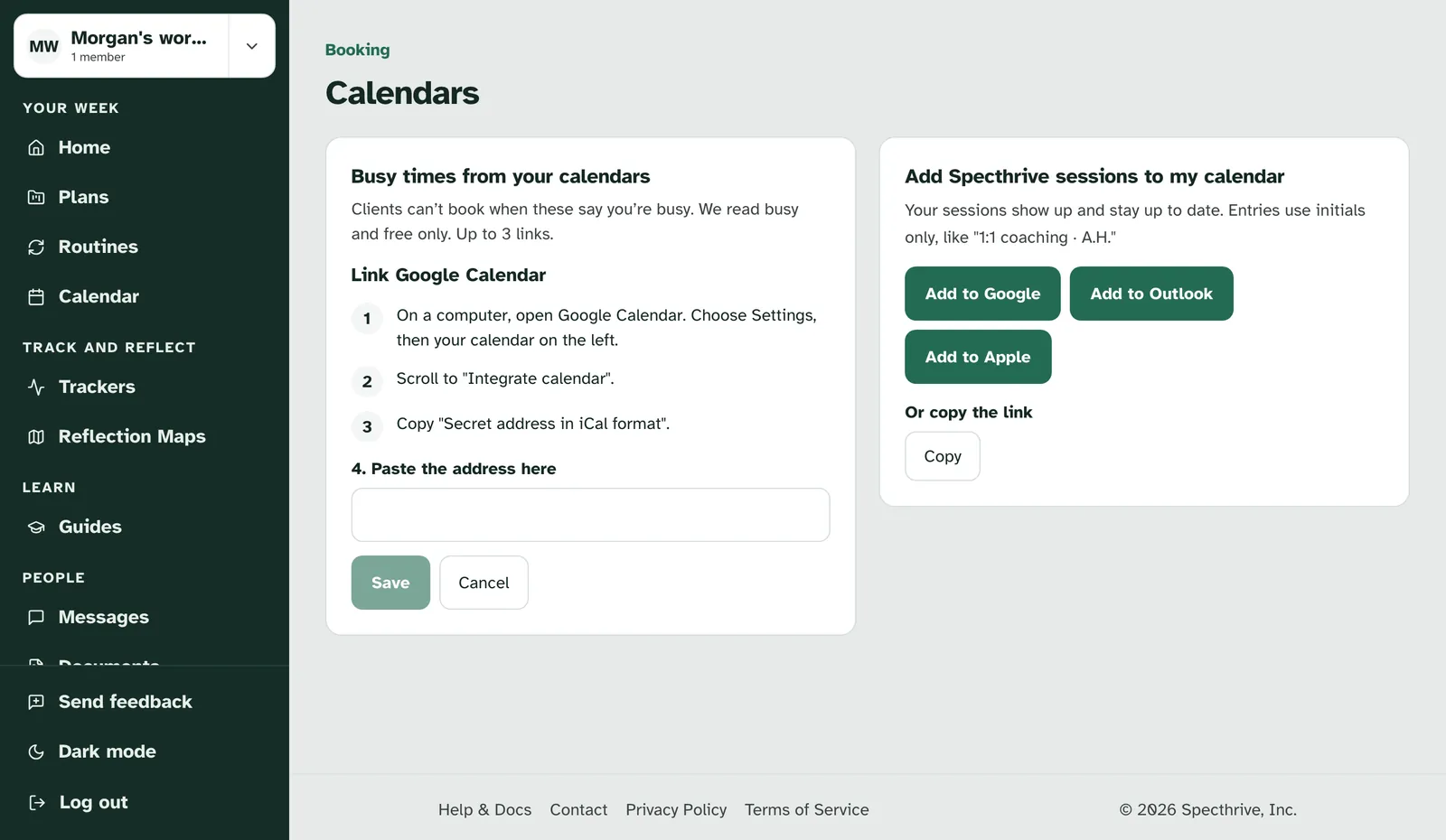
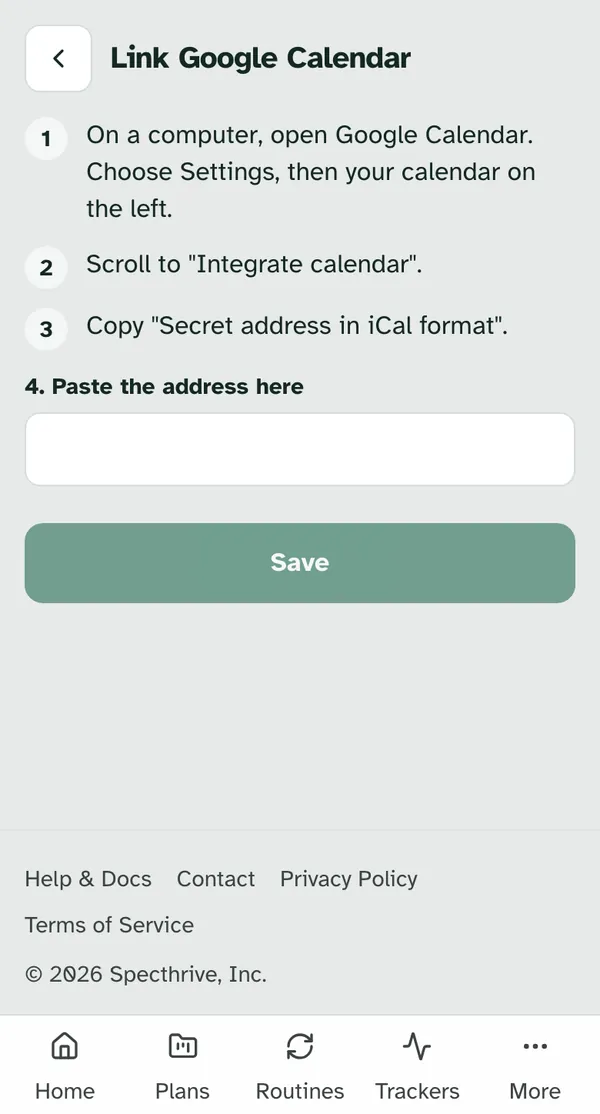
Paste the address and choose Save. We read the calendar straight away. When it works, you see "Connected" and how many busy times it has in the next 30 days. If it doesn't, the page says why, and that nothing was saved, so you can copy the address again and paste it.
The address is private, so it's never shown again. Your list shows only the calendar's domain, like calendar.google.com, its busy times in the next 30 days, and when it was last checked. When a client opens your times, we check your calendars again if it's been more than a few minutes.
If a calendar stops reading, you'll know. After a day, the Booking page says "We couldn't read your calendar", with the day it started, and "Bookings still work, but could land on busy times." Only you see this. We also email you once, with the subject "We couldn't read your calendar". Choose Check the link and paste a fresh address. Remove takes a calendar off the list.
Add your sessions to your own calendar
Your sessions can show in the calendar you already use. On a computer, the Booking page has a Your calendar card with Add to my calendar, which opens Calendars. It's the second card there. On a phone, it's the Add to my calendar row. Your sessions show up there and stay up to date when they move.
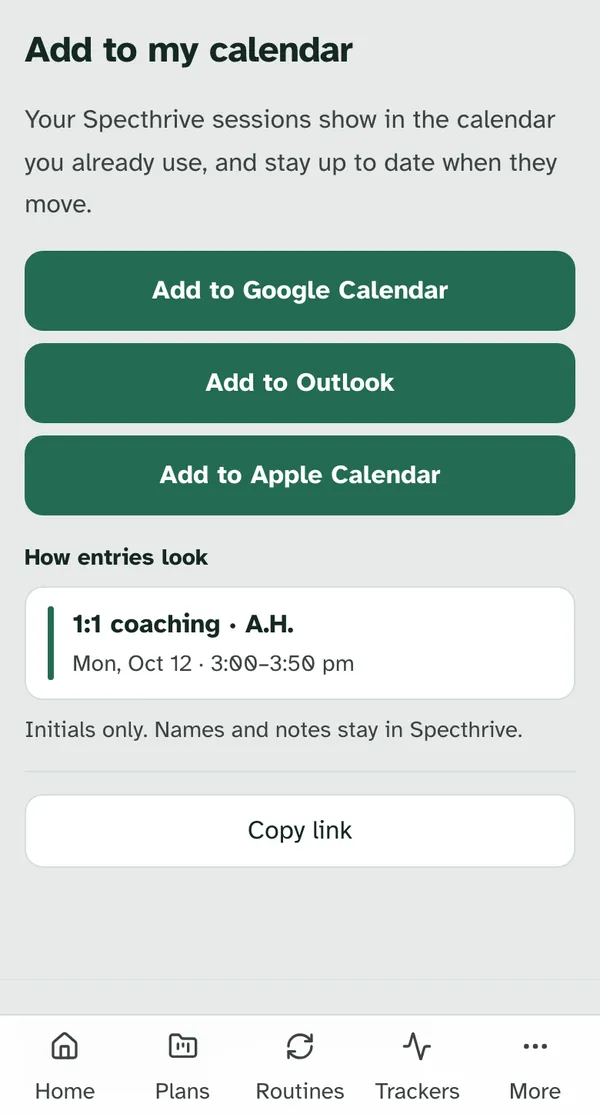
Choose your calendar. On a computer, the buttons are Add to Google, Add to Outlook and Add to Apple. On a phone, they're Add to Google Calendar, Add to Outlook and Add to Apple Calendar. Each one makes your private link and hands it to that calendar. For any other calendar app, copy the link instead (Copy on a computer, Copy link on a phone) and paste it in where the app asks for a calendar address. When you make your link, the page shows it in a box beside the copy button (under Your link on a phone), starting with webcal://. While you're still on the page, copying gives that same address starting with https://.
Entries use initials only. They sit in a calendar called "Specthrive sessions". An entry reads like "1:1 coaching · A.H.", with its day and time, the session's video link if it has one, and a link back to Specthrive. Names and notes stay in Specthrive. A test session shows with no initials.
Your link is private, so treat it like a password. Anyone who has it can see your session times, initials and video links. If you shared it by mistake, choose Reset link. It asks "Make a new link?": the old link stops working, so a calendar using it stops getting your sessions. Choose Make a new link, or Keep the old link.
You see the link once. If you come back later, the page says "Your sessions are already going to a calendar." On a computer, the box beside Copy shows the start of the address cut short, because Specthrive doesn't keep a copy of the whole link. On a phone, there's no box. Adding your sessions somewhere new, or copying the link, makes a new link that replaces the old one, so the page asks before it does that.
Download a copy of your setup
Your booking setup is yours to keep. Once you've saved your booking settings, open Settings → Privacy → Data rights. The Your booking setup card holds "A copy of how you set up booking: your settings, session types and hours, and how many clients can book for themselves. No client names, sessions or notes." Choose Download my booking setup, and a .zip file downloads.
Getting help
If something about booking doesn't work the way this page says, contact us and we'll help.
For what your clients see when they book, see Book, move or cancel a session with your coach. For the rest of working with clients, see Getting started as a coach or therapist.
Still have a question?
If this guide did not cover your situation, reach out. We read every message.