
Book, move or cancel a session with your coach
For clients and the parents who book for them. Find your coach's open times, book one, and move or cancel it while there's still time.
When your coach or another professional turns booking on, you can pick a time from their open hours yourself. You don't need to trade messages to find one.
This guide covers where to find booking, how to book, and how to move or cancel a session.
Who can book
You can book for a profile that's yours, or one you look after. That's the person whose profile it is, the person who manages it, or an Owner or Admin of the workspace it belongs to. Anyone else the profile is shared with can't book for it.
Booking only shows for a coach who has turned it on. It's for professionals you already work with on this profile. If no one on the profile's care team takes bookings, there's nothing to see, and nothing you need to do.
Find booking on the profile
Booking lives on the profile, under People with access. Each professional who takes bookings has a row with their name.
- See sessions opens your sessions with them.
- Book a session opens their open times.
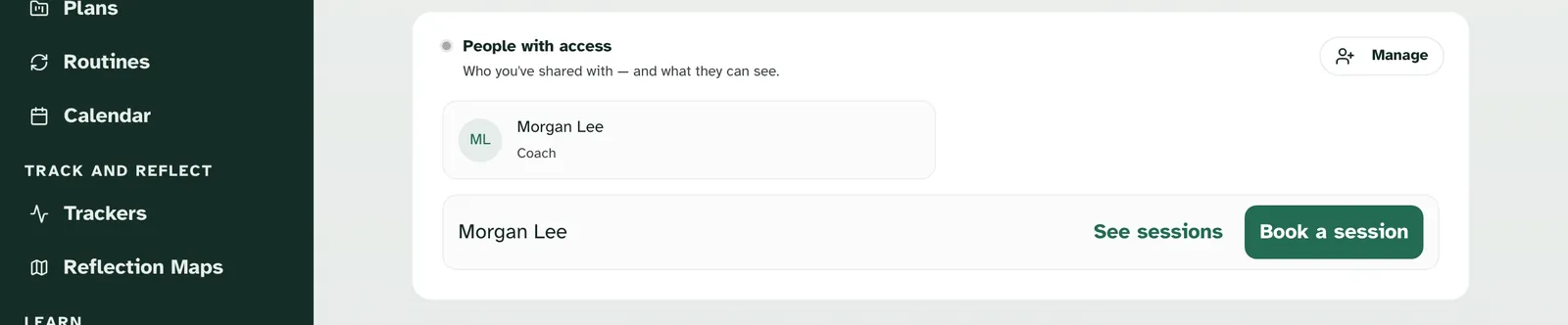
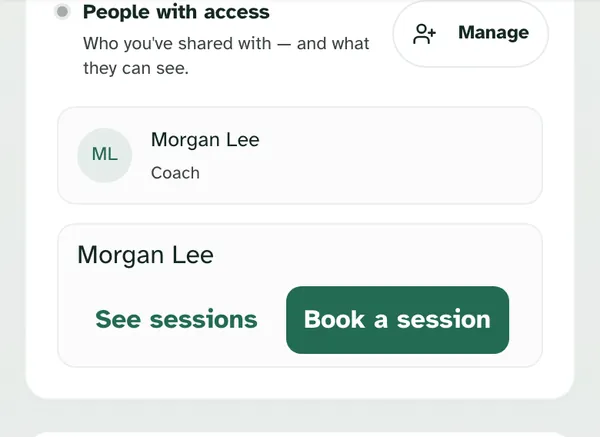
If your coach books your sessions for you, the row has one link instead: Sessions with and their first name.
Booking is for the profile you have open. If you manage more than one profile, or you're booking for someone else, the page says who it's for, like "Booking for Jordan". To book for a different profile, switch to it from the profile menu first.
Pick what you'd like
If your coach offers more than one kind of session, you choose first. The page says "Book with" and their first name, then "What would you like?". Each kind shows its name and length, like "50 minutes", and a short description if your coach wrote one. With only one kind, this step is skipped.
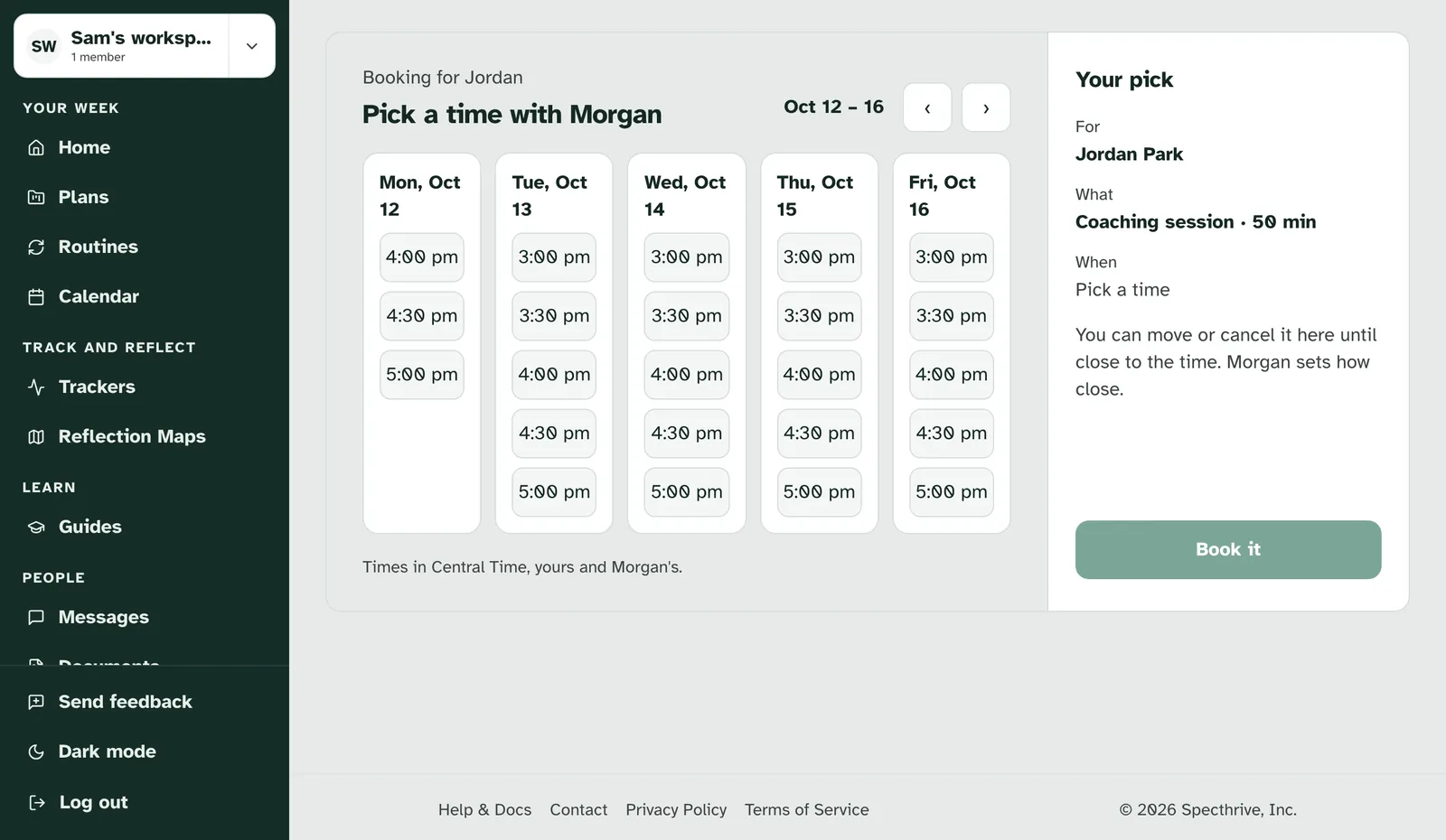
Pick a time
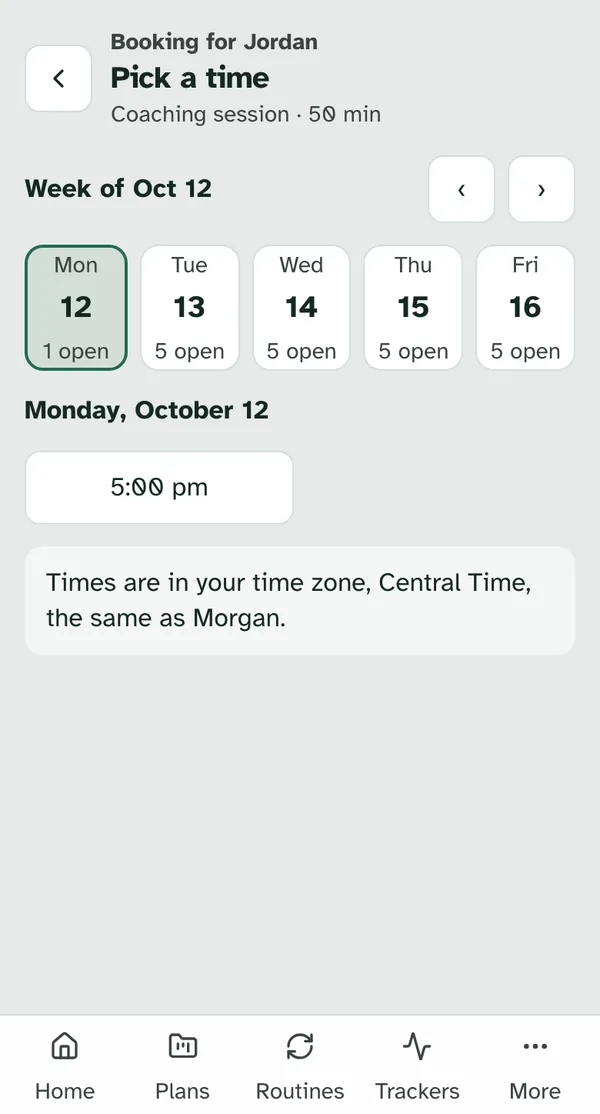
Open times are in your own time zone. A line says which one, and whether it's the same as your coach's. For example: "Times are in your time zone, Eastern Time, the same as Morgan." If your coach is somewhere else, it says how many hours ahead or behind they are.
- On a computer, the page says "Pick a time with" and your coach's first name. Each day is a column of times. Your pick shows on the right, under Your pick.
- On a phone, the page says Pick a time. A strip across the top shows one week, like "Week of Oct 12". Each day says how many times are open, or None. Use Earlier week and Later week to look around, then tap a day to see its times.
Check and book
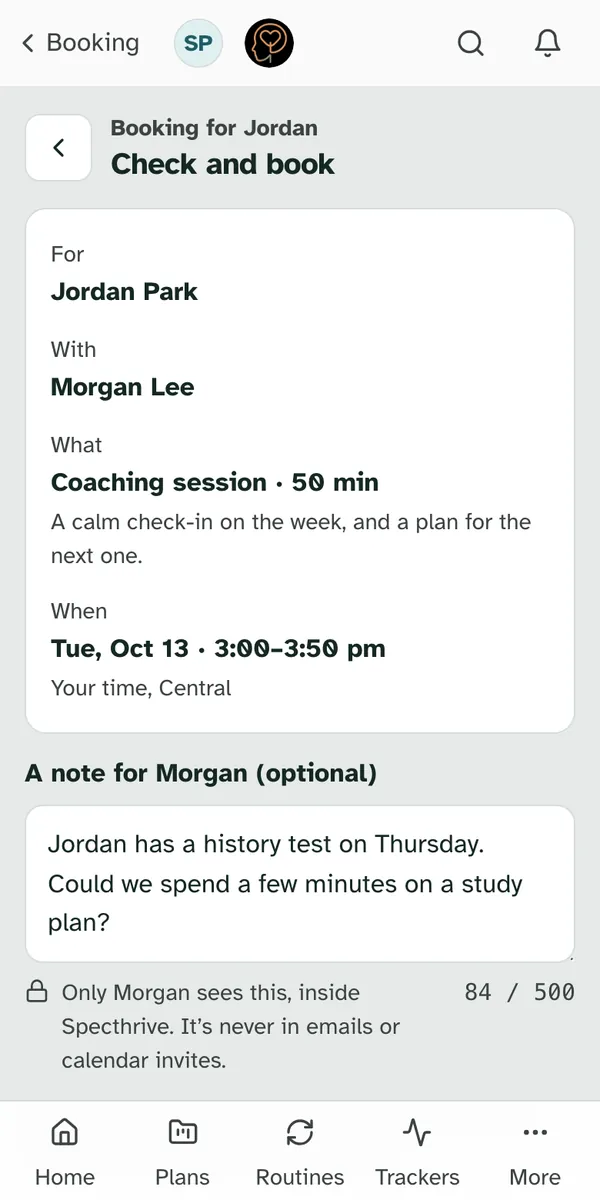
Before anything books, you see it all in one place. Check and book lists who it's for, who it's with, what it is and when, in your time. It also says: "You can move or cancel it here until close to the time." Your coach sets how close. If your coach wrote a description of the session, it shows under the session's name.
You can leave your coach a note. The box is "A note for Morgan (optional)", up to 500 characters, with a count beside it. Use it for anything you'd like them to know before you meet. "Only Morgan sees this, inside Specthrive. It's never in emails or calendar invites." A note is only for a new booking, so it isn't offered when you move a session.
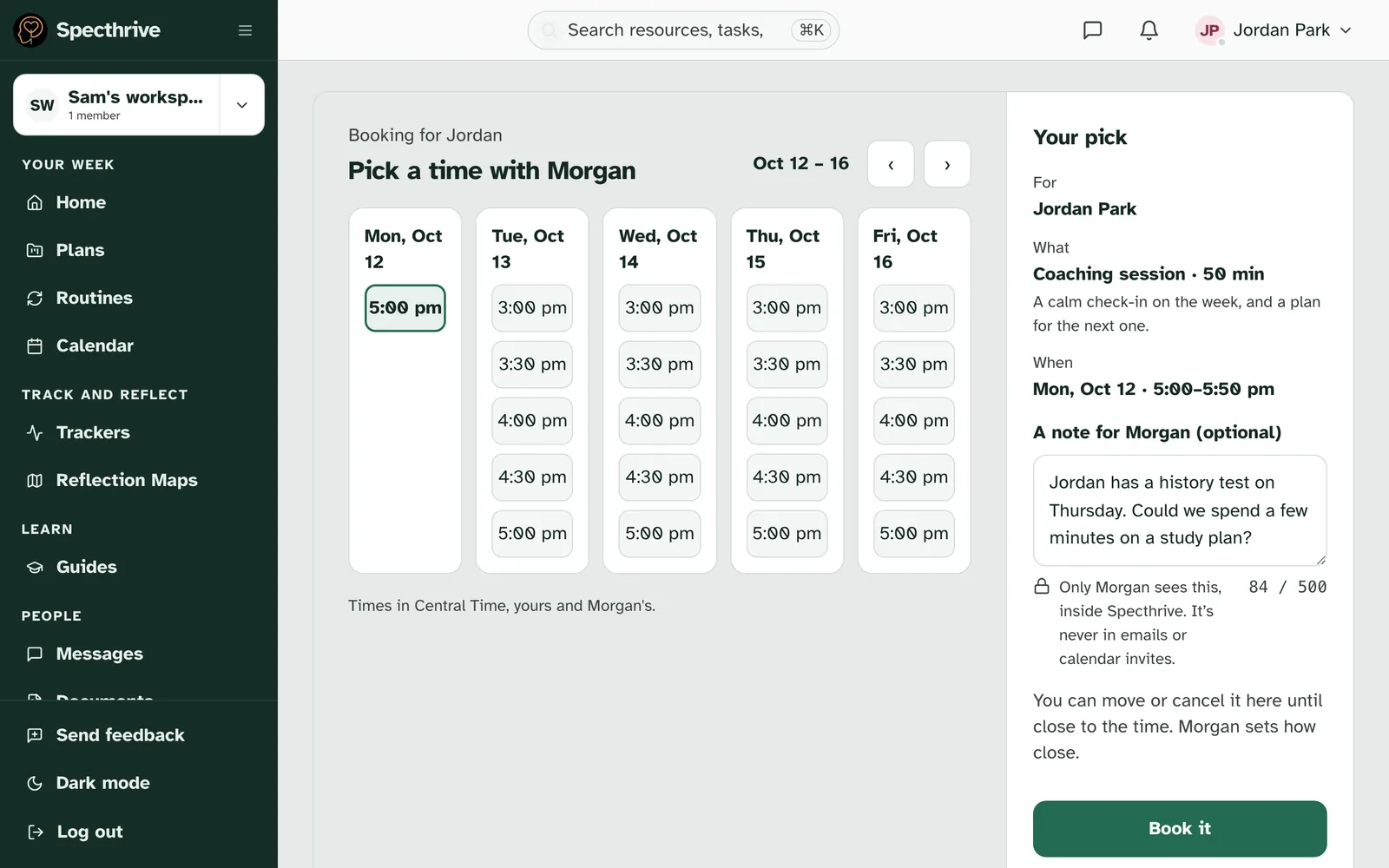
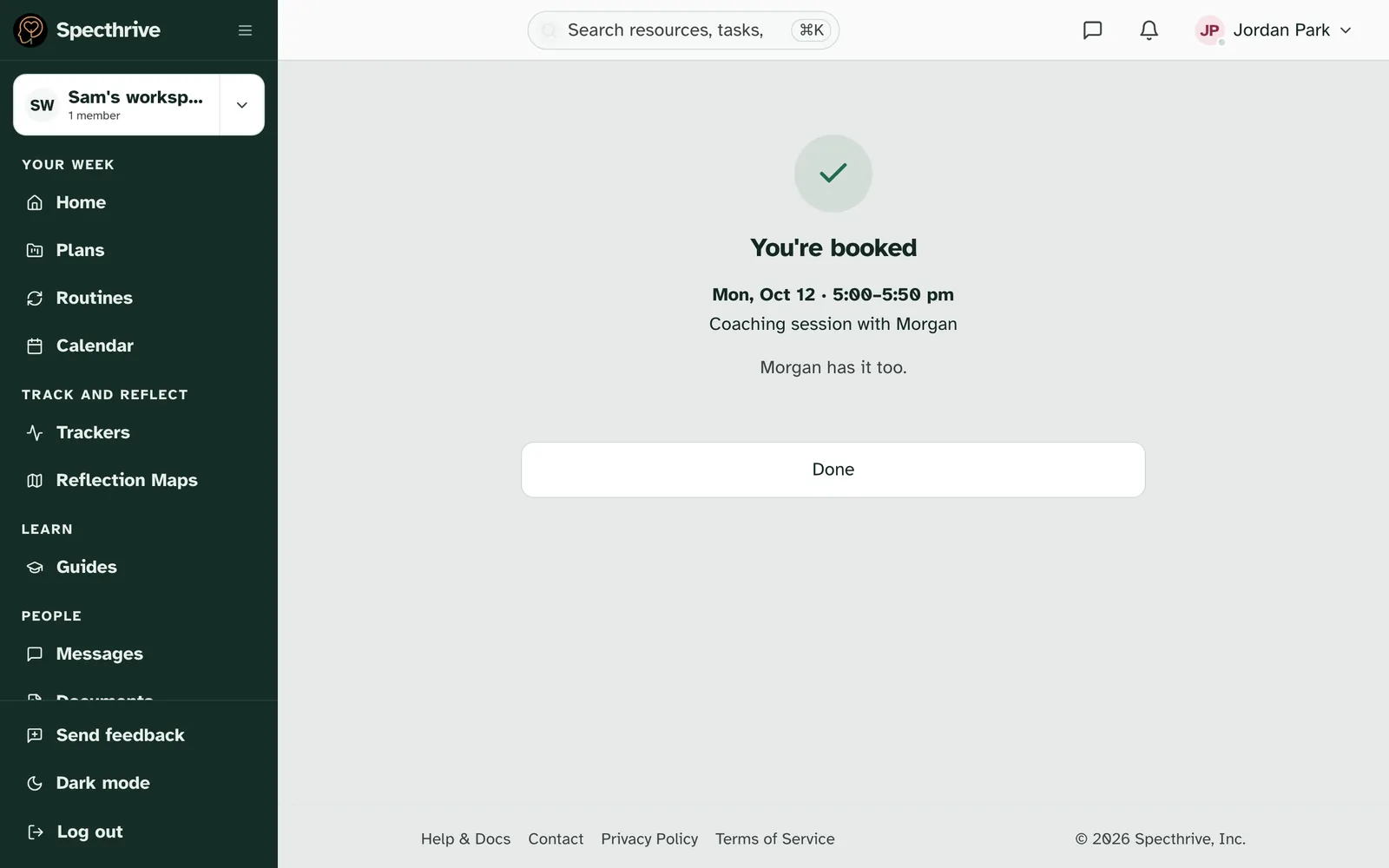
Choose Book it. You see You're booked, with the time, the session and "Morgan has it too." Done takes you to your sessions.
If someone takes your time first, you see "That time was just taken" and "Someone booked" that time "a moment before you. Here are the times still open." Pick another one.
If it doesn't go through, the page says "That didn't book. Nothing has changed. Try again in a moment."
When there are no times to pick
A coach who hasn't opened times yet. The page says your coach "hasn't opened booking times yet" and "When Morgan does, the times show up right here. You don't need to do anything until then."
All the open times are taken. The page says "No open times right now", that the next few weeks are taken, and "A new day opens each morning." If you'd like to talk sooner, your coach can find you a time.
Both have a Message button for your coach.
Your sessions
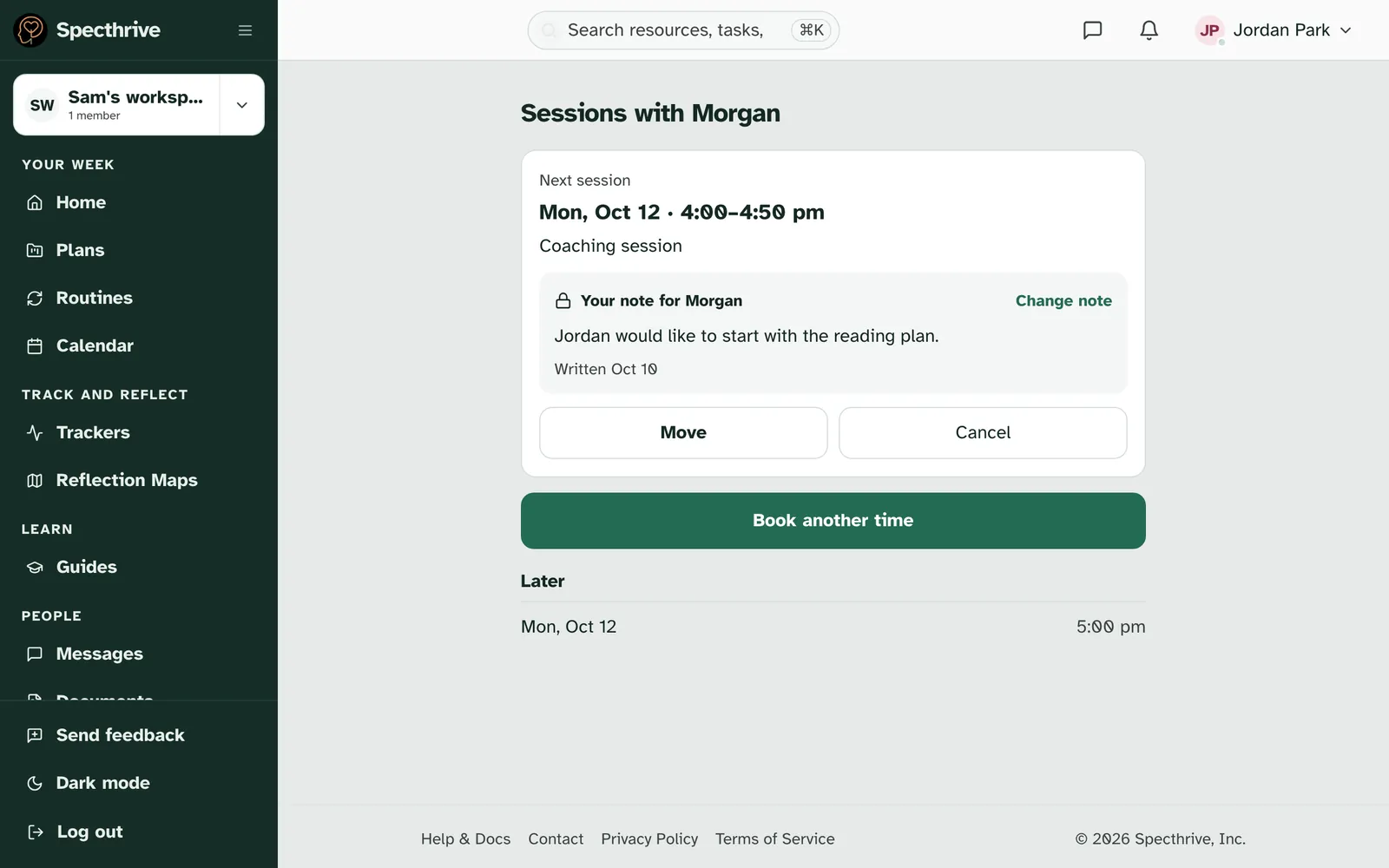
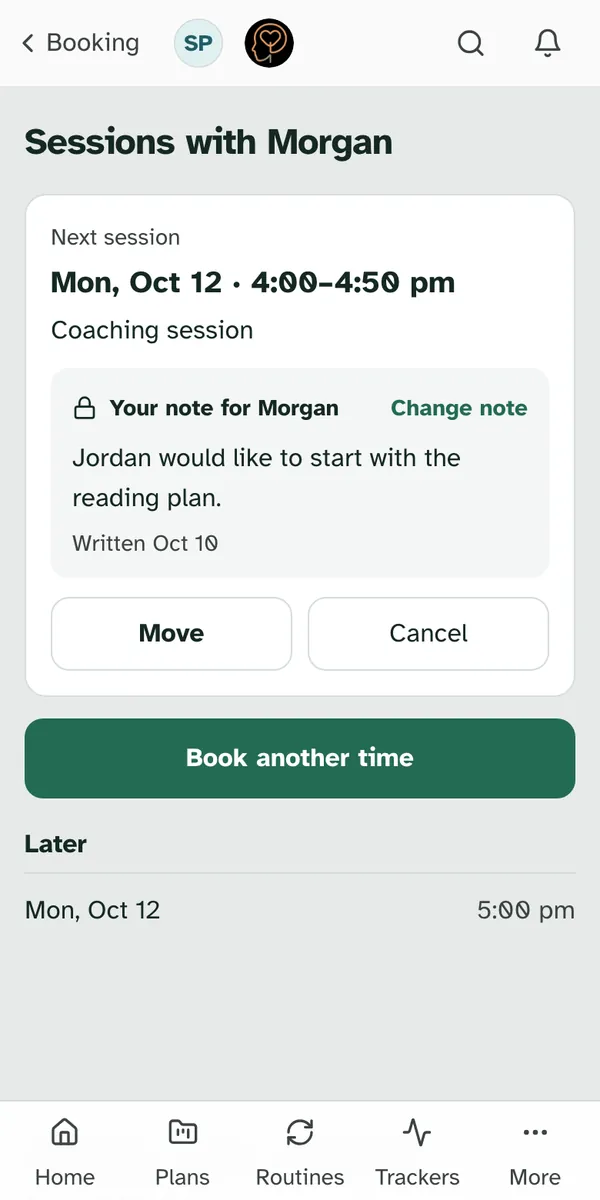
Sessions with your coach shows what's booked. Your next session sits at the top in its own card, with its day, time and the session's name. If it's a video session, there's Join the video call. For a phone call or an in-person session, it says where.
- Later lists the sessions after that. Tap one to see it in the card.
- Before lists the sessions you've had.
- Book another time opens the open times again. With nothing booked, it says "Nothing booked with Morgan right now." and the button is Book a session.
Your note sits on the session's card. It says "Your note for Morgan", with the note and when you wrote it, like "Written Oct 10", or "Written Oct 10 · changed Oct 11". Choose Change note to edit it, then Save note. Empty the box and the button reads Remove note. With no note yet, the card has Add a note for Morgan. Close to the time, the note can't change any more, and the card says "It's close to the time now. To tell Morgan something, send a message."
Move a session
Choose Move on the session's card. You pick a new time the same way, under Pick a new time, then Check and move and Move it. Back on your sessions, a note at the top says "Moved to" and the new time.
Cancel a session
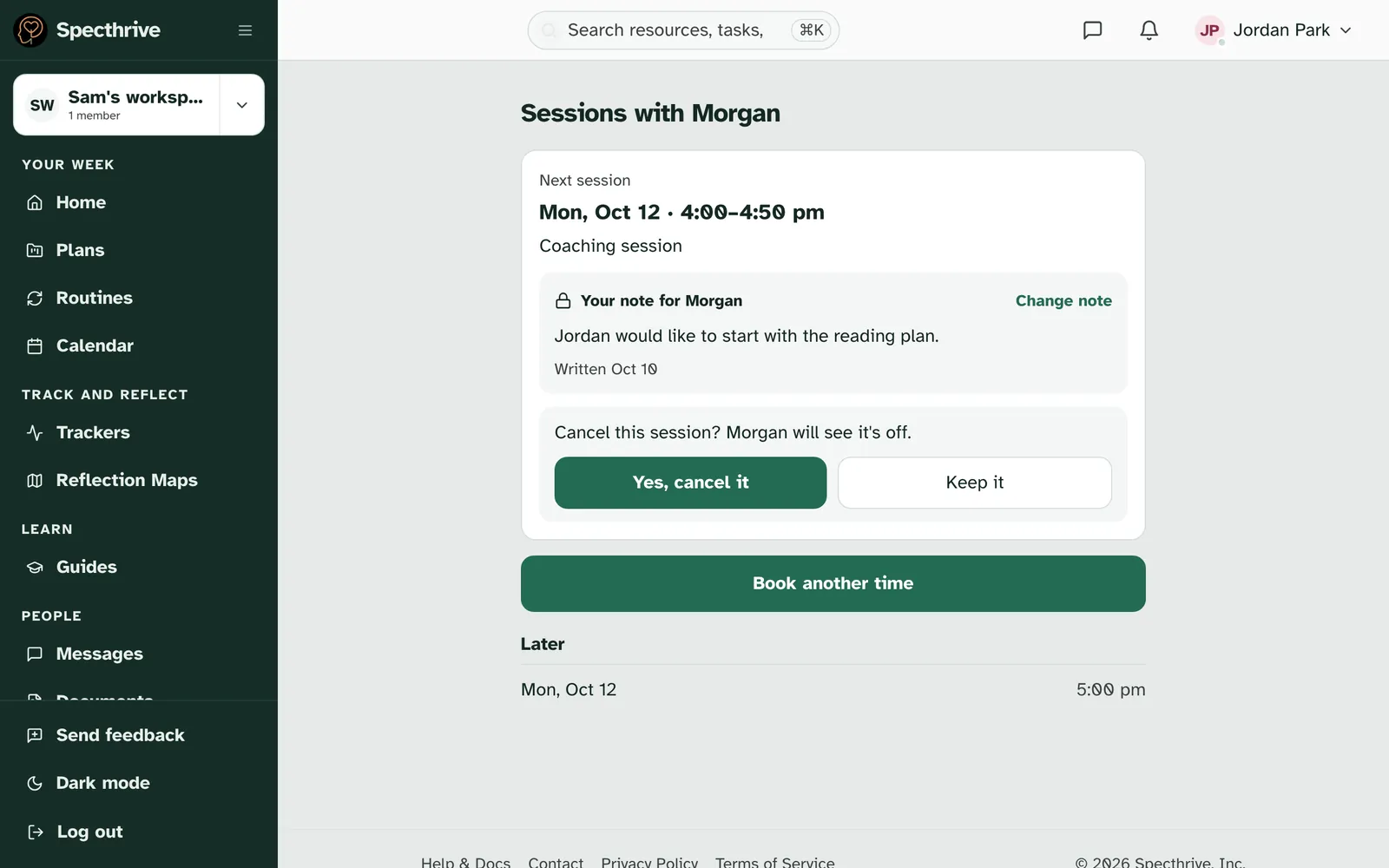
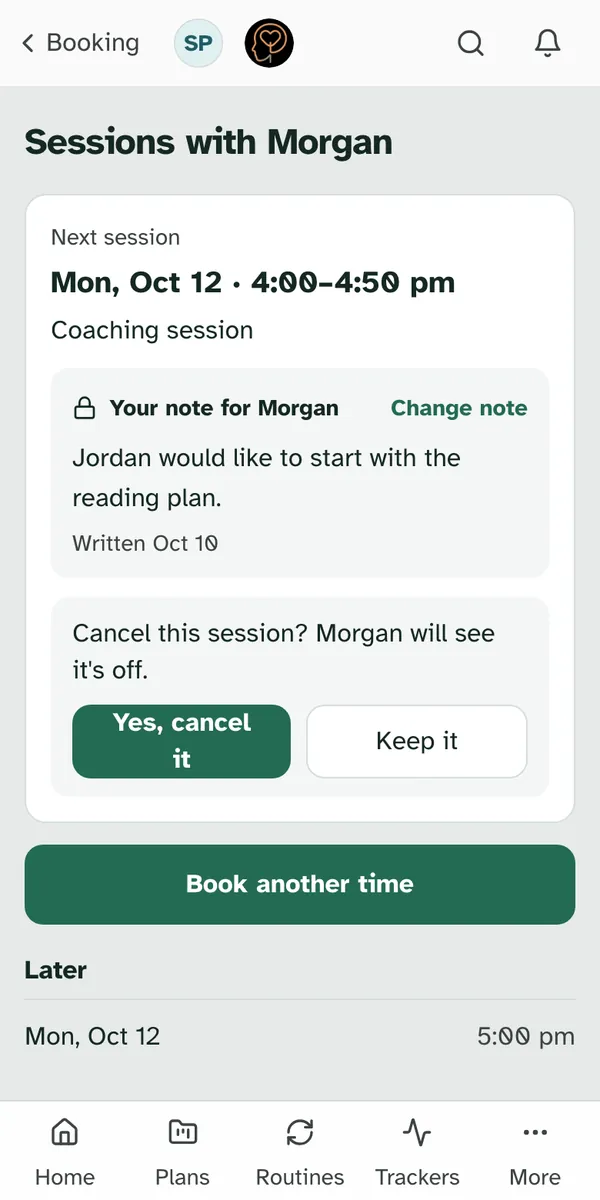
Choose Cancel on the session's card. It asks first: "Cancel this session? Morgan will see it's off." Choose Yes, cancel it, or Keep it to leave it booked. Once it's cancelled, you see "Session cancelled."
If it doesn't go through, the page says "That didn't cancel. Your session is still booked. Try again in a moment."
Close to the time
Near the time, a session can't be moved or cancelled here. The card says "This session is too close to change here. If something's come up, message Morgan and you'll sort it out together." There's a Message button right there. Your coach decides how close is too close.
When your coach books for you
Some coaches book every session themselves. Then you see your sessions but not Move, Cancel or Book a session. The page says "Morgan books your sessions for you. If you'd like a different time, just say.", with a Message button.
Getting help
If booking doesn't work the way this page says, contact us and we'll help.
For how professionals join a profile, see Working with a coach or therapist.
Still have a question?
If this guide did not cover your situation, reach out. We read every message.