Find and finish what your coach sent
For students working with a coach. Where your coach's work shows up, how to tick it off, answer a questionnaire, log a practice test and follow a guide they shared.
This page is for you, the student. When your coach sends you something, it waits for you on your Home. Nothing here is a test, and there's no clock on any of it. The app puts it this way: "Work your care team sent just for you. Take it at your own pace."
The examples use made-up people. Your coach here is Jordan Ellis, and you are Riley Park. Your own screens show your coach's name.
Who sees what. Jordan sees what you tick off and any note you add when you do. Jordan sees your tracker logs only if you share Trackers with Jordan. Your guardians don't see what Jordan sent you or what you finish, unless you share your Plans with them. The questionnaire has its own, tighter rule, in section 3.
1. Where your coach's work shows up
Open Home. On a phone, it's the first tab at the bottom. Work from Jordan sits in its own section, usually headed From your care team, with a count beside it. Each row then names who sent it, such as "Jordan sent you". Sometimes the heading names Jordan instead, as "From Jordan, your coach", and the rows just say "Sent you". Under the heading: "Work your care team sent just for you. Take it at your own pace."
Each piece of work is one row. The row says who sent it and the day, such as "Jordan sent you · Monday", then its title. Below that is a short line about today and this week, such as "3 things today · 3 of 13 done this week". Small chips show "1 to read" or a tracker to log, such as "Log Focus Sessions".
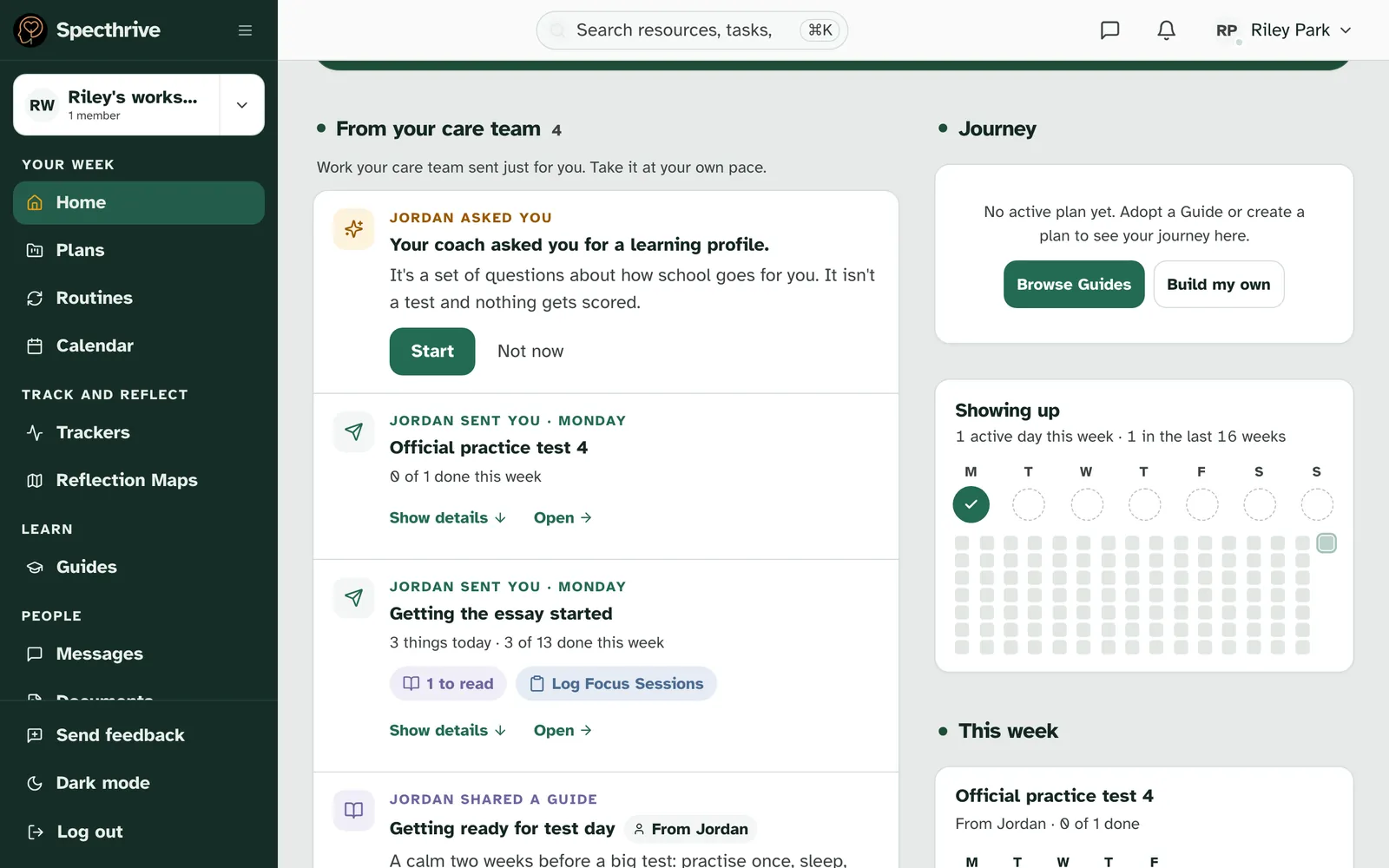
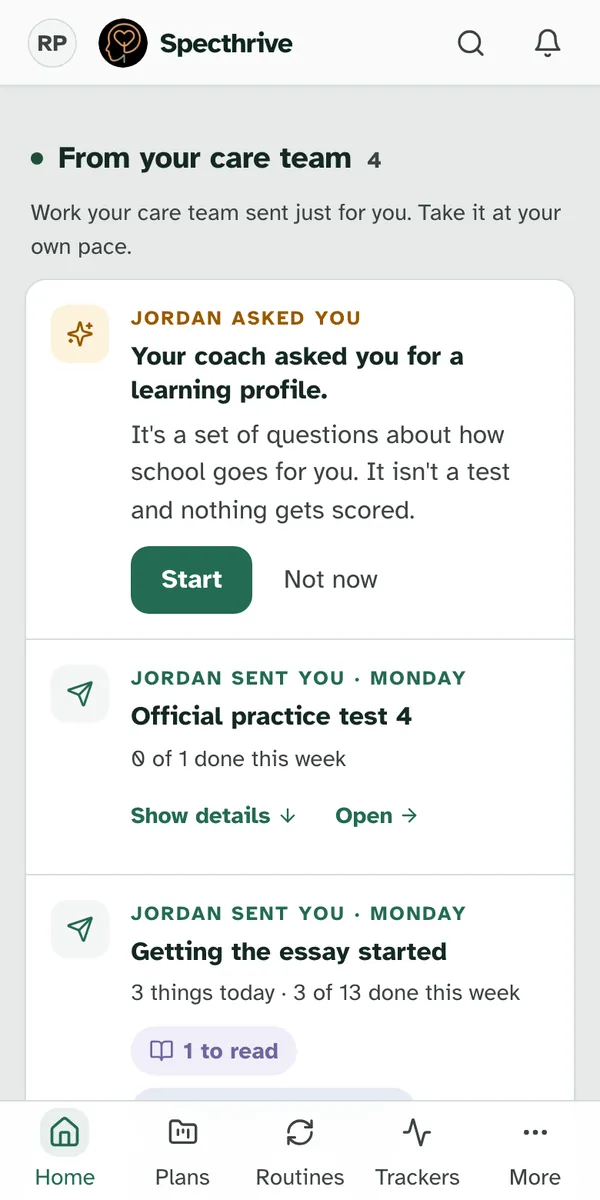
Where your coach's work shows up, in about 30 seconds, with sound and captions.
Peek or open. Show details opens the items right there in the row, under Today, To read and Later this week. Show less folds them back. Open (or Open the week) shows the whole week on its own page.
Today's step can show at the top too. The Today card at the top of Home can pick one of Jordan's items as your Next step, with a small "from Jordan" chip. I did this there ticks it off, and Details shows more. If the step is one you log, it shows a Log button instead, such as Log Focus Sessions.
Other things from Jordan can sit in the same section. Each has its own label. Under From your care team, the label starts with Jordan's name, such as "Jordan asked you":
| Label on the row | What it is |
|---|---|
| Asked you | A questionnaire. See section 3. |
| Sent you | Work for the week, or a task from one of your own plans that Jordan pointed you to. |
| A note | A line or two from Jordan, with nothing to do. Reply opens a message to Jordan. |
| Shared a guide | A guide Jordan picked for you. See section 5. |
You choose when a note goes. The × on a note removes it from your Home, and Undo brings it back if you tapped by mistake. If Jordan gave the note an end date, it leaves on its own after that.
Your Plans page has it too. On Plans, a section called From your care team lists each piece of work with "From Jordan" and how much is done this week.
Not everything sends an alert. Work for the week doesn't email you or buzz your phone. It's just there the next time you open Specthrive. A few other things can send an email:
| What Jordan did | The email's subject |
|---|---|
| Sent you work for the week | No email |
| Pointed you to a task in one of your plans | "Something new is waiting for you on Specthrive" |
| Sent you a note | "Jordan sent you a note" |
| Asked you to fill in a questionnaire | "A few questions are waiting for you on Specthrive" |
| Shared a guide | No email |
Work for a later week waits for its week. If Jordan's next work starts later, the row just says when, such as "Starts Mon, Oct 5". Tapping it shows what's coming, with "Nothing to do yet." Nothing can be ticked until that week starts. Anything to read is there right away, under To read.
An empty Home is fine. If there's no section from Jordan, nothing has been sent yet, or it starts on a later day. You haven't missed anything.
2. Do a to do, a reading and a routine
Open the week. The page starts with "From Jordan · Sent Monday", then a strip from Monday to Friday. A day fills in once everything due that day is done. A day that isn't filled in is simply open, not missed. Below the strip are Today, To read and Later this week.
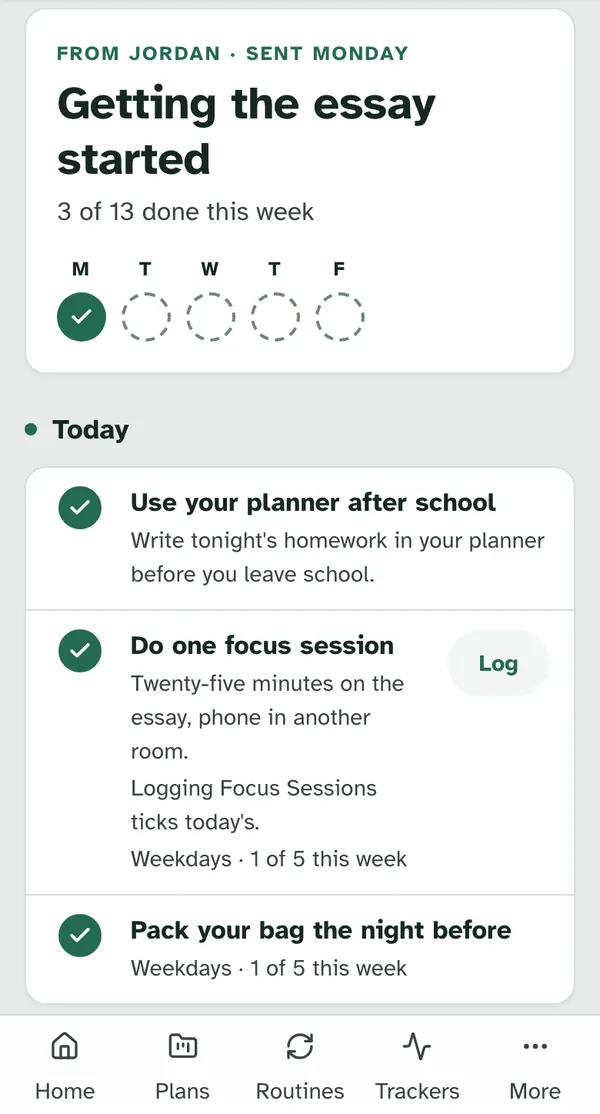
Each item shows what kind it is. A to do or a routine that's on today has a checkbox. One that's due later shows a small calendar, with its day, such as "Due Sunday". Something to read shows a book, with no checkbox. A tracker item has a Log button.
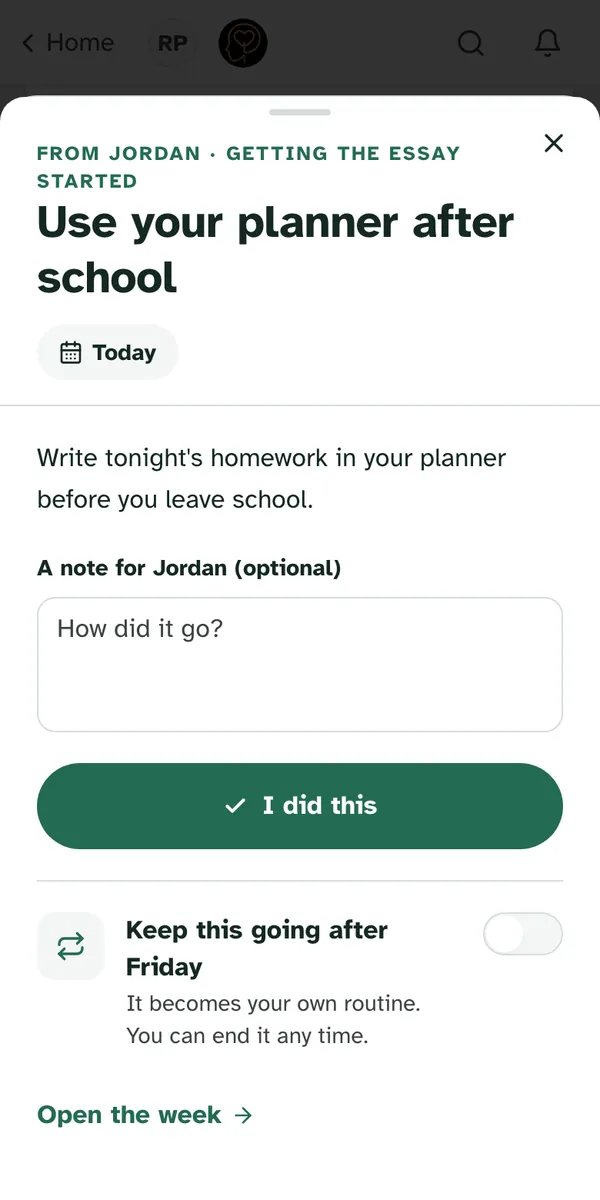
A to do: tap it, then I did this. Tapping an item opens it. You can add "A note for Jordan (optional)". The box asks "How did it go?" Then tap I did this, and it shows Done. If you tapped by mistake, Mark not done puts it back.
A reading has nothing to tick. Open it to read or watch it. There's no button and no due date, and nobody is marked as not reading it.
A routine comes back each day. It shows the days it's on and how many you've done, such as "Weekdays · 1 of 5 this week". Tick it off each day the same way, with I did this.
Some items can keep going. An item may offer "Keep this going after Friday", with the line "It becomes your own routine. You can end it any time." Turn it on and the line changes to "It's in your Routines". Ending it later happens in Routines.
Jordan's wording stays as Jordan wrote it. If you try to change an item, it says "Your care team set this one up, so its details stay as they sent them. You can still tick it off."
A tracker item asks first. Tap Log on an item such as "Log Focus Sessions". The first time, it asks "Jordan asked you to log Focus Sessions" and "Start a tracker for Focus Sessions? It's yours: only you log in it, and you can stop it any time." Tap Start Focus Sessions, or Not now if you'd rather wait. If it doesn't start, it says "It didn't start this time. You can try again."
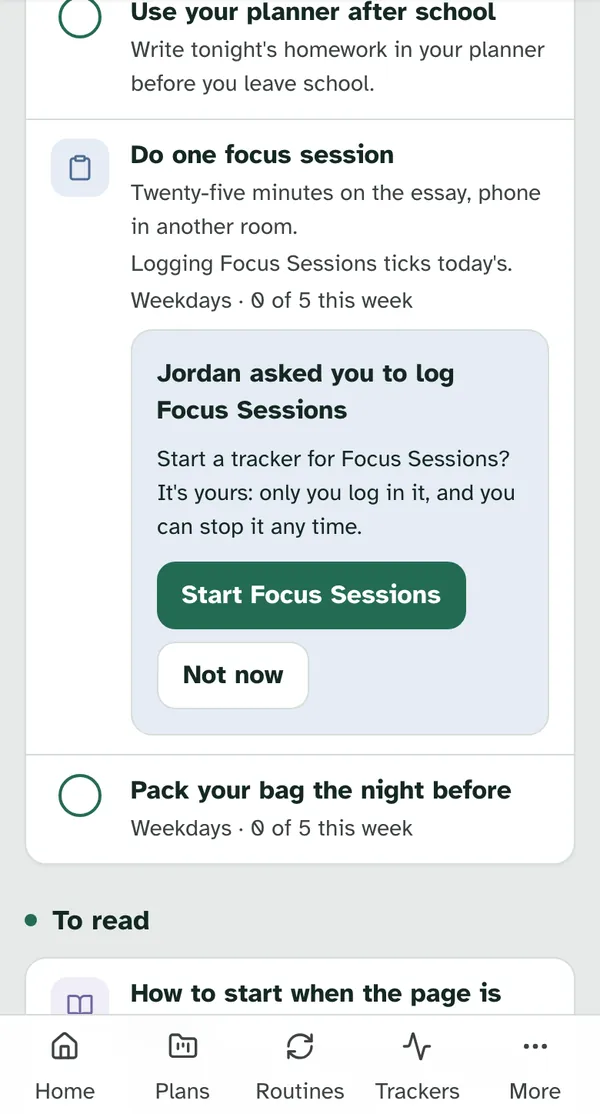
Logging ticks off the day. Once the tracker is started, Log opens it. The item says "Logging Focus Sessions ticks today's." Jordan sees how often you logged only if you share Trackers with Jordan. For more on trackers, see Notice patterns with trackers.
Starting a tracker and logging, with sound and captions.
3. Fill in a questionnaire
It arrives as Asked you. The row says "Your coach asked you for a learning profile.", or names the questionnaire, such as "Your coach asked you to fill in the …". Under it: "It's a set of questions about how school goes for you. It isn't a test and nothing gets scored." Tap Start. Not now puts it away until the next time you open Specthrive.
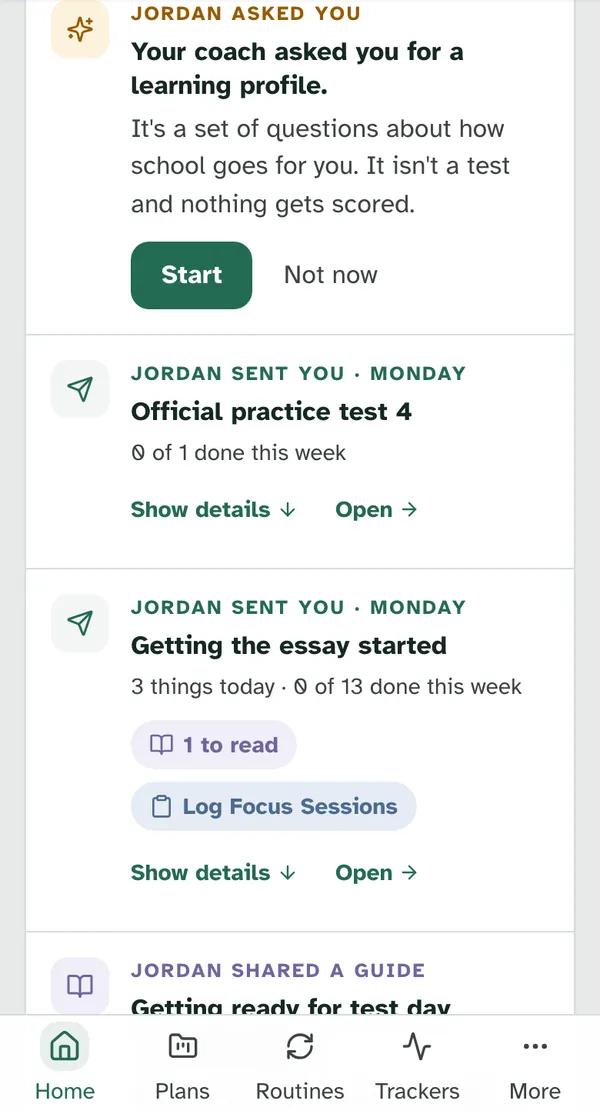
First, a page about who reads it. Read it, tick "I read this and I want to go ahead.", then tap Continue.
Answer what you like. Each page says "Every question is optional. Skip anything you like, and answer in your own words." The button at the bottom names the next part, such as "Next: …", and Back goes back a page.
Support is there too. A box headed "Support is here" shows up in the questions and again on the thanks screen. It says "If things feel heavy right now, you don't have to wait for your coach." and lists people you can reach right now.
You can stop halfway. Pages you've moved past with Next are kept. Come back to the row on Home and tap Continue to pick up where you were.
Send it when you're ready. On the last page, tap Send to my coach. You'll see "Thanks." and "Your coach will read this before you next talk. Nothing here is a score." Back to home takes you home. If it can't send, it says "Couldn't send that. Your answers are still here. Try again in a moment."
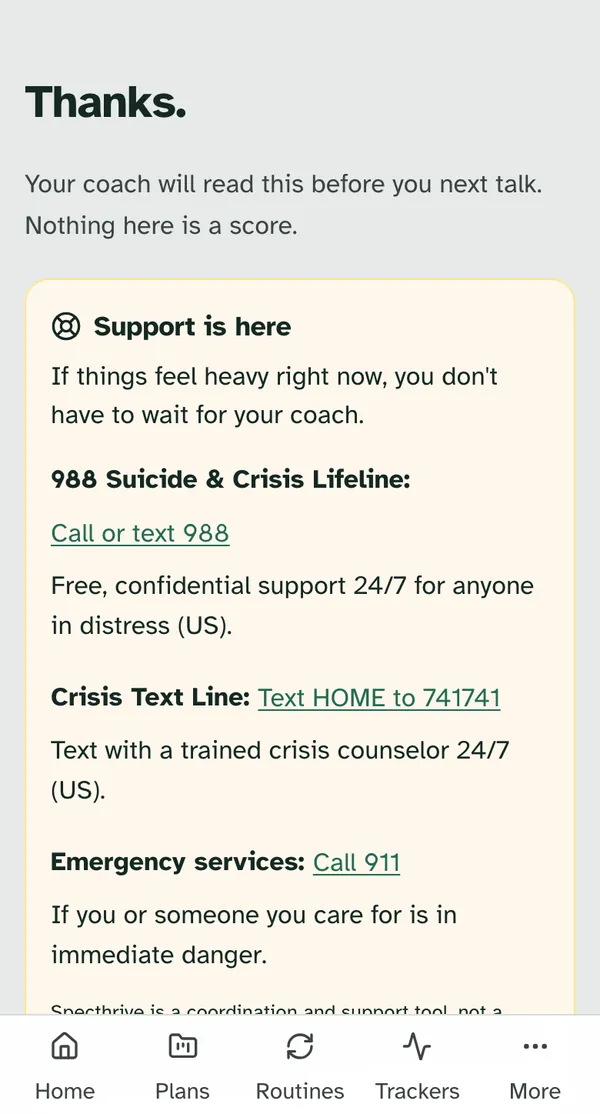
Nothing reaches Jordan before you send it. Jordan reads your answers only after you tap Send to my coach, along with anyone the first page names. Your guardians can't read them, even if you share your Trackers with them.
You can say no. "I'd rather not do this" asks "Stop this learning profile?" and explains "Nothing from here gets sent to your coach. You can talk with them about it whenever you like." Tap Stop, or Keep going to carry on. After you stop, it says "Okay, it's stopped." and "Nothing from here was sent to your coach."
Later, a quiet line. Once Jordan has read it, the row on Home says "Your coach has read this."
A questionnaire from start to send, with sound and captions.
4. Log an ACT practice test
Jordan may ask you to log a practice test. It shows up like any other to do, with Log. The first time, you're asked to start your ACT practice tests tracker, the same way as in section 2.
The form takes about a minute. "Log a practice test" asks When you took it and Which test, then your section results. Tap Save and finish. The form reminds you: "Saving your scores finishes this to-do."
Logging a practice test, with sound and captions.
Jordan sees it, your guardians don't. Your progress page says "Jordan Ellis can see your scores, timing and notes." and "Your guardians can't, unless you share it with them."
The full steps are on their own page. See Log ACT practice tests and see progress together.
5. A guide your coach shared
A guide is a ready-made plan. When Jordan shares one, a Shared a guide row shows its title, "From Jordan", a short description, and how many goals it has and about how long it takes. If someone else wrote it, the row adds "by" and their name. Nothing is emailed when a guide is shared.
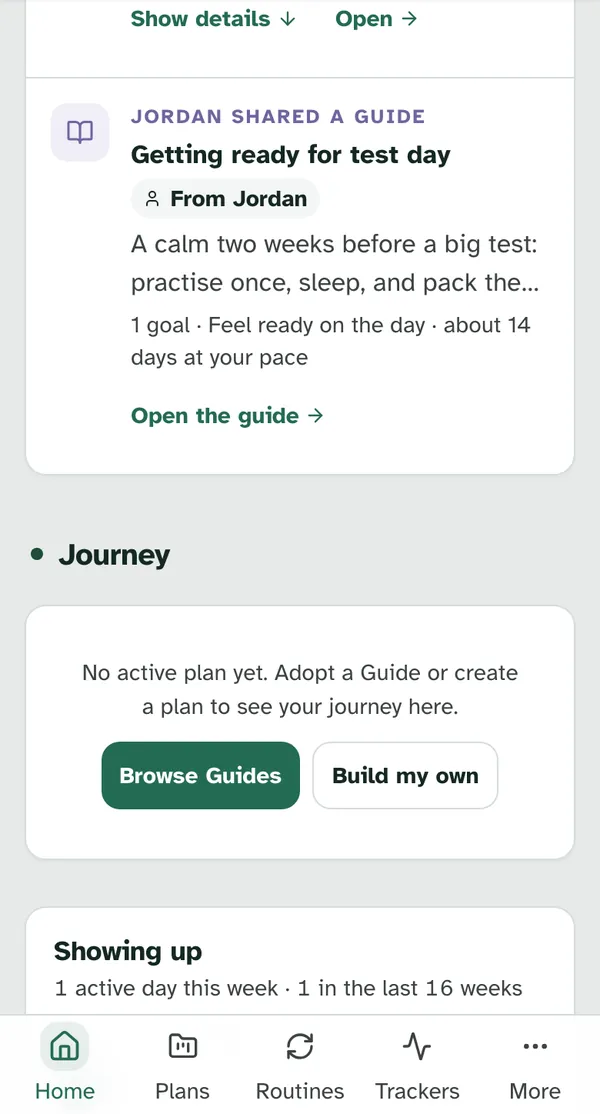
Look first, then start. Open the guide shows all of it. When you want to follow it, tap Add to My Plans, pick the goal to start with, and tap Start. The button then reads Go to Plan. Find a guide and make it yours has the full steps.
Opening a shared guide and starting it, with sound and captions.
Your copy is your own plan. Work through it at your own pace. Like your other plans, anyone you share Plans with can see it.
The row stays on Home. After you start, the Shared a guide row is still there. That's fine. Open the guide still works, and Go to Plan takes you to your copy.
Some of Jordan's items come from a guide. An item in your week can carry a chip such as "from the guide Getting ready for test day". It means Jordan took that step from a guide. It's still part of Jordan's week for you, and you don't need to open the guide to do it.
Getting help
Ask Jordan. On a note, Reply opens a message to Jordan. You can also open Messages: on a phone, tap More, then Messages.
Something you had is gone. If an item opens to "This isn't here any more", Jordan may have moved it or taken it back. "Everything else is where you left it." Anything you already ticked off stays with you, with your notes.
Need a hand with the app? Write to us on our contact page.
Related pages:
Still have a question?
If this guide did not cover your situation, reach out. We read every message.