Log ACT practice tests and see progress together
Students log the scores from a practice test taken at home in about a minute. They see their bests and how far they've come, and their coach sees the whole group and can assign the next test.
The ACT practice tests tracker is for the practice tests a student takes at home. After each one, the student types in their section scores and how the timing went, and Specthrive works out the composite. The student sees their bests and how far they've come since their first test. A coach they share it with sees the same, and also gets a view of their whole group and a way to assign the next test.
This page covers both sides, the student's first and then the coach's. The examples use Jordan as the coach and Riley Park as a student.
1. Log a practice test (student)
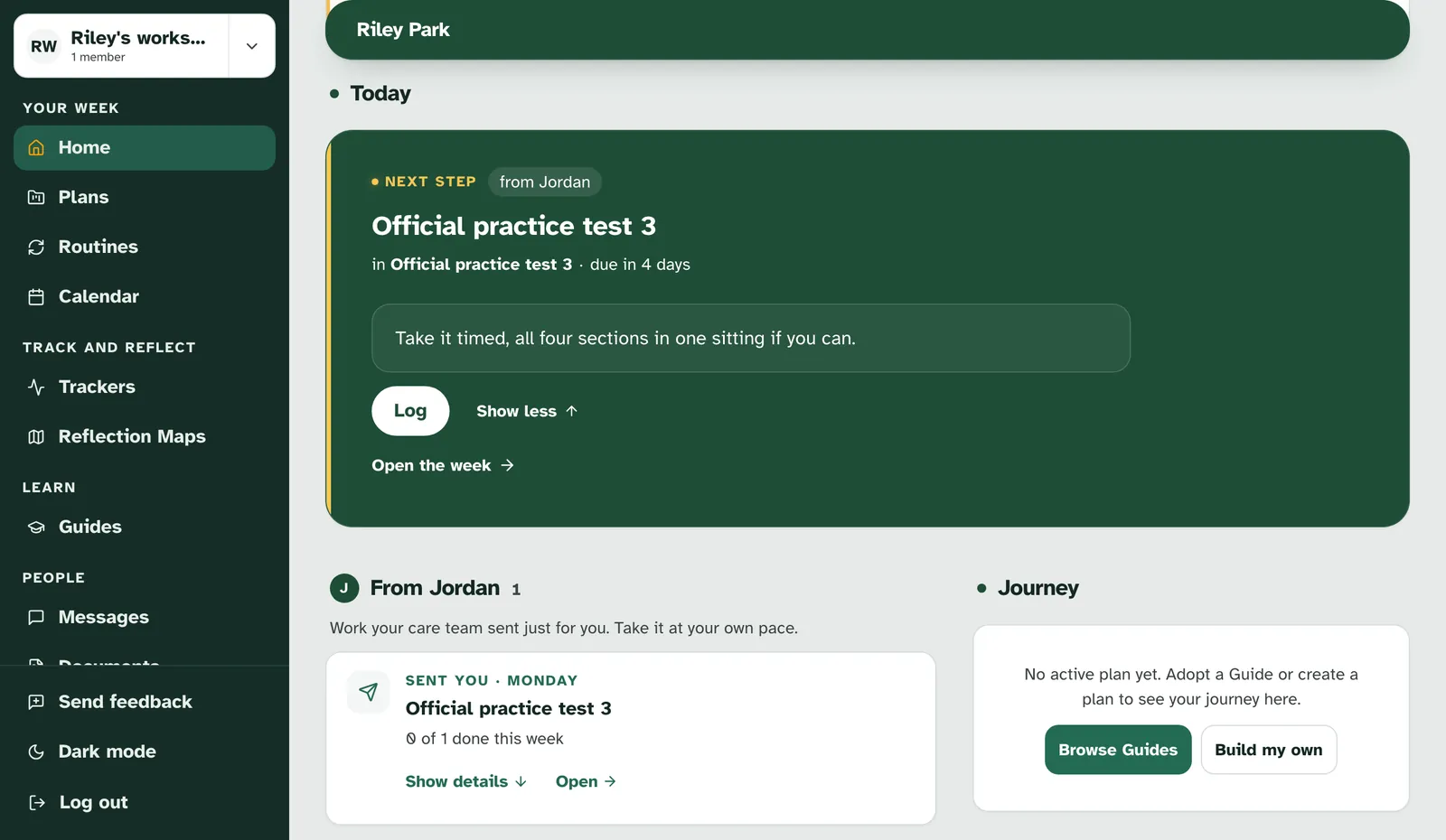
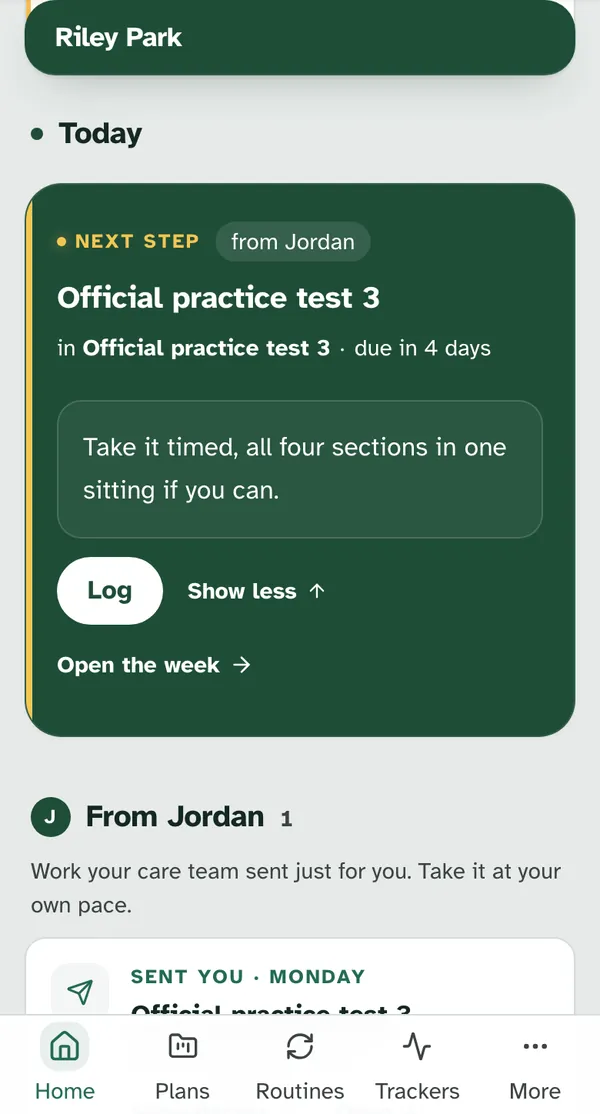
Start from the to-do or from the tracker. When Jordan assigns a test, it shows up on your Home page as a next step from Jordan, with a Log button. Log opens the to-do, and its own Log opens the form with the to-do at the top, such as "From Jordan · due Fri Oct 9." You can also open the tracker yourself and choose Log a test, which works the same way without a to-do.
If you don't track it yet, you're asked first. The first time, you see "Jordan asked you to log ACT practice tests" and "Start a tracker for ACT practice tests? It's yours: only you log in it, and you can stop it any time." Choose Start ACT practice tests, or Not now to leave it for later.
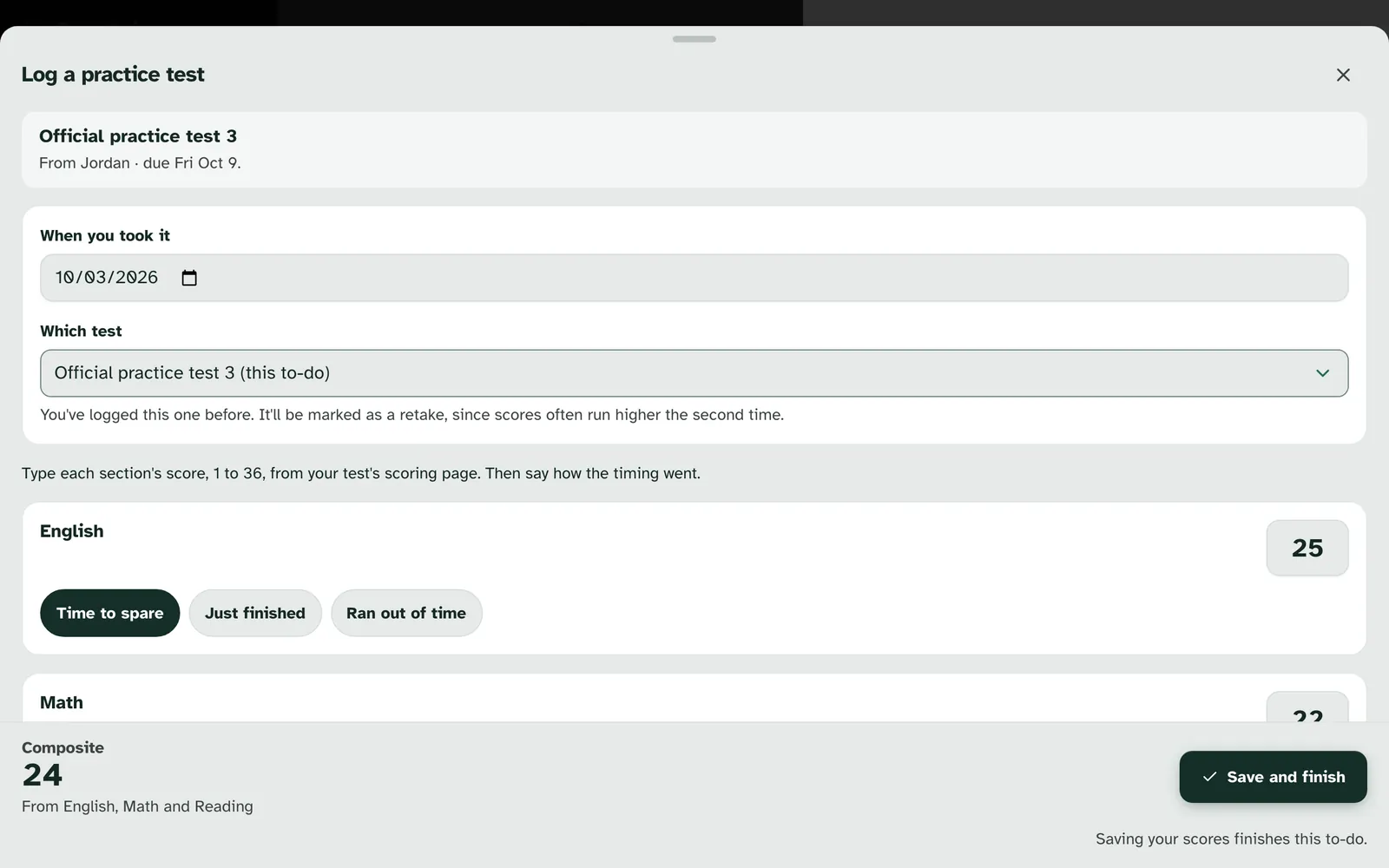
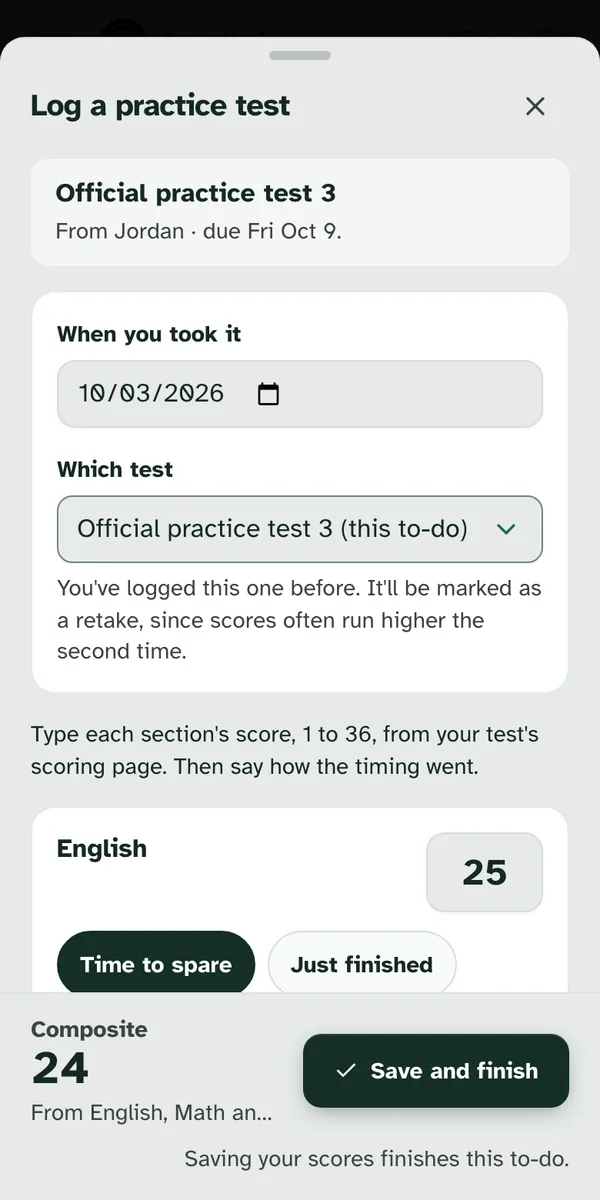
Say when and which test. The form is called Log a practice test. When you took it can be today or an earlier day. Which test offers the tests you might mean, in this order:
| Group | What it holds |
|---|---|
| From your to-dos | The to-do you opened the form from, already chosen. It shows only when you start from a to-do. |
| Already logged | Tests you've logged before, with the day you logged each one. |
| A test that isn't listed | Opens Test name, for a test of your own, such as a school mock test. |
Picking a test you've logged before marks it as a retake. The form says "You've logged this one before. It'll be marked as a retake, since scores often run higher the second time."
Type each section's score and how the timing went. "Type each section's score, 1 to 36, from your test's scoring page. Then say how the timing went." English, Math and Reading are needed. Science is "Optional, not in the composite", and you can tick "I skipped Science this time". For each section, pick Time to spare, Just finished or Ran out of time. A number outside the range shows "Scores go from 1 to 36." next to the box.
The composite works itself out. The bottom of the form shows the composite as you type. It is the average of English, Math and Reading, rounded, with a half rounding up. Science stays on its own.
Add a note if you want to. Anything else you want to add? is for how it went, what felt hard, or a question. When you have a coach, the form says "Optional. How it went, what felt hard, a question. Jordan sees it with your scores."
Save it. From a to-do, the button is Save and finish, and the form says "Saving your scores finishes this to-do." Otherwise it is Save. If saving doesn't work, you see "Could not save entry" and "Your scores are still here. Try again in a moment."
2. After you save
The screen after saving depends on how the test went. None of them is a grade.
| What happened | What you see |
|---|---|
| Your first test | "Your starting point is set" and "Every practice test from here is measured against this one. It isn't a grade, it's where you began." |
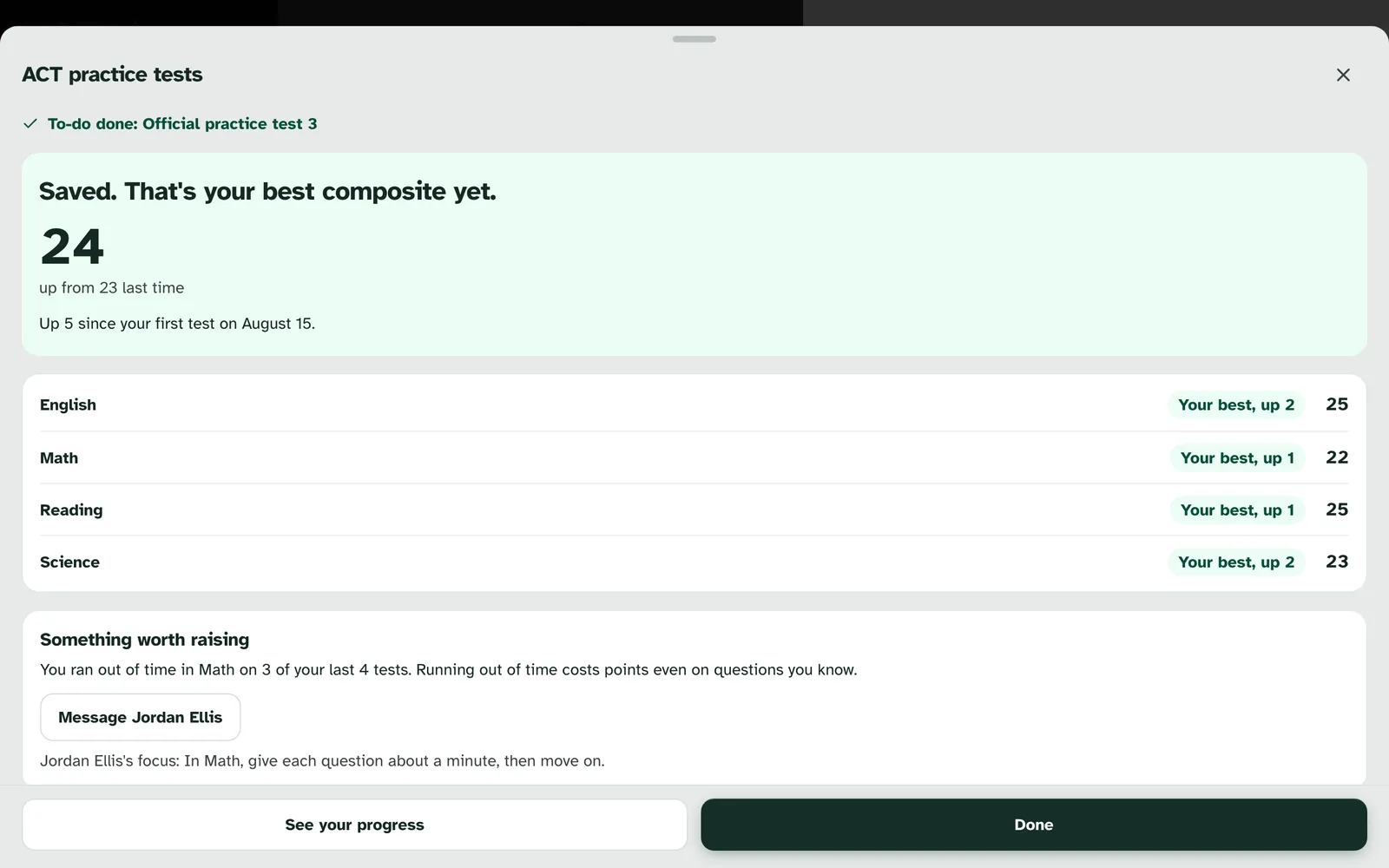
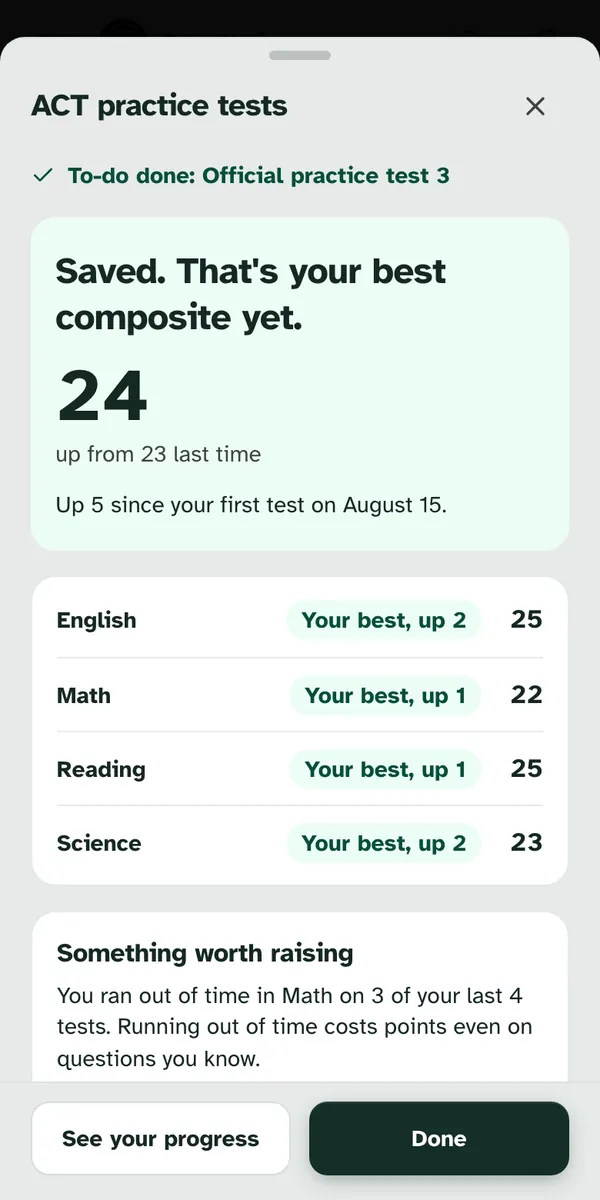
| A new best composite | "Saved. That's your best composite yet." Each section says Your best, up a number, Same as your best, or Skipped this time. |
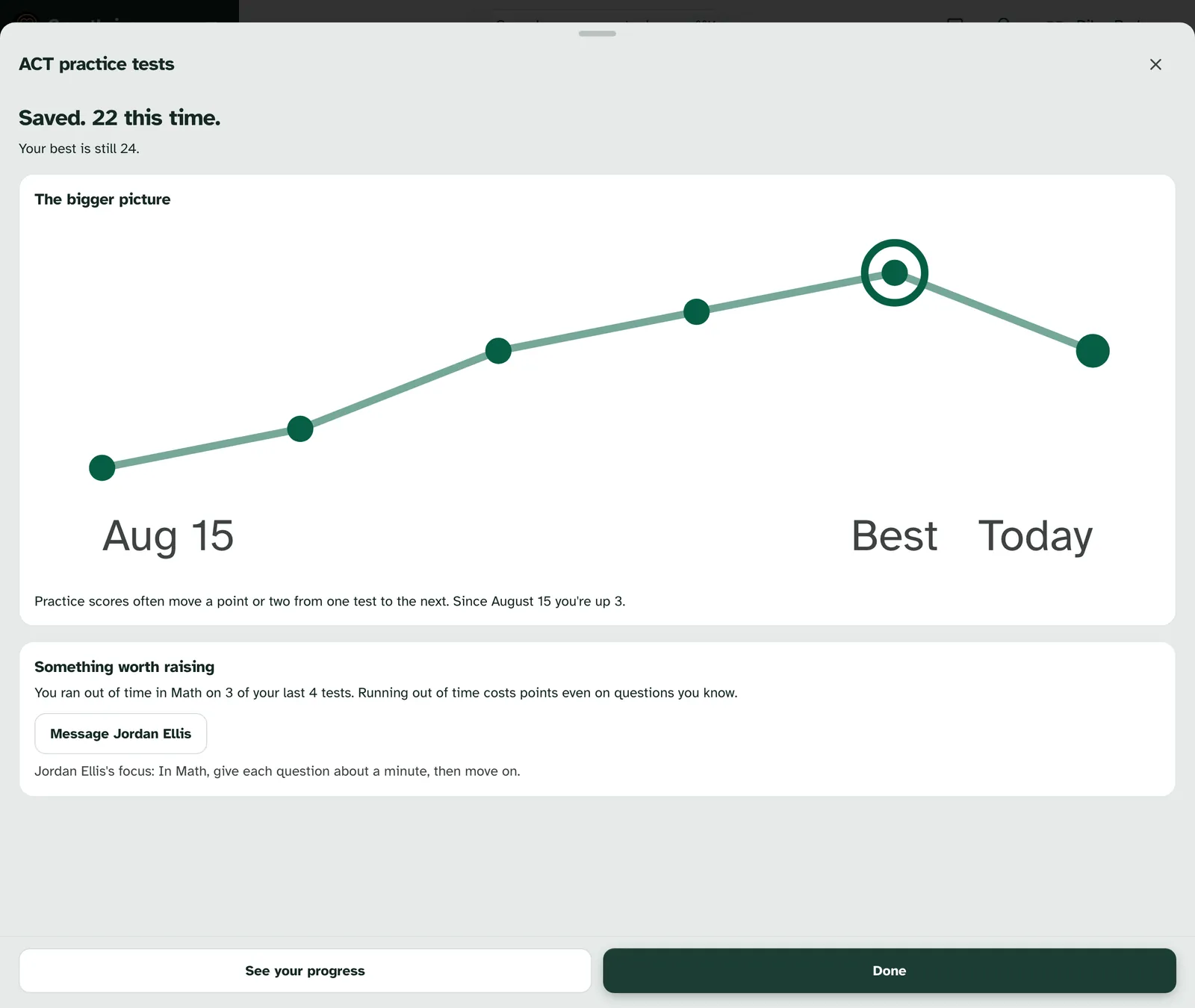
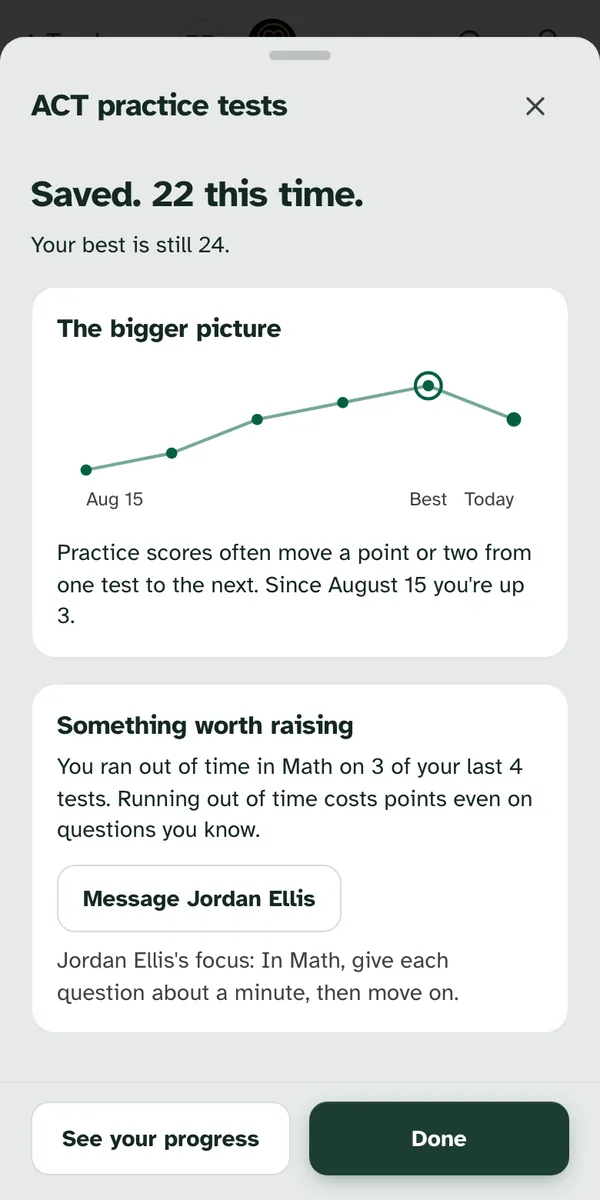
| Any other test | "Saved. 22 this time." Then your best, and any section where you matched or beat it. Under The bigger picture: "Practice scores often move a point or two from one test to the next." |
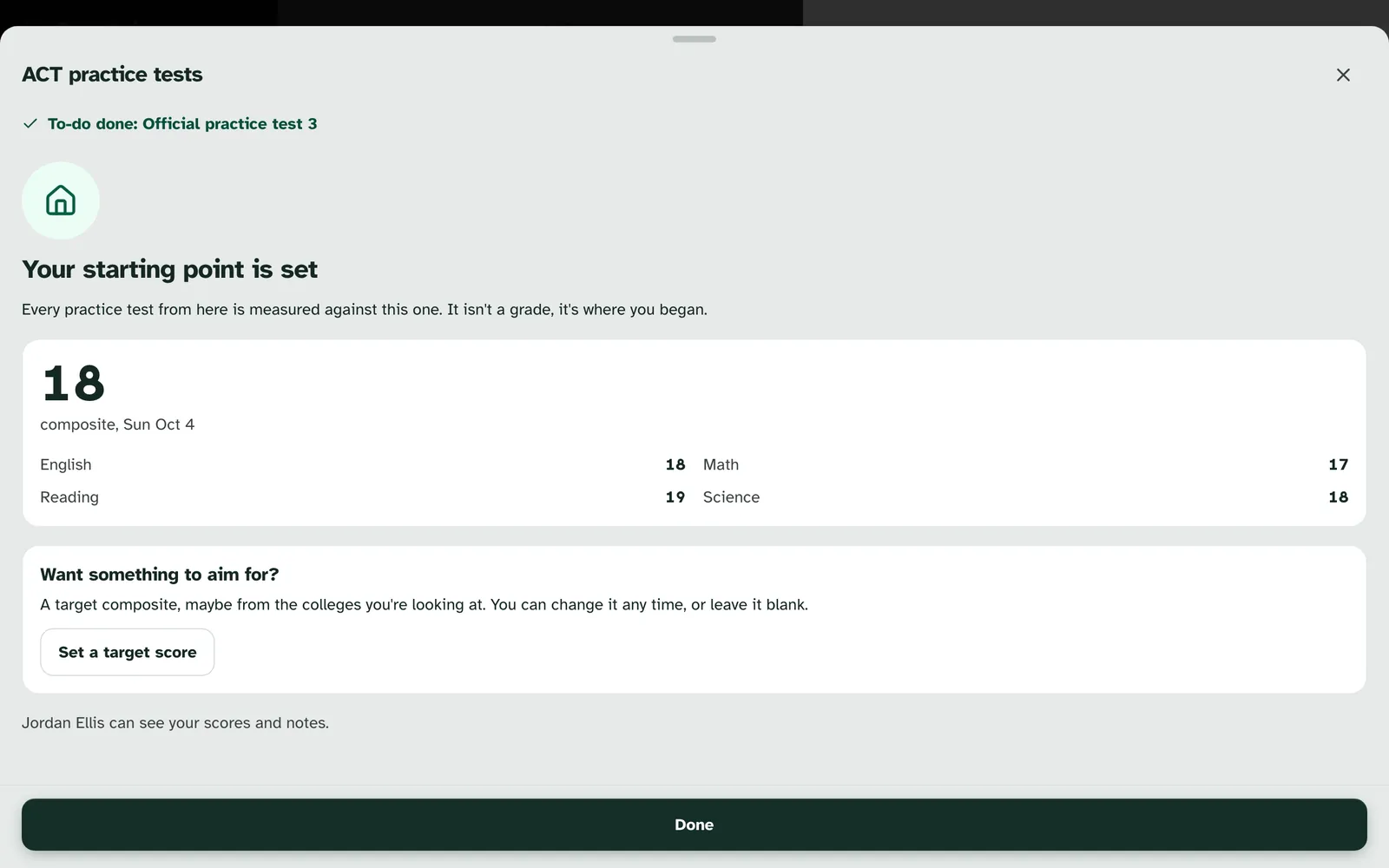
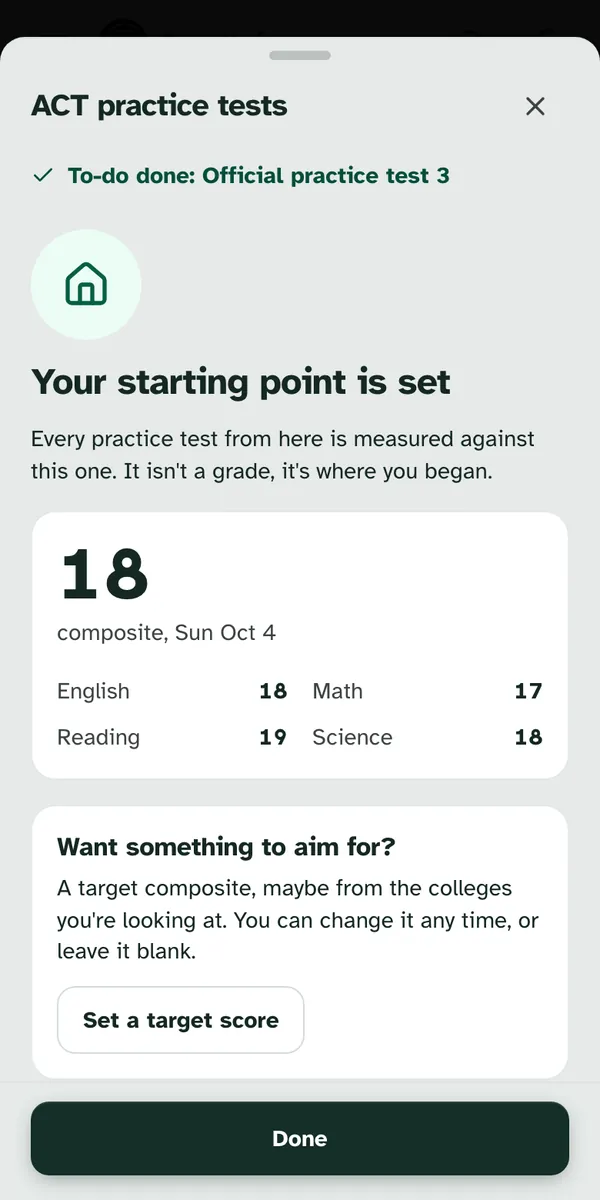
Your first test is a good time to set a target. "Want something to aim for?" offers Set a target score: "A target composite, maybe from the colleges you're looking at. You can change it any time, or leave it blank." Choose Save target when it's in. You can change it later from your progress page.
A timing pattern gets one gentle mention. If you ran out of time in the same section on several recent tests, the screen shows "Something worth raising" and says so once, with Message Jordan Ellis. Jordan's current focus for you shows too, if Jordan has set one, such as "Jordan Ellis's focus: In Math, give each question about a minute, then move on."
From a to-do, the screen confirms it's done. It reads "To-do done:" and the to-do's title. See your progress opens your progress page, and Done closes the screen.
Offline, it waits on your device. You see "Saved on this device" and "It'll send when you're back online."
3. Your progress page (student)
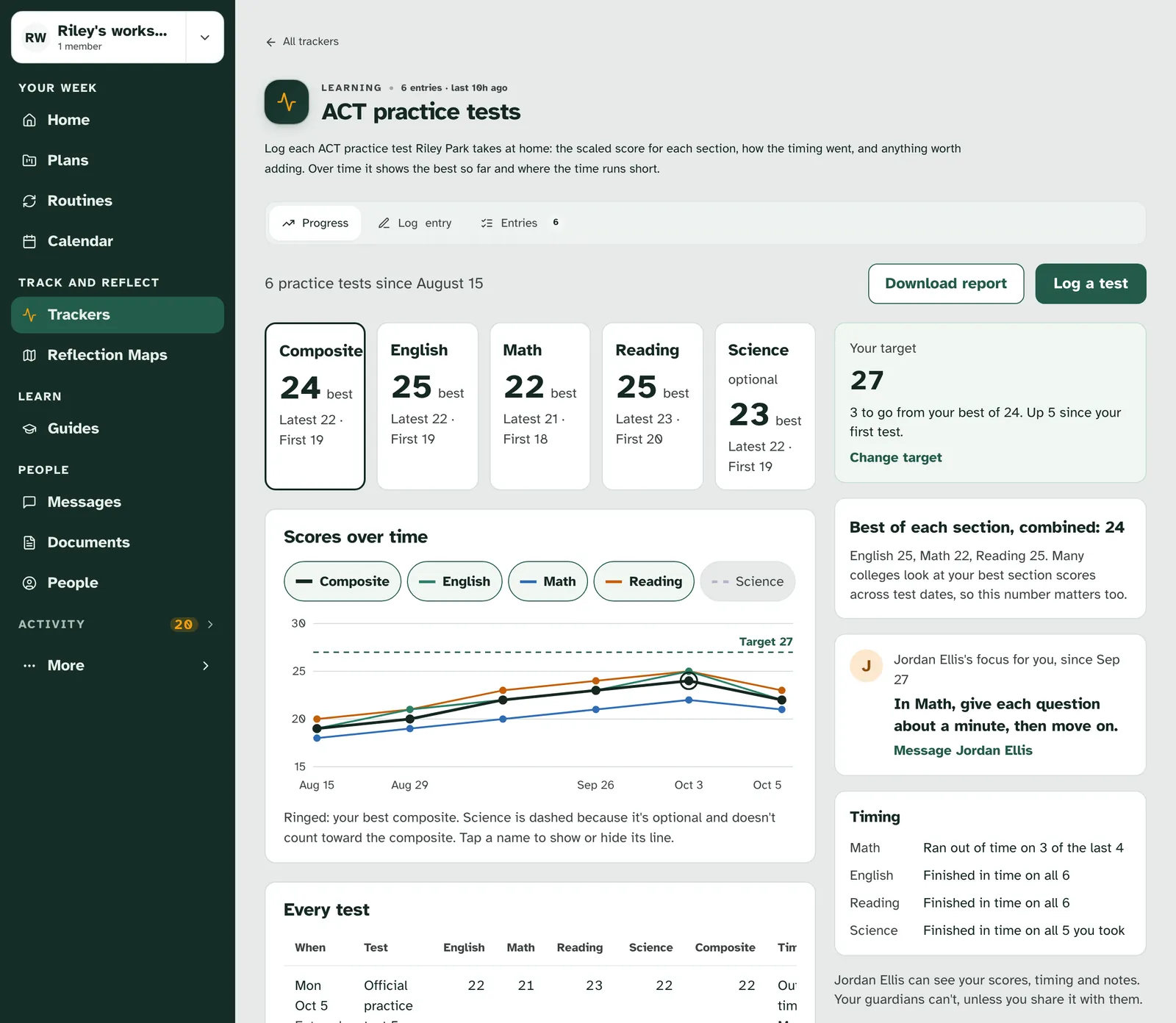
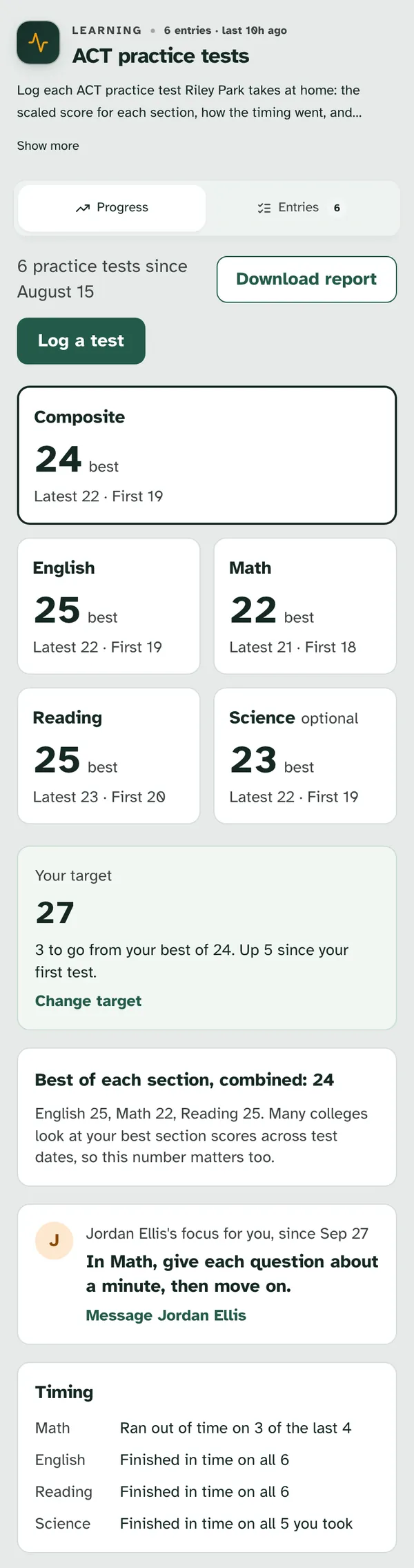
The tracker opens on Progress. The top says how many practice tests you've logged and since when, with Log a test next to it. The other tab is Entries, plus Log entry on a computer. Once you've logged a test, Download report sits next to Log a test too.
Your bests come first. Each section and the composite has a card with your best, then your latest and your first. Science is marked optional.
Your target and your superscore sit beside them. Your target shows how far you are from it, such as "3 to go from your best of 24.", with Change target. "Best of each section, combined" takes your best English, Math and Reading scores, even from different tests, and works them out the way the composite is: their average, rounded. Science doesn't count toward it. Bests of 25, 22 and 25 make 24. "Many colleges look at your best section scores across test dates, so this number matters too."
Your coach's focus shows here too. "Jordan Ellis's focus for you" is one short thing Jordan wants you to work on before the next test, with the day it was set and Message Jordan Ellis.
Timing and the chart show the longer view. The Timing card has a line for each section, such as "Finished in time on all 4" or "Ran out of time on 2 of the last 4". On the chart, you can turn each line on and off.
Every test is listed, with your bests in bold. The table has each test's day, name, scores and timing. Your first one is marked Starting point. "Tap a row to fix a typo; the change is kept with who made it and when." Only the person who logged a test can fix it.
Download report makes a PDF. It holds every test you've logged: a summary, your scores over time, each test, your timing and, if you have a coach, their focus. While it's being made, the button reads "Preparing report".
Before your first test, the page waits for it. It says "Your first test sets your starting point" and "Log a practice test when you've taken one. It isn't a grade, it's where you begin."
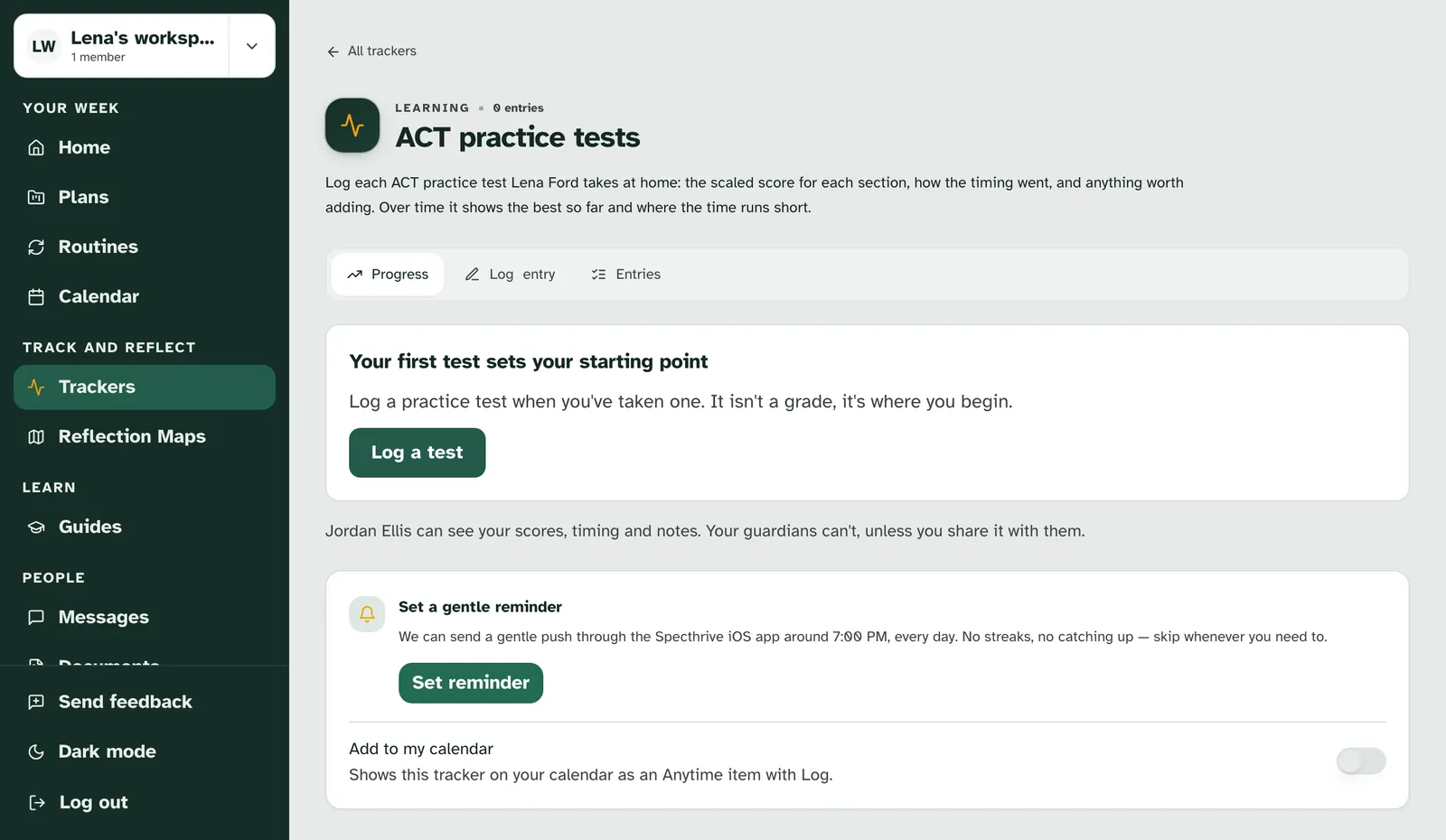
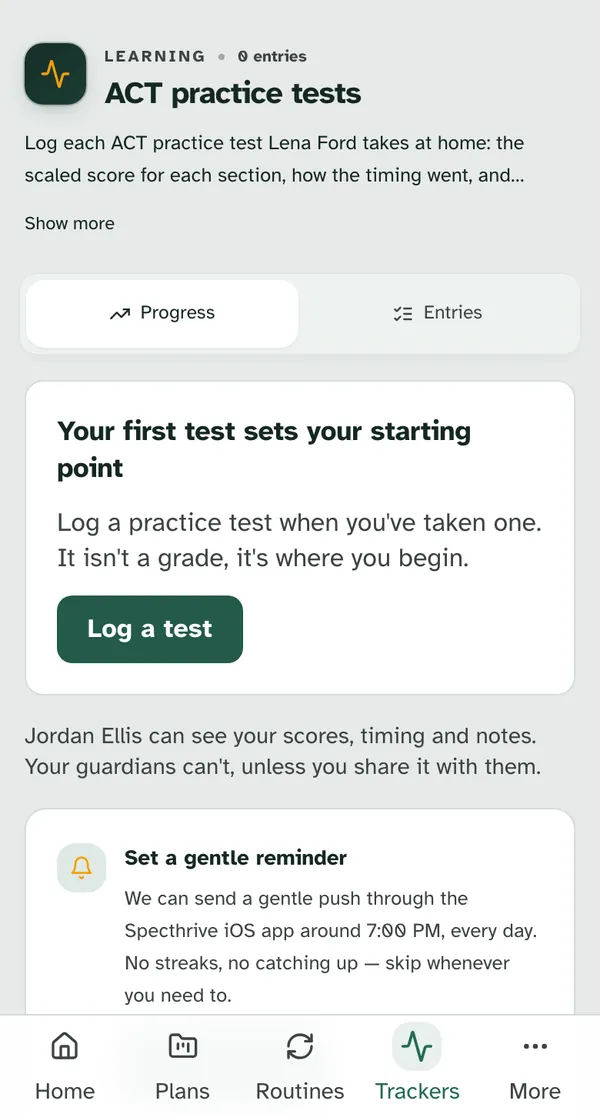
The page says who can see it. With a coach, it reads "Jordan Ellis can see your scores, timing and notes." When only Jordan can see it, it adds "Your guardians can't, unless you share it with them." With no one else, it reads "Only you can see this unless you share it."
4. Assign a practice test (coach)
Start from your group. On your Clients page, choose a group, then Assign a practice test in the group's header. It needs at least one student who can take part.
Name the test. "Each student gets a to-do with the ACT practice tests tracker attached. Logging their scores finishes it." Type the name in Which test, or pick one under "Names you've used before:". If some students already logged a test with that name, you see a line like "2 of 5 students have already logged Official practice test 3. For them it would be a retake, and retake scores often run higher."
Choose who gets it. Pick Everyone in ACT prep, fall (5), with your group's name and size, or Choose students and tick the ones you want.
Set a due date and an optional note. Due by starts at today or later. "A score logged any day up to this date finishes the to-do." Anything they should know is optional.
See it as they will. Each student sees shows the to-do, such as "From Jordan · due Fri, Oct 9. Saving your scores finishes this to-do."
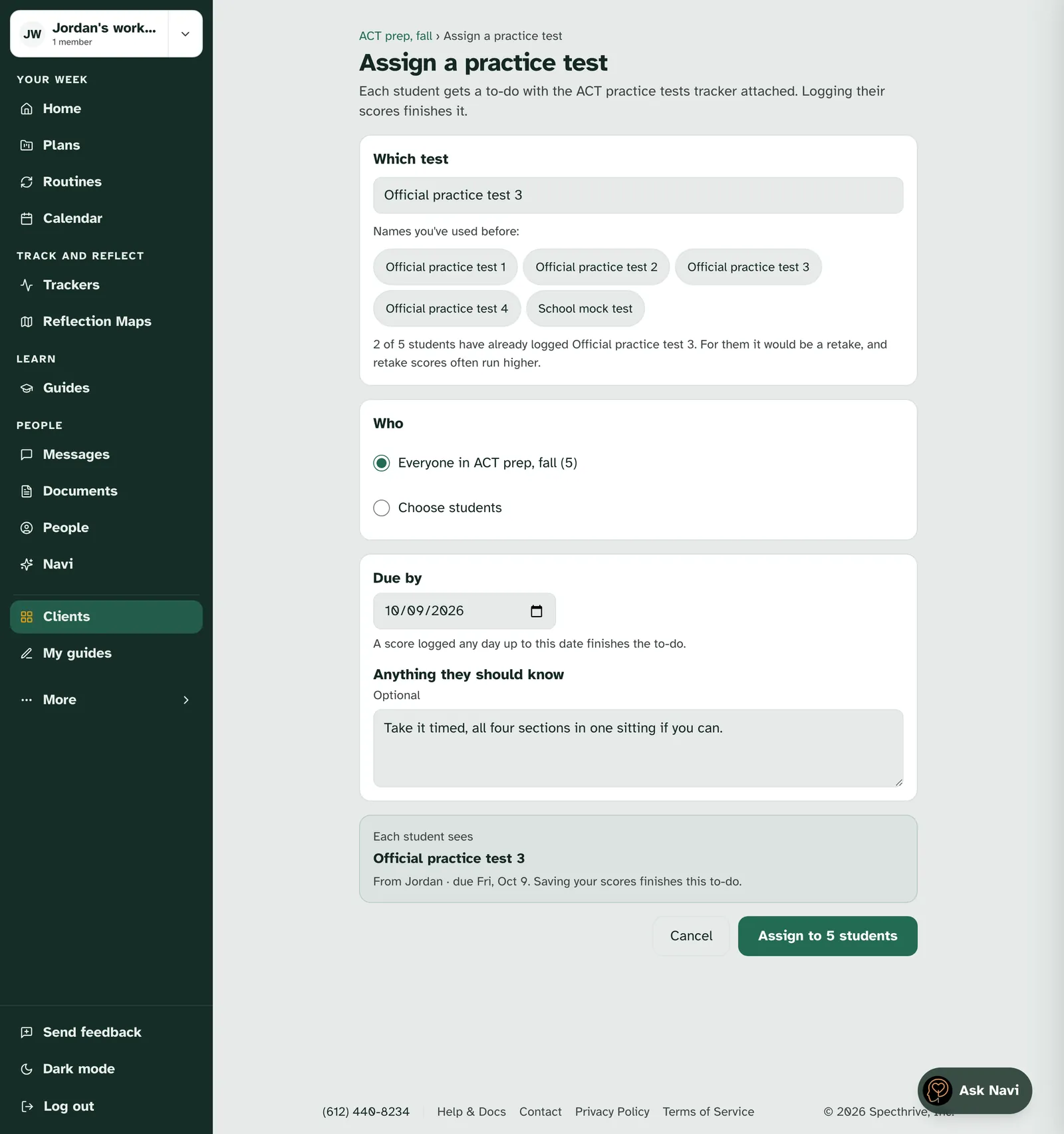
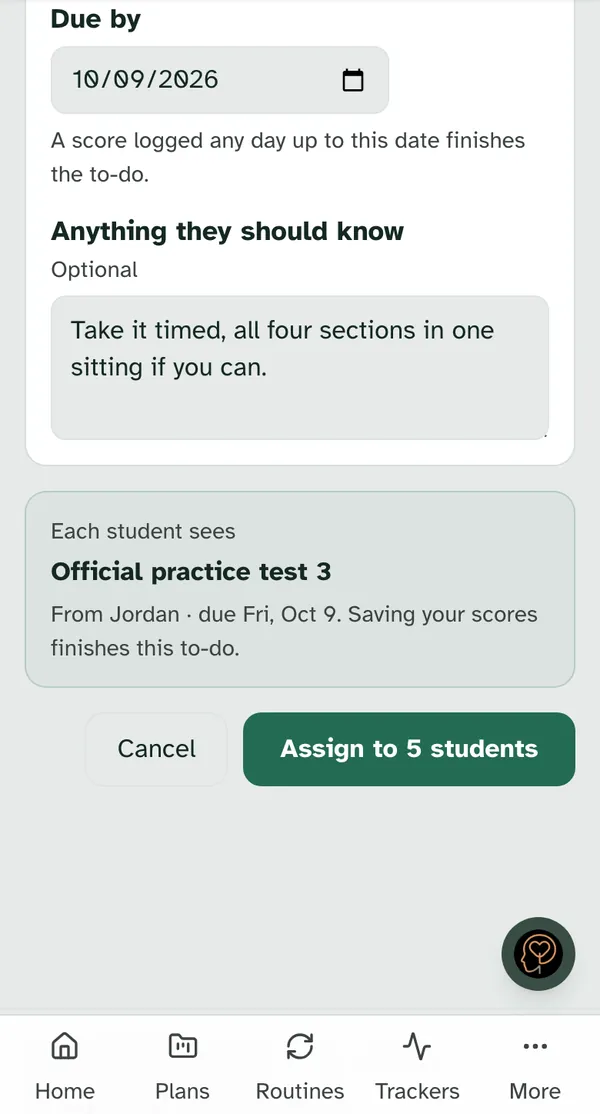
Assigning a practice test to your group, in about 25 seconds, with sound and captions.
Send it. Choose Assign to 5 students, or however many you picked. You see "Assigned to 5 students" and land on the assignment, where you can follow it like any other. If it doesn't go, you see "That didn't send. Nothing was assigned. Try again."
5. Your group's Practice tests tab (coach)
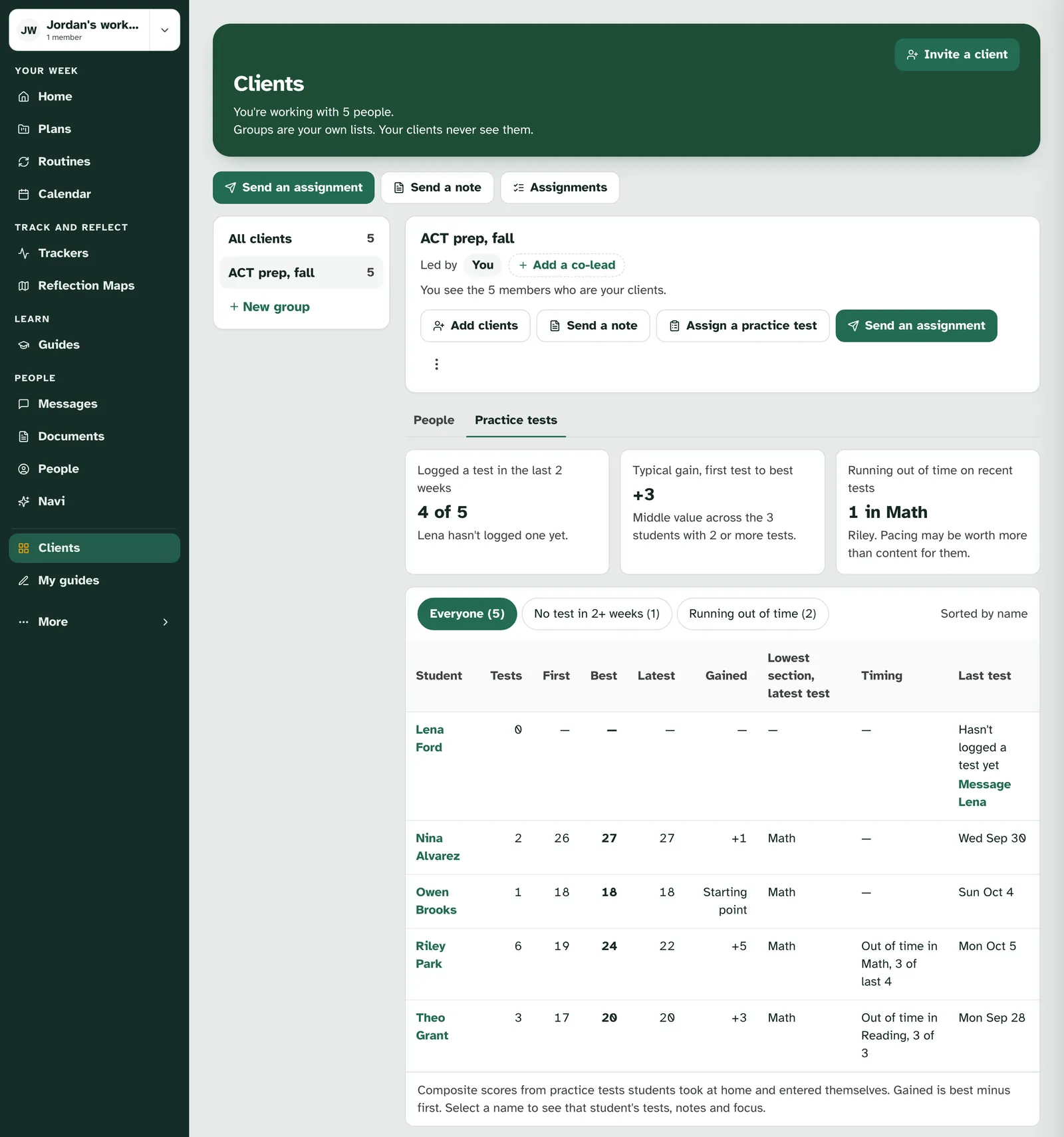
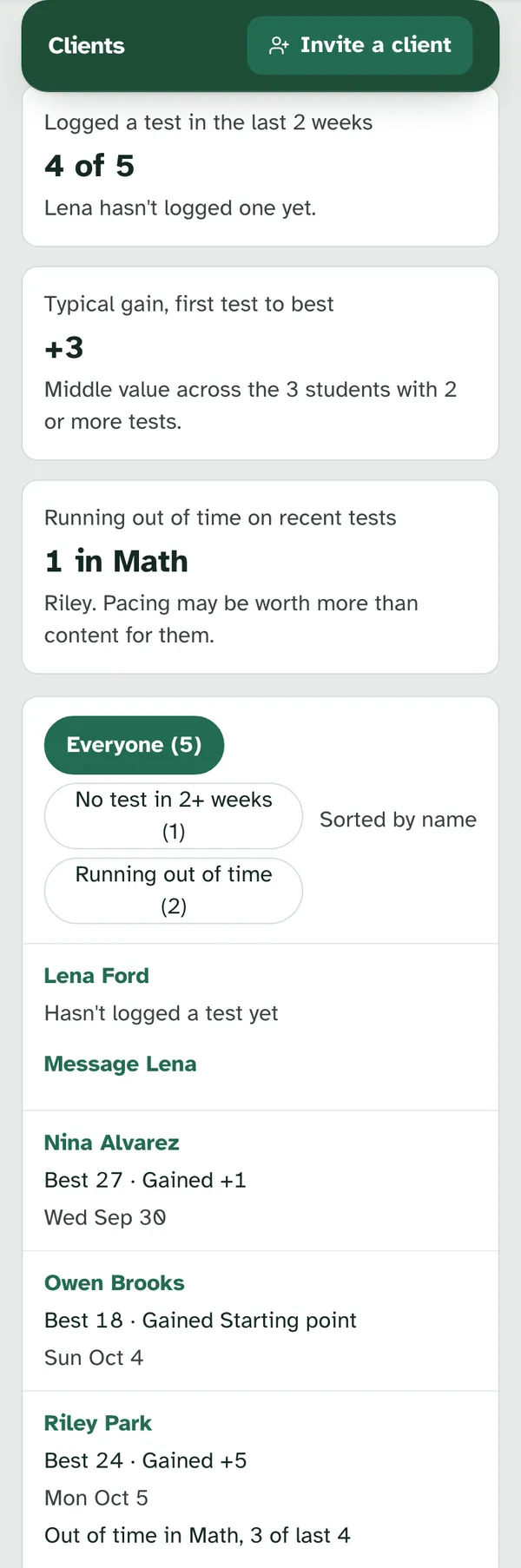
Each group has a Practice tests tab next to People. It shows only the students who share their trackers with you.
Three cards sum up the group.
| Card | What it tells you |
|---|---|
| Logged a test in the last 2 weeks | How many have, such as 4 of 5, and who hasn't yet. |
| Typical gain, first test to best | The middle gain across students with 2 or more tests. |
| Running out of time on recent tests | Who keeps running short, and in which section. "Pacing may be worth more than content for them." |
Filter the list. Everyone, No test in 2+ weeks and Running out of time each show how many students they hold, such as Everyone (5).
The table is sorted by name, never by score. Each row has the student's tests, first, best and latest composite, Gained (best minus first), their lowest section on their latest test, timing, and their last test. A student with no tests reads "Hasn't logged a test yet", with a message link such as Message Lena when the student has their own account. A student who hasn't shared their trackers reads "Not shared with you".
Open one student from their name. Selecting their name opens that student's tests, notes and focus. The page then reads "Viewing:" and their name, so you know whose tracker you're on.
Before anyone logs, the tab is quiet. It reads "No practice tests logged yet. When students log one, it shows up here."
6. One student's tests and your focus (coach)
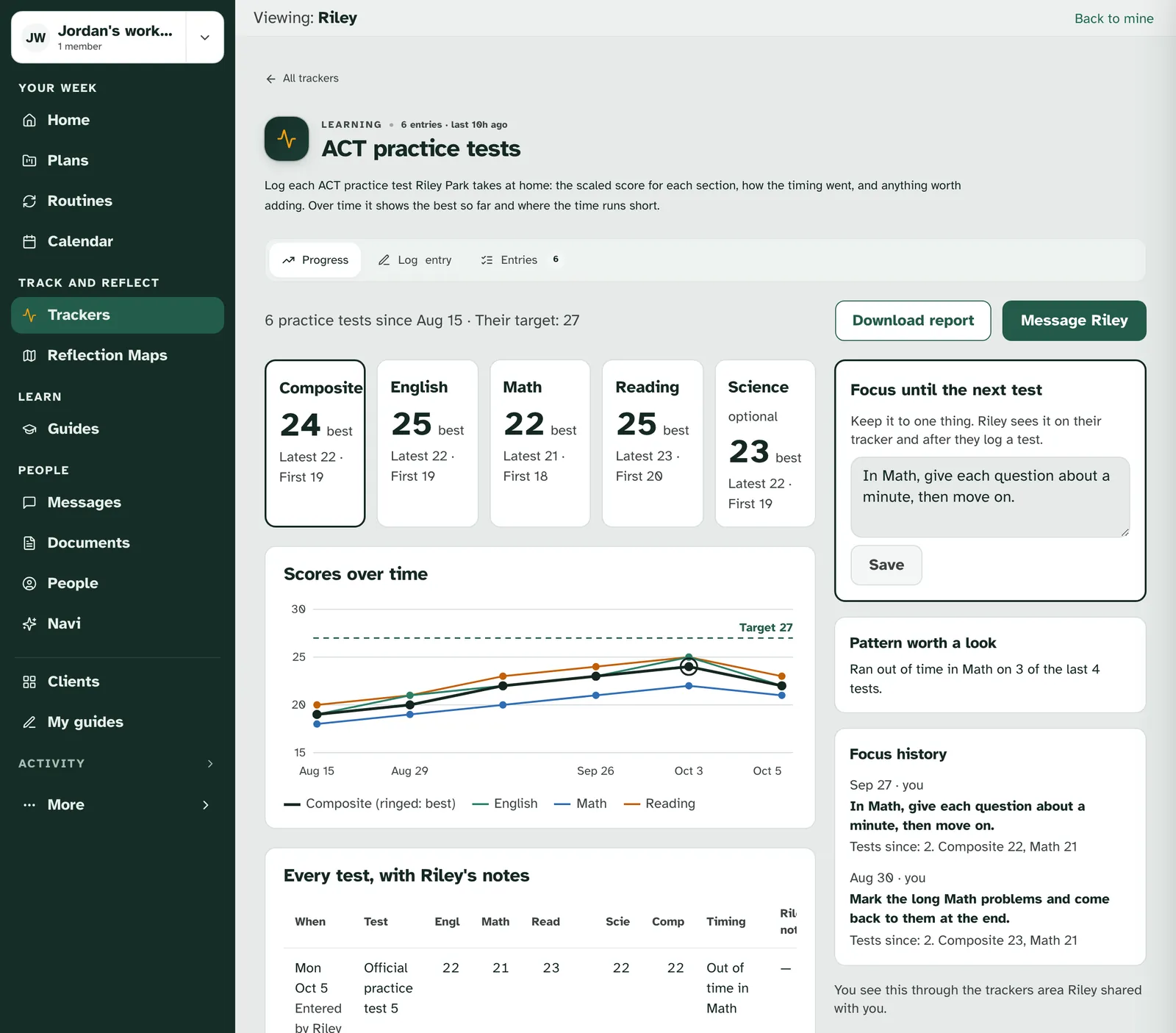
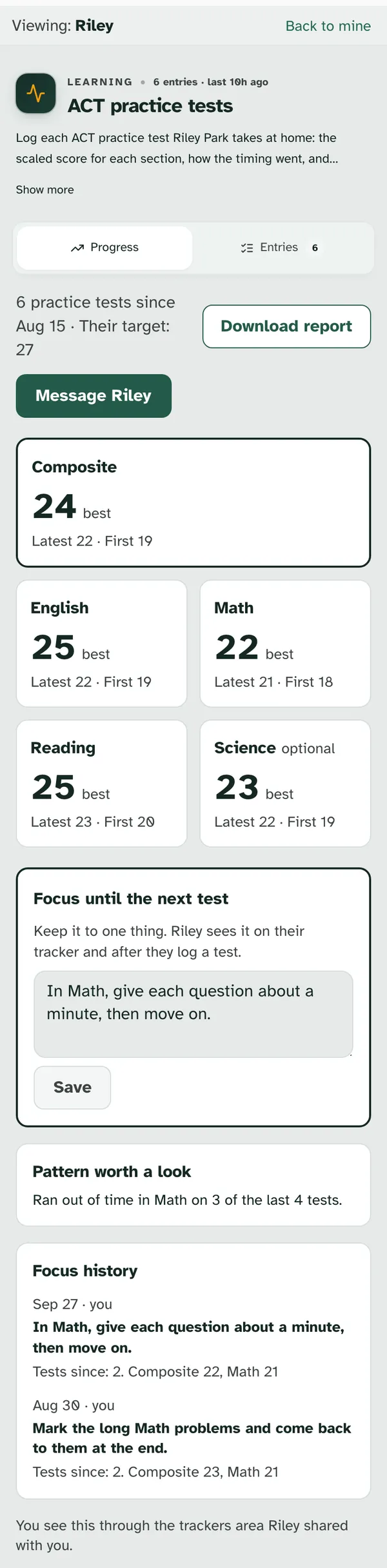
You see what the student sees. The same bests, target, chart and timing, with "Every test, with Riley's notes" below. The target is Riley's own: you see it, and only Riley changes it.
Set one focus until the next test. Focus until the next test is one short line, up to 200 characters. "Keep it to one thing. Riley sees it on their tracker and after they log a test." Choose Save. A share that only lets you view Riley's trackers is enough to set it.
You can download the report too. Download report gives you the same PDF Riley gets, with every test Riley has logged.
Each focus is kept. Focus history lists each focus with its day and who set it, and how many tests Riley has logged since.
Patterns are named plainly. Pattern worth a look reads like "Ran out of time in Math on 3 of the last 4 tests."
7. Using it without a coach
It works on its own too. Anyone can add ACT practice tests from their trackers. Without a coach, the parts about a coach don't show: no to-do at the top of the form, no focus, no button to message a coach. When no one else can see your trackers, the note box reads "Only you can see this unless you share it." If a parent or your family workspace can see them, it reads "People who can see your trackers see it too." instead. If you share your trackers with a coach later, your tests are already there for them.
Getting help
Tell us if something looks off. If something here doesn't match what you see, or a test didn't save, get in touch.
Still have a question?
If this guide did not cover your situation, reach out. We read every message.