Keep a routine going
For anyone with something to do on a rhythm. Add a routine, tick today's from Home, and pause or end it when life changes.
A routine is something you come back to on a rhythm: a homework session on school days, a wind-down every evening, a check-in whenever you need one. A plan has a beginning and an end. A routine keeps its own rhythm, for as long as it helps.
A day you don't get to is just a day. Routines never count as missed. Nothing turns red, and nothing piles up for tomorrow.
1. Find your routines
Routines sits with the rest of your week. On a computer it's in the sidebar under Your week, with Home, Plans and Calendar. On a phone it's in the bar along the bottom. The page is headed Routines, "Ongoing schedules and recurring activities", and has two tabs: Today, for what's on today, and All Routines. Above them, Active Routines counts your routines and Done Today shows how many of today's are done.
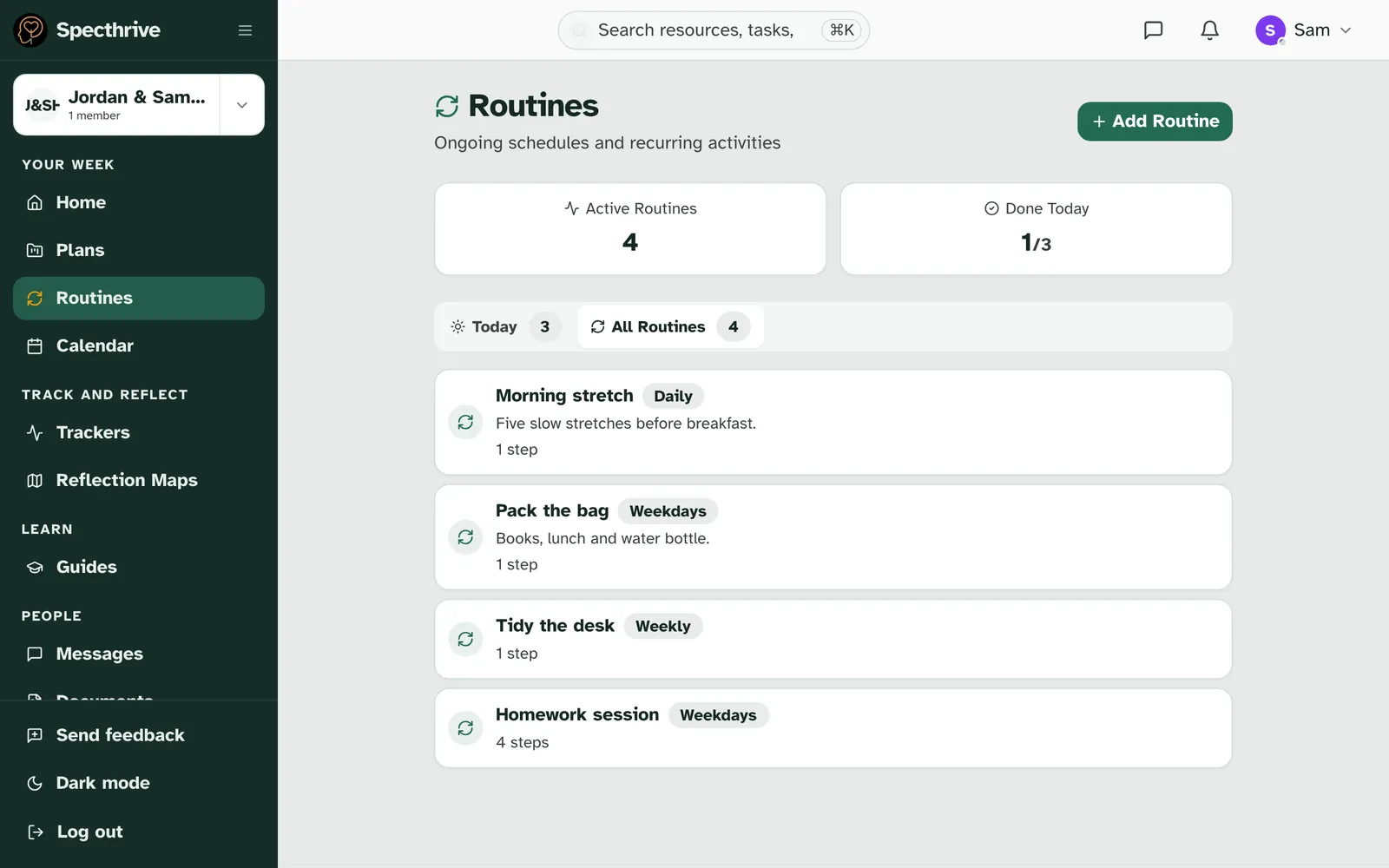
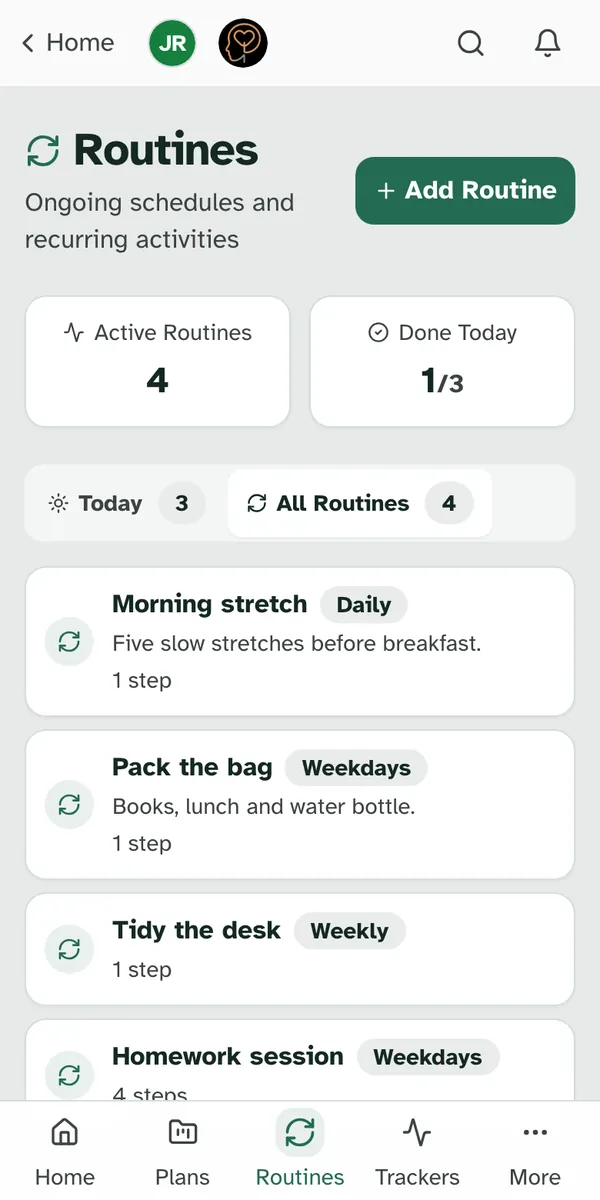
Quiet days read as quiet. When nothing is due, Today says "Nothing on the schedule today" and "You're all caught up. Take it one step at a time." Before you have any routines, the page says "Build your first routine".
2. Add a routine
Choose Add Routine. It offers two ways in:
- Browse Routines opens the Guides page on its Routines tab, headed Build daily habits: "Routines are repeatable sessions you run daily or weekly. Adopt a routine and it appears on your Routines page, ready to follow."
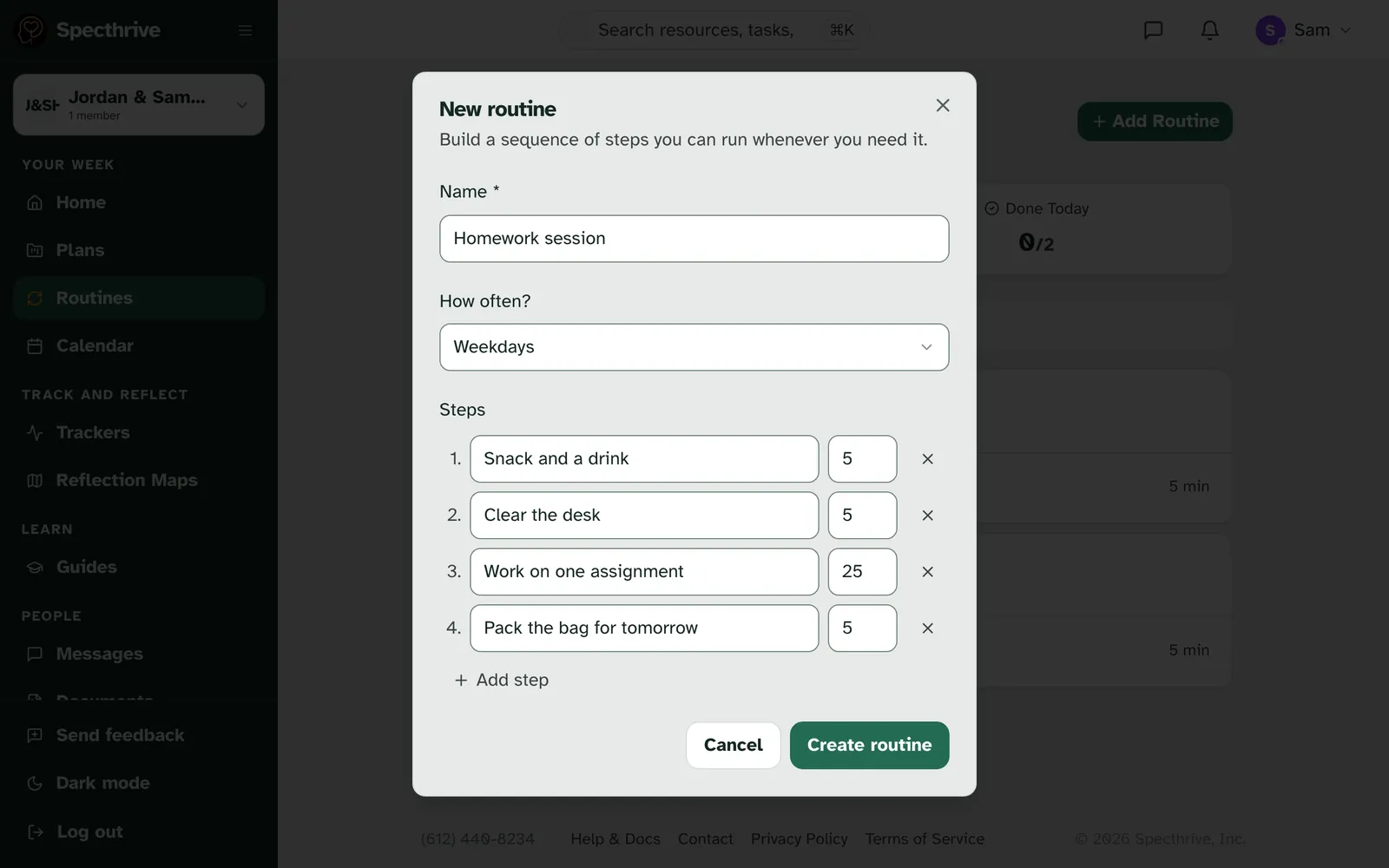
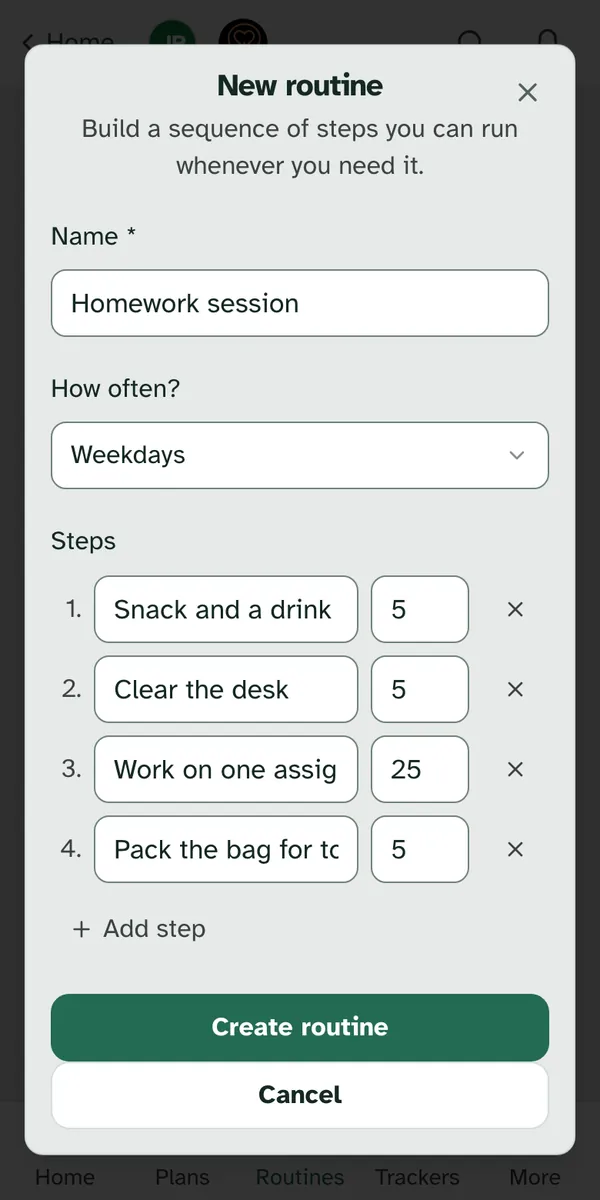
- Create Custom opens New routine: "Build a sequence of steps you can run whenever you need it." A Name is all it needs. How often? starts at Daily; change it to Weekdays, Weekly or On demand if that fits better. Steps are optional: each is a few words, with the minutes it takes if you want to add them. Add step adds another. Then choose Create routine.
Routines can start in other places too.
- From a guide. Some guides include routine steps. Adopting the guide makes each one a routine of its own. See section 6.
- From a task in a plan. Making a task repeat asks Move to Routines?: "Making this task recurring will move it to your Routines page and remove it from this plan."
- From your coach. A routine a coach or therapist sends you offers Keep this going after its last day, so it carries on as your own. See Send assignments to your clients.
3. Tick today's from Home
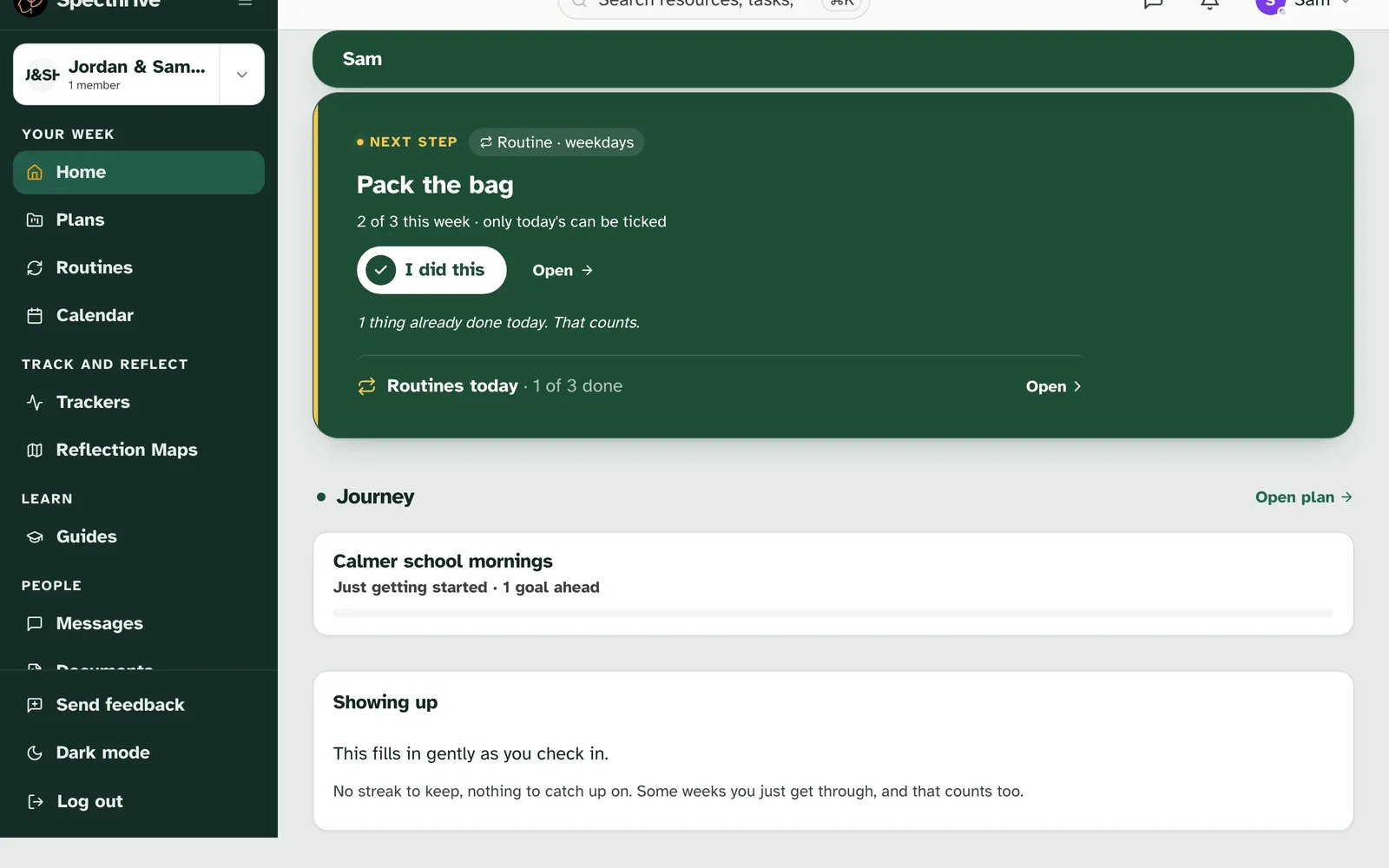
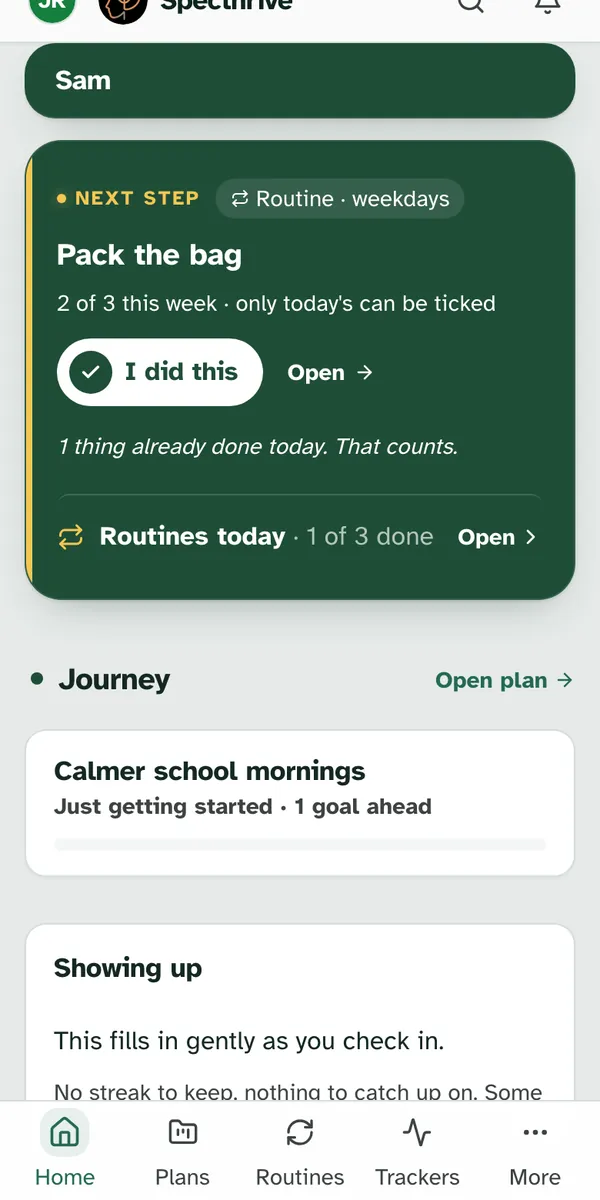
When a routine is due today, Today says so in one line. Home's Today card shows your next step, and under it a line such as "Routines today · 1 of 3 done", with Open. With nothing due today, there is no line. The same line shows on the Plans page.
With no task left for today, a routine can be your next step. Today then shows it with its rhythm, such as Routine · weekdays, how the week is going, and "only today's can be ticked". Choose I did this. If you tapped it by mistake, Undo is in the message that follows, "Marked done for today." Once something is done, the card says so, such as "1 thing already done today. That counts."
Open shows today's routines. The Routines today window says "Tick one when you've done it today." Each routine shows its rhythm and how the week is going, such as "Weekdays · 2 of 3 this week". Tick it when it's done. The next one still to come says when it can be ticked, such as "Tomorrow · you can tick it then". All routines → opens the Routines page.
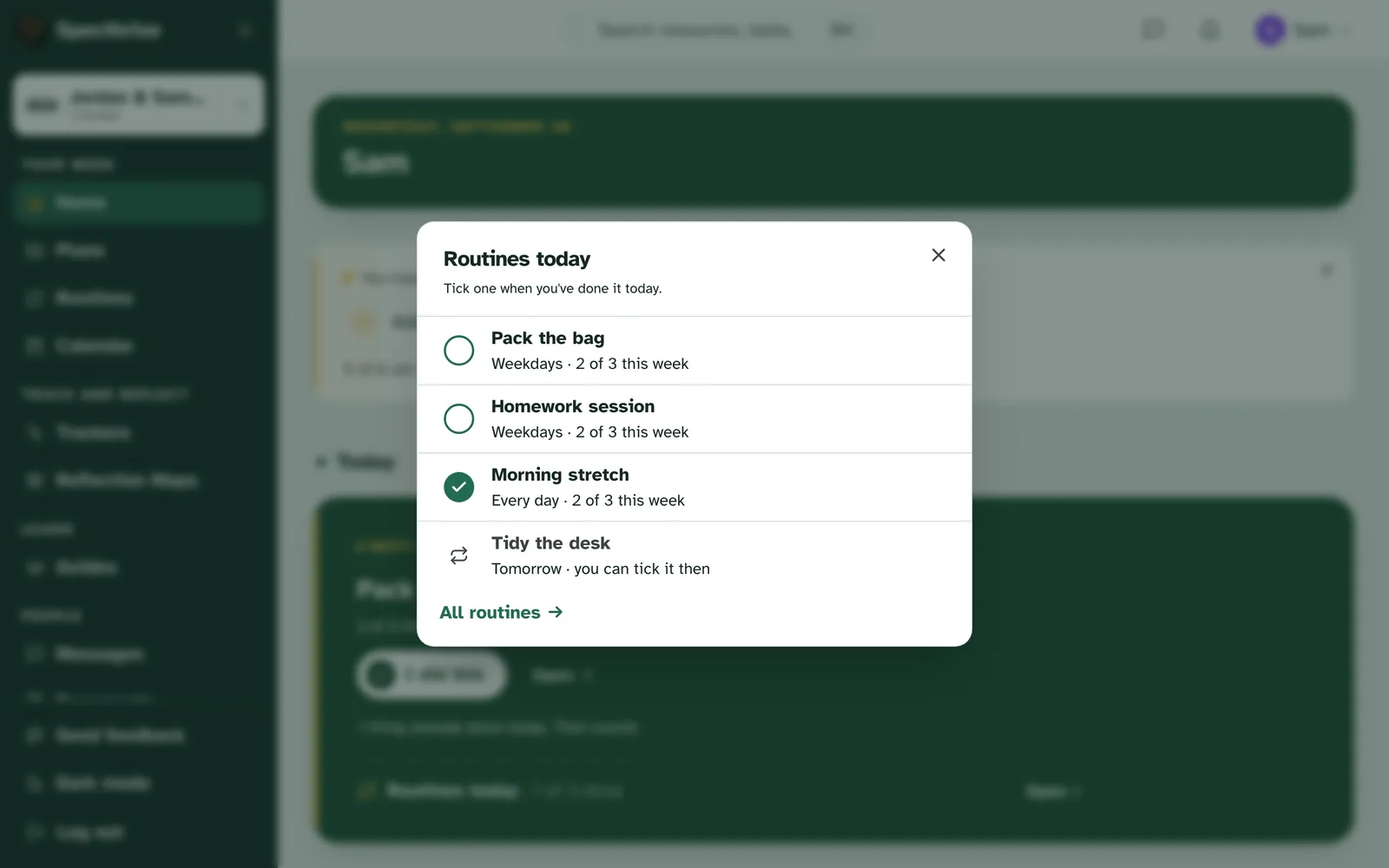
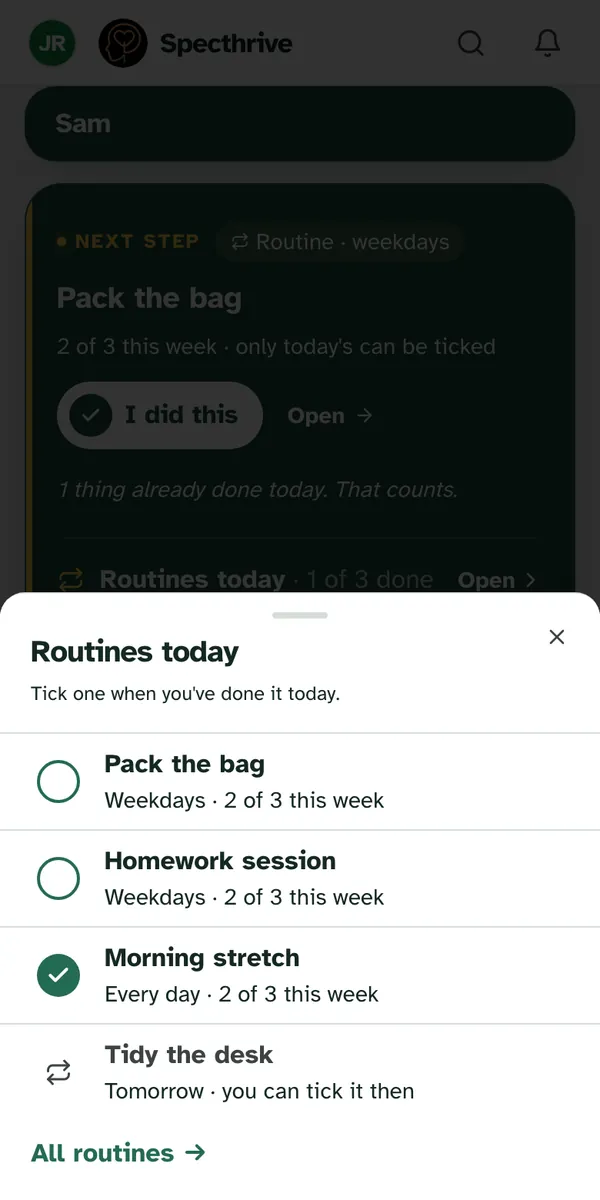
The week counts from Monday. "2 of 3 this week" on a Wednesday means two of the three days so far. A day you set aside isn't counted at all.
Only today's can be ticked. Yesterday's can't be ticked late, and tomorrow's waits for tomorrow. If the day changes while a page is open, Specthrive says "It's a new day" and "Here are today's routines."
4. A routine's own page
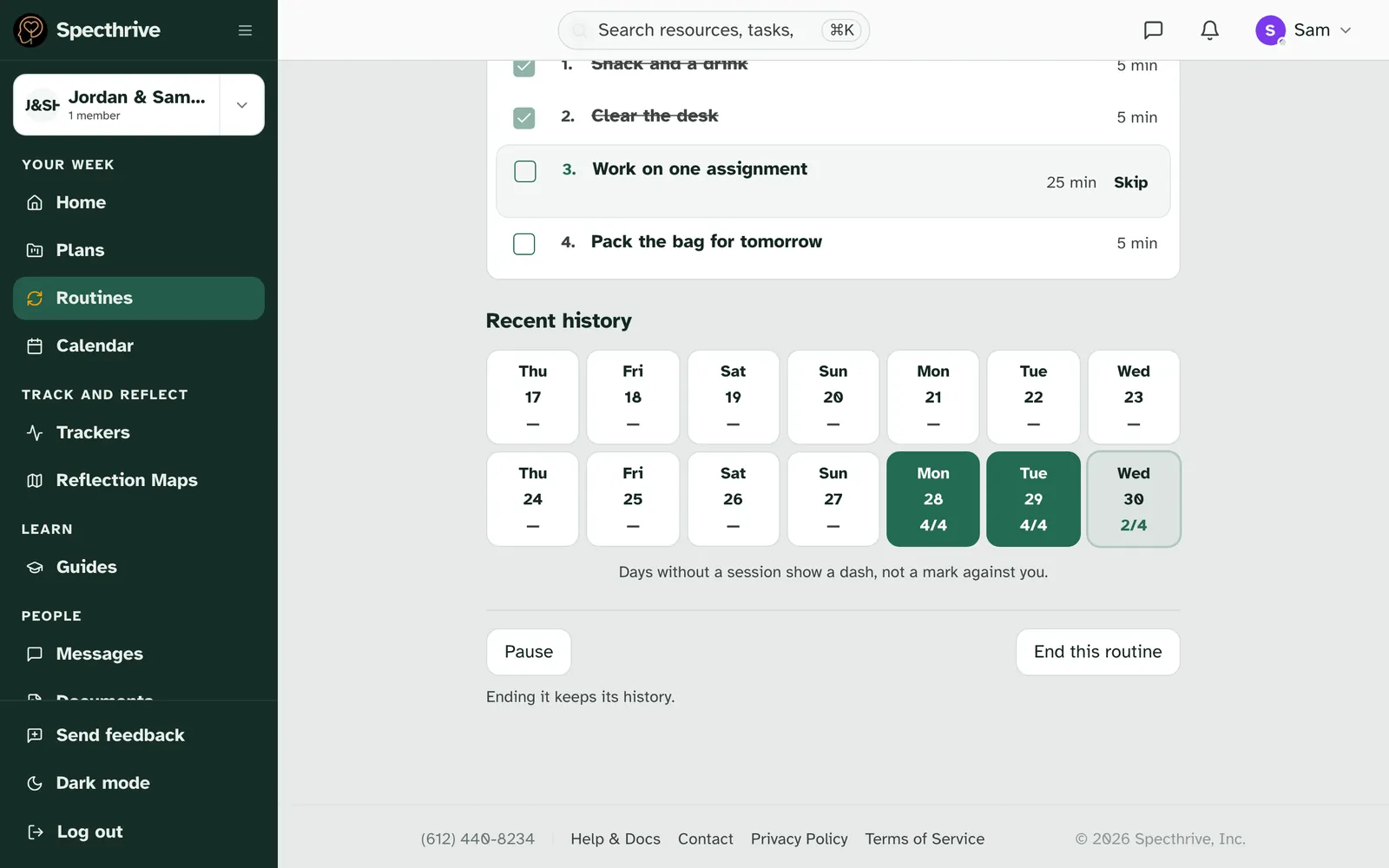
Open a routine to see all of it. Its page shows the rhythm, such as Weekdays, how many steps it has, about how long it takes when its steps have minutes, and how the week is going. Under Today's session, tick each step as you go. When they're all done, it says "All steps done. You showed up for yourself today." If today's session doesn't fit, Set aside moves it out of the way, and Skip passes over a single step.
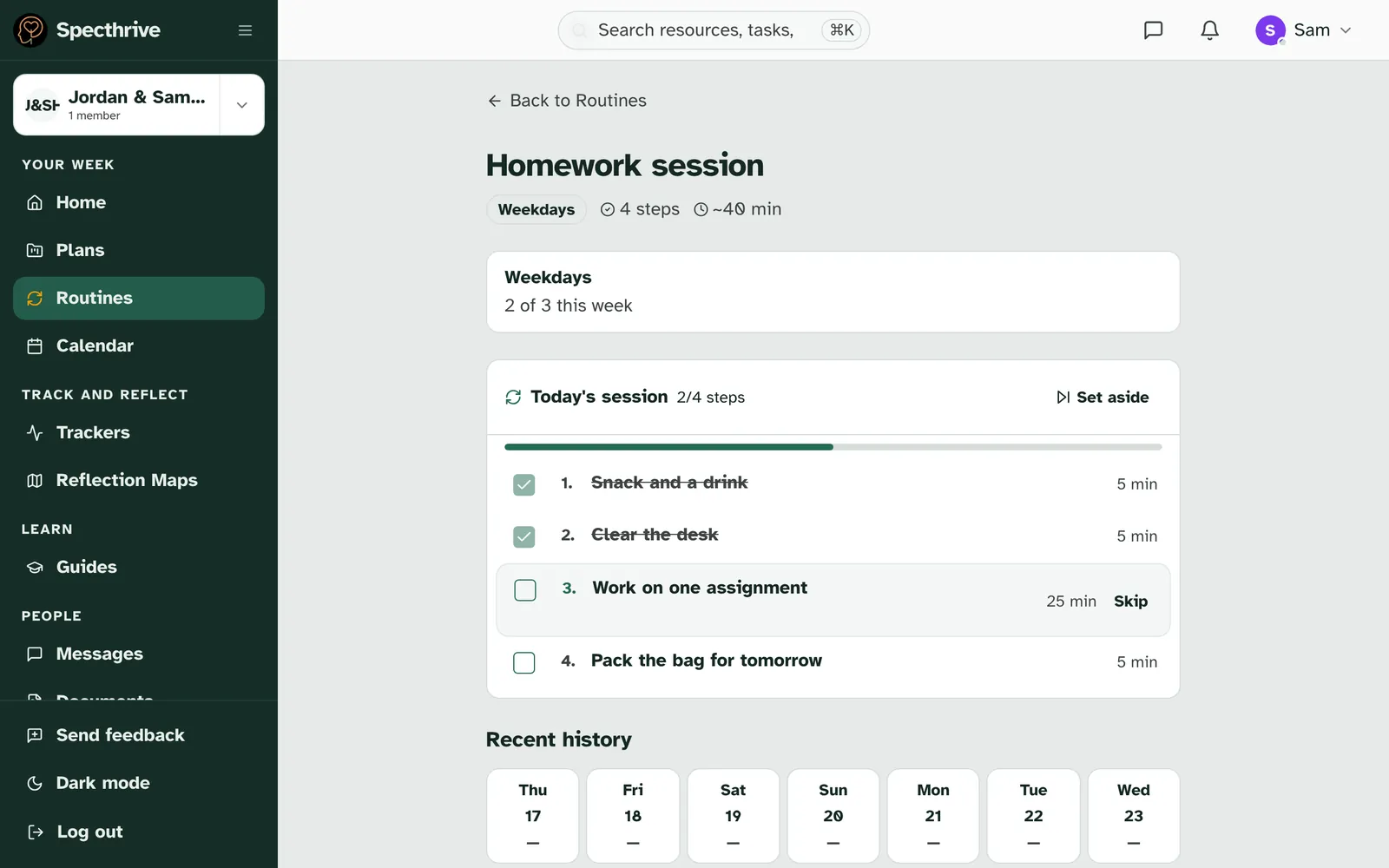
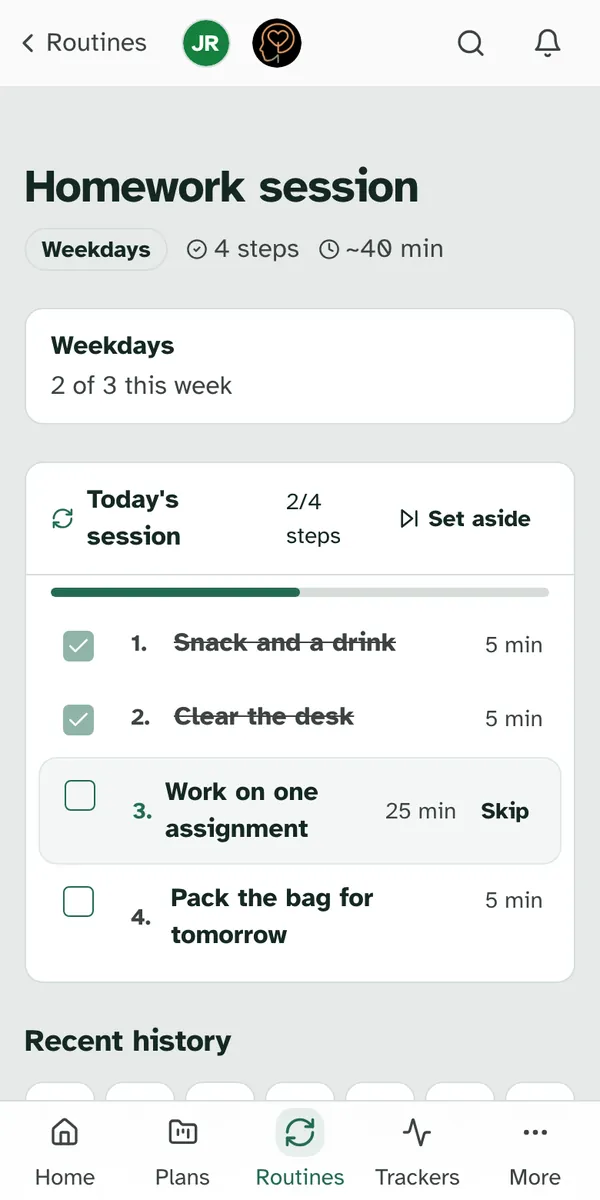
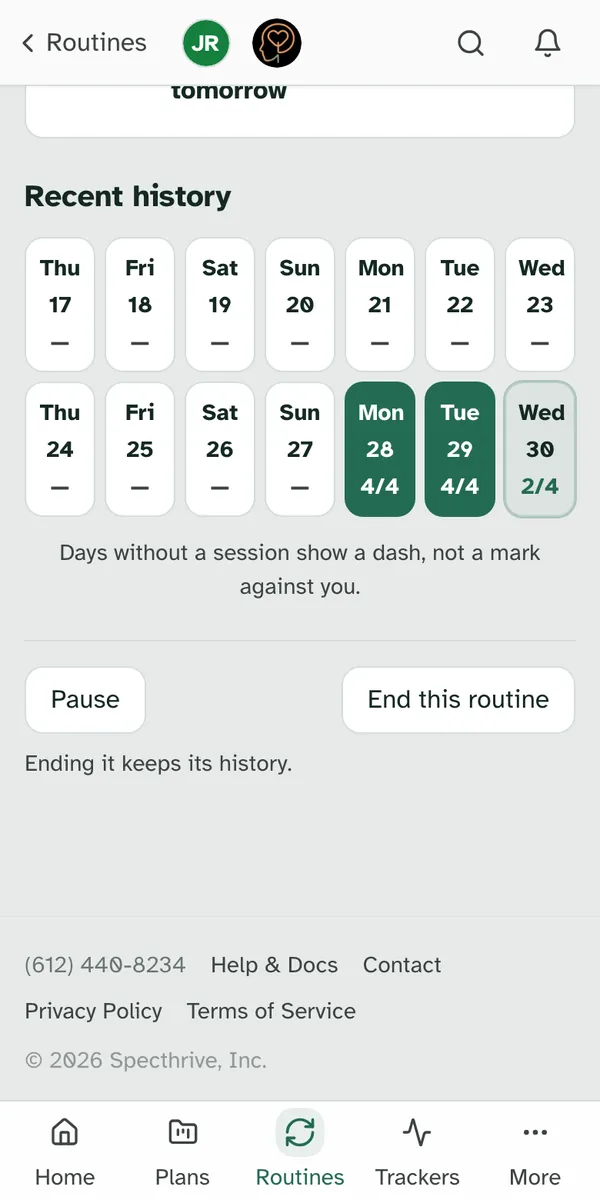
Recent history never counts against you. It shows the last two weeks, and says so: "Days without a session show a dash, not a mark against you." A day you set aside says "set aside".
A routine you use when needed has no schedule. Its page says "Start a session whenever you’re ready." Choose Start now when you want it.
5. Pause it or end it
Pause when life gets full. Pause, at the bottom of a routine's page, takes it out of Today: "Paused. Nothing shows in Today until you resume it." Resume starts its rhythm again, from today. It shows in Today on its scheduled days, starting today if today is one of them. A routine you use when needed never shows in Today on its own; start it from its page. The days it was paused aren't filled in afterwards, and anything you'd already done stays.
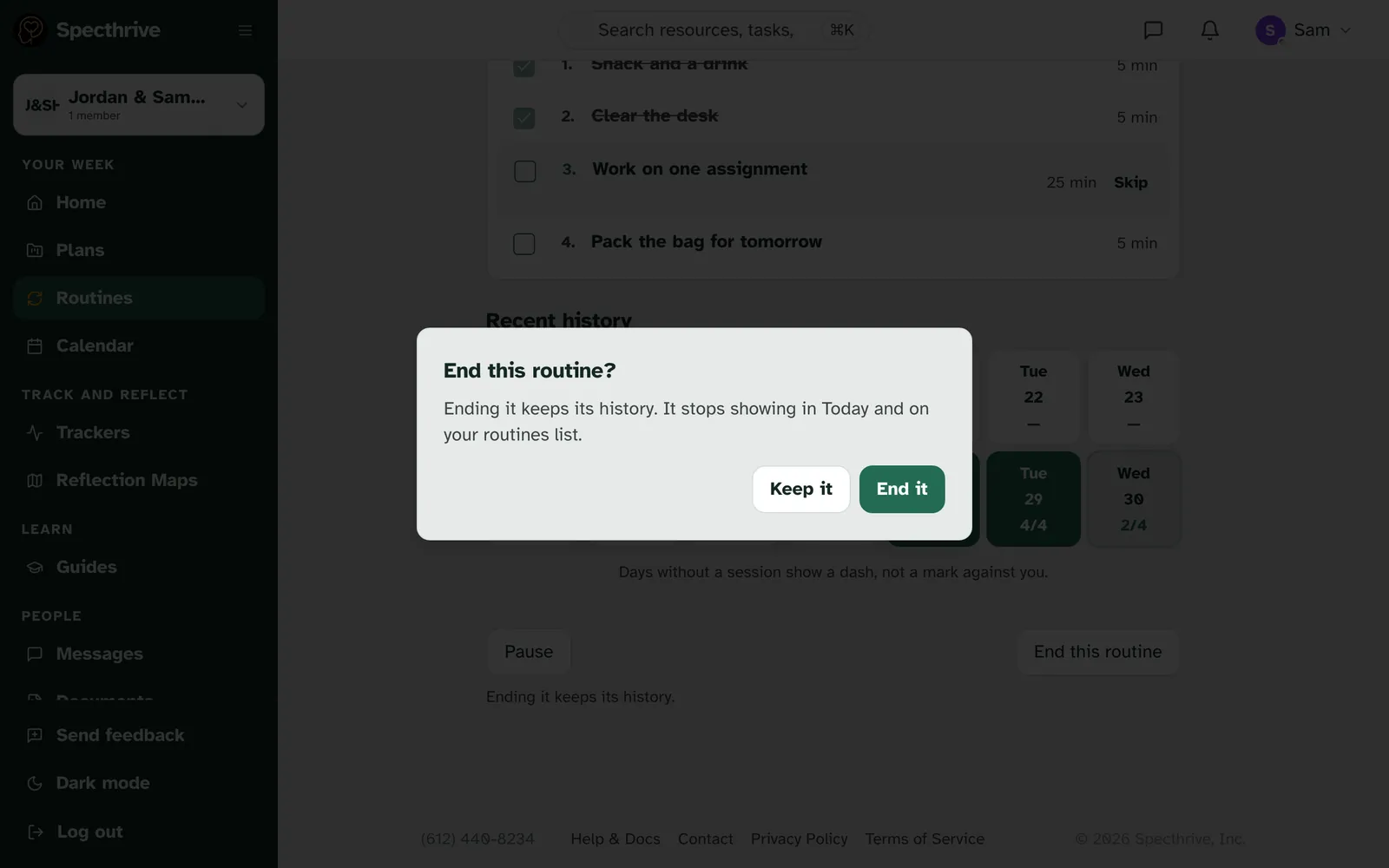
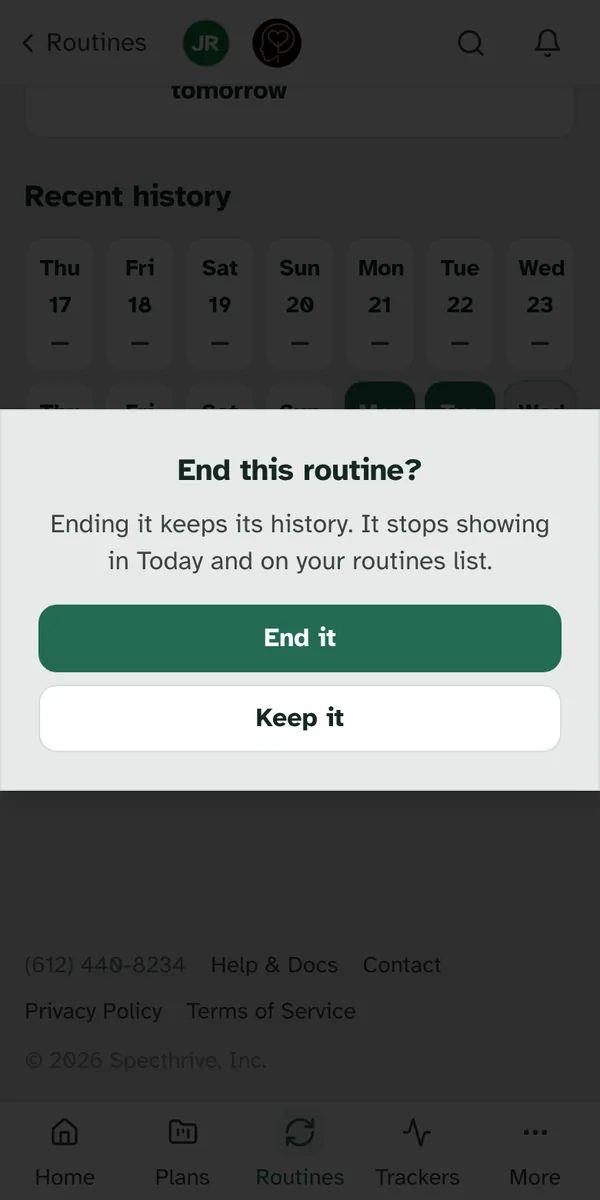
End it when you're done with it. End this routine asks first. End this routine? says "Ending it keeps its history. It stops showing in Today and on your routines list." Choose End it, or Keep it to change your mind. Ending is final: the page then reads "This routine has ended. Its history is kept." To pick it up again later, add it as a new routine.
6. Routines that come with a guide
Some guides include routine steps. A step can be a routine with its own rhythm, such as every day or on weekdays. When you adopt the guide, each of those steps becomes a routine of its own, on the Routines page like any other.
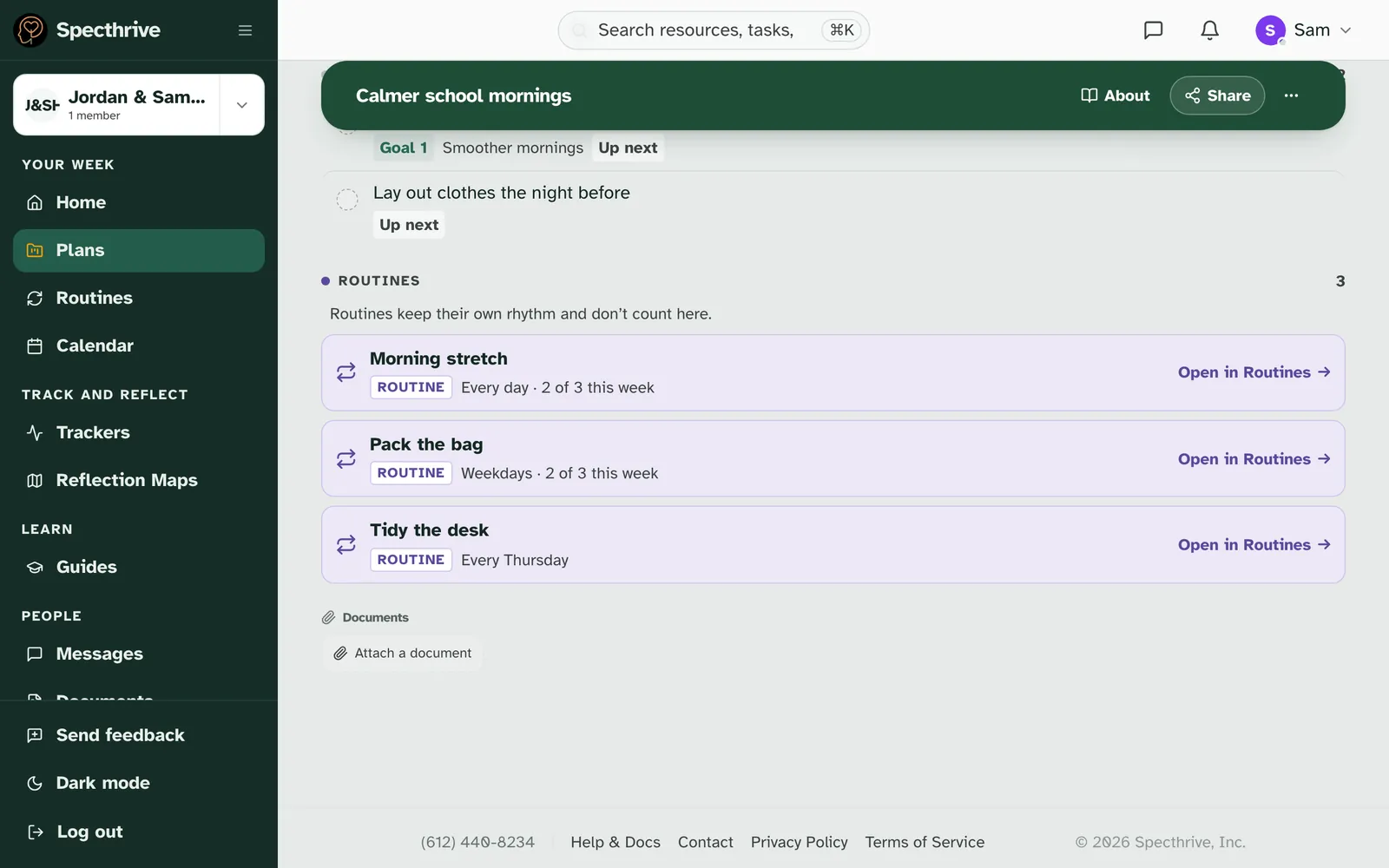
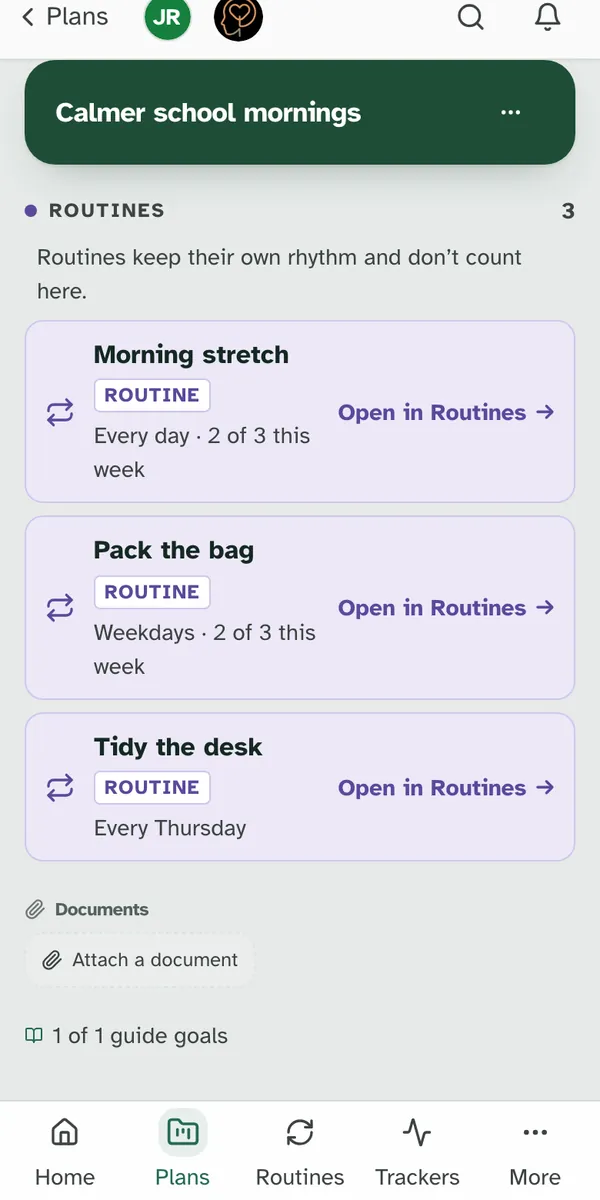
The plan keeps a row for each one. They sit together under Routines, with the note "Routines keep their own rhythm and don’t count here." They never count toward the plan's progress, and they have no box to tick in the plan. Each row shows the rhythm, and once you've done it this week, how the week is going. Open in Routines → opens it. The routine's own page says From a plan, with the plan's name and Open plan.
A finished plan keeps its routines going. When every step is done, the plan opens with "You finished this plan." and, for example, "The 2 routines from this plan keep going until you choose to end them." A routine you end shows "You ended it on" and the date.
Who can tick a routine
Anyone who can change the profile's plans. That's the person themselves, whoever manages the profile, members of its family workspace, and anyone you've shared plans with at Can edit (see Working with a coach or therapist). Someone at Read only sees the routines without anything to tick.
One exception applies while someone is setting up their own account. Once the account is theirs, and until they finish setting it up, a coach, therapist or other professional they share plans with can tick their routines, and set routines up, even at Read only. That way a little can be in place before they start. When their setup is done, Read only is read only again. See "Before they finish setting up" in Getting started as a coach or therapist.
Routines stay locked on a profile nobody has taken over yet. If a professional set a profile up for someone, no one can add, tick or change a routine there until that person takes it over.
Getting help
If something looks wrong, tell us. If a routine isn't showing up the way you expect, or a tick didn't save, get in touch. Tell us which screen you were on, what you tapped and roughly when. There's no need to share a routine's name or anything about someone's health.
Still have a question?
If this guide did not cover your situation, reach out. We read every message.