
Create your account
Sign up, confirm your email, and find your way around. About five minutes, and nothing you pick here is permanent.
Getting set up takes about five minutes. You create an account, confirm your email, read three short agreements, and then answer a few quick questions about who you're setting this up for. Nothing on these screens locks you in, and you can come back to anything later.
This guide walks through each screen in order. Screenshots show a desktop browser beside the same screen on a phone; select any screenshot to see it full size.
1. Create your account
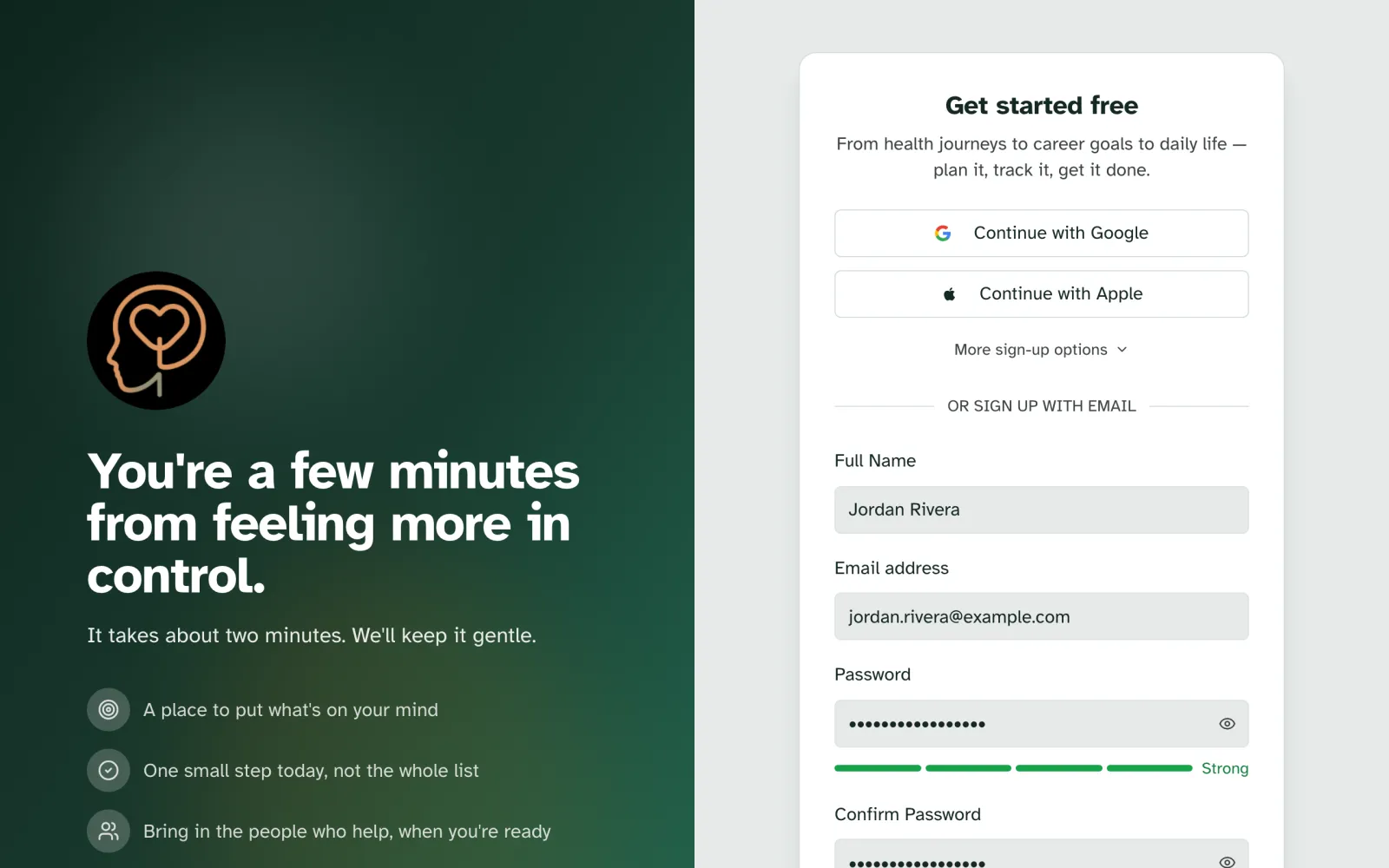
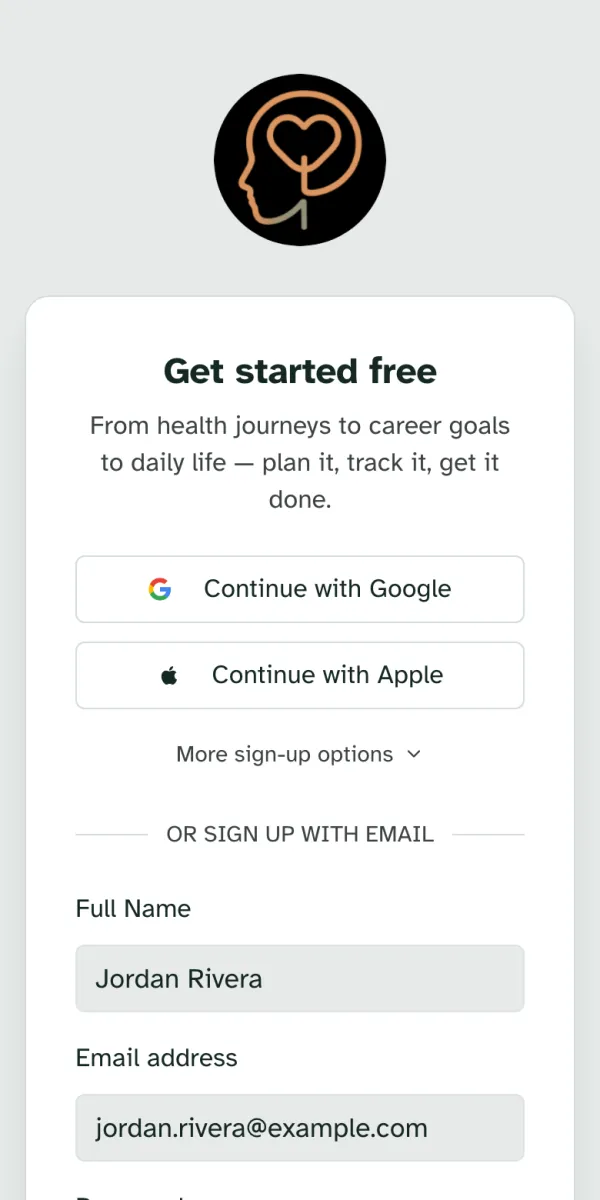
Go to specthrive.com and choose Start your first plan. The sign-up page opens with the heading Get started free.
The quickest way in is the account you already use. Continue with Google and Continue with Apple skip the password entirely. More sign-up options adds Microsoft.
Or sign up with your email. Fill in your Full Name, Email address, a Password of at least 10 characters, and the same password again in Confirm Password. A small meter under the password shows how strong it is. Then choose Create account.
2. Confirm your email
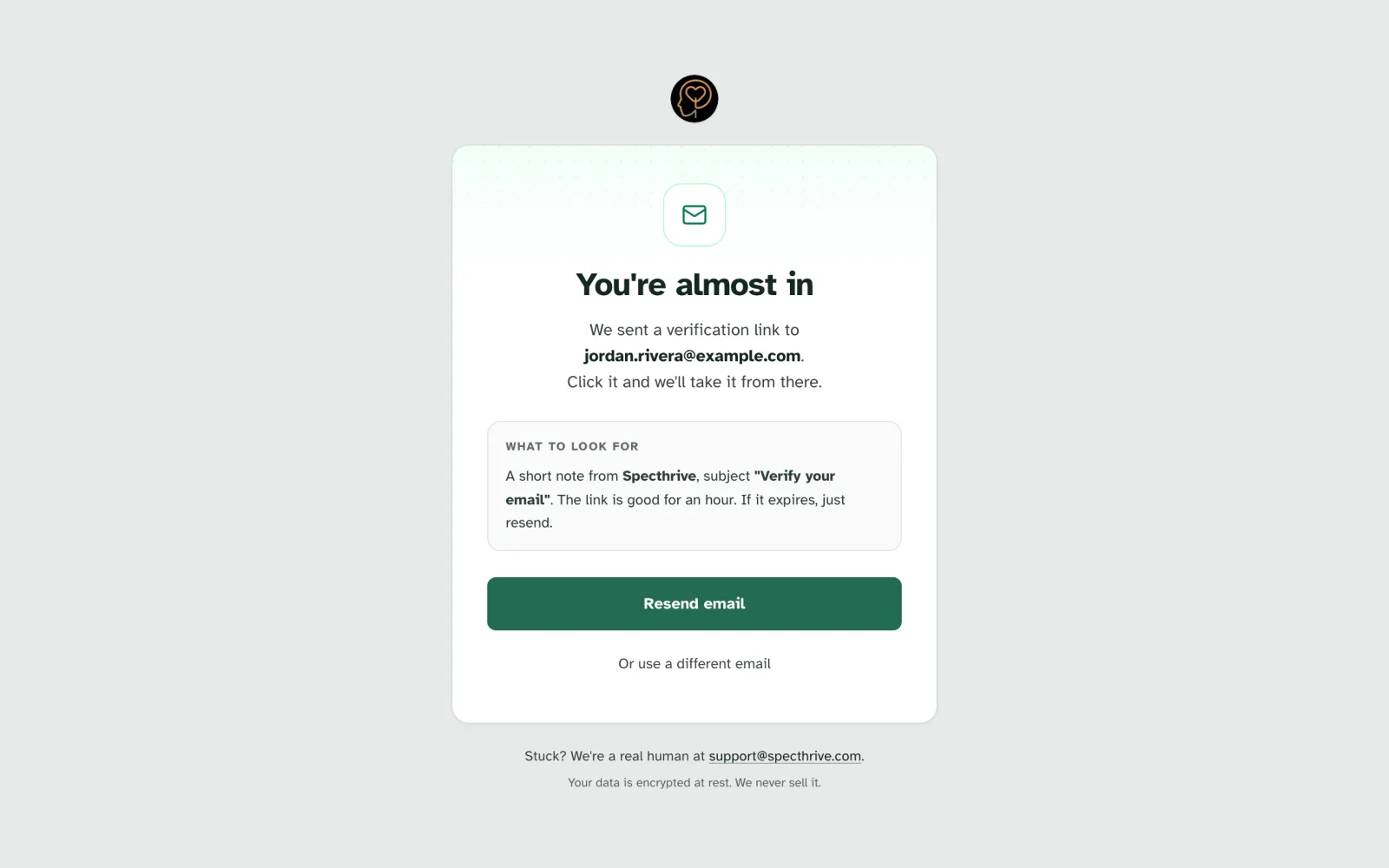
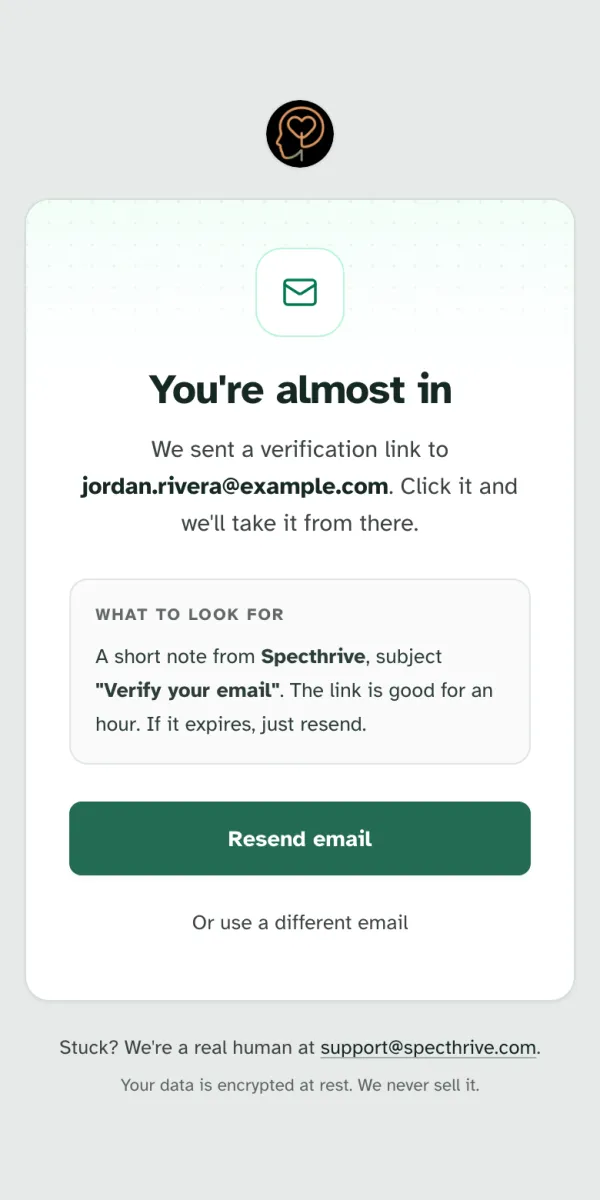
If you signed up with an email address, the next screen says You're almost in. We have sent you a short email from Specthrive with the subject Verify your email. Open it and choose the link inside. The link works for 24 hours.
Nothing arrived? Check your spam or promotions folder first. Then choose Resend email for a fresh link, or Or use a different email if you spotted a typo.
Invited by a coach to run your own account? Your email's subject is Confirm your email instead. The link takes you back to your invite, on any phone or computer, so your account stays connected to the person who invited you. If you haven't said when you were born yet, you're asked there. If you're signed out, the page reads "Sign in to finish your invite" and brings you back once you do.
3. Before we begin
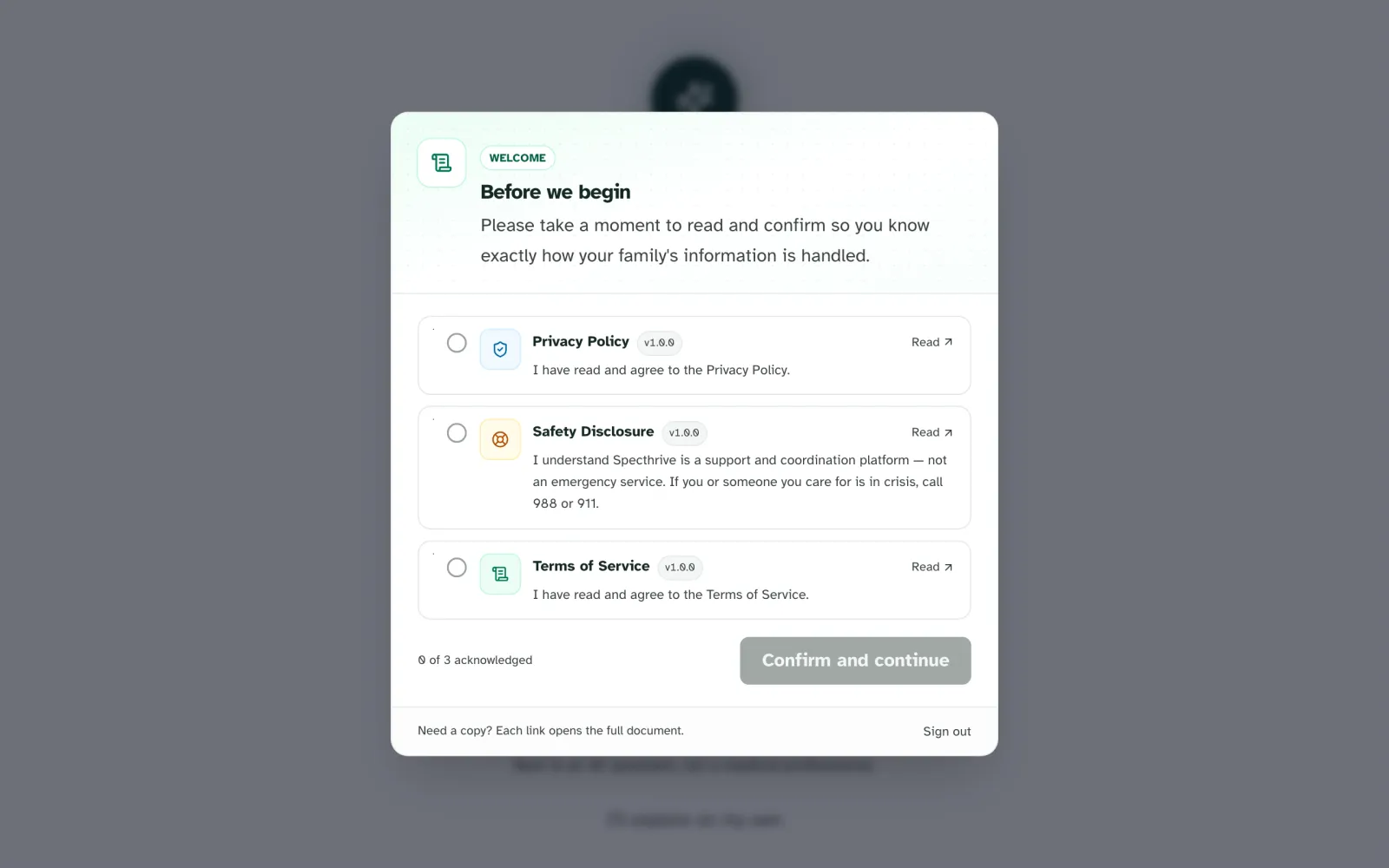
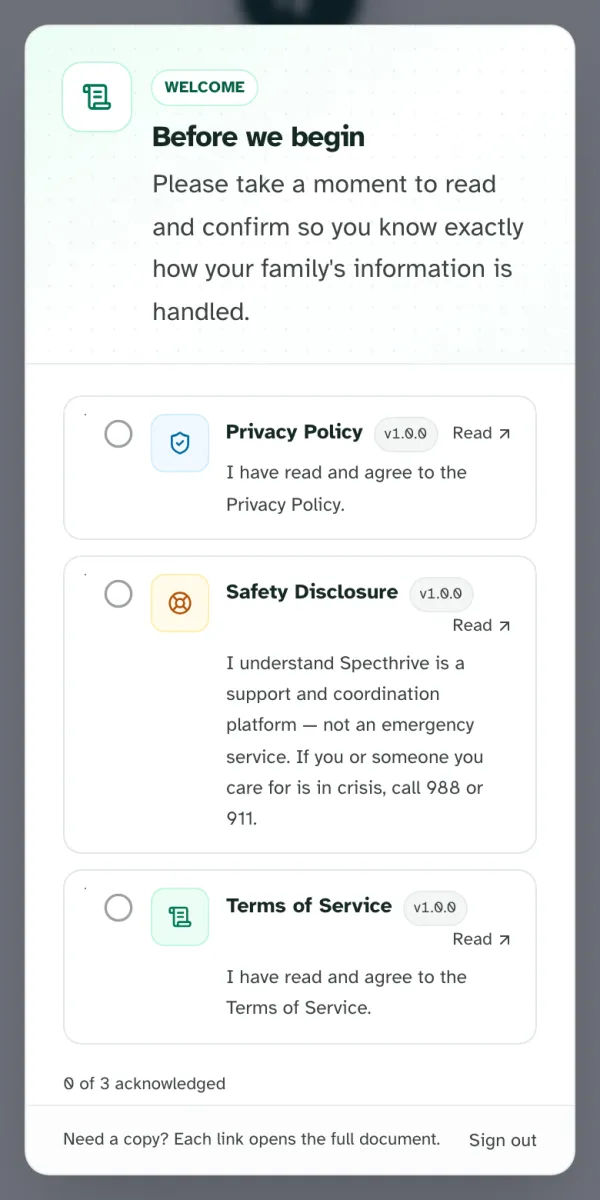
The first time you sign in, a short window titled Before we begin asks you to read and confirm three things:
- Privacy Policy: how your information is handled.
- Safety Disclosure: Specthrive is a support and coordination tool, not an emergency service. If you or someone you care for is in crisis, call 988 or 911.
- Terms of Service: the agreement for using Specthrive.
Each one has a Read link that opens the full document. Tick all three, then choose Confirm and continue. You only see this once, and again when we ask you to confirm a change to one of them.
4. Who is this for?
Next come a few short questions that set Specthrive up around you, one on each screen. After the first, a bar at the top shows how far along you are, and Back returns to the screen before with your answer still there.
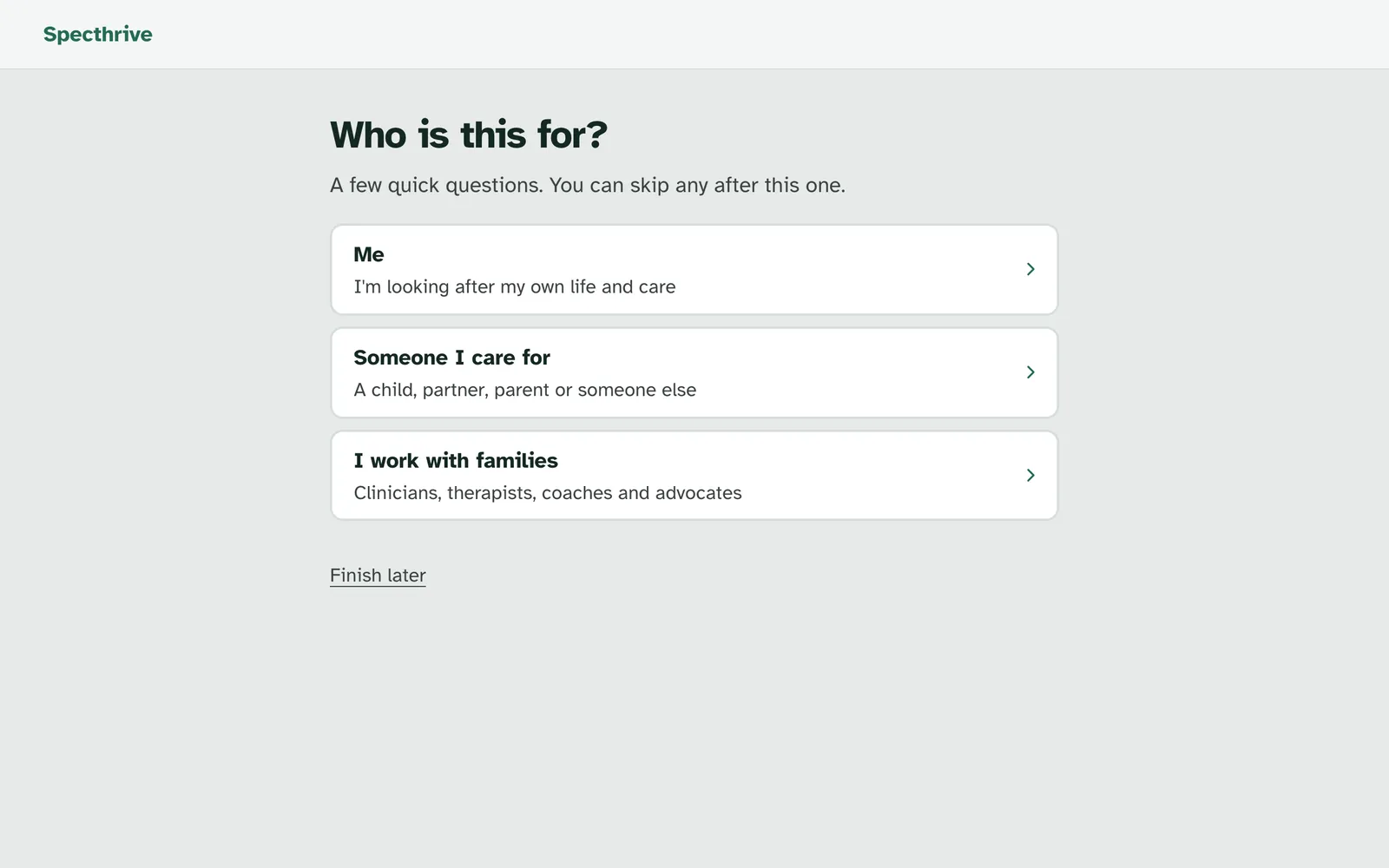
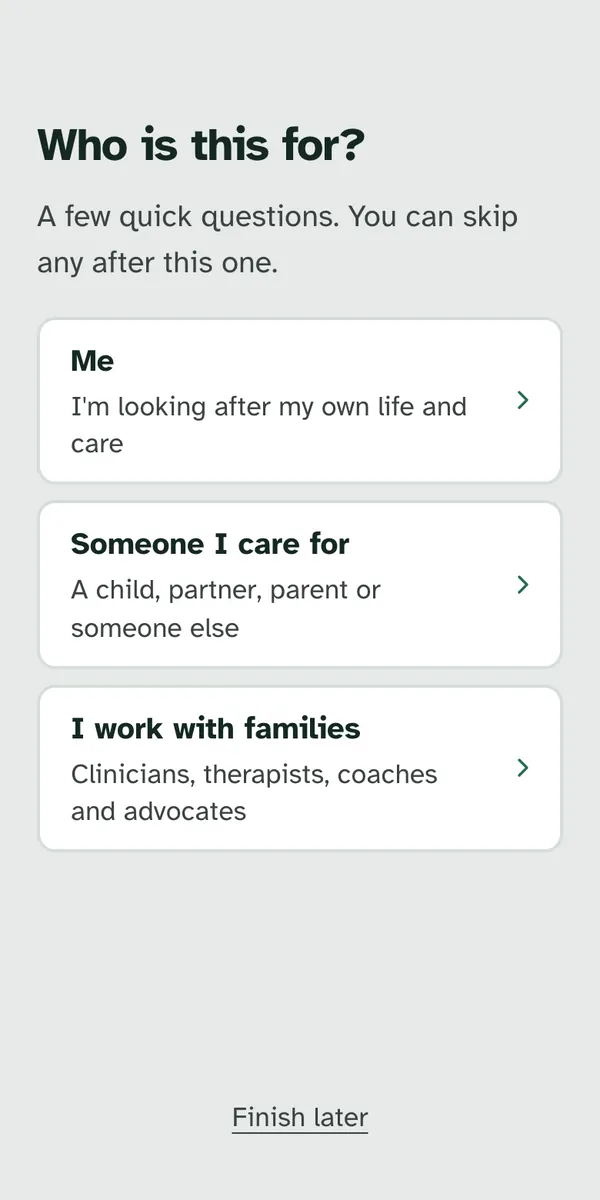
The first question is who this is for. Who is this for? has three answers. Pick the one closest to you.
- Me: you're looking after your own life and care.
- Someone I care for: a child, partner, parent or someone else.
- I work with families: clinicians, therapists, coaches and advocates.
If you care for someone, the next screen is about them. Who are they? asks for Their first name and Who are they to you?: Child, Partner, Parent, Sibling or Other. Tick I'm authorized to add this person to confirm you're their parent, legal guardian or authorized caregiver, then choose Continue.
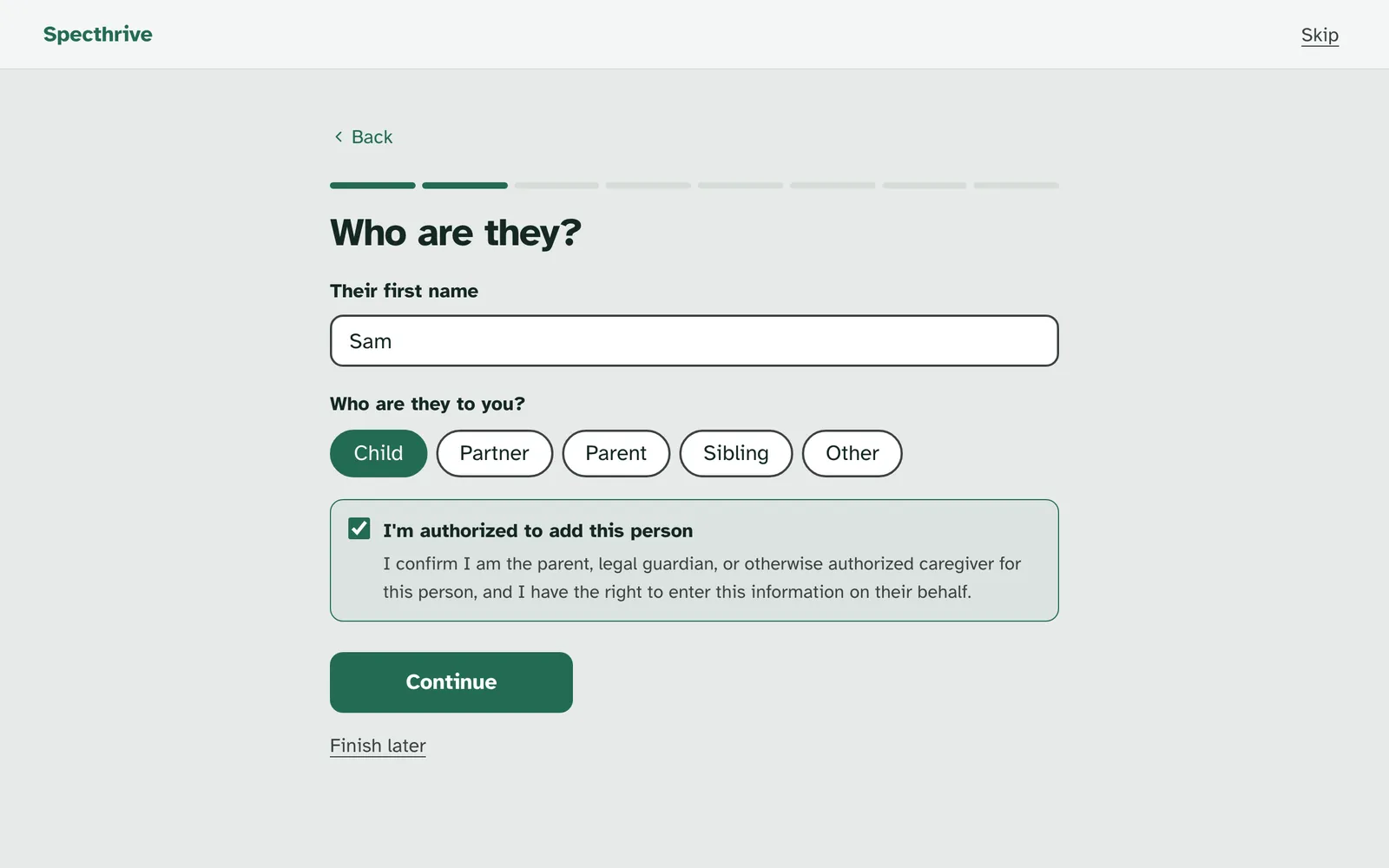
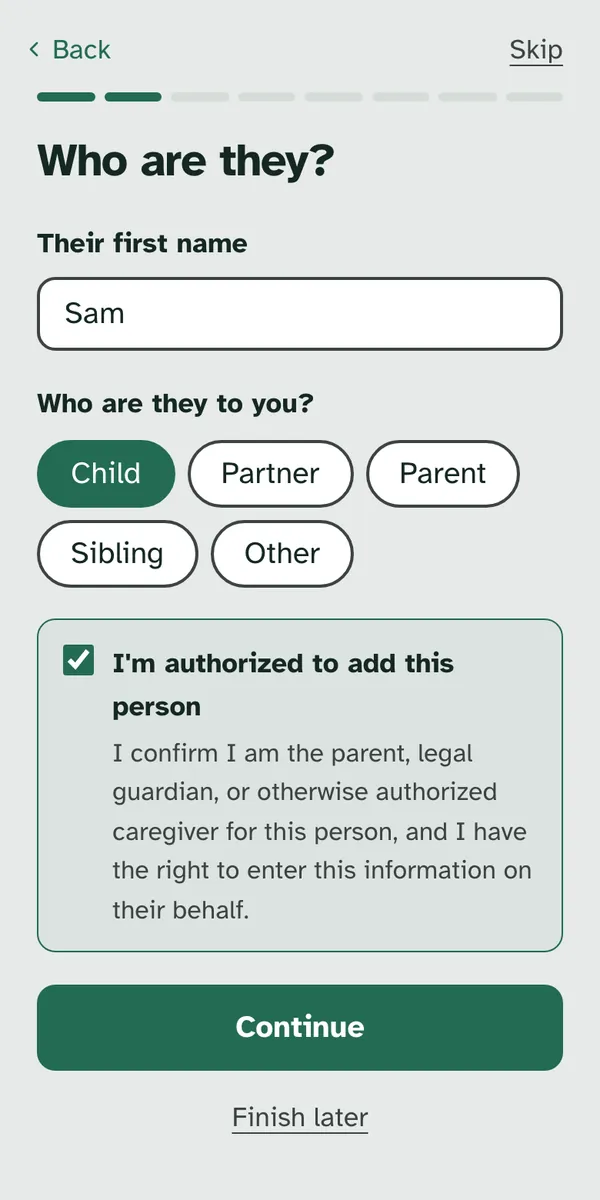
Then a few light questions. When they were born (just the month and year), what you're working on with them right now, whether they have a diagnosis, where you live, and when you were born. Most of them help Specthrive suggest guides that fit. Your own birth month and year are for your own profile. On what you're working on and the diagnosis question, tapping an answer moves you on. The others have Continue. If you're not sure about a diagnosis, Not yet, or not sure is an answer too, and after Looking into a diagnosis that question isn't asked at all.
Then you name your family space. Name your family space comes with a name filled in, such as Jordan & Sam's home, and a few more under Or tap one:. Keep it, tap another or type your own. This is the home for your plans, routines and care team.
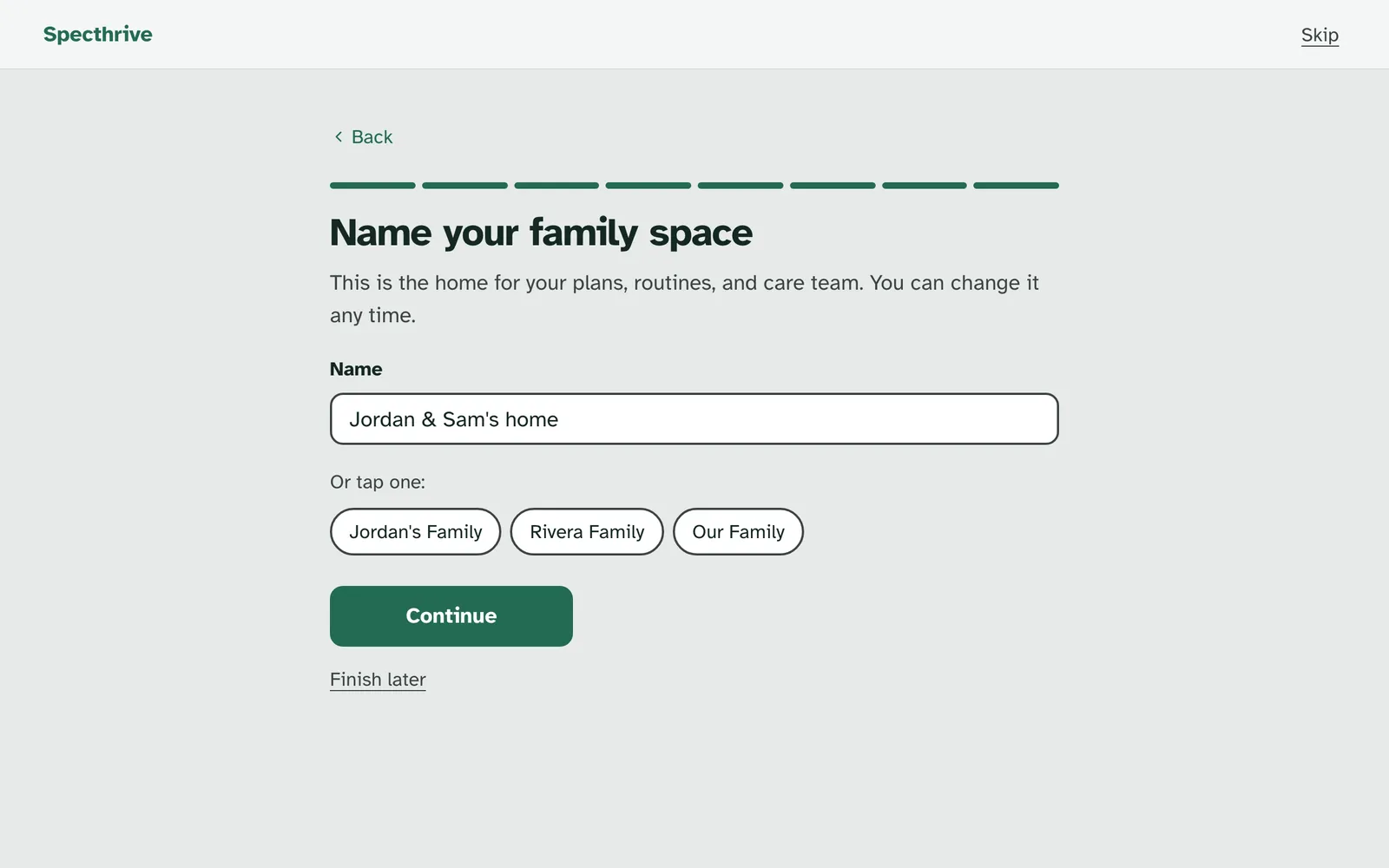
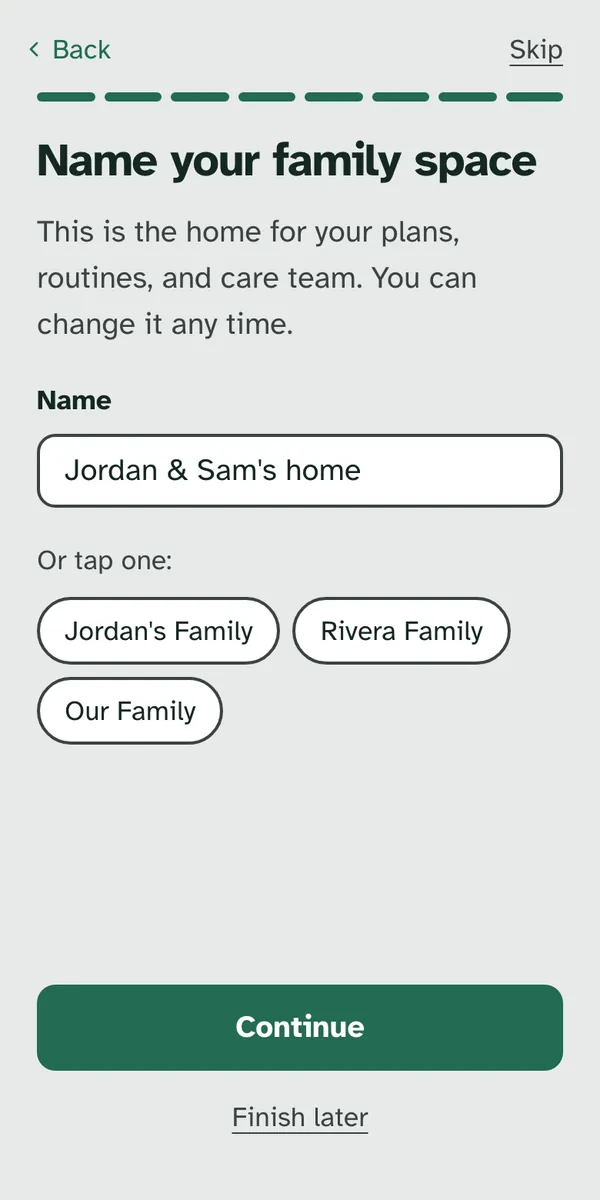
Last, a place to start. Specthrive suggests one or two guides from what you told it, and the line under the heading says how close they are. "Based on what you told us about Sam." means they fit what you said. Under Closest to what you're working on, it reads "We don't have a guide just for this yet. This is the nearest fit." If nothing is close, "Start here. You can find more guides any time." offers a guide for getting started instead. Then choose one:
- Start this guide adds it and starts its first goal. See Start your plan and check things off for what comes next.
- Browse all guides opens the Guides page, to look around first.
- Not now opens your dashboard, on the profile of the person you care for.
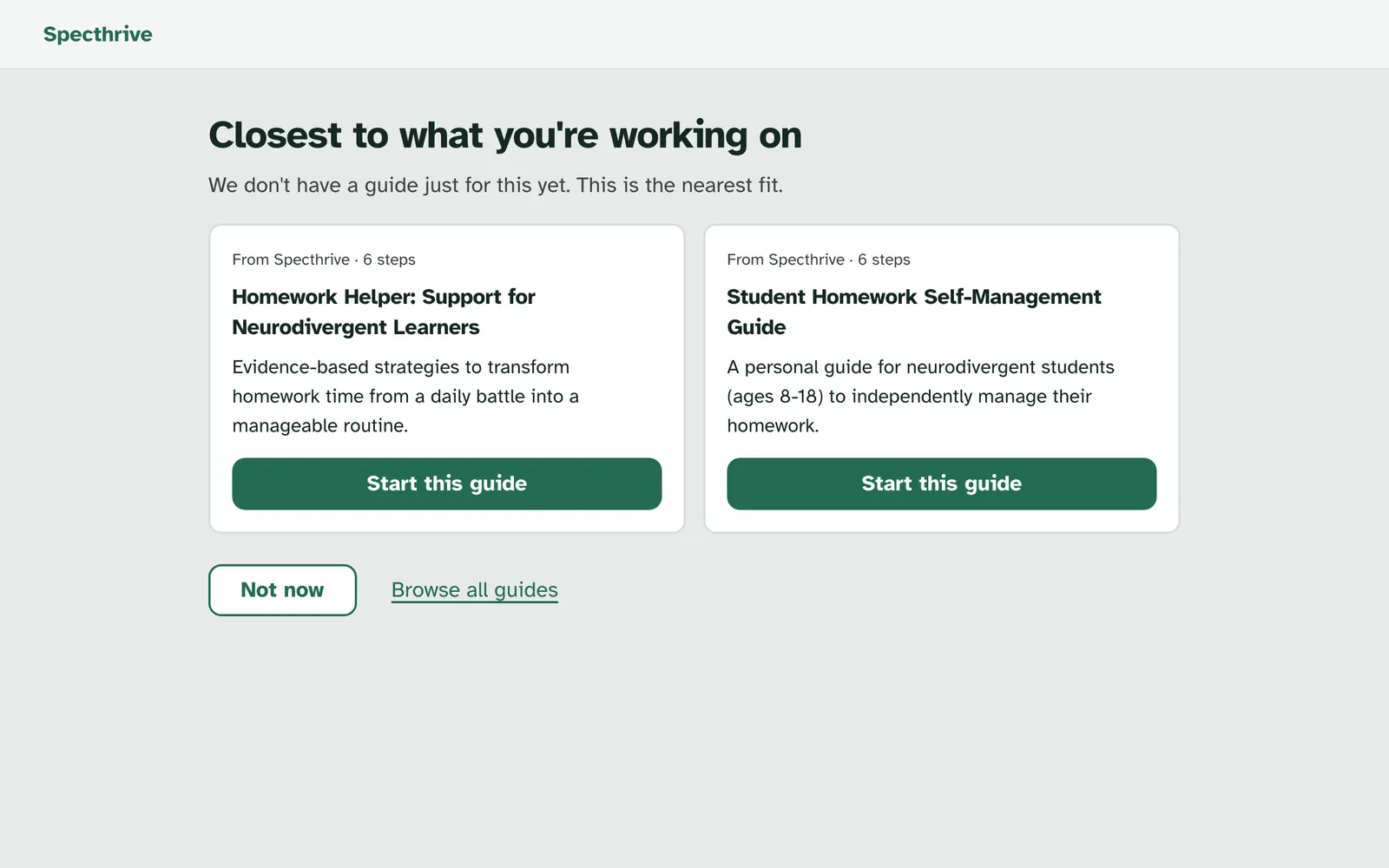
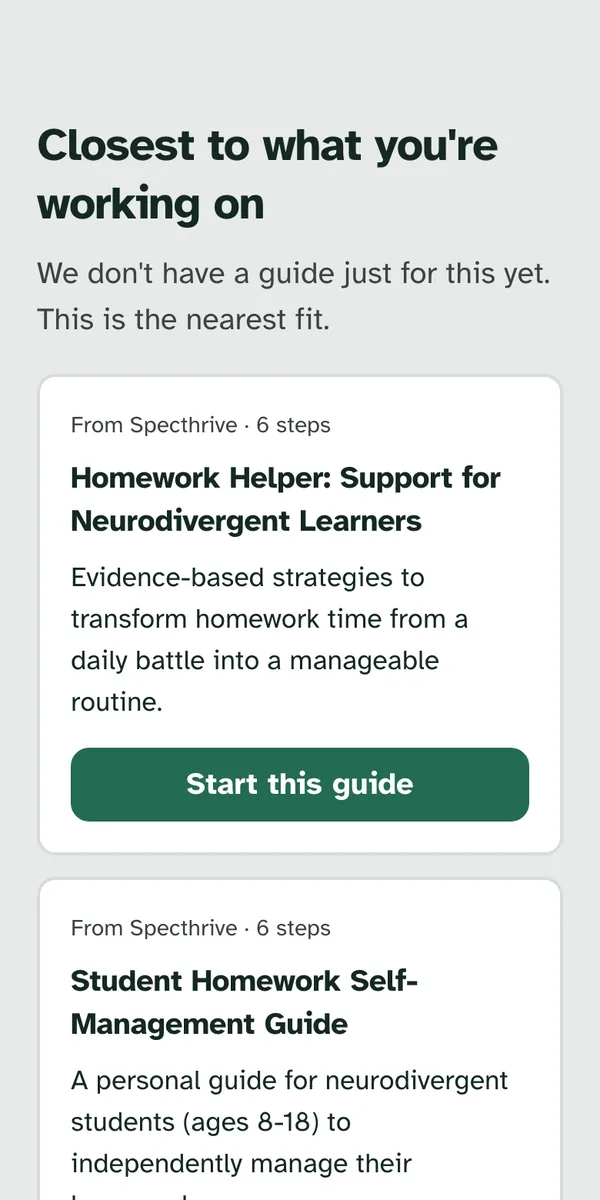
Skip moves on. Skip, at the top of each question (the first question, who it's for, has none), keeps what you've answered and goes to the next one. On the last question it goes where Continue would: to the suggested guides, or, if you work with families, to the end of setup. Skip Who are they? without adding anyone, and the questions about them are left out, so the rest are about you. Finish later, at the bottom of every question, saves what you have and opens your dashboard. Find a guide and make it yours covers the suggestions whenever you like.
Setting this up for yourself? Choose Me. The questions are about you: when you were born, what you're working on, a diagnosis if you have one, and where you live. Then Name your space, and the same last screen with guides for you.
Working with families? Choose I work with families. It asks when you were born, where you are and a name for your space. Then it opens your dashboard, or your Clients page if Specthrive has already confirmed your role. Getting started as a coach or therapist covers how that works.
Invited by a coach or other professional? You skip these questions. They already set up your profile when they invited you, so there's nothing to answer here.
Specthrive is for people 13 and older, and an account for someone under 18 doesn't open on its own. This is about your own birth month and year, never the birth date of someone you care for.
- If your answer makes you under 18, Specthrive first asks Just checking, in case you typed someone else's date. It says the age your answer makes you and asks "Is that your own birth month and year?", or "Is that your own birth year?" if only the year was asked. Choose Yes, that's right or Change it.
- If you confirm an age of 13 to 17, the account waits for an invite. The page reads "Ask your coach for an invite" and "Accounts for people under 18 open with an invite from a coach. When yours arrives, the link in that email brings you straight in." Under that is a date. Usually it reads "If no invite arrives by" a date 30 days on, then "we'll delete this account." If the account opens on its own by then, it reads "Your account opens on" and a date instead, and the account isn't deleted. That date comes from the birth month and year you gave: the first day of the month after the one you turn 18 in. While this page is showing, nothing else can be used except signing out, or deleting the account if you'd rather not wait.
- Typed the wrong birth year? Above Delete this account now, the page reads "Typed the wrong birth year? Email support@specthrive.com and we'll fix it."
- Opened a different kind of invite? Only your own invite from a coach opens the account. Any other invite reads "This invite can't open your account" and "Accounts for people under 18 open with their own invite from a coach. This one is a different kind, so your account is still waiting for yours." Back to your account returns to the waiting page, and the same line about a mistyped birth year is below it. Nothing changes, and the invite isn't used up.
- Rather not wait? Delete this account now, at the bottom of the page, asks "Delete this account?" and says "This removes the account and what's in it. If you get an invite later, you can sign up again." Choose Delete account, or Keep it to change nothing. If you signed in a while ago, it first asks you to "Enter your password to confirm", or to Sign in again to delete. If something else is linked to the account, it says "Something is still linked to this account, so it can't be deleted here." Write to us, and we'll delete it for you.
- If your answer makes you under 13, your birth month and year aren't saved. The page reads "Specthrive is for people 13 and older" and "Thanks for telling us. A parent, guardian or school counselor can help you find other ways to get support."
- If you've only just signed up, the account is deleted. The page adds "We haven't kept anything you entered." Close takes you back to Specthrive's home page, signed out.
- If the account already holds something, it isn't deleted. Change my answer goes back to the question, or choose Sign out.
Joined through an invite as an adult? If you later change your birth month and year to ones that make you 13 to 17, the change isn't saved, and Specthrive says "Your age was set when you joined. Ask the person who invited you to update it."
Nothing here is locked in. You can change your name and location later in your account settings, and rename your space any time. In settings, it's called your workspace.
5. Your dashboard
Your dashboard opens with Today. On a new profile it reads Start here and "Pick whatever fits right now.", then offers three ways in:
- Track something: notice patterns in sleep, behavior and mood. See Notice patterns with trackers.
- Reflect on a hard moment: make sense of a tough day and find what helps. See Look back with a Reflection Map.
- Follow a Guide: a step-by-step plan, one piece at a time. See Find a guide and make it yours.
Under them it says "The rest will still be here." You do not have to do all three, or any of them today. Most people start with a guide. An account that belongs to someone under 18 sees two of them, because Reflection Maps are for adults.
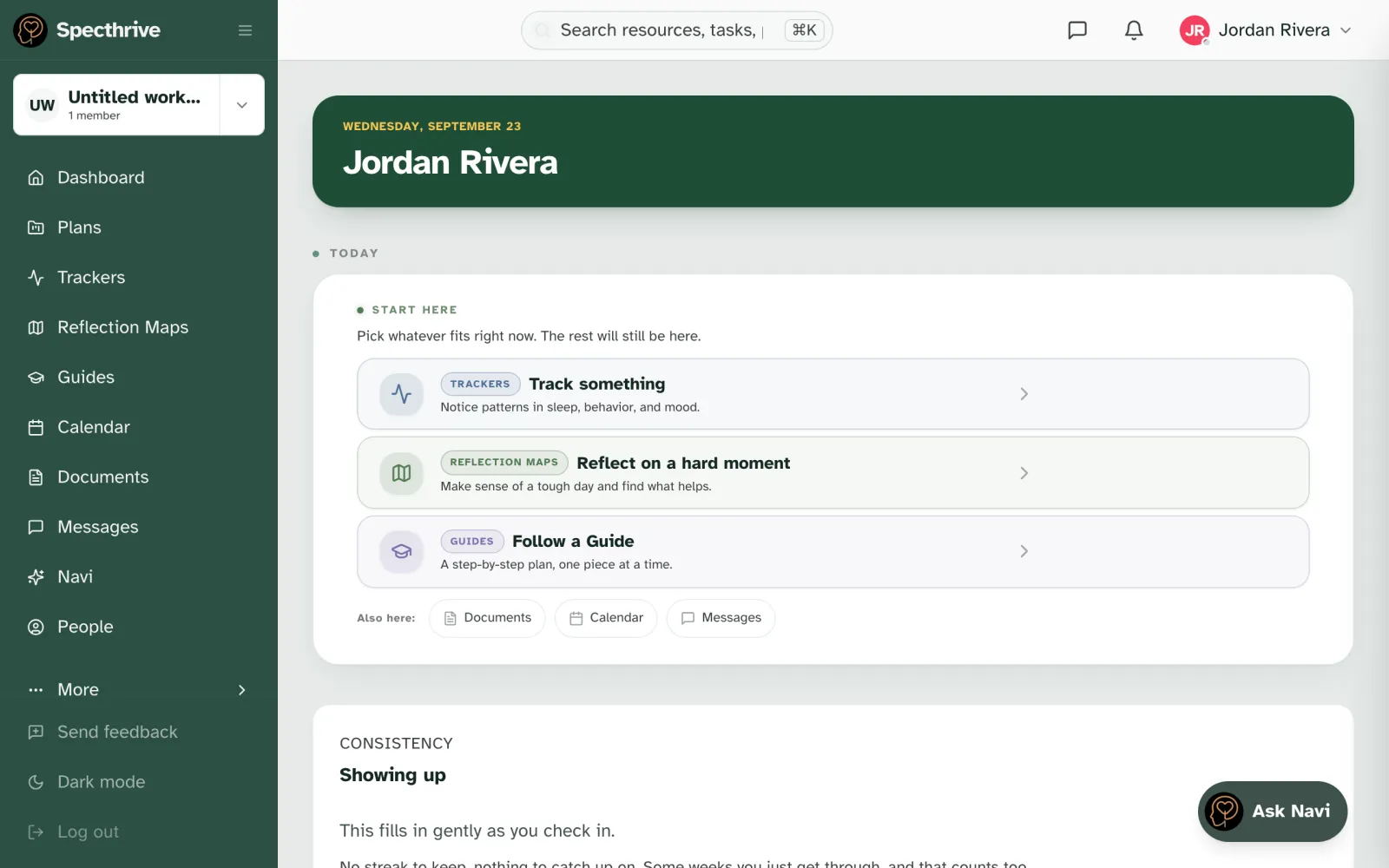
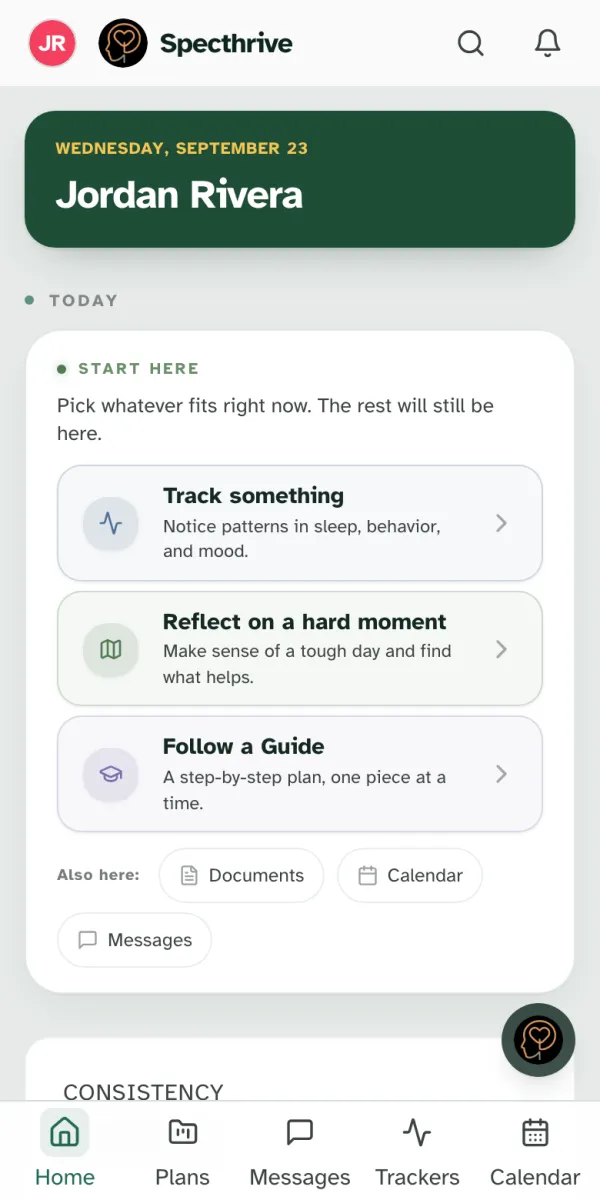
After that, Today shows one thing at a time. Most days that is your next step. When nothing is due, it says so. When every plan is saved for later, it offers to pick one back up. Start your plan and check things off covers both.
Finding your way around. On a computer, the sidebar on the left sorts everything under four headings: Your week (Home, Plans, Routines, Calendar and Record), Track and reflect (Trackers and Reflection Maps), Learn (Guides) and People (Messages, Documents and People). More, at the bottom of the sidebar, opens Help & Docs, Specthrive website, Notifications and Settings. On a phone, the bar along the bottom holds Home, Plans, Routines, Record and More. More opens the rest: Trackers, Guides, Calendar, Reflection Maps, Messages, Documents and People. Your initials at the top open the people you look after, Account settings, Help & Docs and Specthrive website. Specthrive website takes you to our homepage, and it is left out of the iPhone app. Explore, at the bottom of your dashboard, is always there too: Trackers, Guides, Reflection Maps, Calendar, Documents and Messages, one tap each. Reflection Maps is left out for anyone under 18.
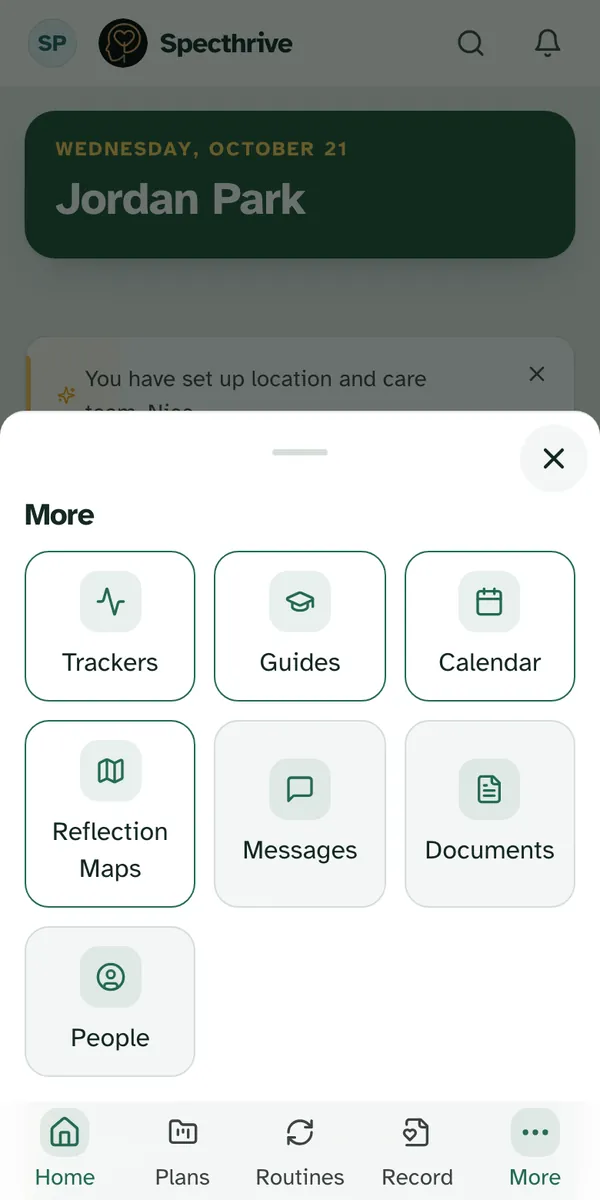
Setting this up for someone you care for? You named your family space and added the person you care for during setup. Setting up your family workspace covers renaming it, adding another profile, and inviting a co-parent or grandparent. That way everyone sees the same plans.
Still have a question?
If this guide did not cover your situation, reach out. We read every message.