
Look back on the week with the timeline
For families and anyone a profile is shared with. What shows on the timeline, how busy days fold into one row, and what a person sees when you share only some areas.
The timeline is one profile's story, in order. Tasks finished, plans started, trackers logged, work a coach sent: each one lands here as it happens, so on a hard week you can scroll back and see that a lot did get done.
Nothing on the timeline asks anything of you. It is a record to read when you want to, not a list to clear.
1. Open the timeline
Choose the profile you want in the profile menu at the top, then open Timeline under Activity in the sidebar. The timeline always belongs to the profile you have selected. A small badge next to Timeline counts the new entries.
At the top is the Milestone Timeline: the bigger moments, such as a plan adopted or a goal reached, laid out along a line. Choose 1W, 1M, 3M, 6M, 1Y, 5Y or ALL to change how far back it reaches. It starts at three months. Choose a moment to jump to it in the feed below. On a computer, the zoom buttons switch between Compact, Normal and Expanded.
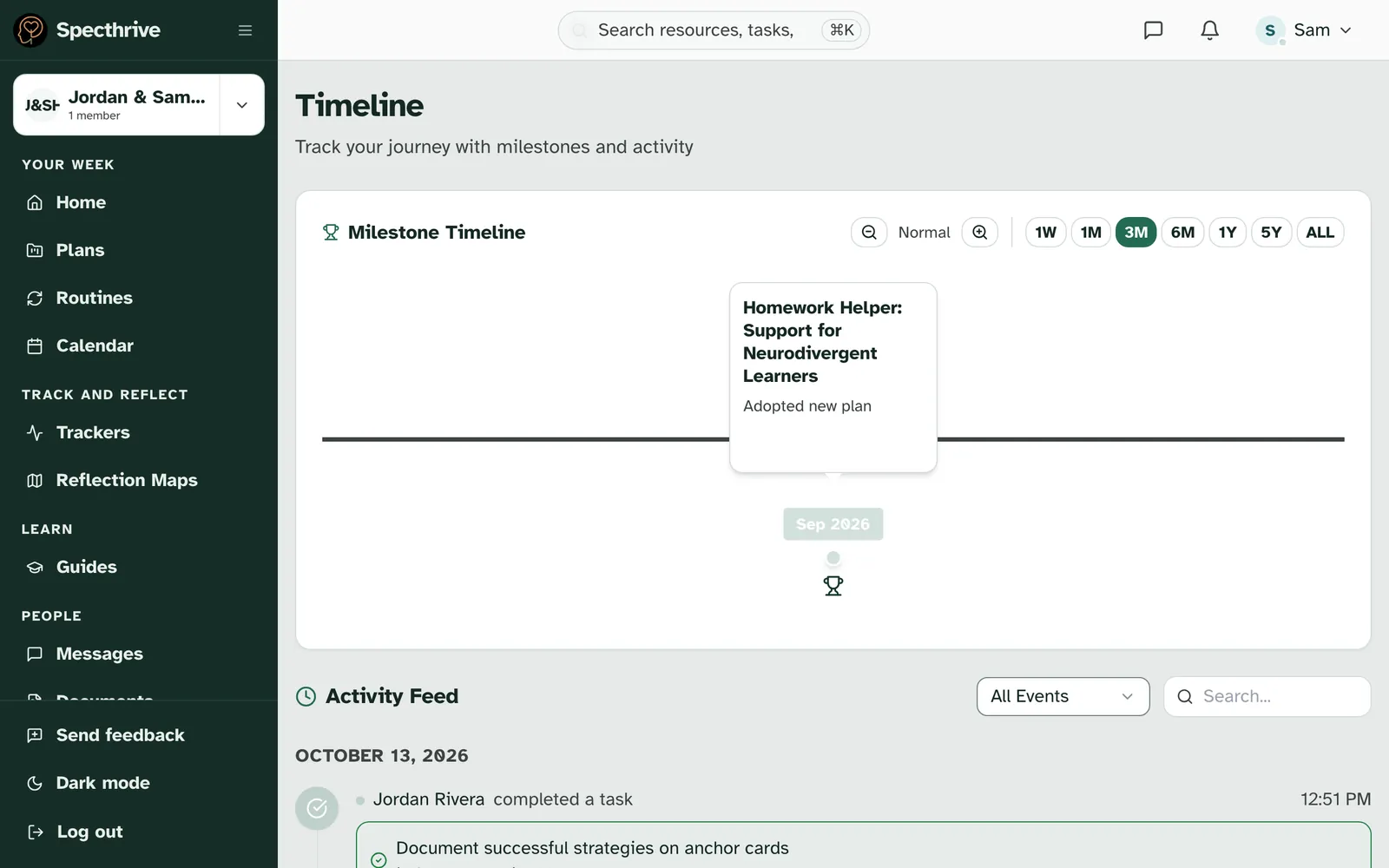
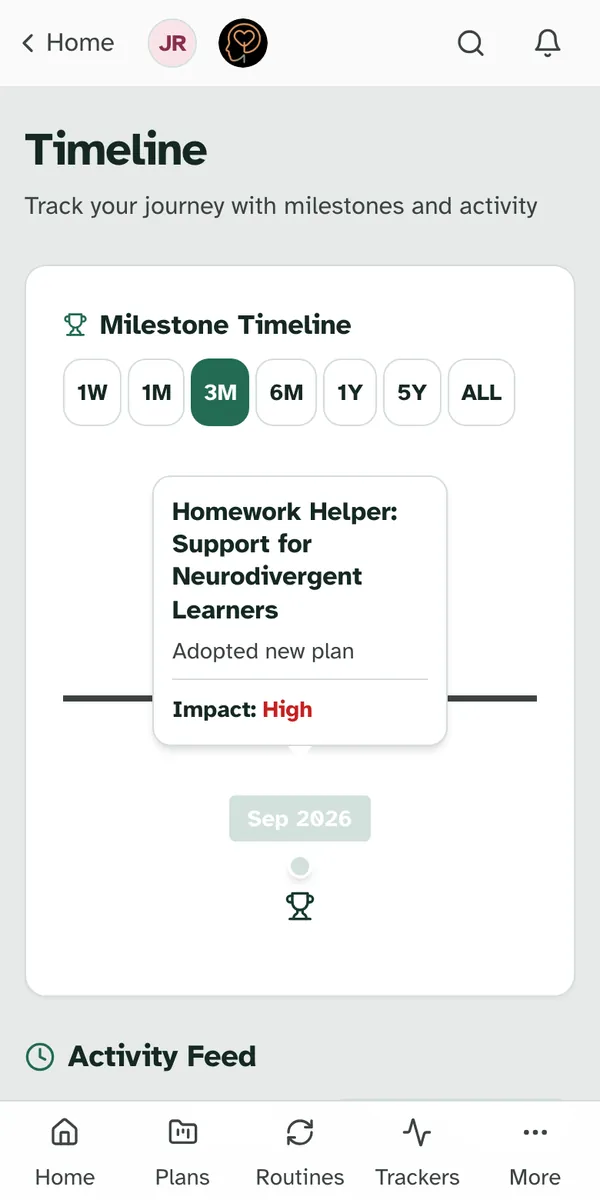
A new profile starts quiet. Until something happens, the page reads No timeline events yet. The milestone line fills in as tasks and goals are finished.
2. Read the activity feed
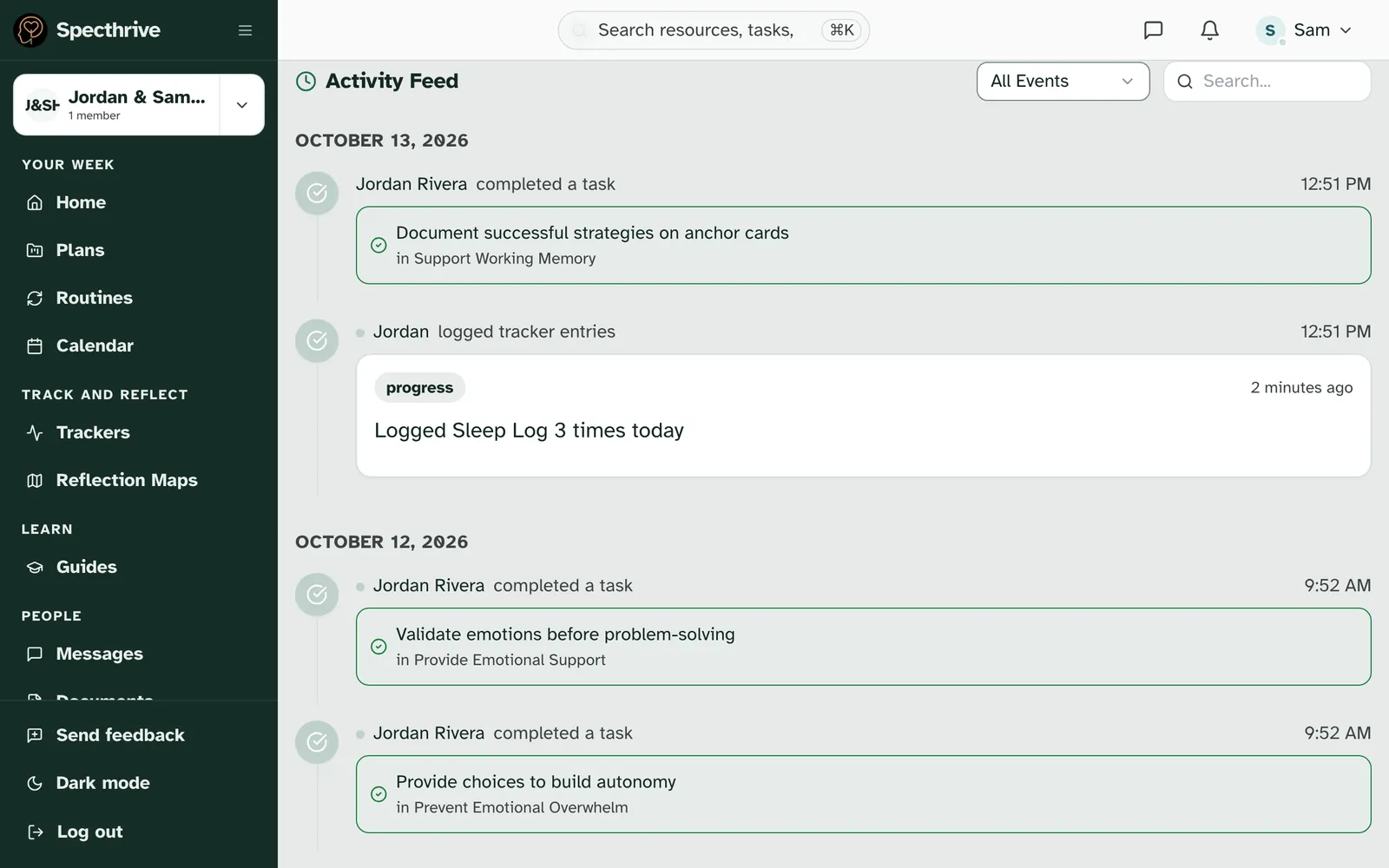
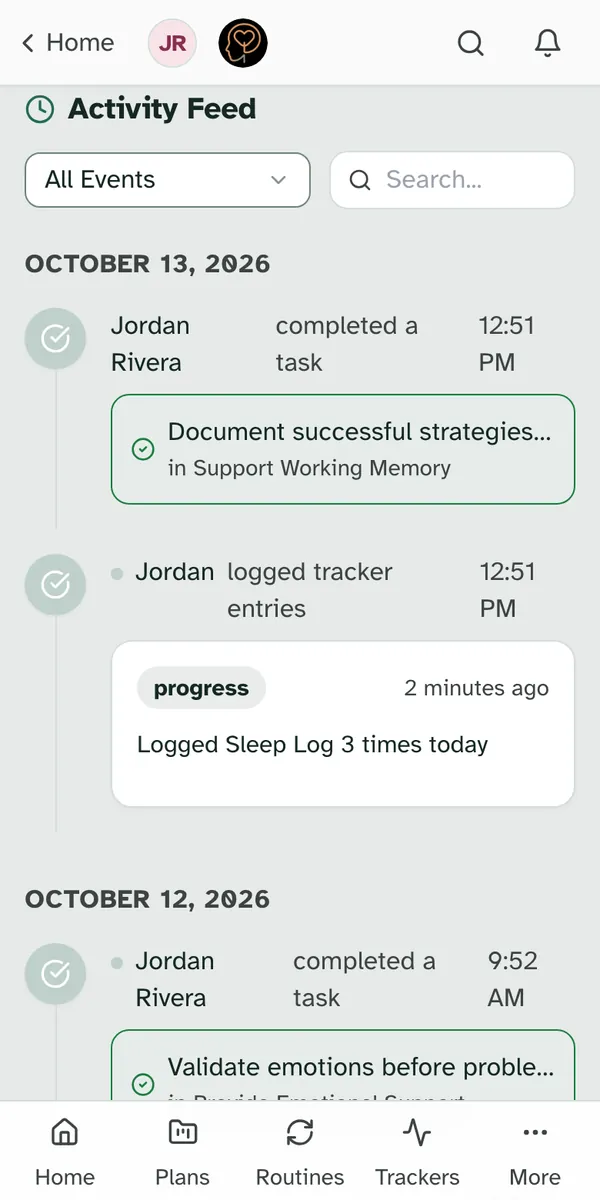
Below the milestones is the Activity Feed, newest first, grouped by day. Each row says who did what and when: "Jordan Rivera completed a task", with the task and the goal it belongs to underneath.
What can show up:
| Kind of entry | How it reads |
|---|---|
| Plans | "created a plan", "started a plan", "completed a plan" |
| Goals and milestones | "added a goal", "updated a goal", "completed a goal", "completed a milestone", "reached a milestone" |
| Tasks | "completed a task" |
| Trackers | "started a tracker", "started logging", "logged a tracker entry", "reached a new best" |
| Streaks | "reached a streak", "had a perfect week" |
| Work from a coach | "received work", and "started a routine" when that work becomes a routine |
| Documents | "added a document", with a Download button |
| Everything else | "booked a session", "updated the profile", "a new chapter" when someone starts managing the profile |
Tracker rows never show a number. A tracker entry says that something was logged, not what the answer was. To read the answers, open the tracker itself (see Notice patterns with trackers).
Find something. Use All Events to show only Tasks, Milestones & Goals, Achievements & Streaks or Lifecycle & Plans. Search... looks through the entries already on the page. At the bottom, Load More Events brings in older entries, twenty at a time.
3. Busy days fold into one row
Logging the same tracker three times in a day shouldn't push everything else off the screen. So on the feed, two or more entries of the same kind on the same day fold into one row:
| What happened | The row reads |
|---|---|
| The same tracker logged more than once | "Logged Sleep Log 3 times today" |
| More than one new best in a tracker | "2 new bests in Sleep Log today" |
| More than one piece of work from the same person | "Morgan sent 3 pieces of work today" |
On earlier days the row drops "today".
4. New entries
A new entry has a small dot beside the name. It clears by itself once the entry has been on screen for a few seconds, and the badge in the sidebar goes down with it. A folded row clears when every entry inside it has been seen. There is nothing to tick off, and nothing is lost if you never scroll that far.
5. What someone you share with sees
When you invite a coach, therapist or family member to a profile, you choose which areas they can see (see Working with a coach or therapist). The timeline follows those choices.
| What you share | What they see on the timeline |
|---|---|
| Timeline not shared | No timeline at all. |
| Timeline, but not plans | That plan work happened, and when, without the names: "Task completed", "Goal completed", "Plan started", "Work received". |
| Timeline, but not trackers | That a tracker was logged, without which one: "Tracker entry logged", "Tracker started", "New best". A folded row reads "Logged 3 tracker entries today". |
| Timeline, but not documents | No document entries. |
| Timeline, but not calendar | No "booked a session" entry. |
They always see who did something, just not what it was called.
The dots are shared. An entry is new or seen for everyone on the profile, so when someone with Can edit sees an entry, its dot clears for you too. Someone with Read only sees the dots, but their reading never clears them.
Some things stay off the timeline for everyone. Notes, a tracker goal someone set and work a coach took back are kept in the profile's record and its export, but they don't appear in the feed.
Getting help
If something on the timeline looks wrong or is missing, contact us and tell us which profile and roughly when it happened. We'll take a look.
Still have a question?
If this guide did not cover your situation, reach out. We read every message.