Keep your sign-in secure
Your password, two-factor authentication, passkeys and signed-in devices, all in Settings → Security. Plus what Specthrive admins need to set up.
Everything about how you sign in lives in one place: Settings → Security. It has your password, two-factor authentication, passkeys, the devices you're signed in on, and the accounts you sign in with.
None of it is required, unless you're a Specthrive admin (see For Specthrive admins at the end). Pick what suits you, whenever you're ready.
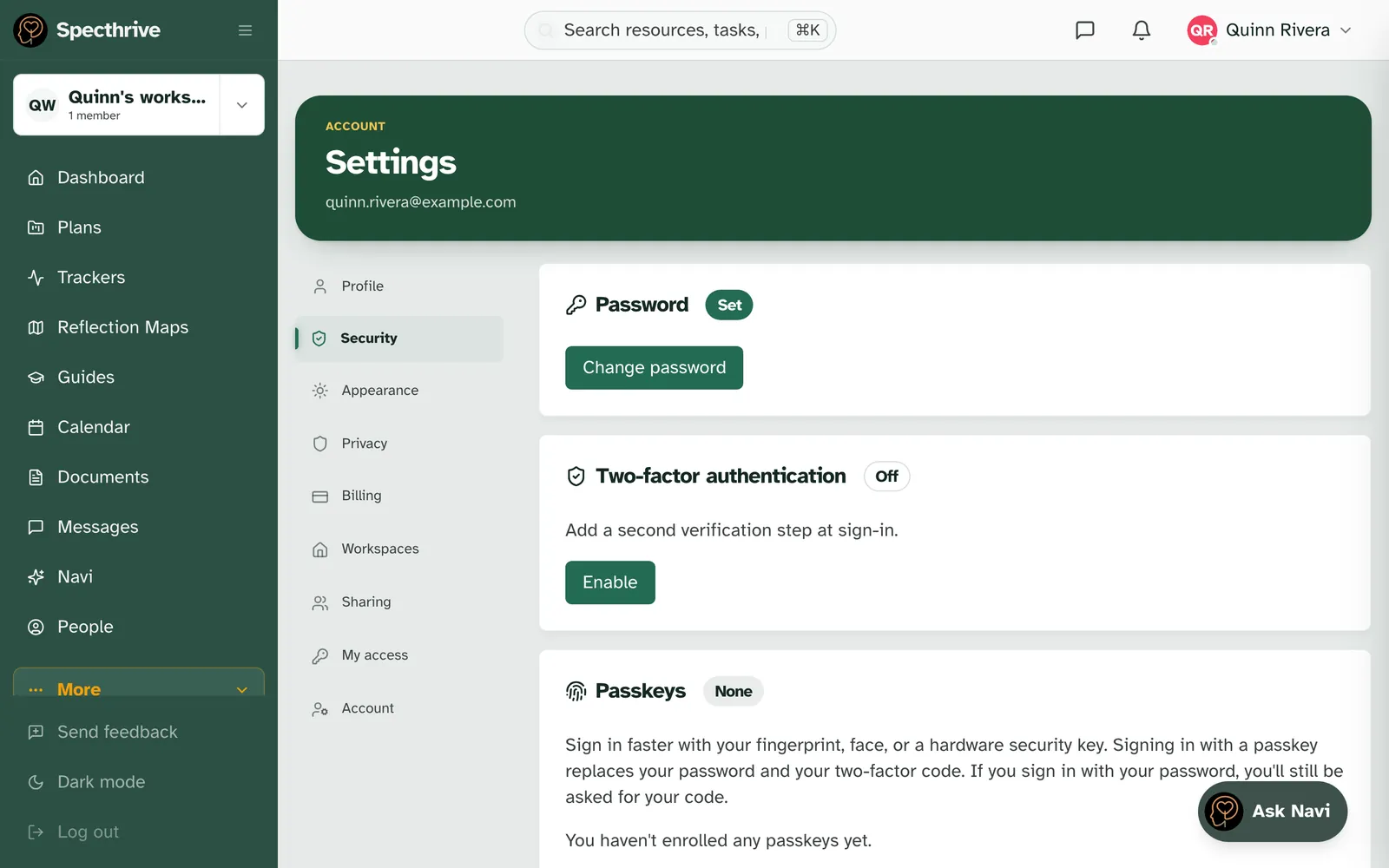
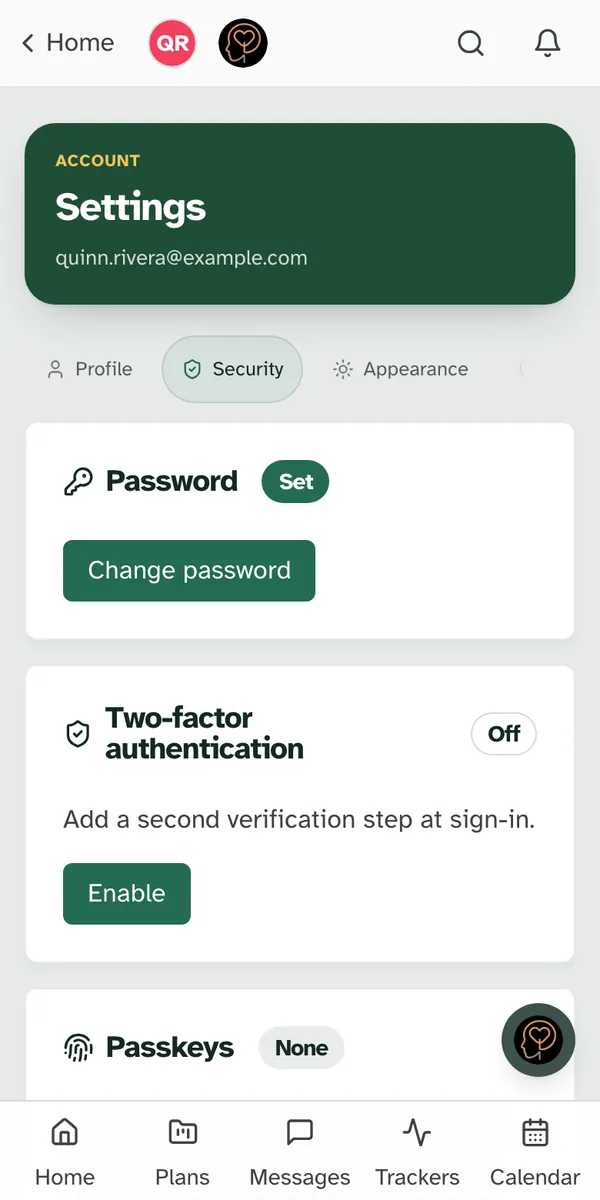
Your password
To change it, choose Change password, enter your current password, then the new one twice. "Your other signed-in devices will be signed out after a successful change." If you've forgotten the current one, the window has a link to email yourself a reset.
If you signed up with Google, Apple or Microsoft, your account has no password yet, and the card says so. Choose Set a password if you'd like one. With a password you can turn on two-factor authentication, and you have another way in if you ever lose access to the account you signed up with.
Two-factor authentication
Two-factor adds a second step when you sign in with your password: a 6-digit code from an authenticator app on your phone. The sign-in page calls it Two-step verification. It's the same thing.
To turn it on, choose Enable on the Two-factor authentication card. It takes three steps:
- Confirm your password.
- Scan the QR code with an authenticator app, then enter the 6-digit code it shows. The app lists the entry as Specthrive. If you can't scan, the window shows a secret you can type in instead.
- Save your backup codes. "Each code can be used once. Save them in your password manager or print them." You can copy them or download them as a file. Tick "I've saved these codes somewhere safe." and choose Done.
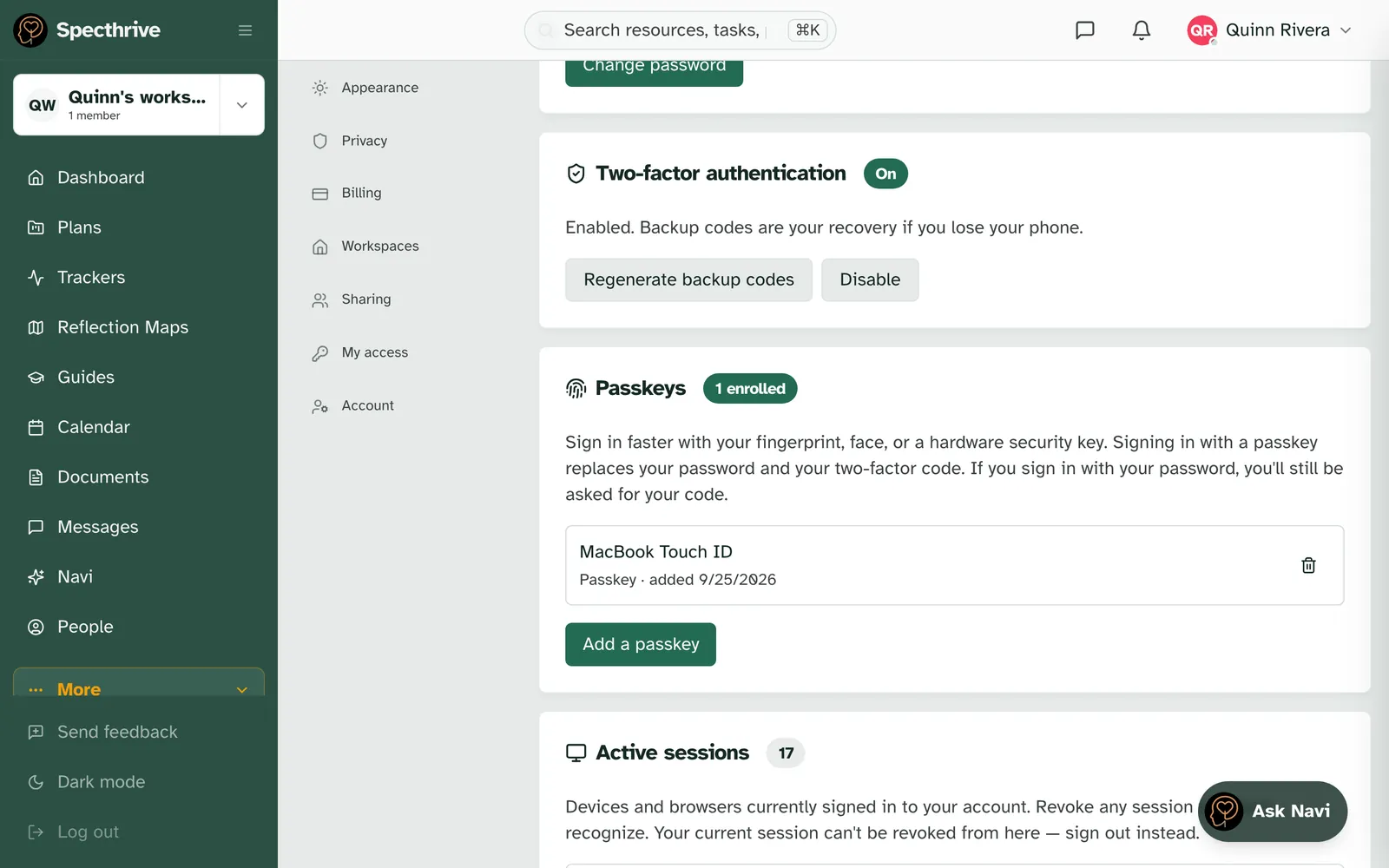
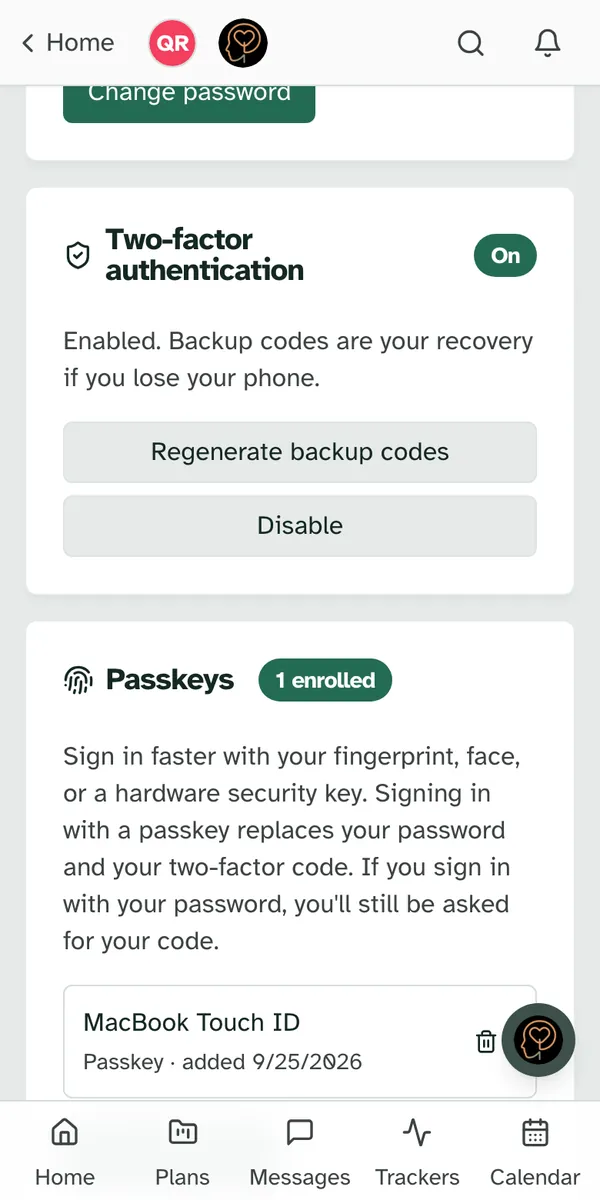
The card then reads On: "Enabled. Backup codes are your recovery if you lose your phone."
Signing in with it on. After your password, the page asks for the code: "Open your authenticator app and enter the 6-digit code." You can tick Trust this device for 30 days so this device won't ask again for a while. No phone to hand? Choose Use a backup code and enter one of your saved codes.
New backup codes. Regenerate backup codes asks for your password and gives you a fresh set. The old ones stop working, so save the new ones straight away.
Turning it off. Disable asks for your password. After that, "You'll only need your password to sign in."
If you signed up with Google, Apple or Microsoft, two-factor starts from a password. The card says so and offers Set a password. Once it's set, you can turn two-factor on without leaving the page.
Passkeys
A passkey lets you sign in with your fingerprint, your face, your device's PIN or a hardware security key, instead of typing a password. As the card puts it: "Signing in with a passkey replaces your password and your two-factor code. If you sign in with your password, you'll still be asked for your code."
To add one, choose Add a passkey and give it a name you'll recognize later, such as the device it lives on. Choose Continue, and your browser or phone asks you to confirm with your fingerprint, face or PIN. The passkey then appears on the card with its name and the day you added it.
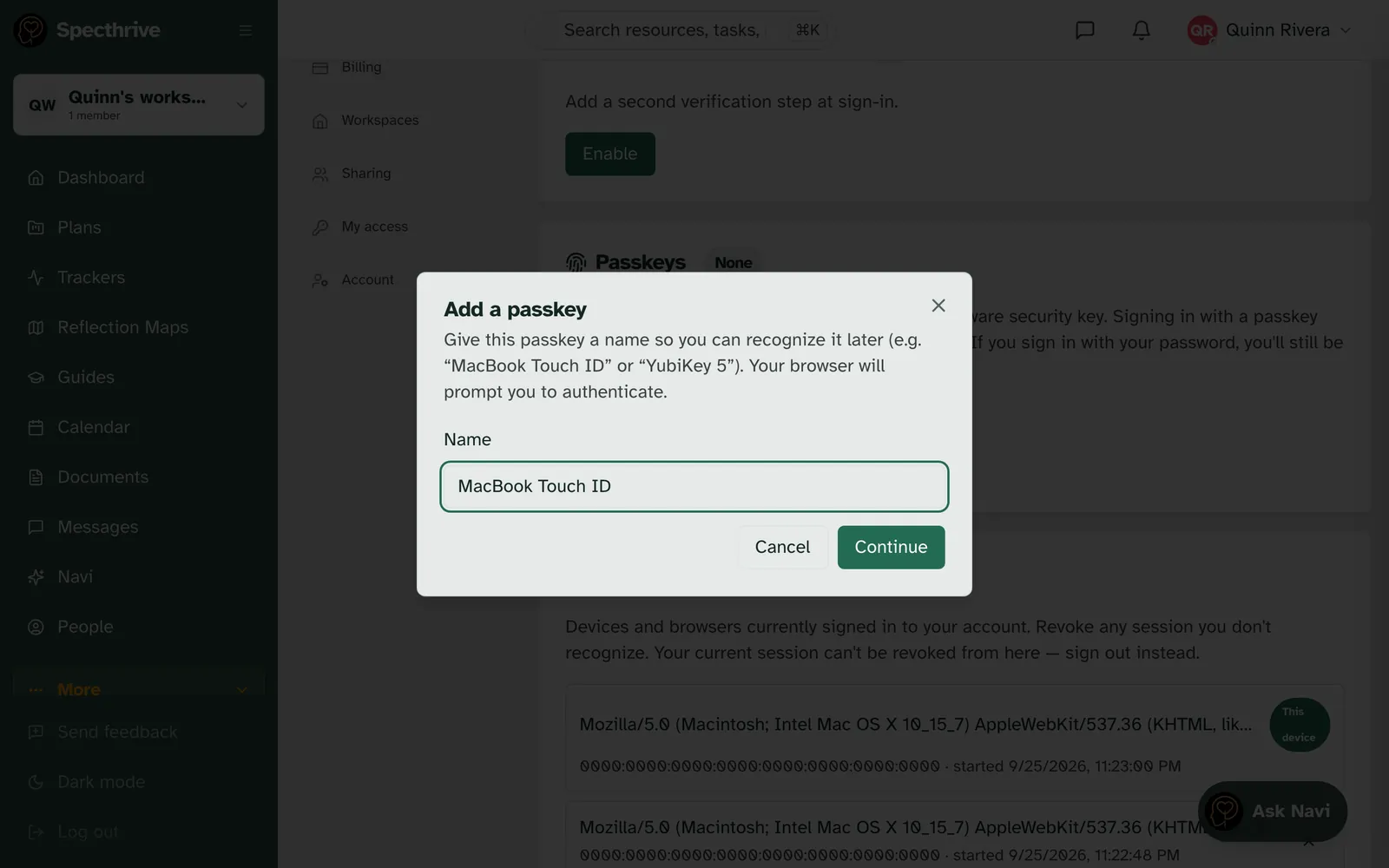
To sign in with it, choose Sign in with passkey on the sign-in page. Your browser may also offer your passkey when you tap the email box.
To remove one, choose the bin beside it. "You can add it again later if you change your mind." You can add as many as you like, one per device if you want.
Devices and connected accounts
Active sessions lists every device and browser signed in to your account. If you see one you don't recognize, revoke it, or choose Revoke all other sessions. To end the session you're using right now, sign out.
Connected accounts shows the ways you can sign in: your email and password, and any Google, Microsoft or Apple account you've linked. You can link another from Add a sign-in method. You always keep at least one, so you can't lock yourself out by removing the last.
For Specthrive admins
If you're a Specthrive admin, a second sign-in step is required, not optional. You have 7 days to set it up, counted from when your admin role was granted. Either way counts:
- Two-factor authentication with an authenticator app, as above.
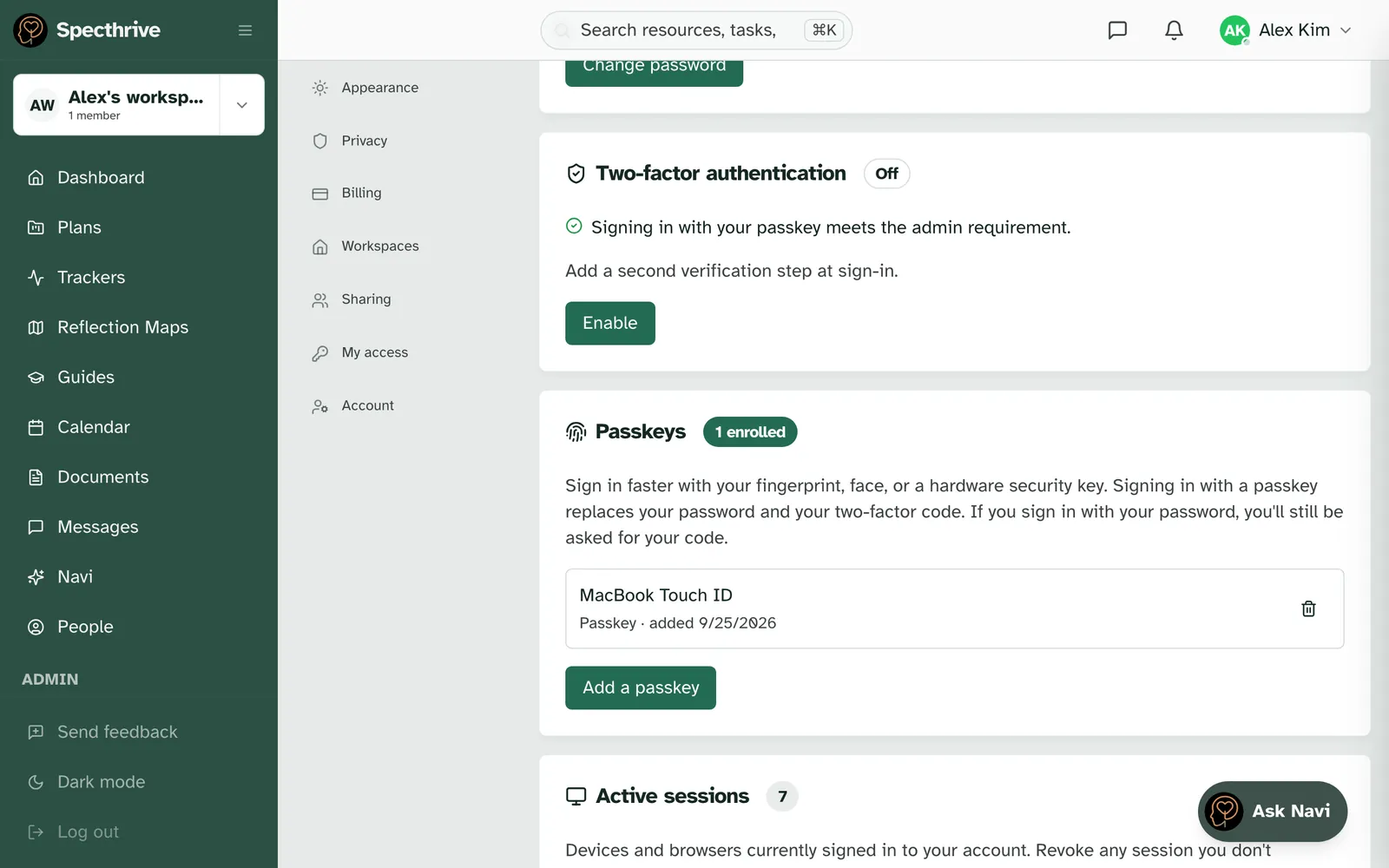
- A passkey, as long as your device checks your PIN, fingerprint or face when you use it. Your phone or laptop does this for you.
Until then, a reminder sits at the top of every page, with the days left and an Enroll now button that opens Settings → Security. It goes away once you have two-factor or a passkey.
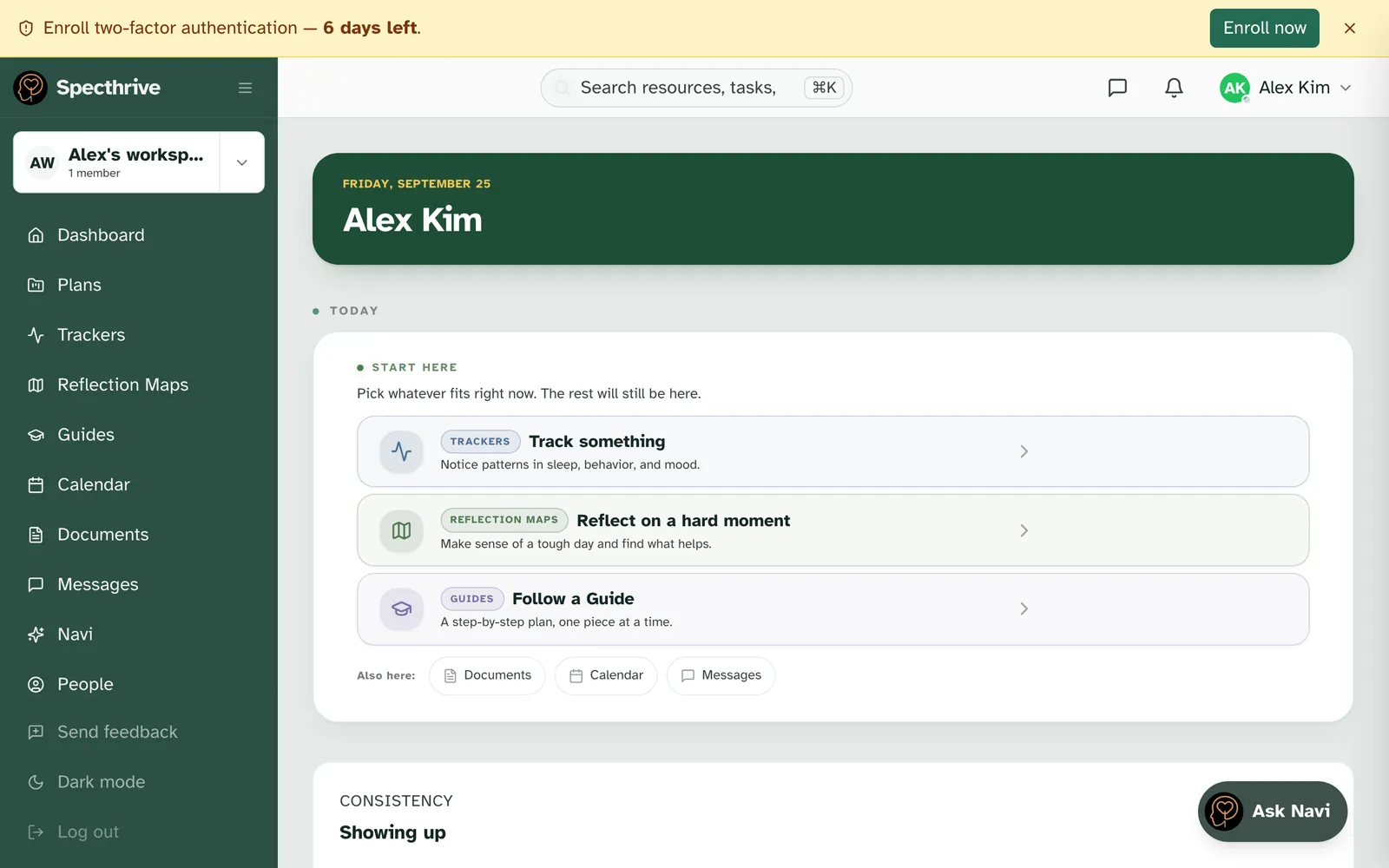
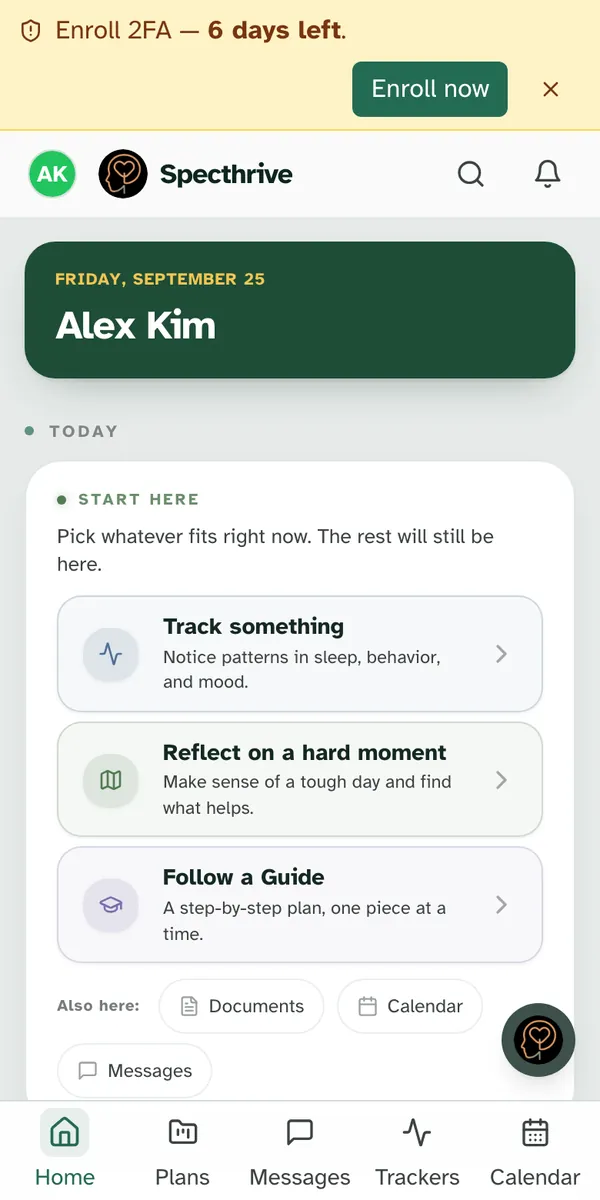
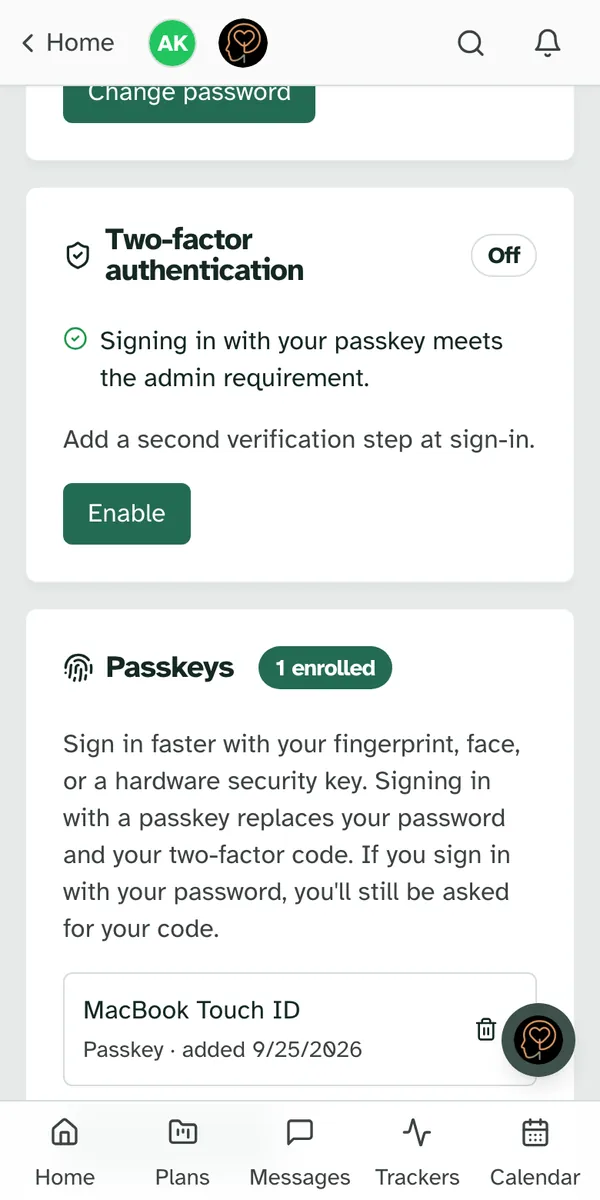
With a passkey, the two-factor card tells you you're covered: "Signing in with your passkey meets the admin requirement."
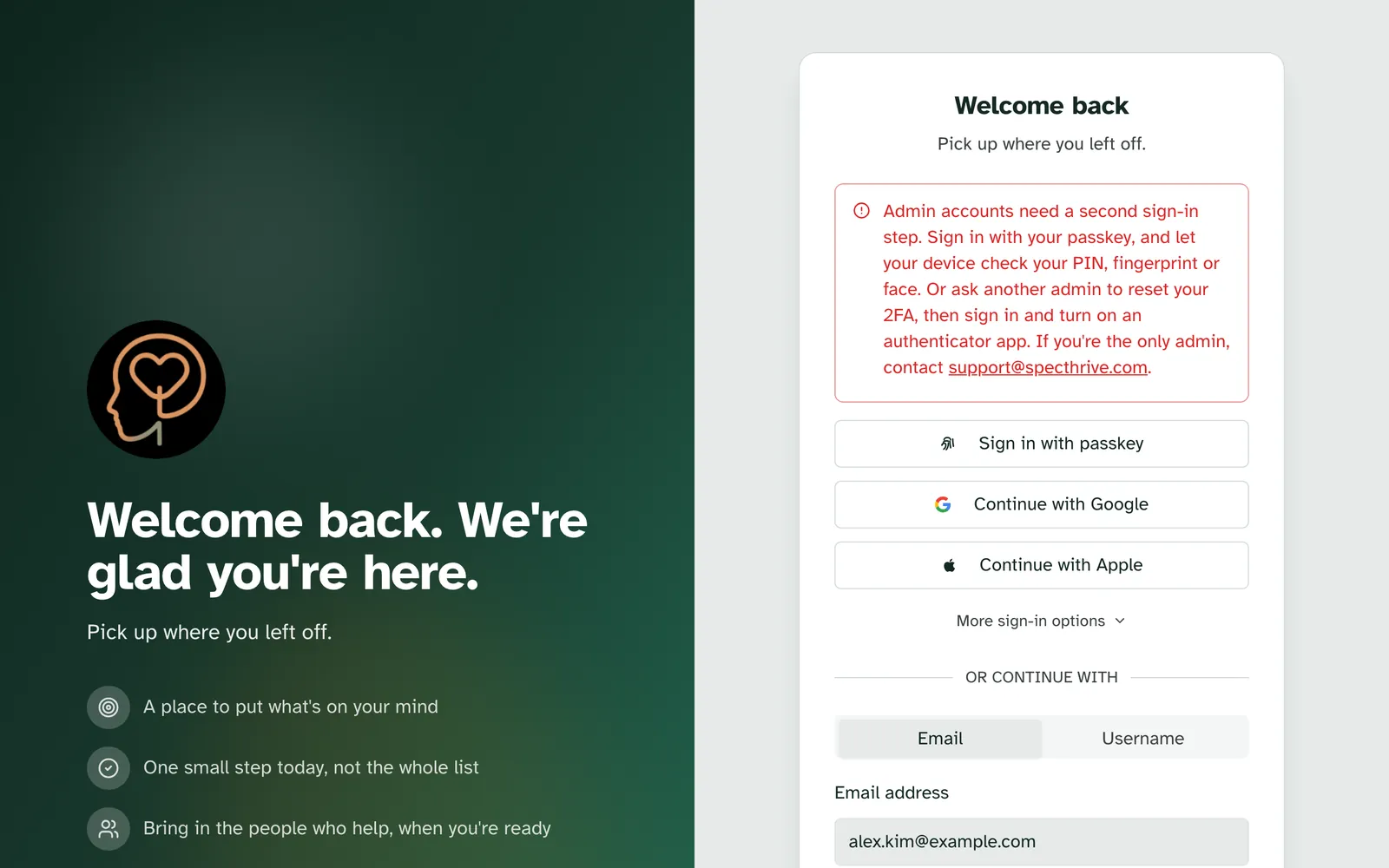
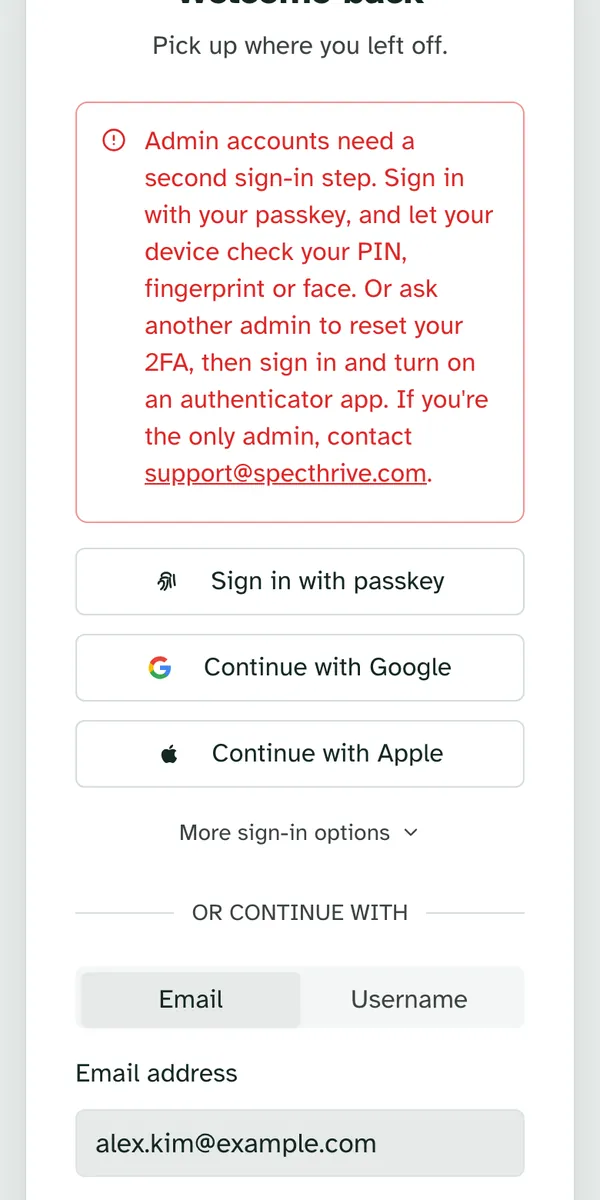
After the 7 days, if you have neither, signing in with a password, or with Google, Apple or Microsoft, is refused. Try it with your email and password and the sign-in page says: "Admin accounts need a second sign-in step. Sign in with your passkey, and let your device check your PIN, fingerprint or face. Or ask another admin to reset your 2FA, then sign in and turn on an authenticator app."
You can't turn two-factor off yourself once the 7 days are up. The window explains: "Admins need two-step sign-in on. Ask another admin to reset it if you've lost your device."
Lost the phone your two-factor codes come from? Try one of your backup codes first. If you have none left, another admin can choose Reset two-factor authentication for you from the users list in the admin area. It signs you out on every device and gives you 7 days to set it up again. No admin can reset their own.
Signed out with neither set up, or the only admin? Email support@specthrive.com.
Getting help
If something here does not match what you see on your screen, or you're locked out, get in touch.
Still have a question?
If this guide did not cover your situation, reach out. We read every message.